Store design
How to add a Buy now button and order form
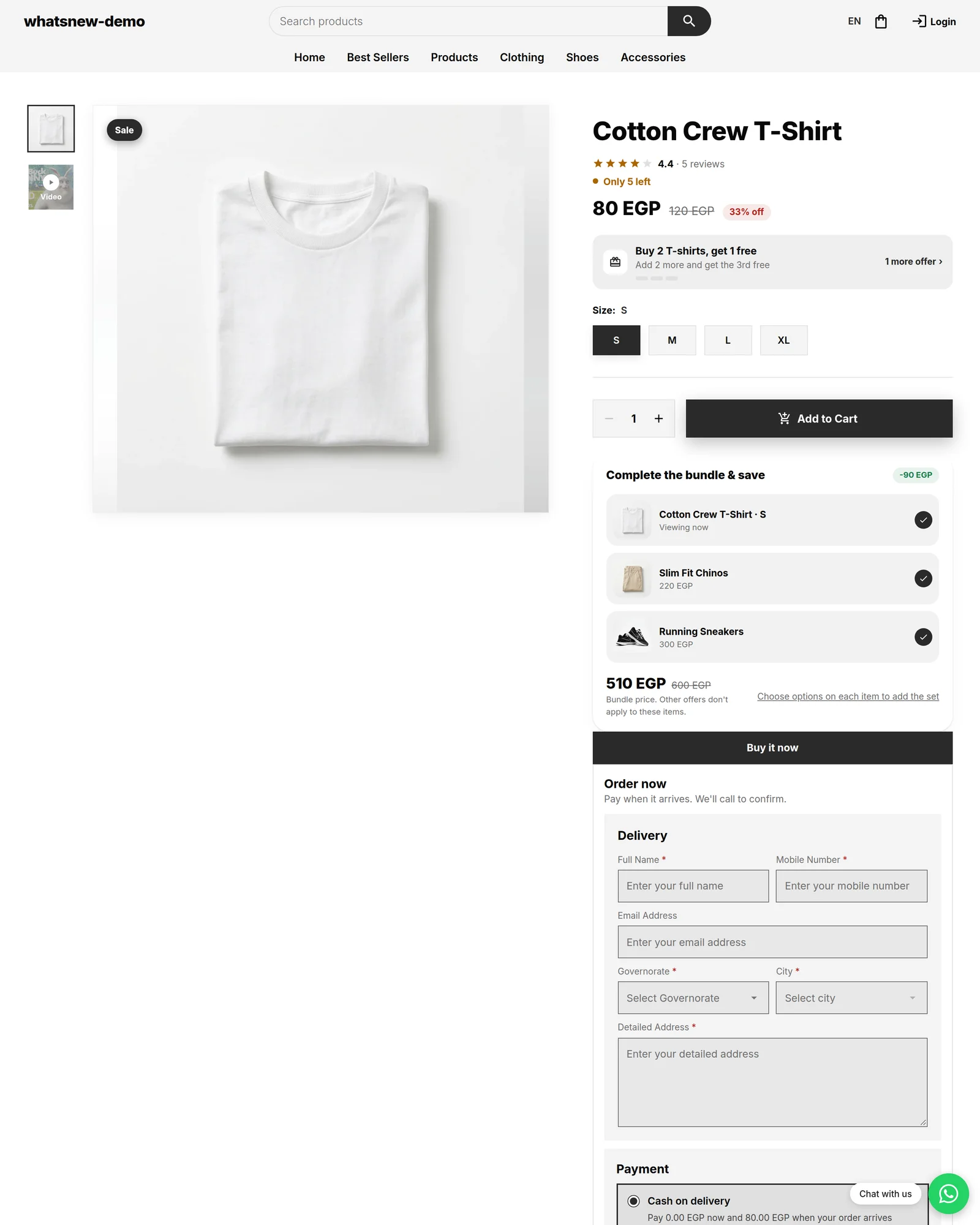
How to add a Buy now button to your online store, plus an order form on the product page, so shoppers can order one product without the cart.
- Where
- Page Builder, product page
- Who can use it
- Every store
- Default
- Off until you switch it on
- Works with
- Cash on delivery, card and deposits
Want to know how to add a Buy now button to your online store? With one, a shopper can order a single product in a few taps, without filling a cart first. You can also put a full order form right on the product page. This guide shows how to turn both on, change their text and colours, and check how they look to shoppers.
Before you start
Both options are off by default, so nothing changes in your store until you switch them on. Think about which one suits your products.
- Buy now button: good when shoppers usually buy one item at a time, such as a single phone case or a perfume. It opens a short checkout page for that one product.
- Order form on the product page: good for cash on delivery stores where fewer taps means more orders. The shopper fills in their details without leaving the product.
Make sure your checkout fields, shipping areas and payment methods are ready first, because both options use them. If you have not set up delivery yet, start with How to set up shipping areas and prices.
Open the product page in the page builder
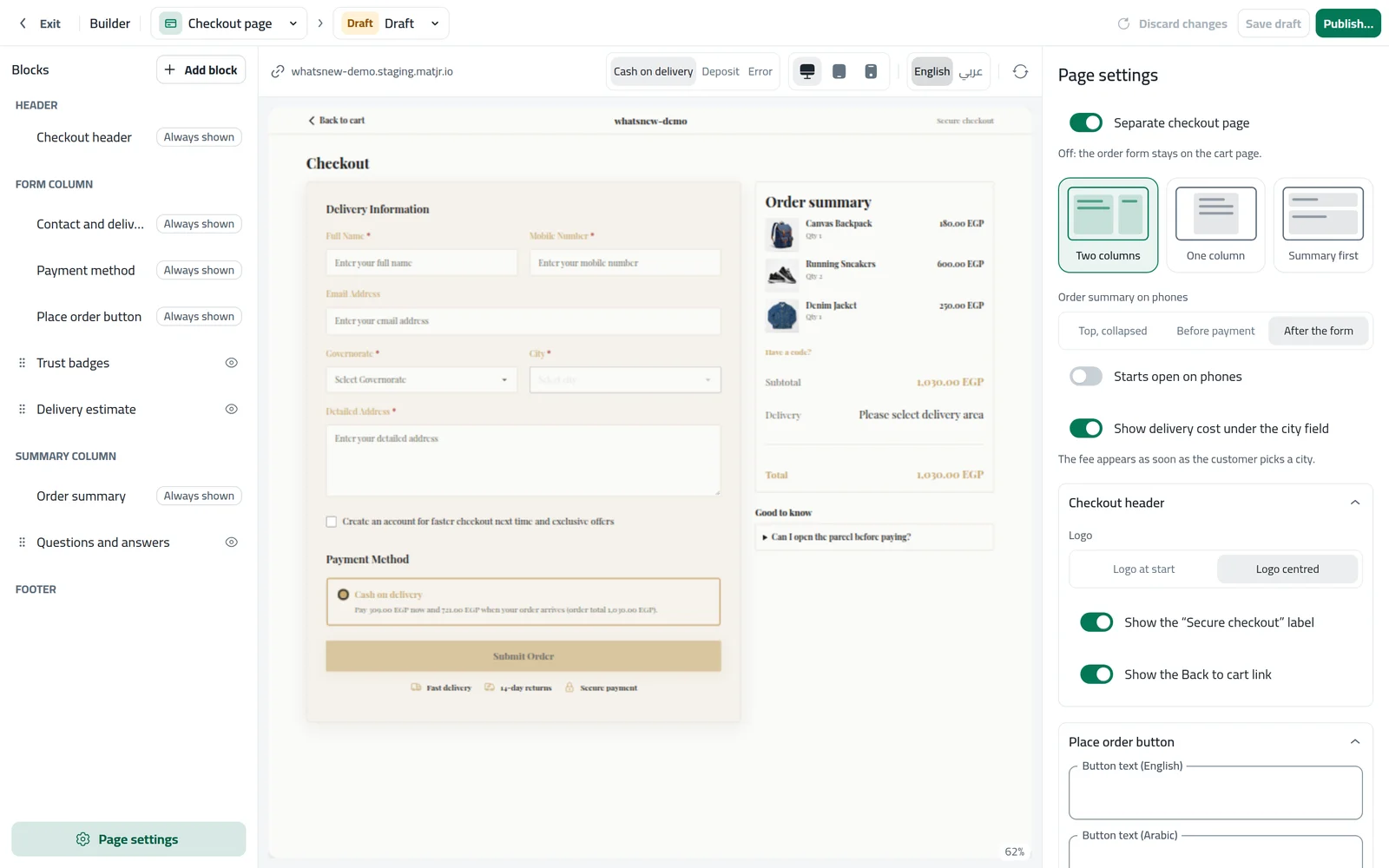
Open Page Builder from the dashboard menu and choose the product page. The list of blocks shows every part of the page: title, price, options, Quantity and Add to cart, Buy now button, Order form, trust badges and more.
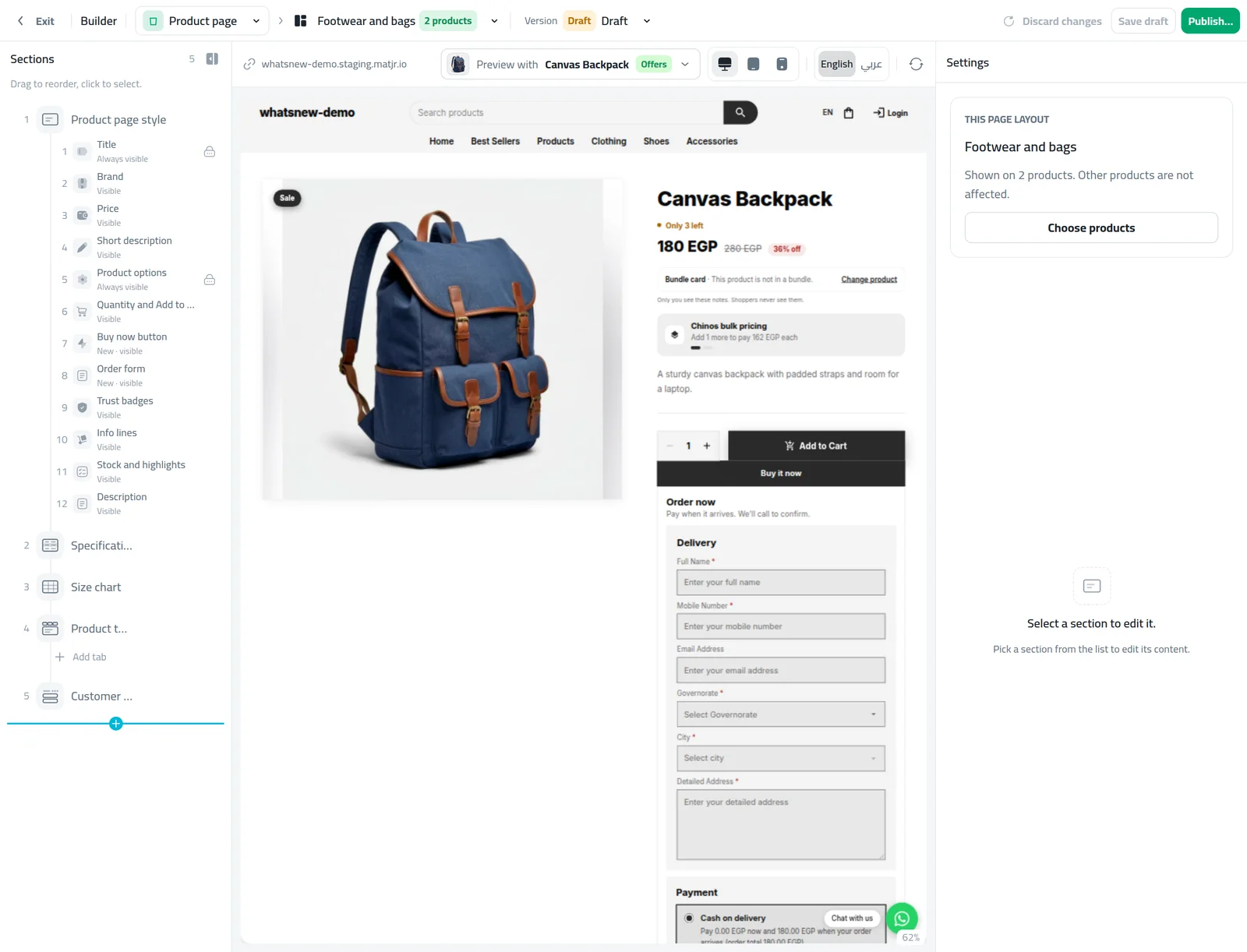
Each block has an eye. Press it to show or hide the block, and drag a block up or down to change the order. A caption under the name tells you if the block is visible, hidden or new. The title and the options are always visible. You can hide Quantity and Add to cart only while the Buy now button or the order form is visible, so shoppers always have a way to order.
Set up the Buy now button
Press the eye next to Buy now button so it is visible. The caption under its name changes to show that the block is visible.
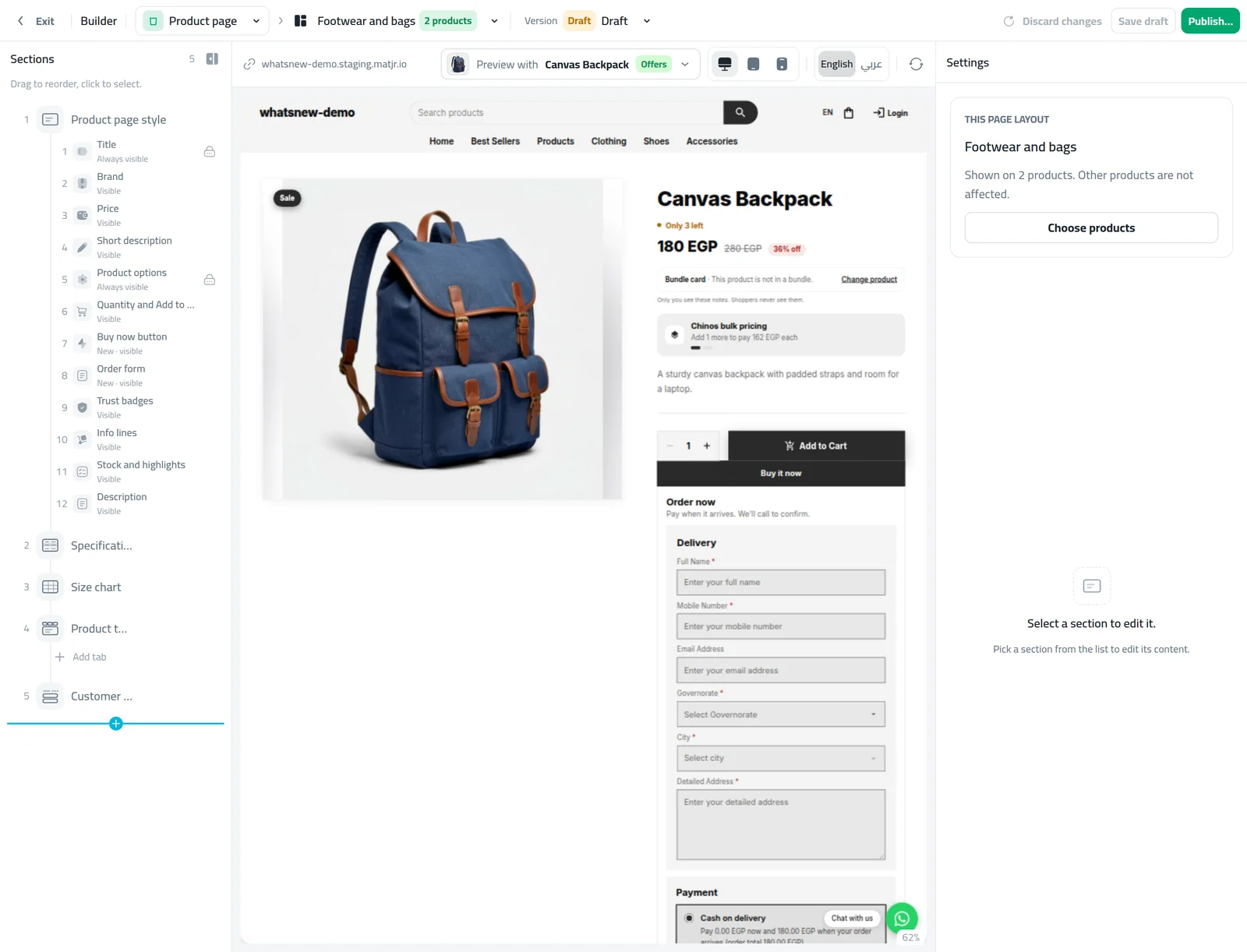
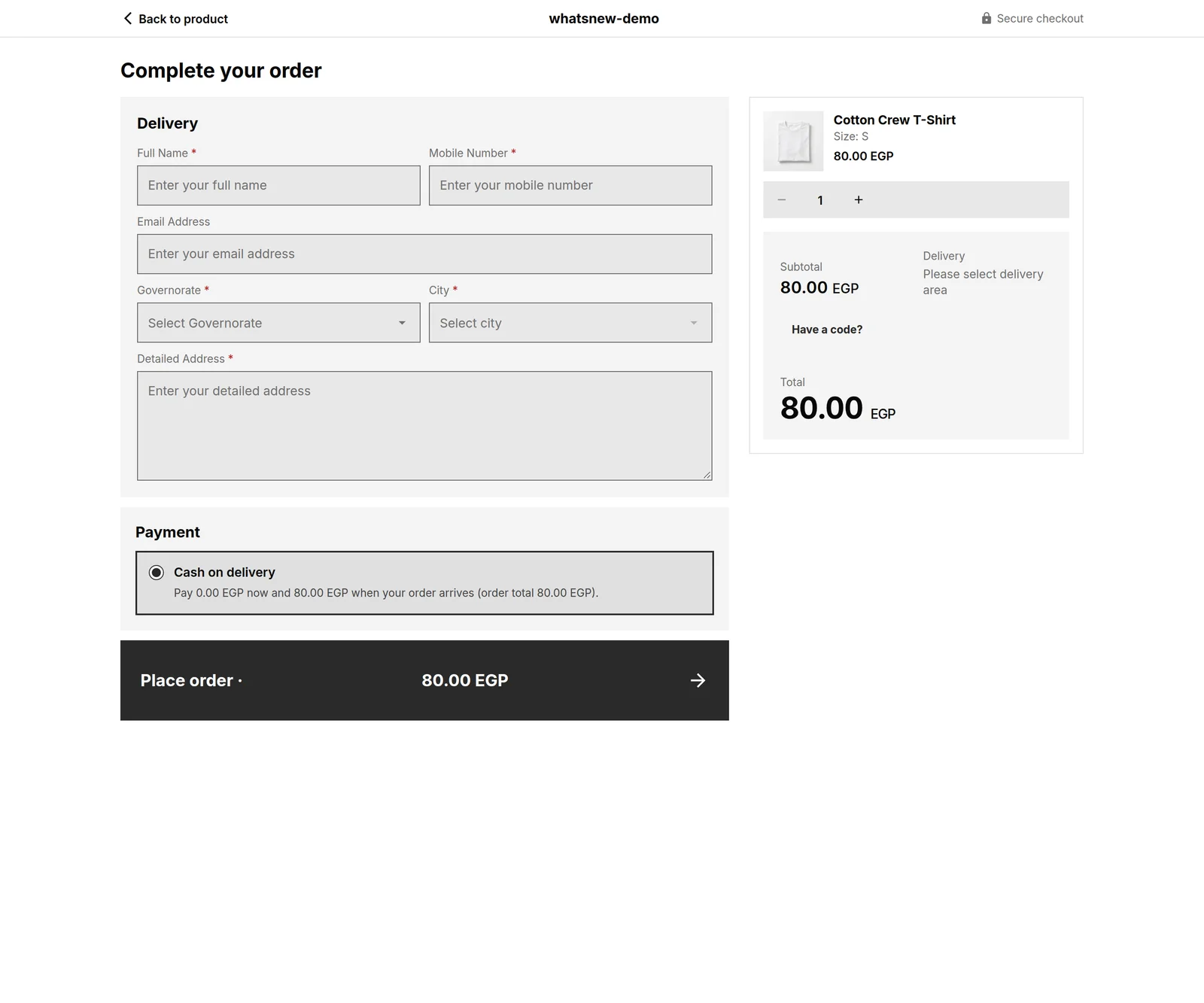
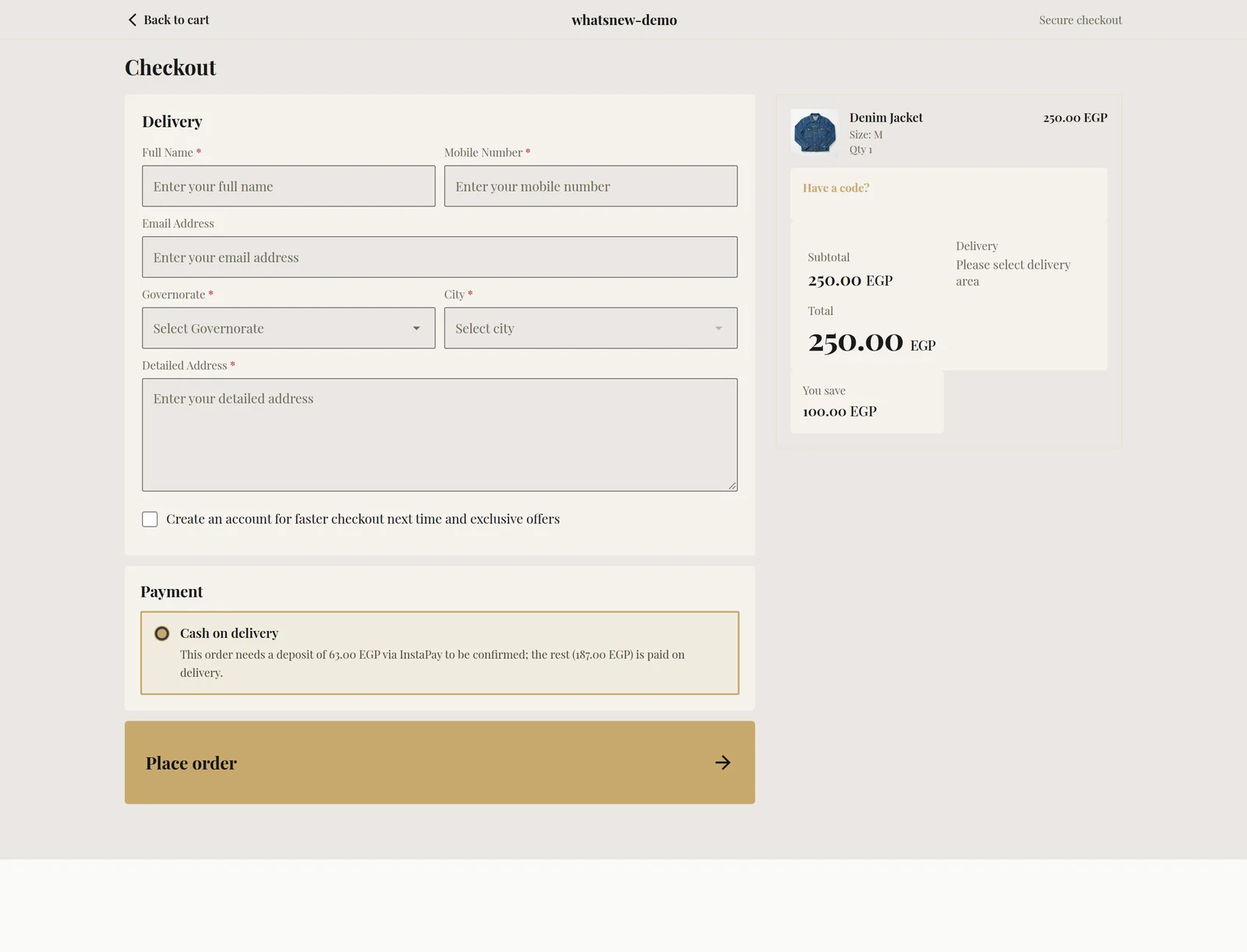
Select the block to change it. Type the button text in English and Arabic, pick a colour scheme, and choose whether the button is Filled or Outlined. Under Buy now page, write the page heading and the place order button text. Press Preview the Buy now page to see the page shoppers land on, and Back to the product page preview when you are done.
You can also switch on Show in the phone bottom bar, so the button stays in reach while a shopper scrolls on a phone. The Buy now page has its own short header, with a link back to the product, your store name and a secure checkout note. It has no menu or footer, so nothing pulls the shopper away.
Set up the order form
Press the eye next to Order form so it is visible. The caption under its name changes to show that the block is visible.
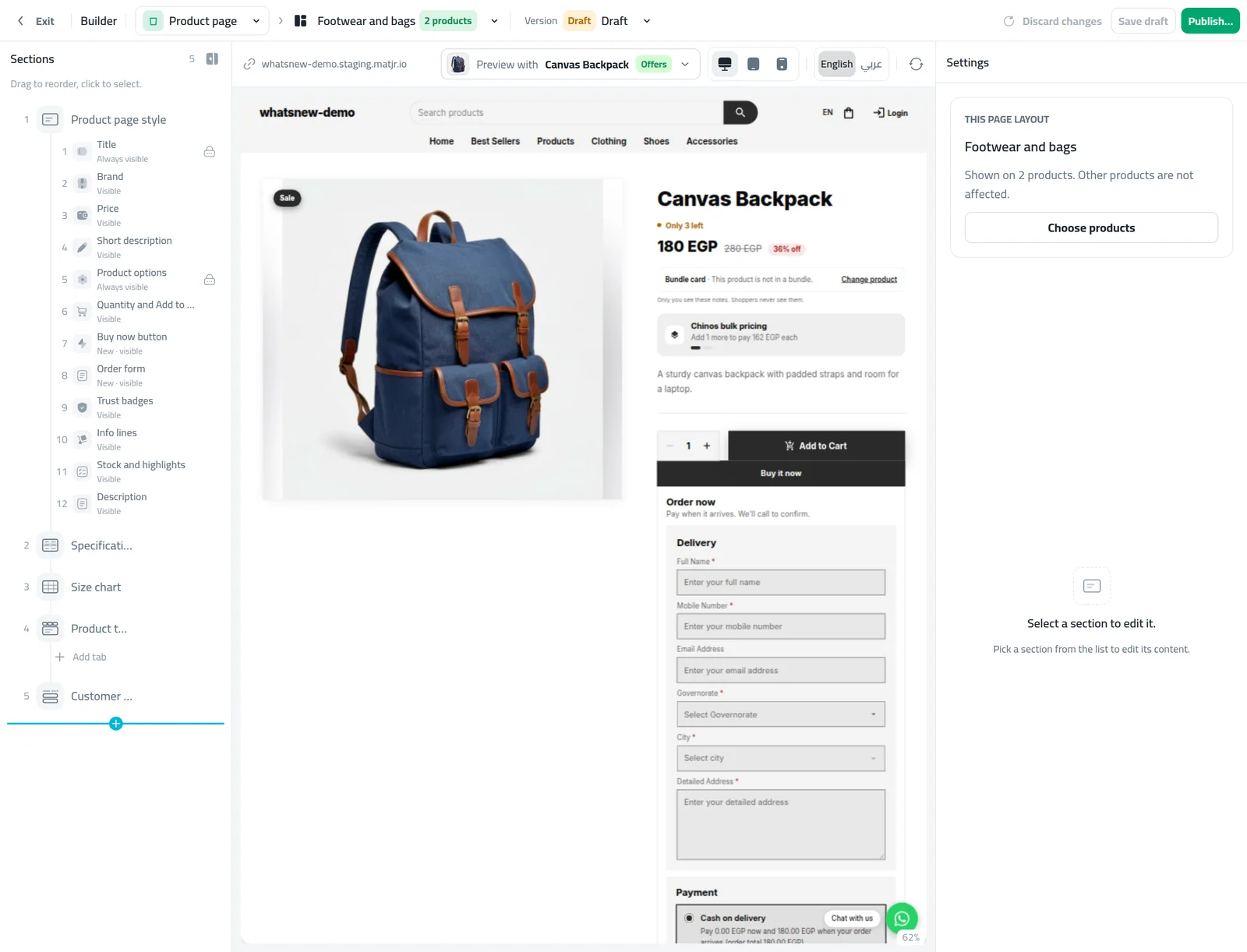
Select the block to change it. Write a title, a subtitle and the button text. Choose a Bordered or Filled box, and decide whether to show the order total and the discount code box.
The fields in the form come from your checkout form settings, so the form asks for the same details as your cart. When you are happy with the preview, press Publish. Shoppers see the change on every product that uses this page design.
Check it as a shopper
Open one of your products in your store. You should see the Buy now button and the order form in the places you chose. Change the quantity or the option, and the form follows it.
Press the Buy now button. The shopper lands on a short checkout page with only that product, the same fields as your cart, the payment methods you offer and a place order button.
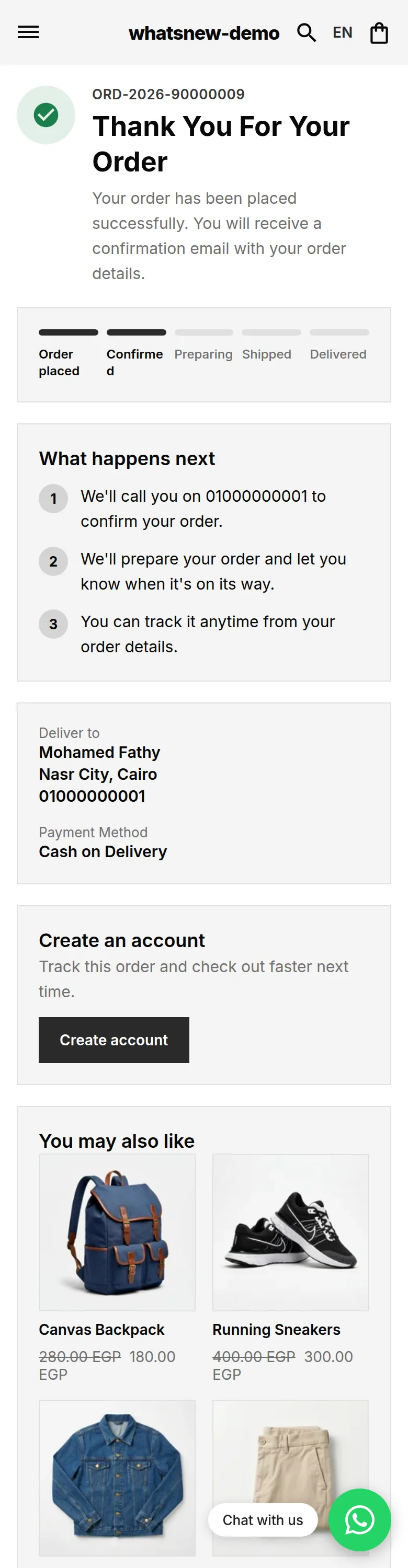
A shopper never touches the cart with these two options, so items already in their cart stay there. After ordering, they reach your normal order confirmation page, or your card payment page if they chose to pay online.
Common mistakes
- Hiding every way to order. Keep at least one of Add to cart, Buy now or the order form visible.
- Forgetting the Arabic text. If Arabic is enabled in your store, fill the Arabic button text too, or Arabic shoppers see the default wording.
- Expecting changes right away on one product. If you assigned a different page design to a product, it can take a few minutes to show up.
- Placing a long heading. Keep button text short, up to 40 characters, and titles under 60.
Related tasks
- How to customize your product page to add video, delivery times and an FAQ.
- How to see how customers pay for orders once orders start coming in.
- How to take a deposit on orders if you ask for a deposit on cash orders. The deposit notice also shows on the Buy now page.
- What changed for this feature: Buy now button and order form on the product page.
Frequently asked questions
Does the Buy now button replace Add to cart?
No. They work side by side. Add to cart still fills the cart, while Buy now takes the shopper straight to a checkout page for that one product.
Can I use the order form and the Buy now button together?
Yes. You can show both, one of them, or neither. Keep at least one way to order visible on the page.
Does it work with cash on delivery and card payments?
Yes. The Buy now page and the order form use your checkout settings, including cash on delivery, card payment, deposits and discount codes.
Will it change my cart or the items a shopper already added?
No. Orders placed this way never read or change the cart.
Can I set it up for just one product?
Yes. Give that product its own page design in Page Builder and switch the blocks on there.
Try it on your own store
Start your free trial. No credit card required.