Marketing
How to add a popup to your online store
How to add a popup to your online store: pick a template, link a discount code, collect phone numbers and choose when it shows.
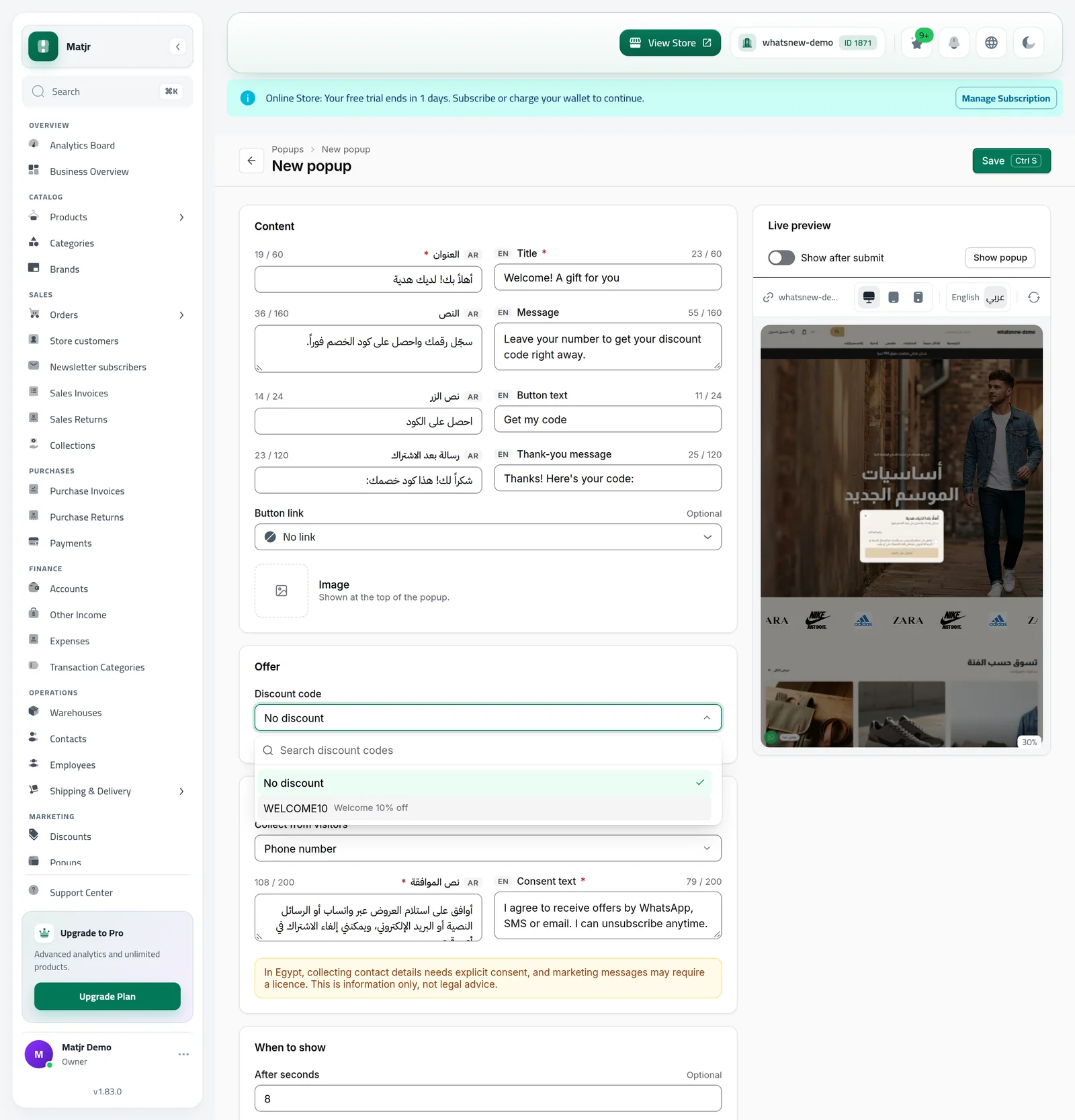
- Where
- Marketing, then Popups
- Who can use it
- Anyone who can edit the store design
- Collects
- Phone, email, or either
- Countries
- Egypt and UAE
This guide shows how to add a popup to your online store, from choosing a template to turning it on. A popup is a small window that appears over your store. Use it to welcome new visitors with a discount, announce a sale or free delivery, or collect phone numbers and emails for your next offer.
Before you start
- Decide the goal. A welcome offer brings first orders. A sale or Ramadan popup pushes a campaign. A newsletter popup grows your list of contacts. One clear goal per popup works best.
- Create the discount code first if you want to offer one. The popup can only link a promo code that is active. See how to create a discount code.
- Prepare an image if you want one: PNG, JPEG or WebP up to 15 MB. It shows at the top of the popup.
- Check your permissions. You need permission to edit the store design. Turning a popup on or off needs permission to publish it.
How to add a popup to your store
Open Marketing › Popups and press New popup.
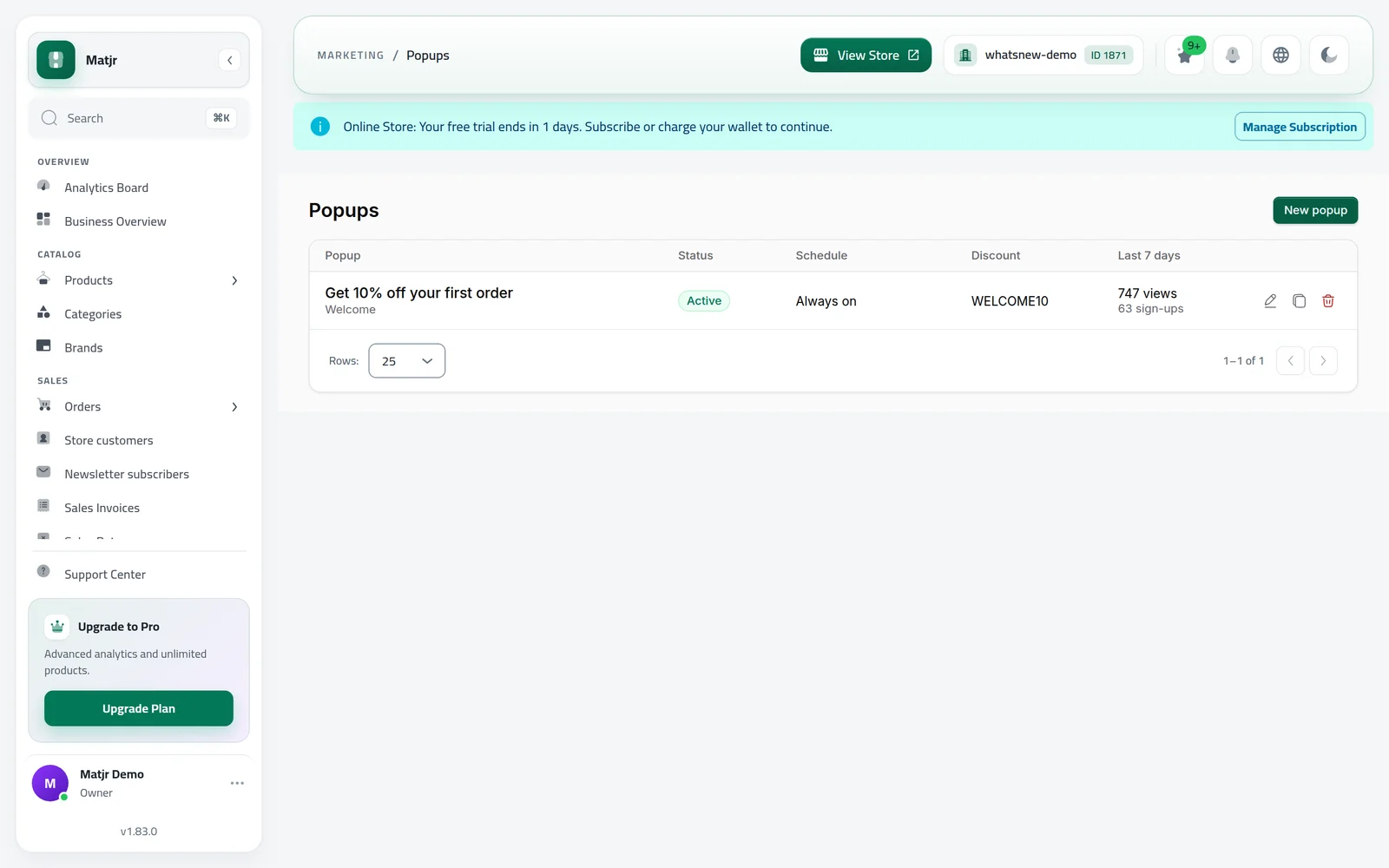
Under Choose a template, pick one: Welcome offer, Summer sale, White Friday, Ramadan and Eid, Free delivery, Newsletter, Announcement or Start from scratch. The text is filled in for you.
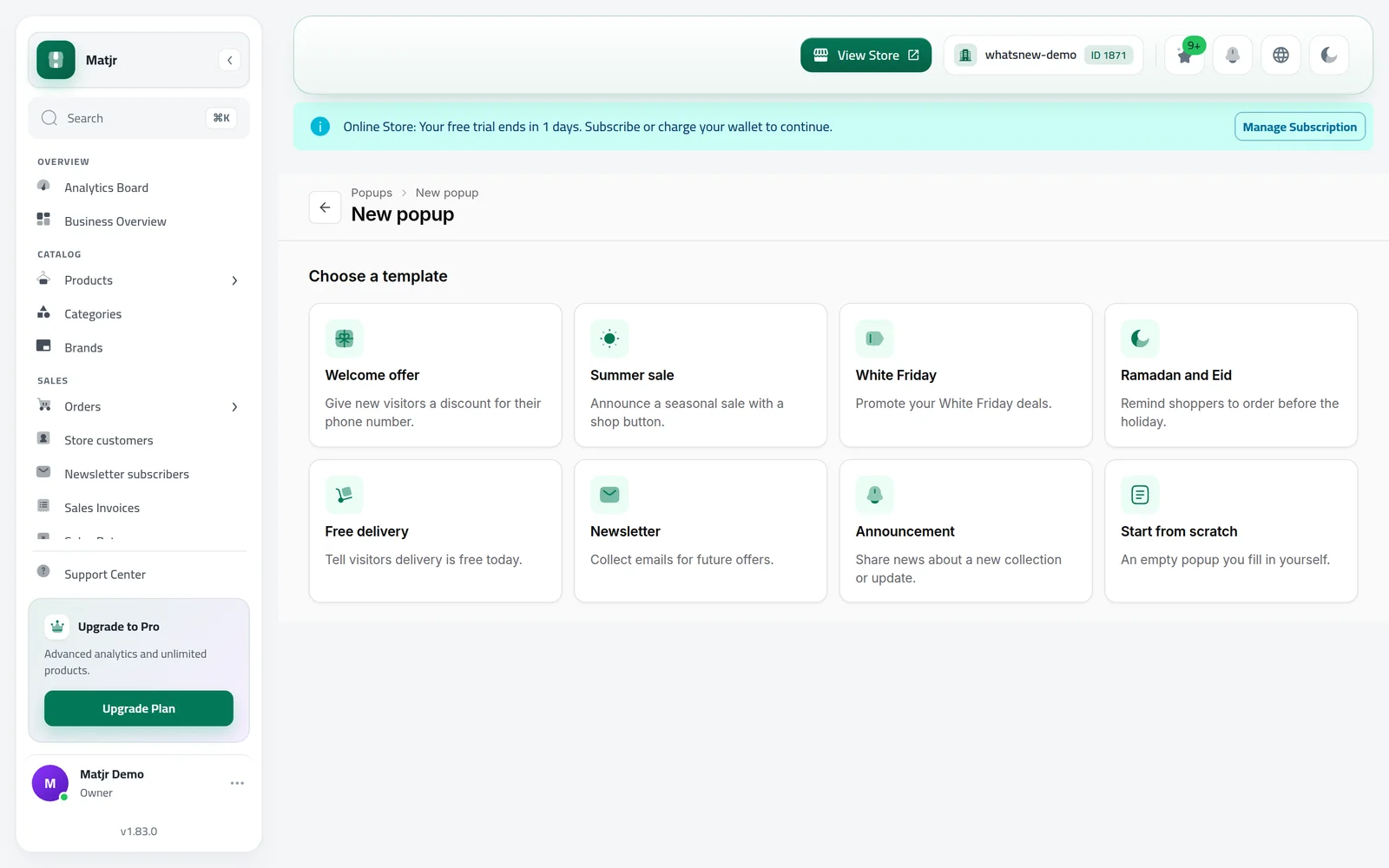
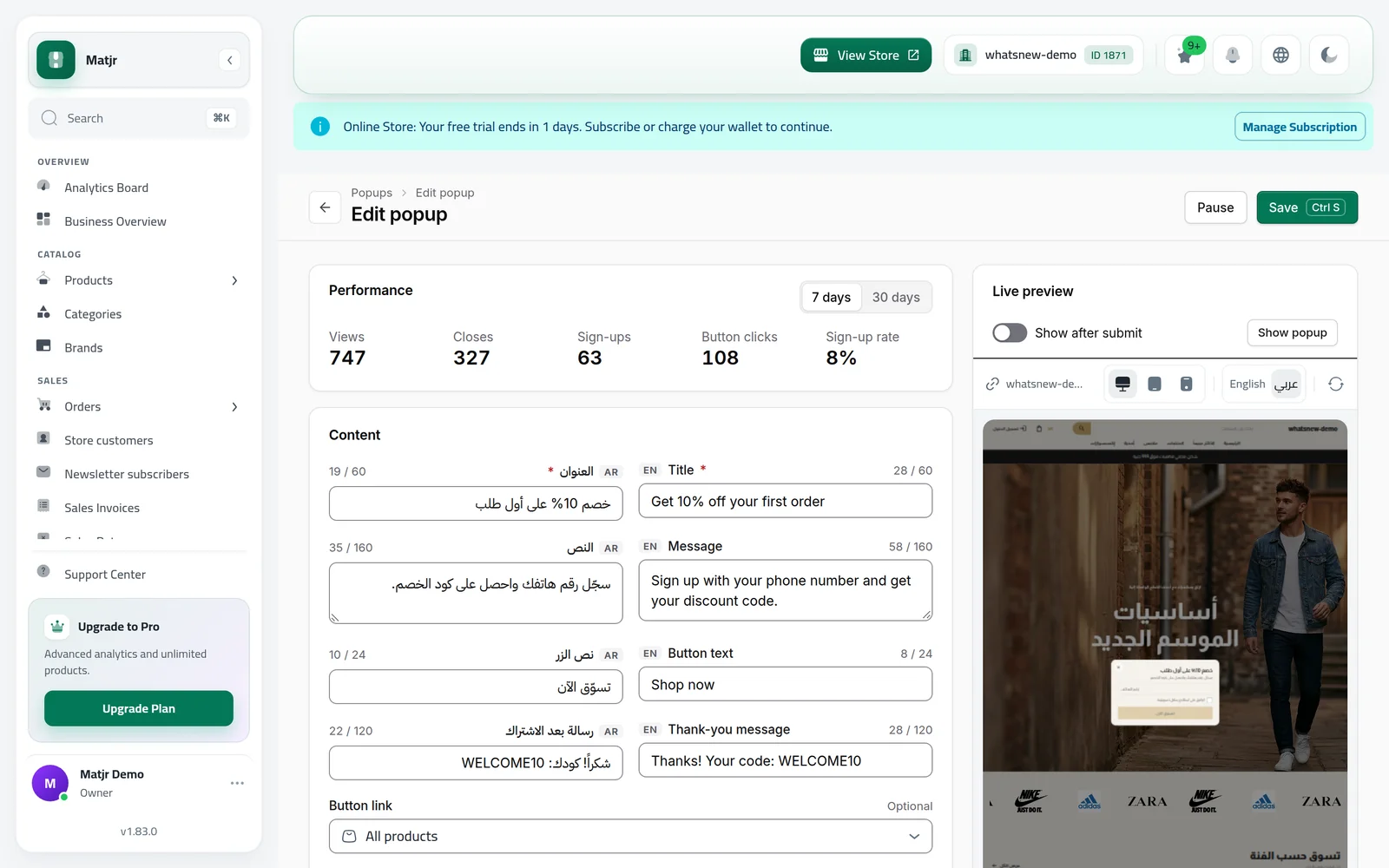
In Content, edit the Title, Message, Button text and Button link. In Offer, pick a Discount code or leave No discount.
In Sign-up, choose what to Collect from visitors and write the Consent text. In When to show, set the seconds, pages or scrolling, and the pages it shows on.
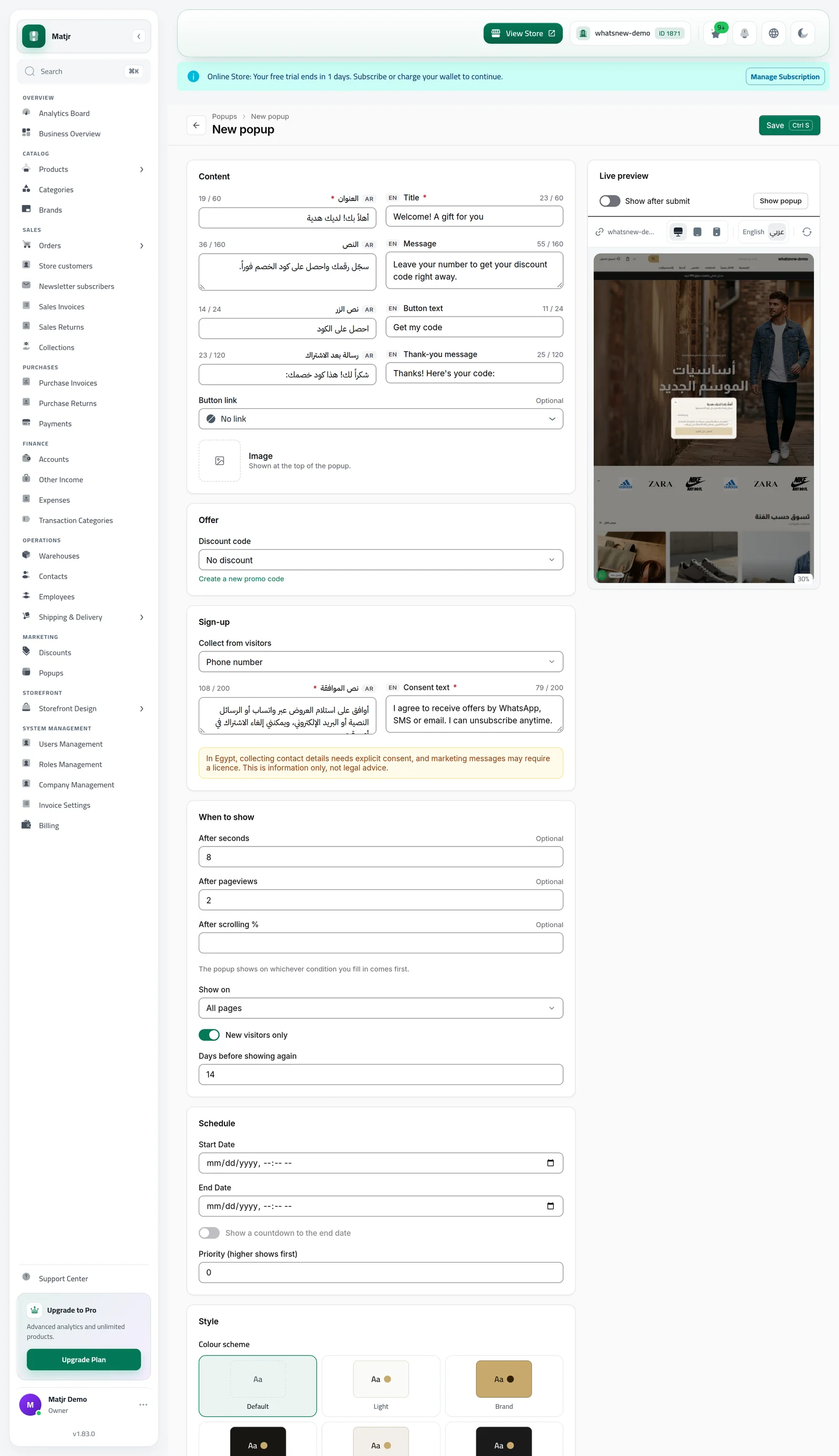
Check the Live preview on phone and computer, in both languages, and with Show after submit. Press Save, then Activate.
Choose the right popup for your goal
Welcome offer. Give new visitors a small discount in exchange for their phone number. Turn on New visitors only so returning customers are not asked again. Phone numbers work well in Egypt and the UAE, where most follow-up happens on WhatsApp.
Seasonal sale. Summer sale, White Friday and Ramadan and Eid point shoppers to your offers with a button. Set a Schedule with an end date, and turn on Show a countdown to the end date to add urgency.
Free delivery or announcement. No sign-up needed: set Collect from visitors to Nothing, write one short line and link the button to the right page with the link picker.
Newsletter. Collects emails for future offers, with no discount required.
What shoppers see
The popup opens in the middle of the screen on computers and as a floating card on phones. Shoppers close it with the ×, by tapping outside it or with Esc. After closing, a small tab lets them open it again during the same visit.
When a shopper signs up, they see your Thank-you message and the discount code with a copy button. The code is applied in their cart for them. A popup never shows on the cart, checkout, Buy now, account or order pages, never more than once per visit, and never again after the shopper signs up. If your cookie banner is showing, the popup waits until the shopper answers it.
Track the results
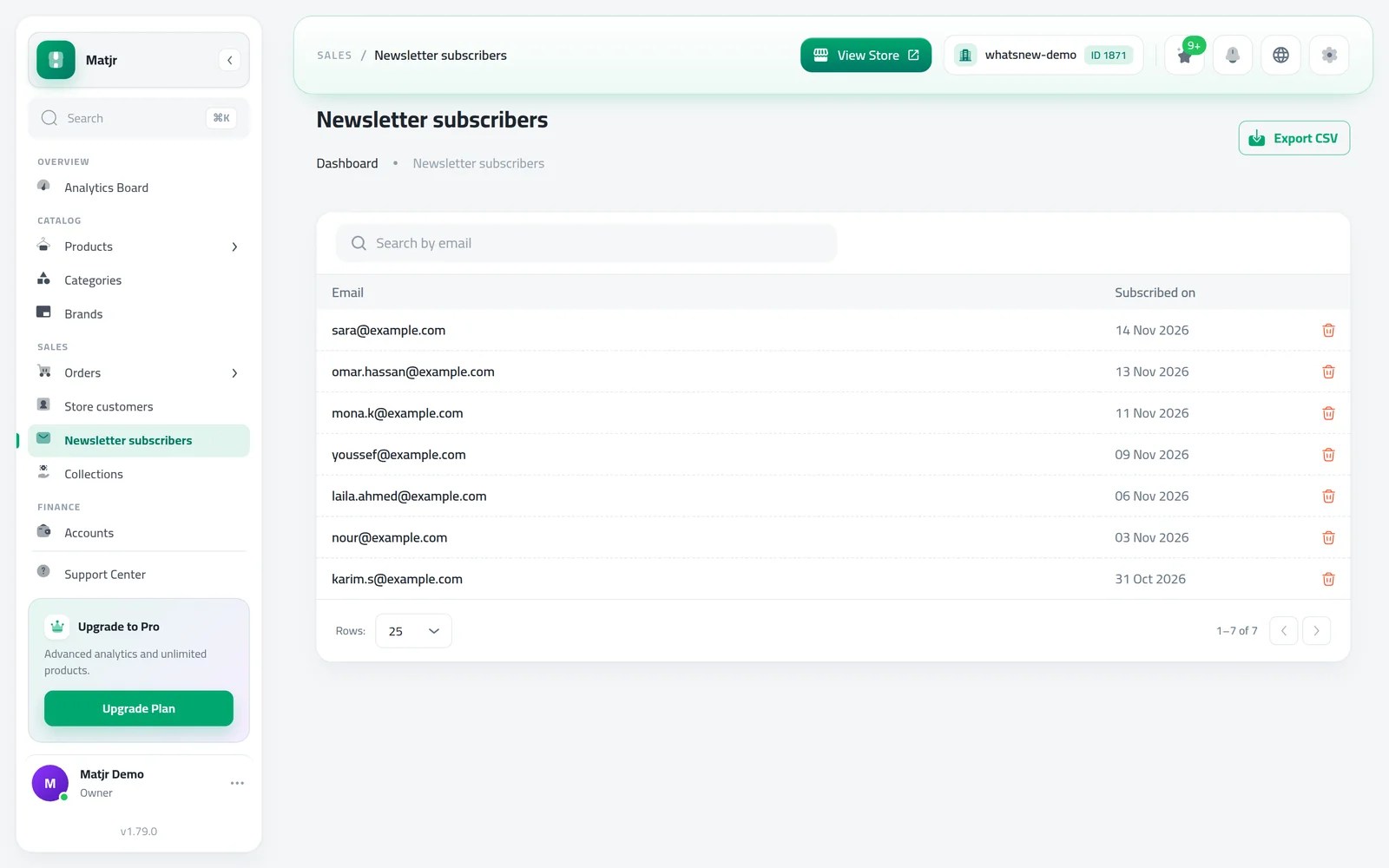
The popups list shows each popup's status (Draft, Active or Paused) and its views and sign-ups for the Last 7 days. Open a popup to see Performance for 7 or 30 days: views, closes, sign-ups, button clicks and sign-up rate. The phone numbers and emails appear in Newsletter subscribers with the source Popup.
Common mistakes
- Showing it too soon. A popup that opens the second a visitor lands gets closed. Wait a few seconds or until the second page.
- A discount that has ended. When the linked code ends or runs out, the popup stops showing. The list warns you with Discount not active.
- Too many active popups. Only one shows at a time. Use Priority to decide which one wins.
- Weak consent text. Say clearly what you will send, for example offers on WhatsApp. In Egypt, collecting contact details needs clear consent.
Related tasks
Create the code first with how to create a discount code. To plan a time-limited campaign, read how to run a flash sale. To see and export your contacts, read how to collect newsletter subscribers. Open the Popups page to start.
Frequently asked questions
Do popups hurt my sales?
Not when they are timed well. They never show at checkout, only once per visit, and never again after a sign-up.
How do I give a discount in a popup?
Create a promo code under Discounts, then pick it in the popup's Offer section. It is applied in the shopper's cart for them.
Can the popup show only on product pages?
Yes. In When to show, set Show on to Home page, Product pages, Category pages or All pages.
How often will a visitor see it?
At most once per visit. After they close it, it waits for the number of days you set in Days before showing again.
Can I have more than one popup?
Yes, but only one shows at a time. The one with the higher priority shows first.
Try it on your own store
Start your free trial. No credit card required.