Settings
How to make your online store easier to find on Google
How to make your online store easier to find on Google: set your title, description and keywords, and a picture for sharing on WhatsApp.
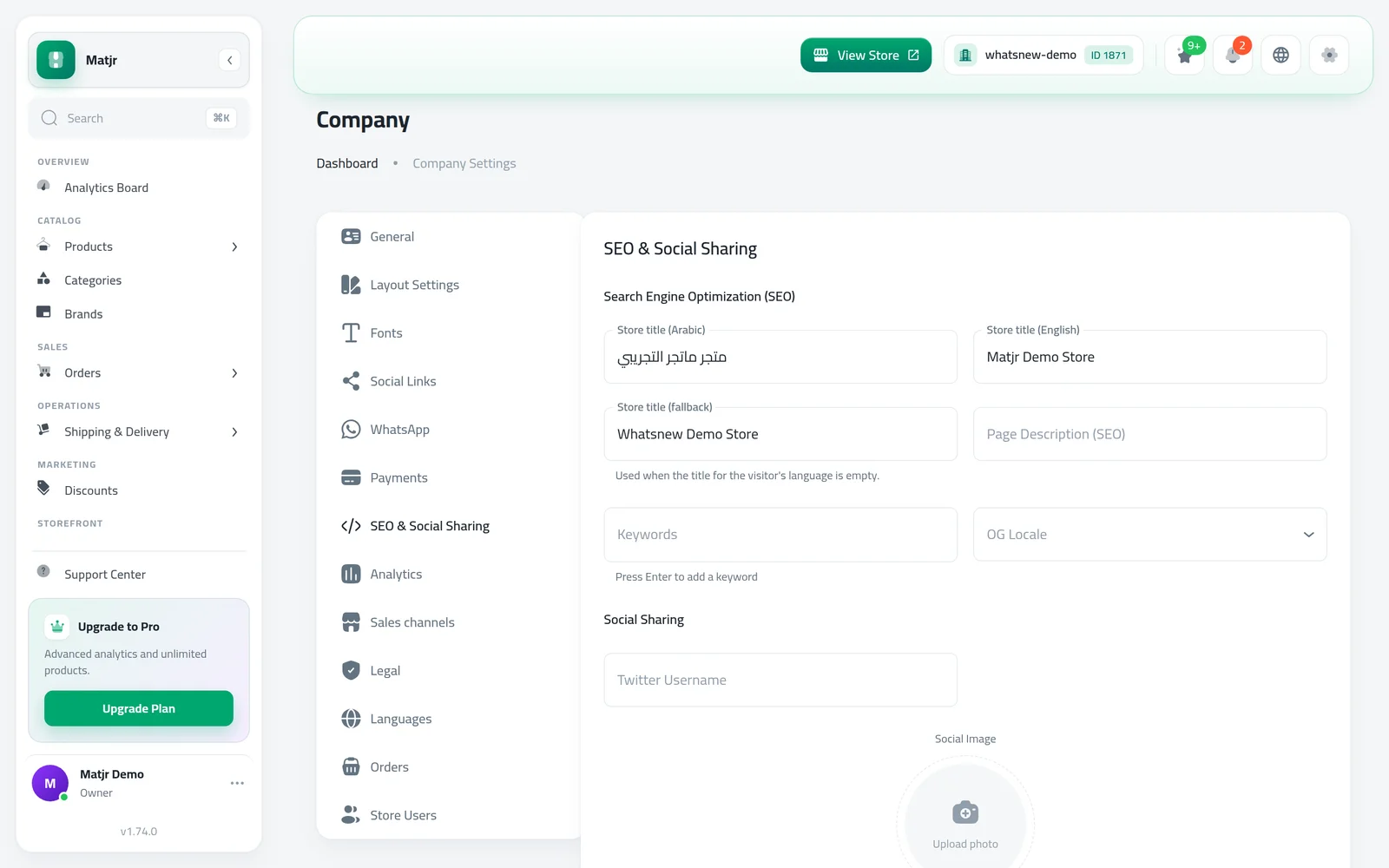
- Where
- Company Management, then SEO & Social Sharing
- You set
- Store title per language, description, keywords, picture, icons
- Share picture
- 1200 x 630 pixels, under 512 KB
- Who can use it
- Every store
When someone searches for your store on Google, or you send your store link on WhatsApp or Facebook, a title, a short description and a picture are shown. This guide shows how to make your online store easier to find on Google and nicer to share, by setting those details yourself.
What to prepare first
- A short title for your store in each language your store uses, usually your store name plus what you sell.
- A one-sentence description of your store.
- A few words people would type to find you, such as "leather bags Cairo".
- A picture for sharing, 1200 by 630 pixels. It should be under 200 KB, and the maximum is 512 KB.
- A small square icon of your logo for browser tabs.
How to set it up
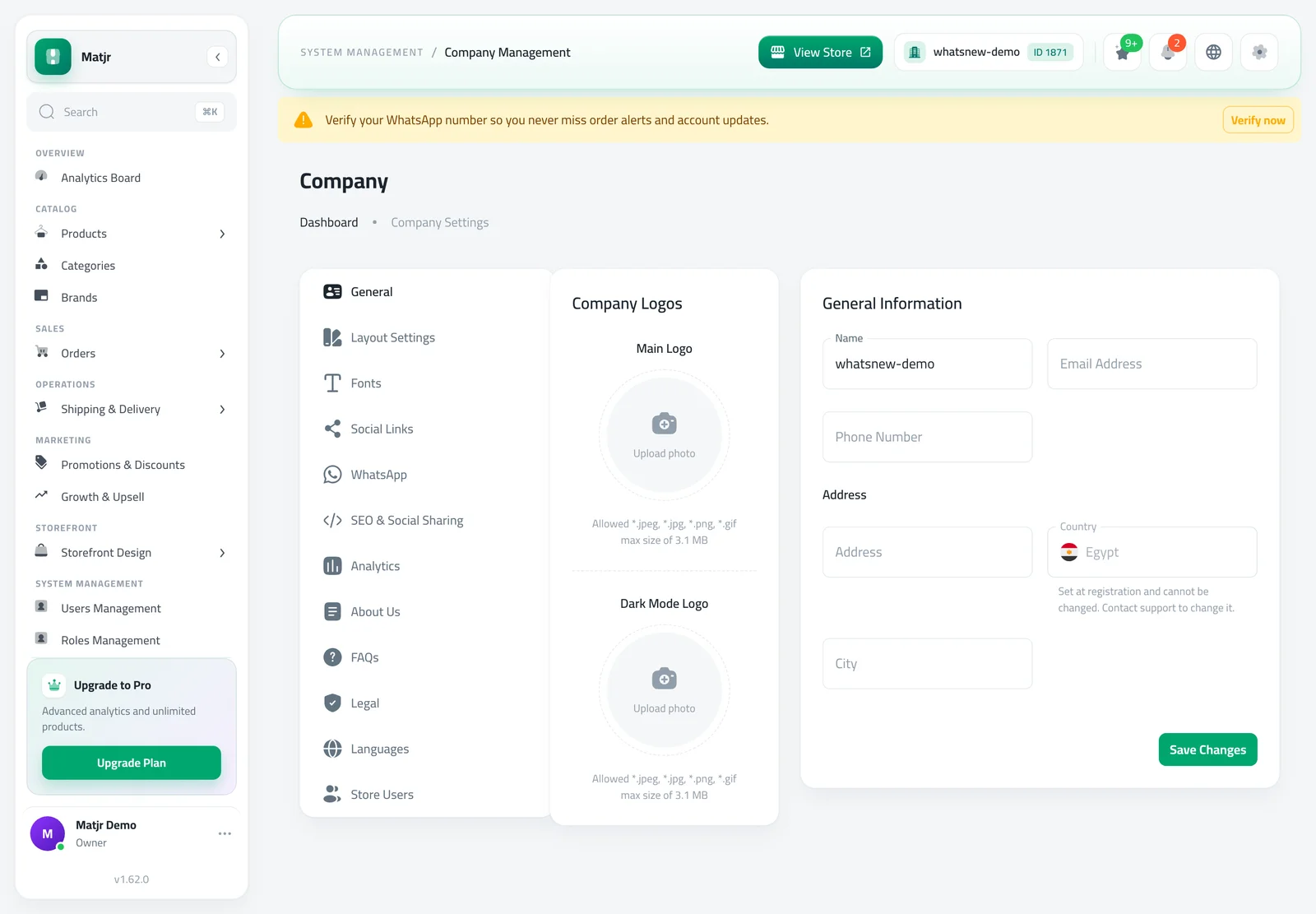
Open Company Management in the menu. This opens Company Settings, where the tabs on the side hold your store's details. The General tab has your store name, logo, email, phone and address, so fill these in first.
Click SEO & Social Sharing. Under Search Engine Optimization (SEO), write a title for each language in Store title (Arabic) and Store title (English). You only see the fields for the languages your store uses. Store title (fallback) is used when the title for a visitor's language is empty. Then write the Page Description (SEO). Type each word or phrase in Keywords and press Enter to add it. Choose the language and country that fit your customers in OG Locale.
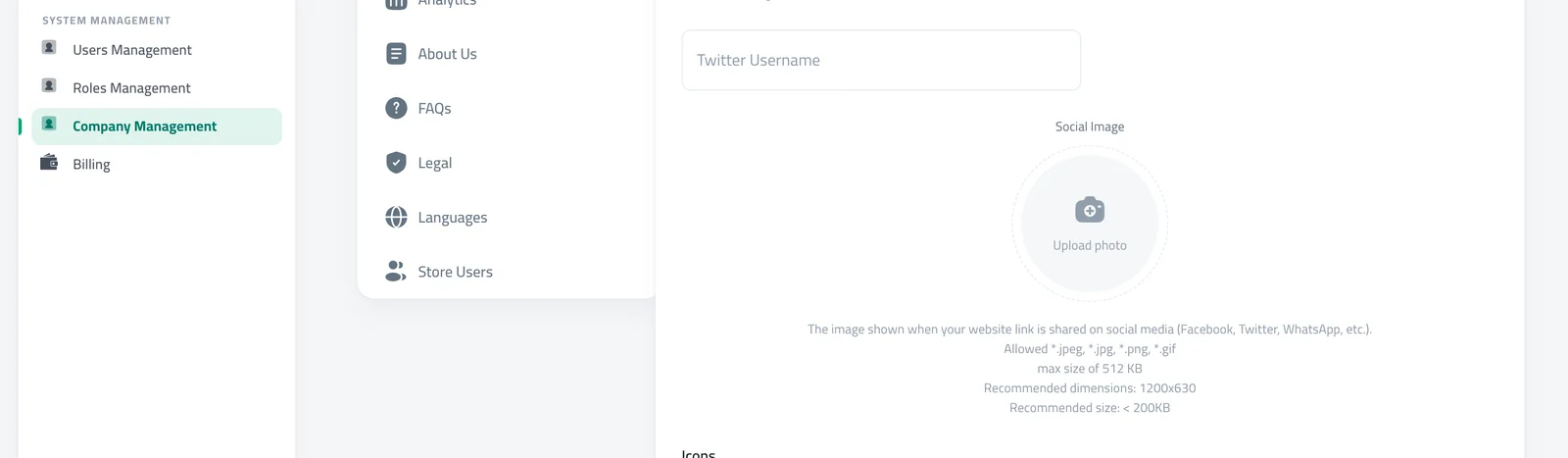
Under Social Sharing, drop your picture into Social Image. It is the picture shown when your store link is shared on Facebook, WhatsApp and other apps. You can also enter your Twitter Username.
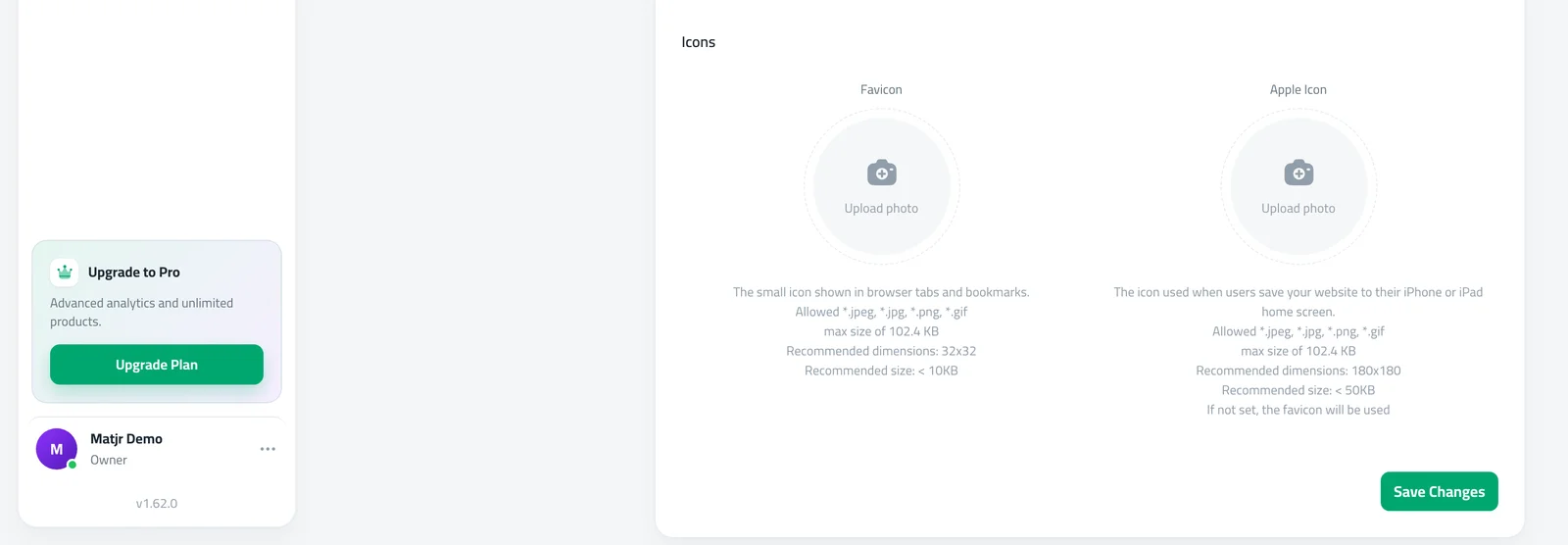
Under Icons, add the Favicon, the small icon in the browser tab (32 by 32 pixels), and the Apple Icon (180 by 180 pixels), used when someone saves your store to their iPhone home screen. If you skip the Apple Icon, the Favicon is used. Click Save Changes.
Check your result
Click View Store at the top of the dashboard to open your store and look at the browser tab. Then send your store link to yourself on WhatsApp and see the picture and title that appear. If you still see the old ones, wait a little and try again, since apps keep an earlier version for a while.
Google shows your new title and description after it visits your store again, and this can take days or weeks. Nobody can promise a position on Google, but a clear title, an honest description and good product names give Google and shoppers what they need.
If your store has two languages
When your store uses Arabic and English, each language has its own pages. Your main language keeps your usual store address, and the other language adds en or ar to the end of it. Google can then show your store to people searching in either language, so write a store title for both.
You do not need to switch anything on. Stores with one language keep the same links as before. Read more in your store can now show up on Google in both languages.
Your store's sitemap
Every store has a sitemap: a list of all your pages, products and categories that Google reads to find them. It updates by itself when you add products. To see it, add /sitemap.xml to the end of your store address, for example yourstore.mymatjr.store/sitemap.xml. If you use Google Search Console, you can add that address there so Google finds your new products sooner.
What to do next
Search for your store name on Google from time to time and see what appears. Share your store link with a friend and ask what they see. When you open a new line of products or change your delivery area, come back to this page and update the title and description so they stay true.
Write a good title and description
The title is the blue line people see first. Say what you sell and where, in a few words, for example "Nour Bags | Leather bags in Cairo". Leave out long lists of words, because they look careless and are cut off anyway.
The description is the grey text under it. Use one clear sentence that answers "why should I click?", for example "Handmade leather bags and wallets, delivered across Egypt in 3 days." Write for the customer first. Words that people really search for will appear naturally when you describe your products honestly.
Keywords are a short list. Choose five to ten words that describe your products and your city, and skip words that do not fit your store, since they bring visitors who do not want what you sell.
Common mistakes
- Writing a very long title. Keep it short so it is not cut off in the search results.
- Using the same description sentence for every store, or copying another store. Describe what you sell in your own words.
- Uploading a large photo as the Social Image. A file over 512 KB is not accepted, and a smaller one loads faster.
- Forgetting to click Save Changes at the bottom of the tab.
Good to know
- Store title (fallback) starts with your store name until you change it.
- Your product names and short descriptions are also used for the product cards and for Google, so write them clearly. See how to add a product to your online store.
- Your Social Links tab, in the same settings page, is where you add your Facebook, Instagram and other pages.
- To change the look of your store, read how to design your online store with the builder.
- To show your products on Google Shopping and Meta, read how to list your products on Google and Meta.
Frequently asked questions
How long until my store shows on Google?
It depends on when Google visits your store again, which can take days or weeks. Nobody can promise a position, but a clear title and description help.
Will Google show my store in both Arabic and English?
Yes, if your store uses both languages. Each language has its own pages, so Google can show the one that matches the search. Write a store title for each language.
What picture should I use for sharing?
Use a clear picture of 1200 by 630 pixels, ideally under 200 KB. Files over 512 KB are not accepted.
Can I connect my own domain to my store?
Connecting your own domain is done through Matjr support, not from the dashboard. Once it is connected and checked, Google treats it as your store's one main address.
Why does WhatsApp still show my old picture?
Apps keep an earlier version of a link for a while. Wait a little, then send the link again.
Try it on your own store
Start your free trial. No credit card required.