Shipping
How to set up shipping areas and prices in your store
How to set up shipping prices for your online store: add areas and cities, set each price and delivery time, and check it on an order.
- Where
- Shipping & Delivery, then Shipping Areas
- You set
- Price and delivery time per area and city
- Egypt and UAE
- Pick a governorate or a state from a list
- Who can use it
- Every store
Shoppers can only order from places you deliver to, and they pay the shipping price you set. This guide shows how to set up shipping areas and prices in your online store: add an area, set its price and delivery time, add cities with their own prices, and check the result on an order.
What to prepare first
- The governorates, states or zones you deliver to.
- The shipping price for each area. Decide whether some cities, such as the capital, cost more or less than the rest.
- How long delivery takes in each area, in minutes, hours or days.
How to set up shipping areas and prices
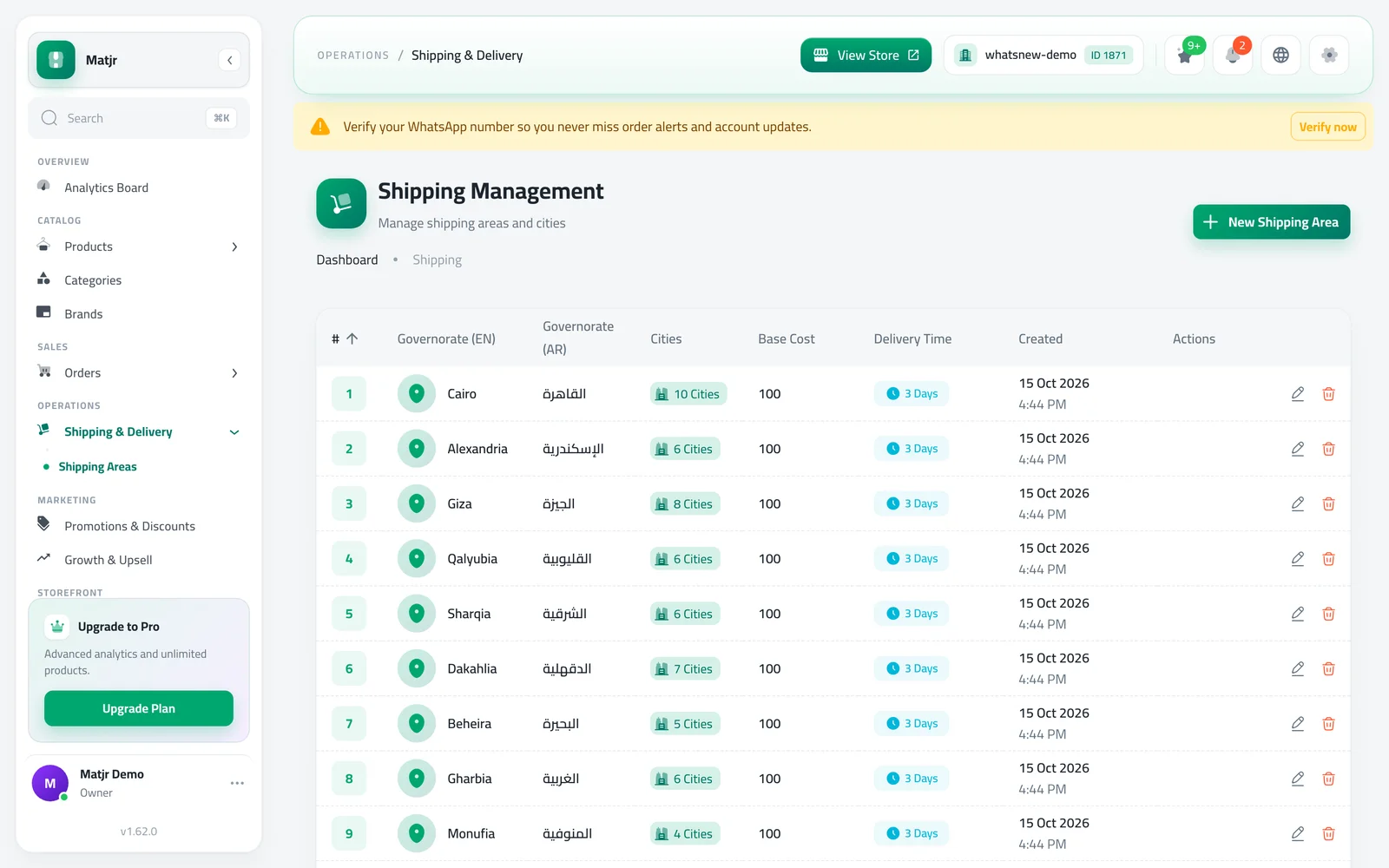
Open Shipping & Delivery and choose Shipping Areas. The list shows each area with the number of cities, the Base Cost and the Delivery Time. Your store may already list the areas of your country. Click New Shipping Area to add one.
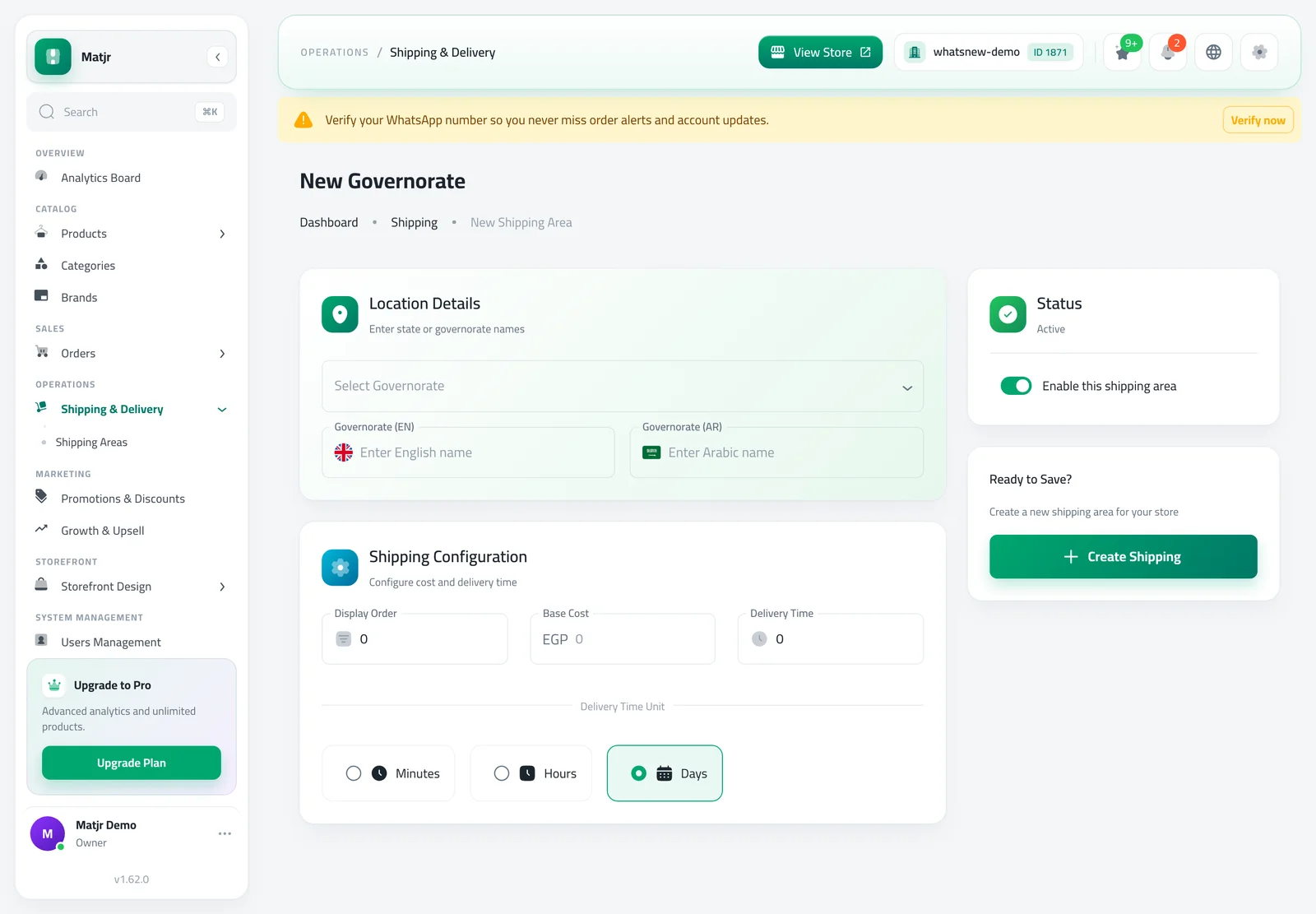
Choose the place. In Egypt you pick a governorate with Select Governorate, and in the UAE you pick a state with Select State. In other countries you type the name of the Shipping Zone. The English and Arabic names fill in for you. Under Shipping Configuration, enter the Base Cost, the Delivery Time, and choose Minutes, Hours or Days. Keep Enable this shipping area on and click Create Shipping.
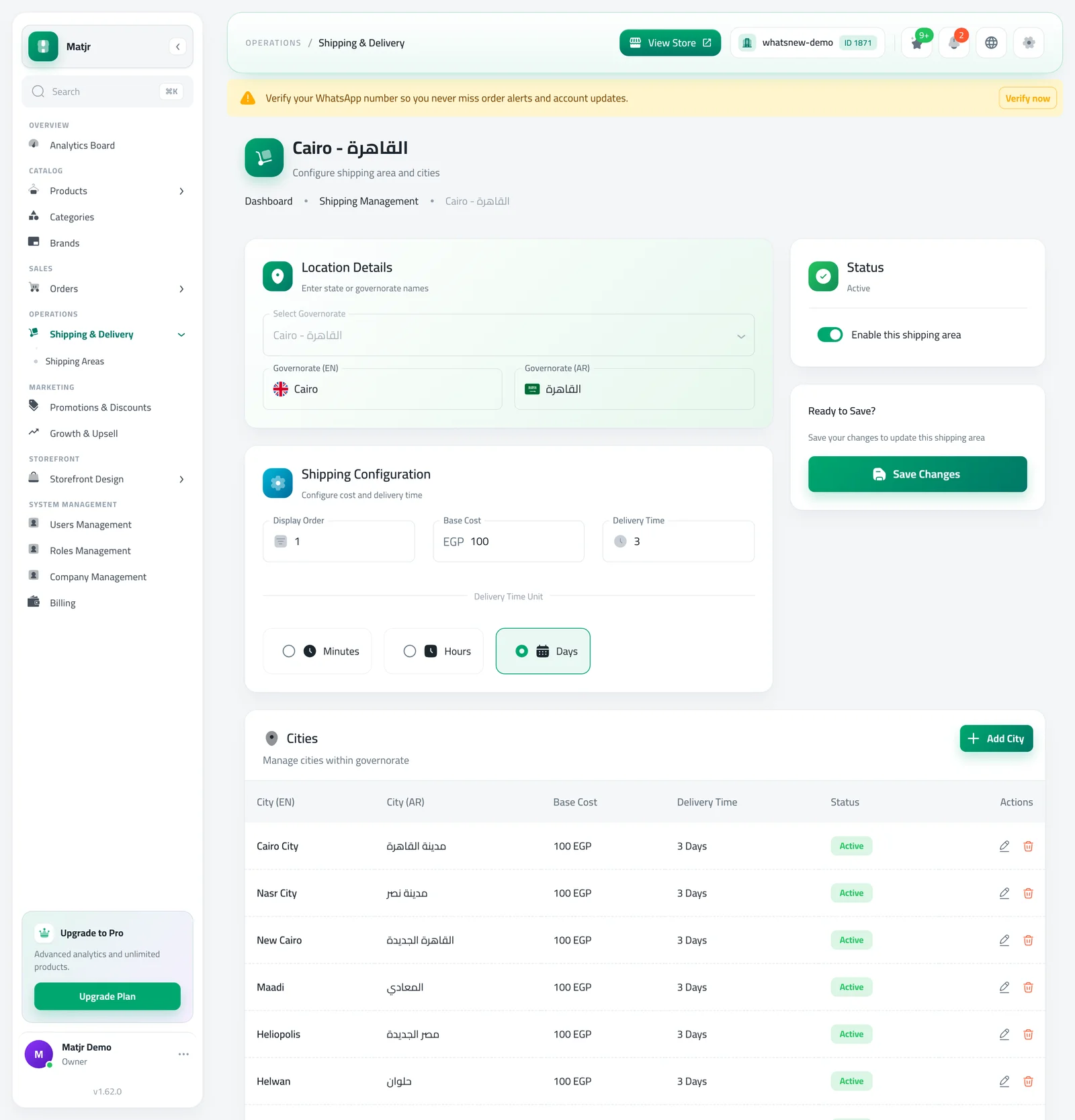
Open an area from the list, using the pencil icon or by clicking its row, to change its cost or delivery time, and click Save Changes. Under Cities you see the cities inside the area. Switch off Enable this shipping area to stop delivering there without deleting it.
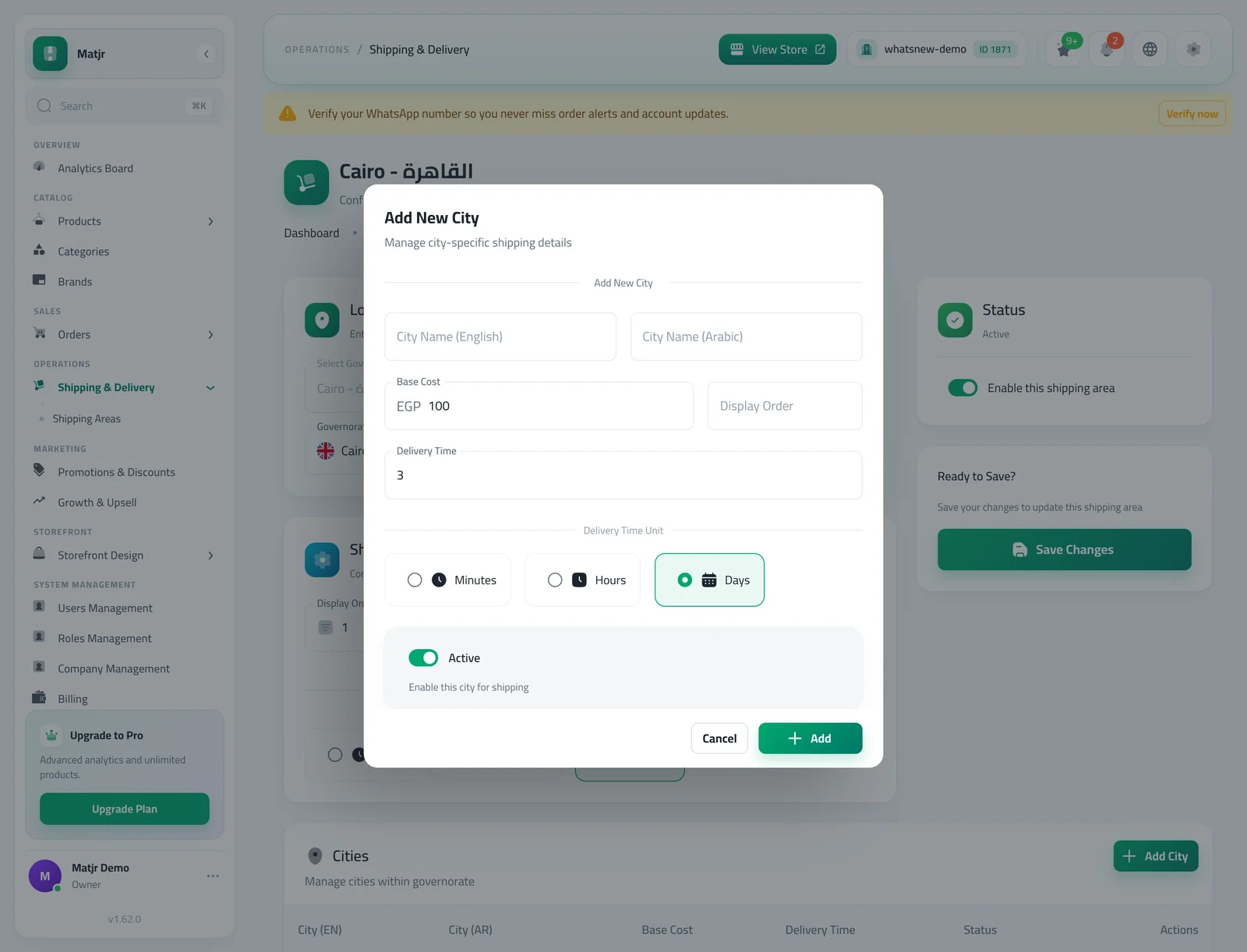
To give a city its own price, click Add City. Choose the city from Select City or add a new one with its Arabic and English names. Enter the city's Base Cost and Delivery Time, keep it Active and click Add. When a city has no price of its own, the price of its area is used.
Check the result on an order. Open any order and look at the Shipping line in the totals and at Delivery Info, which shows the Shipping State and Shipping City the customer chose.
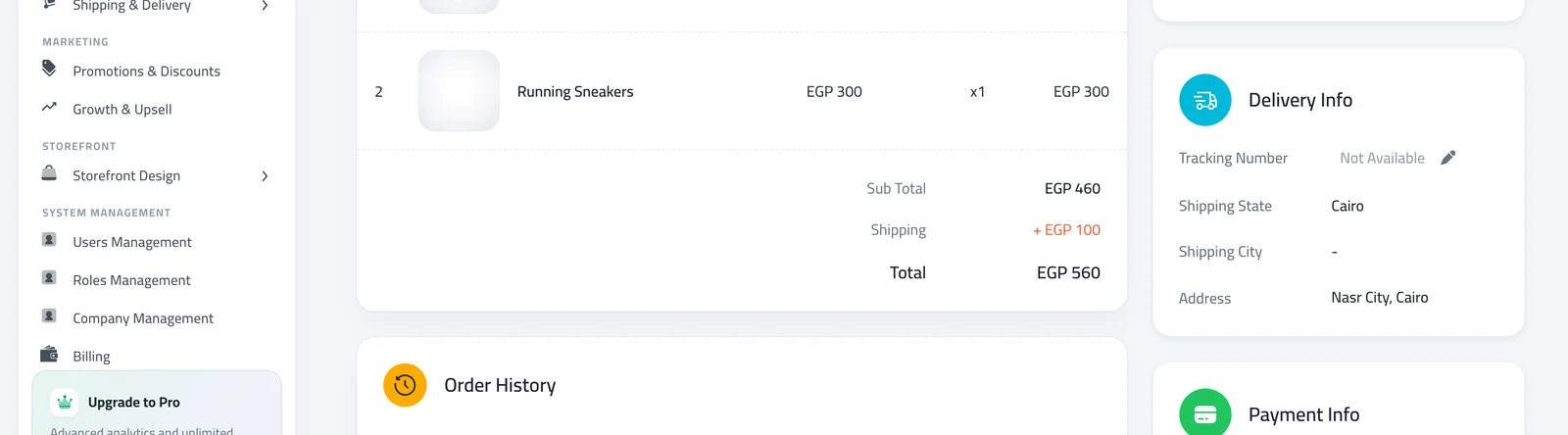
Delivery companies
If delivery companies are enabled for your store, an order that has no tracking number yet shows a Create Delivery Order button in Delivery Info. You choose the Delivery Provider, enter the weight, the number of pieces and the addresses, and the order gets a Tracking Number. If you do not see the button, no delivery company is enabled for your store.
What to do next
Look at your store as a customer would: choose your own governorate or state and check that the shipping price and delivery time look right. Ask a friend in another area to do the same. When a customer writes to say the price looks wrong, open the area or city, correct it and save.
Choosing your shipping prices
Start from what the courier really charges you, then decide whether to pass all of it on. Many stores keep one price for most areas and a higher one for far places. Others set a low price to win the first order. Both work, as long as you know your numbers.
Group nearby places with the same cost, and give a city its own price only when it is clearly cheaper or more expensive than the rest of its area. Fewer exceptions are easier to check later. Tell customers the delivery time honestly, since a delivery that arrives on time makes them order again.
Review your prices every few months. When the courier changes its rates, update the Base Cost of the affected areas, and your new orders will use the new price.
Common mistakes
- Leaving the Base Cost at 0. Shoppers then see free shipping to that area, which may be what you want, but check it on purpose.
- Forgetting an area you deliver to. Add every place you deliver to, so the price and the delivery time are right.
- Entering the delivery time with the wrong unit. 3 days and 3 hours look very different to your customer.
- Setting a price for a city and then expecting a change in the area price to update that city. A city with its own price keeps it.
Good to know
- You can offer free shipping as a promotion from Promotions & Discounts.
- If a button is greyed out with the message "Subscribe or charge wallet to unlock this feature.", your plan needs to be active first.
- New to the store setup? Start with how to add a product to your online store.
- To see how customers pay for their orders, read how to see how your customers pay for their orders.
Frequently asked questions
Can I charge a different price for one city?
Yes. Open the area, click Add City and enter the city's own Base Cost. A city without its own price uses the price of its area.
How do I stop delivering to an area?
Open the area and switch off Enable this shipping area, then save. You can switch it back on later.
Can I offer free shipping?
Yes. Set the cost to 0 for an area, or create a free shipping offer from Promotions & Discounts.
How do I use a delivery company?
If a company is enabled for your store, open an order and click Create Delivery Order in Delivery Info. If you do not see the button, none is enabled yet.
Try it on your own store
Start your free trial. No credit card required.