Marketing
Set up discounts faster with a simpler discount form
Copy an offer's link before you save it, let the link fill itself from the name, and choose All products or specific ones on every discount.
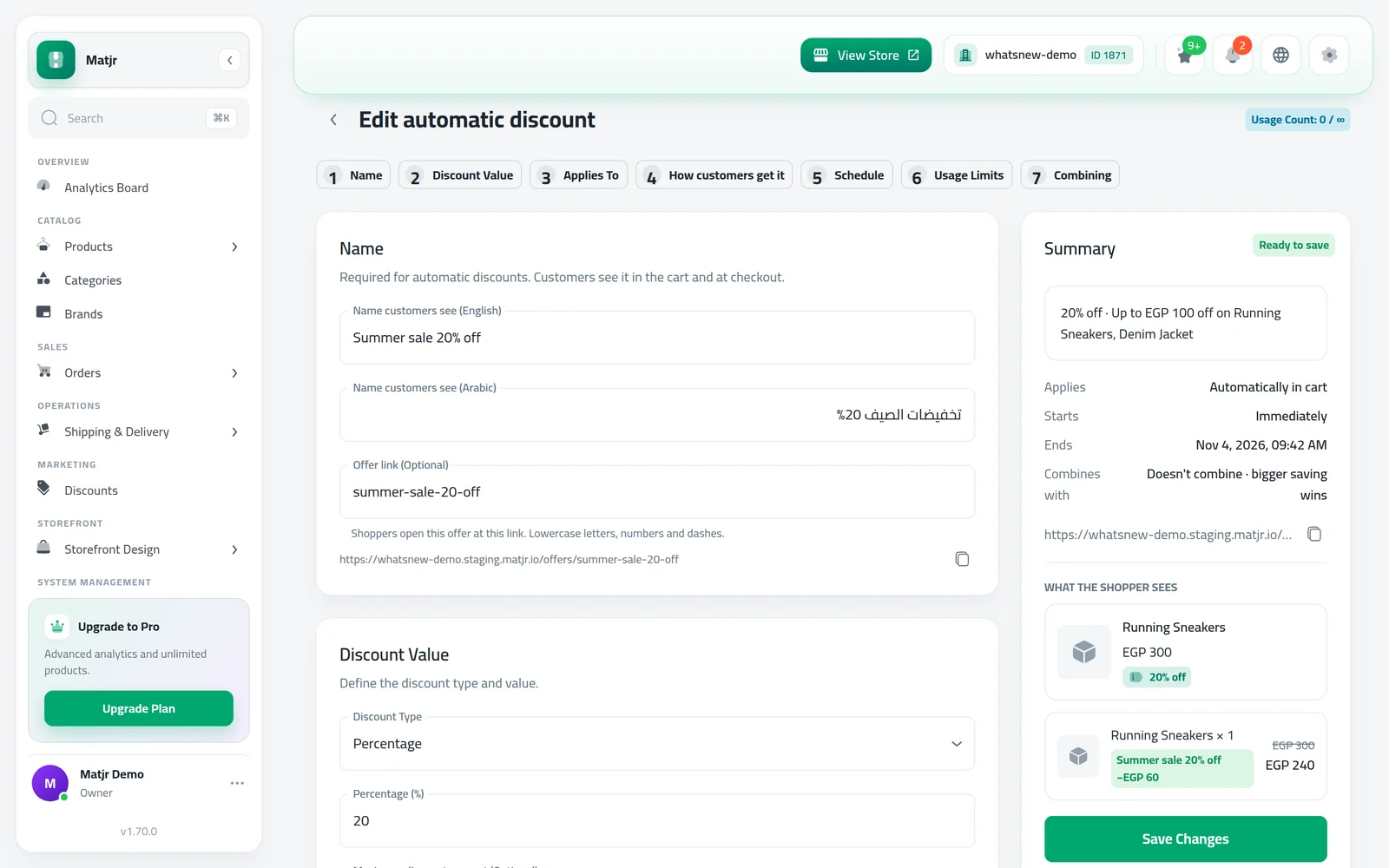
- Where
- Marketing › Discounts
- Offer link
- Automatic offers, optional, fills itself from the name
- All products choice
- Promo code, automatic, bulk pricing, Buy X Get Y
- Combining
- Each discount must have it turned on
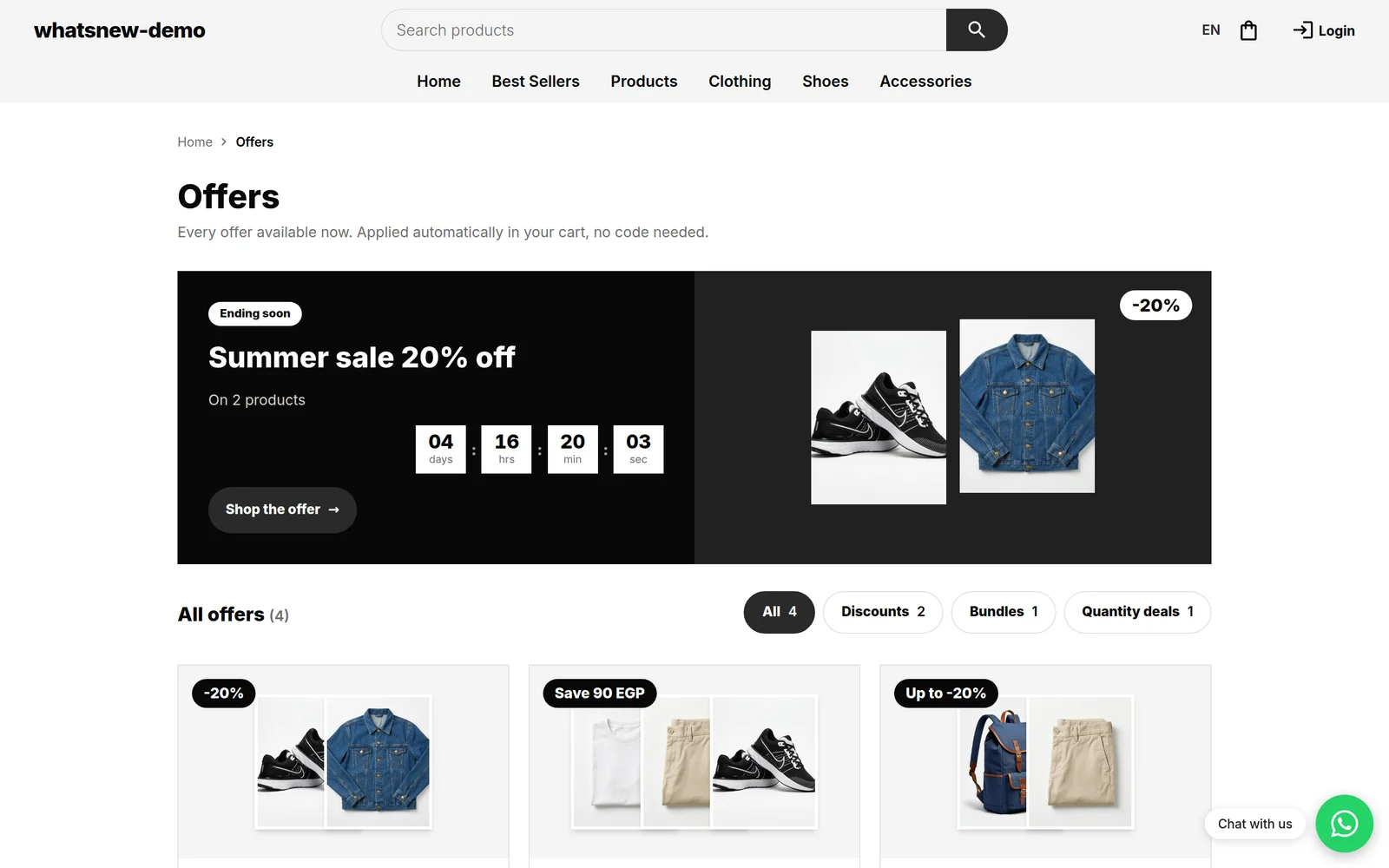
Less typing and fewer surprises when you set up an offer. You can share an automatic offer's link while you are still building it, and every discount now asks one clear question: all products, or only some?
What changed
- Offer link (Optional) fills itself from the discount name until you change it, and a copy button sits right under it, so you can share the link before saving.
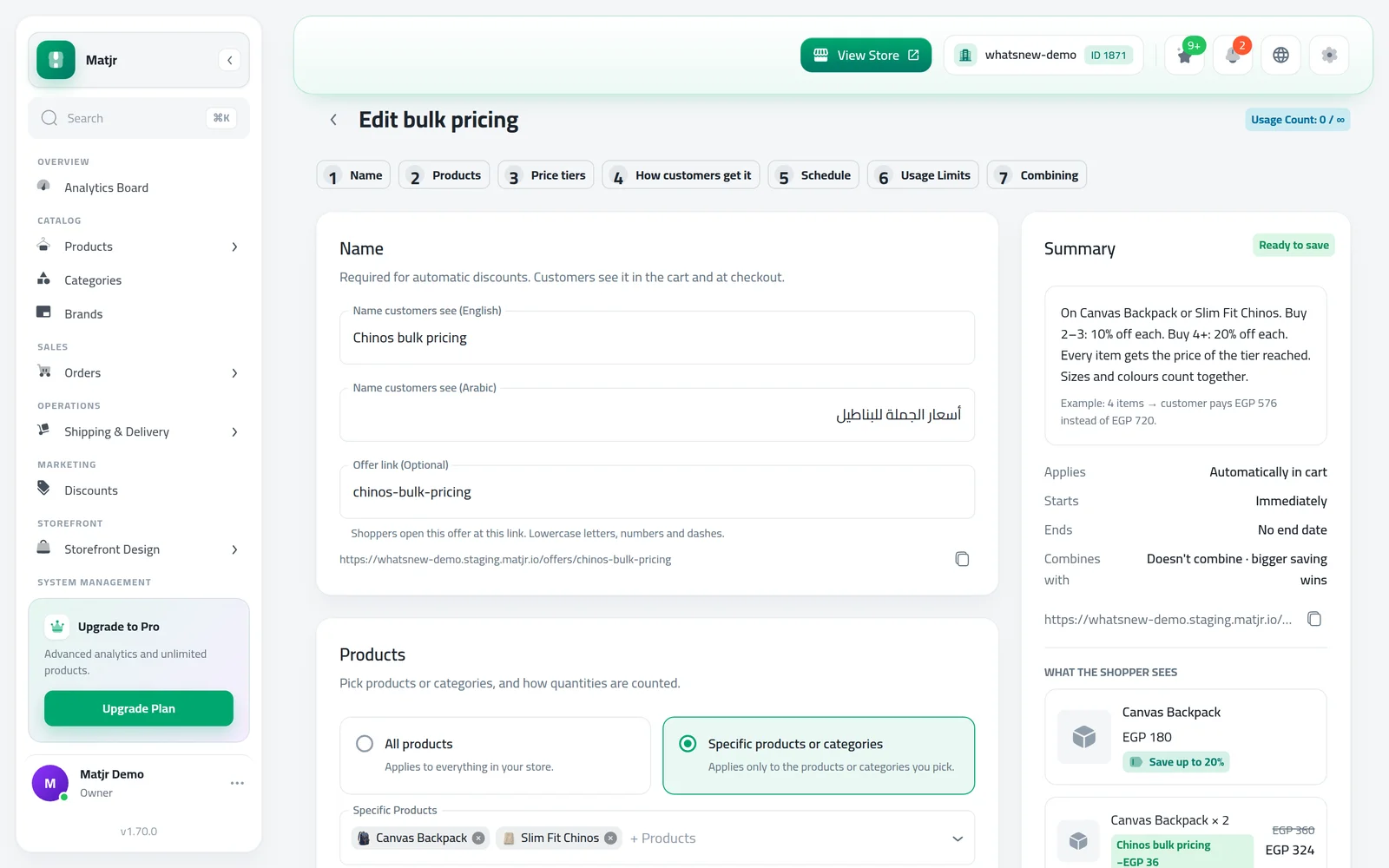
- Applies To has two choices on promo codes, automatic discounts, bulk pricing and Buy X Get Y: All products, or Specific products or categories. Bulk pricing and Buy X Get Y no longer make you pick products.
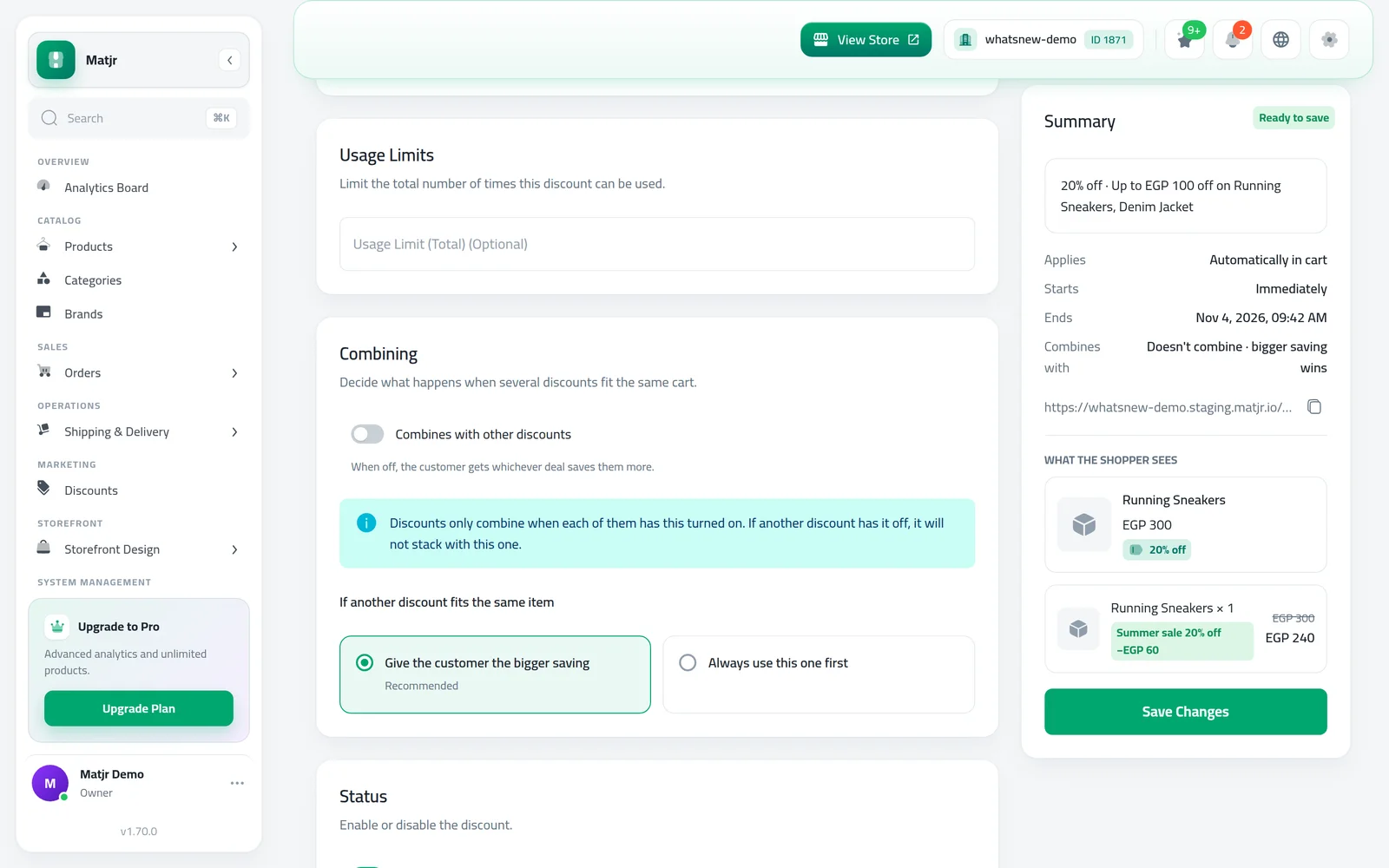
- Combines with other discounts now explains that discounts only stack when each of them has it turned on.
How to use it
Open Marketing › Discounts and create or open an automatic discount. Type its name, and the Offer link fills in by itself. Click the copy button to share it.
Under Applies To, choose All products, or Specific products or categories and pick them.
Under Combining, read the note before you turn on Combines with other discounts. Turn it on in each discount you want to stack.
Good to know
- Only automatic offers have an offer link. Shoppers can open it once the offer is saved and active.
- Specific products or categories still needs at least one pick.
- When a discount is edited, the form shows the choice it was saved with.
- In Buy X Get Y, when the reward is a different product, you still pick it under Customer gets.
See every offer type in how to create a discount code and other offers.
Frequently asked questions
Do I have to write the offer link myself?
No. It fills itself from the discount name. Type your own only if you want a different link.
Can I share the link before I save the offer?
Yes, you can copy it right away. Shoppers can open it once the offer is saved and active.
Why don't my two discounts stack?
Discounts only combine when each of them has Combines with other discounts turned on. If one has it off, the customer gets the bigger saving instead.
Does bulk pricing still need products?
No. Choose All products under Applies To, or pick specific products or categories.
Try it on your own store
Start your free trial. No credit card required.