Store design
Design your order confirmation page
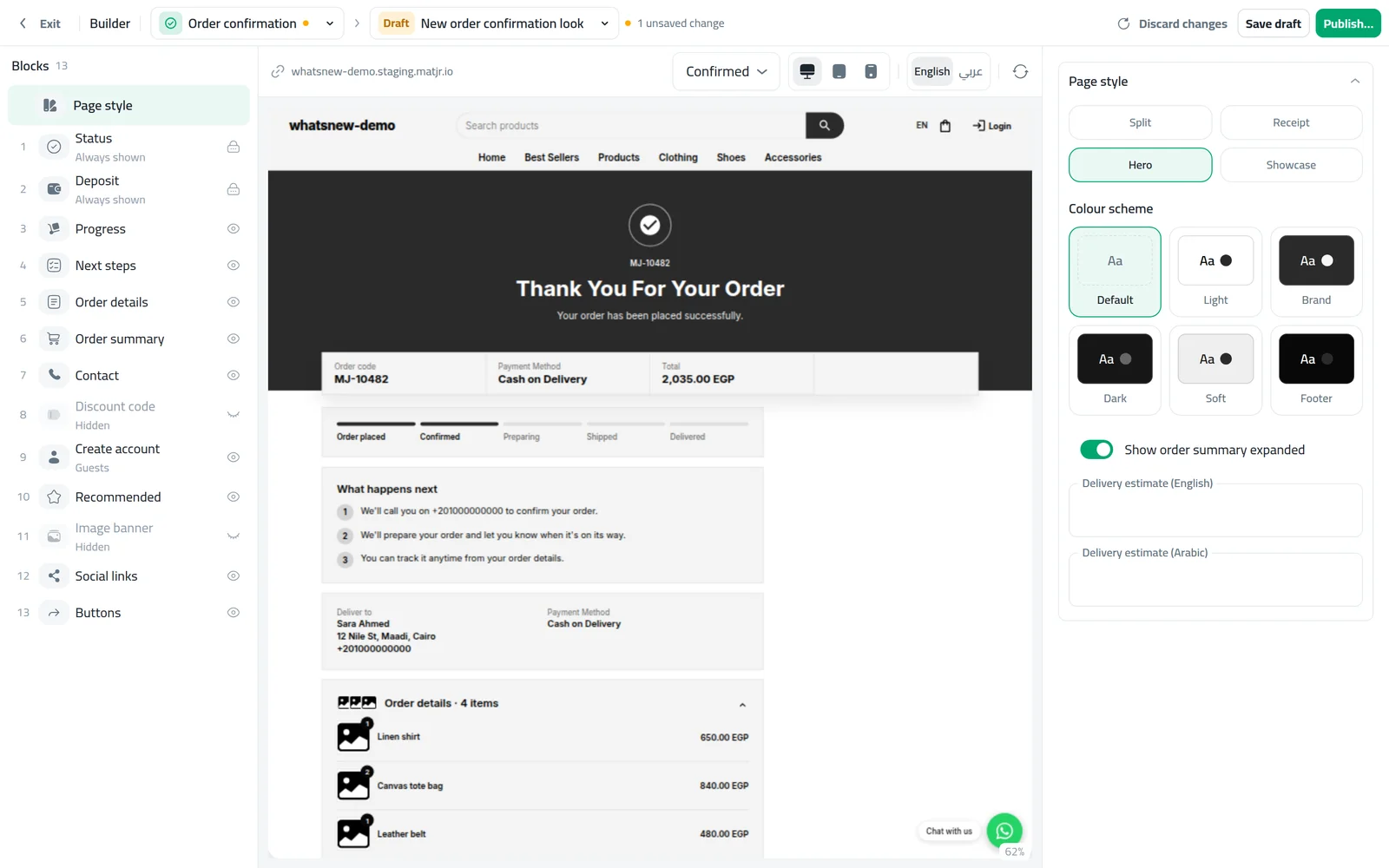
Make the page shoppers see after ordering your own: pick a layout, choose what cash, deposit or card orders see, and tell them what happens next.
- Where
- Storefront Design > Design > Order confirmation
- Layouts
- Split, Receipt, Hero, Showcase
- Show blocks to
- Cash on delivery, deposit, paid online or guests
- Safe to try
- Drafts stay hidden until you publish
The page shoppers see right after ordering can now look like your store and answer their first questions. Choose a layout, decide what each type of order sees, and tell shoppers what happens next, so fewer of them message you to ask.
What changed
The builder has a new page, Order confirmation, right after Cart. It works like your other builder pages: a draft you preview, then publish.
- 4 layouts: Split, Receipt, Hero and Showcase.
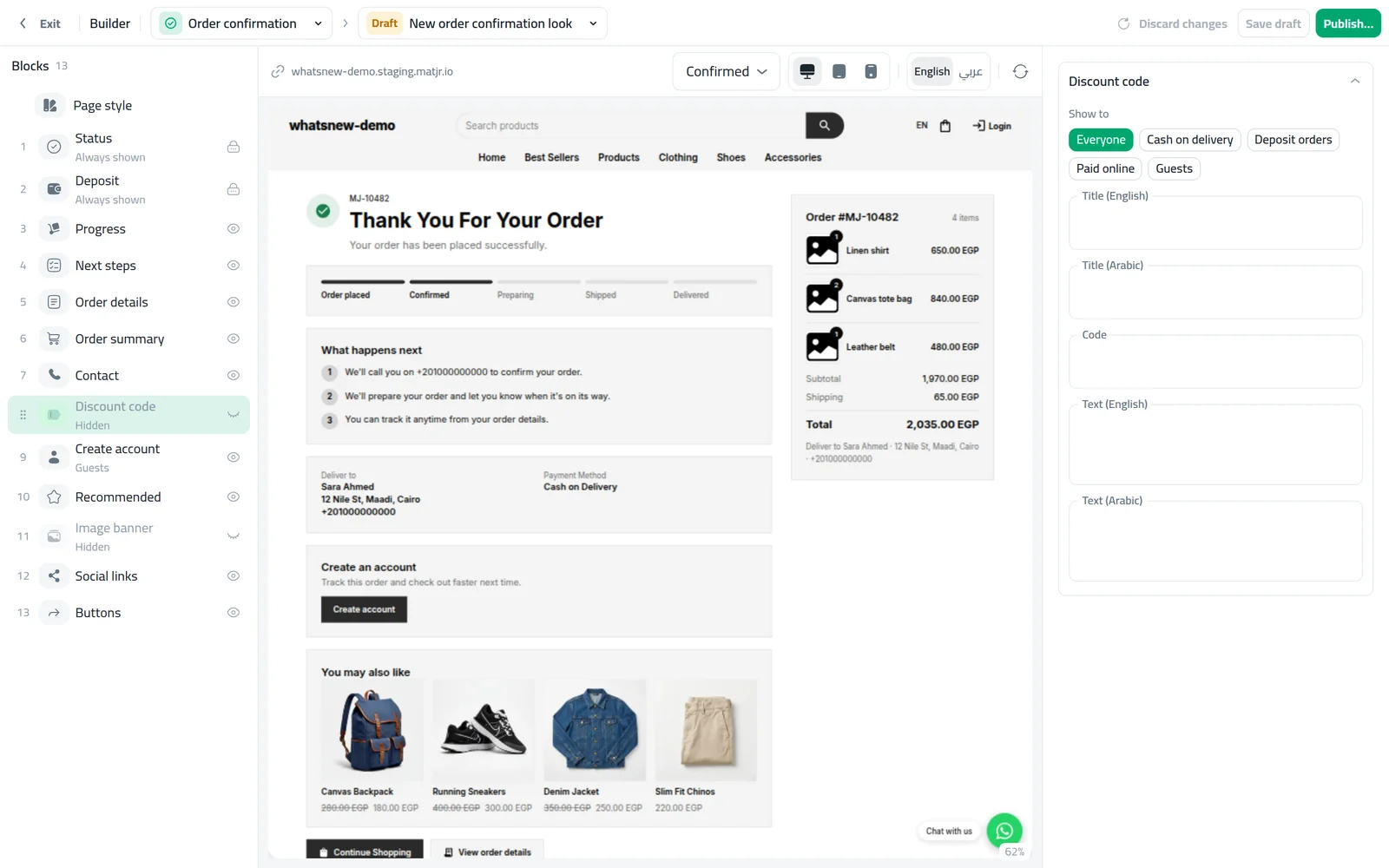
- Blocks you can reorder, hide, and show only to cash on delivery, deposit, paid online or guest orders.
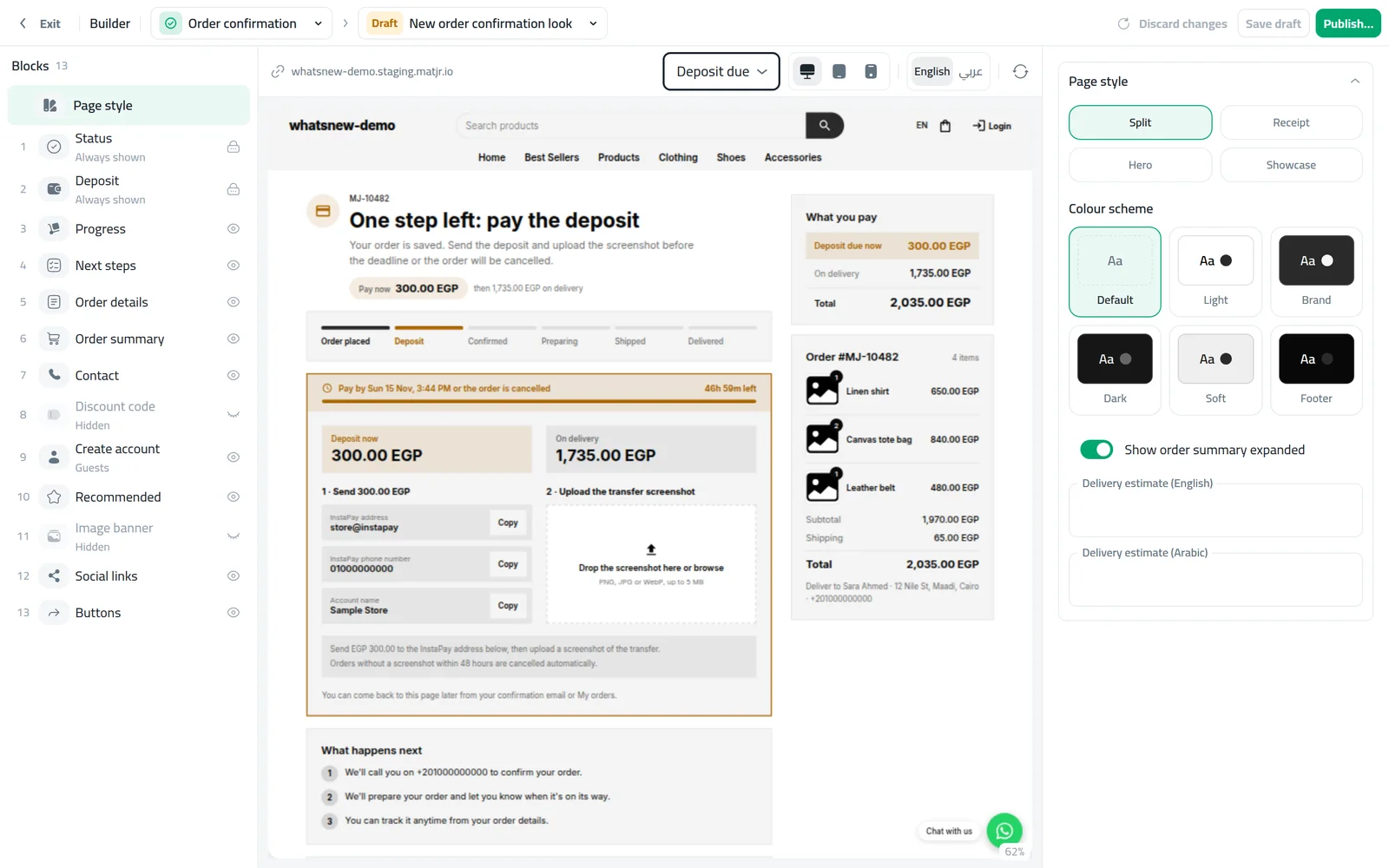
- A Preview state switch to see the page as confirmed, deposit due, under review, pending, failed or cancelled.
- Three ready-made "What happens next" steps that you can edit.
The heading now matches the real order too. A deposit order that is not paid yet says "One step left: pay the deposit", then "We are checking your payment", and only then confirms the order. Before, it said the order was complete.
How to use it
Open Storefront Design, then Design, and choose Order confirmation from the page list.
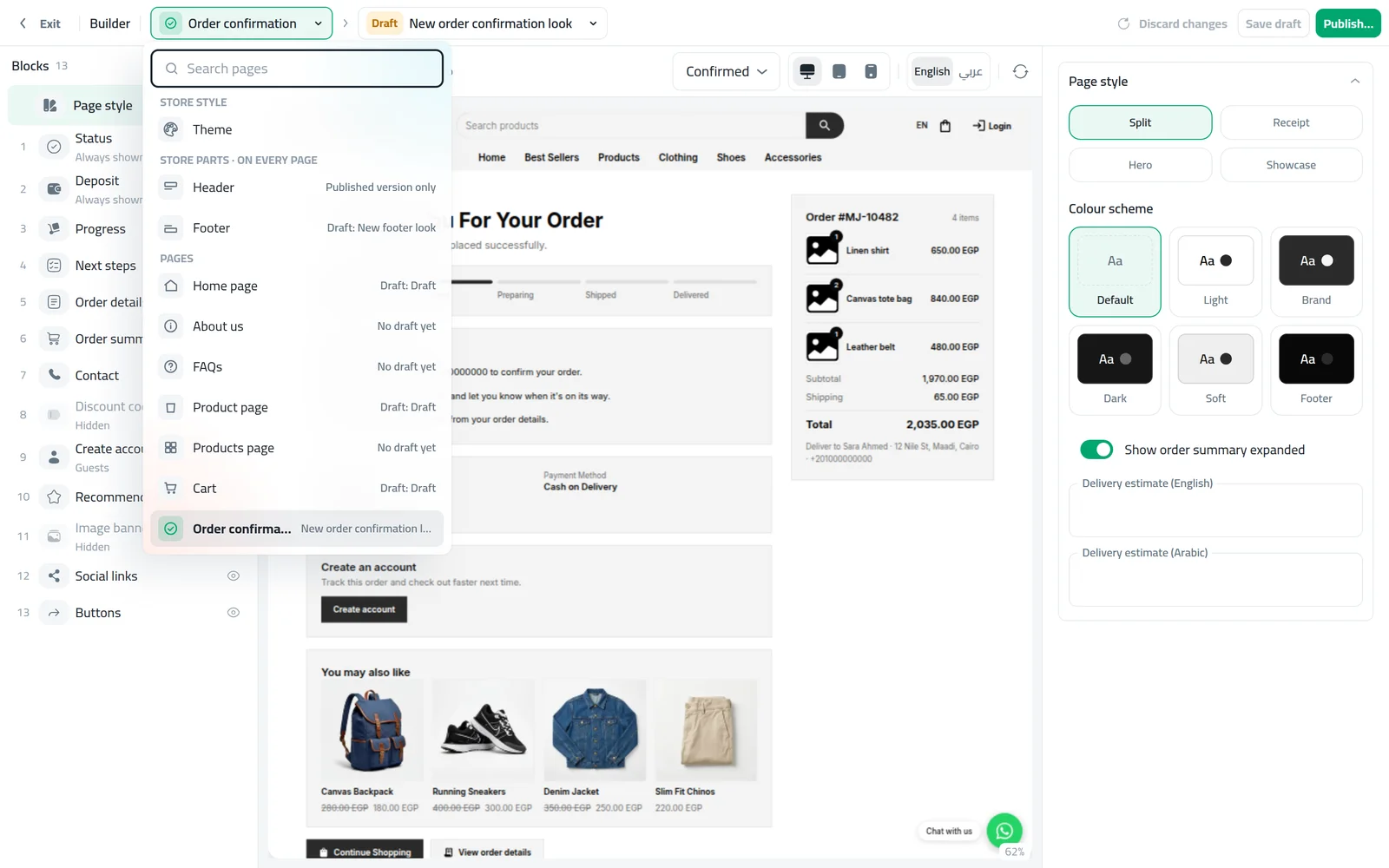
Pick a Layout in Page style.
Open a block and choose who sees it in Show to.
Check each order state with Preview state, then publish.
Good to know
- Until you publish your own design, shoppers see the ready-made page, which now includes three next steps.
- Deposit payment instructions are edited in the Deposit block of this page. See Edit deposit messages where shoppers read them.
- Step by step: How to customize your order confirmation page.
Frequently asked questions
Do I have to set anything up?
No. Until you publish your own design, shoppers see a ready-made page with three next steps.
Will shoppers see my changes while I edit?
No. Save a draft and publish when you are ready. Changes reach your store within about 2 minutes.
Can I show a block only to deposit orders?
Yes. Open the block and choose Deposit orders in Show to.
Why does my deposit order page no longer say the order is complete?
Because the deposit is not paid yet. The heading now asks for the deposit, then says the payment is being checked, then confirms the order.
Try it on your own store
Start your free trial. No credit card required.