Products
How to add product specifications to your store
How to add product specifications such as material, size or warranty, so shoppers see the details on the product page.
- Where
- Products › Product Attributes, then Type & Price on the product
- Value types
- Text, number, yes or no, choice
- Stock
- Specs never split stock
Shoppers cannot touch your products, so details do the work. This walk-through explains how to add product specifications, such as material, capacity, size or warranty, and show them in a clear table on the product page.
Specs or variants?
Before you add anything, decide what each detail is.
- A variant is something the shopper chooses, like a size or a colour. Each variant can have its own price and stock.
- A spec describes the product, like "100% cotton" or "2-year warranty". The shopper reads it but does not choose it. Specs never split your stock.
If a T-shirt comes in three sizes, size is a variant. If it is made of cotton, material is a spec.
Before you start
List the details your customers ask about most. Look at your chat and WhatsApp messages: the same questions come up again and again. Those questions are your first specs. Keep names short and the same across products, for example always "Material", never "Fabric" on one product and "Material" on another.
How to add product specifications
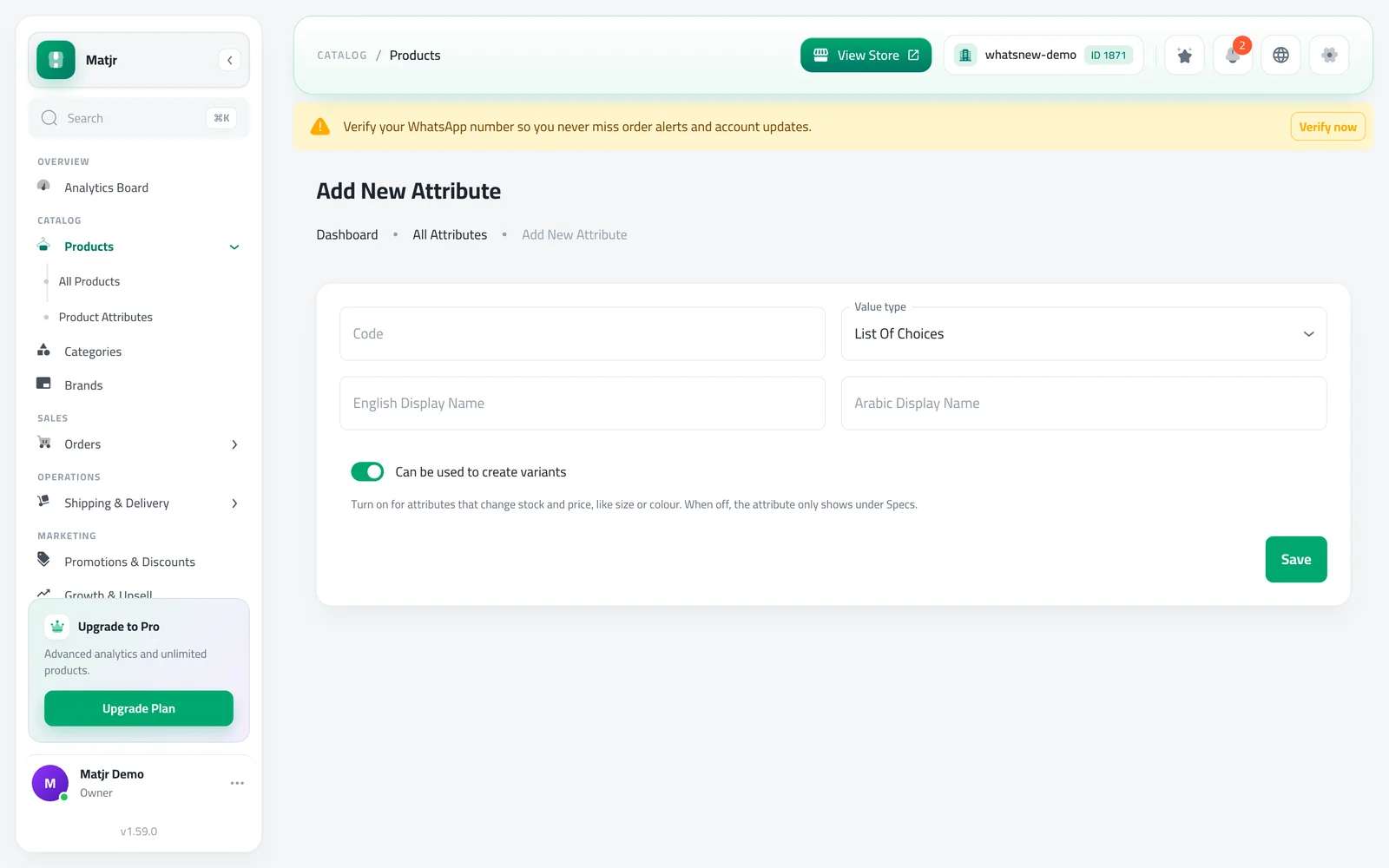
Open Products › Product Attributes and add an attribute. Give it an English and Arabic name and choose the Value type: text, number, yes or no, or a choice from a list.
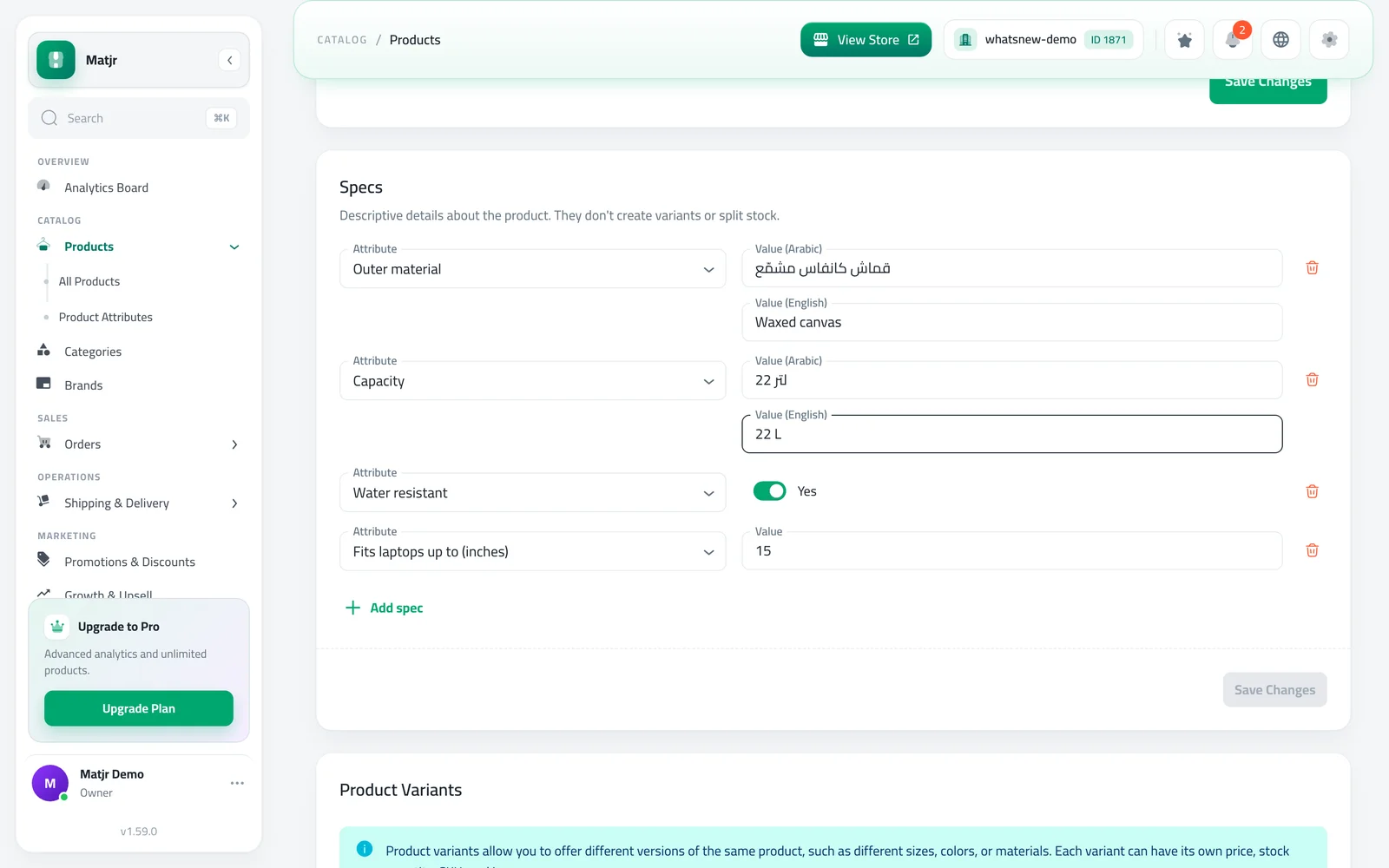
Open a product and go to Type & Price. In the Specs card, click Add spec, choose the attribute and enter the value. Then save.
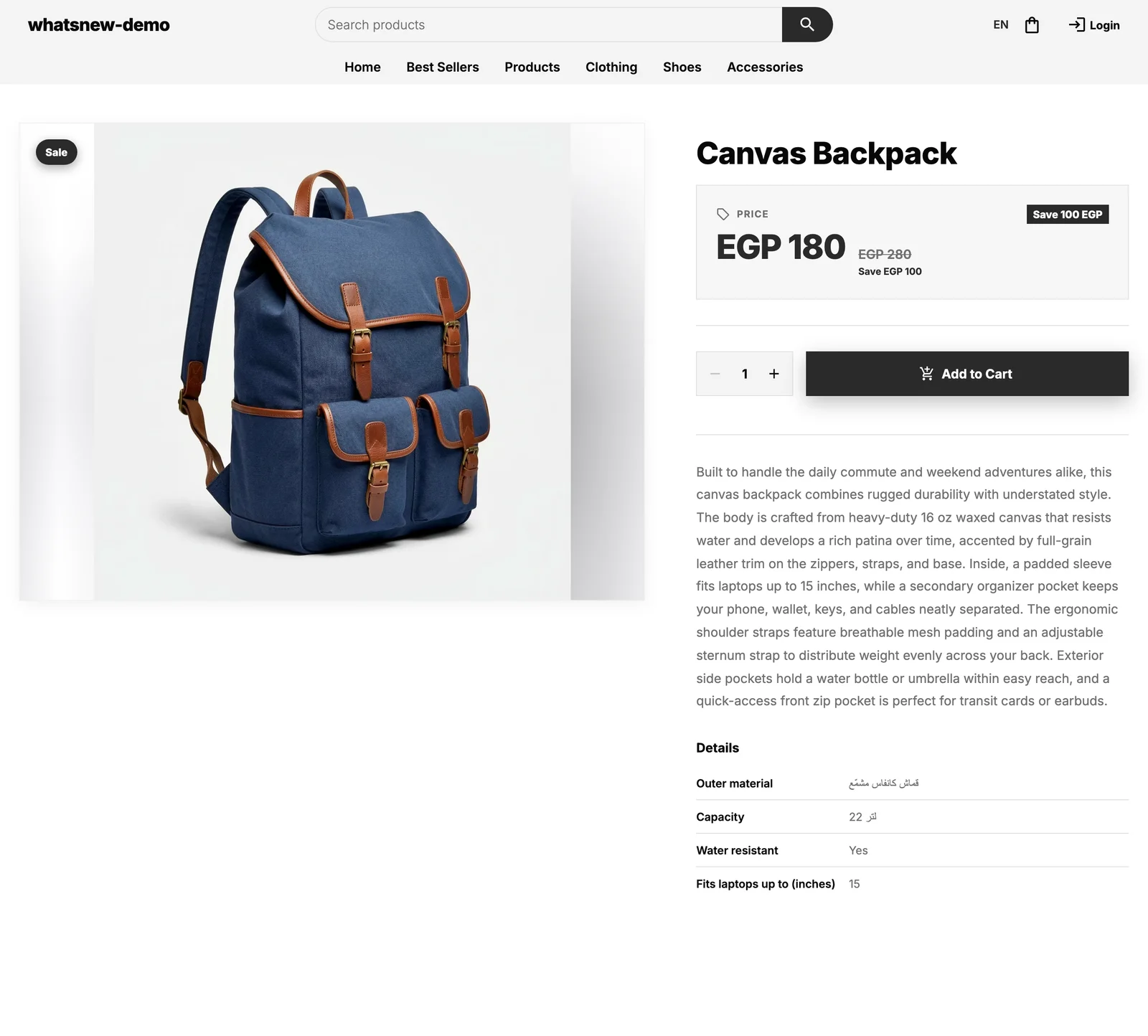
Open the product in your store. The specs appear on the product page.
Choose the right value type
- Text for words, like "Waxed canvas". You can write an English and an Arabic value.
- Number for measurements, like 15. Put the unit in the name, for example "Fits laptops up to (inches)".
- Yes or no for features a product has or does not have, like "Water resistant".
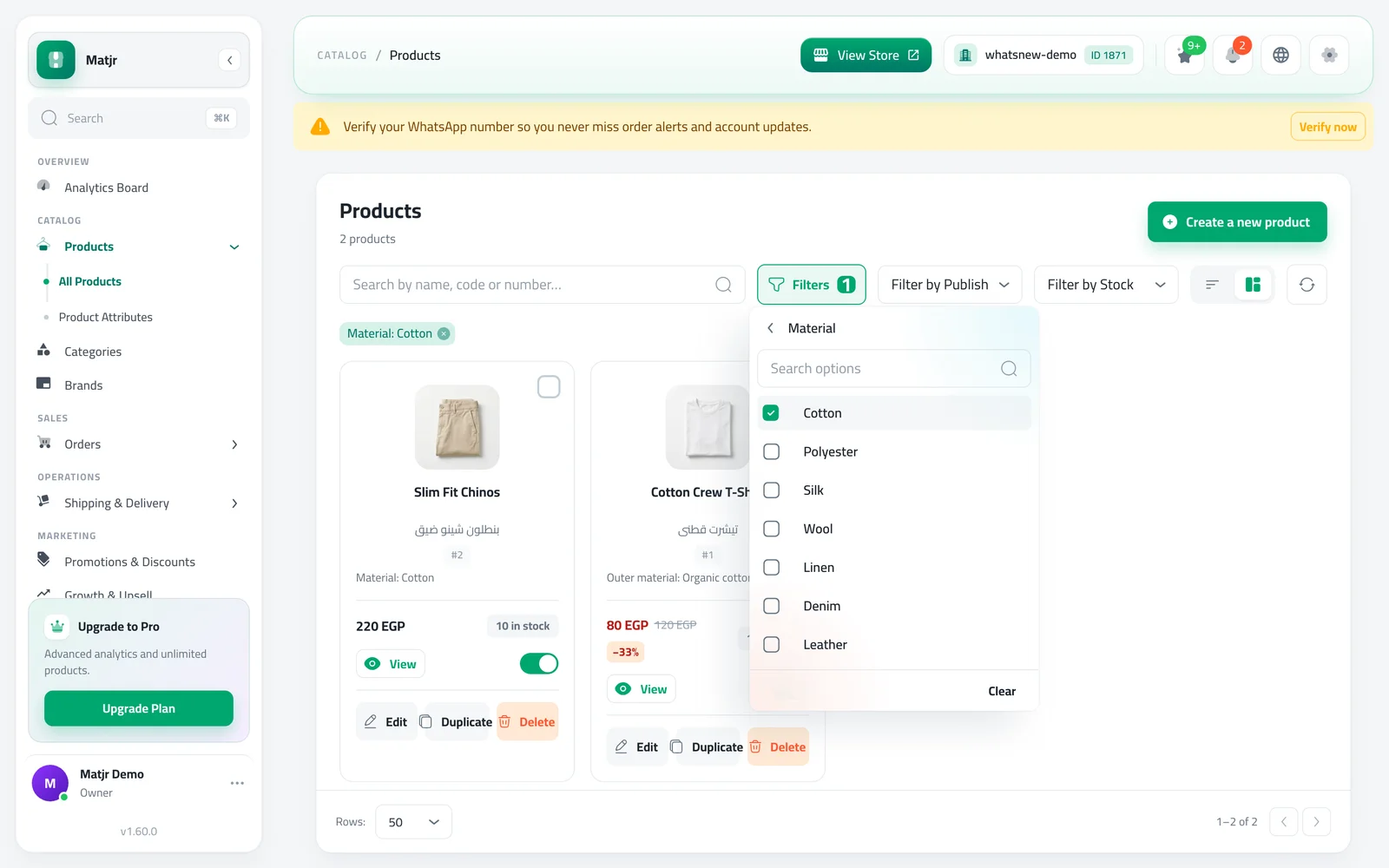
- Choice for a fixed list, like a list of materials. A choice attribute can also be used for variants if you allow it.
The value type cannot be changed after you create the attribute, so choose carefully.
Where specs show in your store
Specs appear on the product page in a short table, in the language the shopper is browsing in. Shoppers see them next to the description, so they can compare products without asking you. In the dashboard, the product details page shows the same specs, with a button to edit them.
Examples by type of shop
- Fashion: material, fit, care instructions, country of origin.
- Electronics: screen size, storage, battery, warranty.
- Beauty: skin type, volume, main ingredients, expiry period.
- Home: dimensions, weight, material, assembly needed (yes or no).
Write clear values
Write each value the way a shopper understands it, without unclear short forms. Write "2 years" instead of "2y", and always include the unit with numbers. If you sell many similar products, check that the values are written the same way on each one, so your pages look tidy and shoppers can compare them easily.
Common mistakes
- Using a variant for a description. If shoppers do not choose it, make it a spec.
- Different names for the same thing. Reuse one attribute across all products.
- Only one language. Fill in both values for text specs so Arabic and English shoppers see the same details.
- Too many specs. Five to eight useful details are better than twenty.
- Repeating the description. Keep the story in the description and the facts in the specs.
Related tasks
Make the product page itself look great with how to design your online store. Promote your best products with how to run a flash sale on your online store. See what is new in Show product details like material and size with specs.
Frequently asked questions
What are product specifications?
Details that describe a product, such as material, size, weight or warranty, shown in a table on the product page.
Do specs change my stock or prices?
No. Specs only describe the product. Use variants for options with their own stock or price.
Can I add the same spec to many products?
Yes. Create the attribute once and give each product its own value.
Can I change a spec’s value type later?
No. Create a new attribute with the right type instead.
Try it on your own store
Start your free trial. No credit card required.