Store design
Build your product page from sections
Add a video, delivery times, payment methods, FAQ and more to your product page, and drag sections into the order you like.
- Where
- Page Builder, product page
- Section types
- 15 to choose from
- Video
- YouTube link on the product Images tab
- Countries
- All countries
Your product page can now be built the same way as your home page. Show a video, delivery times or customer reviews right where shoppers decide to buy, and put each part in the order that sells best.
What changed
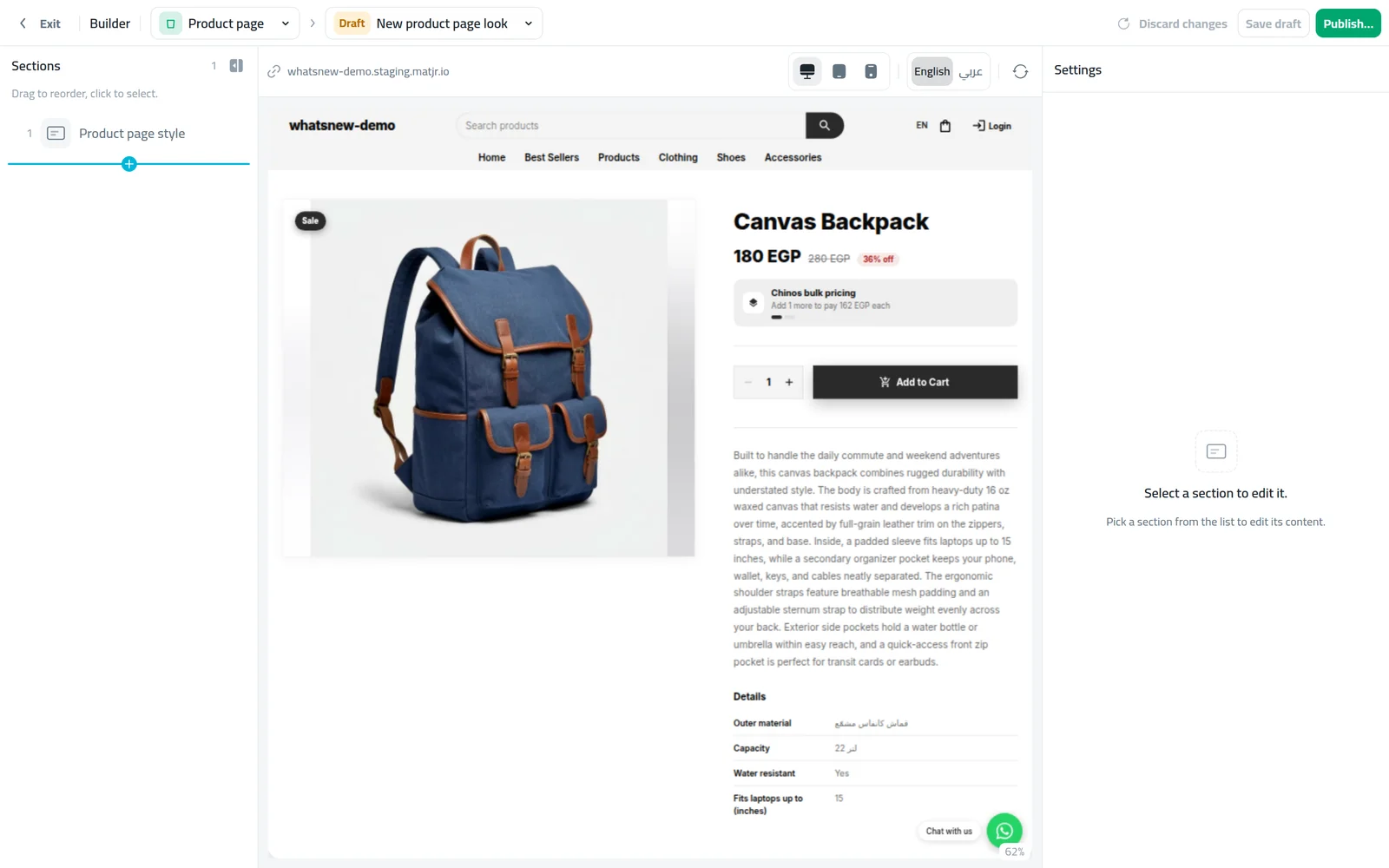
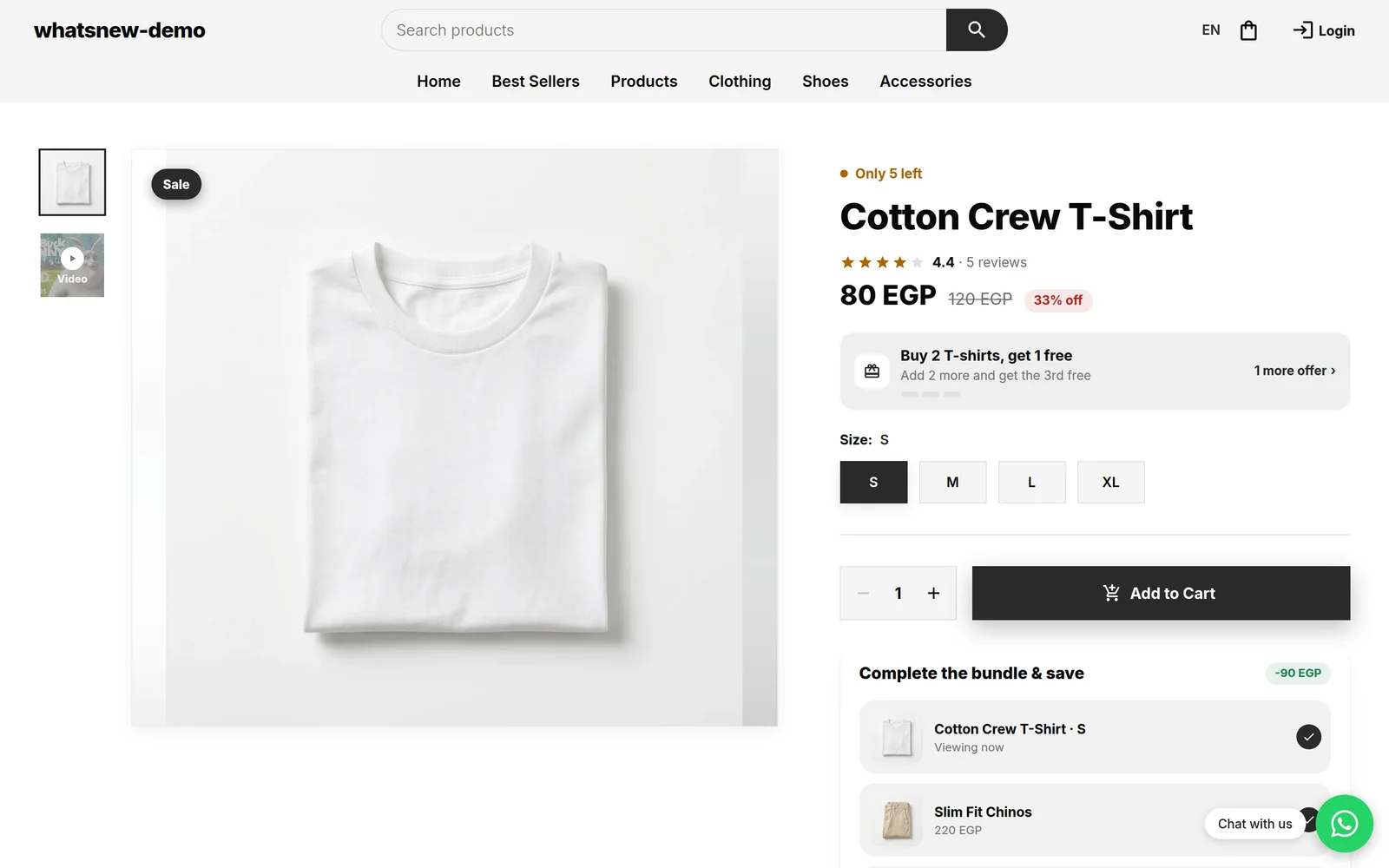
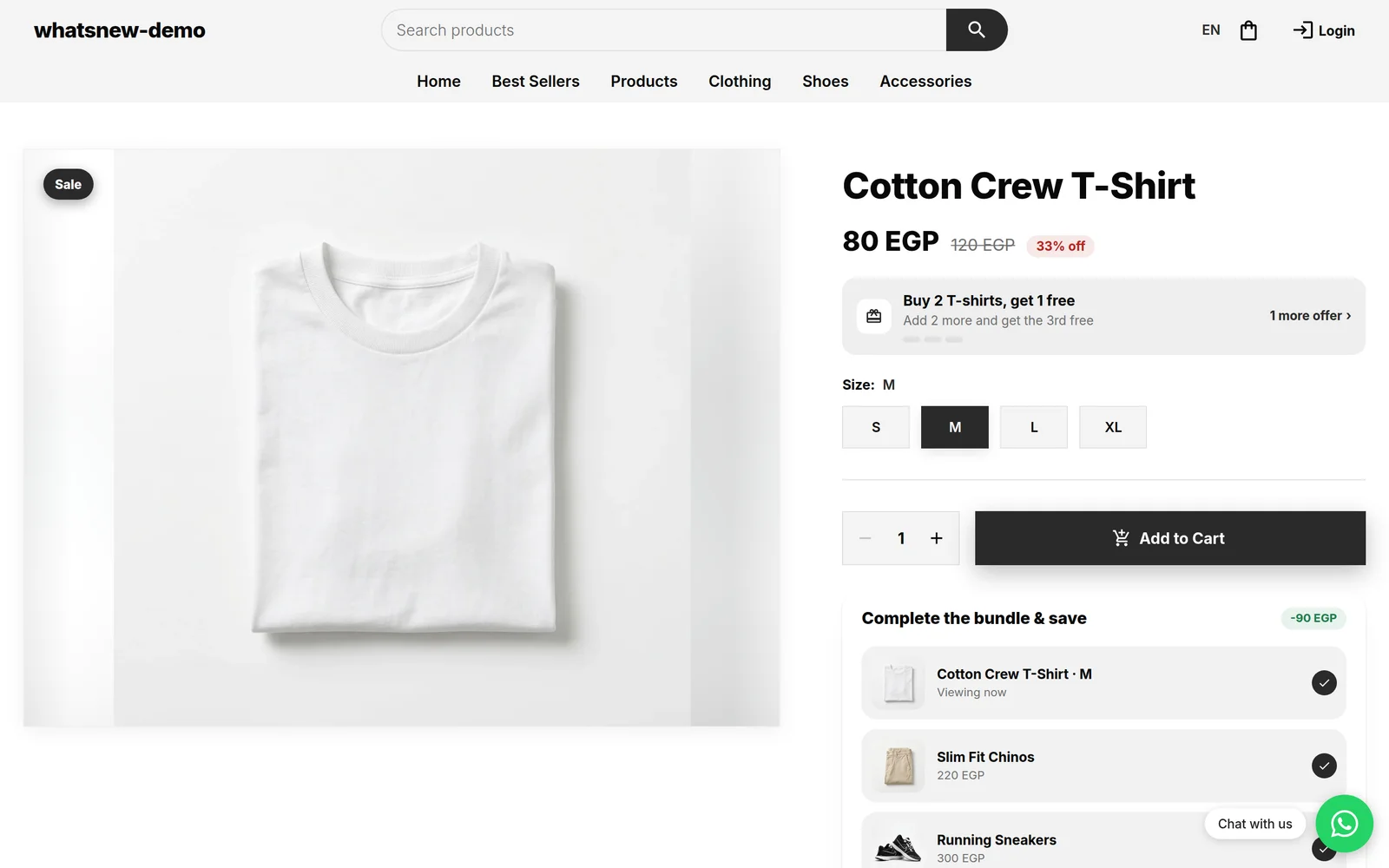
In the page builder, the product page now has a list of sections you can reorder by dragging. The gallery, price and description stay together as one section called Product page. You can move it, but not remove it.
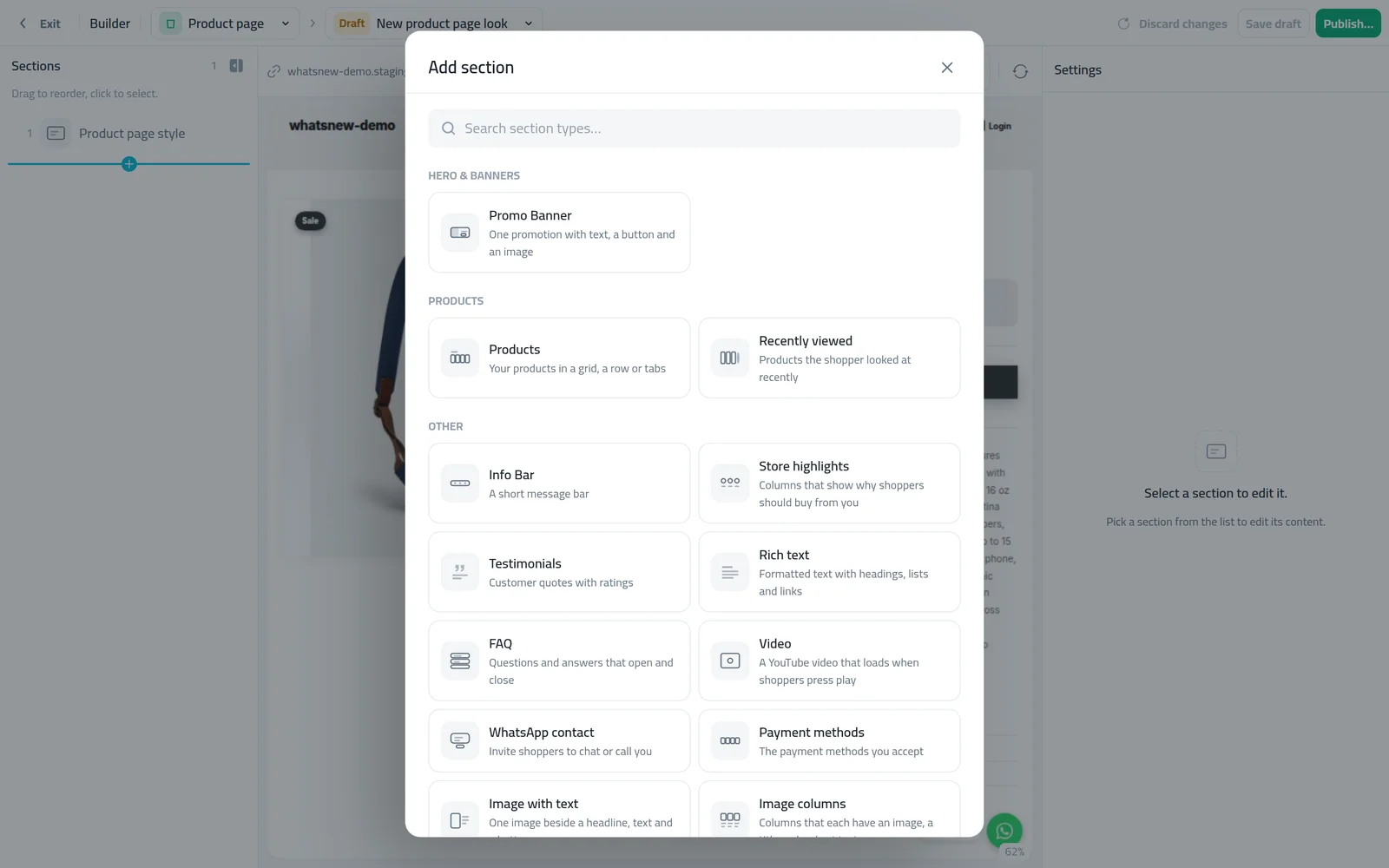
You can add 15 types of sections: video, delivery times, payment methods, rich text, FAQ, image with text, image columns, features, info bar, testimonials, recently viewed, products, WhatsApp, stats and banner.
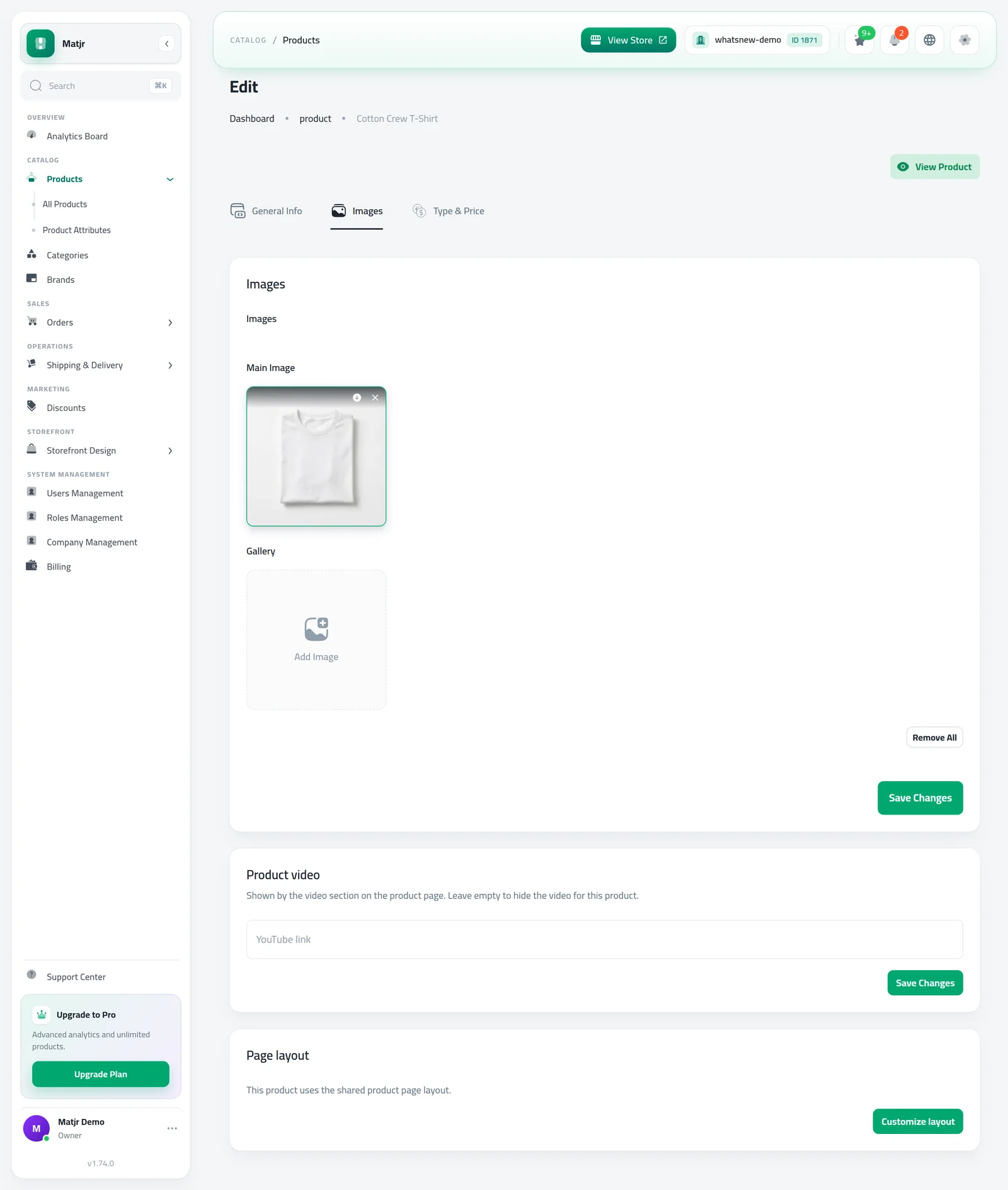
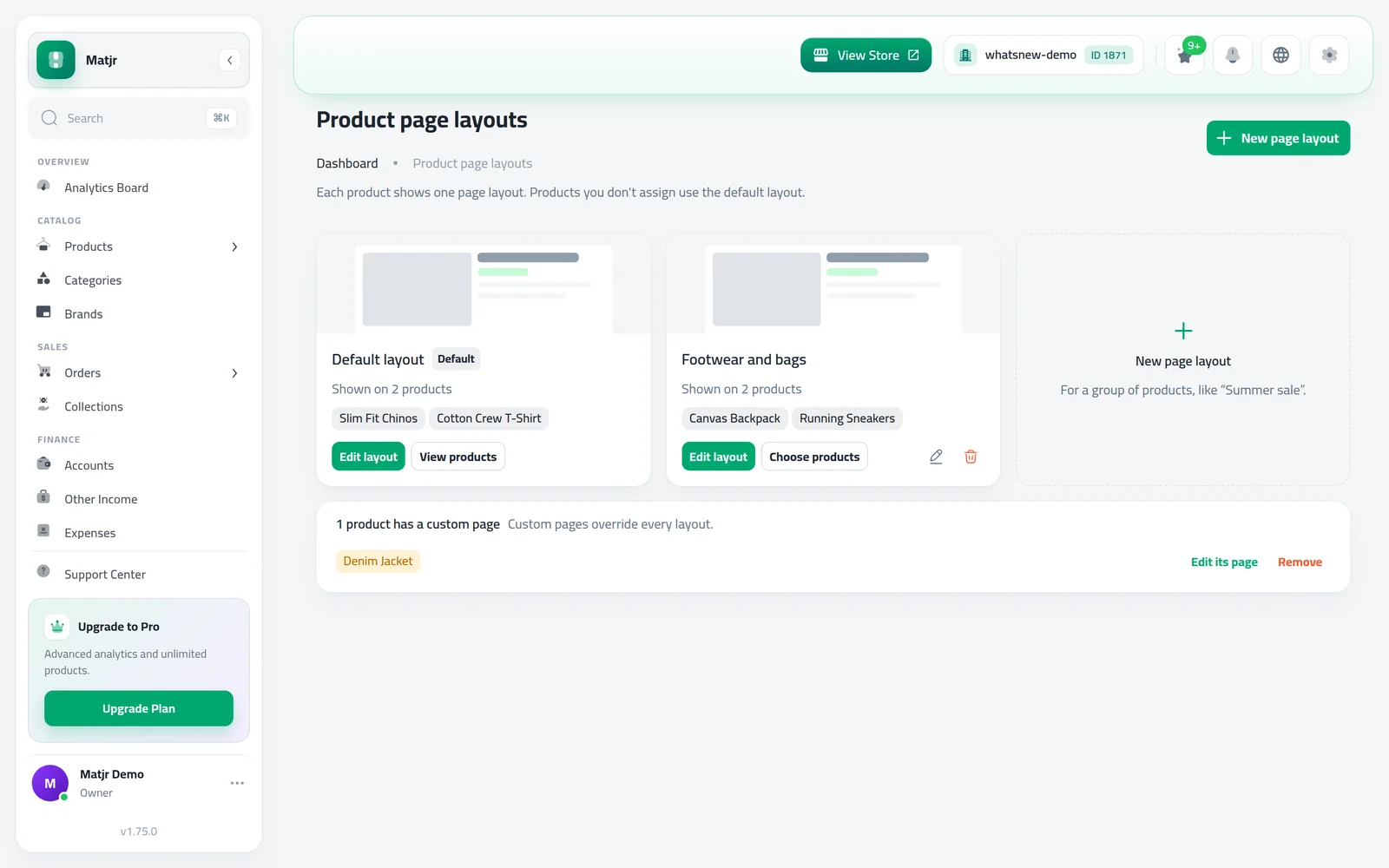
You can also give one product its own layout. Open the product, go to the Images tab and press Customize layout on the Page layout card. That product then has its own sections, and changes to the shared layout no longer affect it. Reset to shared layout brings it back.
For video, paste a YouTube link in the Product video card on the same tab. The Video section on the product page shows it automatically.
How to use it
Open Page Builder and choose the product page. You see the list of sections.
Press Add section and pick the section you want, for example Delivery times.
To show a video, open a product, go to the Images tab and paste the YouTube link in Product video. Use Customize layout if only this product needs a different page.
Good to know
- Hero, slideshow and shoppable video sections are not available on the product page.
- In the builder preview the Video section shows a placeholder, because no product is chosen. Shoppers see the real video.
- A product with its own layout does not follow later changes to the shared layout until you reset it.
- The full steps are in How to customize your product page.
Frequently asked questions
Can I hide the Product page section?
No. It holds the gallery, price and description. You can move it up or down but not remove it.
Can one product have a different layout?
Yes. Use Customize layout on the product Images tab. Reset to shared layout undoes it.
What video links work?
YouTube links: watch, share, shorts and embed. Leave the field empty to hide the video for that product.
Try it on your own store
Start your free trial. No credit card required.