Payments
How to connect card payments to your store
How to connect card payments to your store: pick Kashier or Paymob, add your keys, test, then go live and choose which methods customers see.
- Where
- Company settings, Payments
- Time needed
- About 15 minutes
- You need
- An account with a payment company and its keys
- Permission
- Manage payments
If you want to know how to connect card payments to your online store, this guide takes you from choosing a payment company to your first live card payment. Allow about 15 minutes once you have your provider account open.
Before you start
Card payments are processed by a payment company, not by Matjr. You need an account with one of them, and you need the keys it gives you. Think of keys as the passwords that let your store talk to your account. Matjr supports these companies:
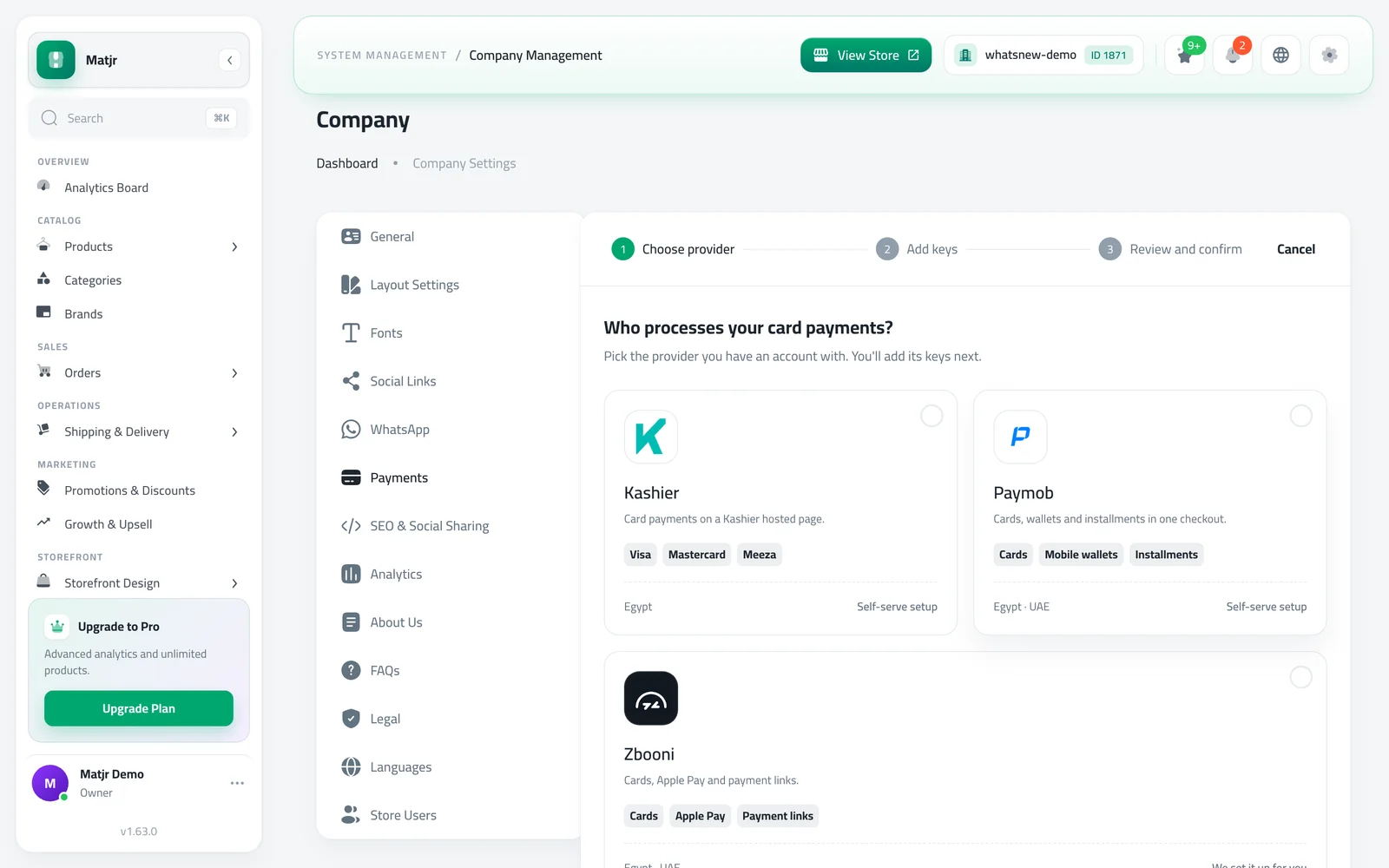
- Kashier (Egypt): customers pay by card on a Kashier page.
- Paymob (Egypt and UAE): cards, mobile wallets and installments in one checkout.
- Zbooni (Egypt and UAE): cards, Apple Pay and payment links. Our team helps you set it up.
Make sure you are the store owner, or that your role includes the Manage payments permission. Without it you can look at the page but not change it.
How to connect card payments
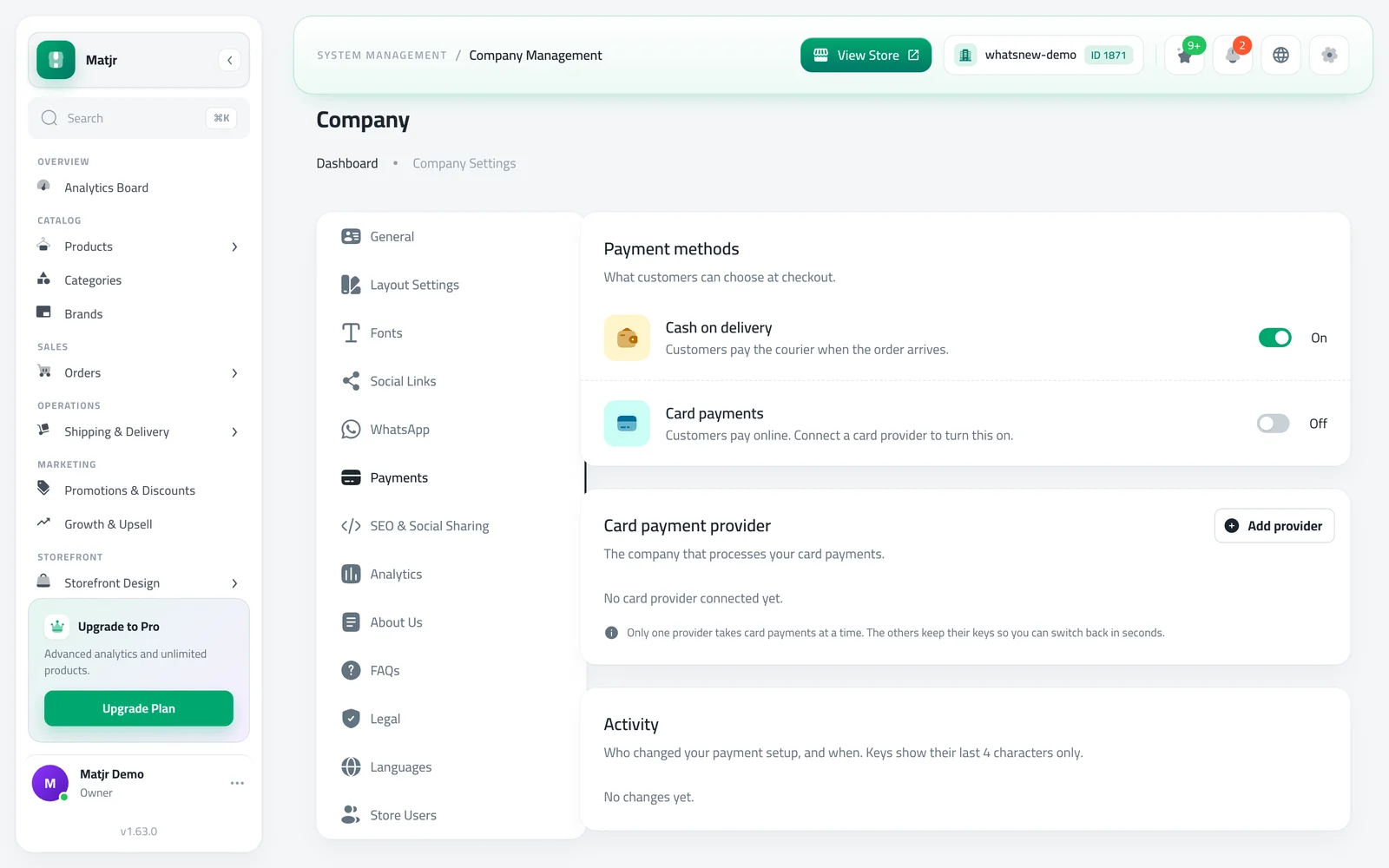
Open Company settings and choose Payments. You see two switches, Cash on delivery and Card payments. Card payments stays off until a company is connected.
Under Card payment provider, press Add provider. Pick the company you have an account with. If yours is not listed, use the option to tell us, or ask us to introduce you to a company.
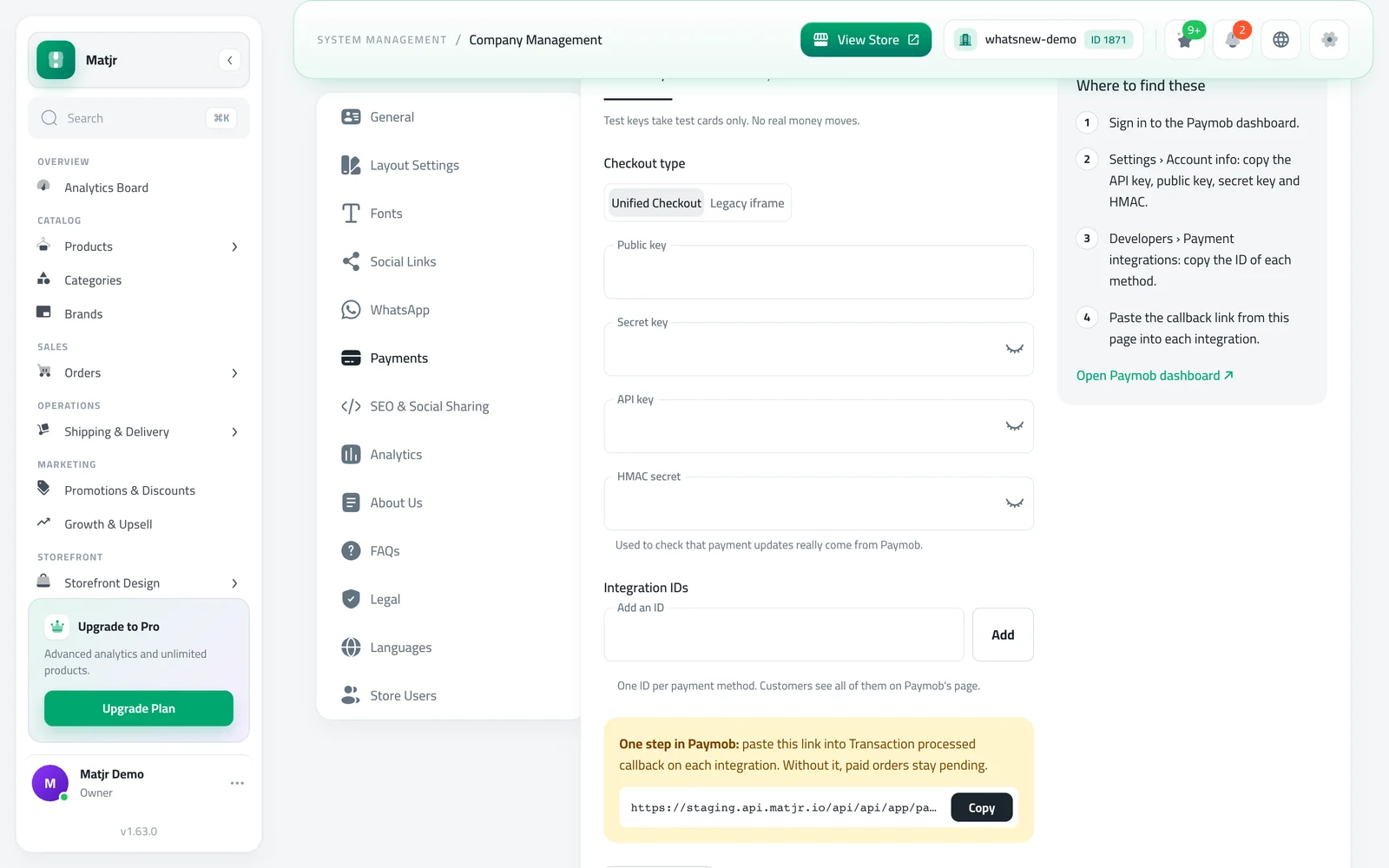
Add your keys. Each company asks for different details, and the page shows where to find each one in your provider account. There are two sets: Test keys and Live keys. Press Check keys to make sure they look right, then continue to the review step and confirm.
Test first, then go live
Start with test keys. In test mode your checkout accepts test cards only, so nobody is charged and real customers cannot pay by card yet. Place a test order from your own store to see the whole path: choosing card, paying, and the order appearing in Orders.
When you are happy, add your live keys and press Go live. From then on, live keys charge real customers. Do not leave a store in test mode by accident: your customers will see card payment but their real cards will not work.
Paymob needs one more step on its own website: paste the callback link we show you into each integration. Without it, paid orders stay pending.
Choose which payment methods to offer
Back on the Payments page, use the two switches to decide what customers see at checkout. You can offer both, or only one. At least one must stay on, so the store can always take orders.
- Cash on delivery on, card payments on: customers choose.
- Cash on delivery off, card payments on: only card is shown and it is already selected.
- Cash on delivery on, card payments off: same as before you connected a company.
Switching companies and keeping track
Only one company takes card payments at a time. If you add a second one, press Make active to switch. The first company keeps its saved keys, so you can switch back in seconds. To remove a company completely, press Disconnect: its saved keys are deleted, and you can add them again later.
The Activity section lists who changed your payment setup and when. For safety, keys show only their last 4 characters.
Common mistakes
- Pasting test keys into the live fields, or the other way round. Check the tab name before you paste.
- Forgetting to go live, so customers see card payment that does not work for real cards.
- Turning both methods off. The page does not allow it, so if a switch will not move, turn the other one on first.
- Expecting changes instantly. Your store can take a few minutes to show them.
Related tasks
After you connect a company, see how customers pay for orders to follow payments on each order. You can also read the update Take card payments with your own payment company for what changed. To get your delivery side ready, set up your shipping areas and prices.
Frequently asked questions
How do I accept card payments on my online store?
Open Company settings, then Payments, press Add provider, choose your payment company and enter its keys. Test first, then press Go live.
Which payment companies can I connect?
Kashier in Egypt, and Paymob and Zbooni in Egypt and the UAE.
Why can my customers not pay by card yet?
Your store is probably in test mode, which accepts test cards only. Add live keys and press Go live.
Can I keep cash on delivery too?
Yes. Keep both switches on and customers choose at checkout.
Can I use two payment companies?
You can save more than one, but only one takes card payments at a time. Press Make active to switch.
Try it on your own store
Start your free trial. No credit card required.