Ürünler
How to track product stock in your online store
How to track stock in your online store: turn on Track stock, set the quantity, limit orders per customer and keep selling pre-orders.
- Where
- Products › Edit › Type & Price
- Time needed
- About 2 minutes per product
- You need
- Your current quantity
- Good for
- Limited stock and pre-orders
If you are wondering how to track stock in your online store, it takes a few clicks per product. Once Track stock is on, the quantity goes down as you sell, and shoppers cannot add more than you have. This walk-through covers tracking, the order limit and pre-orders.
Before you start
Count what you have on the shelf before you turn tracking on. The number you enter becomes the starting point, and every sale lowers it from there.
- Know your current quantity for each product, and for each size or colour if you sell variants.
- Decide which products need tracking. Physical items with limited stock do. Services and made-to-order items usually do not.
- Save the product first. The stock switches are on the edit page, not on the new product form, so add the product, save it, then open it again.
How to track stock in your online store
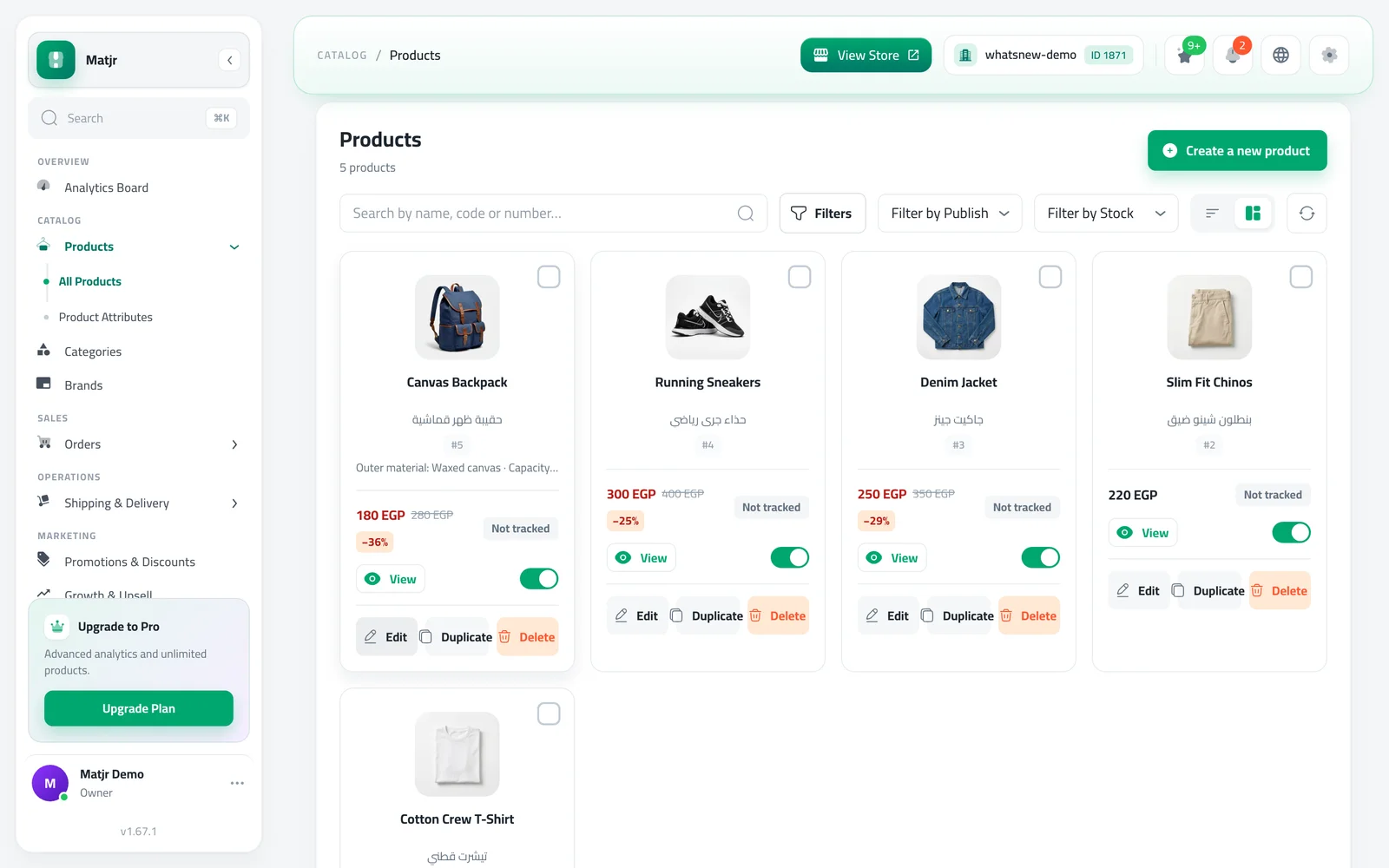
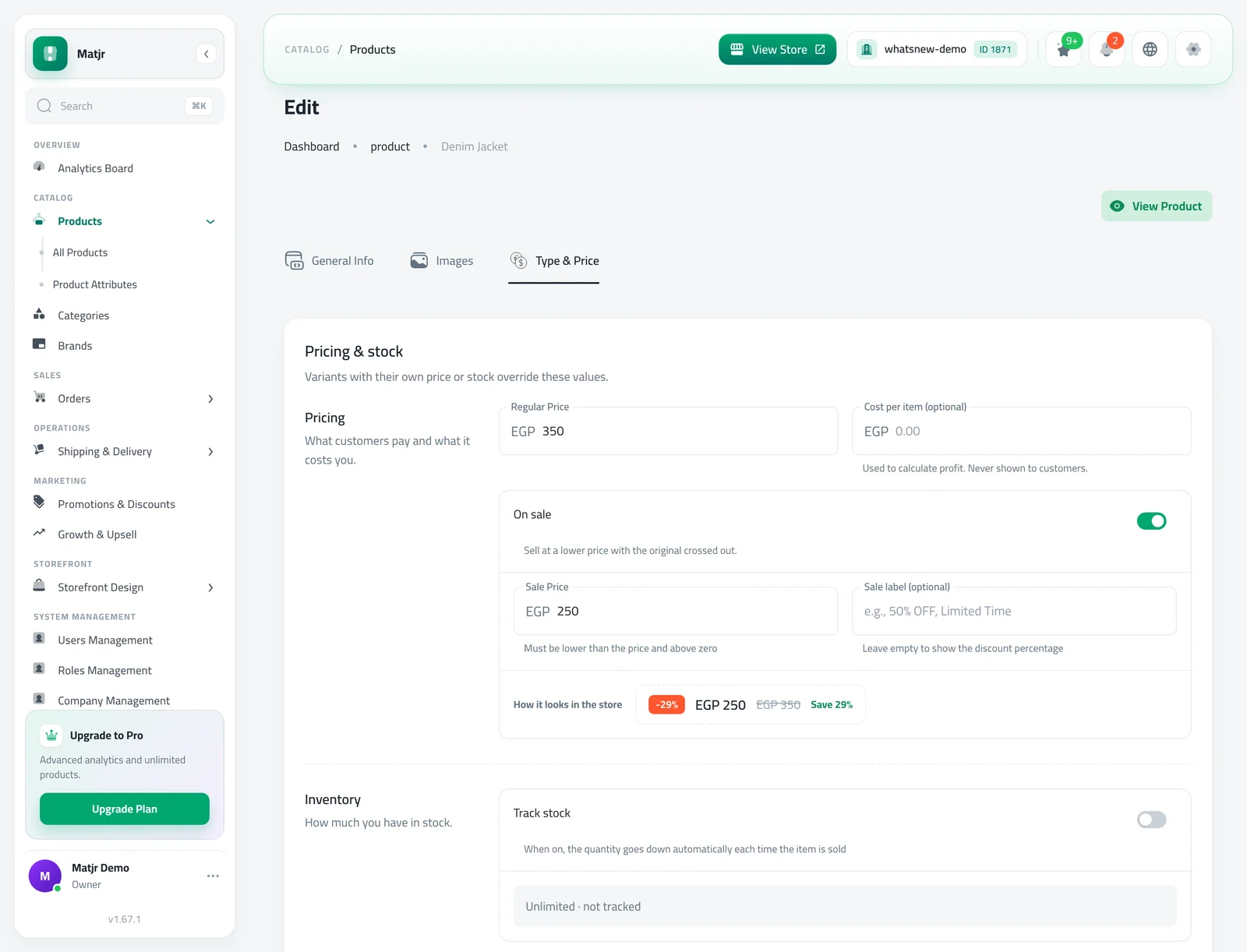
Open Products and edit the product. The stock settings are on the Type & Price tab, in the Pricing & stock card.
Open Products and click Edit on the product you want to track.
Go to the Type & Price tab. With Track stock off, the product shows Unlimited · not tracked.
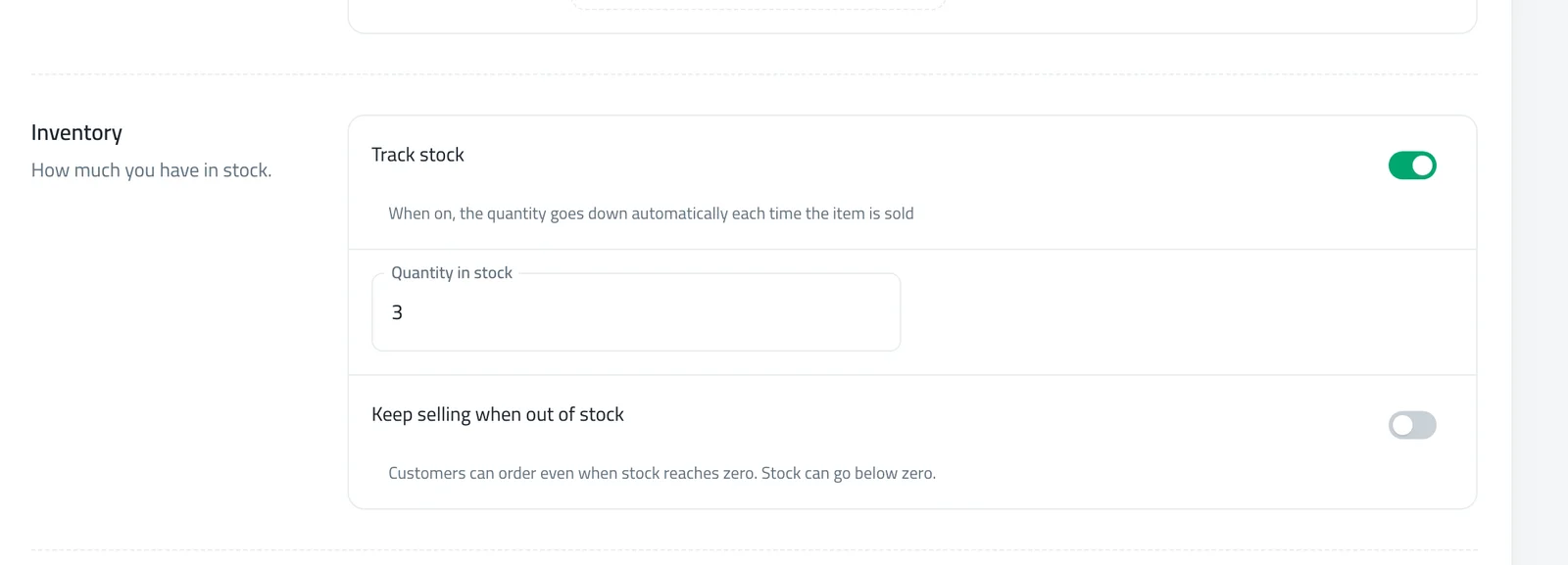
Turn on Track stock, enter the Quantity in stock and click Save Changes.
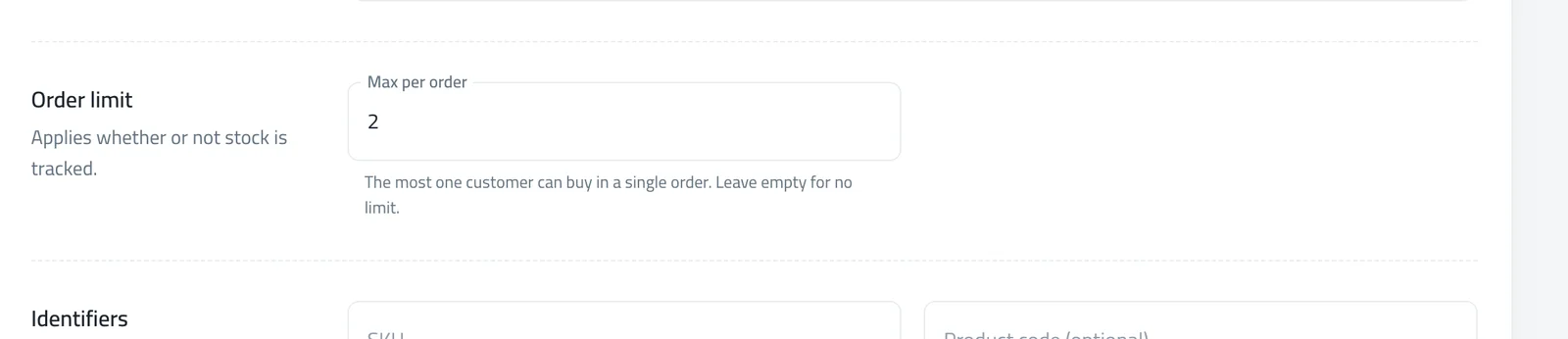
Under Order limit, set Max per order if one customer should not buy more than a set number. Leave it empty for no limit.
Open your store and check the product. Shoppers see a note such as Only 3 left and cannot add more than that.
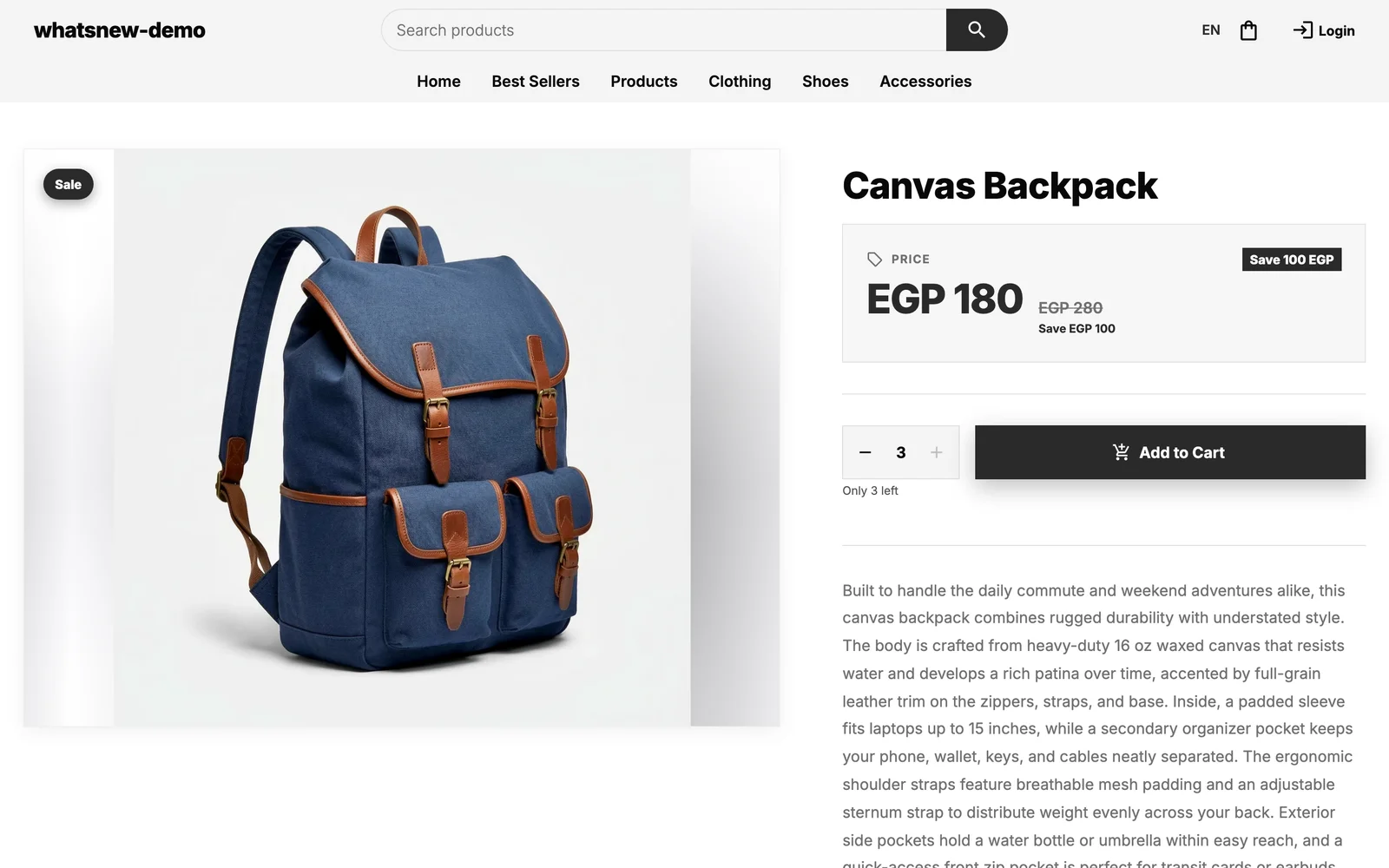
What your shoppers see
A shopper can add a product up to your stock, or up to the Max per order, whichever is lower. At the limit the plus button is disabled and a short note explains why: Only N left or Max N per order. When stock reaches zero the product shows Sold Out. If you sell variants, the stock limit applies to each size or colour, while Max per order counts all variants of the product together.
Keep selling when you run out, for pre-orders
Taking orders for stock that is on its way? Turn on Keep selling when out of stock, which appears once Track stock is on. Customers can order even at zero, and your stock can go below zero until the new delivery arrives. Max per order still applies, so you can cap how many pre-orders each customer places.
When the quantity goes down
By default, stock goes down when you confirm an order, not when the customer places it. Card orders reduce stock only after the payment succeeds. You can change this in your order settings, as explained in how to choose when stock is deducted from orders. If an order is canceled, the stock goes back.
If you use warehouses and invoices
Stores that manage stock with warehouses see the quantity per warehouse on the product page instead of a number field. Change stock with a purchase invoice (use Adjust stock with an invoice) or from your warehouses. Saving the product never overwrites your stock, so it is safe to edit prices while orders are coming in.
Common mistakes
- Looking for the switch on the new product form. It is only on the edit page for now.
- Leaving tracking off for physical items. Shoppers can then order more than you have.
- Turning tracking on and forgetting the quantity. A quantity of 0 shows the product as sold out.
- Counting stock twice. If you create a manual invoice for an online order, stock may go down a second time for tracked products.
Test it before you rely on it
After you turn tracking on for your first product, open its page in your store and try to add more than you have. If the store stops you and shows the note, everything works, and you can turn tracking on for the rest of your products with confidence. The test takes a minute and saves surprises later.
Tips for accurate stock
- Do a quick count every few weeks and update the quantity if it drifted, for example after a damaged item or an in-store sale.
- For items with sizes or colours, check each variant. A variant with its own stock uses that number instead of the product number.
- Use Max per order for popular items so one customer cannot buy everything in a sale.
Related tasks
Add the product first with how to add a product to your online store. Control how many pieces go in one cart with the order limit above, and see what changed in track stock per product and stop overselling. Then set up delivery with how to set up shipping areas and prices in your store.
Sık sorulan sorular
How do I track stock for a product in my online store?
Edit the product, open the Type & Price tab, turn on Track stock, enter the quantity and save.
Why is there no Track stock switch when I add a new product?
It is only on the edit page for now. Save the product, then open it again.
Can shoppers order more than I have in stock?
Not unless you turn on Keep selling when out of stock. Otherwise they cannot add more than your stock or the Max per order.
How do I take pre-orders?
Turn on Track stock, then turn on Keep selling when out of stock. Customers can order at zero and stock can go below zero.
Will saving a product change my stock?
Only if you change the quantity yourself. If you use warehouses, saving never changes stock.
Kendi mağazanızda deneyin
Ücretsiz denemeyi başlatın. Kredi kartı gerekmez.