Mağaza tasarımı
9 new home page sections to build trust and sell more
Tell your story, show delivery times and payment methods, add a WhatsApp invite and bring shoppers back to products they viewed.
- Where
- Storefront Design › Design › Home page
- New sections
- 9
- Videos from
- YouTube links
- Shoppers see it
- After you publish your home page
Give shoppers more reasons to trust you and buy, right on your home page. Nine new sections help you tell your story, show proof, answer delivery questions before they are asked and bring shoppers back to products they liked.
What changed
Click Add section in the builder and you will find these new sections:
- Image with text: one photo beside a headline, text and a button. Good for your story or a collection you want to push.
- Video: a YouTube video that loads only when shoppers press play, so your page stays quick. You can also let it play muted when it scrolls into view.
- Image columns: 2 to 4 columns, each with an image, a title and a short text. On phones shoppers swipe through them.
- Before & after: two photos with a slider shoppers drag to compare them.
- Stats: big numbers, such as orders delivered or happy customers, that count up as shoppers scroll.
- WhatsApp contact: invites shoppers to chat with you on WhatsApp, with your working hours and an optional call button.
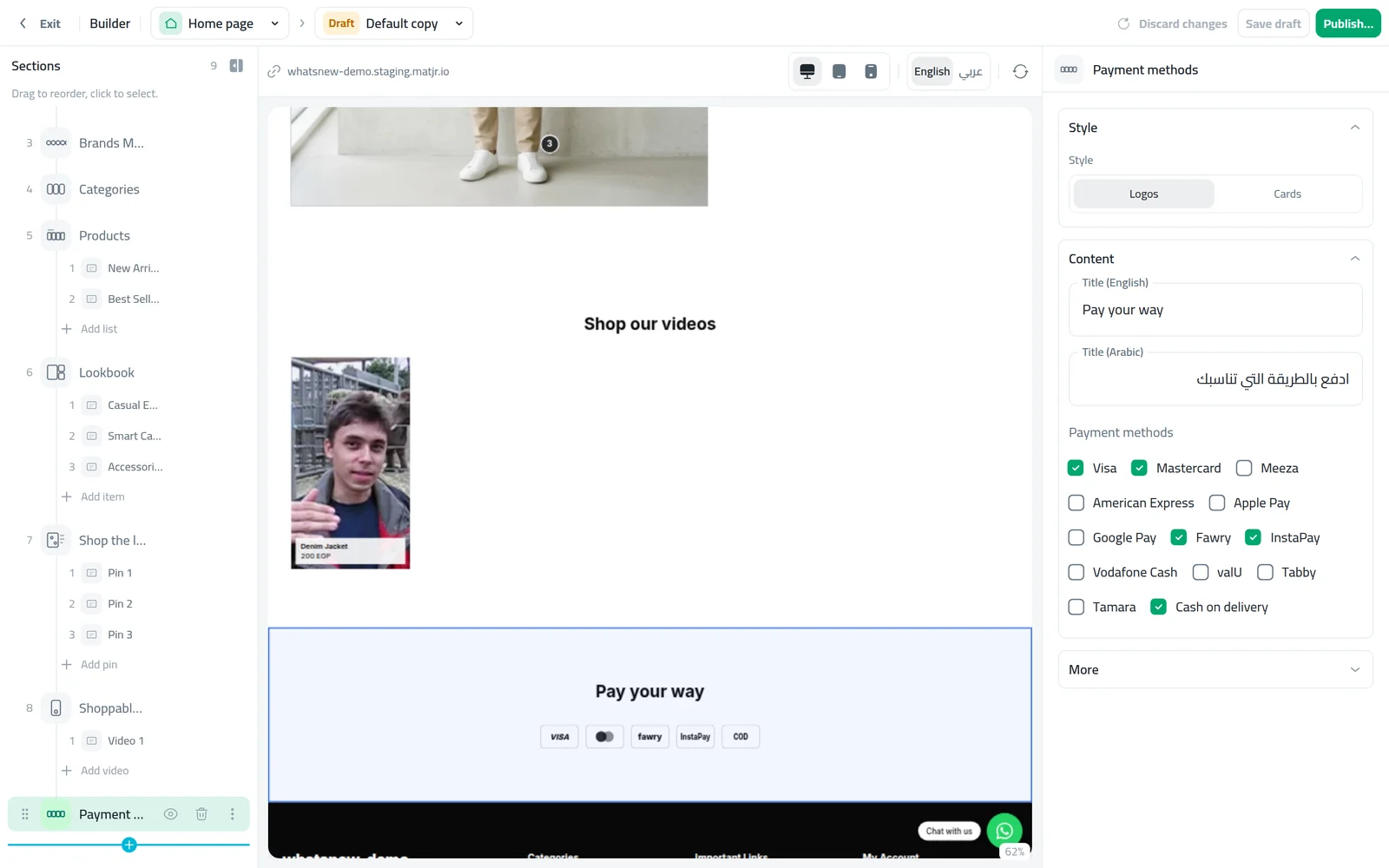
- Payment methods: the logos of the ways you accept payment, such as Visa, Mastercard, Meeza, Fawry, InstaPay, Tabby or Cash on delivery. You pick which ones show.
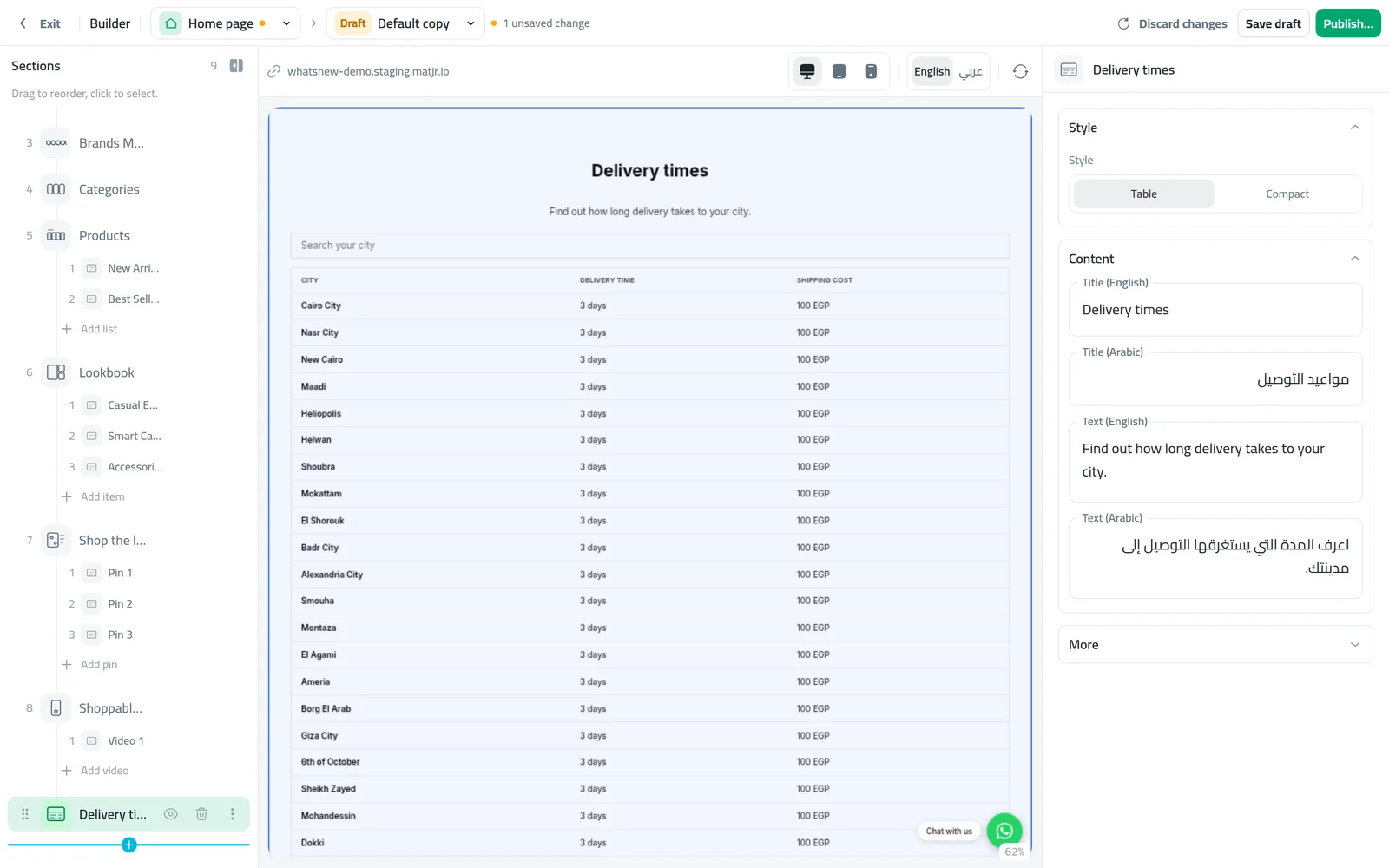
- Delivery times: delivery time and cost for your cities, taken from your Shipping settings. Show it as a table shoppers can search by city, or as a compact view.
- Recently viewed: the products a shopper looked at recently, so they can get back to them in one tap.
How to use it
Open Storefront Design, click Design and choose the Home page. Click Add section. Most of the new sections are under Other; Recently viewed is under Products.
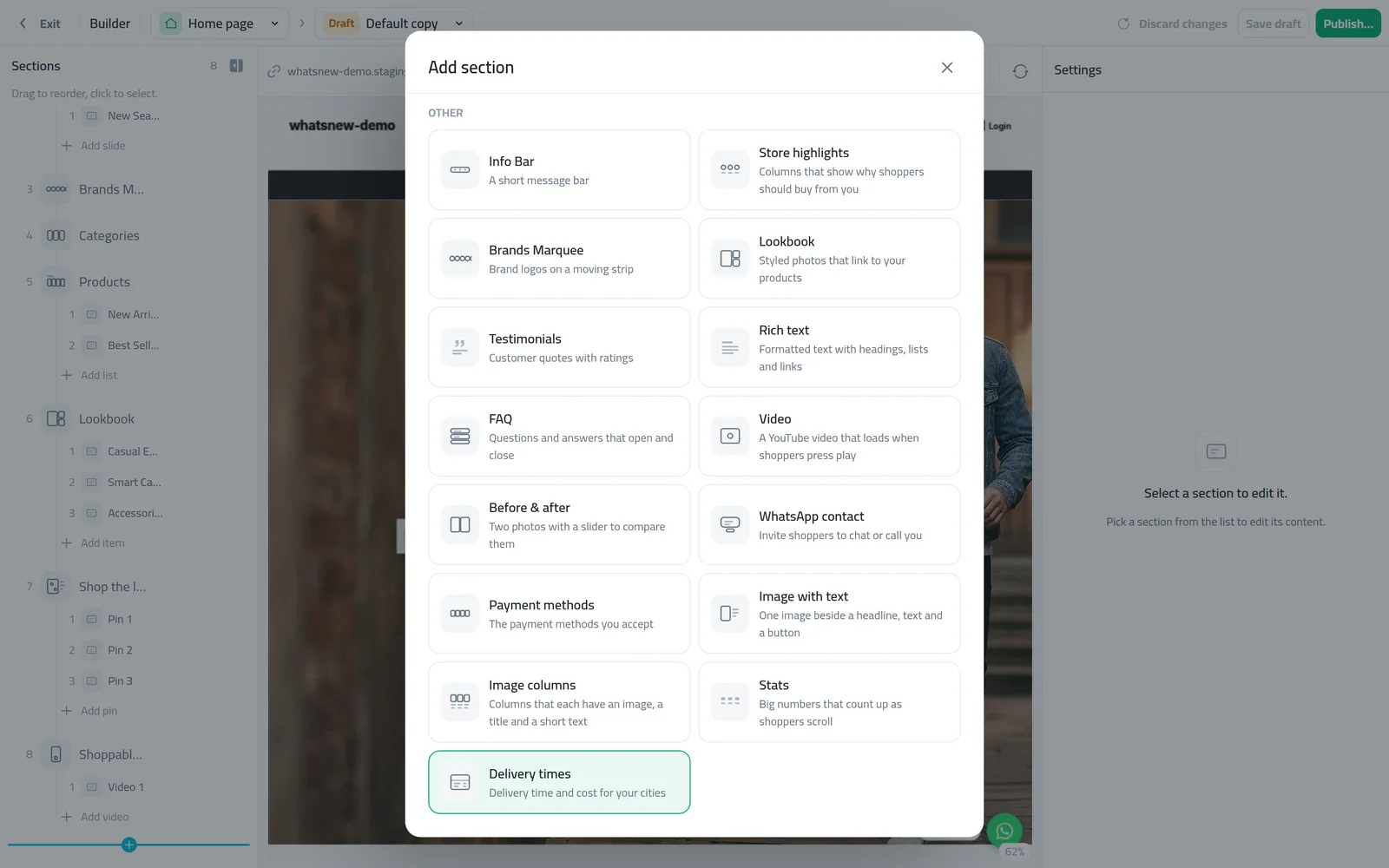
Pick a section, for example Delivery times. It goes into your page with ready-made text in your store languages, and its settings open beside the preview. Choose Table or Compact and how many cities to show.
Set up the other sections the same way. In Payment methods, choose the logos you accept. When the page looks right, click Save draft and publish it.
Good to know
- Video works with YouTube links only.
- WhatsApp contact uses your store WhatsApp button number unless you enter another one. If there is no number, the section does not show.
- Recently viewed is kept in each shopper's own browser. It stays hidden until the shopper has viewed a product, and they can clear it.
- Delivery times follows your Shipping settings. Change a city there and the section shows the change.
- Payment methods only shows logos. It does not change how shoppers pay at checkout.
- For a full walk-through of the builder, see how to design your online store.
Sık sorulan sorular
Can I upload my own video file to the Video section?
No. The Video section plays YouTube videos. Upload your video to YouTube first, then paste its link.
Where does Delivery times get its cities and prices?
From your Shipping settings. When you change a city there, the section shows the change.
Why can't I see Recently viewed on my store?
It only shows after you open a product in that browser. Shoppers who have not viewed any product yet do not see it.
Does the Payment methods section add new ways to pay?
No. It only shows the logos you pick. How shoppers pay at checkout stays the same.
Kendi mağazanızda deneyin
Ücretsiz denemeyi başlatın. Kredi kartı gerekmez.