Orders
How to choose when stock is deducted from orders
How to choose when stock is deducted from your orders: on confirmation or on placement, plus how to confirm orders and pick warehouses.
- Where
- Company Management › Orders, and each order
- Default
- Stock goes down when you confirm
- Needs
- Track stock on the product
- Warehouses
- Choose one per item after you confirm
If you are wondering when stock is deducted from your orders, you decide. By default, stock goes down when you confirm an order. If you want stock to go down the moment a customer places it, one switch does that. This walk-through covers both ways, the Confirmed status and choosing warehouses.
Before you start
Stock only moves for products with Track stock turned on. Read how to track product stock in your online store first if you have not set that up.
- Decide which timing suits you. Confirming first means orders you never confirm do not hold your stock. Reducing at placement means stock is gone as soon as the customer orders.
- If you use warehouses, make sure each one is created, so you can pick them on the order.
How stock is deducted from your orders
Orders have a Confirmed status between Placed and Preparing. Stock goes down when you move the order to Confirmed or any later step. Card orders go down only after the payment succeeds. If you cancel an order, or a card payment fails, the stock goes back.
Open Company Management and go to the Orders tab.
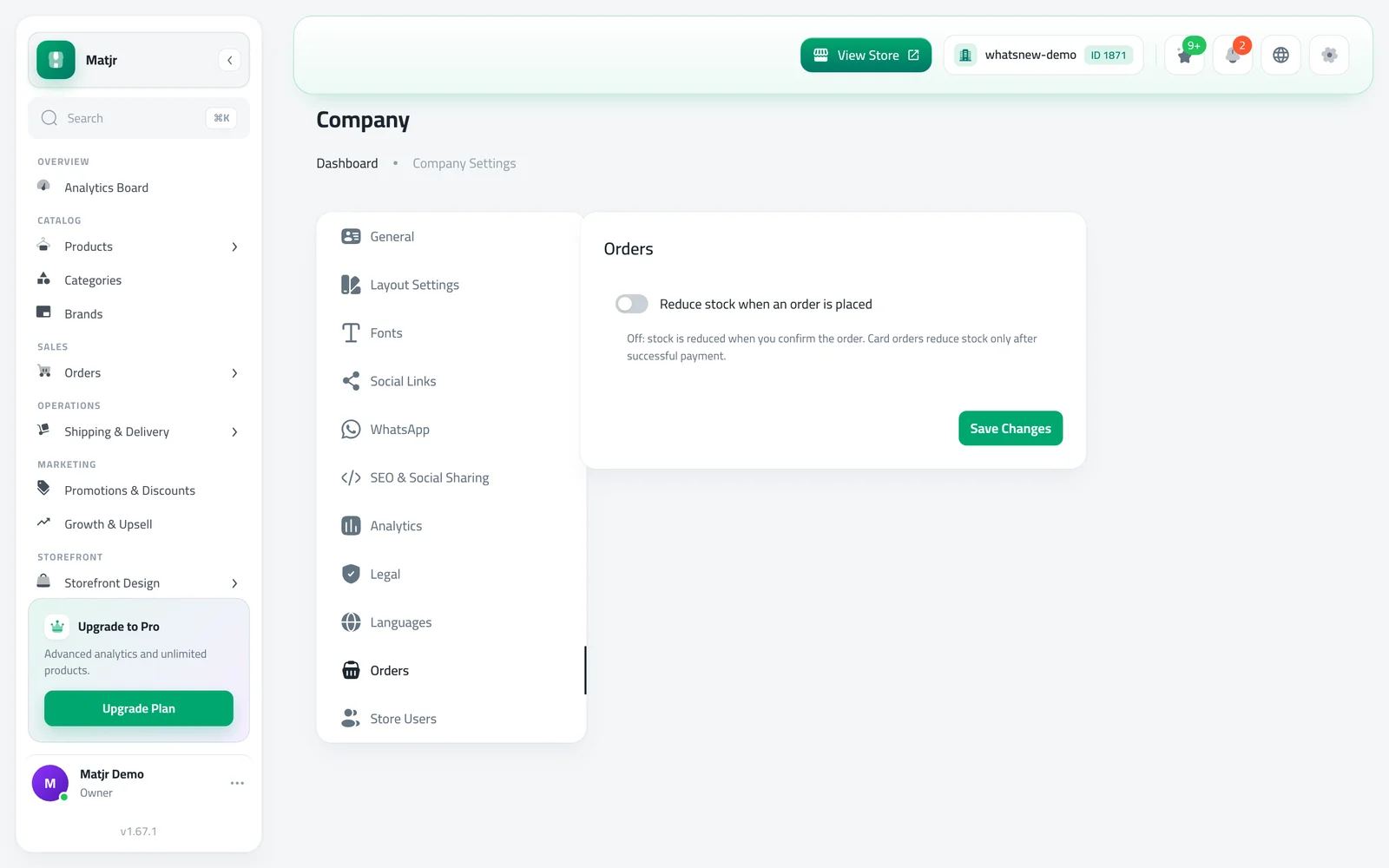
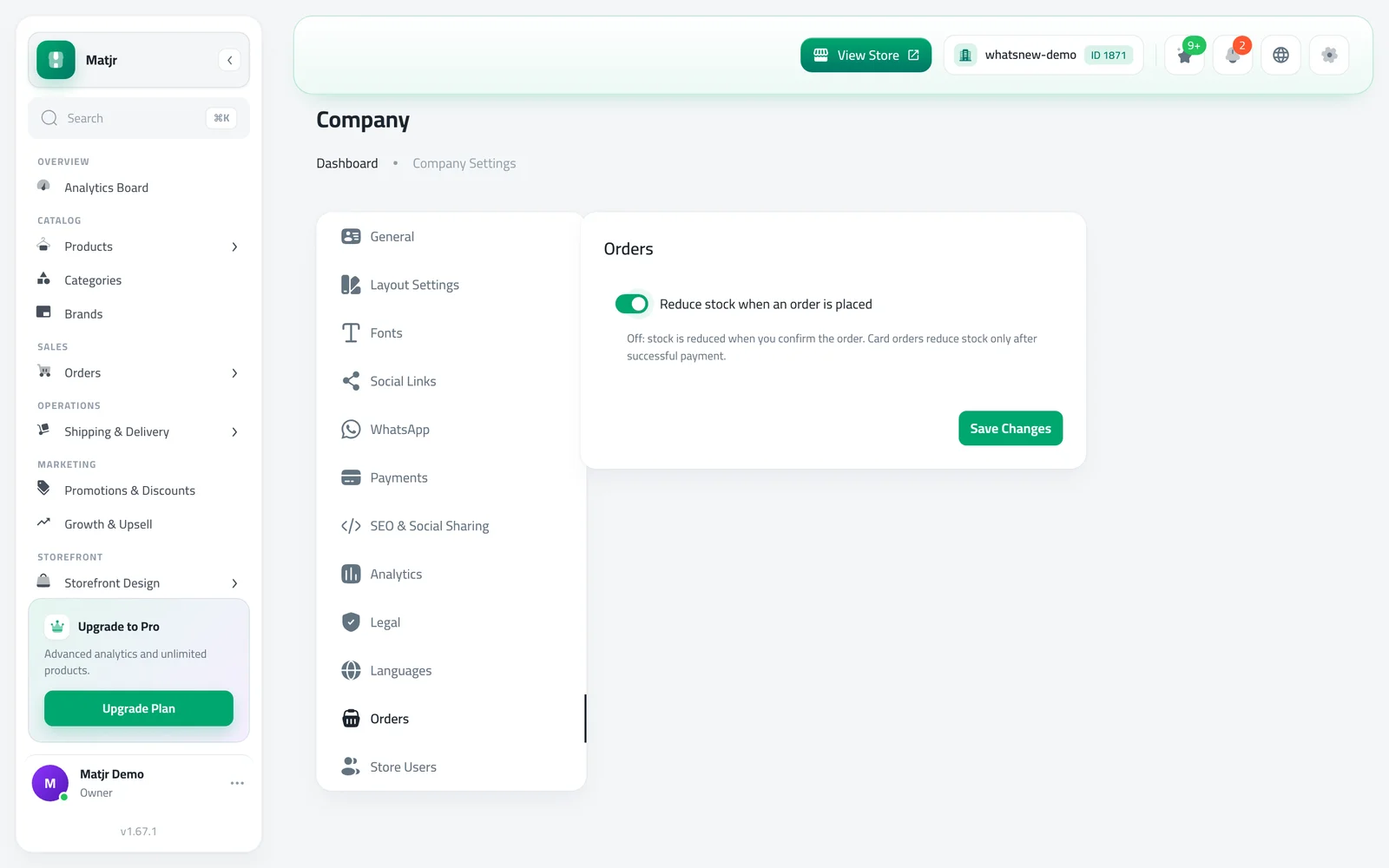
Leave Reduce stock when an order is placed off to deduct at confirmation, or turn it on to deduct at placement. Click Save Changes.
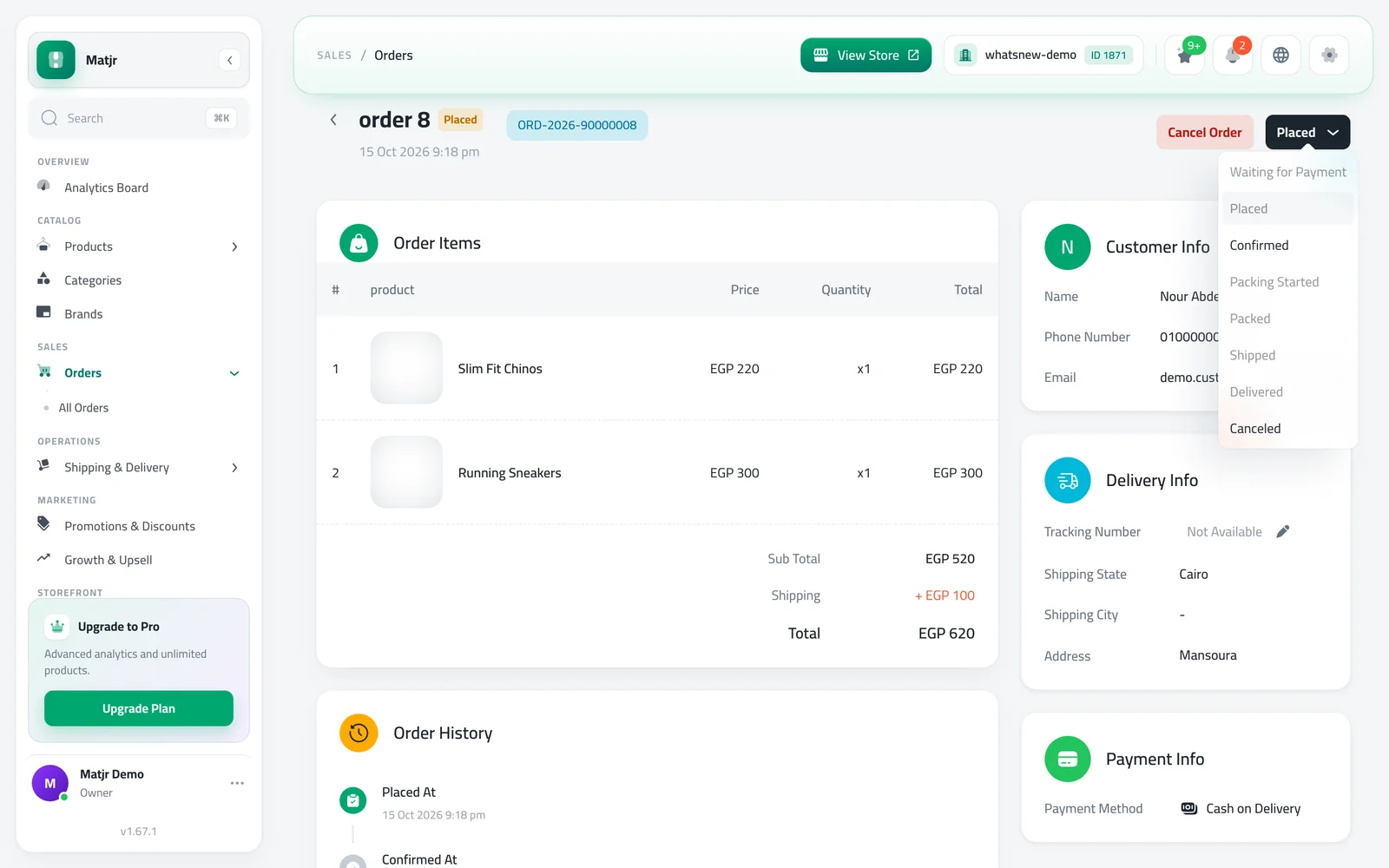
Open All Orders, click an order, then click Update status and choose Confirmed. Your customer's orders page then shows Order Confirmed.
With warehouses, a Stock allocation card appears below the order items once you confirm. Choose a warehouse for each item, or click Use one warehouse for all to set them in one click.
Choosing a warehouse for each order
Stores that use warehouses see a Stock allocation card with the line N of M allocated. Before you confirm the order, each item shows Chosen after you confirm, because no stock has been taken yet. After you confirm, pick the warehouse each item comes from. With only one warehouse, it is picked for you and marked Automatic. Once the order ships, is delivered or is canceled, the warehouse can no longer change, so choose it before you ship.
When stock goes below zero
Confirming never blocks you. If two customers ordered the last unit and you confirm both, the second order still goes through and you see a warning: Stock for some items in this order is now below zero. Review your inventory. Restock, or contact the customer.
Which timing should you pick?
Confirm first, the default, suits most stores. You check each order, for example by phone or WhatsApp, before any stock moves. Orders that are never confirmed, or that a customer abandons, do not hold your stock, so you never show a product as sold out because of orders that will not happen.
Reduce at placement suits stores that ship almost everything straight away, such as ready-made items with fast delivery. Stock goes down the moment the order arrives, so you never promise the same unit twice. The trade-off is that a fake or canceled order holds stock until you cancel it.
A quick example
You have 5 units and a customer orders 2. With the default setting, stock stays at 5 until you click Confirmed, then it becomes 3. With the placement switch on, it becomes 3 the moment the order arrives. Either way, if you cancel the order, stock goes back to 5.
What about orders that are already open?
Orders placed before you change the setting follow the new rule when you next move them forward. Moving an order to Confirmed, Preparing, Packed, Shipped or Delivered takes its stock once, and never twice. If you switch the placement setting on later, new orders are the ones that start taking stock when they are placed.
Common mistakes
- Expecting stock to drop when the customer orders. By default it drops when you confirm.
- Never confirming orders. Stock stays untouched until you do, so confirm orders you plan to fulfil.
- Choosing the warehouse too late. It locks after shipping.
- Tracking off on the product. If a product is not tracked, its stock never moves.
Related tasks
Turn on tracking with how to track product stock in your online store. See how customers pay with how to see how your customers pay for their orders, and read what changed in confirm orders and choose when stock goes down.
Frequently asked questions
When is stock deducted from an order?
By default, when you confirm the order. Card orders go down only after the payment succeeds.
How do I reduce stock as soon as the order is placed?
Open Company Management, go to the Orders tab, turn on Reduce stock when an order is placed and save.
Why can I not choose a warehouse on my order?
Confirm the order first. Warehouses are chosen after confirmation, and they lock once the order ships.
What if the stock goes below zero?
The order still goes through and you see a warning, so you can restock or contact the customer.
Does canceling an order return the stock?
Yes. Canceling an order, or a failed card payment, puts the stock back.
Try it on your own store
Start your free trial. No credit card required.