Payments
How to see how your customers pay for their orders
How to see how your customers pay for their orders: cash on delivery or card, where to find the payment details and what the messages mean.
- Where
- Orders, then the Payment Info card
- Payment methods
- Cash on Delivery and Card
- Overview
- Payment Methods chart on the Analytics Board
- Who can use it
- Every store
Knowing how each customer paid helps you prepare the order: collect cash at the door, or ship an order that is already paid. This guide shows how to see how your customers pay for their orders, where to find the payment details, and what the payment messages mean.
How customers pay in your store
Orders in your store use one of two payment methods. Cash on Delivery means the customer pays when the order arrives, so the delivery person collects the amount. Card means the customer paid online when placing the order.
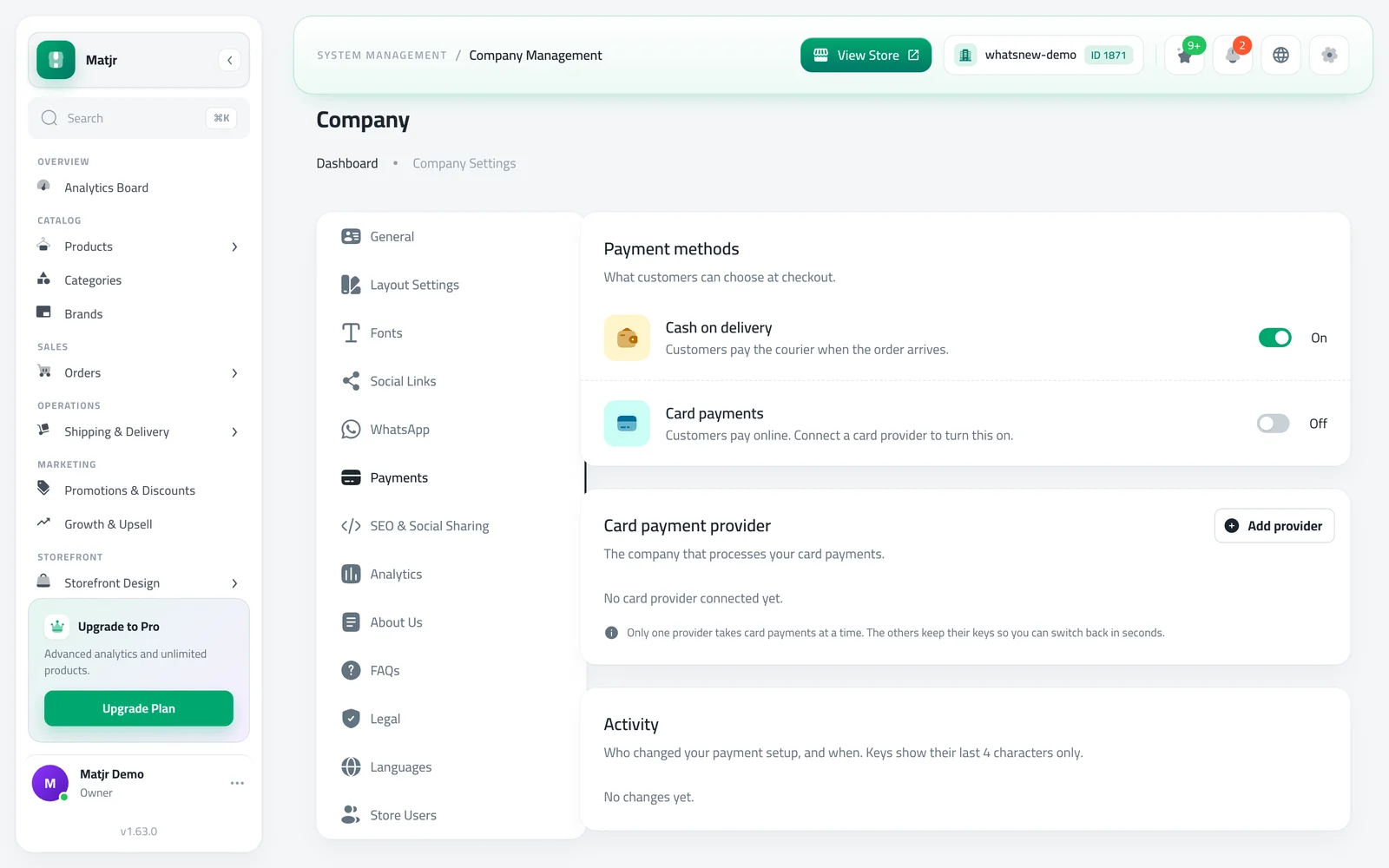
You can connect online card payment yourself. Open Company settings, choose Payments and connect Kashier, Paymob or Zbooni. Once it is connected, card orders appear in your orders automatically. The steps are in how to connect card payments to your store.
How to see how customers pay
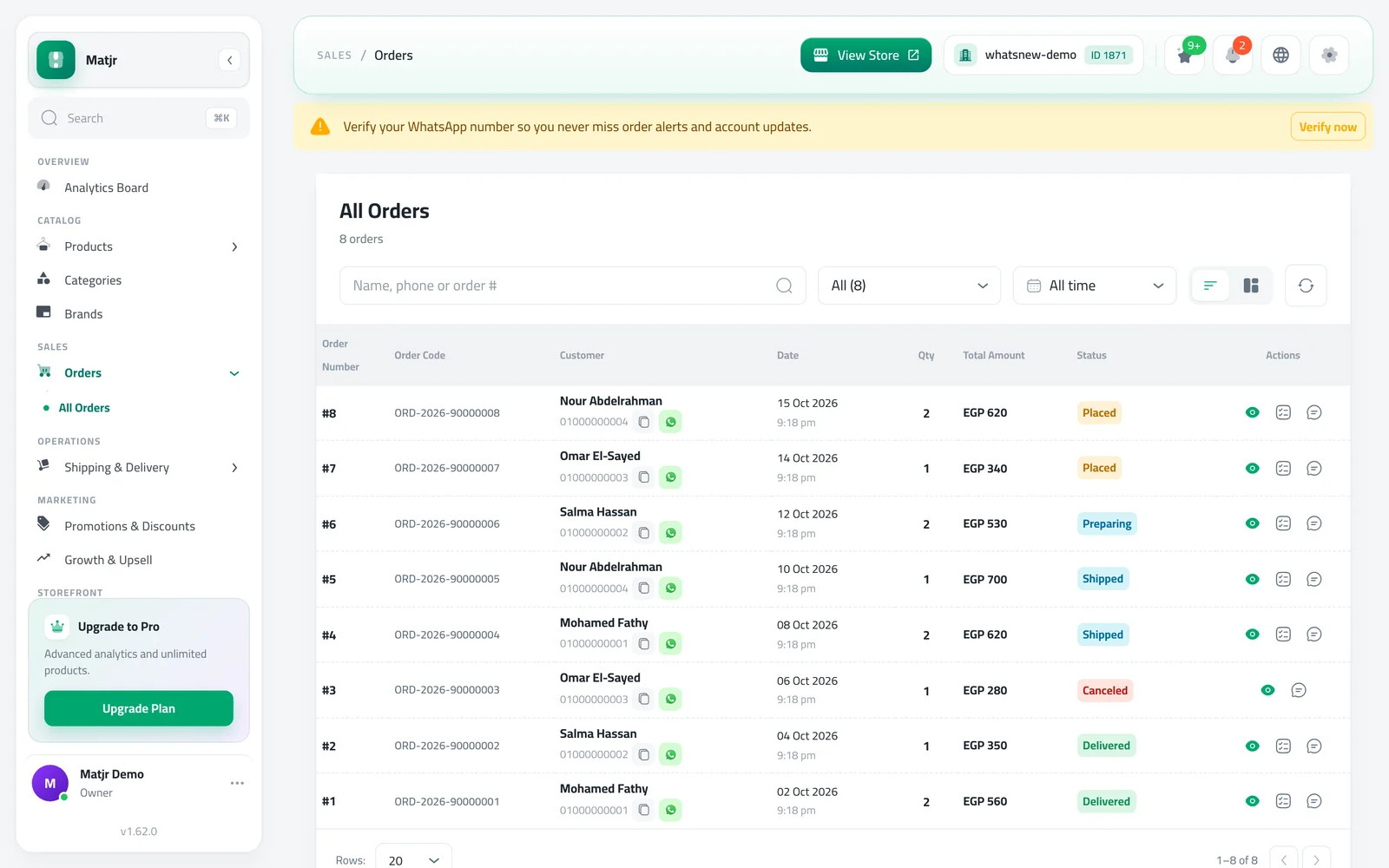
Open Orders and choose All Orders. Search by customer name, phone or order number, or pick a status from the list, and find the order you want. Click the eye icon on its row to open it.
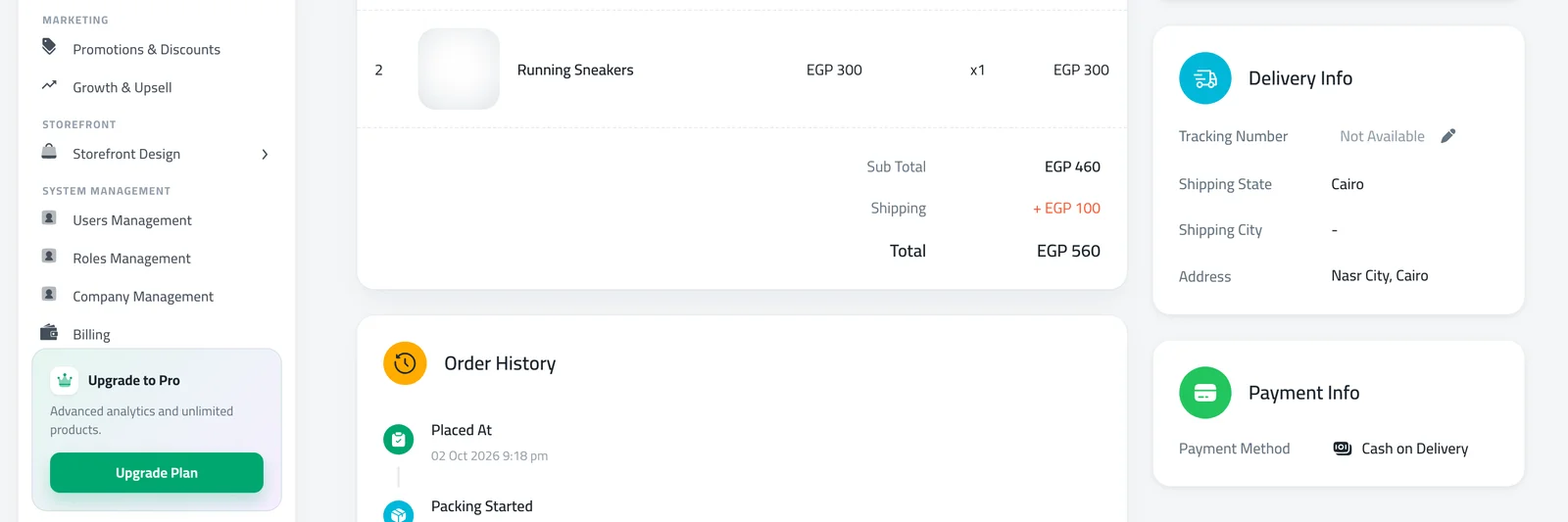
On the order page, find the Payment Info card. Payment Method says Cash on Delivery or Card. For a card order you also see the Payment Provider, the Payment Status and the Transaction ID. Next to it, Delivery Info and the order totals help you prepare the delivery.
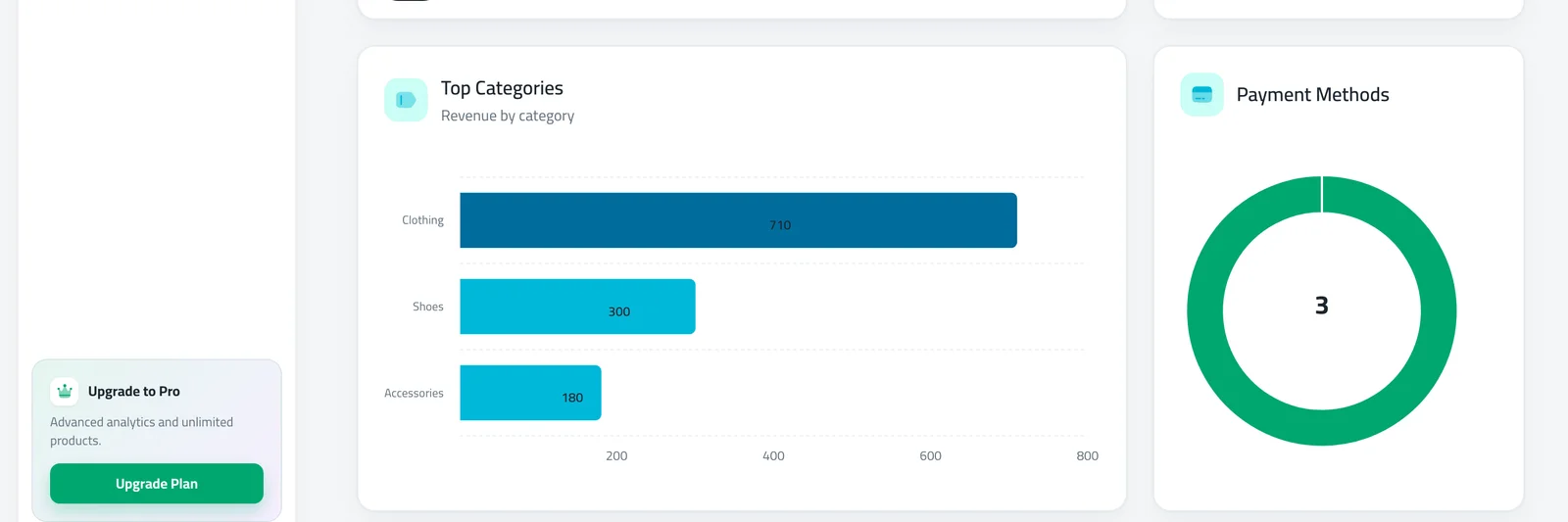
To see the big picture, open the Analytics Board and scroll to Payment Methods. This chart shows how your orders in the selected period are split between the payment methods.
What the payment messages mean
- Waiting for Payment is an order status for a card order that has been started but not paid yet. Do not ship it until it is paid.
- Payment Failed means the card payment did not go through. The customer needs to try again or choose another method.
- A note saying the payment confirmation has not arrived yet, or that the payment status is unknown, appears on card orders that are waiting for the payment company to answer. Wait a few minutes and open the order again.
What to do next
Once you know how your customers pay, set up your delivery prices so the total they pay is clear, and keep an eye on the new orders each day. If you ever see a card order that stays on Waiting for Payment for a long time, do not ship it, and contact Matjr support with the order number. If you have staff who prepare orders, show them where to find the payment method on each order and what to do when they see Payment Failed or Waiting for Payment, so everyone acts the same way and no unpaid order goes out by mistake.
A simple daily routine
Start the day with All Orders and look at the new orders. For each one, open it and read the Payment Method. Prepare the orders that are paid by card first, because nothing is left to collect. For Cash on Delivery orders, check the total and the address, since the delivery person will collect that exact amount.
Once a week, open the Analytics Board and look at the Payment Methods chart. If most customers choose cash on delivery, plan for the cash you will collect and the time it takes to reach you. If many choose card, make sure you check the payment status before you ship.
When a customer asks "did my payment go through?", open the order and read the Payment Status and the Transaction ID. You can give them the Transaction ID so they can follow it up with their bank.
Common mistakes
- Shipping a card order before its payment is confirmed. Check Payment Status first.
- Forgetting to collect the cash on a Cash on Delivery order. Write the amount on the delivery note, and when you create a delivery order, choose the right payment type.
- Looking for a payment column in the orders list. The method is shown inside each order.
Good to know
- Cash on Delivery orders have no payment status. They are paid when the order is delivered.
- Set the price customers pay for delivery in how to set up shipping areas and prices.
- Learn how to add the products customers order: how to add a product to your online store.
- Offer a time-limited discount to bring in more orders: how to run a flash sale on your online store.
- The bell at the top of your dashboard tells you when a new order arrives, so you can open it and check how it is paid right away. See never miss a new order with dashboard notifications.
Frequently asked questions
Can I turn on card payments from the dashboard?
Yes. Open Company settings, choose Payments and connect Kashier, Paymob or Zbooni. The steps are in the guide on how to connect card payments to your store.
Where do I see if an order is paid?
Open the order and look at the Payment Info card. Card orders show a Payment Status, and Cash on Delivery orders are paid when they are delivered.
What does Waiting for Payment mean?
The customer started a card payment that is not confirmed yet. Wait until it is paid before you ship the order.
Which payment methods can my customers use?
Orders show Cash on Delivery or Card. Which ones your customers see in the store depends on what is active for your store.
Try it on your own store
Start your free trial. No credit card required.