Marketing
Create urgency with a flash sale countdown on your home page
Show your best deals with a live countdown. Pick the products, set when the sale ends, and choose one of six looks.
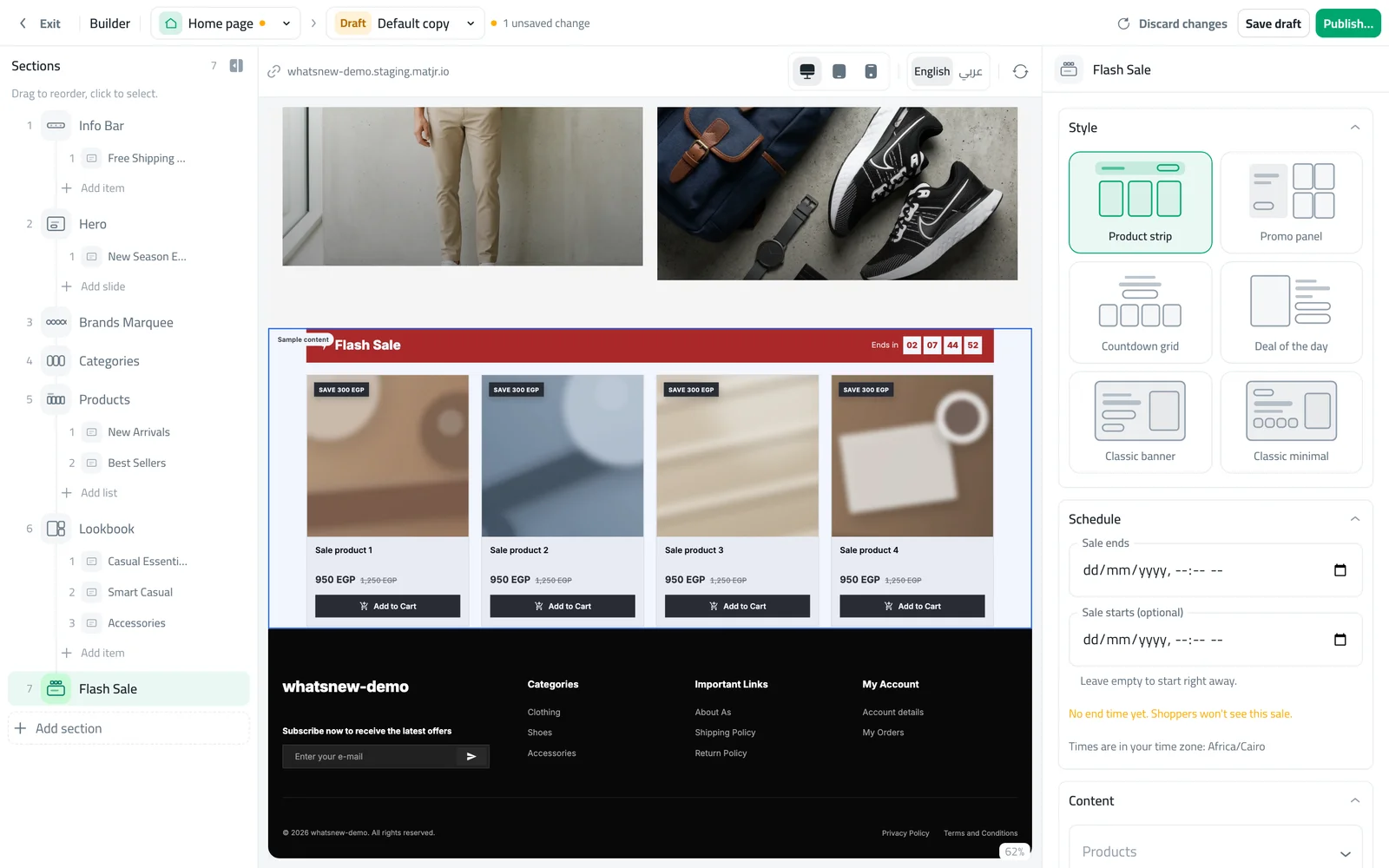
- Where
- Design › Home page › Add section
- Looks
- 6
- Products
- Up to 12
- Prices
- Each product’s own sale price
A countdown gives shoppers a reason to buy today. The new Flash Sale section shows the products you pick with a live timer, and it hides itself when the sale ends.
What changed
The Flash Sale section has six looks: Product strip, Promo panel, Countdown grid, Deal of the day, Classic banner and Classic minimal. You choose up to 12 products and set when the sale ends, and optionally when it starts.
How to use it
In the builder, open the Home page and click Add section. Choose Flash Sale.
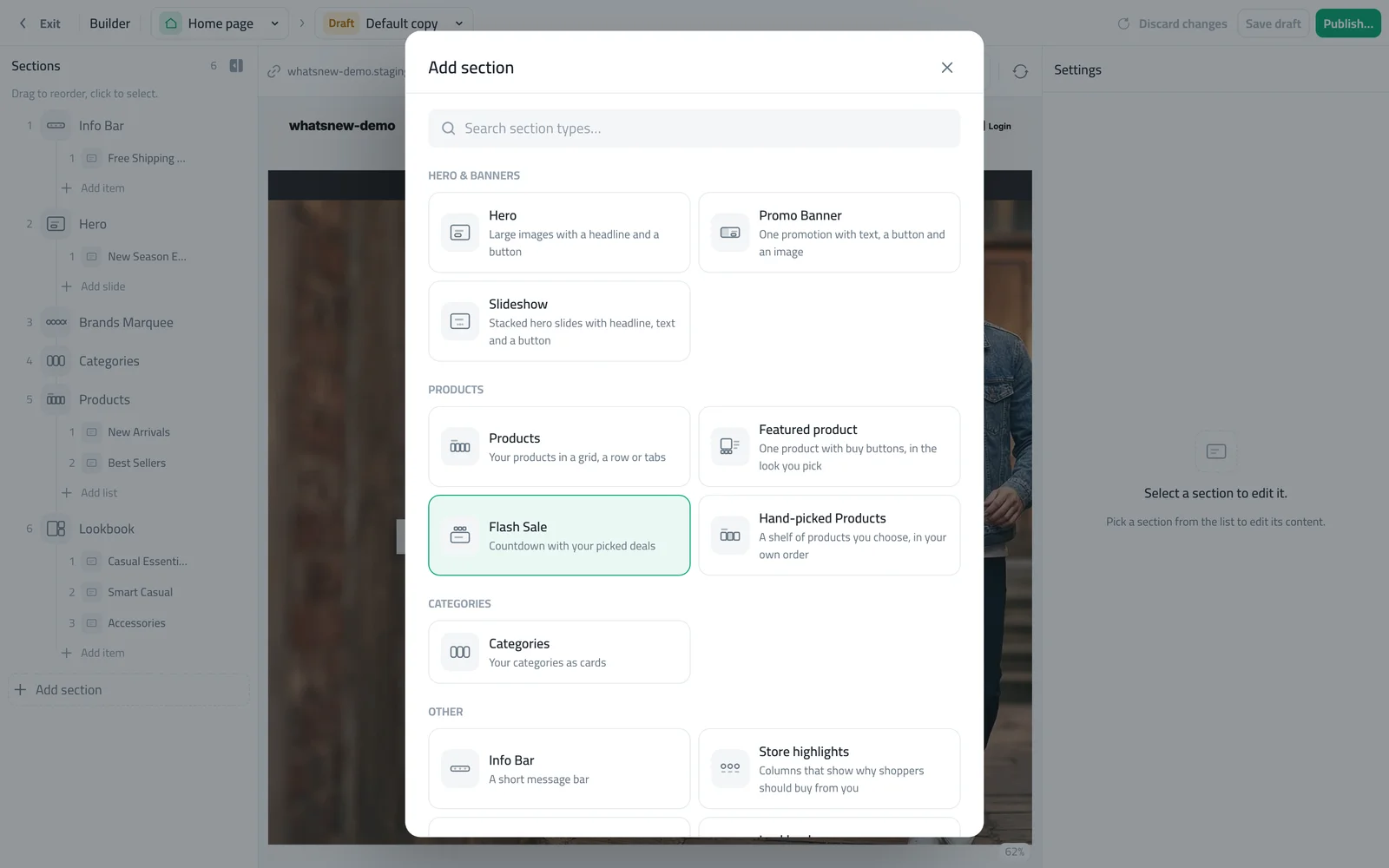
Pick a look, set Sale ends under Schedule, and choose your products. Then publish.
Good to know
- The section shows each product’s own sale price. Set the sale price on the product first.
- Without an end time, shoppers will not see the section.
Step by step: how to run a flash sale on your online store.
Frequently asked questions
Does the timer change my prices?
No. The section shows the sale price you set on each product. Change prices on the product itself.
What happens when the countdown ends?
The section hides itself, so shoppers never see an expired offer.
Can I schedule a sale for later?
Yes. Set Sale starts as well as Sale ends, and the section appears only during that window.
Try it on your own store
Start your free trial. No credit card required.