Business management
Print invoices with your own header, footer and payments
Choose what appears at the top and bottom of every printed invoice, and show the payments received and the balance due.
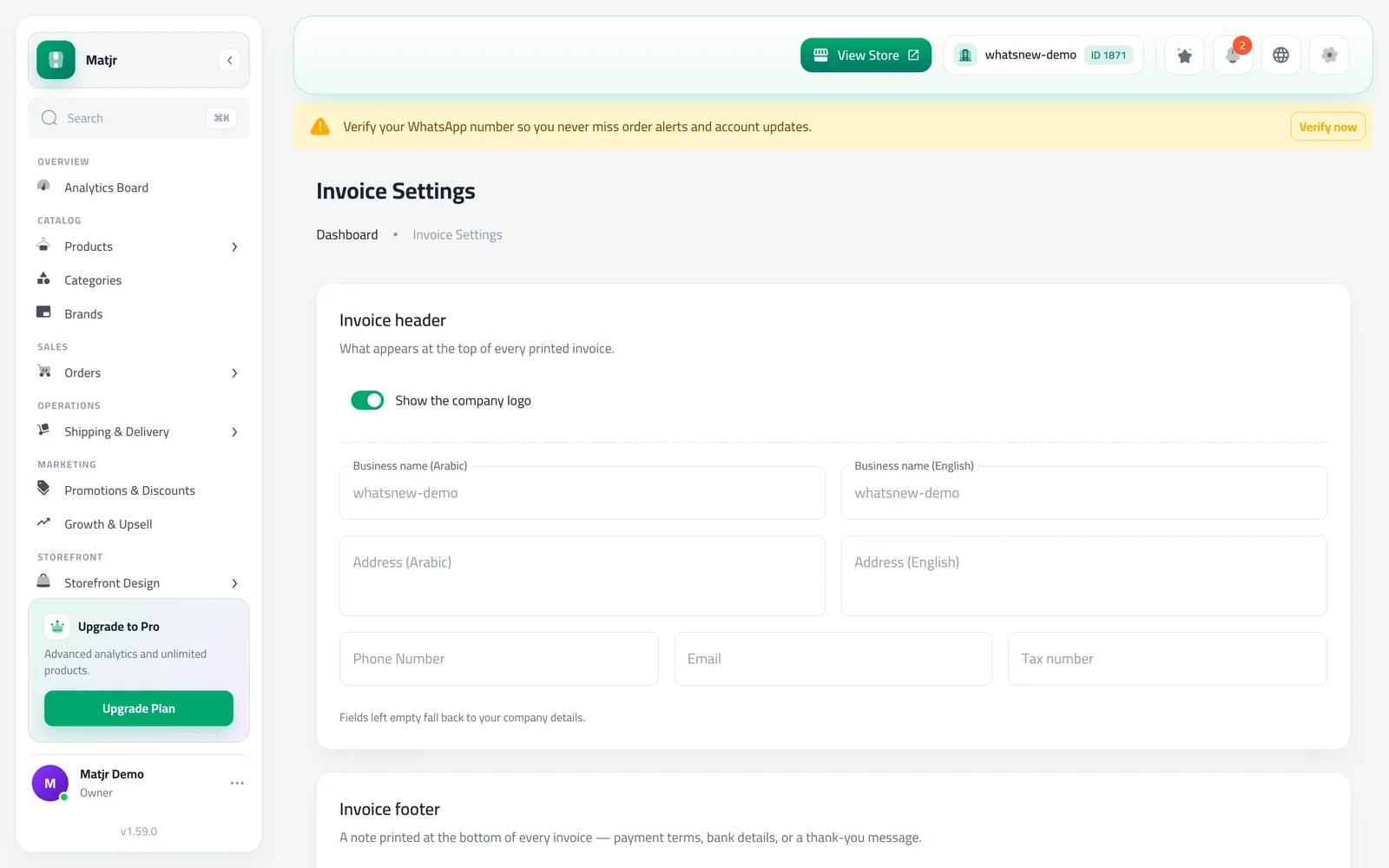
- Where
- System Management › Invoice Settings
- Plan
- Plans that include invoicing
- Languages
- Arabic and English
Your invoices now look like your business. Add your tax number, bank details or a thank-you note, and show customers exactly what they have paid and what is still due.
What changed
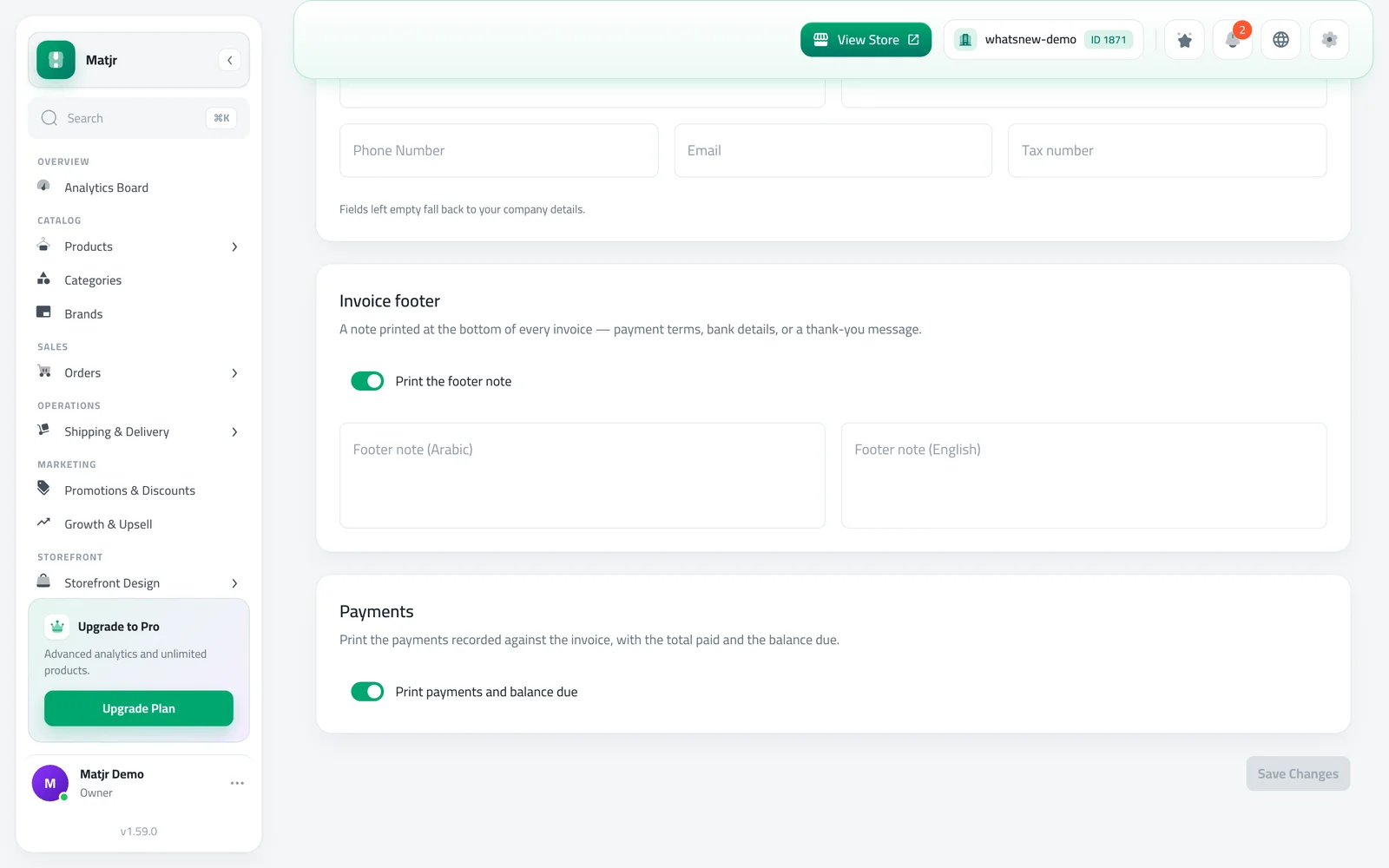
The new Invoice Settings page controls the printed invoice. In Invoice header you choose whether to show your logo, business name, address, phone, email and tax number. In Invoice footer you write a note in each language. A switch prints the payments table, the amount collected and the balance due.
How to use it
Open System Management › Invoice Settings. Fields you leave empty use your company details.
Write your footer note, turn on Print payments and balance due if you want it, and save.
Good to know
- Available on plans that include invoicing.
- The on-screen invoice preview matches what prints.
Frequently asked questions
If I rename my company, will invoices update?
Yes, for any field you left empty. Empty fields always use your current company details.
Can I hide the payments table?
Yes. Turn off Print payments and balance due.
Does this change old invoices?
It changes how invoices look when printed, including older ones. The amounts do not change.
Try it on your own store
Start your free trial. No credit card required.