Orders
Never miss a new order with dashboard notifications
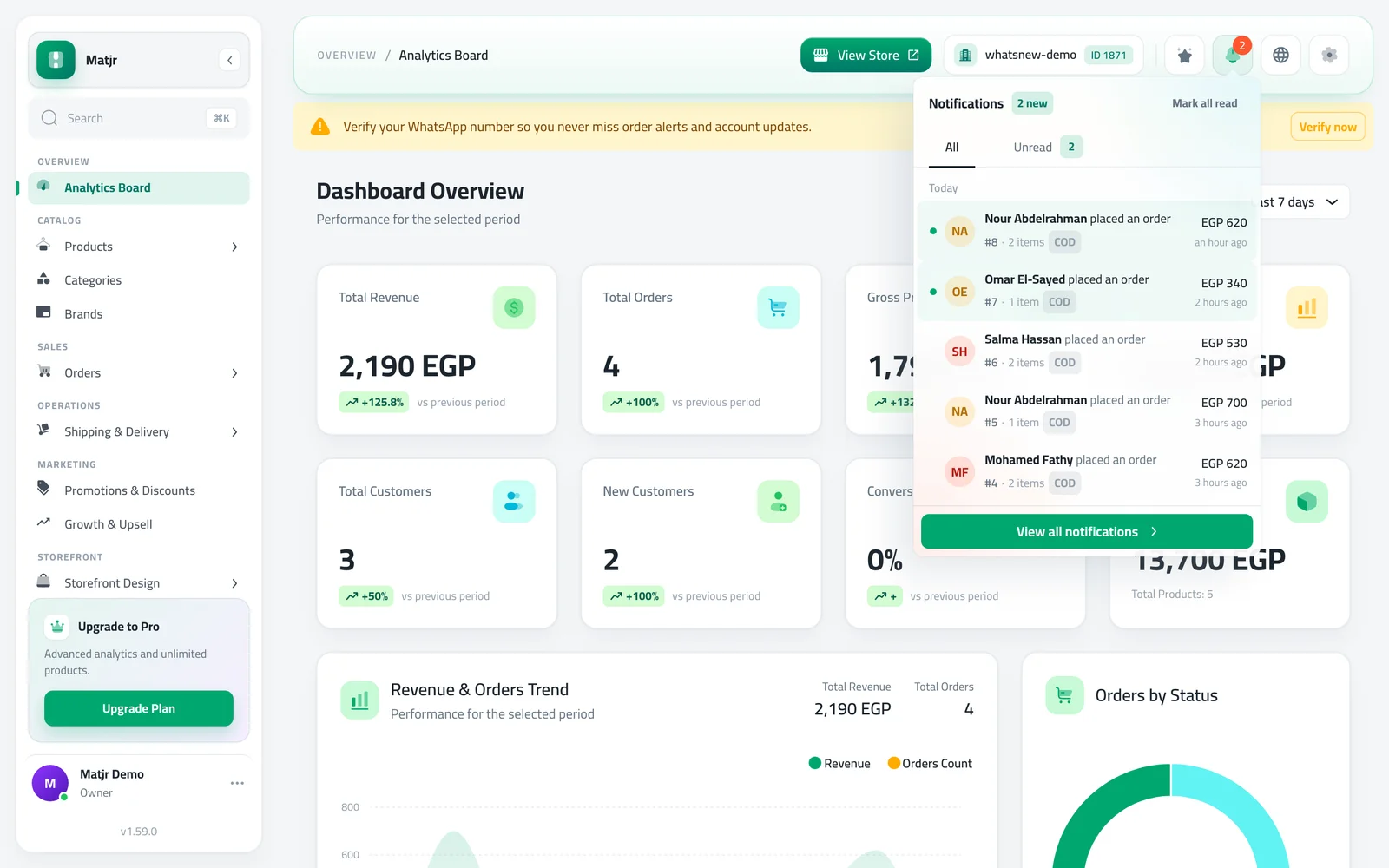
A bell at the top of your dashboard now counts new orders. Open it to see who ordered, how much, and jump straight to the order.
- Where
- Bell at the top of the dashboard
- Who sees it
- Team members who can view orders
- Cost
- Included in every plan
New orders now come to you. A bell at the top of every dashboard page shows how many new orders you have not looked at yet, so you can confirm them faster.
What changed
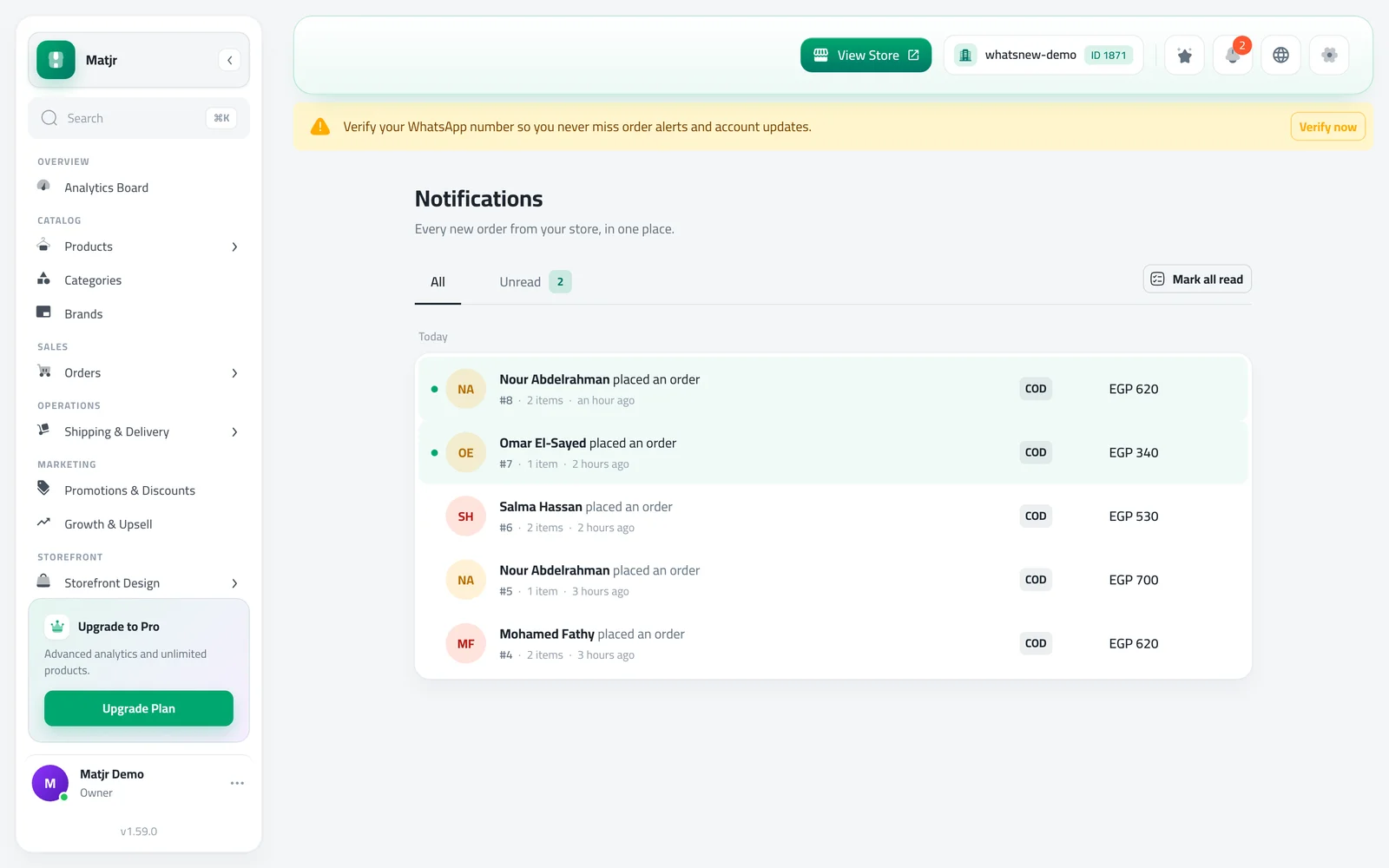
Each new order creates a notification with the customer name, the order total, the number of items and the payment method. The bell updates on its own while the dashboard is open. A full Notifications page keeps the history, with All and Unread tabs.
How to use it
Click the bell at the top of the dashboard. The latest orders appear, and you can click one to open it or use Mark all read.
Click View all notifications to see the full list. Use Load older notifications to go further back.
Good to know
- Each team member has their own read and unread state.
- Only team members who can view orders see order notifications.
Frequently asked questions
Do I need to refresh the page to see new orders?
No. The bell checks for new orders on its own while the dashboard is open.
Will my team see the same notifications?
Yes, if they can view orders. Each person marks their own notifications as read.
Does reading a notification change the order?
No. It only marks the notification as read. The order stays exactly as it was.
Try it on your own store
Start your free trial. No credit card required.