Store design
Size charts, product tabs and low-stock alerts on product pages
Answer size and spec questions on the page and show when stock is running low. Add a size chart, tabs, specifications and a video in the gallery.
- Where
- Page Builder, product page
- New sections
- Size chart, Product tabs, Specifications
- Per-product content
- Product Page content tab
- Countries
- All countries
Shoppers leave when they cannot find their size or a key detail. Now the product page can answer those questions itself, and nudge them when an item is almost gone.
What changed
Three new sections for the product page:
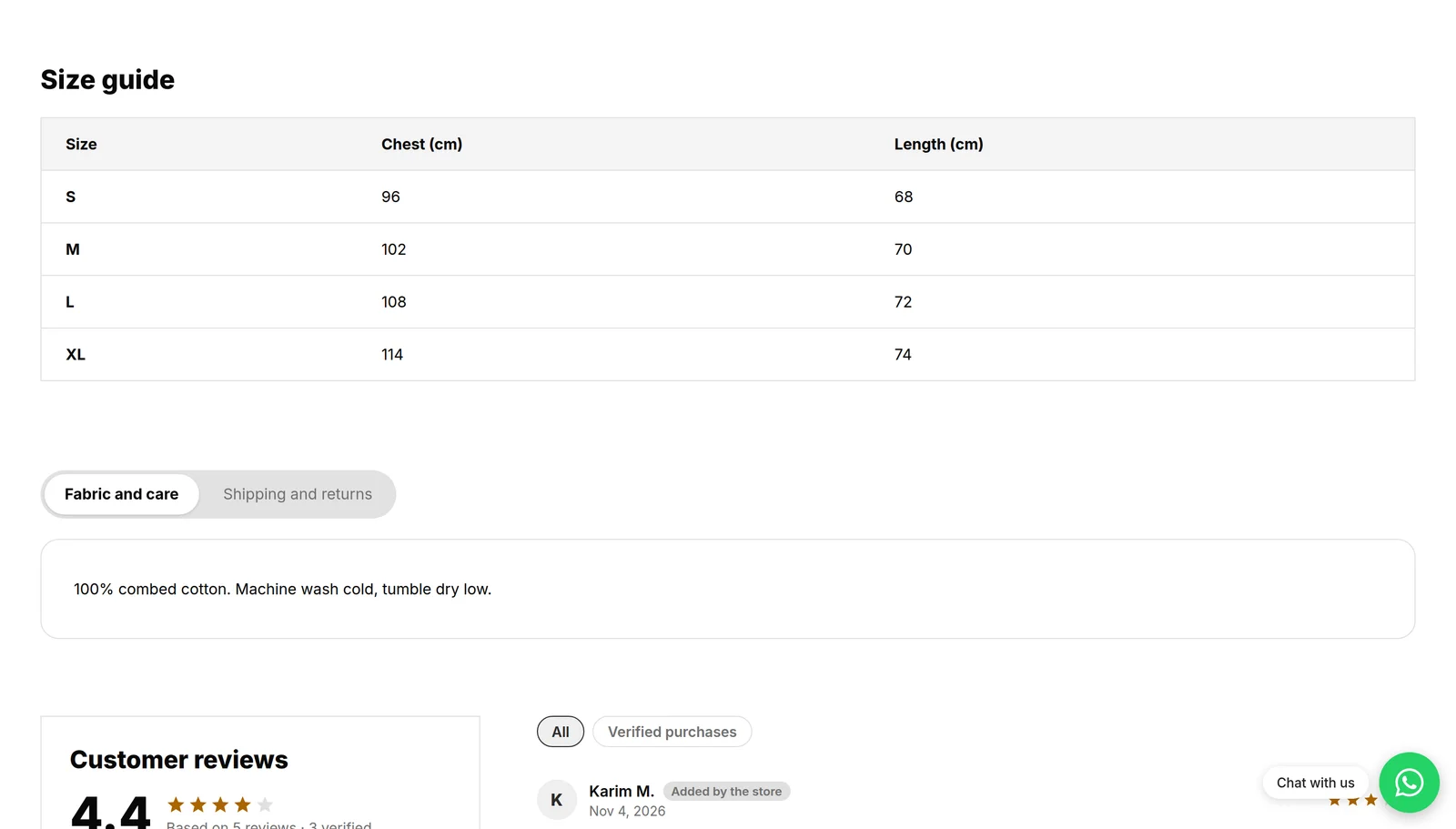
- Size chart: a table of sizes, up to 8 columns and 30 rows.
- Product tabs: up to 8 tabs such as shipping or returns, shown as tabs, a side menu, cards or an accordion.
- Specifications: your product attributes as a table, tiles, key numbers or a list, with an icon for each attribute.
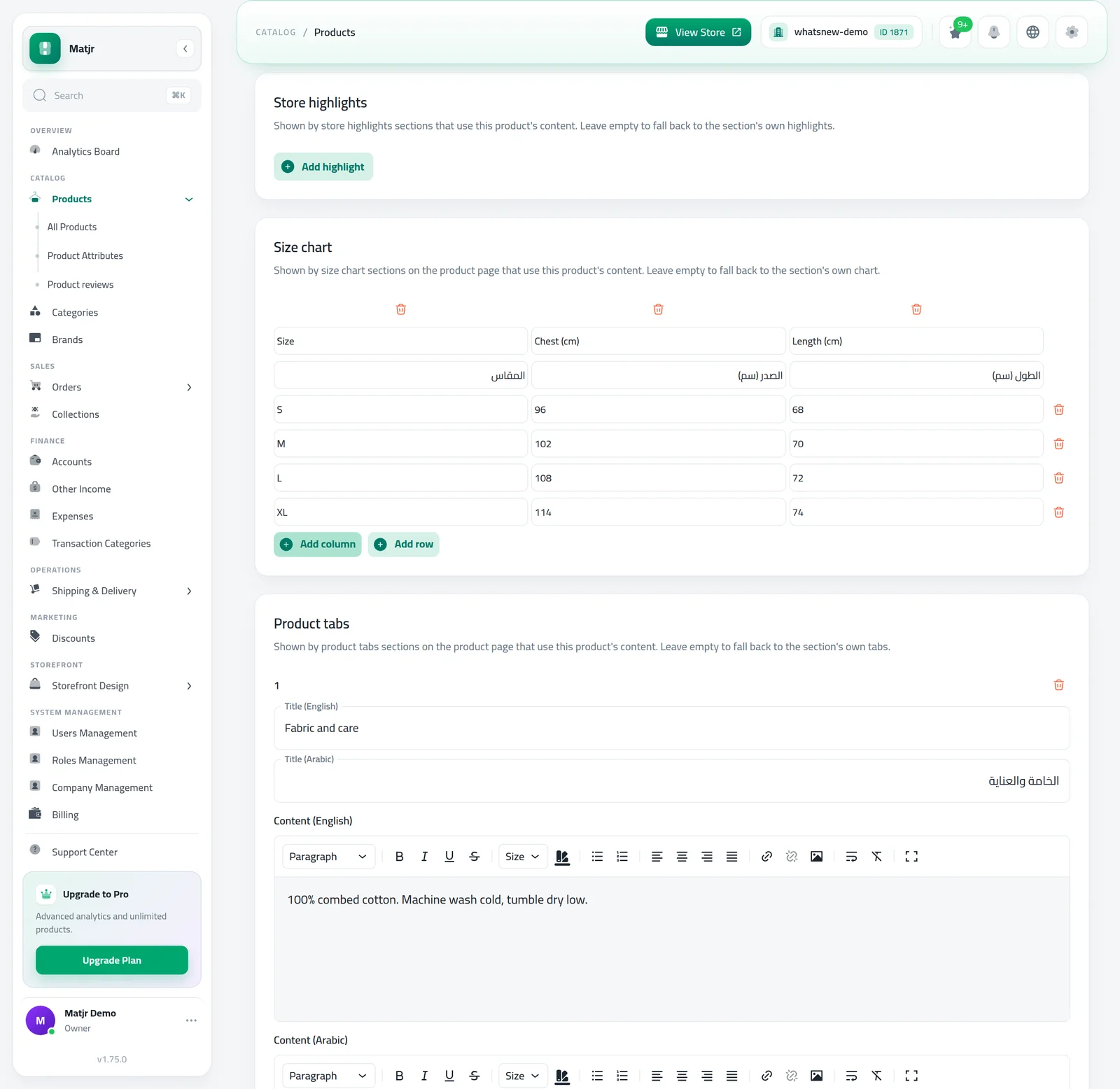
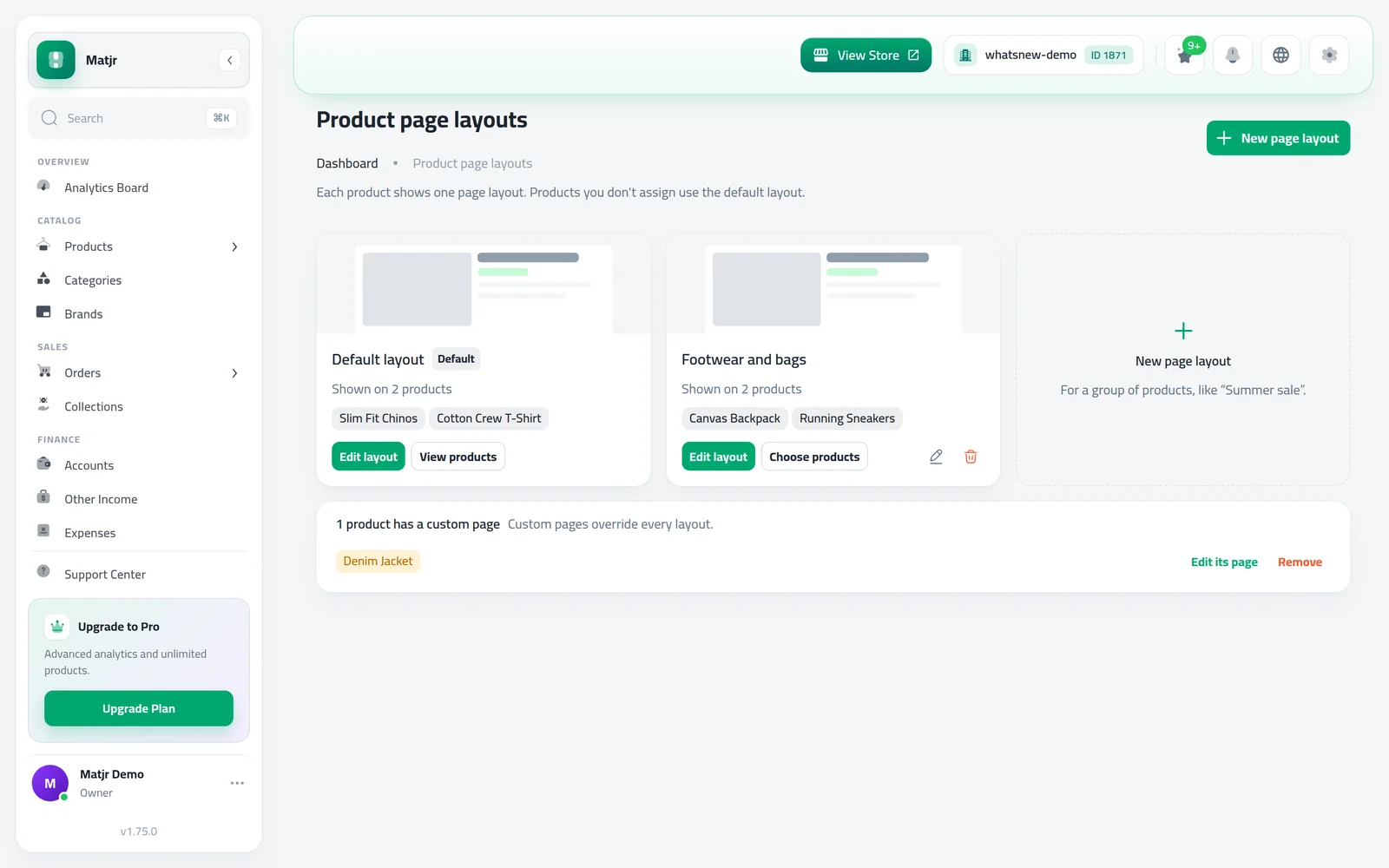
FAQ, Rich text, Store highlights, Size chart and Product tabs can use each product's own content. You fill it in the new Page content tab of the product.
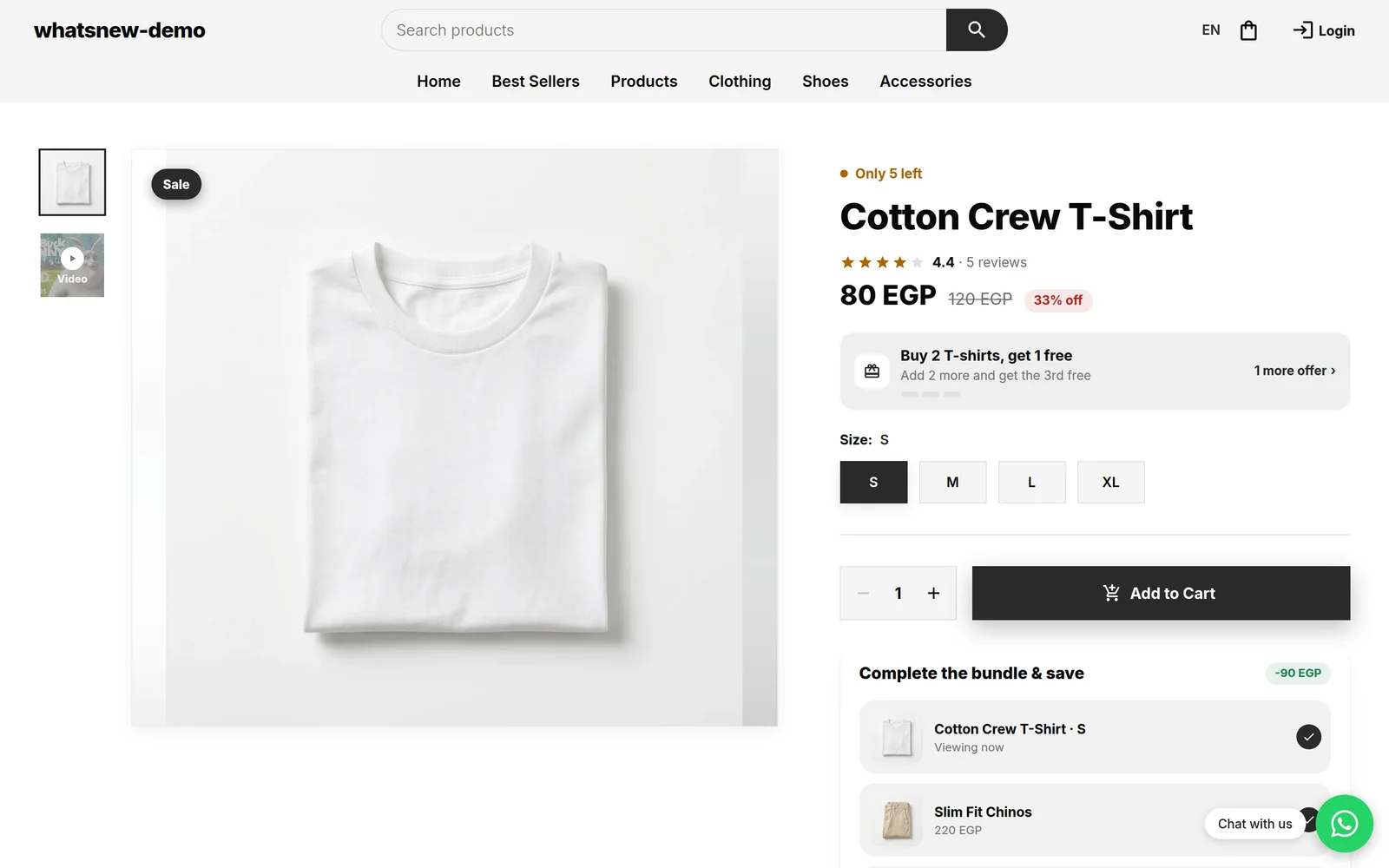
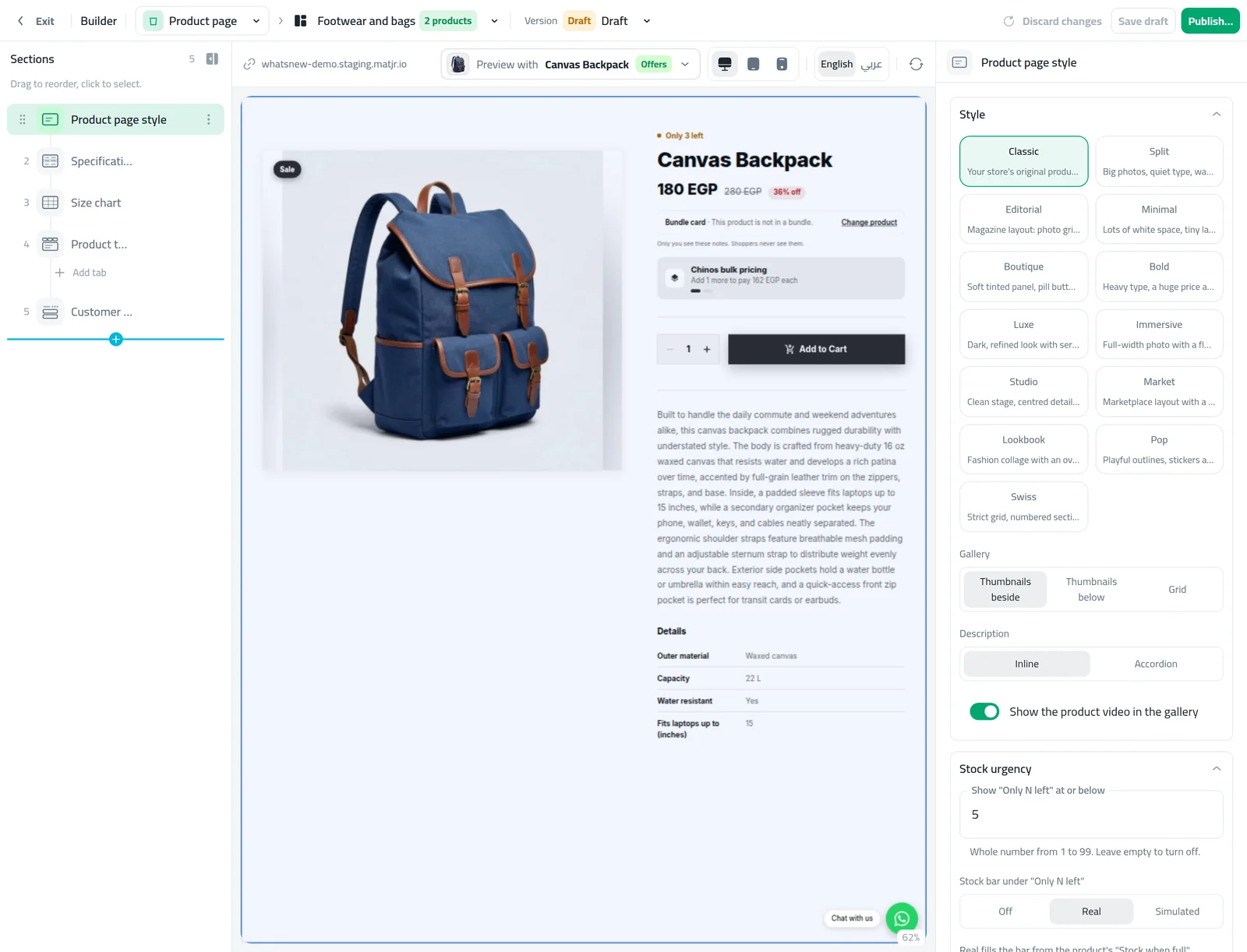
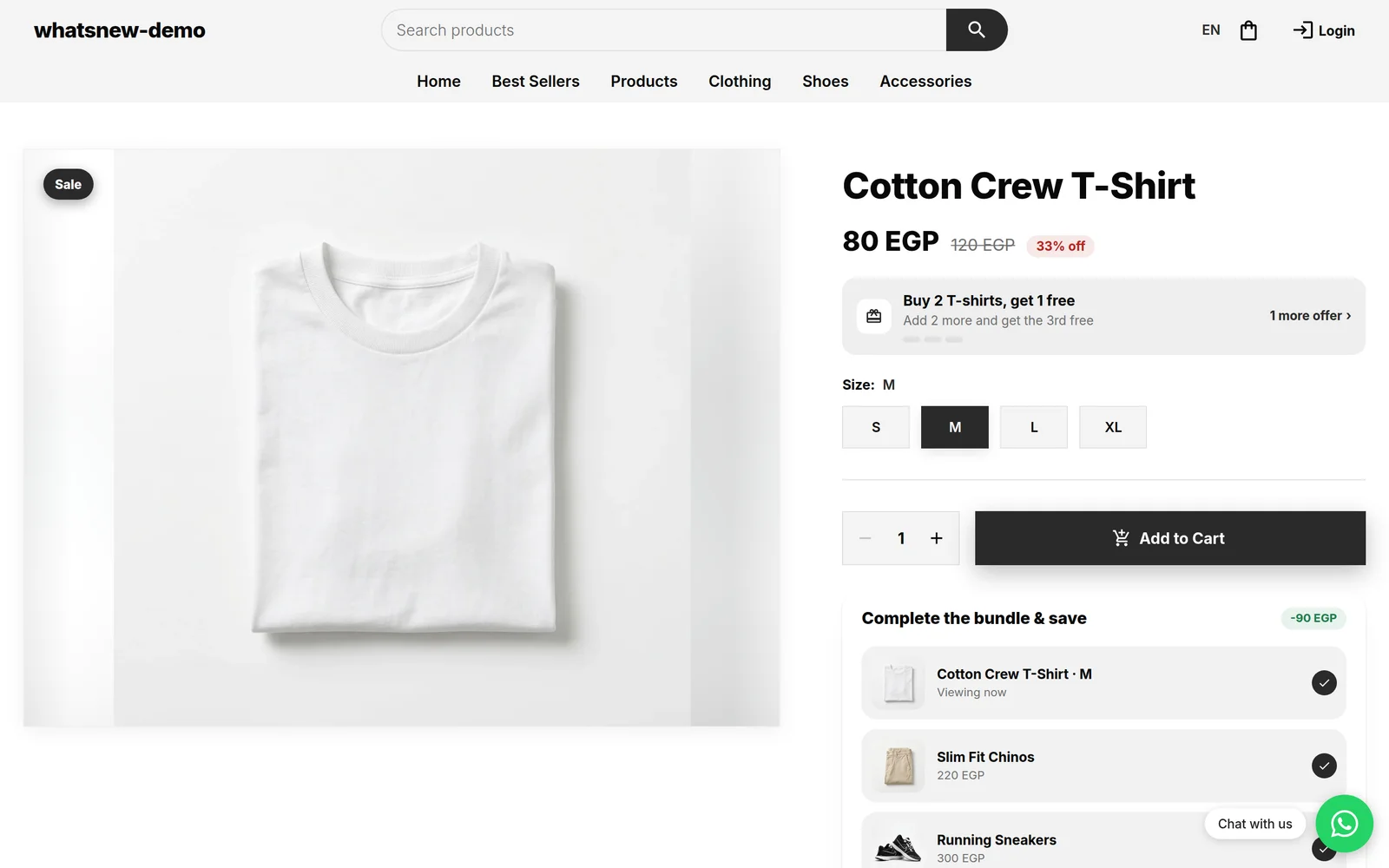
In the Product page section you can now show the product video inside the gallery, show "Only N left" when stock is low with an optional stock bar, and add up to 5 short info lines under Add to cart. The Flash Sale countdown can also go on the product page.
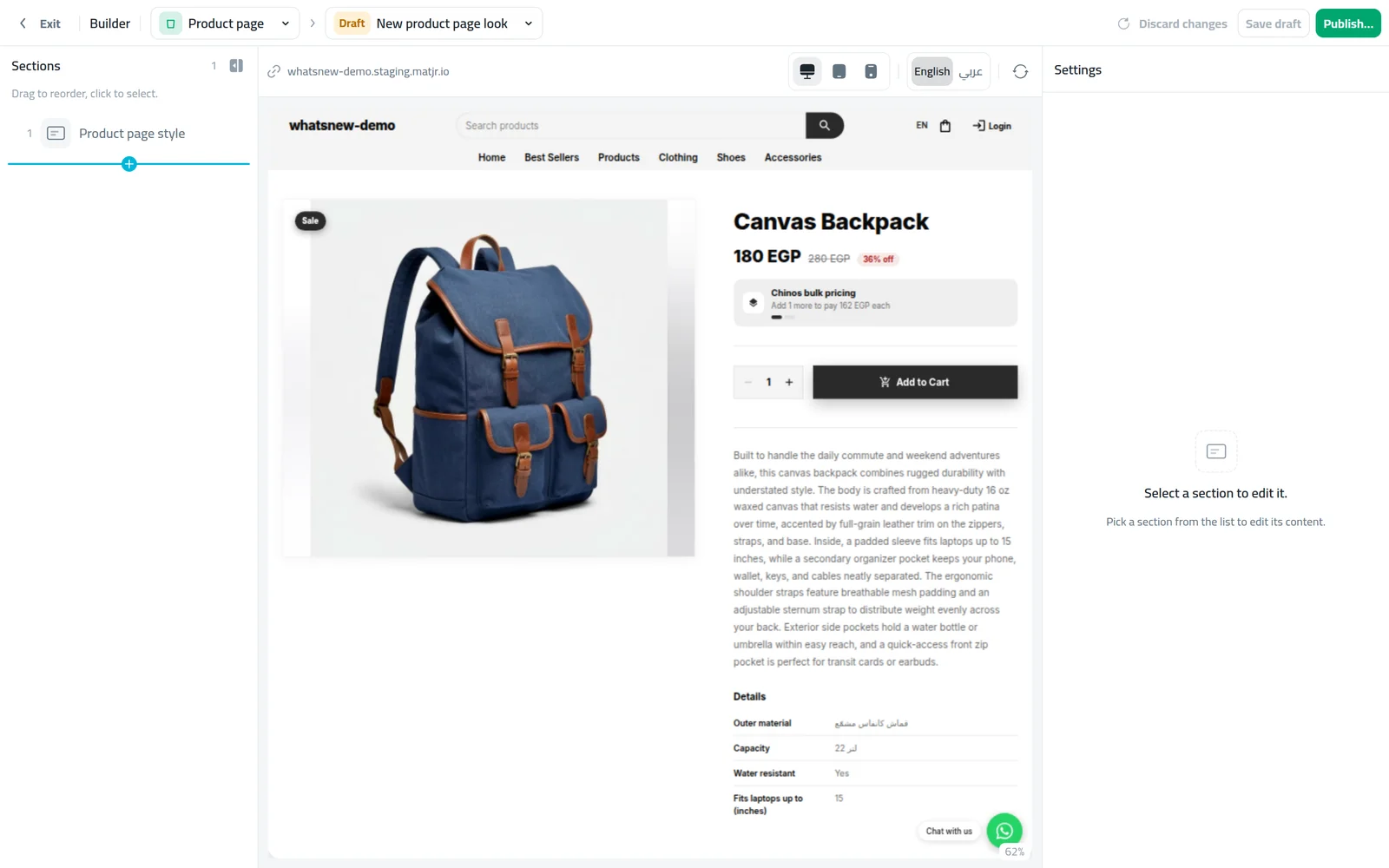
While editing, Preview with lets you choose which product the builder shows.
How to use it
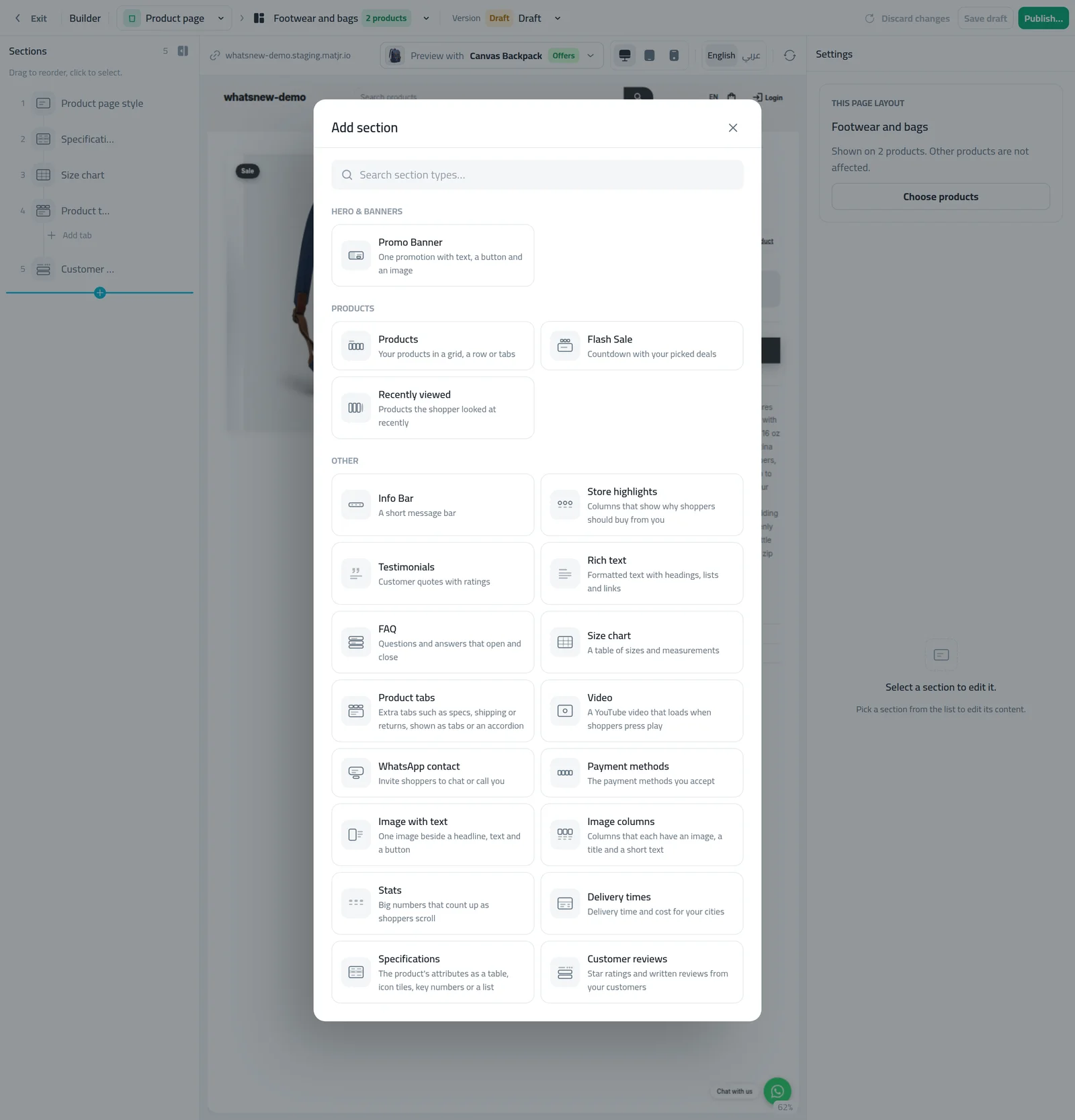
Open Page Builder, choose the product page and press Add Section. Pick Size chart, Product tabs or Specifications.
Select the Product page section. Turn on Show the product video in the gallery and set Show "Only N left" at or below.
For content that differs per product, open the product, go to Page content and fill it in. Then turn on Use this product's content in the section.
Publish and open a product on your store to check it. The video shows in the gallery and the low-stock note shows above the product name.
Scroll down to see the size chart and the product tabs.
Good to know
- A section with no content for a product is hidden on that product, with no empty gap.
- If the video is in the gallery and in a Video section, it shows twice. Add a Section video link on the product to show a different video in the section.
- Specifications is offered on the product page only.
- The full steps are in How to customize your product page.
Frequently asked questions
Do I have to type specifications for every product?
No. The Specifications section shows the attributes your products already have. A product with none simply does not show the section.
Can each product have its own size chart?
Yes. Fill it in the product Page content tab and turn on Use this product's content in the section. Products without one show the section's own chart.
When does "Only N left" show?
When the chosen option's real stock is at or below your number. It never shows for products you do not track stock for.
Try it on your own store
Start your free trial. No credit card required.