Store design
Show best sellers automatically and link lookbook tiles to products
Fill a product row with your best sellers, one brand or one category without picking items by hand, and point lookbook tiles at a product.
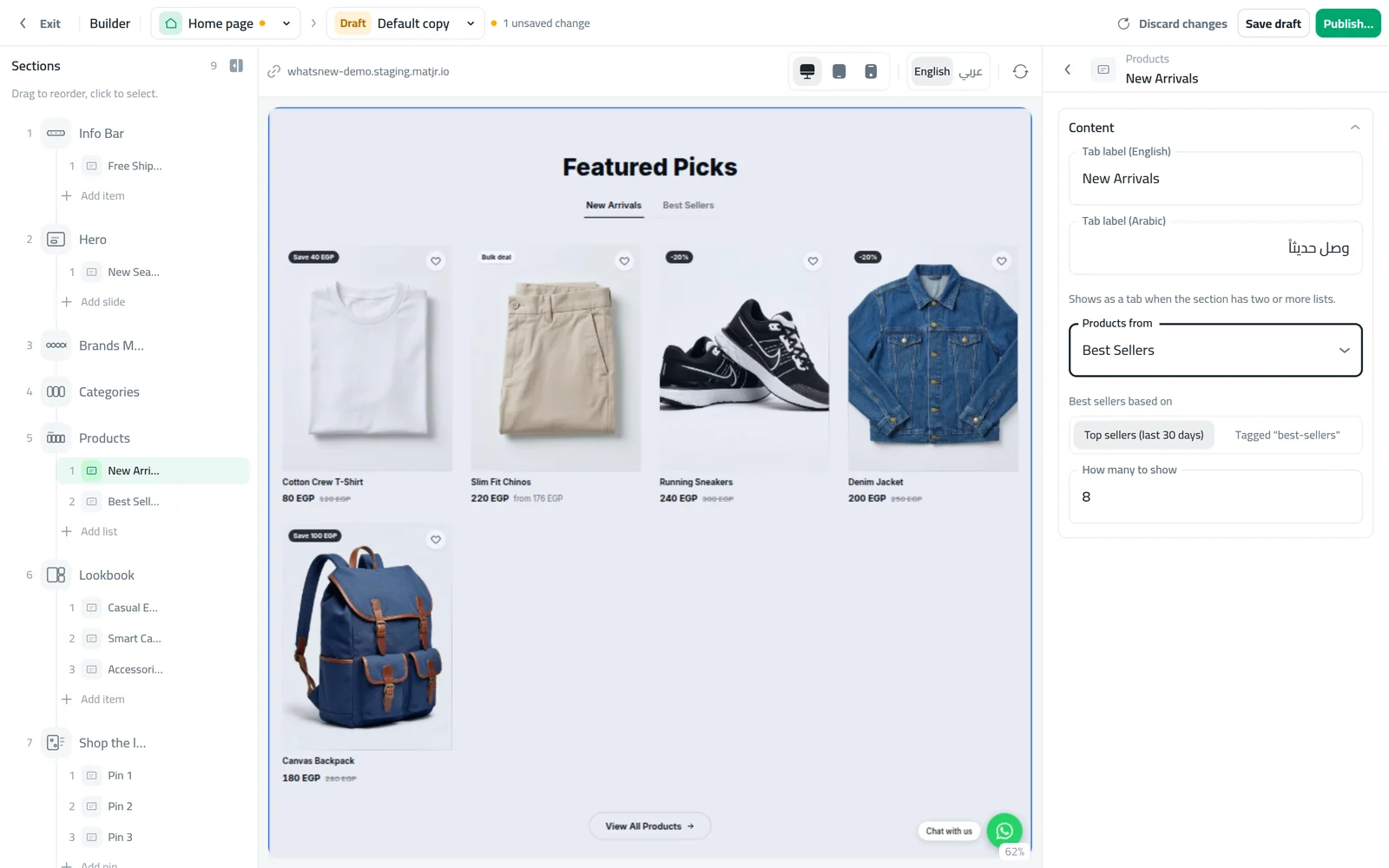
- Where
- Storefront Design › Design › Home page
- Products from
- 7 choices, including Best sellers
- Best sellers period
- Last 30 days
- Lookbook tile types
- Image, product or category
Keep your home page fresh without picking products by hand. A Products section can now fill itself with your best sellers, one brand, one category or your latest products. And lookbook tiles can point straight to a product or a category.
What changed
In a Products section, Products from now has seven choices: All products, By tag, Picked products, By category, By brand, Latest products and Best sellers.
For Best sellers, choose what the list is based on:
- Top sellers (last 30 days): your products ranked by units sold in the last 30 days. Cancelled orders, failed payments and orders still waiting for payment do not count. Products that did not sell in that time come after them.
- Tagged "best-sellers": the products you gave the best-sellers tag, when you want to choose them yourself.
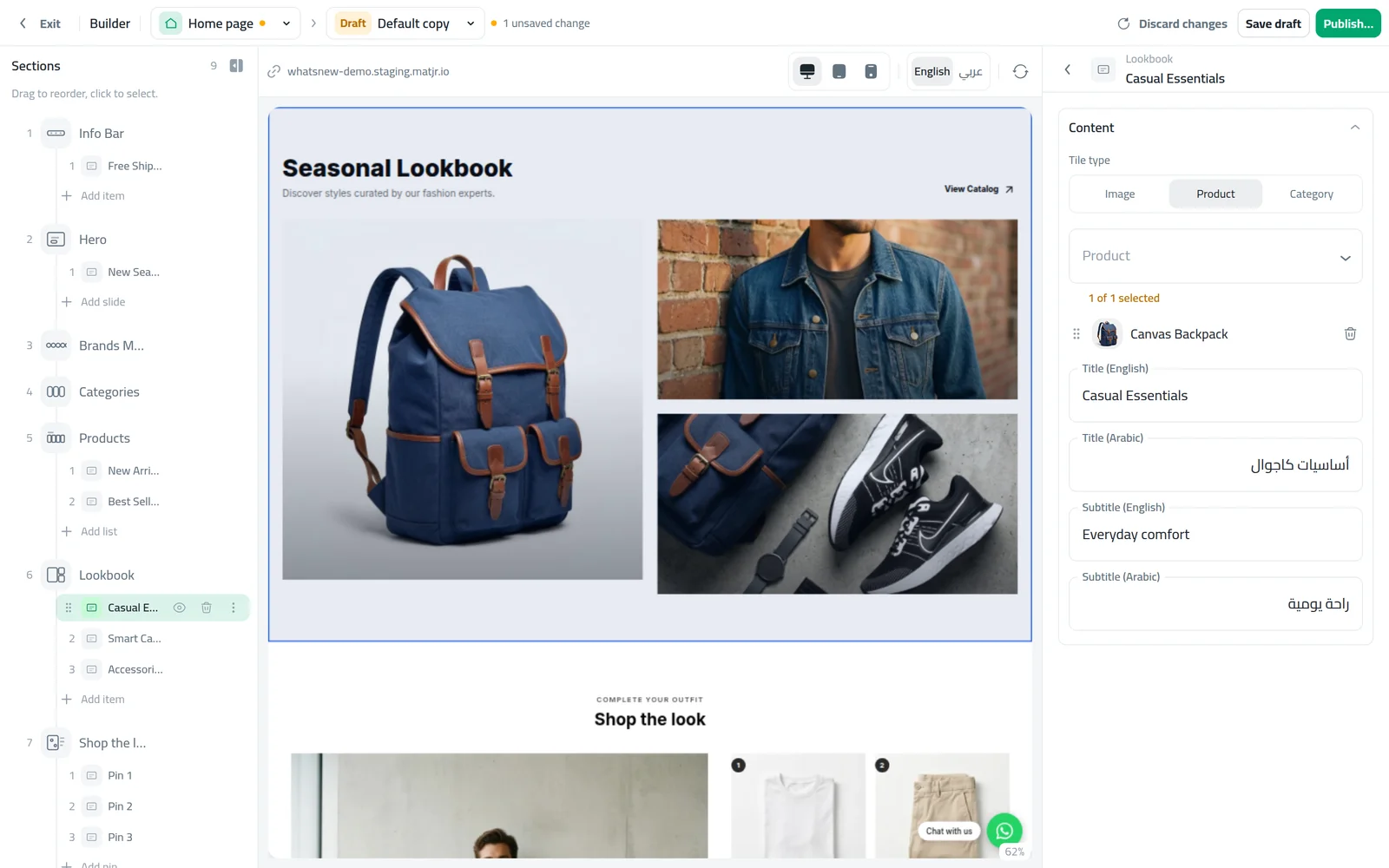
In a Lookbook section, each tile now has a Tile type: Image, Product or Category. For a product or category tile you just pick it, with no photo to upload or link to paste.
How to use it
Open Storefront Design, click Design and choose the Home page. Click your Products section, then List 1, and open Products from.
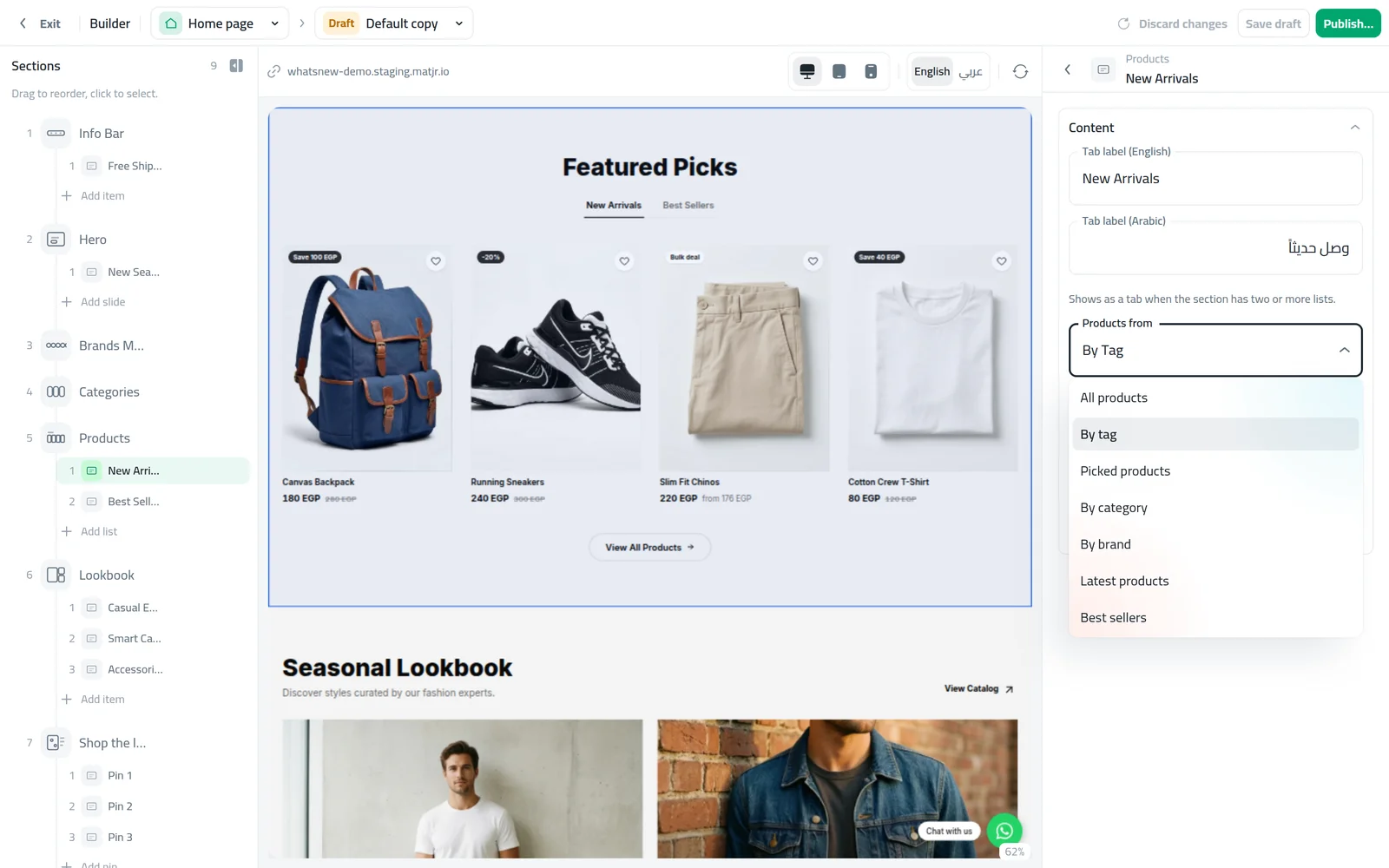
Choose Best sellers. Under Best sellers based on, choose Top sellers (last 30 days). The preview fills with your top sellers.
In a Lookbook section, click a tile such as Item 1. Set Tile type to Product or Category and pick one.
Good to know
- Top sellers (last 30 days) updates on its own as you sell, so you never have to edit the row.
- Your existing lookbook tiles stay Image tiles. Nothing changes until you pick another type.
- To add the best-sellers tag, open the product and add it under its tags. For more on product rows, see how to design your online store.
Frequently asked questions
Which orders count toward best sellers?
Units sold in the last 30 days. Cancelled orders, failed payments and orders still waiting for payment are left out.
Can I choose my own best sellers instead?
Yes. Choose Tagged "best-sellers" and add the best-sellers tag to the products you want.
Do I need to update the best sellers row myself?
No. With Top sellers (last 30 days) the row follows your sales on its own.
Will my existing lookbook tiles change?
No. They stay Image tiles until you change their tile type.
Try it on your own store
Start your free trial. No credit card required.