Store design
How to customize your product page
How to customize your product page: add a video, delivery times and FAQ, reorder sections, and give one product its own layout.
- Where
- Page Builder and product Images tab
- Time needed
- About 10 minutes
- Section types
- 20 to choose from
Want to customize your product page so it answers shopper questions before they ask? This guide shows how to add sections like a video, delivery times and an FAQ, put them in the right order, and give one product a layout of its own.
Before you start
Decide what makes a shopper hesitate on your products. Is it delivery time? Whether the product works in real life? Which payment methods you accept? Each of those can be a section on the page.
- Have at least one product added. If not, start with How to add a product.
- For a video, upload it to YouTube first and copy its link.
- Choose your overall look first. See How to design your online store and How to design your products page.
How the product page works
Your product page is built from sections, like your home page. One section, called Product page, holds the gallery, price, options and description. You can move it up or down, but you cannot remove or hide it. Everything else is optional and yours to add.
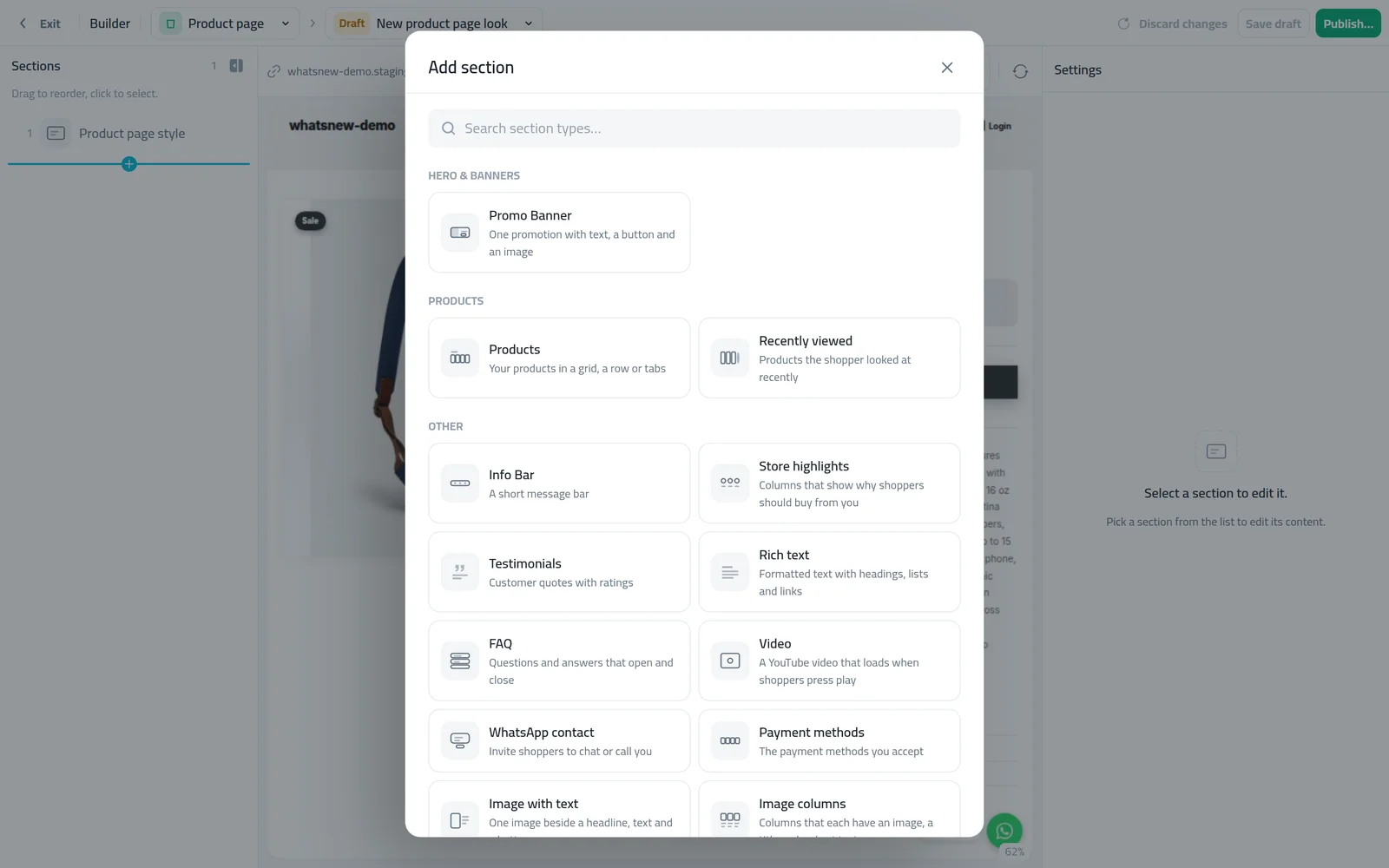
You can choose from 20 types: video, delivery times, payment methods, rich text, FAQ, size chart, product tabs, image with text, image columns, features, info bar, testimonials, recently viewed, products, WhatsApp, stats, banner, flash sale countdown, specifications and customer reviews. Specifications and customer reviews are only offered on the product page. Hero, slideshow and shoppable video are not available here.
Add and reorder sections
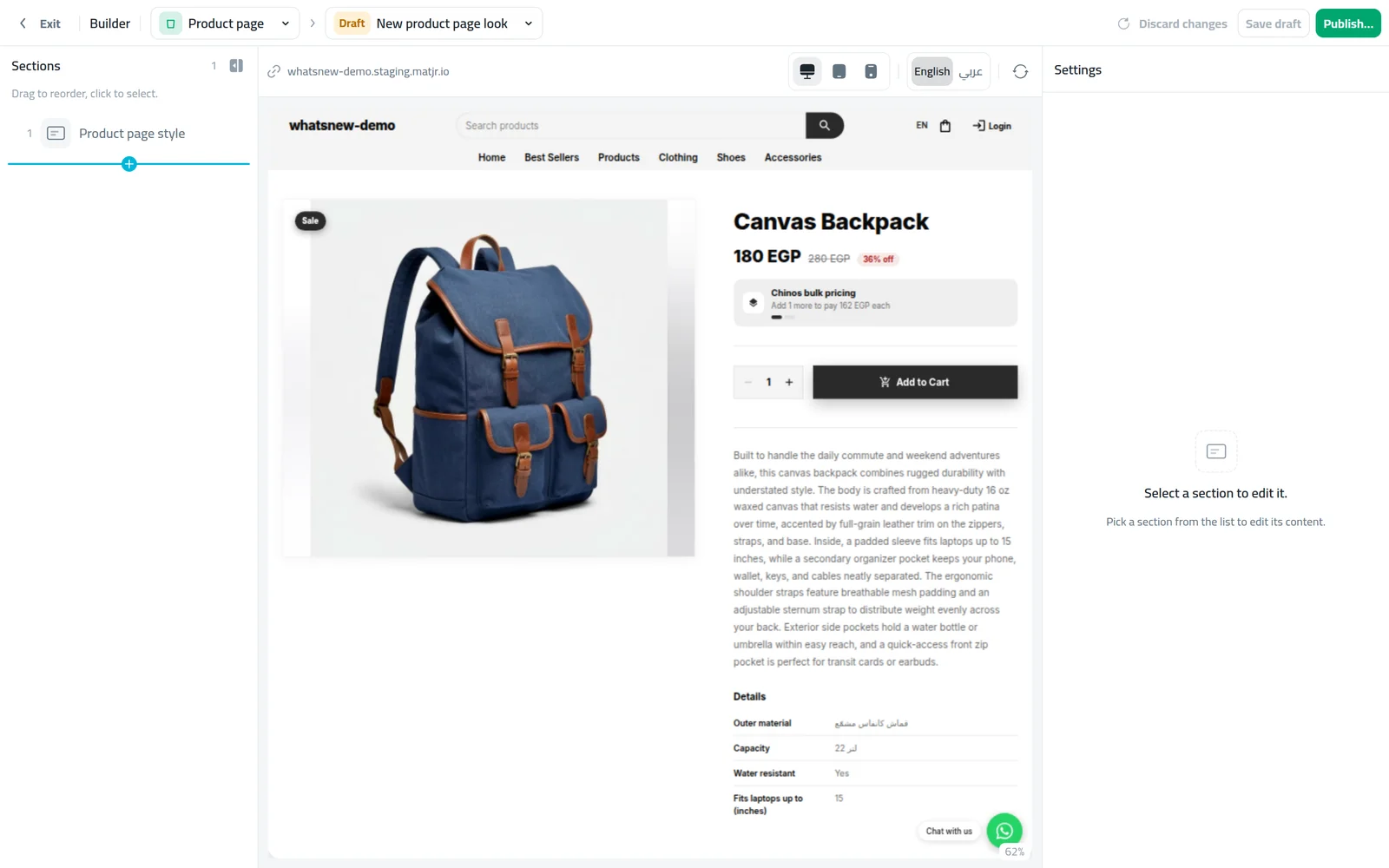
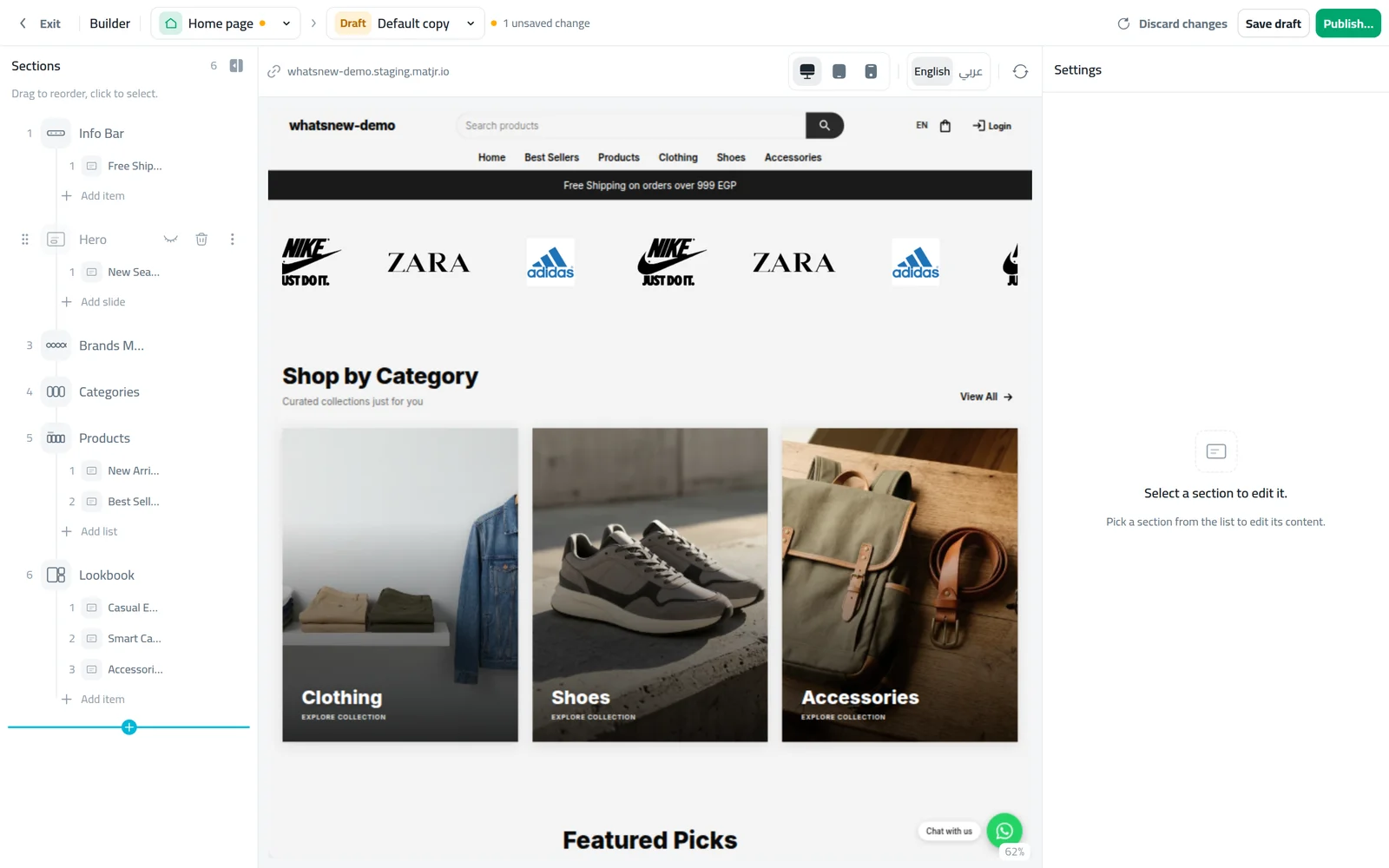
Open Page Builder from the dashboard menu and choose the product page. The list of sections appears.
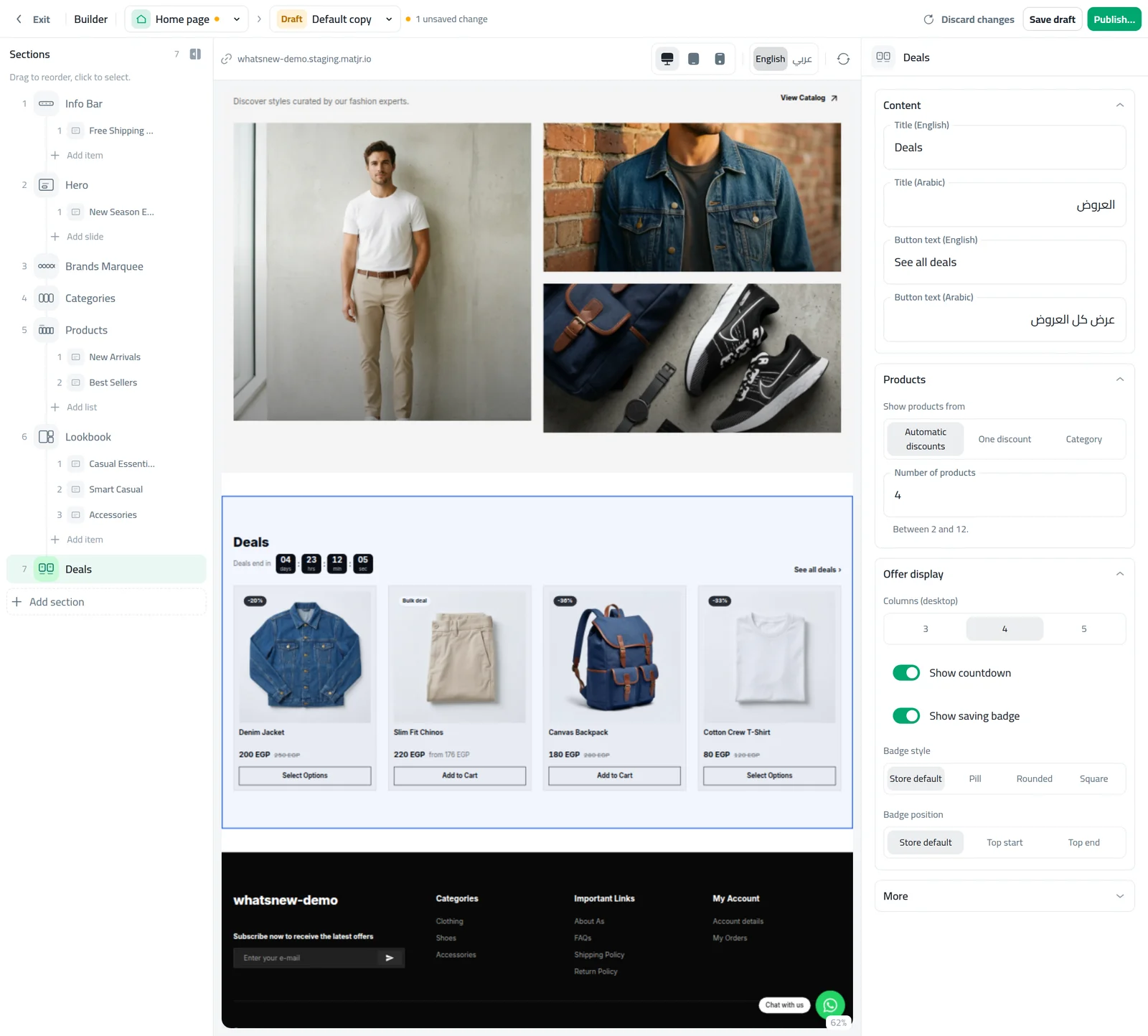
Press Add section and pick a type, for example Delivery times to show how long delivery takes to each city.
Drag sections up or down to set the order, then publish. Shoppers see the new order on every product.
Good sections to start with: delivery times under the price, payment methods near the buy button, FAQ below the description, and recently viewed at the bottom to keep shoppers browsing.
Add a product video
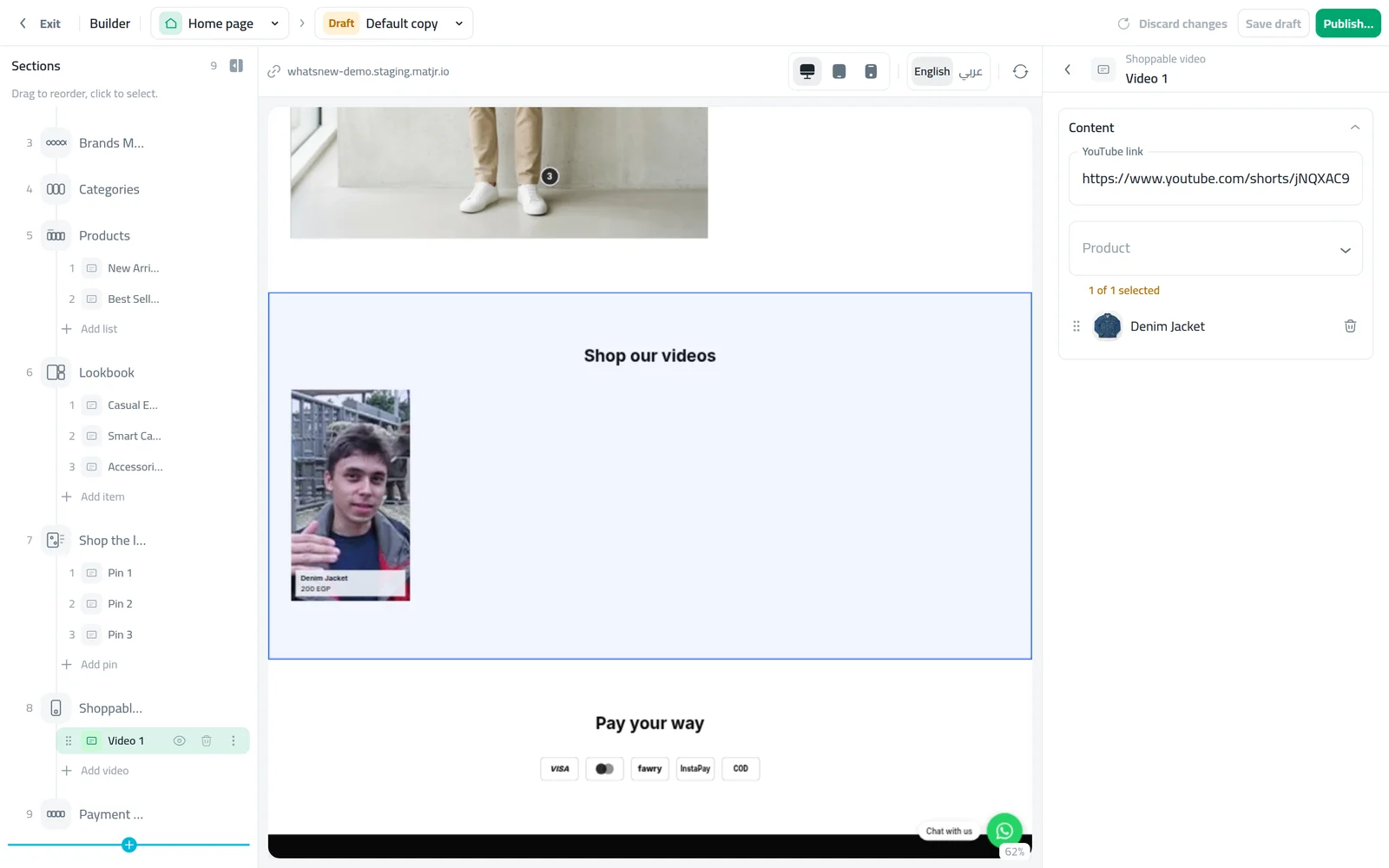
Add a Video section in the builder. On product pages it can use each product's own video automatically, so you do not need to set a link in the section.
Open the product and go to the Images tab.
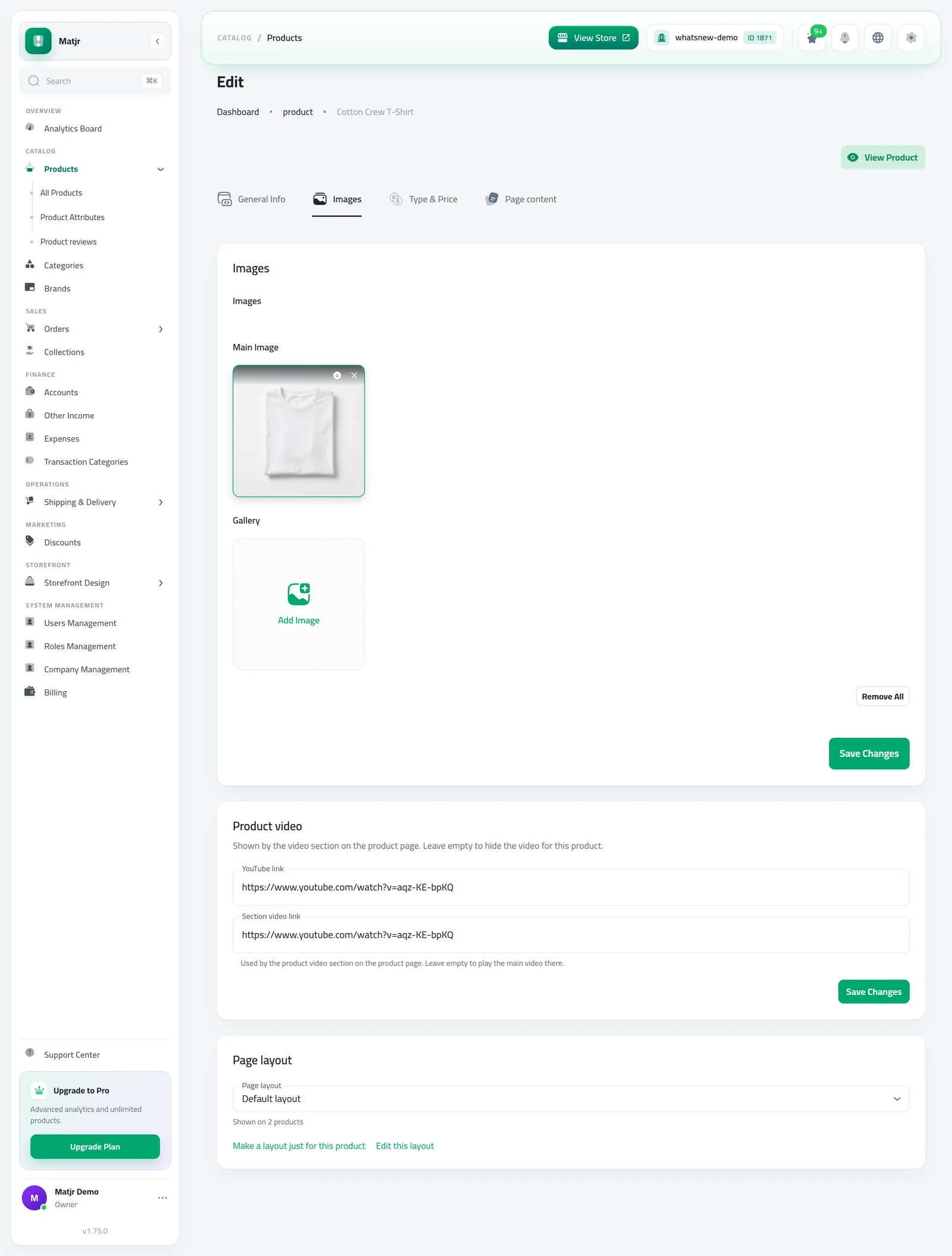
Paste the YouTube link in Product video and save. Watch, share, shorts and embed links all work. Leave it empty to hide the video for that product.
Products with a video link show it in the Video section. Products without one show nothing, so you can add videos slowly.
Give one product its own layout
Some products need extra information, like a size guide for shoes or care steps for a perfume. Instead of changing every product, give that product its own layout.
If a whole group needs the same page, like all your phones, make a shared page layout instead from Storefront Design, Product page layouts, and choose the products that use it. See Give each group of products its own product page layout. A product's own layout always comes first, then its page layout, then the default layout.
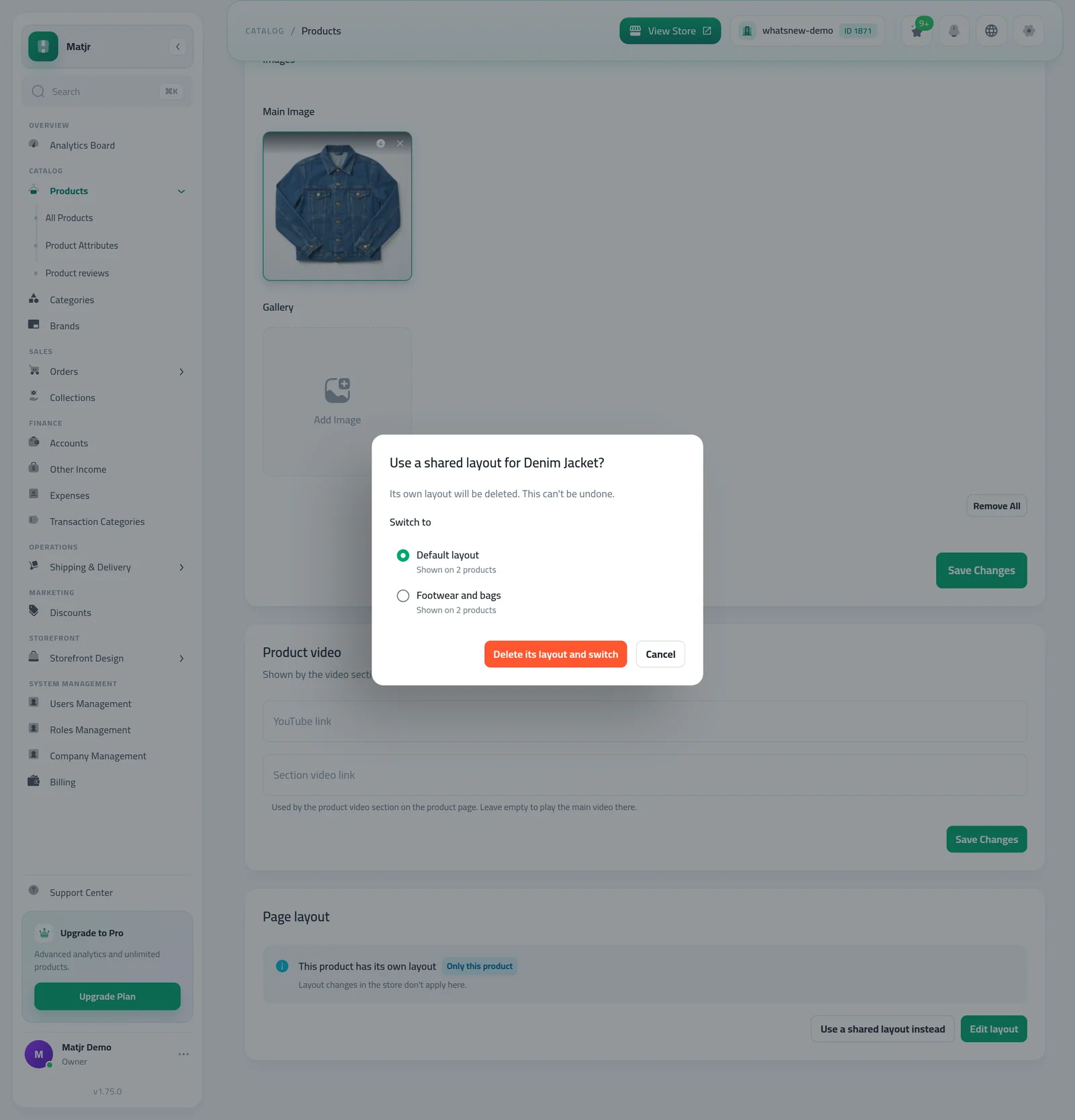
On the product Images tab, find the Page layout card and press Make a layout just for this product, then confirm. This copies the layout the product uses and opens the builder.
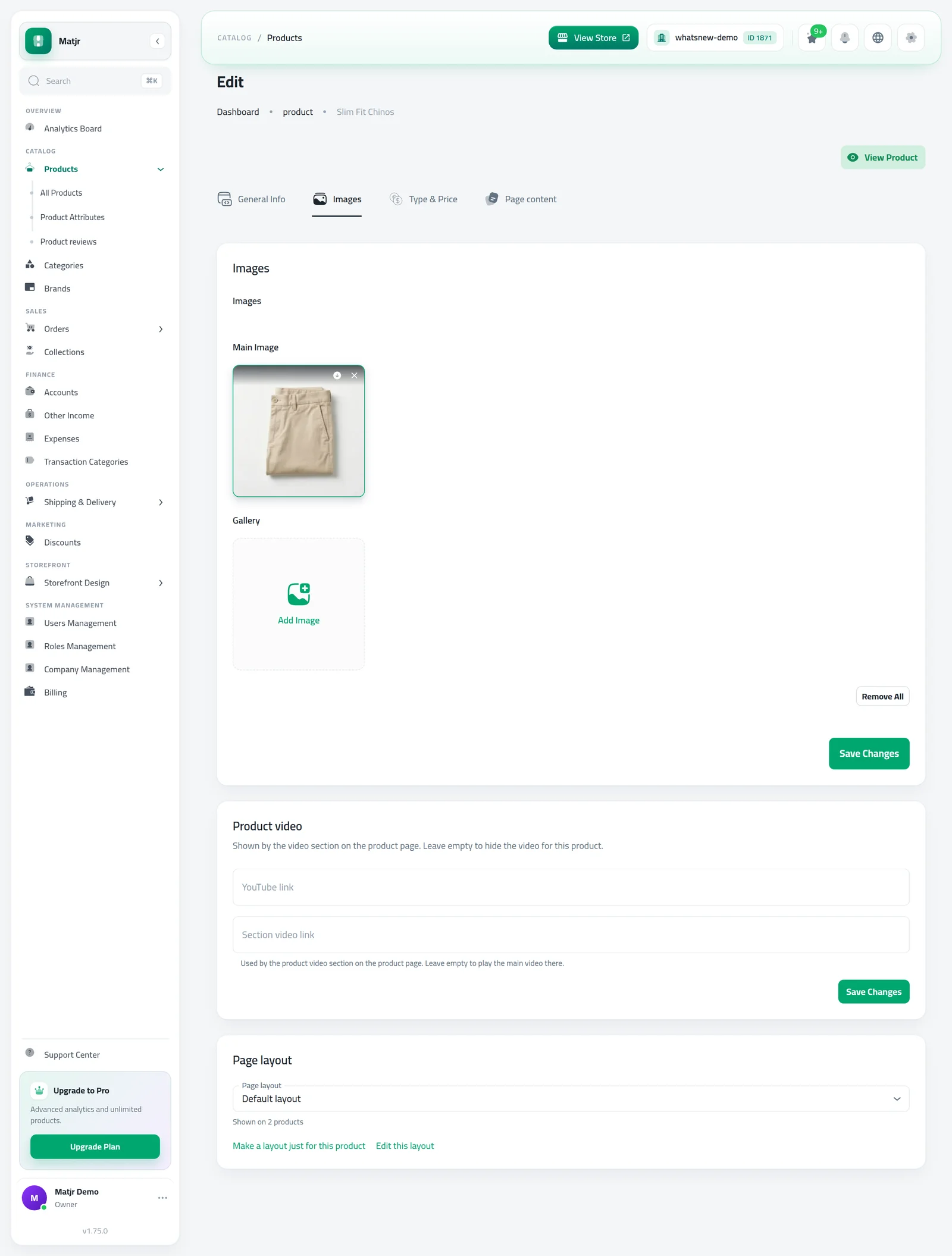
Add or reorder sections for this product only, then publish.
To go back, press Use a shared layout instead on the same card, pick a layout and press Delete its layout and switch.
Common mistakes
- Too many sections. Three or four well-chosen ones sell better than fifteen.
- Never publishing the default layout: Make a layout just for this product needs the default layout published first.
- Expecting a product with its own layout to follow later changes. It keeps its own layout until you switch it back to a shared layout.
- Looking for the video in the builder preview. The preview has no product, so it shows a placeholder.
Related tasks
- How to hide a home page section
- How to design your products page
- What changed in this area: Build your product page from sections
Tips that help products sell
Think of the page as a short conversation with the shopper. First they see the product, then they ask "how long until it arrives?", "can I pay on delivery?" and "do other people like it?". Put the answers in that order and the shopper never has to leave to look for them.
- Put delivery times and payment methods close to the buy button, because that is where doubt appears.
- Add testimonials only when you have real customer words. Short and honest works better than long and perfect.
- Use a short video, under a minute, that shows the product in use. Shoppers rarely watch longer.
- After every change, open a product on your phone, because most shoppers use phones.
- Review the page every few months and remove sections nobody needs.
Frequently asked questions
How do I customize my product page?
Open Page Builder, choose the product page, press Add section and drag sections into order. Then publish.
Can I remove the gallery and price?
No. They sit in the Product page section, which you can move but not remove or hide.
How do I show a video on a product?
Add a Video section, then paste a YouTube link in Product video on that product Images tab.
Can one product look different from the rest?
Yes. On the product Images tab, press Make a layout just for this product. Use a shared layout instead undoes it.
Can several products share one layout?
Yes. Open Storefront Design, Product page layouts, create a page layout and choose its products. Products you do not choose keep the default layout.
Try it on your own store
Start your free trial. No credit card required.