Store design
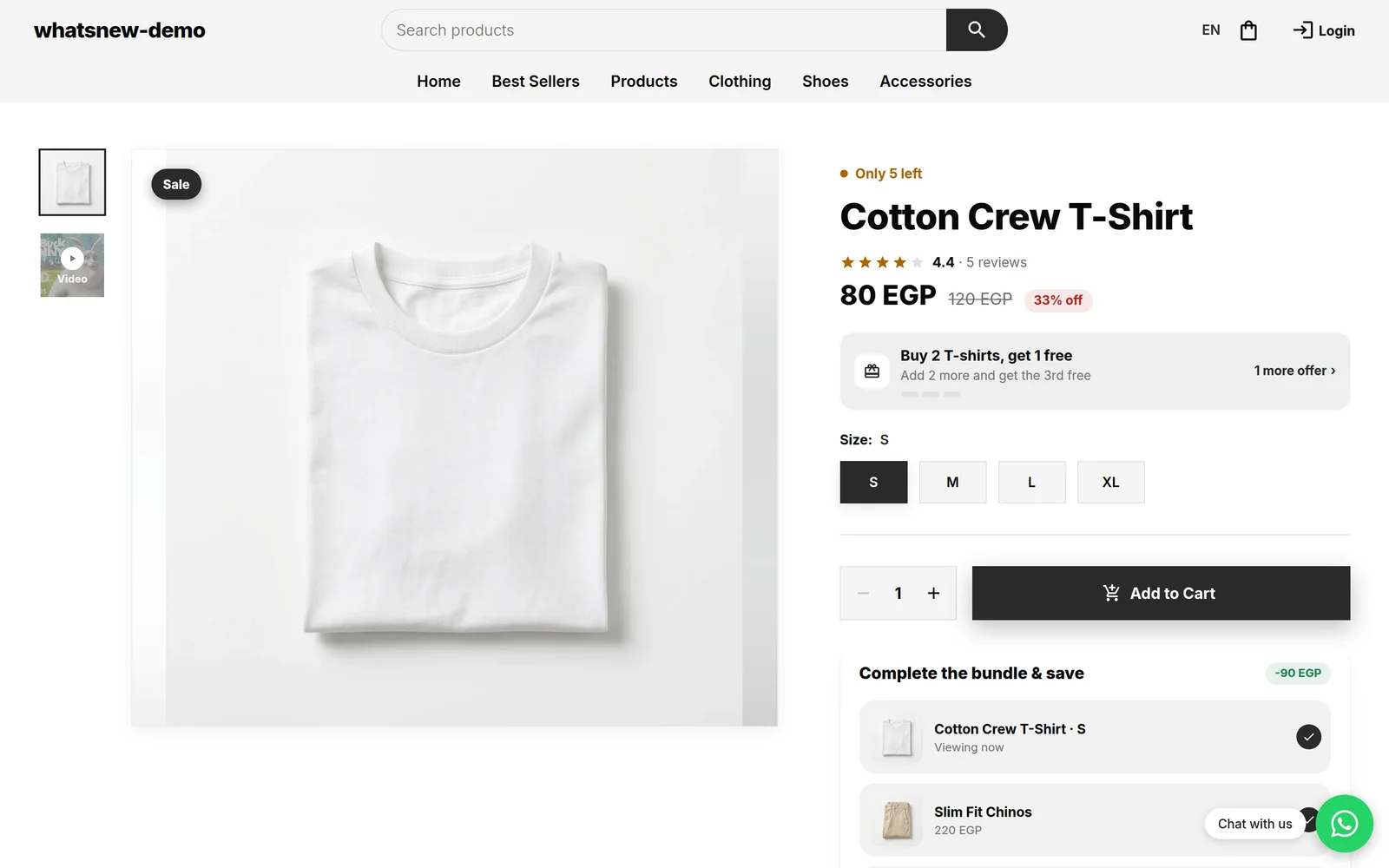
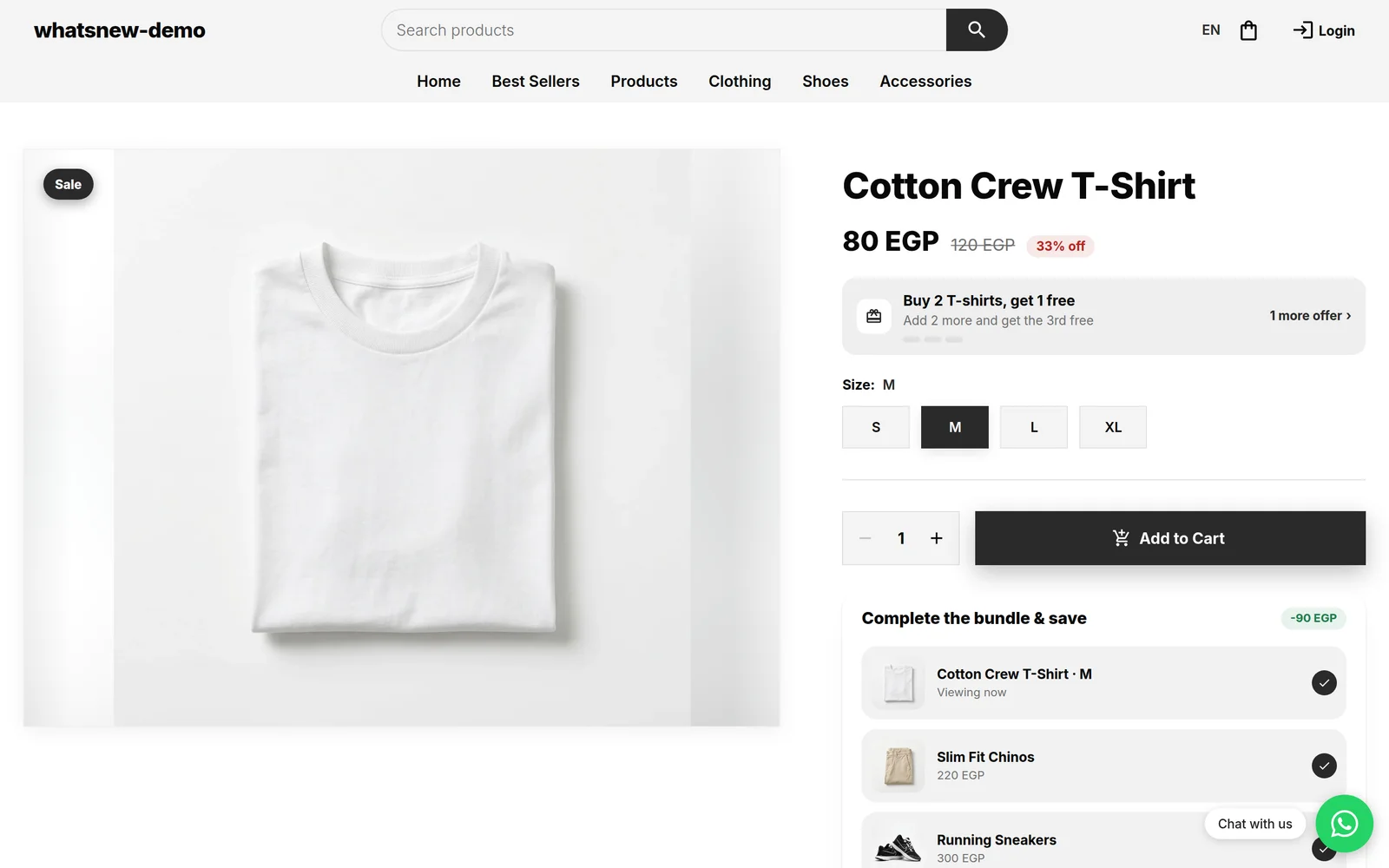
Give each group of products its own product page layout
Phones can show specs while perfumes show a scent story. Make a page layout once, choose the products that use it, and set the product page width.
- Where
- Storefront Design, Product page layouts
- Products per layout
- As many as you like
- Page width
- Theme, Layout panel
- Countries
- All countries
Different products need different pages. Instead of one page for everything, or a custom page for every single product, make a layout for a group, like phones or perfumes, and pick the products that use it.
What changed
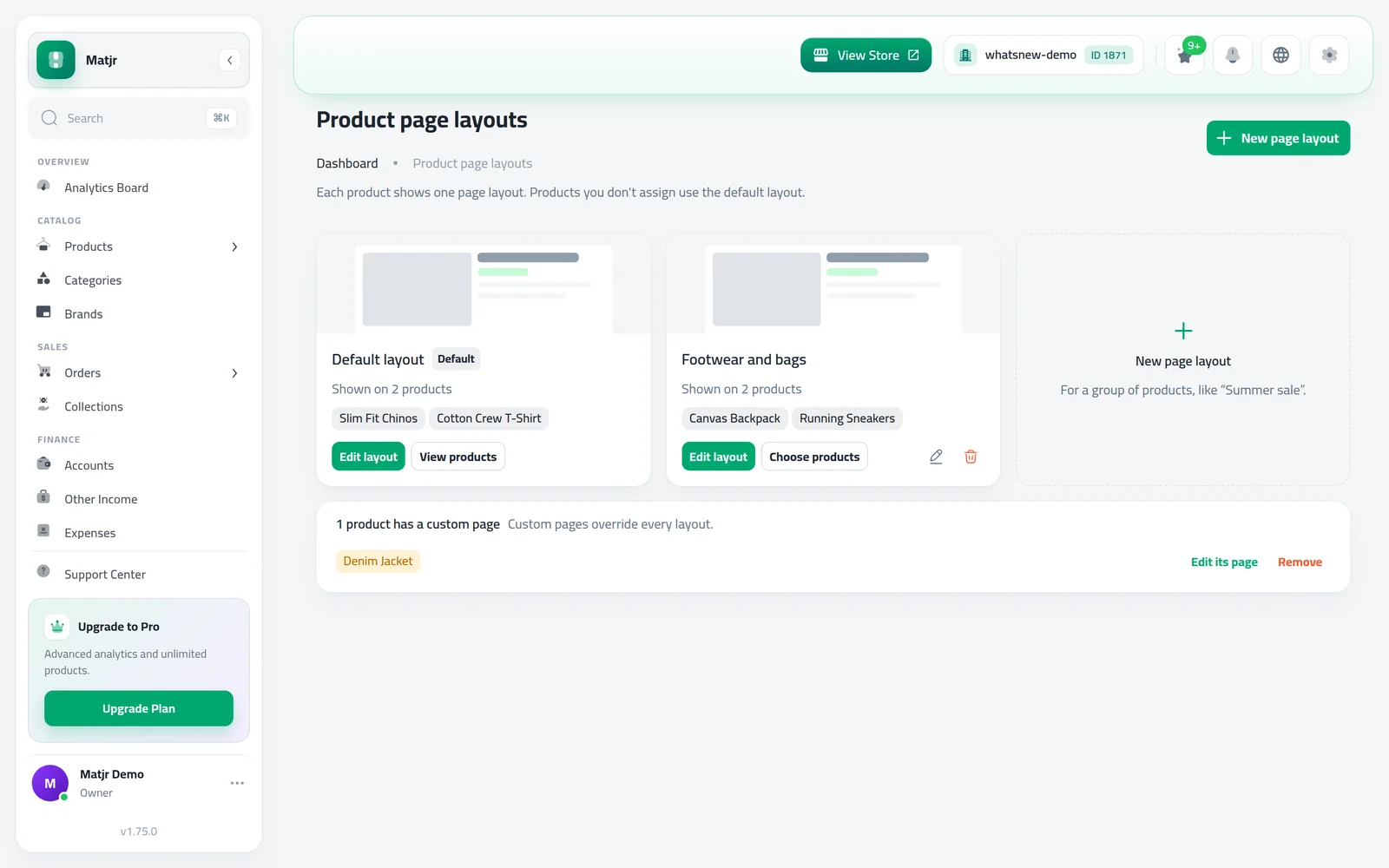
A new screen, Product page layouts, under Storefront Design, shows every layout with how many products use it. From there you create, rename and delete layouts and choose their products. A new layout starts as a copy of your default layout.
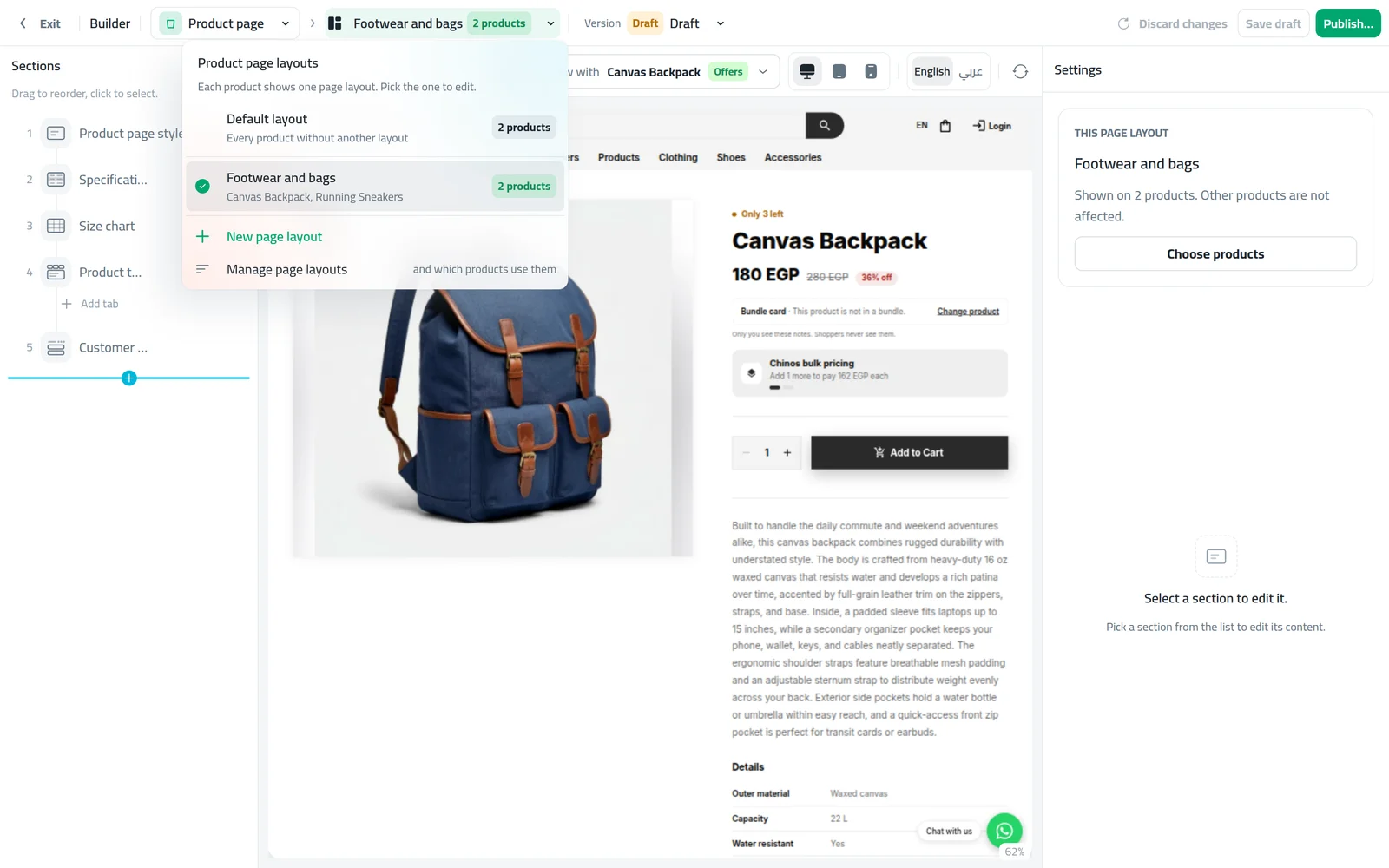
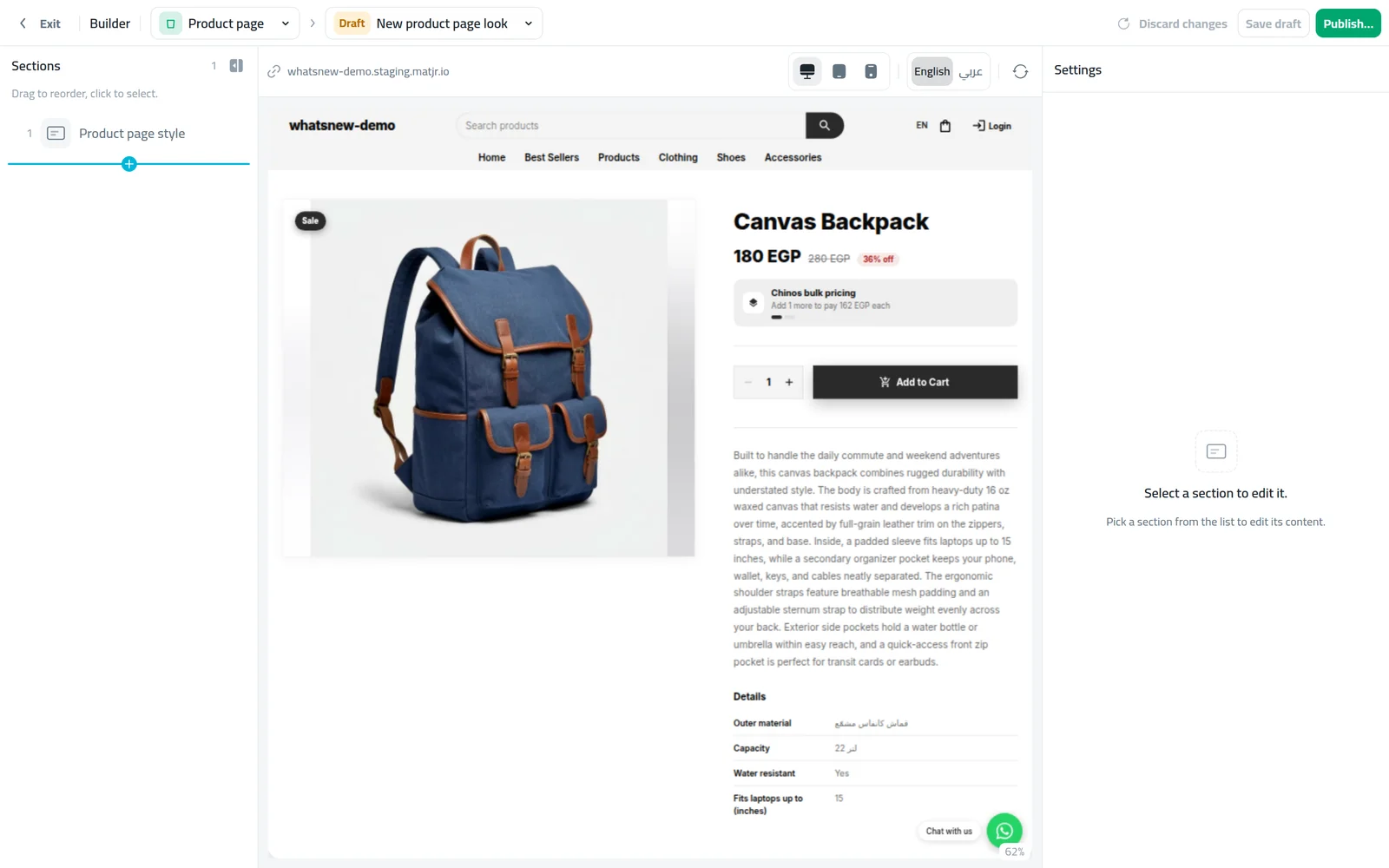
In the page builder, the top bar now shows which page layout you are editing and how many products use it, so you always know who sees your changes.
On a product, the Page layout card on the Images tab lets you pick its layout, or make a layout just for that product and switch back later.
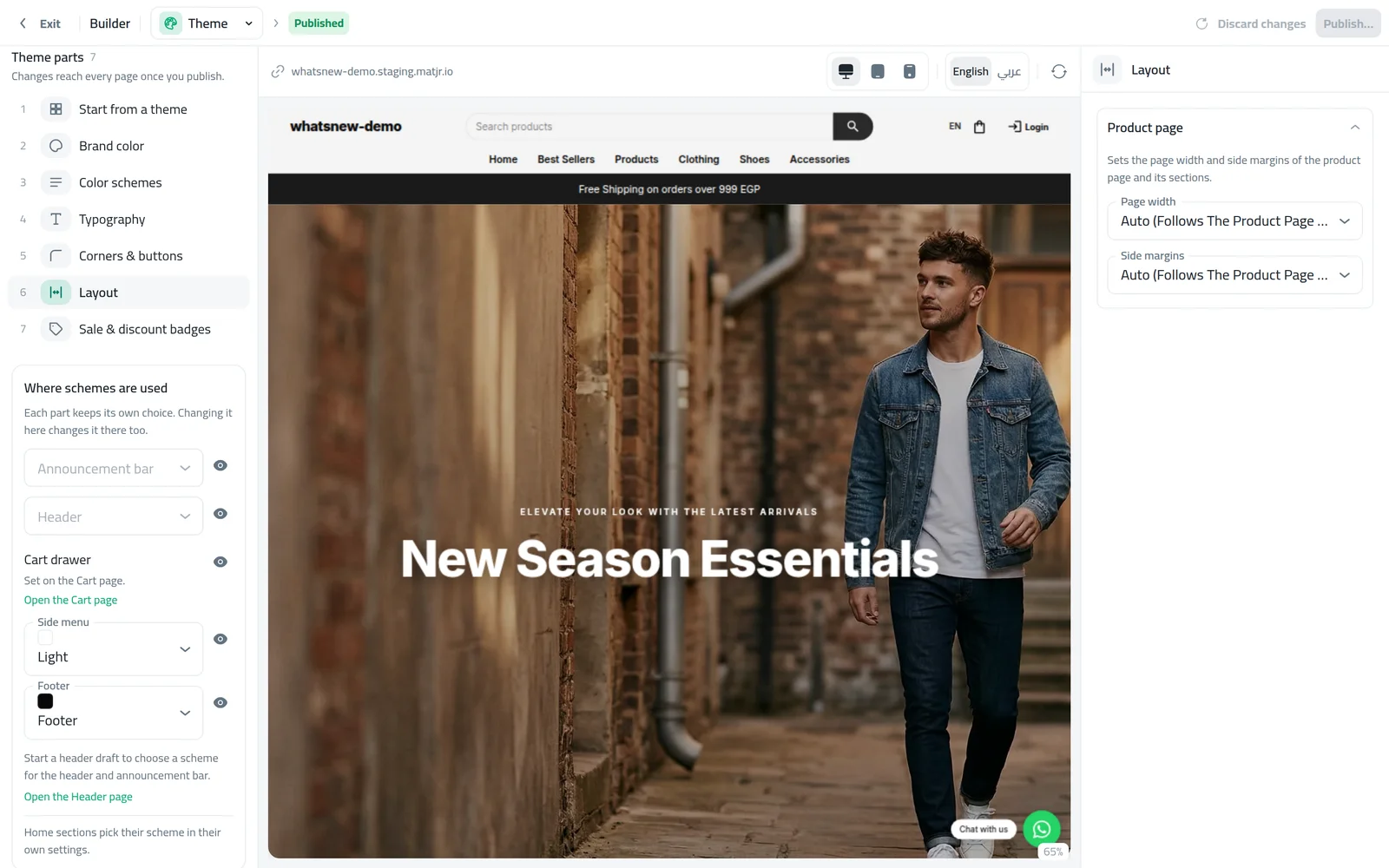
The theme also has a new Layout panel to set the Page width and Side margins of the product page for the whole store.
How to use it
Open Storefront Design then Product page layouts and press New page layout. Name it and press Create and open.
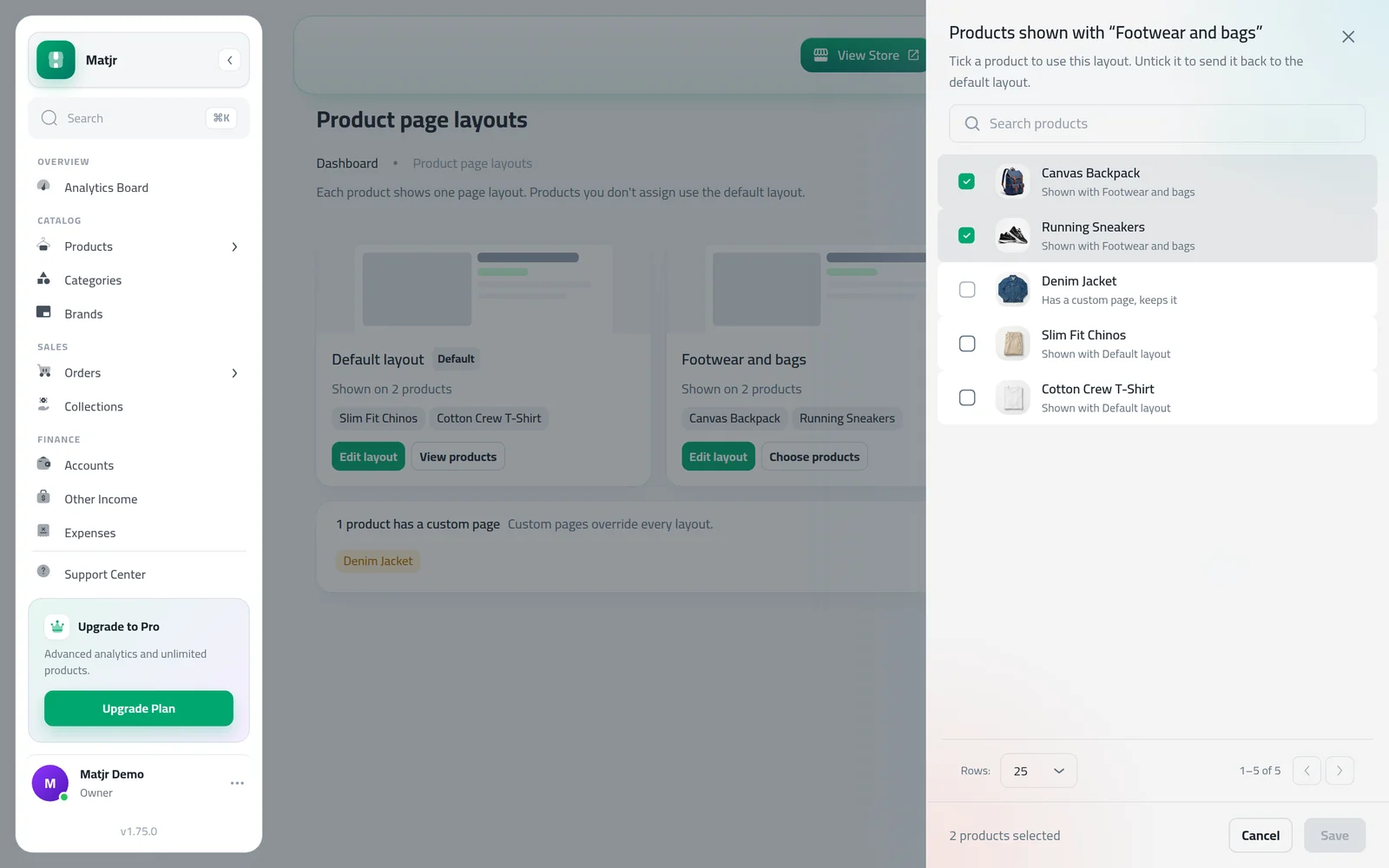
Change the sections in the builder and publish. Press Choose products and tick the products that should use it.
Use the layout menu in the builder top bar to move between layouts.
To set the width, open Themes, then the Layout panel, and choose Page width and Side margins.
Good to know
- Each product shows one page: its own page first, then its assigned layout, then the default layout.
- Width and margins on Auto keep your product page exactly as it looks today.
- More on building product pages: How to customize your product page.
Frequently asked questions
What happens to products I do not assign?
They keep the default layout, exactly as today.
If I delete a layout, what happens to its products?
They go back to the default layout. The delete window lists them before you confirm.
Can one product still have a page of its own?
Yes. On the product Images tab, use Make a layout just for this product. A product page of its own always wins over shared layouts.
Try it on your own store
Start your free trial. No credit card required.