Products
How to filter products by specifications
How to filter products by specifications such as material or size, and find any product in your online store in seconds.
- Where
- Products and Stock lists
- Needs
- At least one spec in your store
- Filter
- One spec at a time
If you run an online store with many products, finding the right one takes time. Knowing how to filter products by specifications, such as material, capacity or warranty, turns a long list into a short one in a few clicks. This guide shows you how, step by step.
Before you start
Filtering works on the specs you have already added to your products. If you have not added any yet, do that first, because the Filters button only appears when your store has at least one spec. Open Product Attributes, create a spec such as Material, and then add its value to your products. The guide how to add product specifications walks you through it.
A few ideas for specs that help you filter later: material, brand line, capacity, size in inches, warranty period, and whether a product is water resistant. Choose names your team already uses, so everyone searches the same way.
How to filter products by a spec
Open Products from the menu. Under every product name you will see its specs, so you can already compare products at a glance.
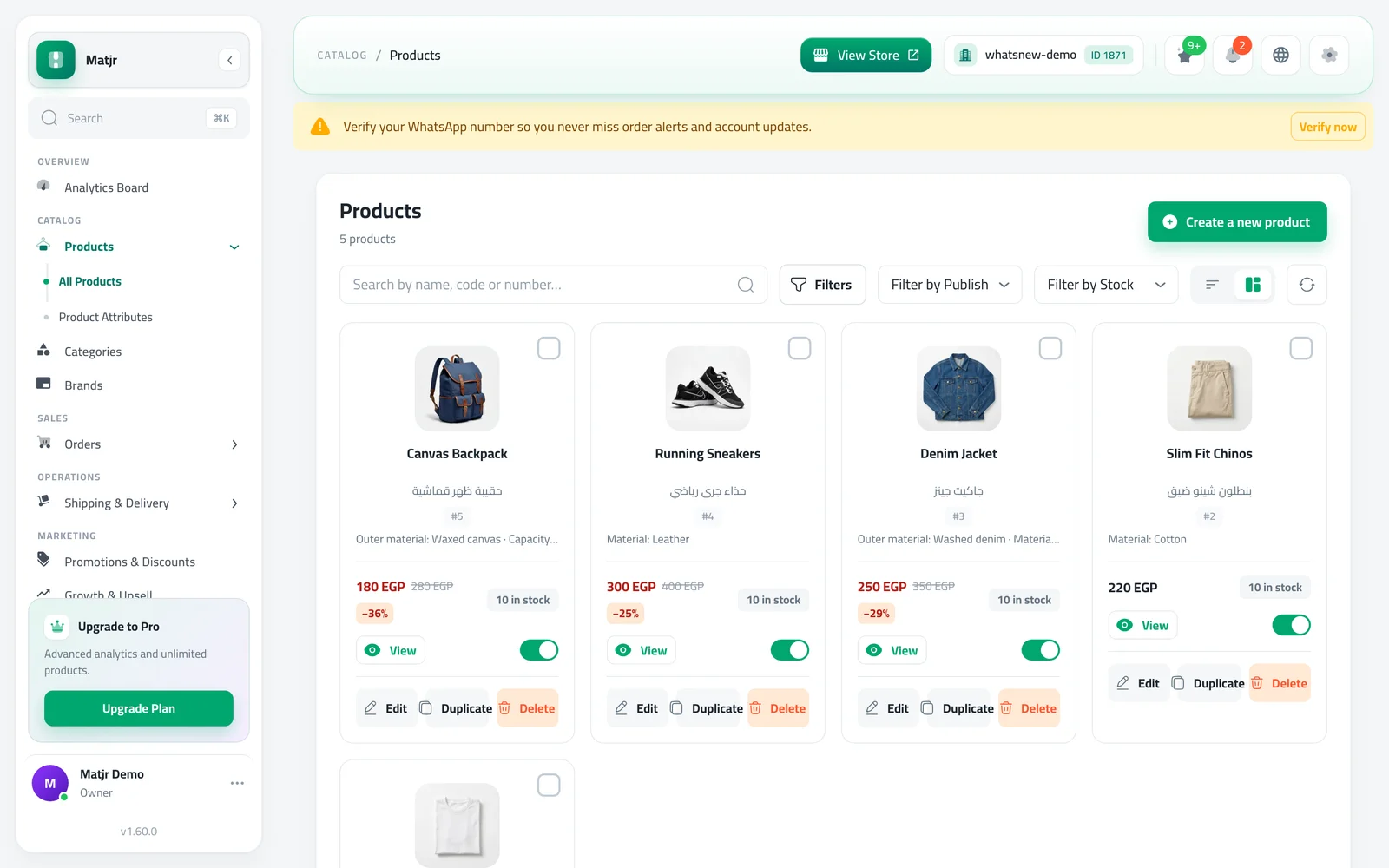
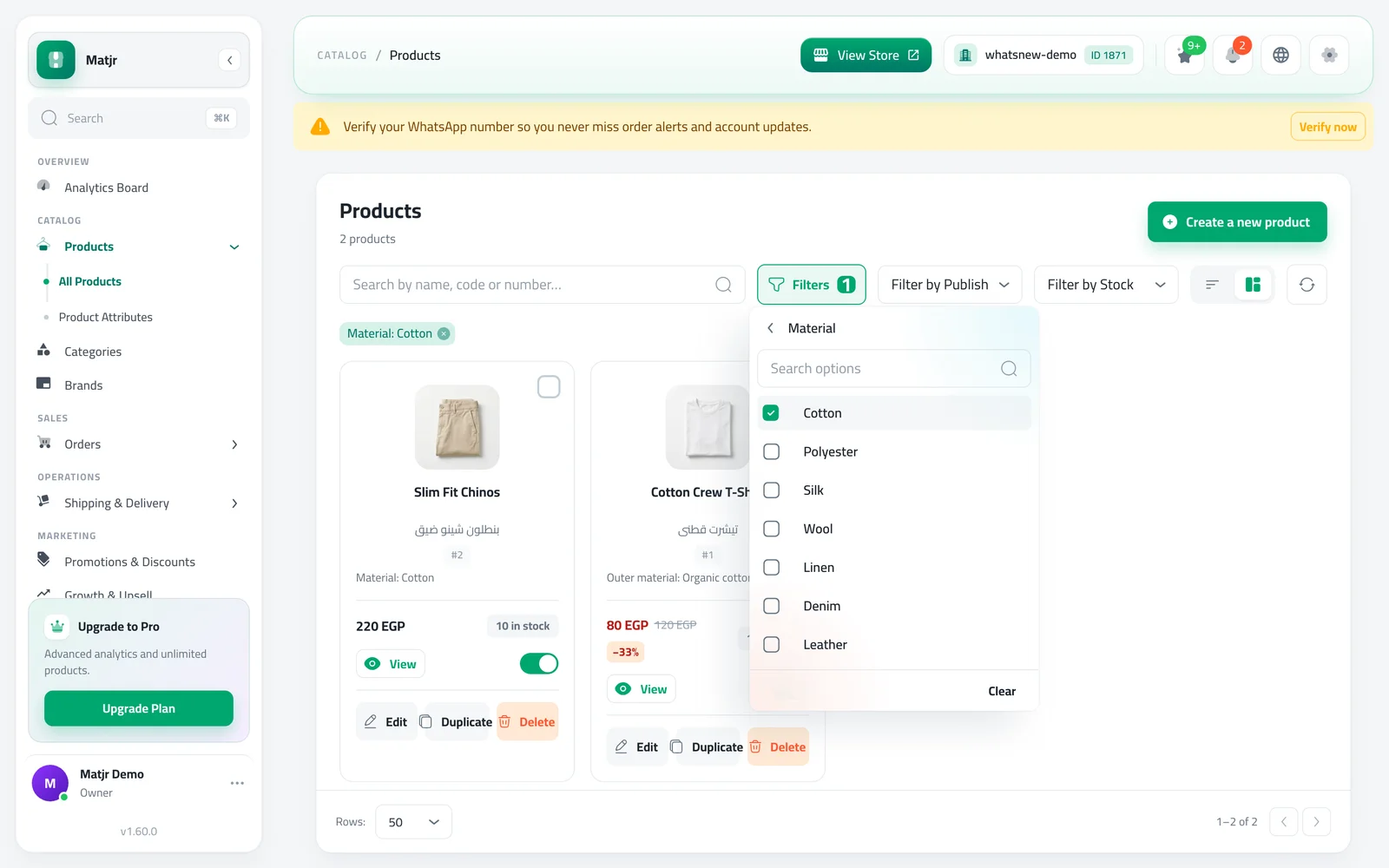
Press the Filters button next to the search box. A small window lists your specs. Type in the box to find one quickly, then choose it, for example Material.
Tick the values you want. Choose Cotton to see cotton products only, or tick several values to see products that match any of them. The list updates at once.
To go back to all products, press the small x on the filter chip above the list or press Clear inside the window.
Filtering text and number specs
Some specs, such as Outer material or Capacity, hold free text instead of a fixed list of values. When you choose one of them, the window shows a box called Value contains. Type part of the value, like "canvas", and the list shows every product whose spec contains it. This is handy when your values are written a little differently from one product to another.
Search by spec without filters
You do not have to open the Filters window at all. The search box in Products now also looks inside specs, so typing "leather" finds products whose Material is leather, even when the word is not in the name. The search box in your stock items list works the same way, and it tells you so: Search by name, code or spec.
See specs on your invoices
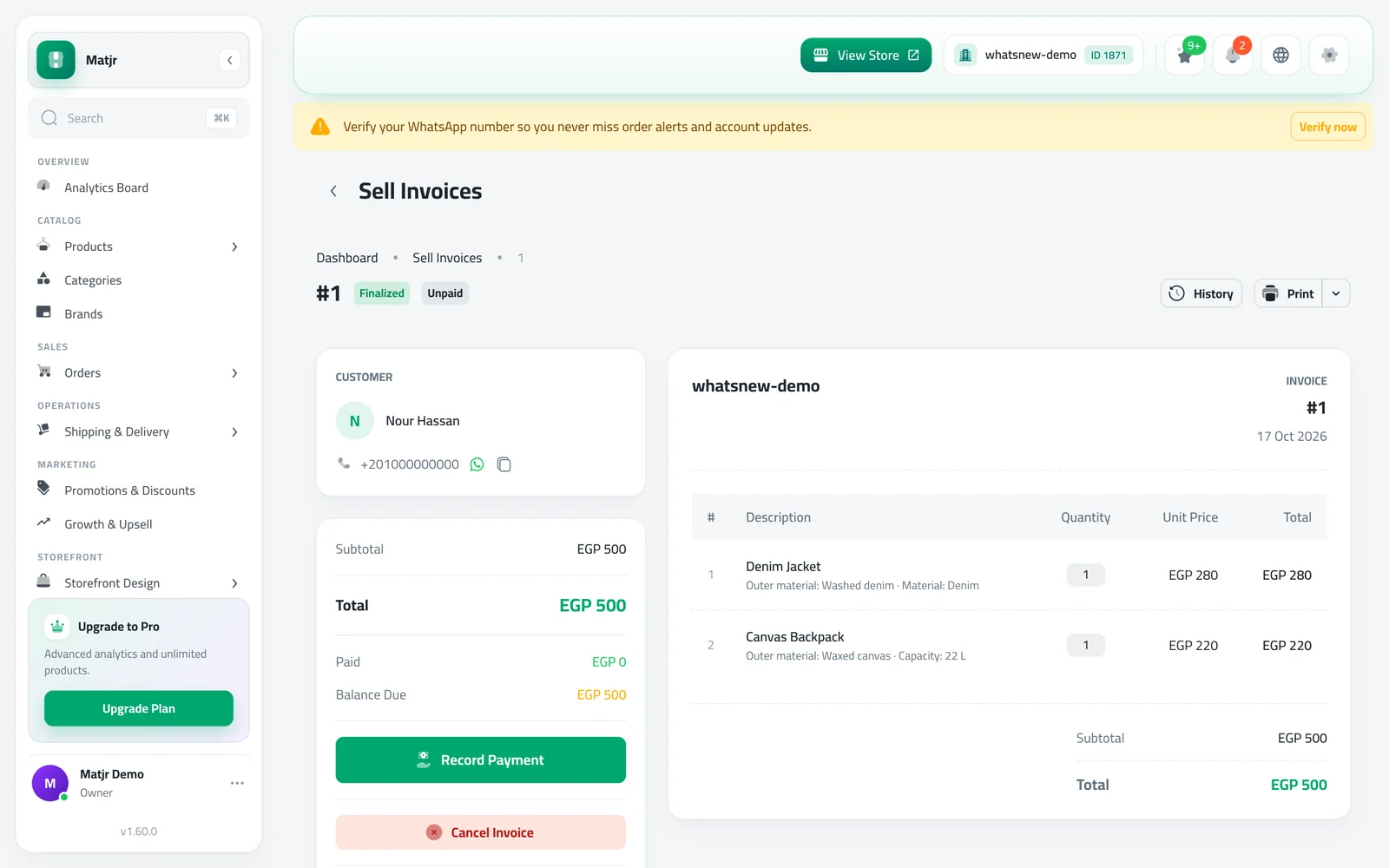
When you finalize a sell invoice, each product line keeps the specs the product had that day. Open the invoice and you will see them under the product name, and they also print on the PDF. This helps your customer see exactly what they bought, for example the size or warranty. If you change a product's specs later, invoices you already finalized do not change.
Common mistakes
- No Filters button. Your store has no specs yet. Add one in Product Attributes first.
- Two specs at once. You can filter by one spec at a time. Pick the most important one, then use the search box for the rest.
- Different spellings. "Leather" and "leatther" are different values. Use a fixed list of values for specs you want to filter on.
- Old invoices without specs. Only invoices finalized after the update keep specs.
Tips for faster filtering
Keep spec names short and clear, such as Material and Size, because your team sees them in the Filters window and shoppers see them on the product page. If the same value repeats across many products, make it a spec with a fixed list of options instead of free text, so you get ready-made tick boxes instead of typing each time. Review the specs of your best sellers first, since those are the products you will look for most. And when you manage a large stock, use the search box in Stock to reach an item by name, code or spec without opening every product.
Related tasks
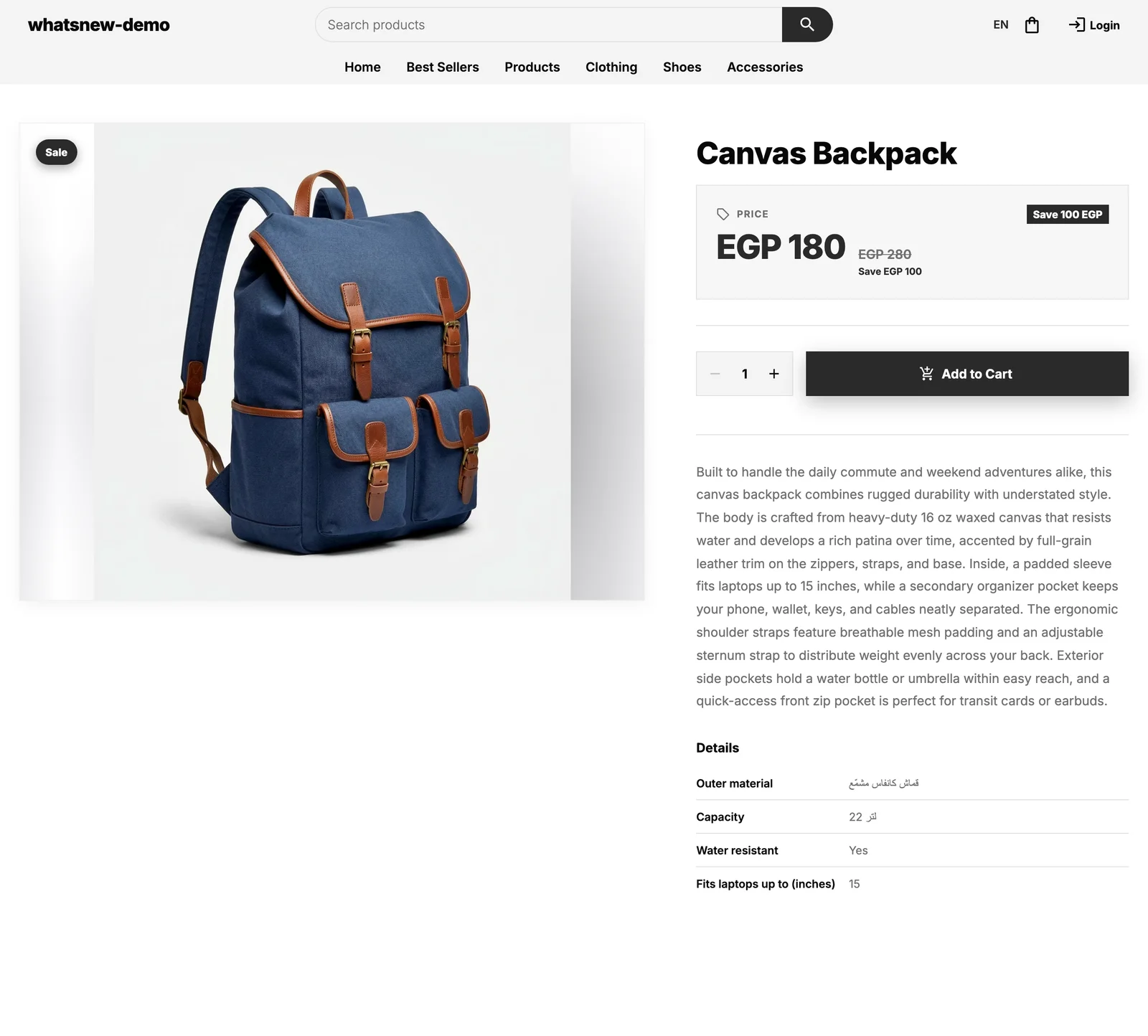
Once your products are easy to find, make them easy to sell. Read how to add product specifications so shoppers see the details on the product page, and how to design your online store with the builder. You can also read what changed in find products by their specs and see them on invoices.
Frequently asked questions
How do I filter products by specification?
Open Products, press Filters, choose a spec and tick the values you want. The list narrows down at once.
Why is there no Filters button?
It shows only when your store has at least one spec. Add specs from Product Attributes first.
Can I filter by two specs at the same time?
Not yet. Filter by one spec, and use the search box for anything else.
Does the search box look inside specs?
Yes. Searching for a value like leather finds products with that spec, even if it is not in the name.
Try it on your own store
Start your free trial. No credit card required.