Store design
12 new footer styles, with a live preview
Pick from 12 new footer styles, see them live in the builder, and choose which links and badges show at the bottom of your store.
- Where
- Storefront Design › Design › Footer
- Styles
- 12 new, plus your Classic footer
- You control
- Style, colours, text and which items show
- Languages
- Arabic and English fields
Give every page of your store a bottom that looks like your brand. Choose from 12 new footer styles, watch the change live while you edit, and decide which fixed links and badges shoppers see.
What changed
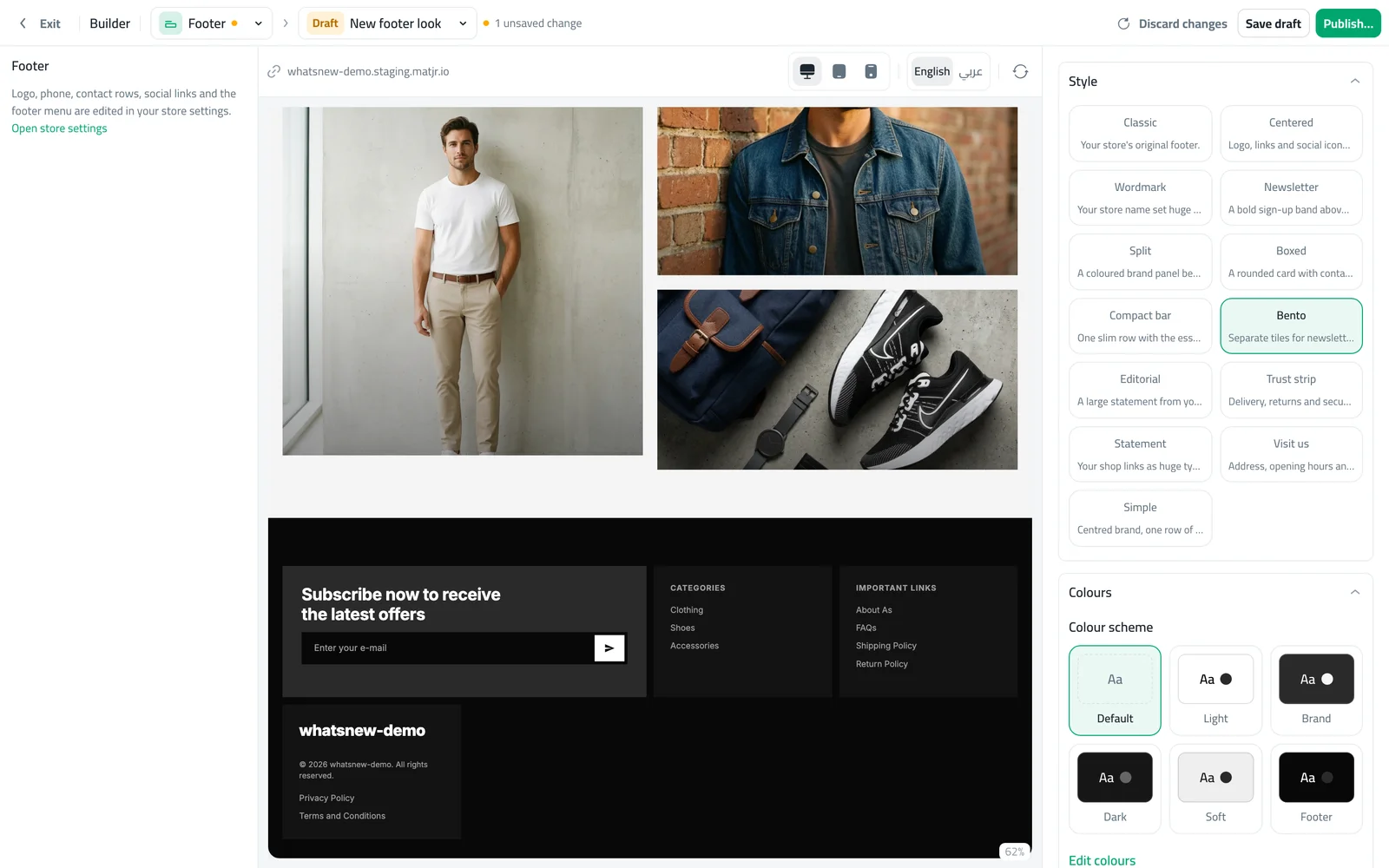
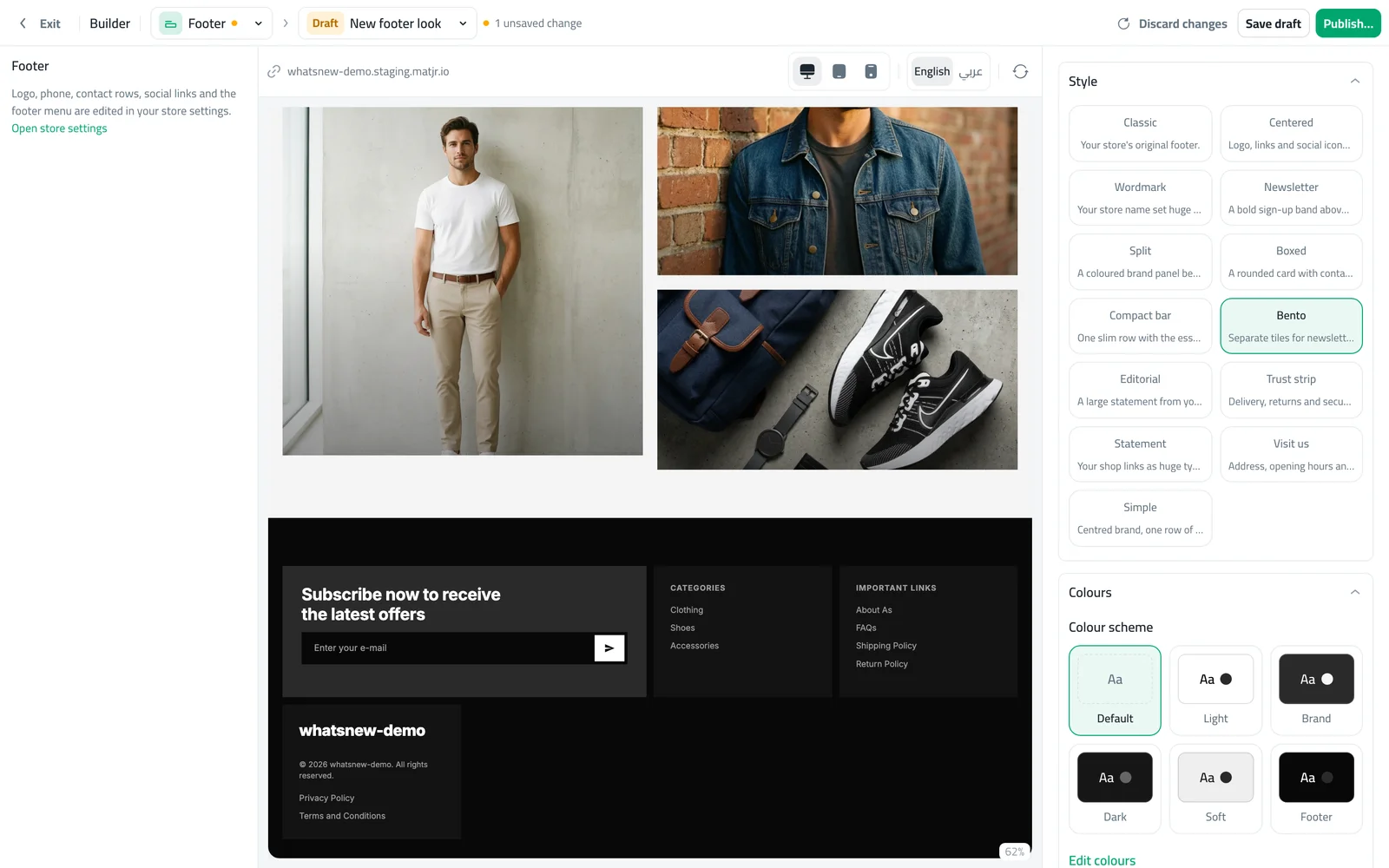
The builder now has a Footer page. Pick a style such as Centered, Wordmark, Newsletter, Split, Boxed, Compact bar, Bento, Editorial, Trust strip, Statement, Visit us or Simple. Classic, your original footer, is still there.
Each style shows only the settings it needs. You can add a tagline, a newsletter title and text, a WhatsApp number, a maps link for the Visit us style, and up to four trust items such as free delivery or easy returns. You also pick a colour scheme and choose whether to show your email.
Under Show in footer, switch off what you do not want: About us, FAQs, Shipping policy, Return policy, Privacy policy, Terms & conditions, Payment badges, Social icons, Newsletter and the account links. Everything is on by default, and hidden items leave no gaps.
How to use it
Open Storefront Design, click Design, and under What do you want to design? choose Footer.
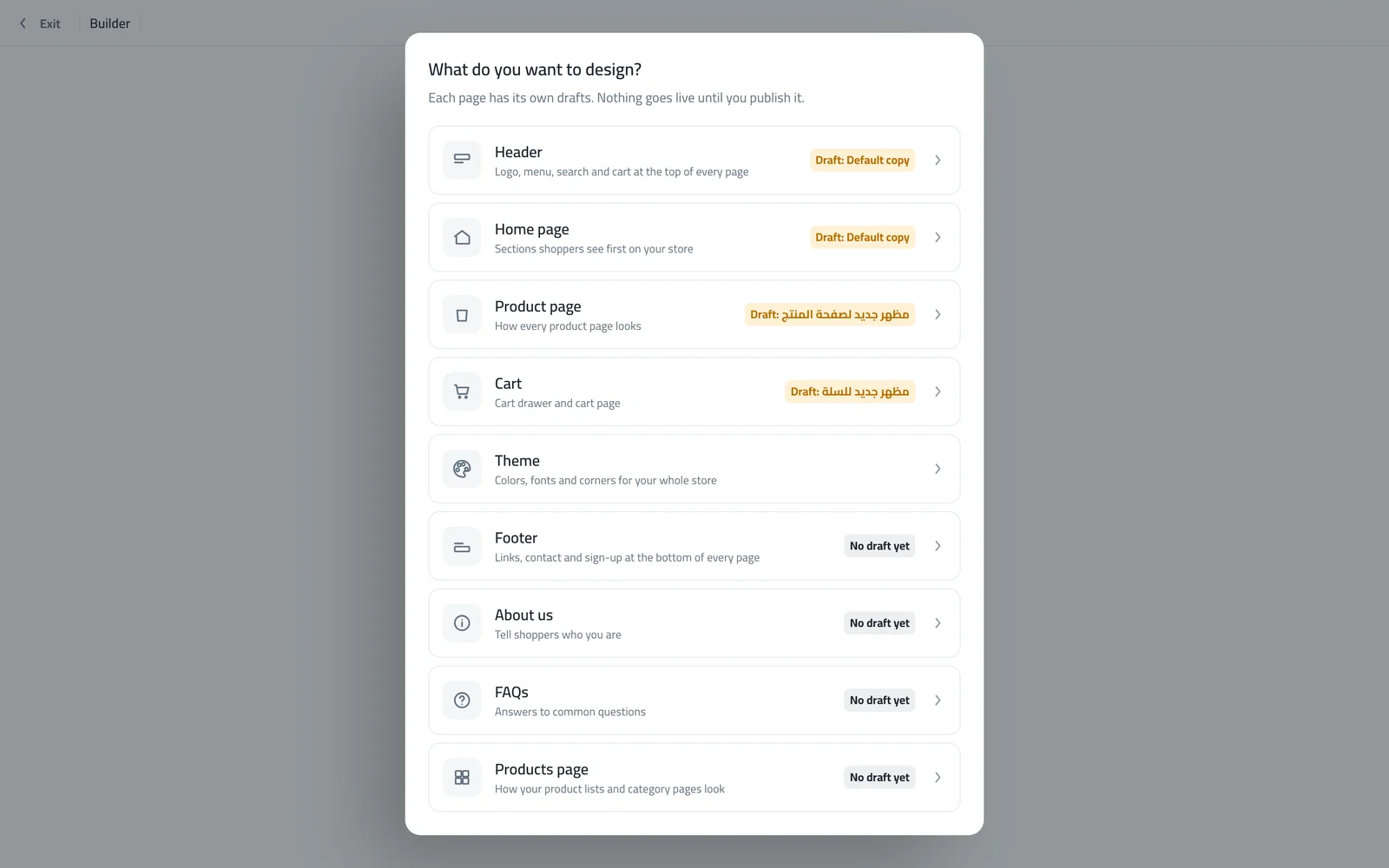
A draft called New footer look opens for you. Your live footer stays untouched while you work.
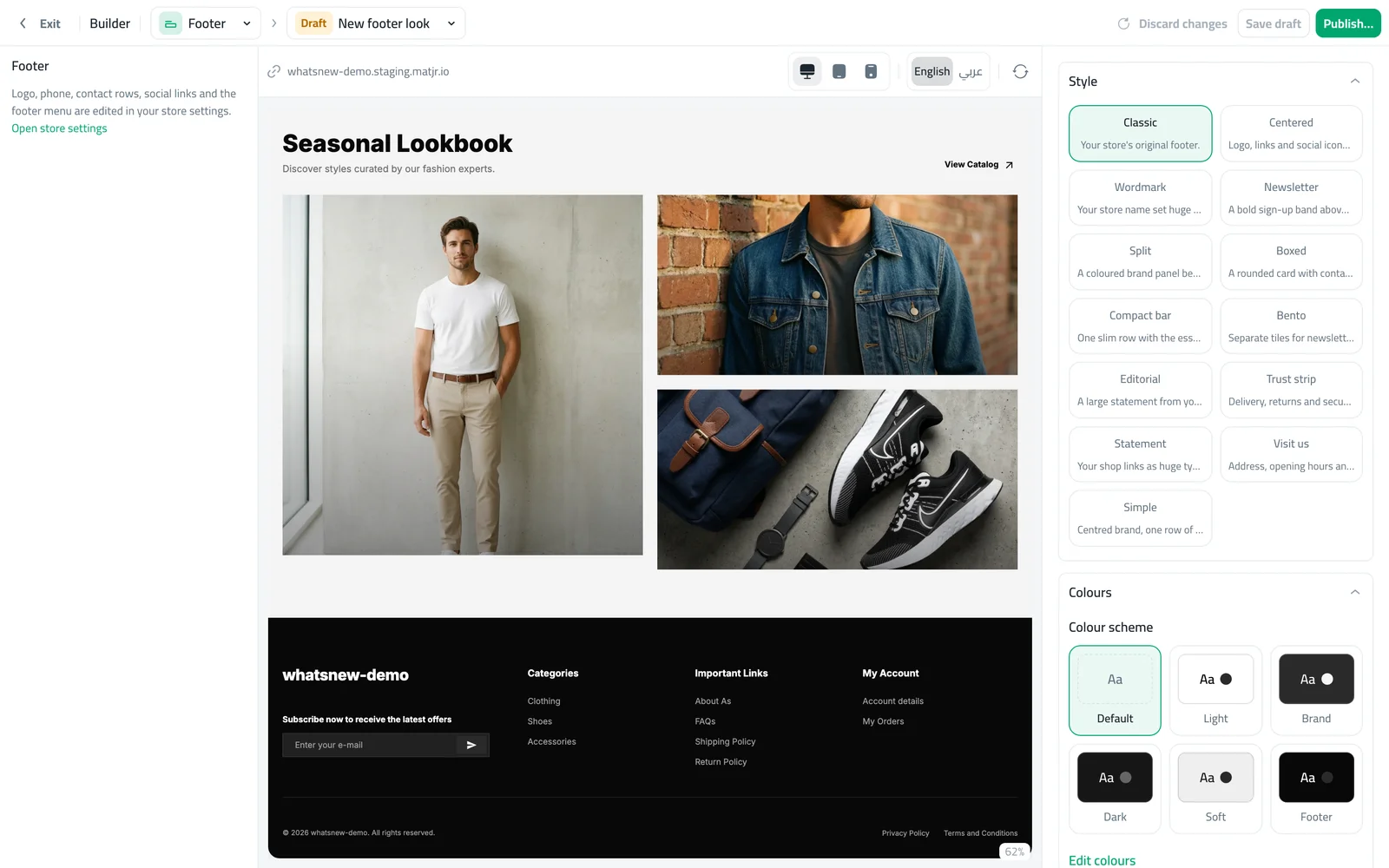
Pick a style under Style. The preview in the middle changes right away, and the fields for that style appear.
In Show in footer, switch items on or off, then check the preview.
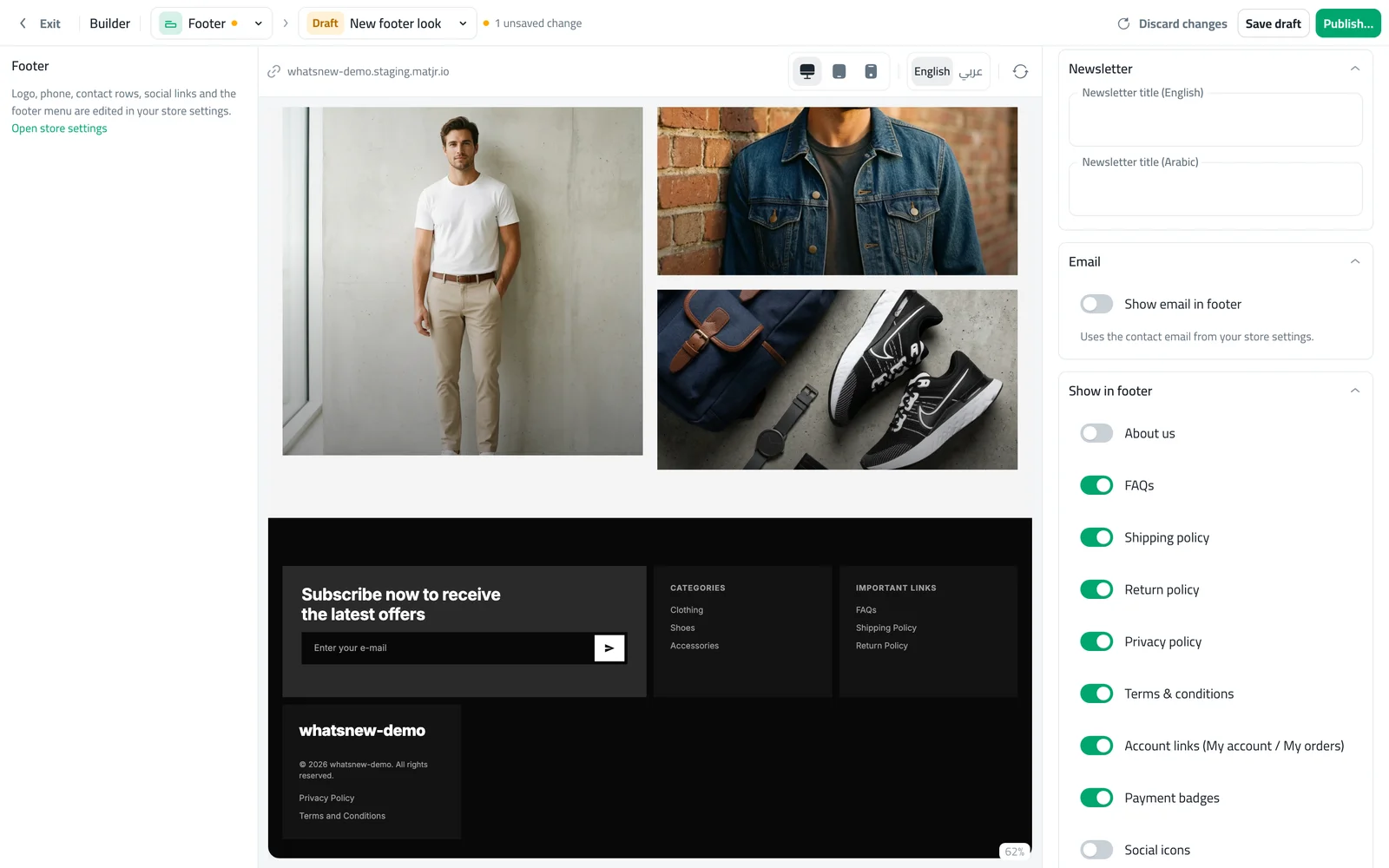
Click Publish… and confirm. Shoppers see the new footer within a minute.
Good to know
- The logo, phone number, contact details, social links and footer menu still come from your store settings. The Footer page has a link to open them.
- The Account links switch only appears when customer login is on, and the Newsletter switch only appears for styles that have a newsletter.
- The WhatsApp number needs 7 to 15 digits and the maps link must start with https://. The builder stops you from publishing until they are right.
- New to the builder? Read how to design your online store with the builder.
Frequently asked questions
Will shoppers see my footer while I try styles?
No. You work in a draft. Shoppers keep seeing your live footer until you publish.
Can I hide About us or the payment badges?
Yes. Open Show in footer and switch off any item. Hidden items leave no empty space.
Where do I change my logo, phone number or footer menu?
In your store settings. The Footer page has an Open store settings link.
Can I go back to my old footer?
Yes. Classic is still in the style list, and your previous footer is kept so you can publish it again.
Is the Footer page in the Storefront Design menu gone?
No. It is still there as a separate page. The builder Footer page is the one with styles and the live preview.
Try it on your own store
Start your free trial. No credit card required.