Products
Show product details like material and size with specs
Add details such as material, capacity or warranty to any product. They show on the product page without creating variants.
- Where
- Products › Product Attributes, then the product’s Type & Price tab
- Value types
- Text, number, yes or no, choice
- Stock
- Specs never split stock
Shoppers buy with more confidence when they know exactly what they are getting. Specs let you list a product’s details in a clear table, so you answer questions before they are asked.
What changed
An attribute in Product Attributes can now hold text, a number, yes or no, or a choice from a list. A spec describes the product. It does not create variants or split your stock. Text specs can have an English and an Arabic value.
How to use it
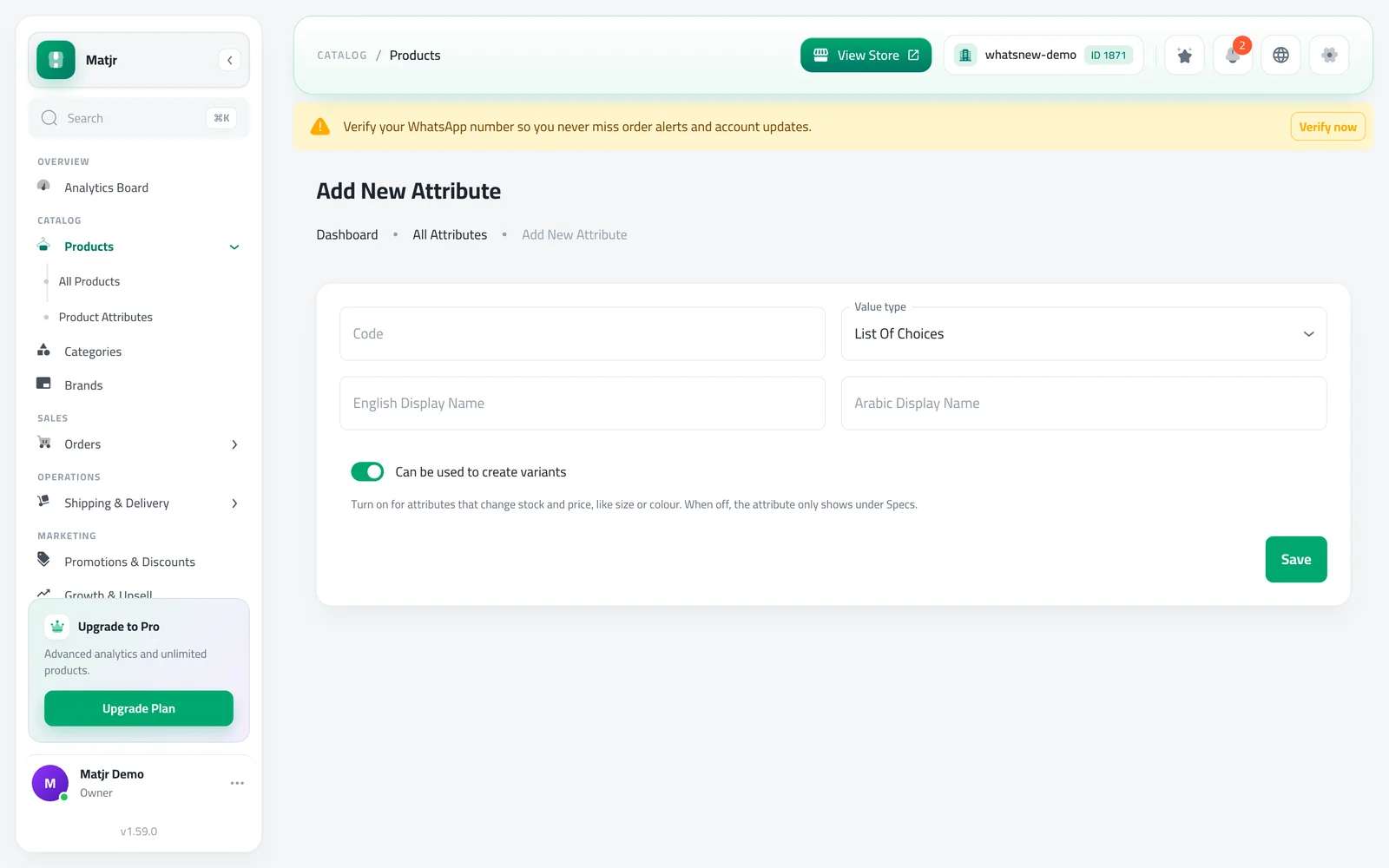
Open Products › Product Attributes and add an attribute. Choose its Value type.
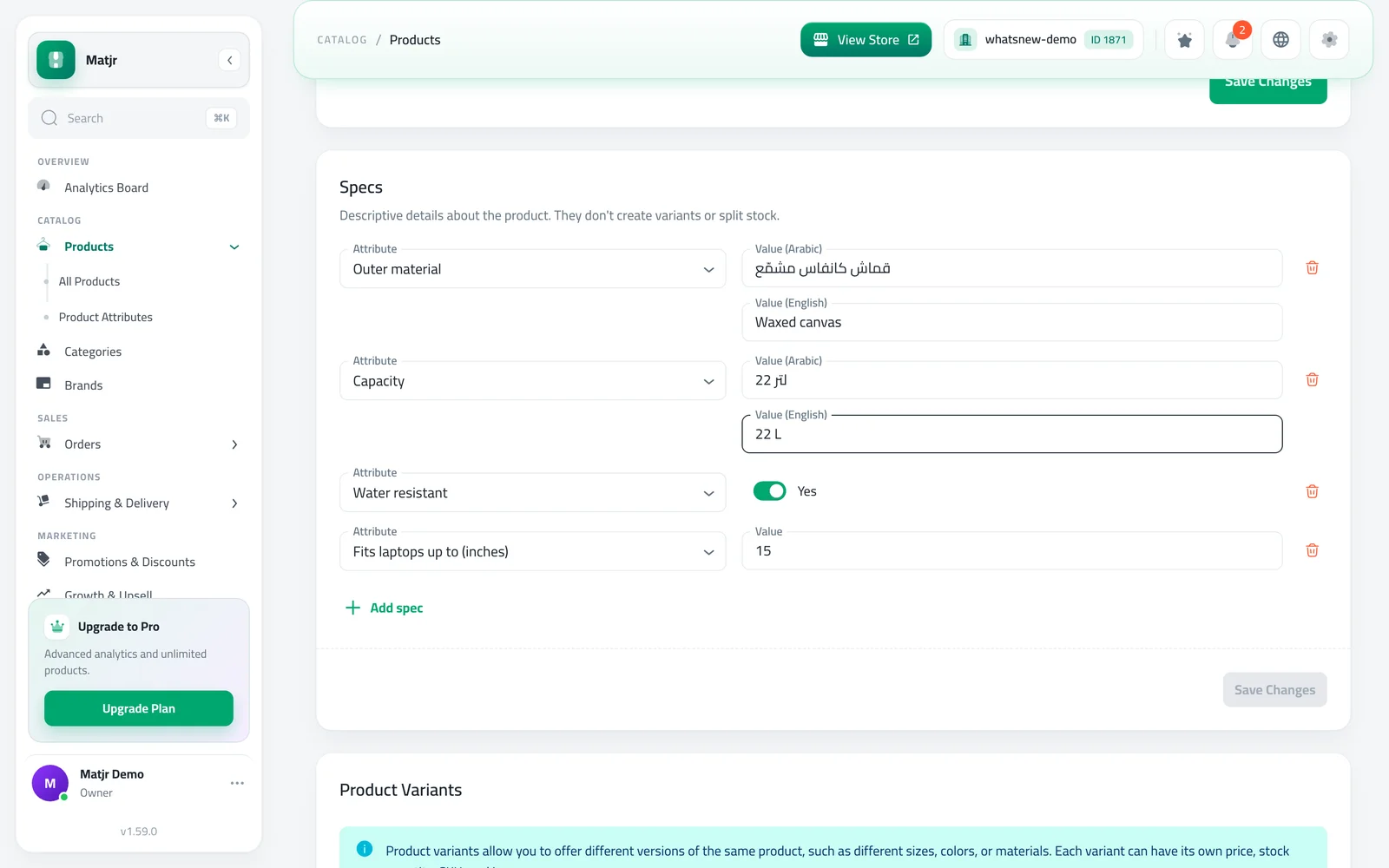
Open a product, go to Type & Price, and use Add spec in the Specs card.
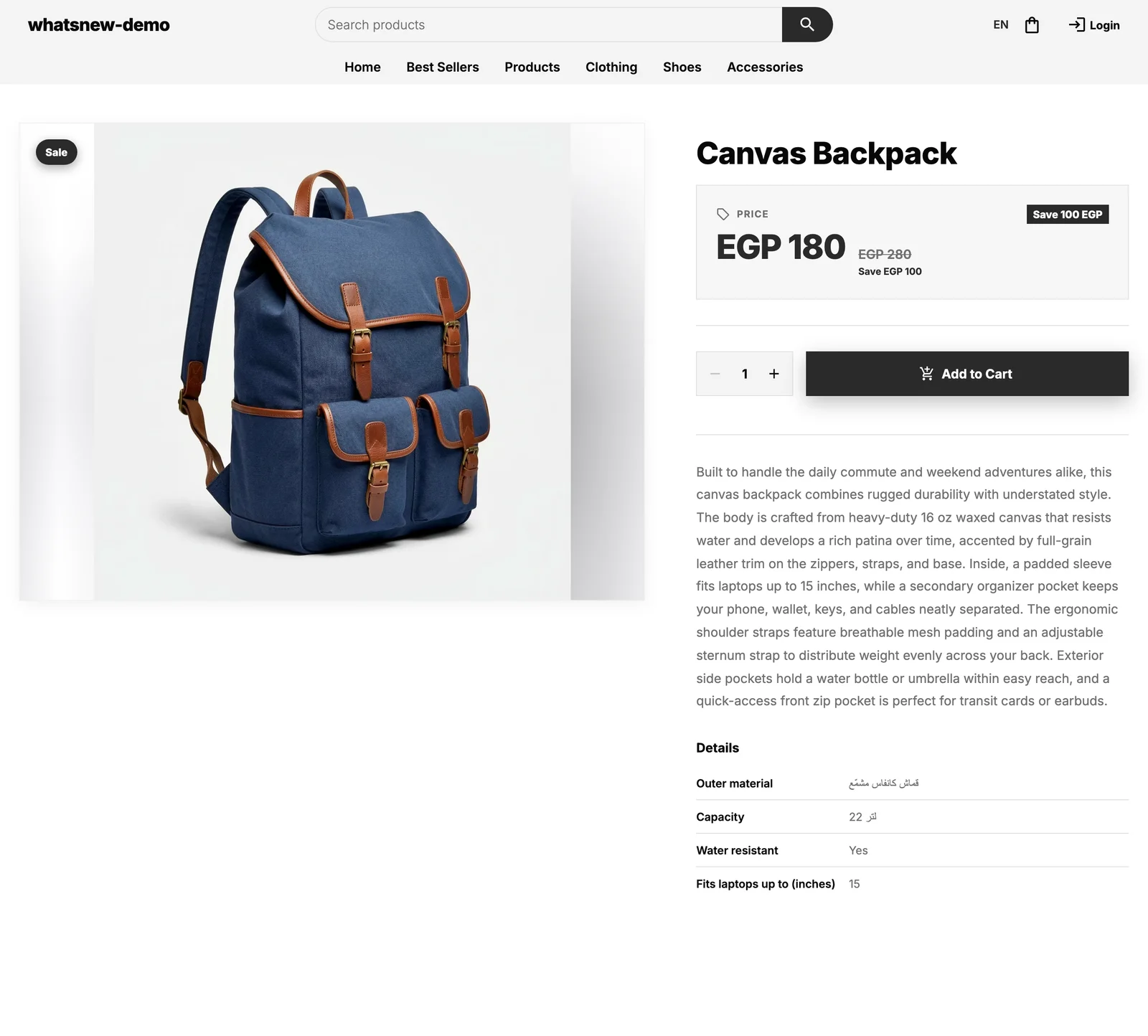
Save. The specs appear on the product page in your store.
More detail: how to add product specifications.
Frequently asked questions
What is the difference between a spec and a variant?
A variant is something the shopper chooses, like size, with its own stock. A spec just describes the product, like material.
Do I have to write every spec in both languages?
Text specs can have both. Numbers and yes or no show the same in both languages.
Can I reuse a spec on many products?
Yes. Create the attribute once and add it to any product with its own value.
Try it on your own store
Start your free trial. No credit card required.