Store design
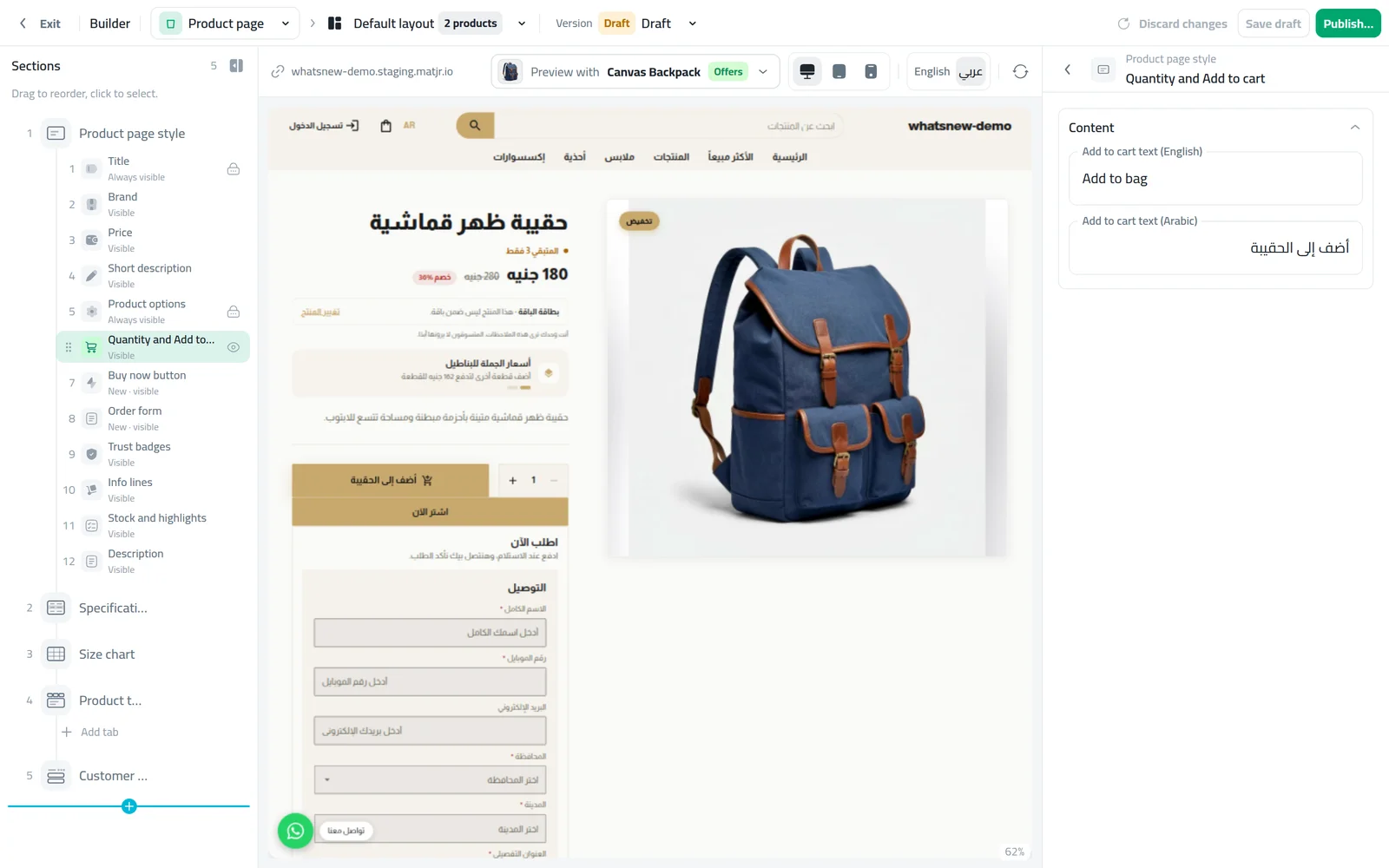
Write your own Add to cart button text
Replace the default Add to cart text with your own words in English and Arabic. The button also fits better on phones.
- Where
- Product page builder > Quantity and Add to cart
- Languages
- English and Arabic
- Empty field
- Keeps the default text
- Used on
- Page button and sticky bar
Make the main button match your brand, such as "Order now" or "Add to bag". You set it once and it shows on every product page that uses the layout.
What changed
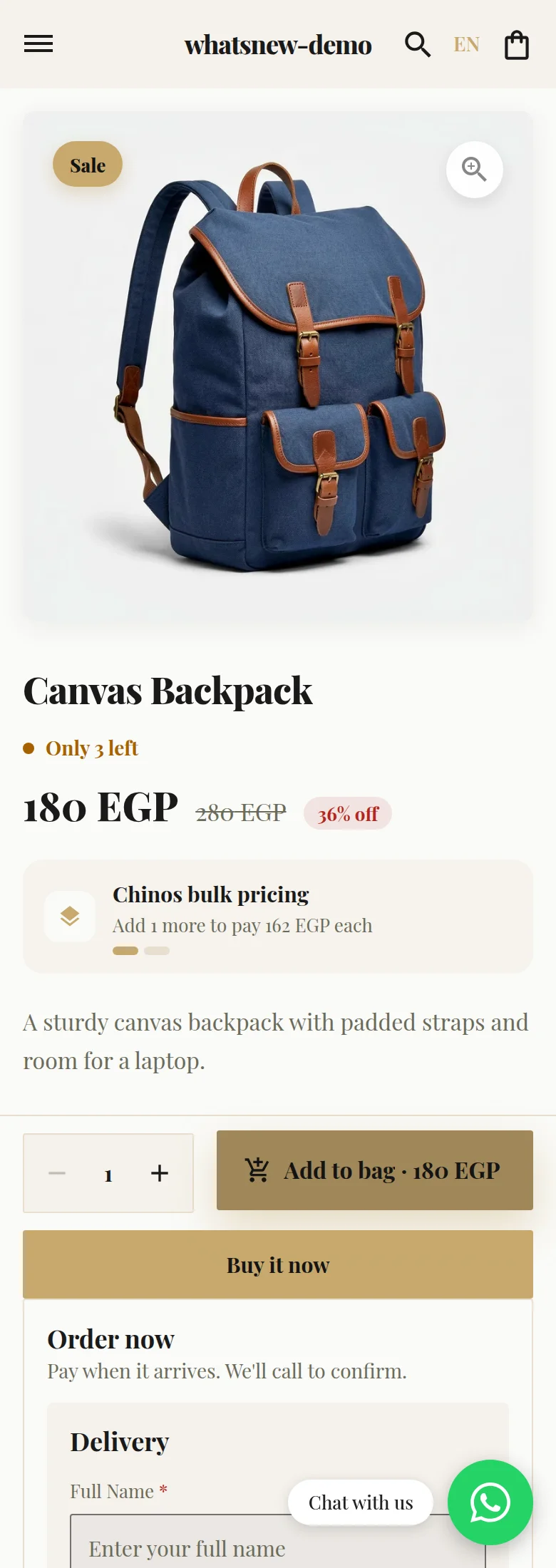
The Quantity and Add to cart block in the product page builder has new text fields for the button, one for English and one for Arabic. Leave them empty to keep the default text. Your text is used on the button in the page and in the sticky bar.
We also fixed the button on phones. It no longer runs off the screen on discounted products, and when it does not fit beside the quantity stepper it moves under it.
How to use it
Open the product page in the page builder and select the Quantity and Add to cart block.
Type your text in Add to cart text (English) and Add to cart text (Arabic), then save. Open a product in your store to see it.
Good to know
- Short text works best, especially on phones. Long text is shortened with three dots.
- The sold out text does not change.
- Only the languages you enabled are shown in the builder.
Step-by-step: Customize your product page.
Frequently asked questions
What if I leave the field empty?
The store shows its default Add to cart text.
Does the sticky bar use my text?
Yes. The same text shows on the sticky bar.
Does it change the sold out message?
No. The sold out text stays the same.
Try it on your own store
Start your free trial. No credit card required.