Marketing
How to create a discount code and other offers for your store
How to create a discount code for your online store, plus automatic discounts, Buy X Get Y, bulk pricing, bundles and free shipping.
- Where
- Marketing › Discounts › Create discount
- Offer types
- Code, automatic, Buy X Get Y, bulk pricing, bundle, free shipping
- Code characters
- English letters, numbers, ! and -
- Time zone
- Your store’s (Cairo, Dubai or Bahrain time)
A discount code gives shoppers a reason to finish their order today. This walk-through shows how to create a discount code for your online store, and how to set up the other offers your store supports: automatic discounts, Buy X Get Y, bulk pricing, bundles and free shipping.
Before you start
- Know your goal. A welcome code brings first orders. Bulk pricing raises the number of items per order. A bundle moves products that sell well together.
- Check your margin. Make sure the price after the discount still leaves you a profit after shipping.
- Pick the dates. An offer with an end date feels more urgent than one that runs forever.
- Choose a short code. Codes use English letters, numbers, ! and -. Short words like WELCOME10 are easy to type on a phone.
How to create a discount code
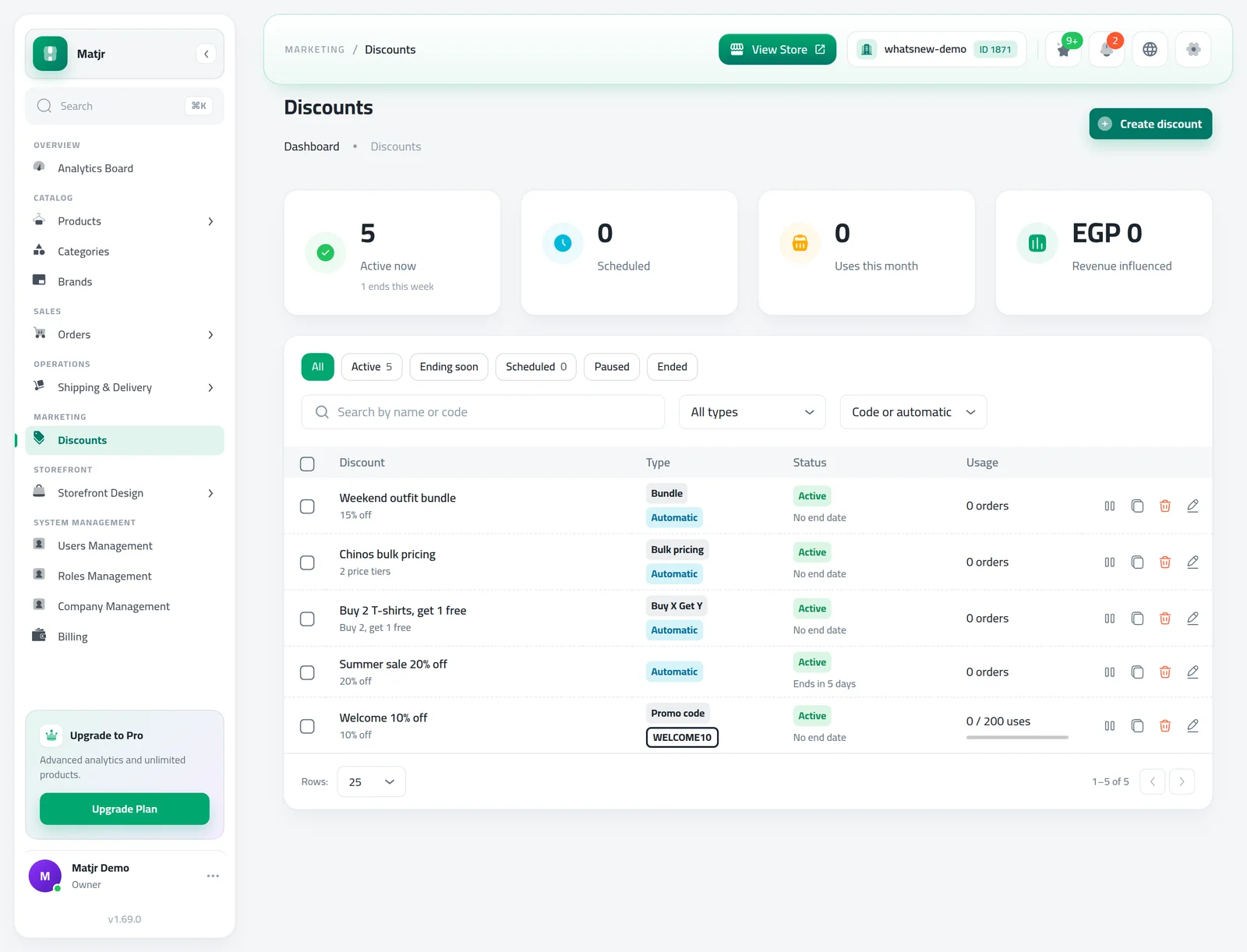
Open Marketing › Discounts and click Create discount.
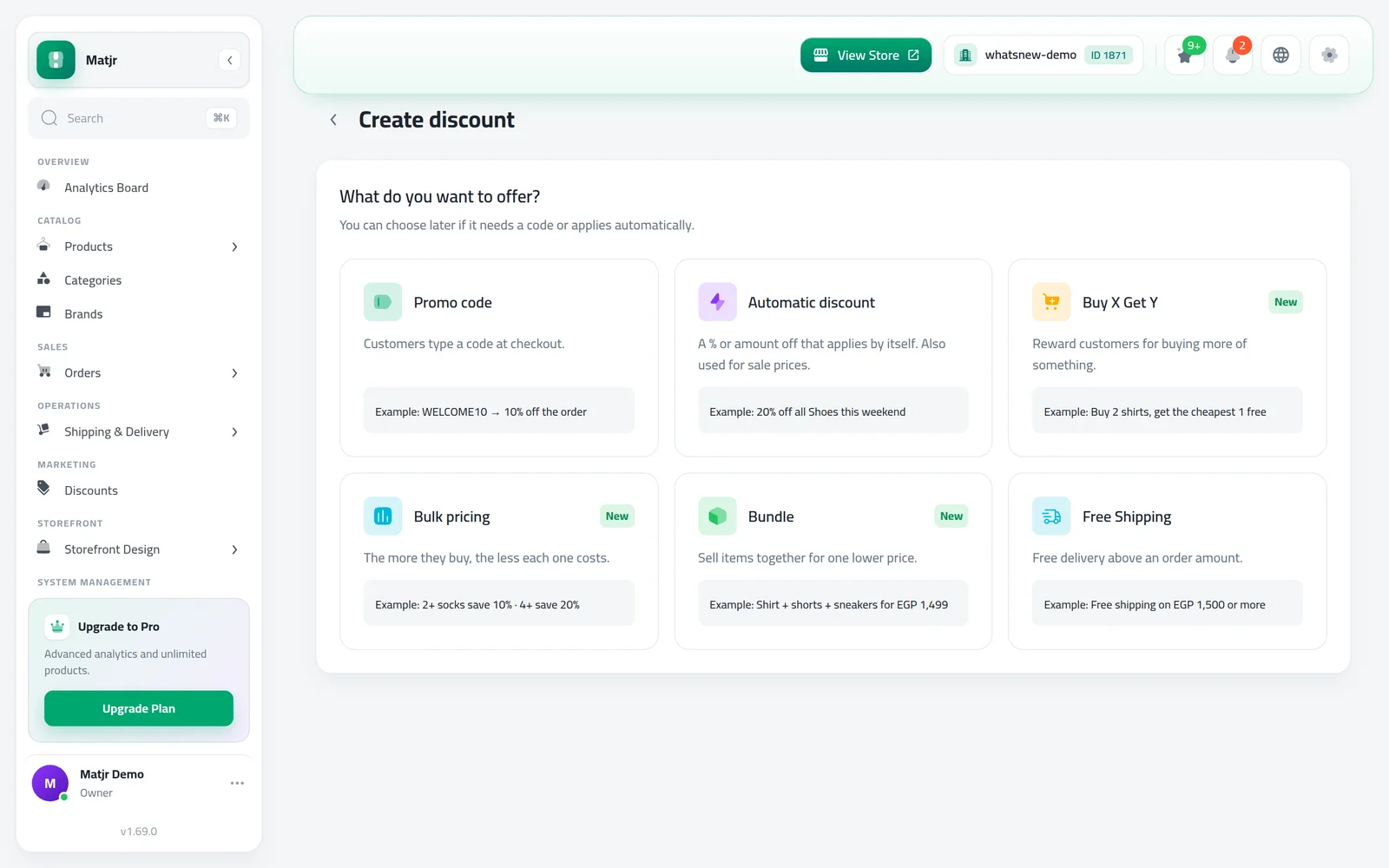
Under What do you want to offer?, choose Promo code. Each card shows an example of the offer.
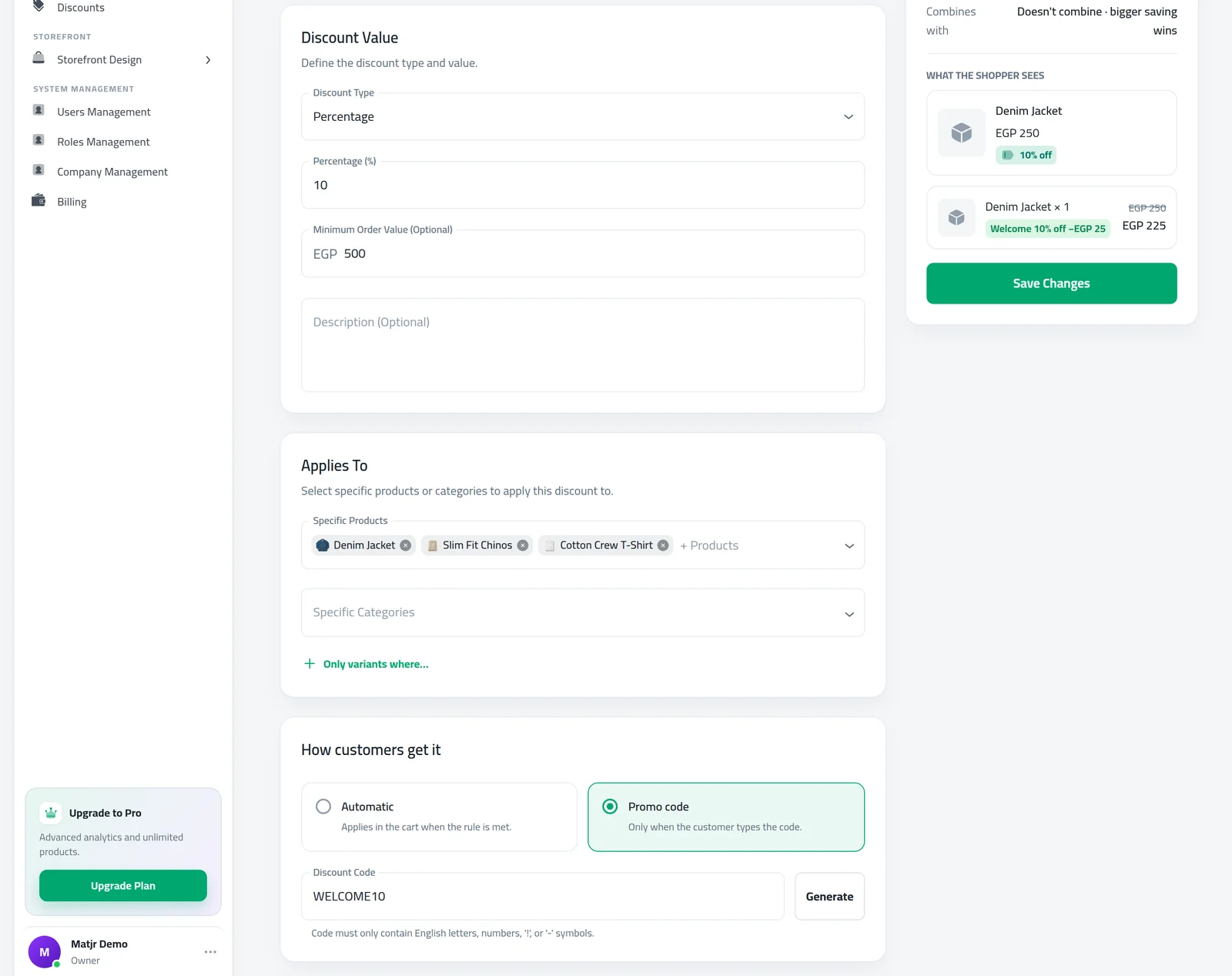
Type your code, or click Generate to get one. Under Discount Value, choose Percentage or Fixed Amount and enter the value.
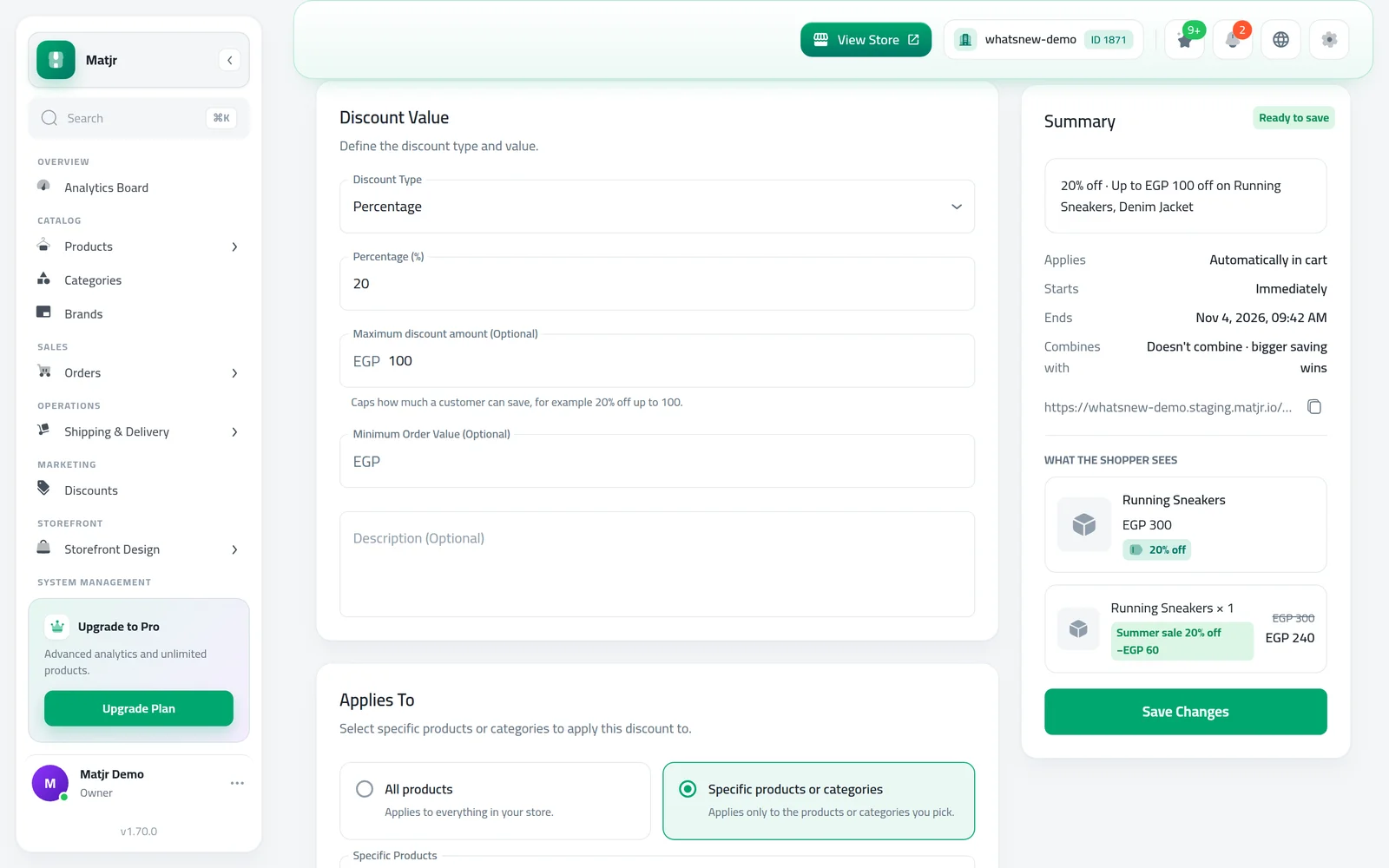
With Percentage, you can cap the saving: enter an amount in Maximum discount amount (Optional), for example 20% off up to 100. Leave it empty for no cap.
Under Applies To, choose All products, or Specific products or categories and pick them. Add a Minimum Order Value and a Usage Limit (Total) if you want them.
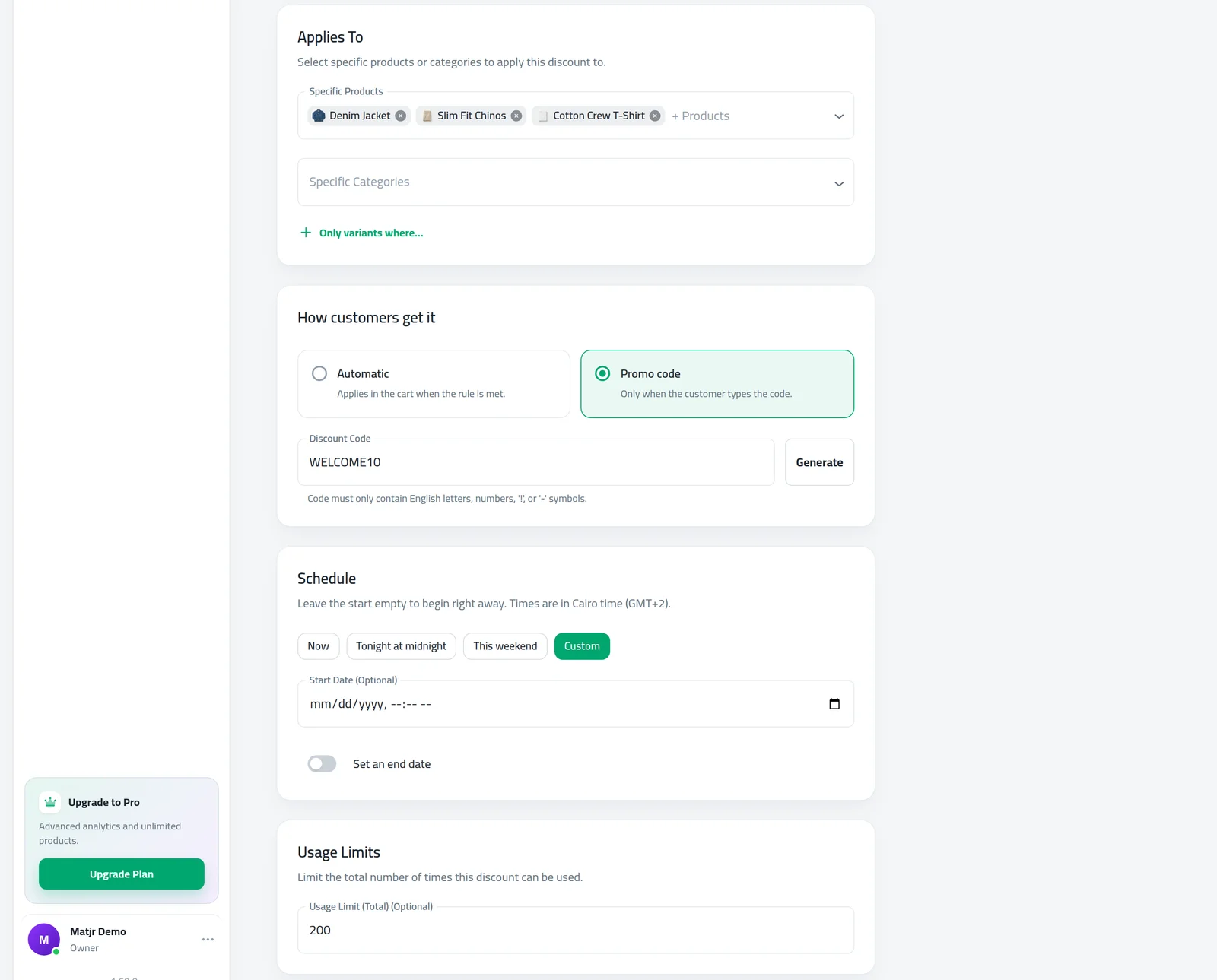
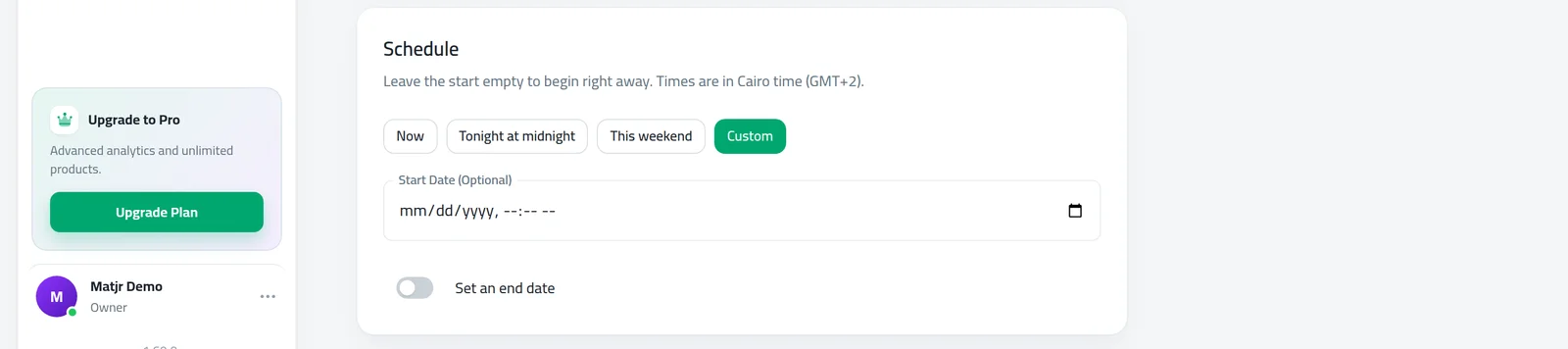
Under Schedule, pick when it Starts and Ends. Quick choices like Now, Tonight at midnight and This weekend save typing. Times use your store’s time zone.
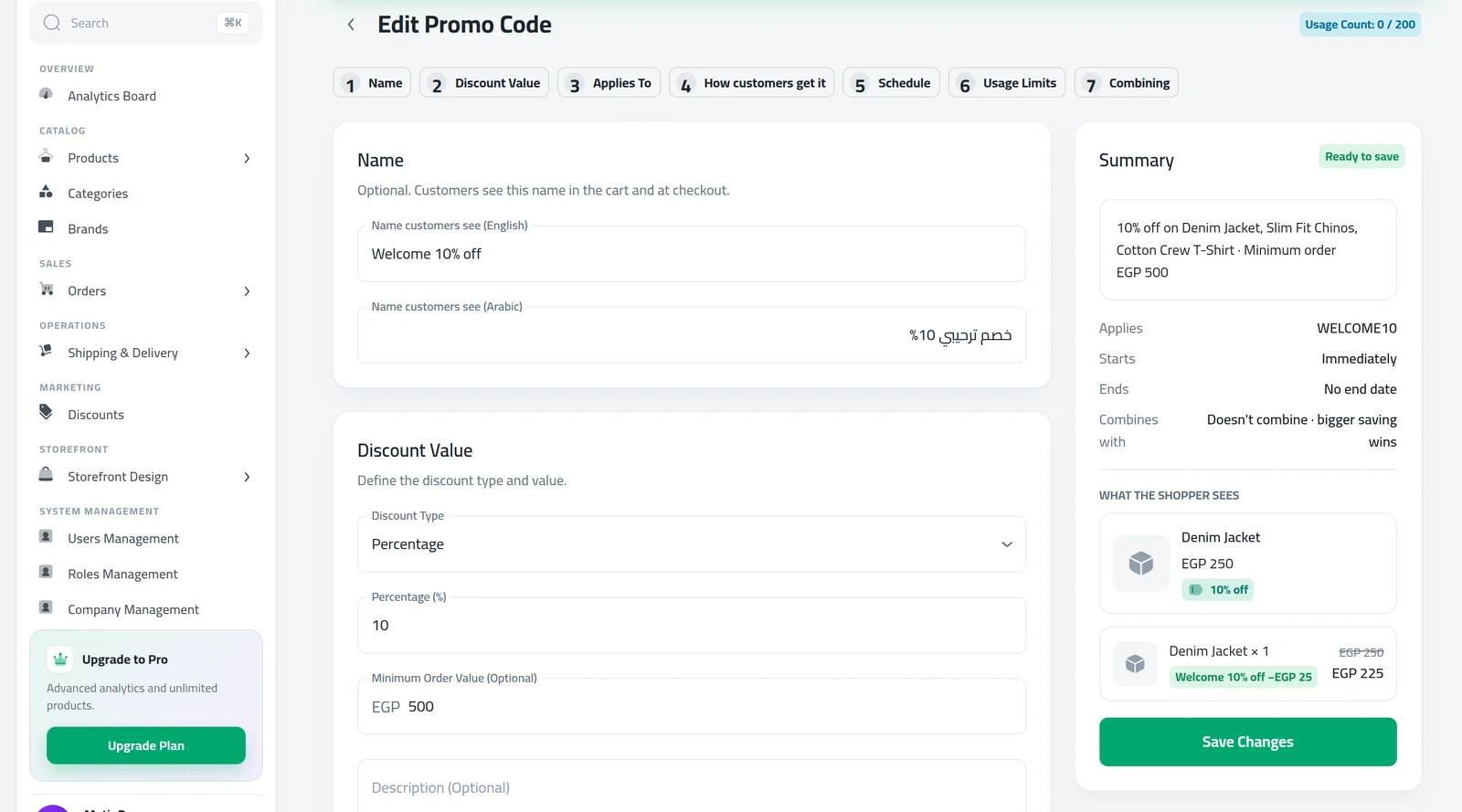
Check the Summary and What the shopper sees, then save. The code works on your store right away, or at the start time you set.
Code or automatic?
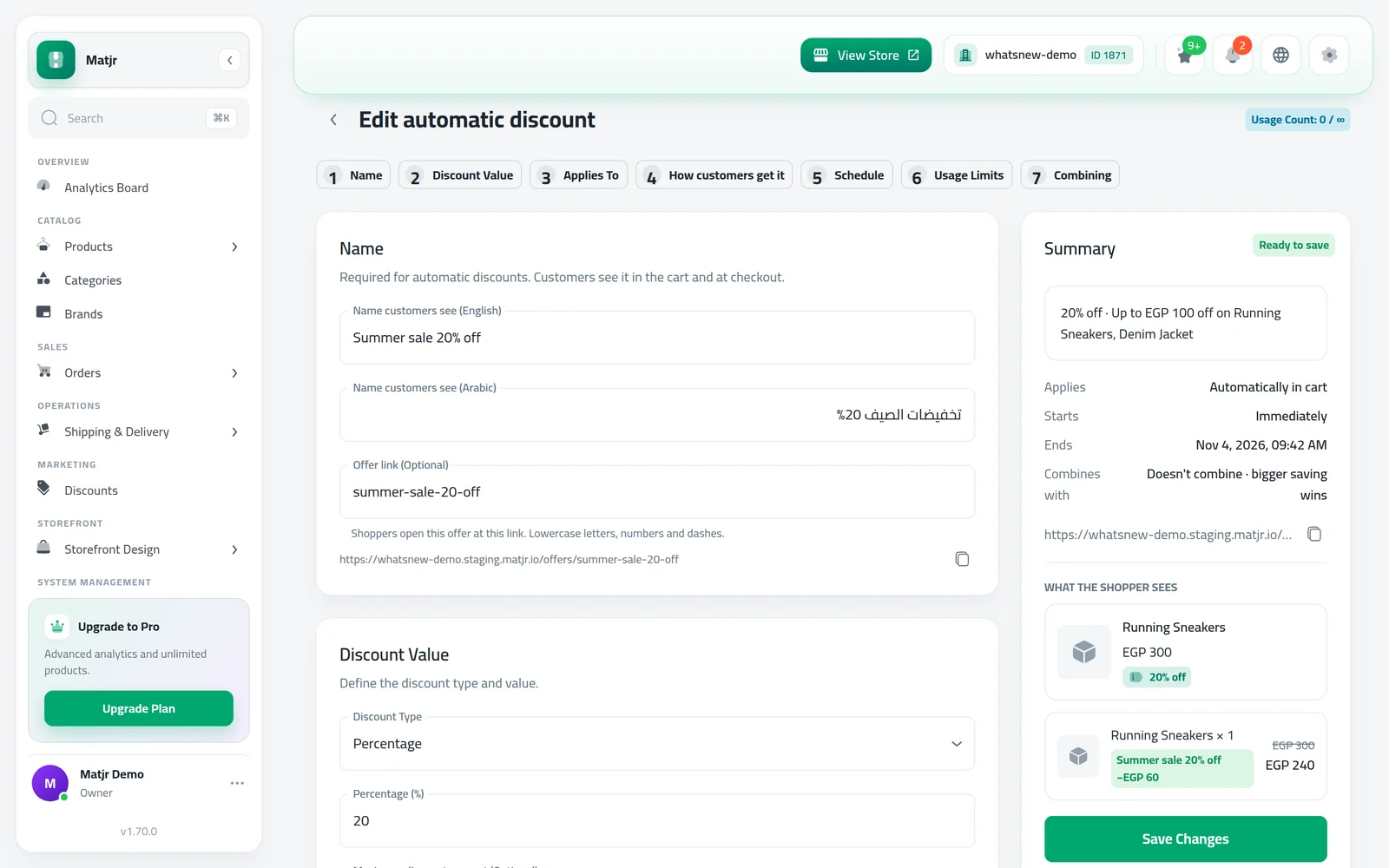
Under How customers get it, every offer can work in one of two ways. A code applies only when the customer types it, so it suits followers, newsletters and influencers. An automatic discount applies in the cart as soon as the rule is met, so every shopper gets it. Automatic discounts need a name, because customers see that name in the cart and at checkout.
An automatic discount also gets an Offer link (Optional). It fills itself from the name until you change it, and the copy button under it lets you share the link before you save.
Type the name of your automatic discount, check the Offer link that fills in, and click the copy button to share it.
Other offers you can create
Automatic discount
A percentage or amount off that applies by itself, for example 20% off all shoes this weekend. Pick the products or categories and the dates.
Buy X Get Y
Reward customers for buying more. Under Customer buys, set how many items and which products or categories count. Under Customer gets, choose the reward: Free, Percentage off or New price each. The reward items must already be in the cart, and the cheapest ones get the discount. Choose Repeat for every set (buy 8, get 2 free) or Once per order.
Bulk pricing
The more they buy, the less each one costs. Add Price tiers such as 2+ save 10% and 4+ save 20%. Decide if sizes and colours count together or on their own, and if every item gets the tier price or each band is priced separately. Use Try it to see what a customer pays for any quantity. Under Applies To, choose All products or pick specific products or categories; Buy X Get Y offers the same choice for what the customer buys.
Bundle
Sell 2 to 20 products together for one lower price. Set a Fixed price for the set or a % off when bought together. The editor shows the price bought separately next to the bundle price, so you can see the saving. Each bundle gets an Offer link you can share.
Free Shipping
Free delivery for orders above an amount you choose, for example free shipping on 1,500 or more. Set it with Minimum Order Value.
How to set a maximum discount amount on a percentage discount
A percentage discount with a maximum amount, such as 20% off up to 100, lets you advertise a bigger percentage without risking a large loss on big orders. Promo codes and automatic discounts with a Percentage value have an optional Maximum discount amount under Discount Value. The saving on the whole order stops at that amount, and your store shows shoppers the cap next to the offer.
- The cap is for the whole order, not for each product.
- Switching the discount to Fixed Amount removes the cap.
- Bulk pricing and Buy X Get Y do not have the field.
When two offers fit the same cart
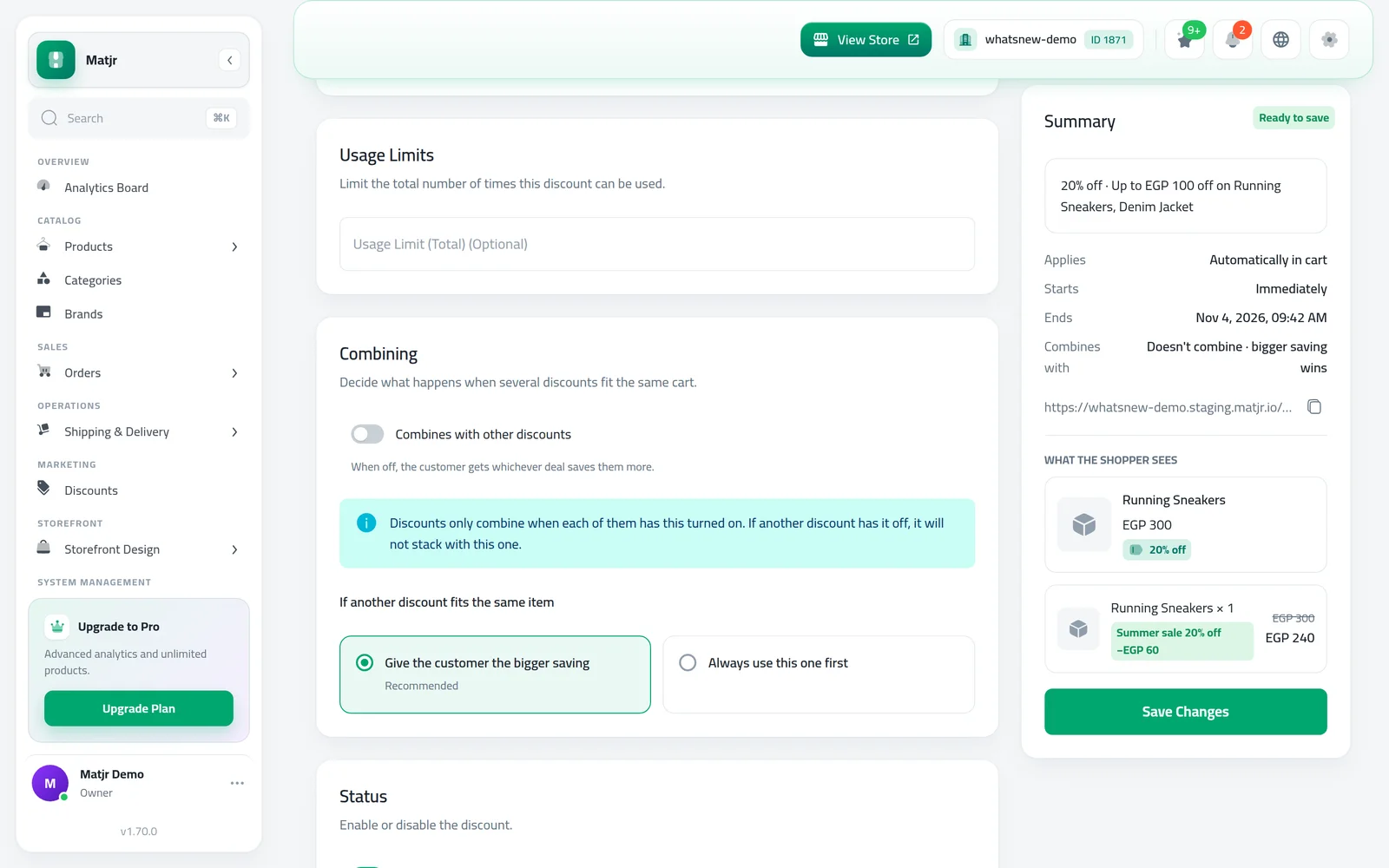
Under Combining, turn on Combines with other discounts if both offers may apply together. When it is off, choose what happens if another discount fits the same item: Give the customer the bigger saving (recommended) or Always use this one first. If your new offer overlaps an existing one, the editor tells you which one and until when.
Discounts only stack when each of them has Combines with other discounts turned on. If another discount has it off, the two will not combine.
Under Combining, read the note, then turn on Combines with other discounts in every discount you want to stack.
Manage your offers
The Discounts list shows each offer with its type, status and uses. The cards at the top show what is Active now, what is Scheduled, Uses this month and Revenue influenced. Search by name or code, filter by type, and select offers to Pause, Resume or delete them.
Common mistakes
- No end date. The offer runs until you stop it. Set an end date for seasonal offers.
- A code nobody can type. Avoid long codes and letters that look alike, such as O and 0.
- Two offers stacking by accident. Leave combining off unless you want both to apply.
- A minimum order that is too high. If most carts never reach it, few shoppers will use the code.
- A big percentage with no cap. 30% off a large order can cost more than you planned. Set a Maximum discount amount.
Related tasks
Show your offers on the home page with how to show offers on your store home page. For a short sale with a countdown, see how to run a flash sale. Check your delivery prices in how to set up shipping areas and prices before offering free shipping. See what changed in Sell more with bundles, Buy X Get Y and bulk pricing, Cap your percentage discounts and Set up discounts faster.
Frequently asked questions
How do I make a discount code for one product only?
Under Applies To, choose Specific products or categories and pick the product. The code then only lowers the price of that product.
Can I limit how many times a code is used?
Yes. Set Usage Limit (Total). When it is reached, shoppers see a message in the code box and the code stops giving a discount.
What is the difference between a code and an automatic discount?
A code applies only when the customer types it. An automatic discount applies in the cart for everyone who meets the rule.
Can I prepare an offer in advance?
Yes. Set a start date and time. The offer shows as Scheduled and starts by itself.
Can customers use two discounts together?
Only when both offers are set to combine. Otherwise they get the bigger saving, or the offer you set to go first.
Try it on your own store
Start your free trial. No credit card required.