Marketing
How to run a flash sale on your online store
How to run a flash sale on your online store: set sale prices, add a countdown to your home page, schedule it and end it on time.
- Where
- Design › Home page › Add section › Flash Sale
- Products
- Up to 12
- Prices
- Set on each product before the sale
A flash sale is a short offer with a clear end time. The deadline gives shoppers a reason to buy now instead of later. This walk-through shows how to run a flash sale on your online store: set the prices, show the offer with a countdown on your home page, and make sure it ends on time.
Before you start
- Pick the products. Choose up to 12. Fewer, stronger deals usually sell better than many small ones.
- Check your stock. A sale that sells out in an hour annoys shoppers who come later.
- Decide the dates. Weekends, paydays and holidays are popular. Two or three days is a good length.
- Know your margin. Make sure the sale price still leaves you a profit after shipping.
Set the sale prices first
The flash sale section shows each product with its own sale price. The countdown does not change prices on its own, so set the price on each product before the sale starts.
Open the product, go to Type & Price, turn on Is on sale?, enter the Sale Price and save. Your store shows the old price crossed out next to the new one. Repeat for each product in the sale.
How to run a flash sale with a countdown
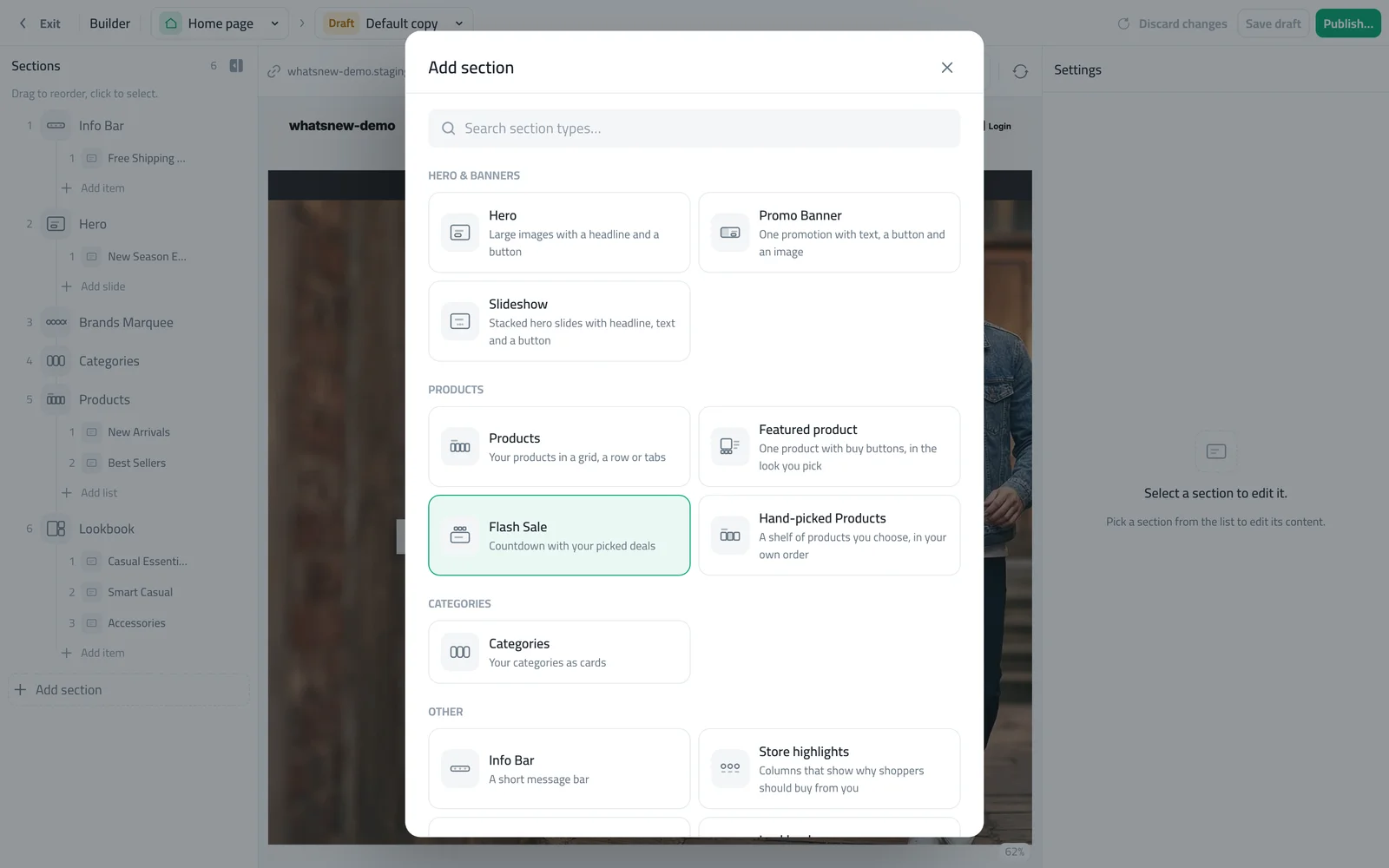
Open Storefront Design › Design, choose the Home page and start a draft. Click Add section and choose Flash Sale.
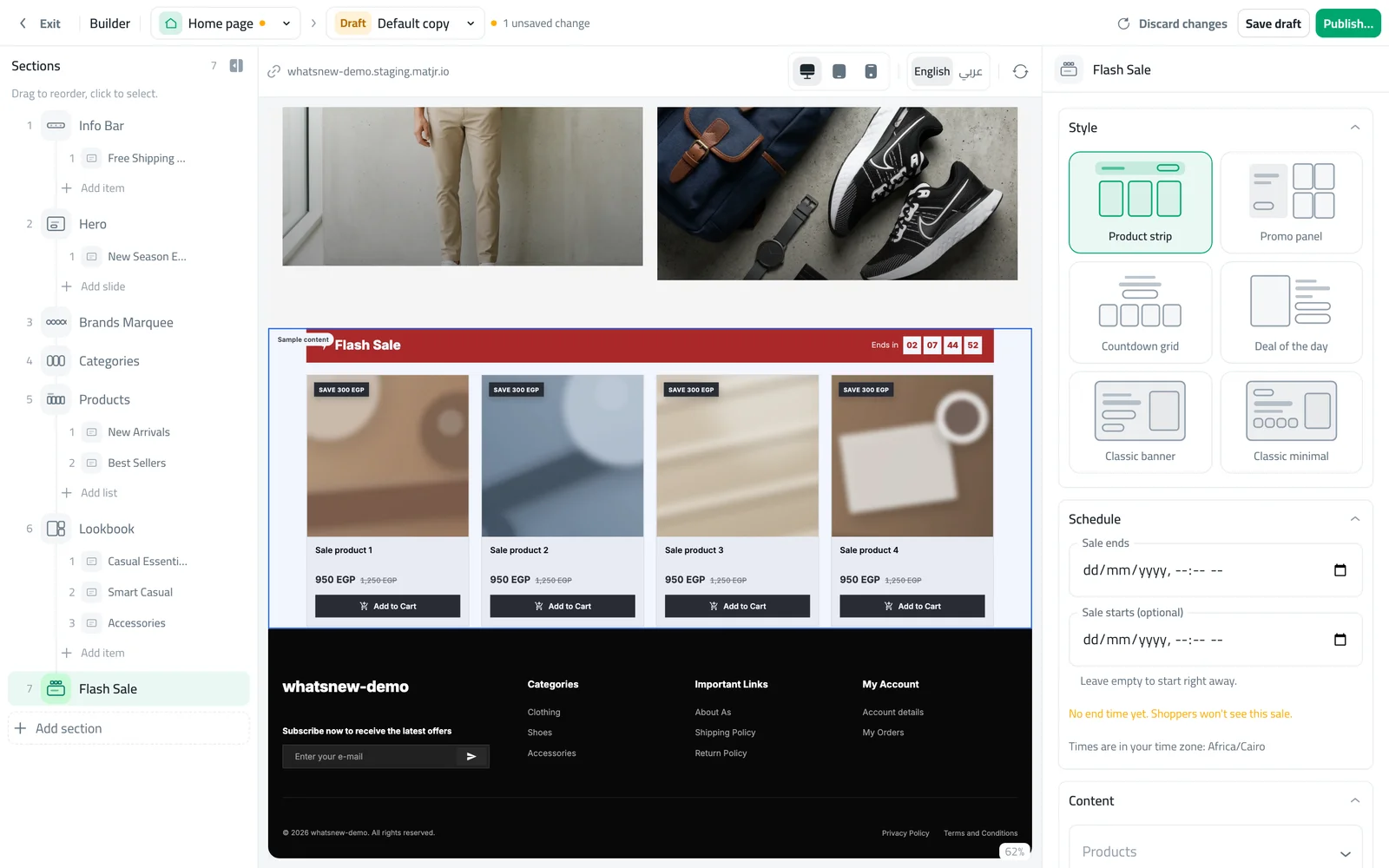
Choose a look under Style, set Sale ends under Schedule, and pick your products under Content.
Drag the section near the top of the list so shoppers see it without scrolling. Check the phone preview, then click Publish.
Choose the right look
There are six looks. Product strip shows a row of deals under a bold bar with the timer. Promo panel pairs a message with the products. Countdown grid puts the timer first. Deal of the day gives one product the full stage with buy buttons. Classic banner and Classic minimal keep the look of earlier flash sales. Until you pick products, the preview shows sample deals so you can compare looks.
Schedule the start and end
Sale ends is required. Without it, shoppers will not see the section. Sale starts is optional: leave it empty to start right away, or set it to prepare a sale ahead of time. Times use your store’s time zone, which is shown under the dates.
When the countdown reaches zero, the section hides itself. After the sale, remember to turn off Is on sale? on each product, or set the prices back.
Common mistakes
- Forgetting the sale prices. The countdown shows, but the prices are full price.
- No end time. The section stays hidden.
- Leaving sale prices on after the sale. The section disappears, but the products stay discounted.
- Too many products. A long row of small deals feels less urgent than four strong ones.
Spread the word
Tell your followers on social media and WhatsApp when the sale starts, and again a few hours before it ends. A short message with the end time works better than a long one.
Flash sale ideas
- Weekend deal: one strong product with Deal of the day, Friday to Sunday.
- Clear old stock: last season's products at a lower price for 48 hours.
- New customer welcome: a small set of best sellers with a short timer.
- Season openers: start Ramadan, Eid or back-to-school with a one-day sale.
Measure the result
After the sale, compare your orders during the sale with a normal week. Look at which products sold best and which did not move. Next time, keep the winners, change the rest, and try a different look or a different day to see what your shoppers respond to.
Related tasks
Learn the builder in how to design your online store. Show the details buyers ask about with how to add product specifications. See what is new in Create urgency with a flash sale countdown.
Frequently asked questions
Does the countdown lower my prices automatically?
No. Set the sale price on each product. The section shows those prices with the timer.
How long should a flash sale last?
Short enough to feel urgent. Many shops use one to three days.
Can I prepare a flash sale in advance?
Yes. Set Sale starts and Sale ends, publish, and the section appears only between those times.
What happens when the timer ends?
The section hides itself. Your products keep their sale prices until you change them.
Try it on your own store
Start your free trial. No credit card required.