Store design
How to edit your online store menu links
How to edit your online store menu links: add, rename, reorder, hide and delete links, and add drop-down sub-links.
- Where
- Builder › Header › Menu links
- Goes live
- Right away, no publish needed
- Languages
- Arabic and English names
The menu at the top of your store is the first thing shoppers use to find your products. Knowing how to edit your online store menu links lets you keep it clear: show your best categories, hide what is out of season and put the most important links first. This guide walks you through every action, right inside the builder.
Before you start
Decide what your menu should say. Most stores do well with five to seven links: Home, your main categories, Best sellers and Contact. Too many links make shoppers hesitate, so keep the rest as sub-links under a main one. Write your link names in both languages if your store uses Arabic and English, so each shopper sees the menu in their own language.
How to edit your menu links
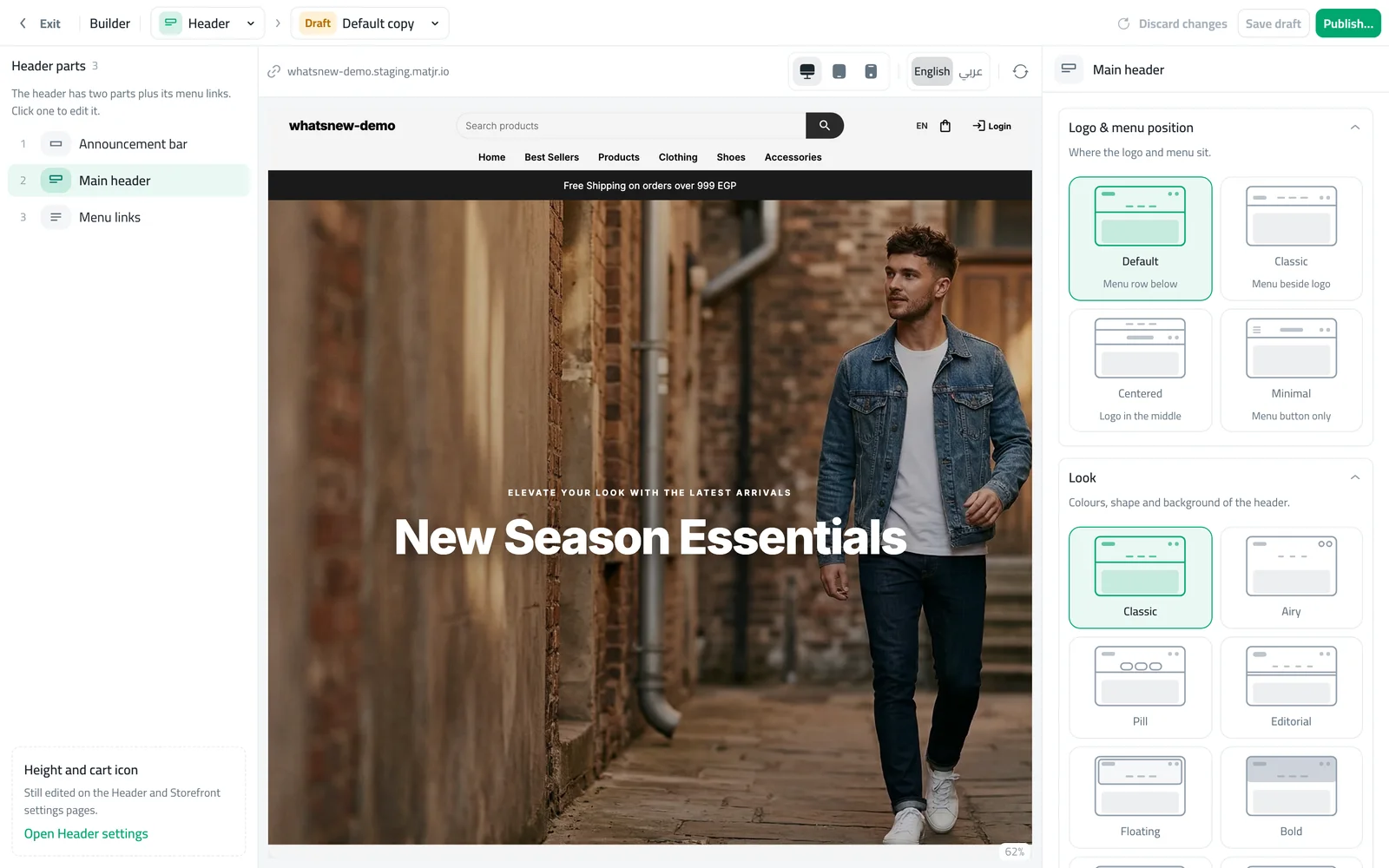
In the dashboard, open Storefront Design, then the builder, and choose Header. The list on the left shows Announcement bar, Main header and Menu links.
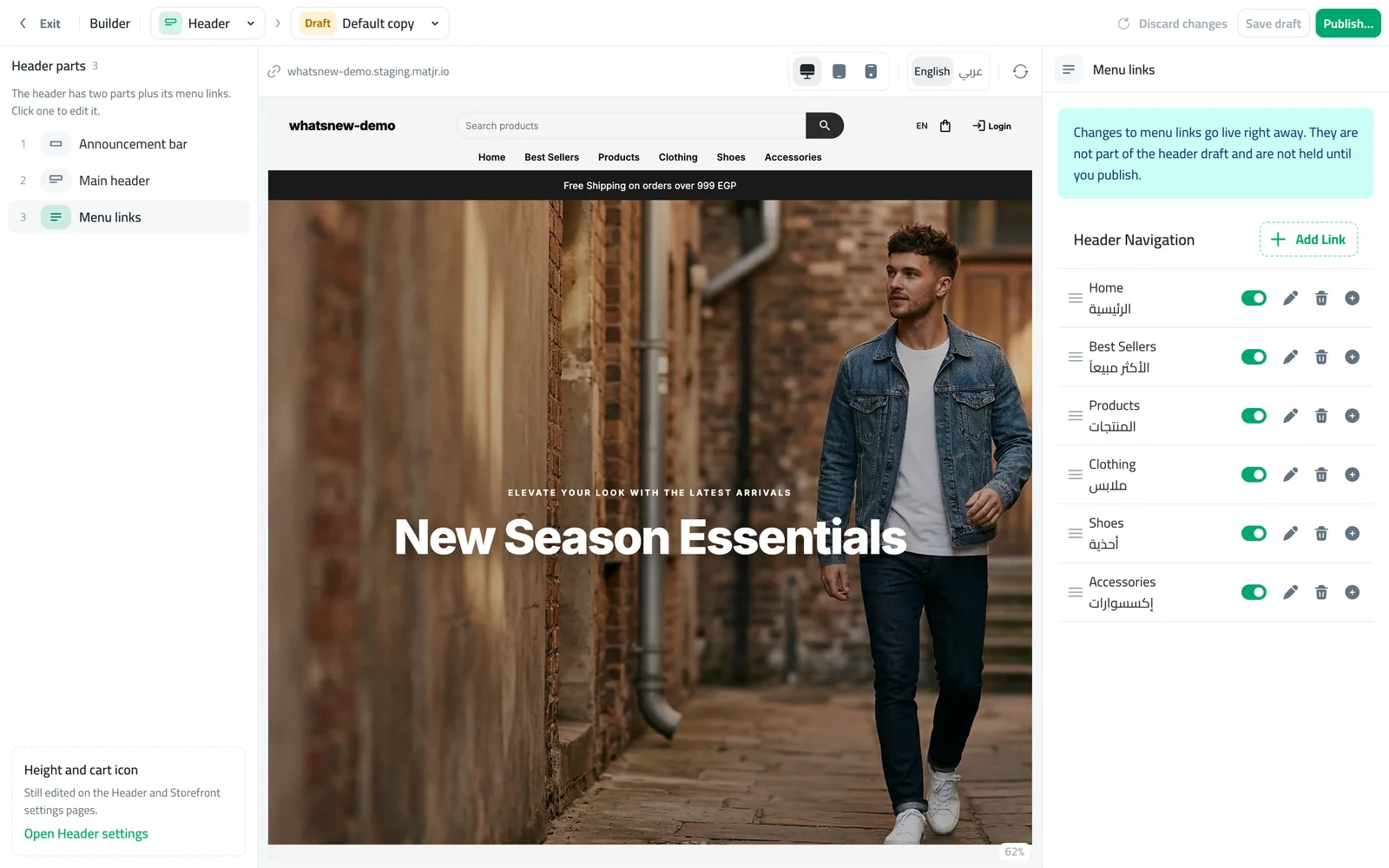
Select Menu links. The panel on the right lists every link in your menu, in the order shoppers see it.
To add a link, press Add Link, give it a name in each language and choose where it goes: a category, a product or your own web address.
To change a link, press the pencil next to it. To put a link in a new position, drag the handle at its edge up or down.
To hide a link for a while, switch it off. To remove it for good, press the bin. To make a drop-down, press the plus next to a link and add a sub-link under it.
Choosing what a link opens
Each link can open a category, a single product or any web address you type, such as your Instagram page or a size chart. Category and product links follow the item they point to, so if you rename the category, the link name you wrote stays as you typed it. There is also a switch to open the link in a new tab, which is useful for addresses outside your store, and a setting that decides whether sub-links appear when the shopper hovers over the link or clicks it. Clicking works better for phones and tablets, where there is no hover.
See the result
The preview in the middle refreshes after each change, so you see the header exactly as shoppers will. Switch between computer, tablet and phone sizes to check that the menu still looks tidy on a small screen, and between English and Arabic to check both languages.
Changes go live right away
Unlike the header look, which waits in a draft until you publish, menu links are saved and shown in your store immediately. That makes them quick to fix, but it also means you should check a link before leaving the page. If you want to try a big change, add the new link switched off, review it, then switch it on.
Common mistakes
- A link with only one language. Shoppers using the other language see an empty name. Fill in both.
- Too many top links. Move the extra ones under a main link as sub-links.
- Deleting instead of hiding. If the link will come back next season, switch it off instead of deleting it.
- Looking for height or the cart icon. Those are still in Header settings. The link on the left of the Header page opens them.
Tips for a clear menu
Put your best category first, because shoppers read from the start of the menu. Use short names of one or two words, since long names wrap on phones. Check the menu in Arabic and English before you leave the page. Revisit it every season, and hide links to categories that are empty or sold out so shoppers never land on a dead end.
Related tasks
Once your menu is ready, style the header itself. Read how to design your online store with the builder, and see what changed in edit your store's menu links without leaving the builder. If you sell products with details such as material or size, how to add product specifications helps shoppers decide.
Frequently asked questions
How do I add a link to my store menu?
Open the builder, choose Header, then Menu links, and press Add Link. Name it and choose where it goes.
Do I need to publish after editing menu links?
No. Menu link changes appear in your store right away.
How do I make a drop-down menu?
Press the plus next to a link and add a sub-link under it. Shoppers see the sub-links under that link.
How do I hide a link without deleting it?
Switch the link off. It disappears from your store and you can switch it back on any time.
Try it on your own store
Start your free trial. No credit card required.