Mağaza tasarımı
How to add a separate checkout page to your online store
How to add a separate checkout page to your online store: turn it on from the cart page in the builder, then publish. Takes under a minute.
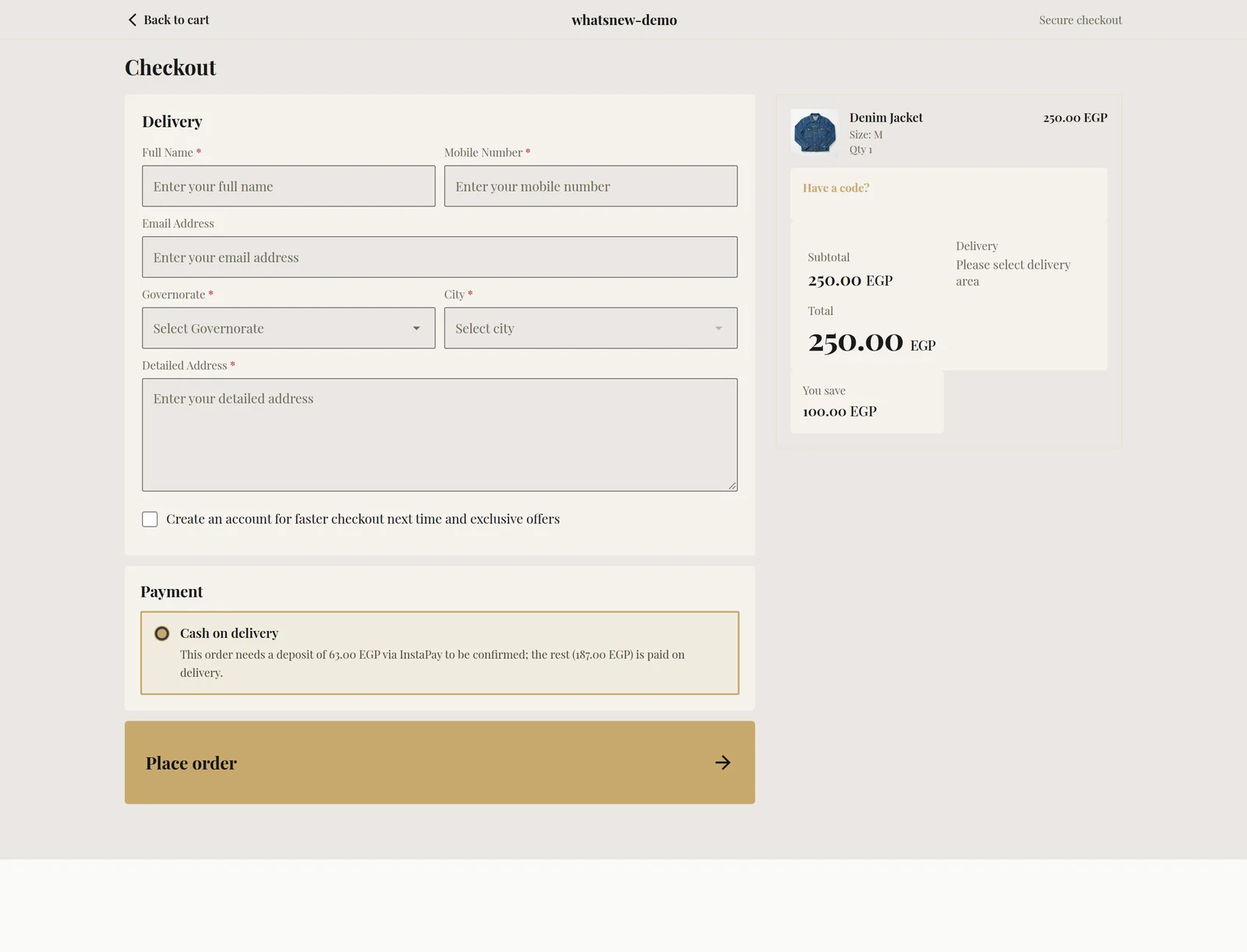
- Where
- Builder → Cart page → settings
- Time needed
- Under a minute
- Who can do it
- Anyone allowed to publish the store design
- Cost
- Included in every plan
A separate checkout page gives shoppers one calm place to finish their order. This guide shows how to add a separate checkout page to your online store from the builder, what shoppers see on each page, and how to turn it off again if you change your mind.
By default, the order form sits on the cart page, under the items. That works well for small orders. When shoppers buy several items or use discount codes, splitting the steps helps: they review the cart first, then fill the form on a page with nothing else on it.
Before you start
- You need permission to edit and publish the store design. Store owners have it; employees need a role that includes it.
- Check the order form fields you ask for. The checkout page uses the same form as the cart page, so any field you have set up appears there too.
- Add a few products to your own cart so you can test the pages after publishing.
How to add a separate checkout page
Open the builder from your dashboard and choose Cart page. You can also go straight to it from this link.
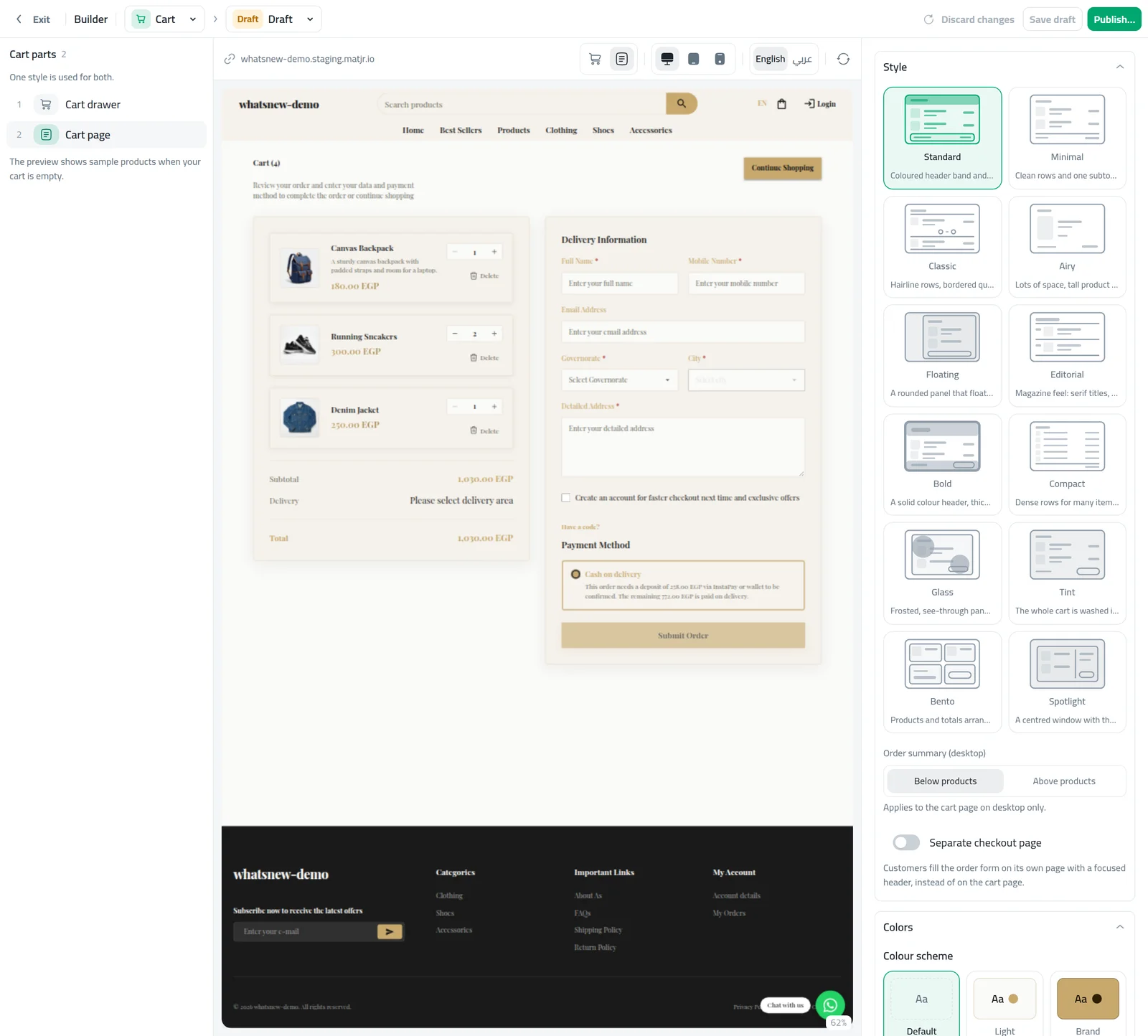
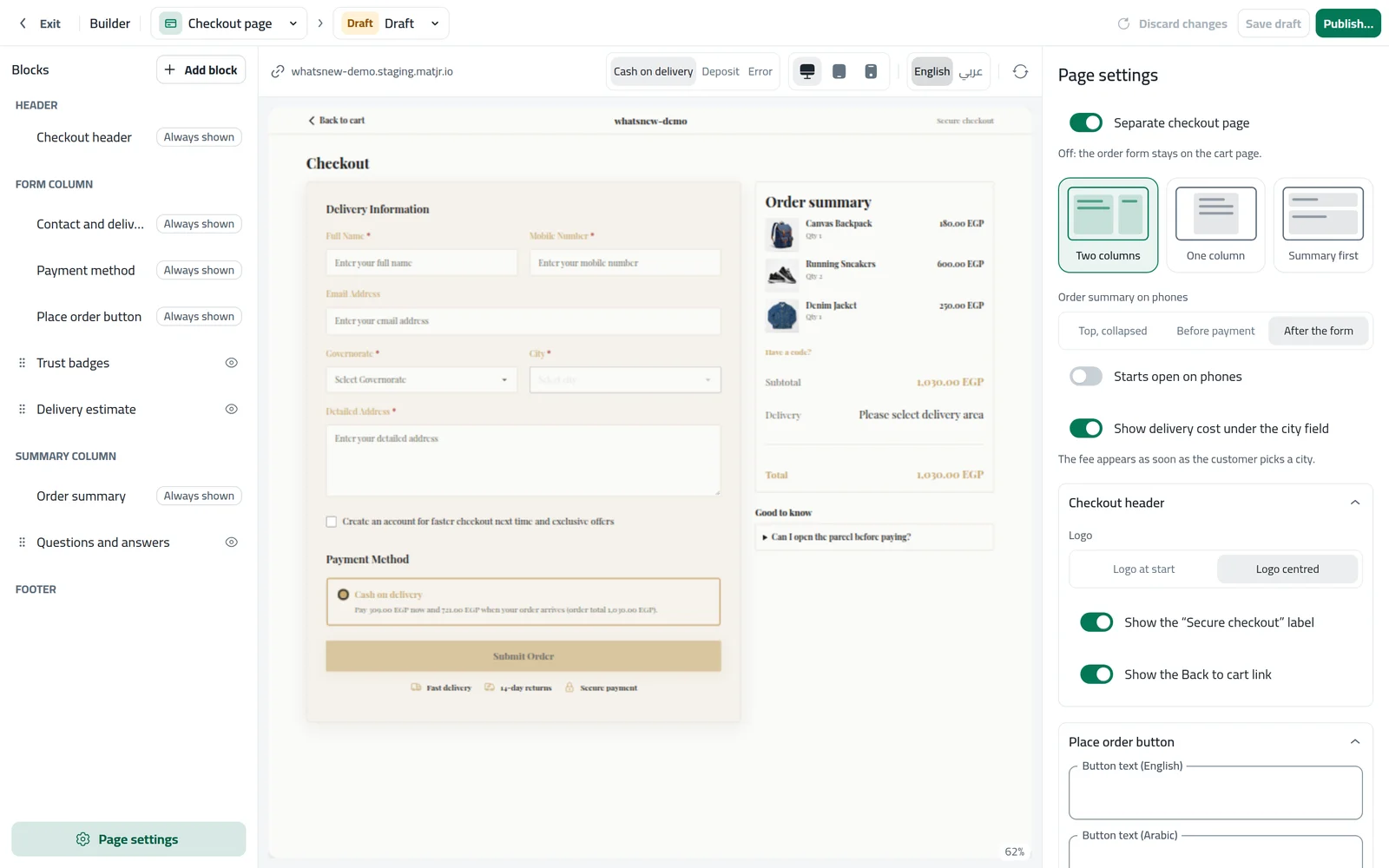
In the cart page settings, turn on Separate checkout page. The preview updates right away and shows the cart without the order form.
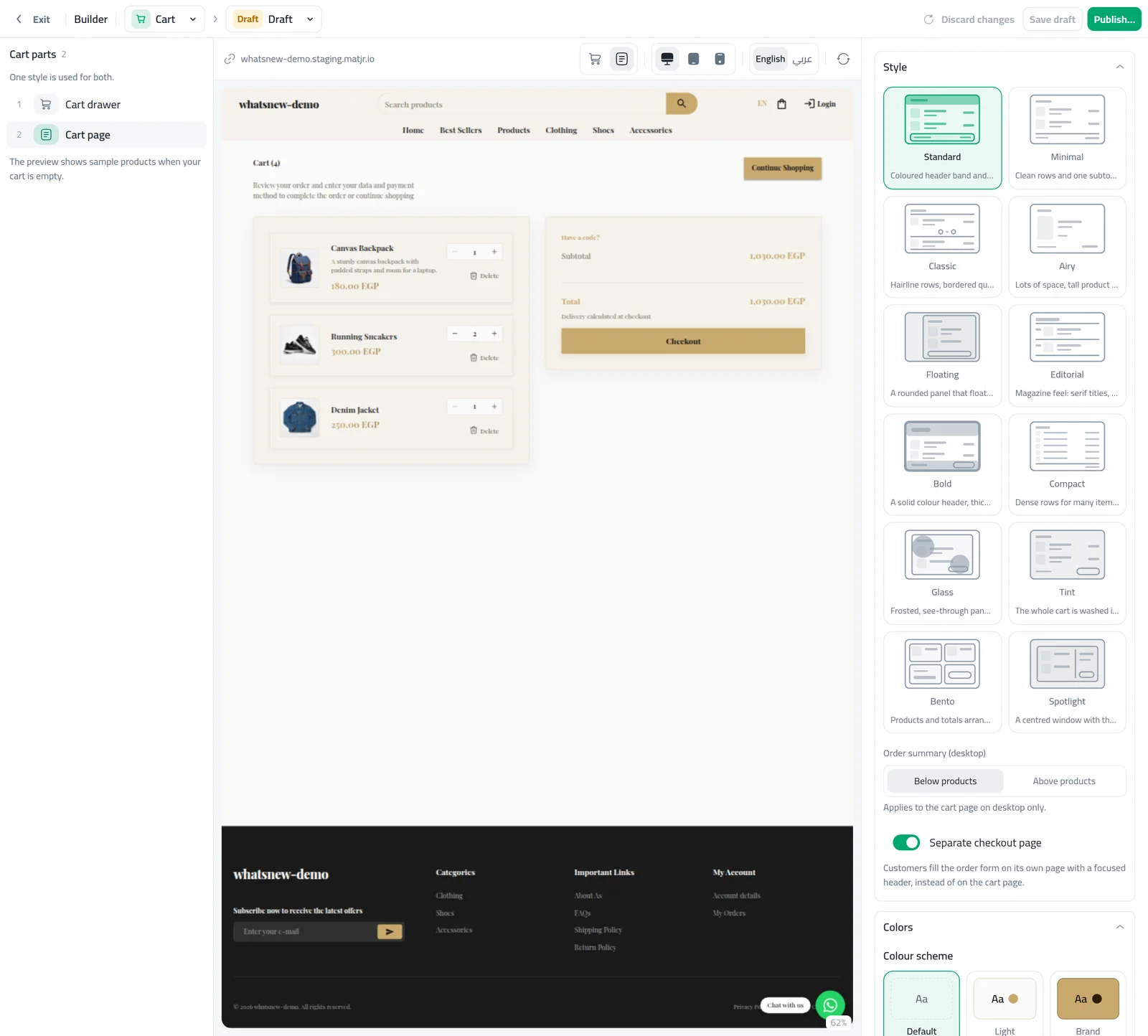
Click Publish to make the change live. Until you publish, shoppers keep seeing the order form on the cart page. You can also click Save draft and publish later.
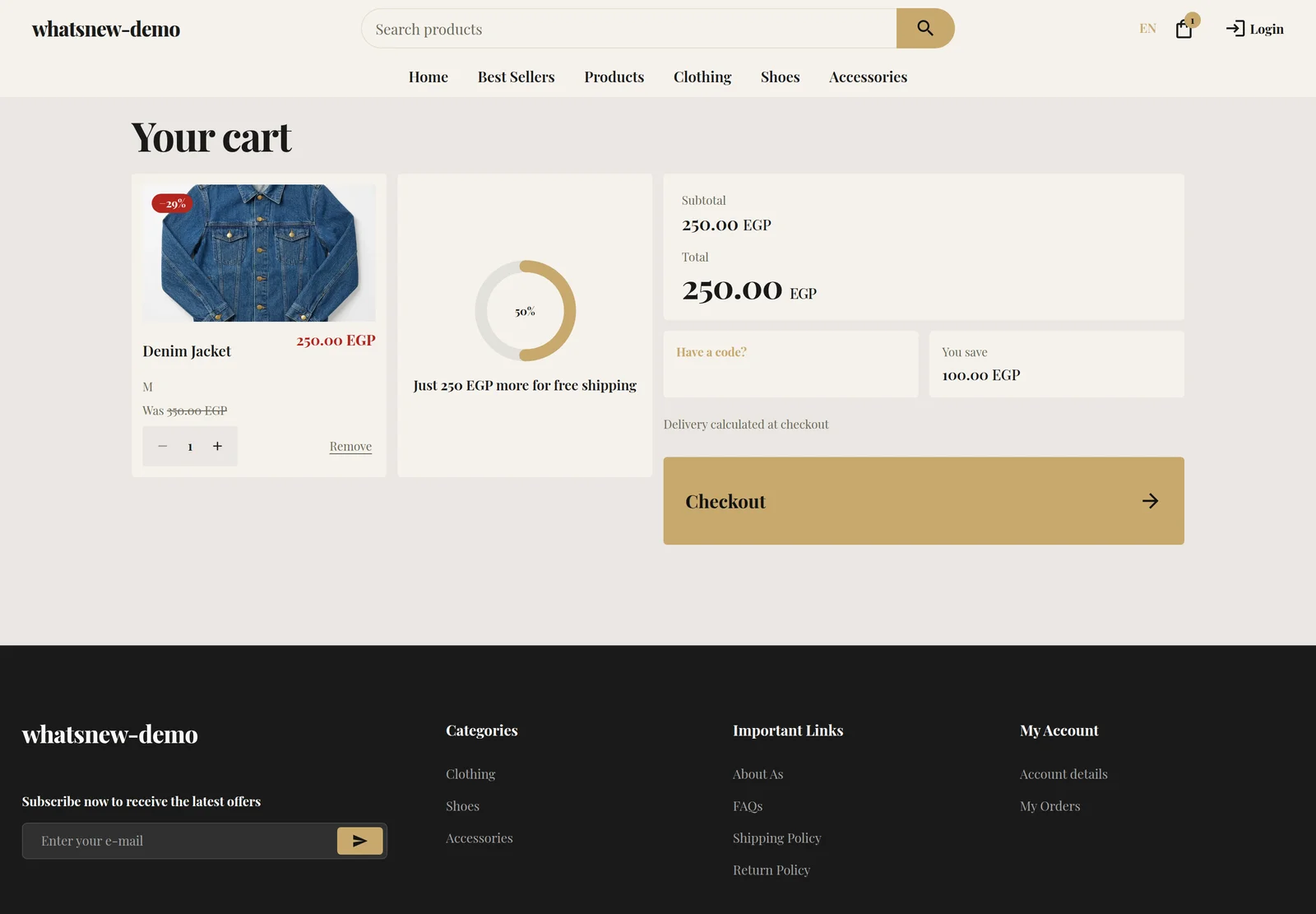
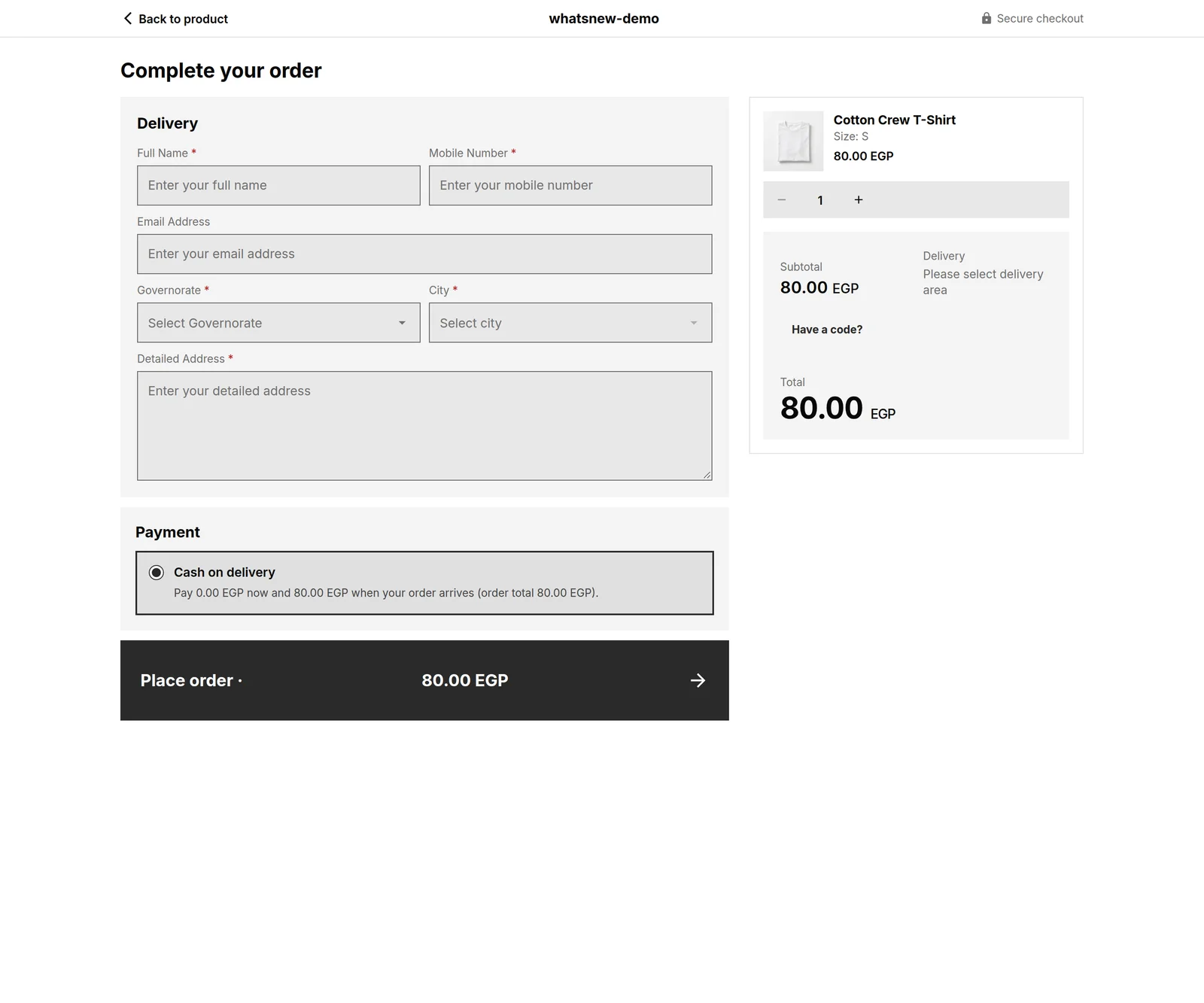
Open your store and test it: add a product, open the cart and click Checkout. You land on the checkout page with your logo, a Back to cart link, the order form and the order summary.
What shoppers see
Cart page. Items, quantities, the discount code box and the totals. Under the totals there is a note that delivery is calculated at checkout, and a full-width Checkout button.
Side cart. The Checkout button in the side cart takes shoppers straight to the checkout page.
Checkout page. Your logo, a Back to cart link and a Secure checkout label at the top. The menu, the announcement bar, the footer and the WhatsApp button are hidden, so the only thing to do is finish the order. The order summary lists the items, the discount code box and the totals. On phones the summary folds into one line that shoppers can open.
Good to know
- Discount codes work on both pages. A code added on the checkout page is kept on the order.
- If the cart is empty, a shopper who opens the checkout page is taken back to the cart. The same happens if you turn the switch off.
- The checkout page is kept out of Google search results, because it only makes sense with items in the cart.
- The Buy now button is not affected. It still opens its own order form for that one product.
Common mistakes
- Forgetting to publish. The switch only changes the preview until you click Publish.
- Testing with an empty cart. The checkout page needs at least one item, otherwise you are sent back to the cart.
- Expecting the menu on the checkout page. It is hidden on purpose. Shoppers use Back to cart or your logo to leave.
How to turn it off
Open Cart page in the builder again, turn Separate checkout page off and click Publish. The order form goes back under the items on the cart page.
Related guides
Sık sorulan sorular
Is a separate checkout page better than checking out on the cart page?
It depends on your shoppers. A separate page helps when orders have several items or discount codes, because shoppers review first and then focus on the form. For single-item orders, the form on the cart page or the Buy now button is quicker.
Can I change the fields on the checkout form?
Yes. The checkout page uses the same order form as the cart page, so the fields you set up for it appear on both.
Why can't shoppers see my menu on the checkout page?
The menu, footer and WhatsApp button are hidden so shoppers finish the order. They can leave with the Back to cart link or your logo.
What happens if a shopper opens the checkout page with an empty cart?
They are taken back to the cart page.
Does the checkout page work on phones?
Yes. On phones the order summary folds into one line that shoppers can open to see the items and totals.
Kendi mağazanızda deneyin
Ücretsiz denemeyi başlatın. Kredi kartı gerekmez.