Orders
How to add an order manually from your dashboard
How to add an order manually when customers order on WhatsApp or the phone: pick the products, set the price and delivery, then create it.
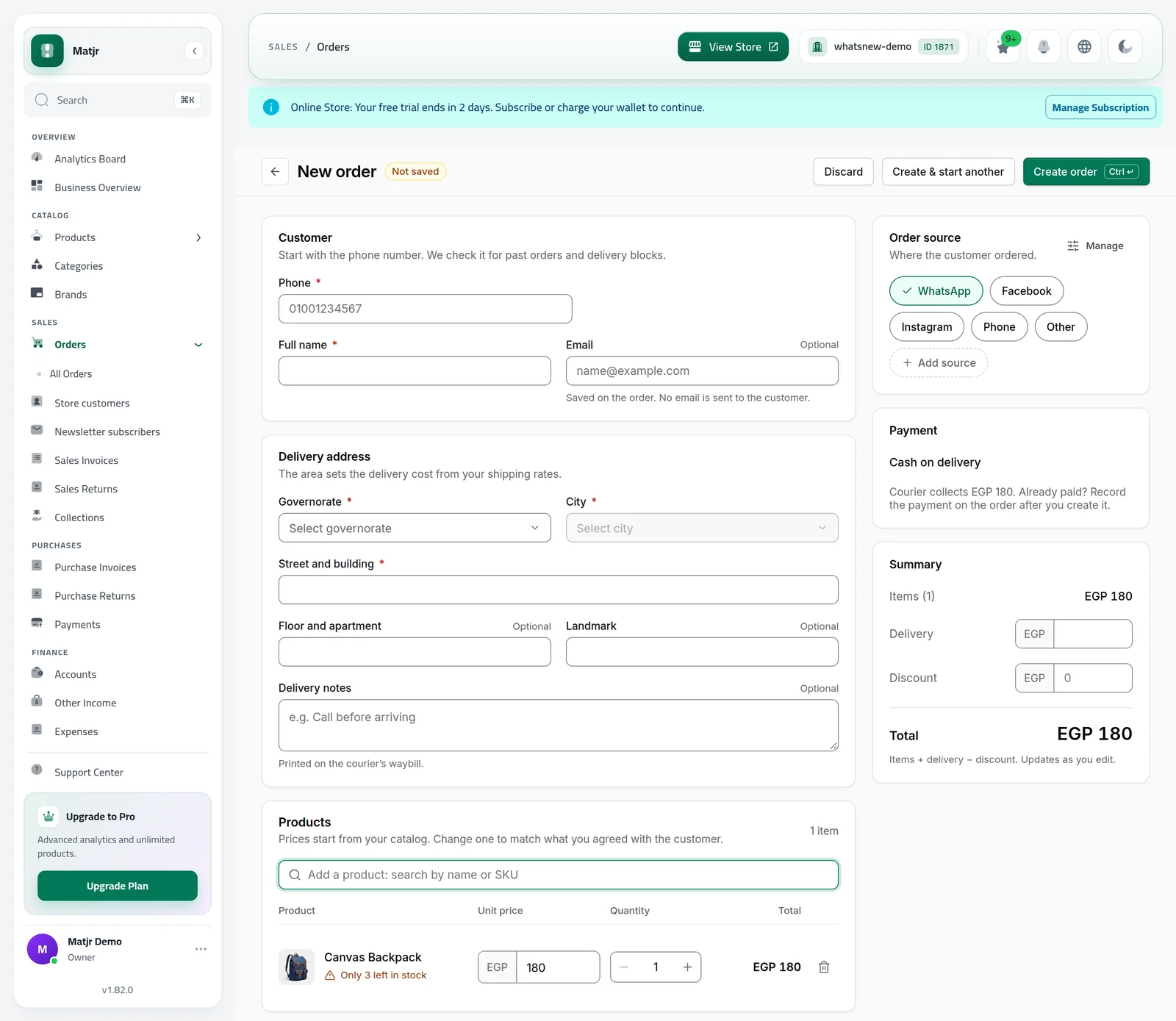
- Where
- Orders, then New order
- Who can use it
- Anyone with permission to create orders
- Payment
- Cash on delivery
- Countries
- Egypt and UAE
Learn how to add an order manually when a customer orders on WhatsApp, Instagram, Facebook or the phone. The order lands in your dashboard like any store order, so stock, delivery and reports stay correct.
Before you start
Have the customer's phone number, delivery area and the products with the price you agreed. Make sure your shipping areas and prices are set up, because the delivery cost comes from them. You also need permission to create orders; if you do not see the button, ask the store owner to update your role.
How to add an order manually
Open Orders and press New order at the top of the list.
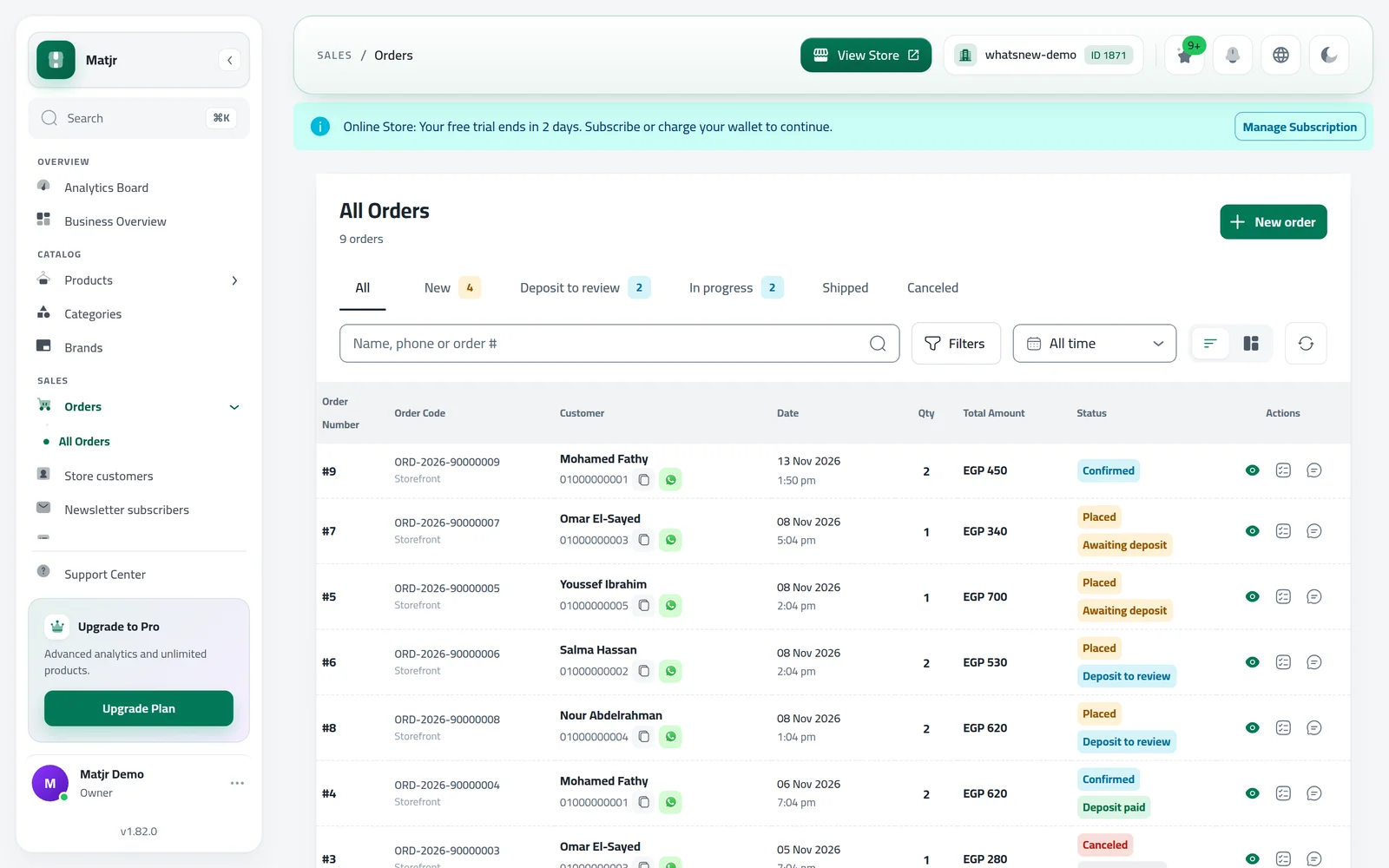
Type the customer's phone number. If they ordered before, press Use details from last order to fill the name and address. Add the name if the customer is new.
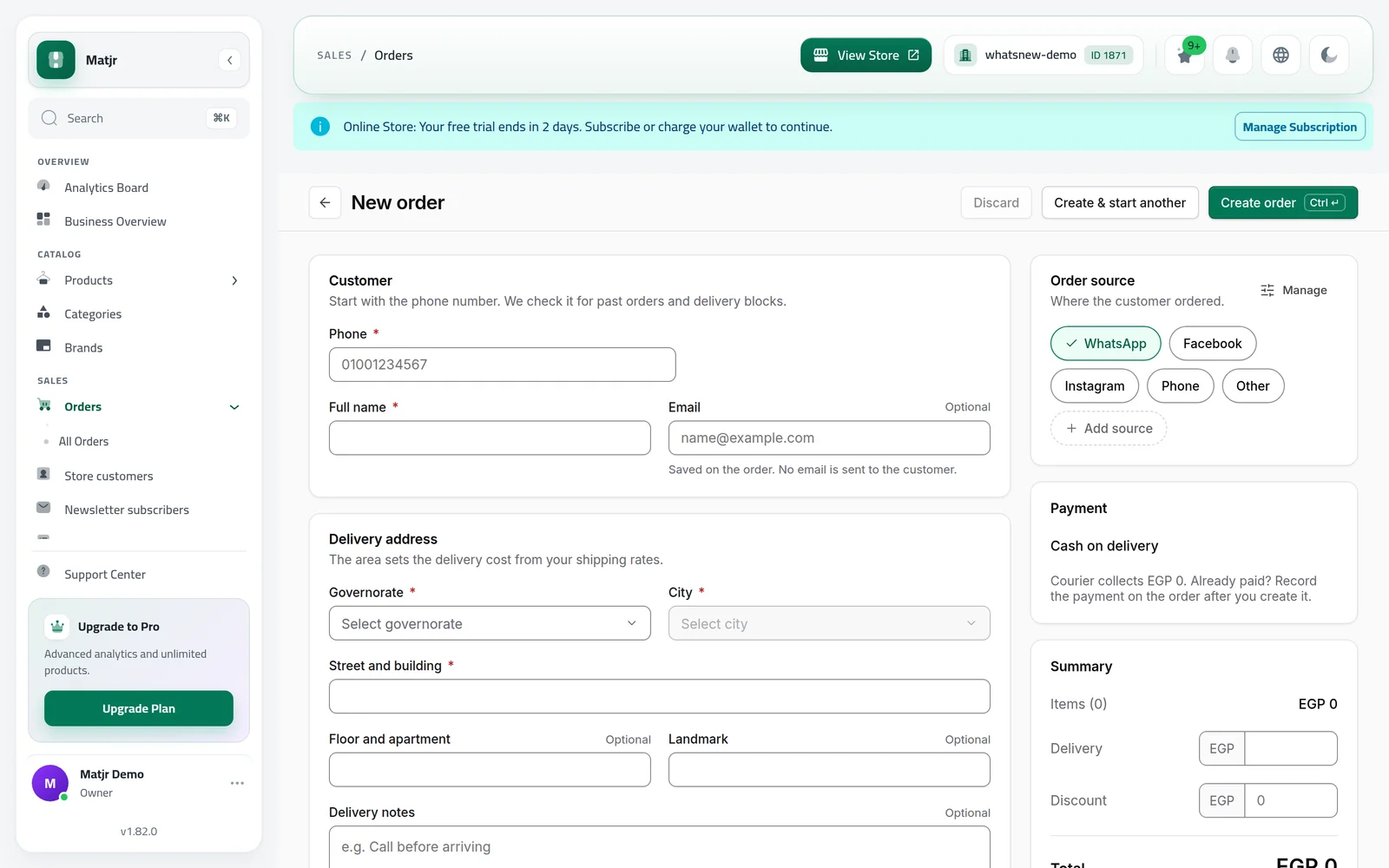
Pick the Governorate, then the City. The delivery cost fills in from your shipping prices. Add the street, floor and any delivery notes.
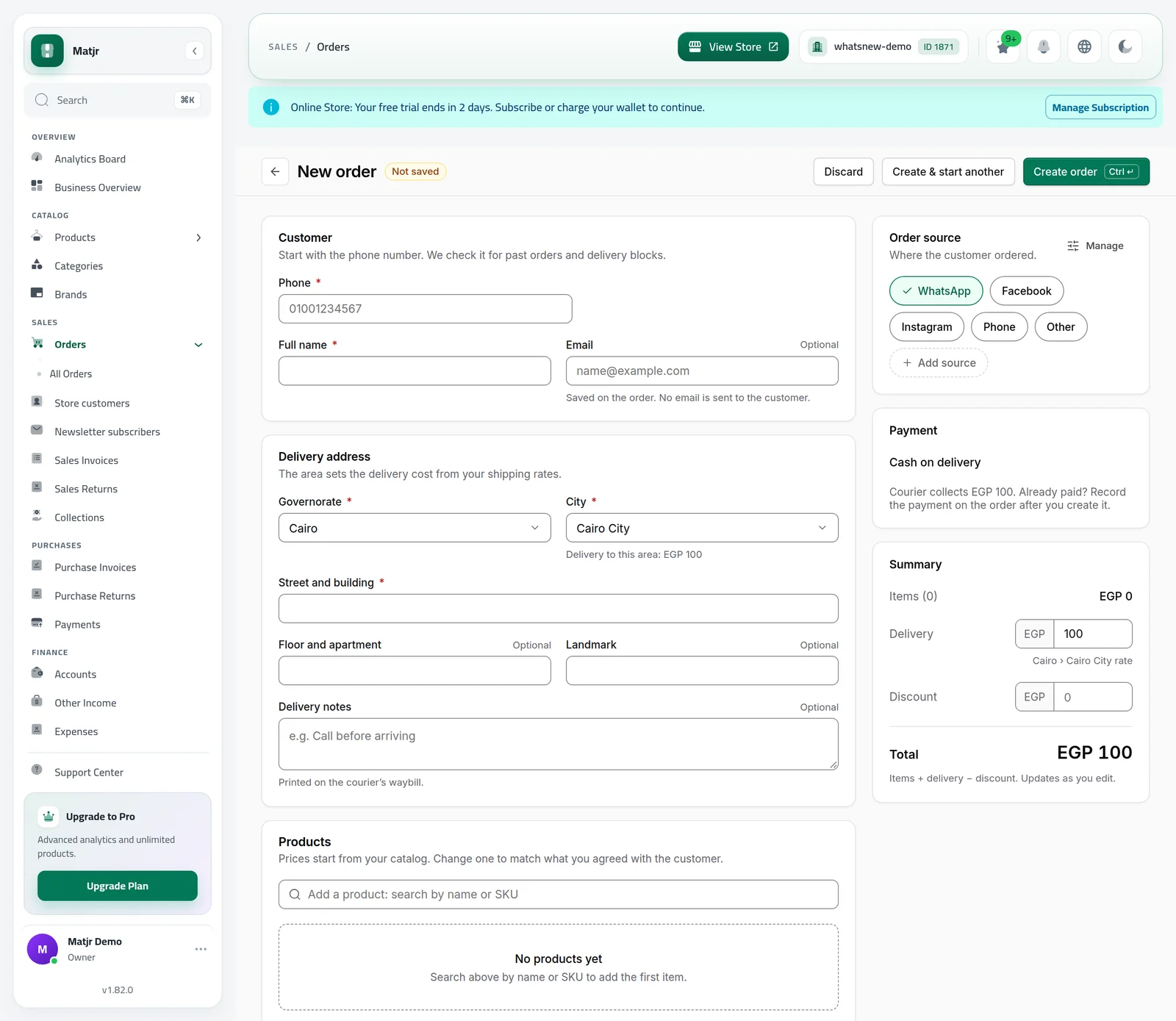
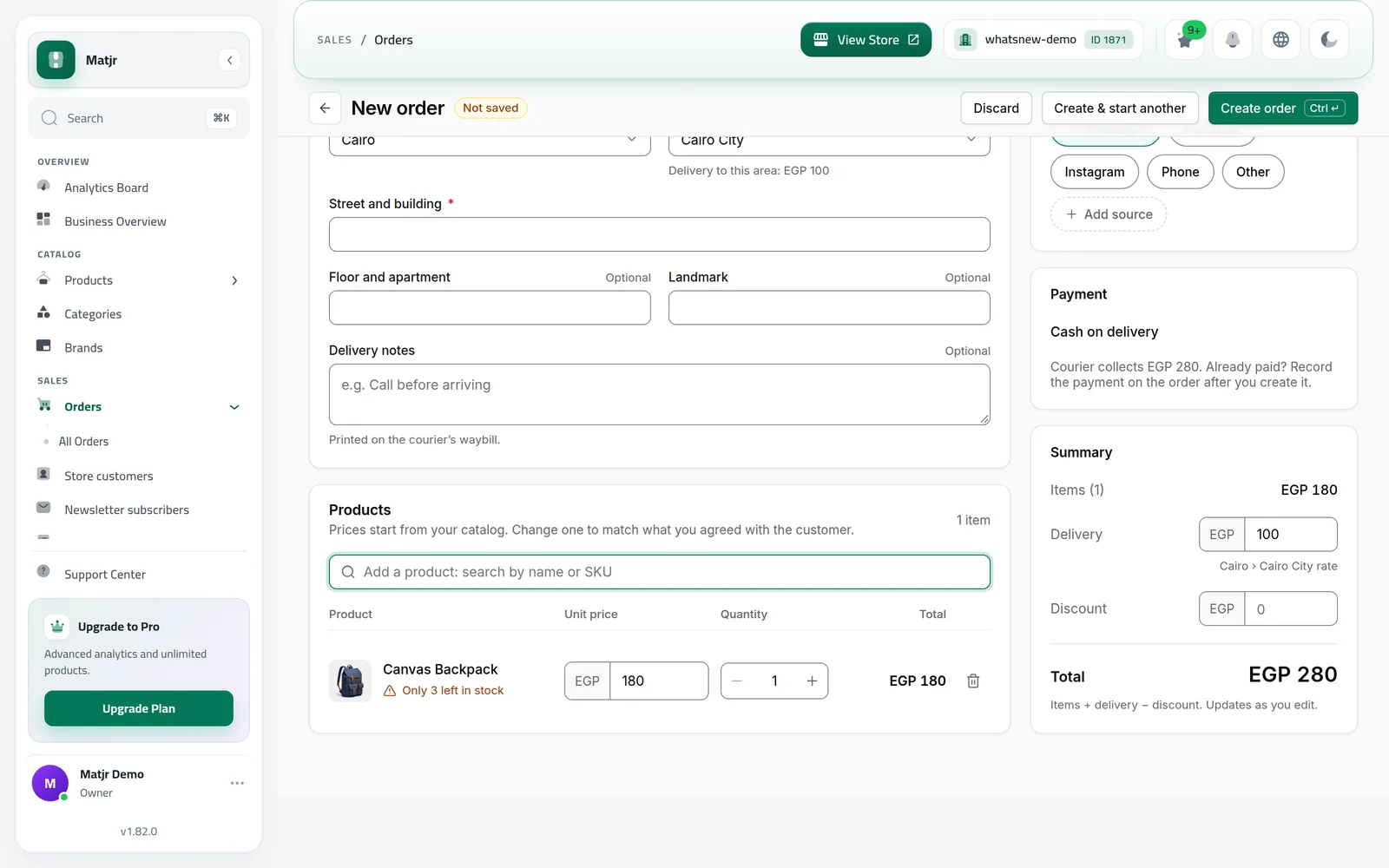
In Products, search by name or product code and pick the item. If it has options, pick the exact one. Change the unit price or quantity if you agreed something different.
Choose the Order source: WhatsApp, Facebook, Instagram, Phone or Walk-in. Use Manage to add your own, like TikTok. Edit the delivery cost or add a discount if needed.
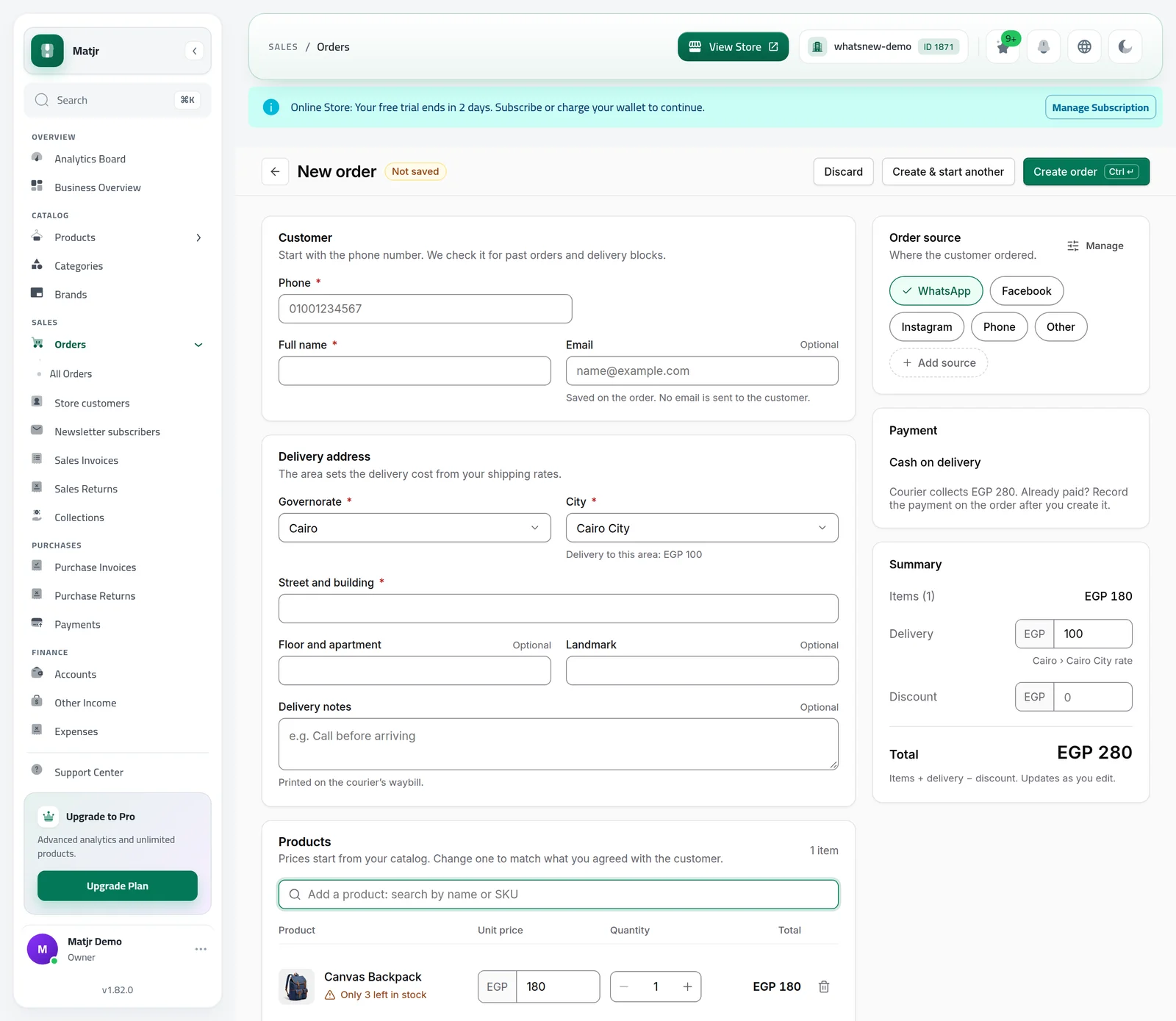
Check the total, then press Create order. Use Create & start another to enter the next order straight away.
What gets saved with the order
The order opens on its details page with the source you chose, so you can later see which orders came from which channel. Stock is reserved the same way as a store order, and delivery booking and your reports include it. Payment is cash on delivery; if the customer has already paid, record the payment on the order after you create it.
No email goes to the customer when you add an order by hand. If the customer's number is blocked from cash on delivery, you see a note, but you can still create the order.
Typing faster
- Phone and amount fields accept Arabic digits and turn them into English digits as you type.
- Press / to jump to the product search and Ctrl or Cmd with Enter to create the order.
- The price you edit is highlighted, with a Reset link to go back to the catalog price.
- Removed a product by mistake? Press Undo.
Why add orders by hand
Many merchants take part of their orders in chats and calls. If those orders stay in a notebook or a chat, your stock count is wrong, your couriers do not get the delivery details, and your sales reports miss real money. Adding them in the dashboard keeps one clear record of every order, whatever channel it came from.
It is also quicker than it looks. A returning customer is filled in from their last order, the city sets the delivery cost, and the total updates as you type, so a typical order takes under a minute. Choosing the order source each time lets you compare channels later and decide where to spend your time.
Before you press Create order, read the total aloud to the customer or send it in the chat. It is the same number that is saved on the order, so there are no surprises on delivery day.
Common mistakes
- Leaving the city empty. It is required, so the delivery cost is never guessed wrong.
- Picking the wrong option of a product. Check the option name on the product row before you create the order.
- A discount bigger than the total. The page asks you to fix it first.
- A product that is out of stock. Tracked items that cannot be oversold are disabled in the search.
Related tasks
Set your delivery prices first with how to set up shipping areas and prices. To see how customers pay, read see how customers pay for orders. To get a deposit from the customer, read take a deposit on orders. Open the New order page to start.
Frequently asked questions
Does the customer get an email when I add an order?
No. Orders added by hand do not send any email to the customer.
Does the order reduce my stock?
Yes. It is handled like a store order, so stock, delivery and reports include it.
Can I change the price for one customer?
Yes. Edit the unit price on the product row. A Reset link brings back the catalog price.
Can I add a customer who is blocked from cash on delivery?
Yes. You see a note, but you can still create the order.
Can I add my own order sources?
Yes. Press Manage next to Order source to add, rename or hide sources.
Try it on your own store
Start your free trial. No credit card required.