Marketing
How to collect newsletter subscribers in your online store
Learn how to collect newsletter subscribers from your store footer, find them in the dashboard, search, remove, export them and track every signup.
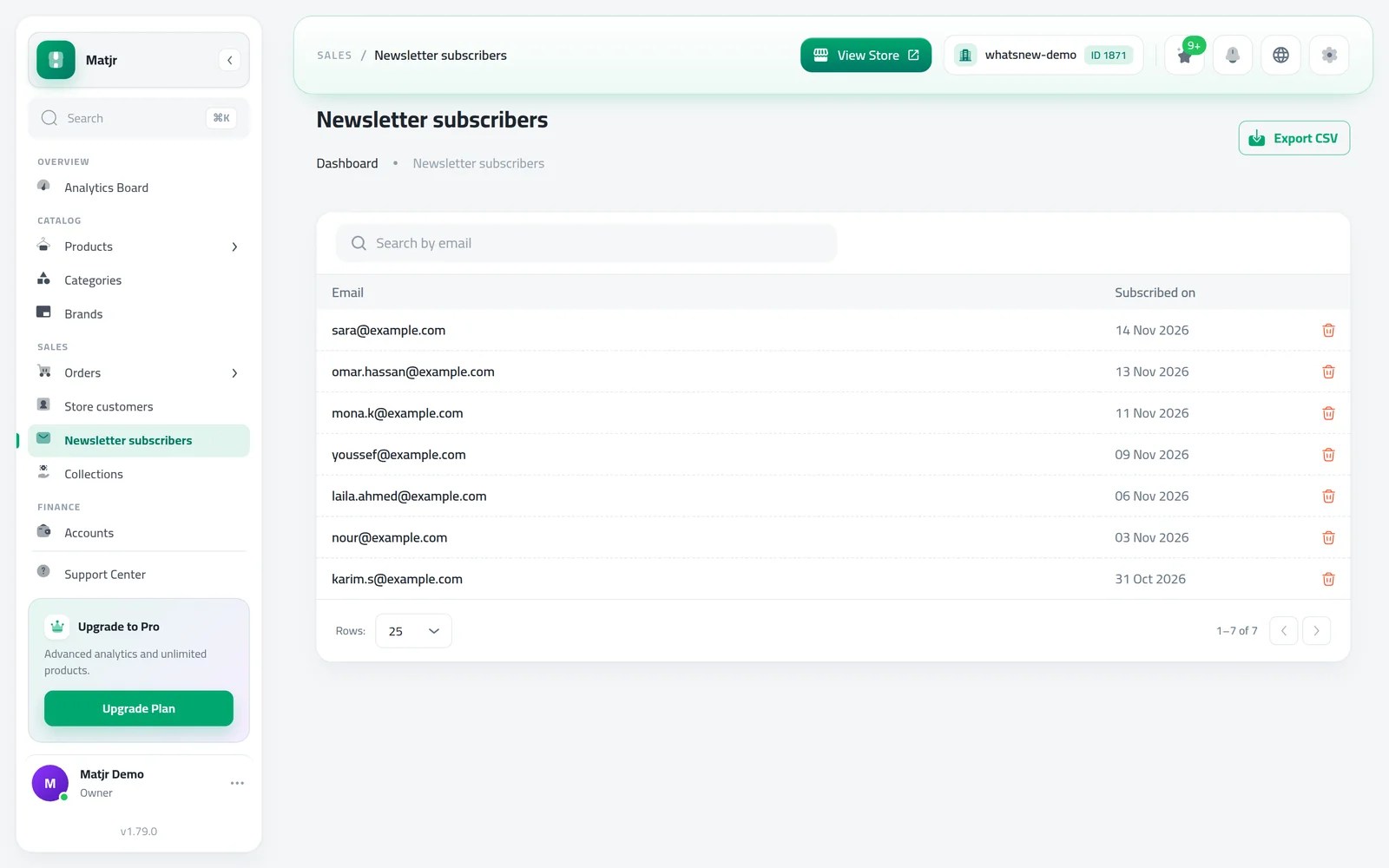
- Where
- Sales > Newsletter subscribers
- Tools
- Search, remove, Export CSV
- Export limit
- Up to 50,000 emails
- Tracking
- Needs a Meta pixel or Google Tag Manager
If you want to know how to collect newsletter subscribers for your online store, the answer is the signup form already sitting in your footer. Every email a visitor types there is saved in your dashboard, ready for you to use. This page shows you how it works, where to find your subscribers and what to do with the list.
What to prepare first
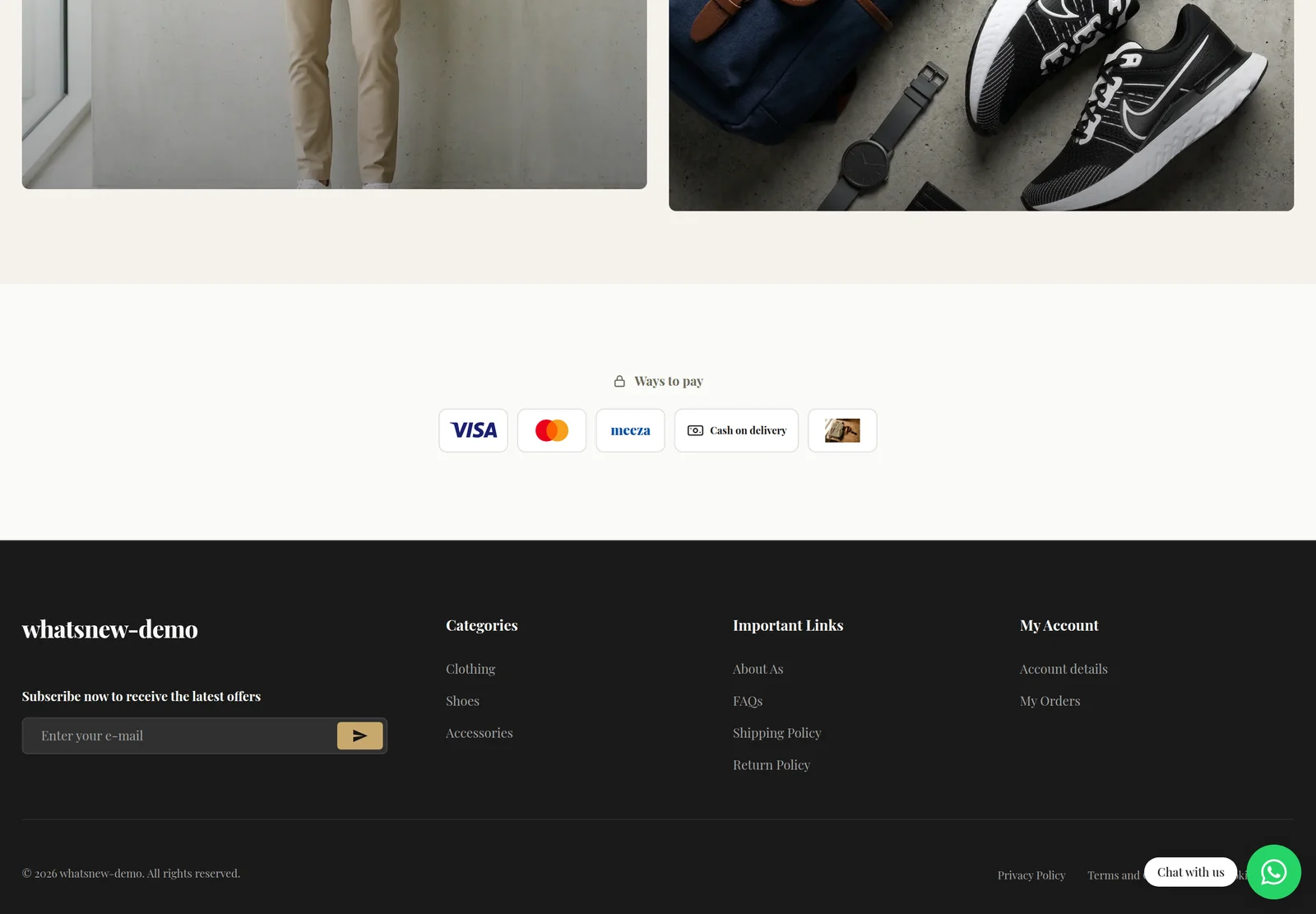
Make sure your store footer shows the newsletter signup. In the footer editor you can pick a footer style that includes a newsletter section, and write the newsletter title and text in English and Arabic. A short, clear promise works best, for example "Get 10% off your first order" or "Be first to hear about new arrivals".
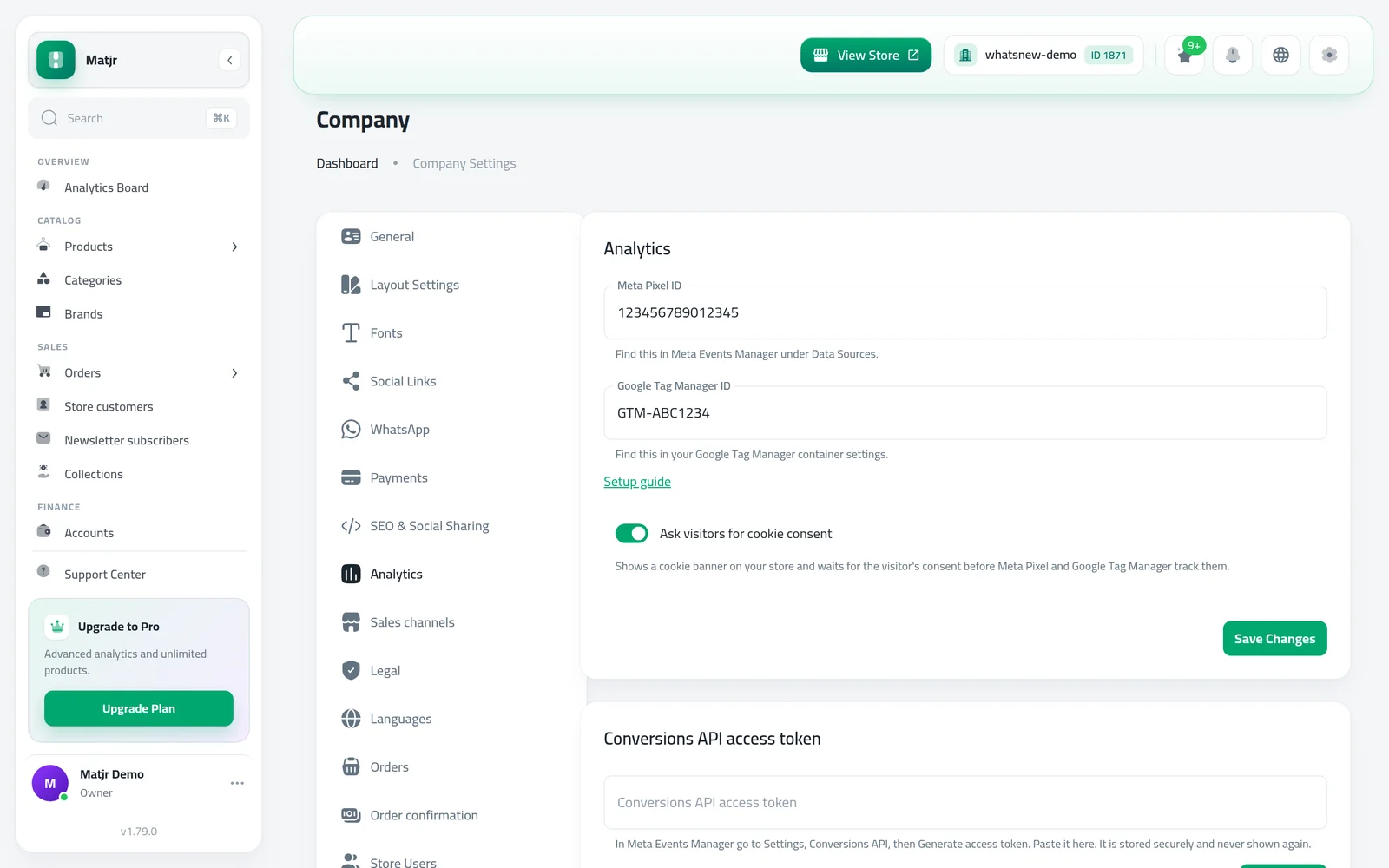
You do not need a Meta pixel or Google Tag Manager to collect emails. They are only needed if you want to track signups in your ad accounts, which is covered further down.
How to collect newsletter subscribers
Open your store and scroll to the footer. This is the form your visitors see. When they type an email and submit, they get a confirmation message right away. If the email is not valid, they are asked to correct it.
Open Sales then Newsletter subscribers in your dashboard. You will see every email with the date it subscribed. Until someone signs up, the page tells you there are no subscribers yet.
To track signups, go to Settings then Analytics. Add your Meta pixel and your Google Tag Manager code, and use the Setup guide link under the Tag Manager field if you need help.
Search, remove and export subscribers
The subscribers page has three tools:
- Search by email to find one person or everyone from the same email provider.
- Remove a subscriber with the delete button and confirm. They disappear from your list. If they sign up again later, they are added back.
- Export CSV to download the list as a file. The export includes up to 50,000 emails and opens in Excel or Google Sheets.
The same email signing up twice is saved only once, so you never have duplicates to clean. Emails are saved in lowercase.
How to use your list
The list belongs to you. Export it and import the file into the email tool you use to send campaigns. Send a welcome message first, then a regular update, for example when you launch a collection or run a sale. Keep messages short, with one clear button.
Always tell visitors what they will receive and how often, and include a way to stop receiving your emails in every message. Follow the rules for email marketing in your country. When someone asks to be removed, remove them from your list and from your email tool.
Track signups in Meta and Google
When a visitor subscribes, your store reports a Lead to Meta and a generate_lead event to Google Analytics. This helps you see which ads and pages bring subscribers, and lets Meta find similar people.
This only happens when your store has a Meta pixel and the visitor has agreed to tracking. If you ask for cookie consent, nothing is sent until the visitor accepts. To set up Google Analytics through Tag Manager, follow our Google Tag Manager and GA4 setup. You can also read about better ad tracking for Meta and Google and how to ask visitors for cookie consent.
Common mistakes to avoid
- Expecting emails on the page without a footer signup form. Check your store footer first.
- Looking for the page without permission. You need the permission to see customer contact details, and a separate permission to export.
- Sending emails to people who never asked for them. Only email your subscribers.
- Removing someone and expecting them to disappear from files you exported earlier. Exported files are copies.
- Testing the form and forgetting to remove your own test email.
Keep your list healthy
Check the page weekly at first. Remove test emails and any address that looks wrong, and export a fresh copy before each campaign. A small list of interested people beats a large list that never opens your messages.
Related tasks
Subscribers are visitors who have not bought yet, so they are separate from your customers. To see people who ordered, read how to manage your store customers. To bring more visitors to your store, read how to make your store easy to find on Google. You can also read the update about the Newsletter subscribers page.
Frequently asked questions
How do I collect email addresses from my store visitors?
Use the newsletter form in your store footer. Every email submitted is saved on the Newsletter subscribers page.
Can I download my subscribers?
Yes. Click Export CSV and open the file in Excel or Google Sheets. You can import it into your email tool.
Do I need a Meta pixel?
No. You only need it to track signups in Meta. Emails are always saved.
Who can see the subscribers?
Team members whose role allows seeing customer contact details. Exporting needs the export permission too.
What happens if I remove a subscriber?
They disappear from your list. If they sign up again, they are added back.
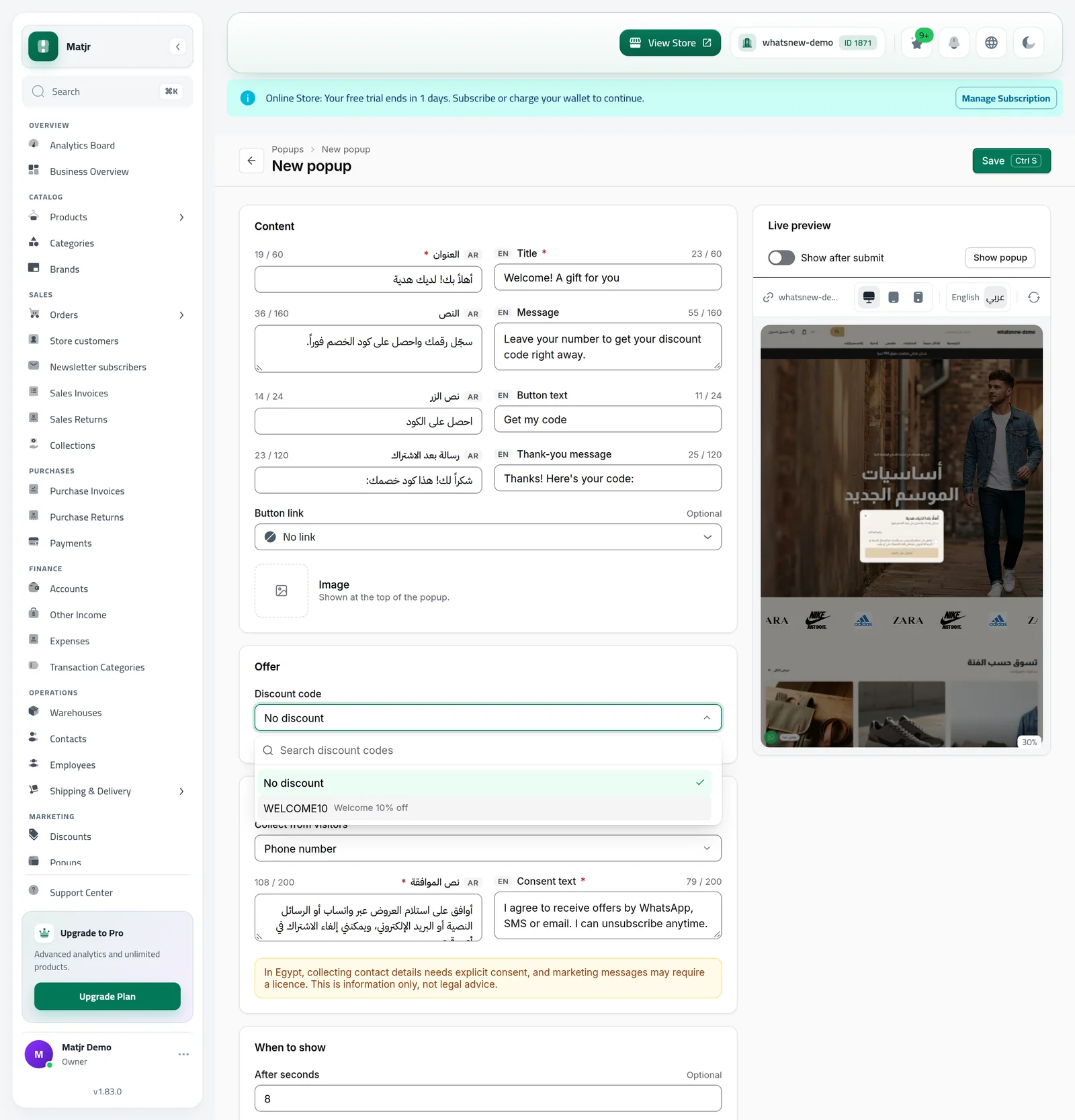
Try it on your own store
Start your free trial. No credit card required.