Marketing
How to list your products on Google and Meta
How to list your products on Google Shopping and Meta: copy your product feed link, add barcodes and set up the feed in each tool.
- Where
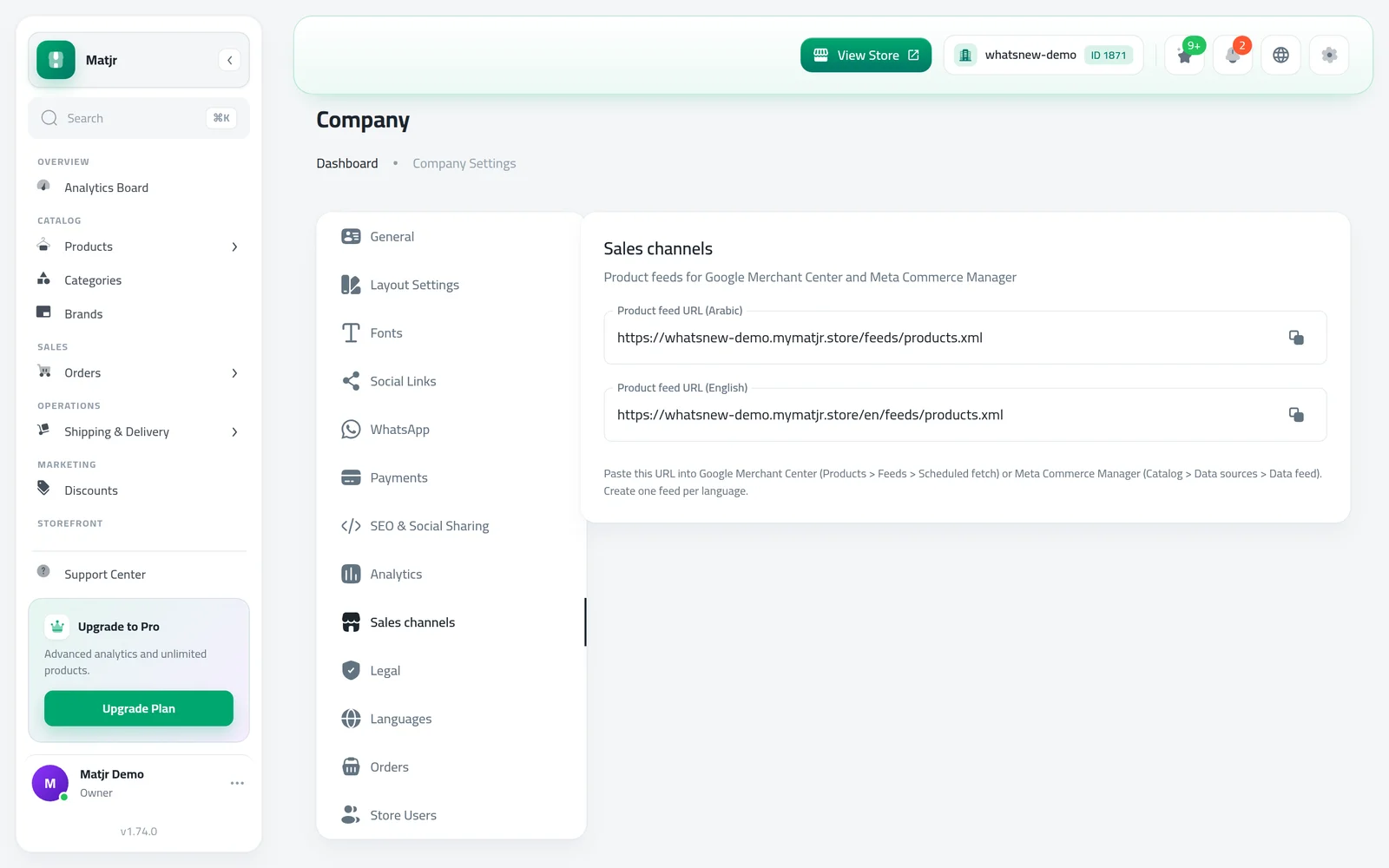
- Company Settings > Sales channels
- Time needed
- About 15 minutes
- You also need
- Google Merchant Center or Meta Commerce Manager account
Want to list your products on Google Shopping and in Meta shops without typing them again? Matjr gives you a product feed link. You paste it once, and Google or Meta reads your products from it. This guide shows how, and what to prepare first.
Before you start
- Your store needs a domain. Without one, the feed links cannot be created.
- Create a Google Merchant Center account for Google, and a Meta Commerce Manager account for Facebook and Instagram.
- Check that your products have clear photos, a price and a description. Both platforms reject incomplete products.
- Check your store policies are in place. See How to make your store easy to find on Google.
Get your feed link
A feed is a list of your products that Google and Meta can read. Matjr makes one for each language your store uses. Create one feed per language in each tool.
Open Company Settings and go to Sales channels.
Find the language you want and press the copy button next to its link.
If your custom domain is not verified yet, the link uses your Matjr store address. It switches to your own domain after you verify it.
Add barcodes (GTIN) and MPN
GTIN is the barcode number printed on the product, often called EAN or UPC. MPN is the part number the maker gave it. Google Shopping asks for the barcode on branded products, and products without it may be limited. Own-brand products usually do not need one.
Open the product. If it has variants, go to the variants. Each variant has its own barcode.
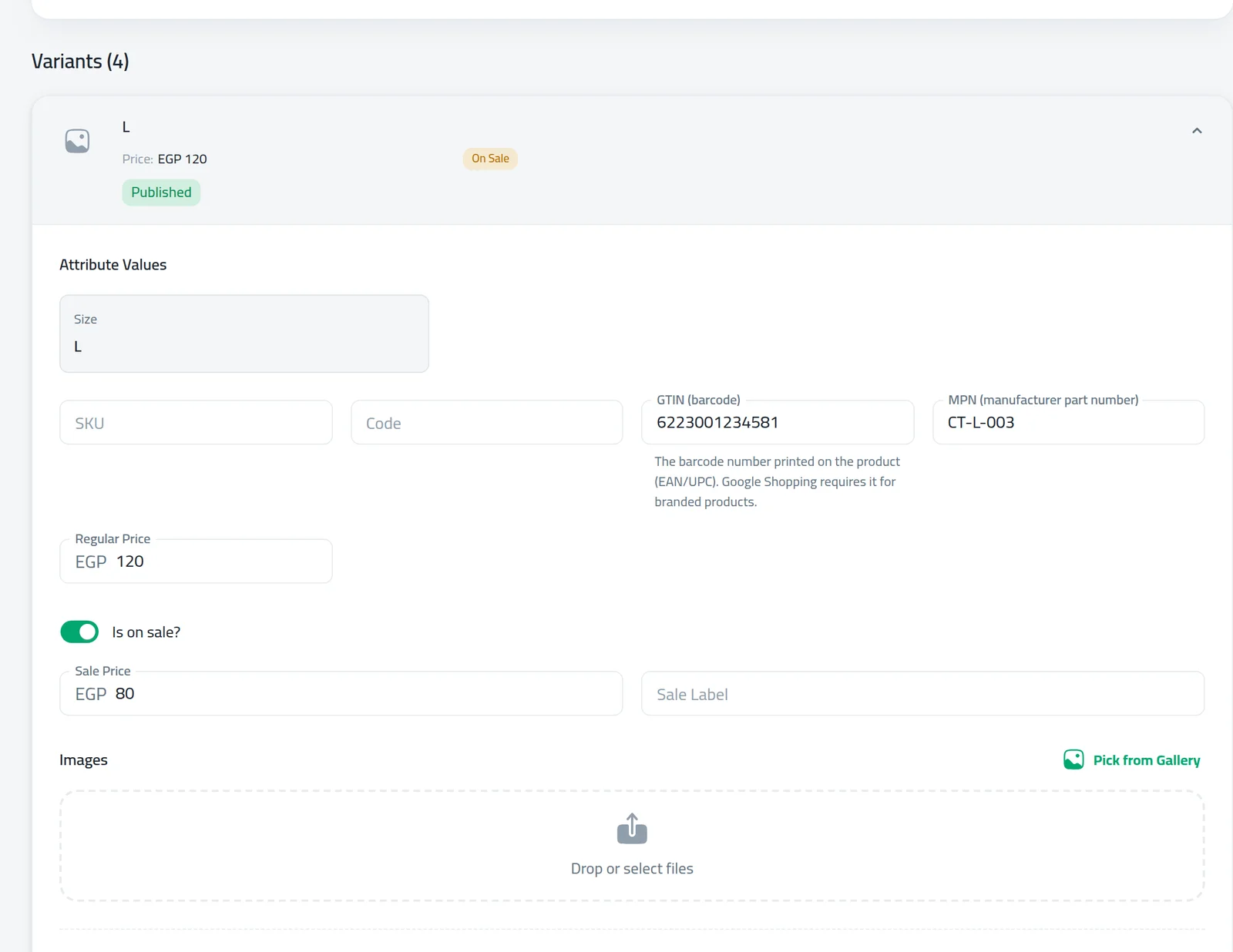
Type the barcode in GTIN (barcode) and the part number in MPN. The barcode is checked as you type and must be 8, 12, 13 or 14 digits.
For a product without variants, the same two fields are next to the SKU.
Set your store title in each language
Your store name shows next to your products in results. Write it once per language so Arabic and English shoppers each see a natural title. If a language is empty, the fallback title is used.
Open the SEO & Social Sharing tab in Company Settings.
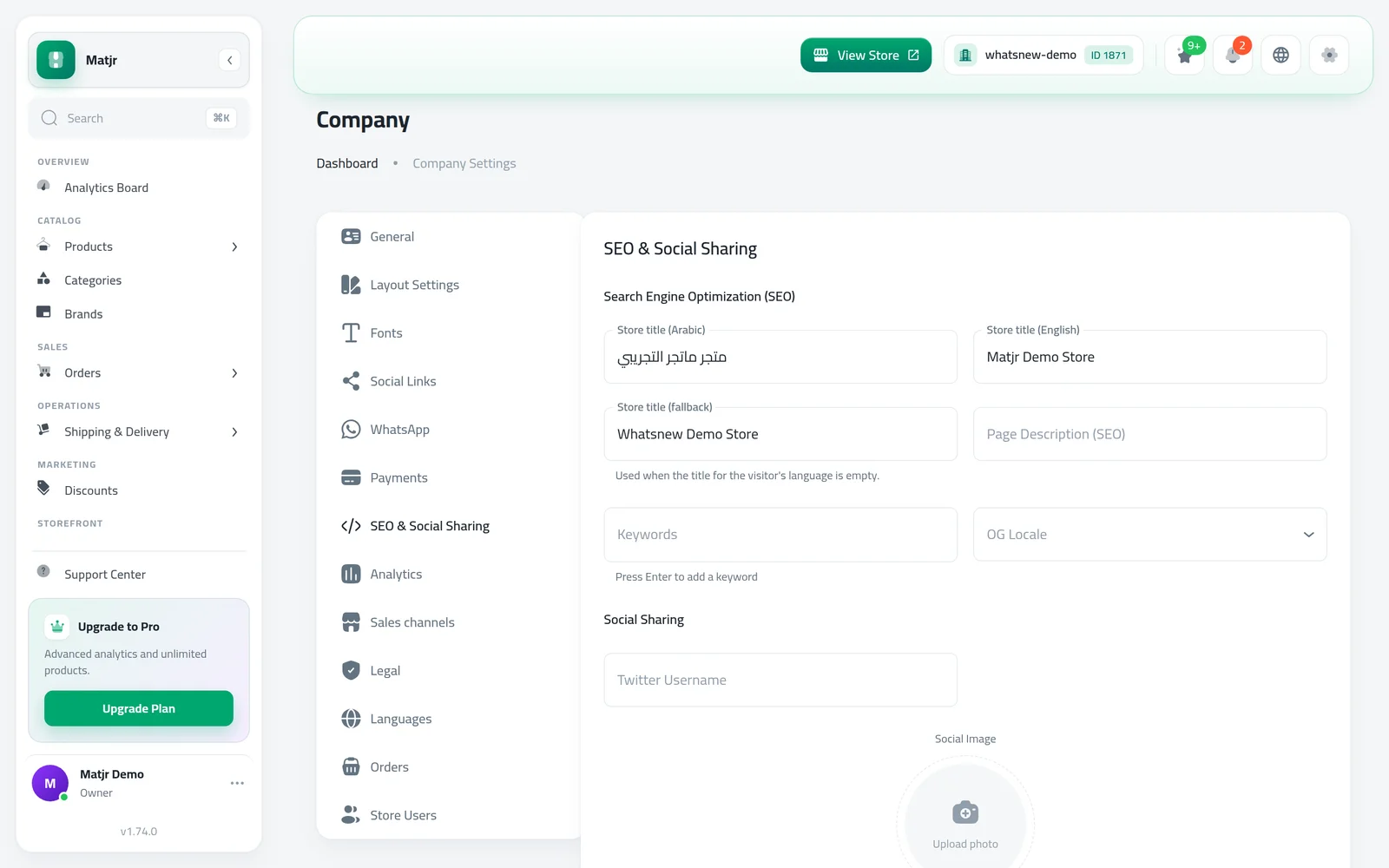
Write the store title for each enabled language, up to 120 characters, then save.
Add the feed in Google or Meta
In Google Merchant Center, open Products, then Feeds, and choose a scheduled fetch. Paste the link of one language.
In Meta Commerce Manager, open your catalog, then Data sources, and add a data feed. Paste the link of one language.
Set the fetch to run daily. The link always shows your current products, so changes reach Google and Meta on the next fetch.
Common mistakes
- Pasting one link for both languages. Use a separate feed for each.
- Using a wrong barcode. Copy it from the box or your supplier, not from another seller.
- Leaving out price or photos. Fix these on the product first.
- Expecting products to appear instantly. Review can take days.
What shoppers see
Google Shopping and Meta shops show your product photo, title, price and a link to your store. When a shopper taps it, they land on your product page, so the page you built should answer their questions fast. Good photos, an accurate price and a clear title matter more than anything else here.
Keep your prices and stock up to date in Matjr. Because the feed reads your current products, an item you sold out or repriced will be corrected on the next fetch. If you see a mismatch between the price in Google and the price on your store, check that the last fetch has run.
- Use clear titles with the product type, brand and key detail, for example "Cotton t-shirt, navy, size M".
- Use real photos on a plain background, not images with text or logos on them.
- Keep one barcode for one product or variant, never the same barcode on two products.
- Check the feed status in Google or Meta once a week at the start, and fix any warnings they show.
Related tasks
Frequently asked questions
How do I list my products on Google Shopping?
Copy your feed link from Sales channels and add it in Google Merchant Center as a scheduled fetch.
Do I need a barcode for every product?
No. Google asks for it on branded products. Own-brand products usually do not need one.
Why do I need a feed per language?
Each language has its own pages and titles, so Google and Meta need a separate list for each.
How long until my products show?
After the first fetch, Google and Meta review your products. It can take a few days.
Try it on your own store
Start your free trial. No credit card required.