Customers
How to let customers create an account at checkout
How to let customers create an account at checkout with no password: turn on the checkbox, tick it by default and see what shoppers get.
- Where
- Checkout Form > create account checkbox
- Default
- Off until you turn on Active
- Password
- None at checkout; set later by email link
- If it fails
- The order goes through as a guest order
Many shoppers never create an account because it feels like extra work. If you want to know how to let customers create an account at checkout, the answer is one checkbox in your checkout form. The shopper ticks it and places the order, with no password to invent. The account is made from their phone number, and their email if they give one, and the order is saved to it, so next time they can sign in and reorder faster.
What to prepare first
Everything is done in the checkout form builder, so you need access to Checkout Form in your dashboard. The create account checkbox is already in your form, but it is turned off. Decide where in the form it should appear, what you want it to say, and whether it should be ticked when the page opens.
Make sure your form asks for a phone number, an email, or both. The account uses whichever the shopper gives. With an email, the shopper can also get a link to set a password after the order.
Think about the benefit you want to promise. A clear reason to sign up, such as order tracking or special offers, gets more shoppers to tick the box.
How to let customers create an account at checkout
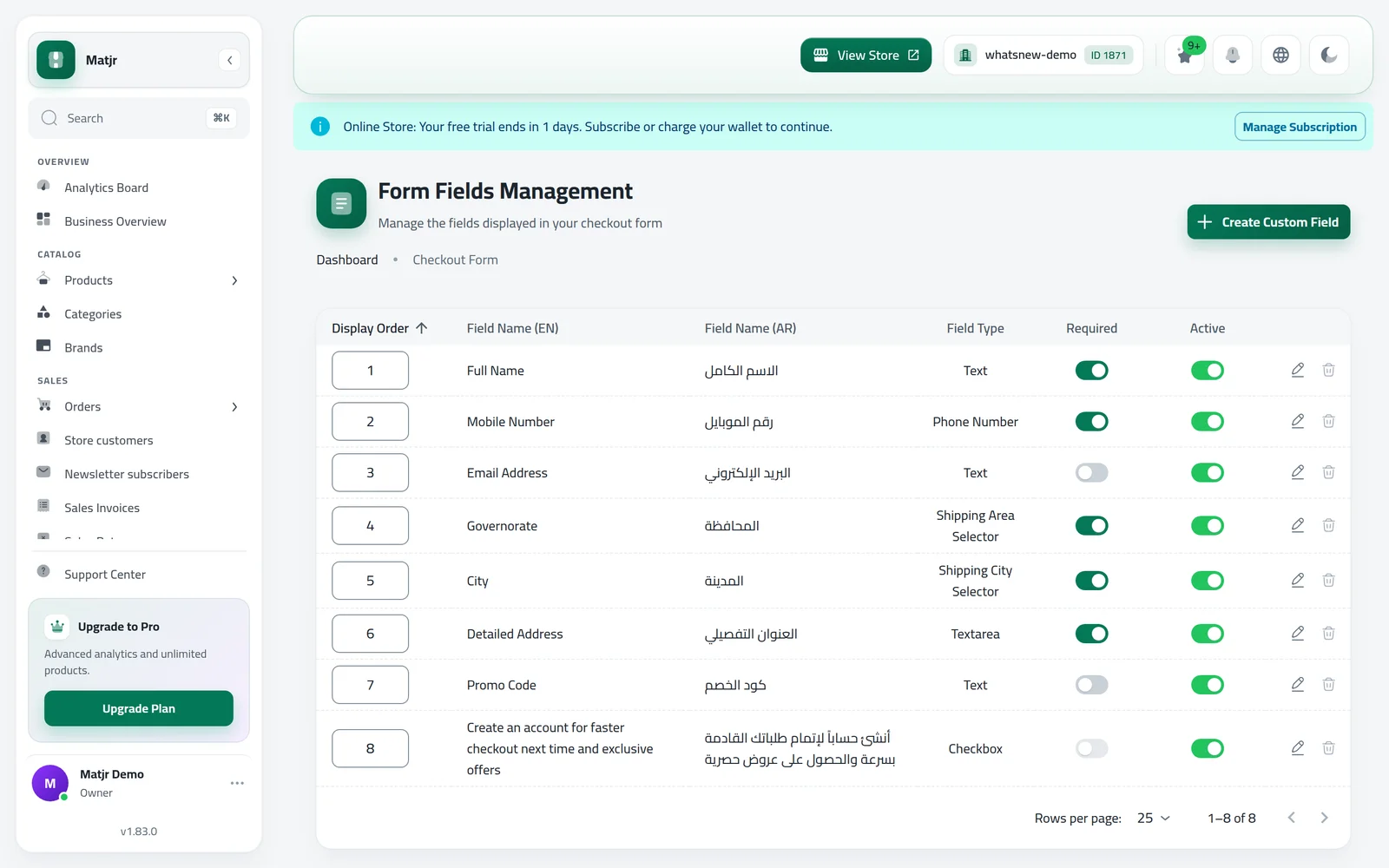
Open Checkout Form in the dashboard (Confirm Order Page in the menu). In the list of fields, find the create account checkbox. Its type is Checkbox. Turn on its Active switch.
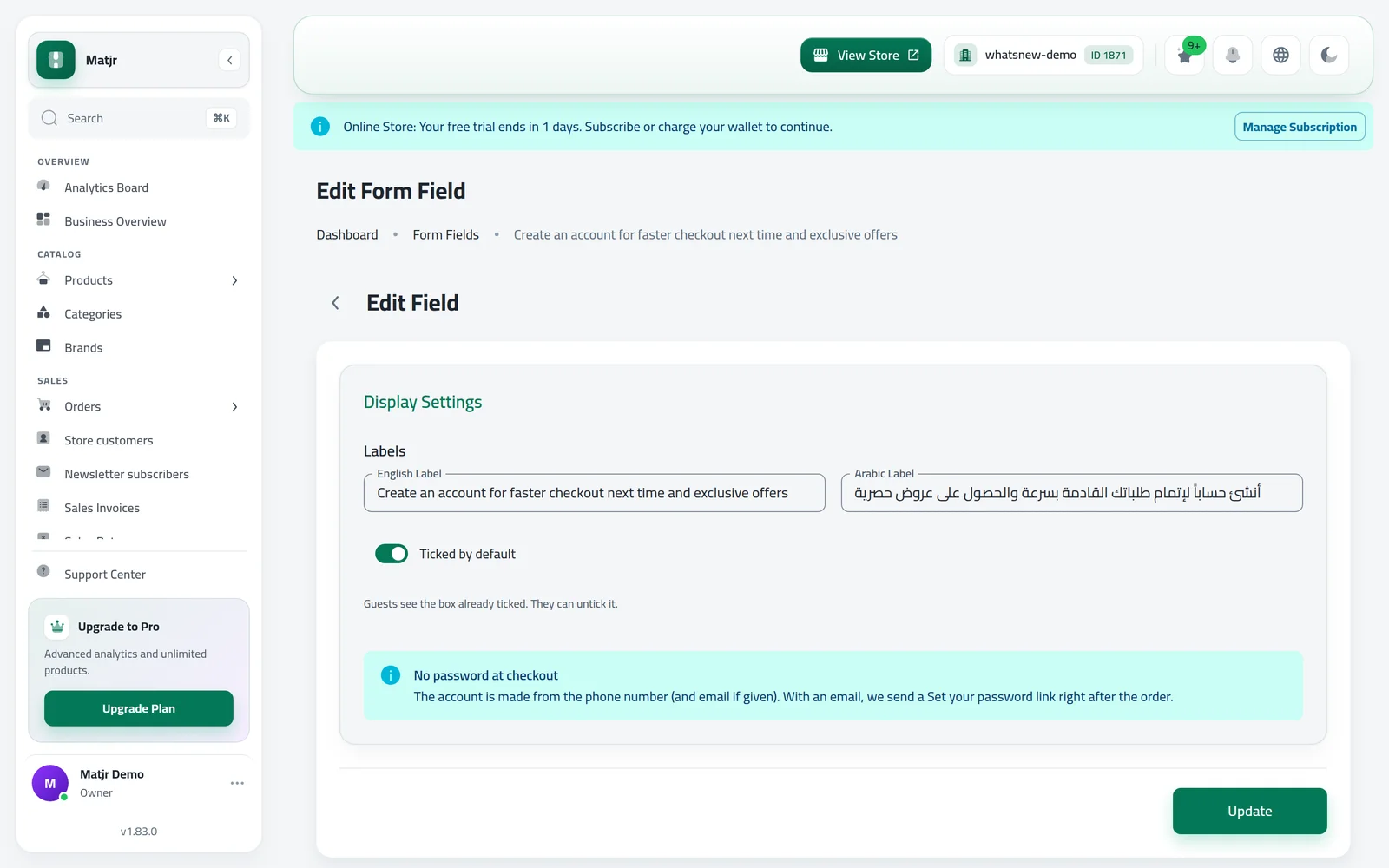
Click the field to open Edit Field. Write the label in English and Arabic and use Display Order to move it, with lower numbers shown first. Turn on Ticked by default if you want guests to see the box already ticked. The No password at checkout note explains what the shopper gets.
What shoppers see
To check it yourself, open your store in a private window, add a product to the cart and go to checkout. The checkbox shows under the form. Type an email and the line "We'll send you a link to set your password" appears under it.
Only shoppers who are not signed in see the checkbox. There is no password field. When they place the order, the account is created from the phone number, and the email if given, and the order is linked to it. They stay signed in on your store afterwards.
If the shopper gave an email, they get a Set your password email right after the order. The link works for 7 days and lets them choose a password for next time. Without an email, they can still use the account while they stay signed in on that device.
If you turn on Ticked by default, the box is already ticked when a guest opens checkout. They can untick it to order as a guest.
What happens when something goes wrong
You never lose a sale because of the checkbox. If the account cannot be created, for example because the phone number or email already has an account, the order still goes through as a guest order. The shopper does not see an error and the order is placed as usual. Sending the set password email never delays the order either.
Tips to get more signups
Write the label as a benefit, not as a request. "Track your orders and get exclusive offers" works better than "Create an account". Keep it to one short line so it is easy to read on a phone.
Since there is no password to type, ticking the box costs the shopper nothing. Turning on Ticked by default usually brings many more accounts. Place the checkbox near the end of the form, just above the place order button, where shoppers are already confirming their details. Check the result on a phone, because most of your shoppers use one.
Common mistakes to avoid
- Leaving the field inactive and wondering why shoppers cannot see it. Check the Active switch.
- Writing the label in one language only. Fill both English and Arabic.
- Not asking for an email when you want shoppers to set a password. Without an email, no set password link is sent.
- Testing while signed in. Shoppers who are signed in never see the checkbox, so use a private window.
- Promising something in the label that you do not offer.
After the order
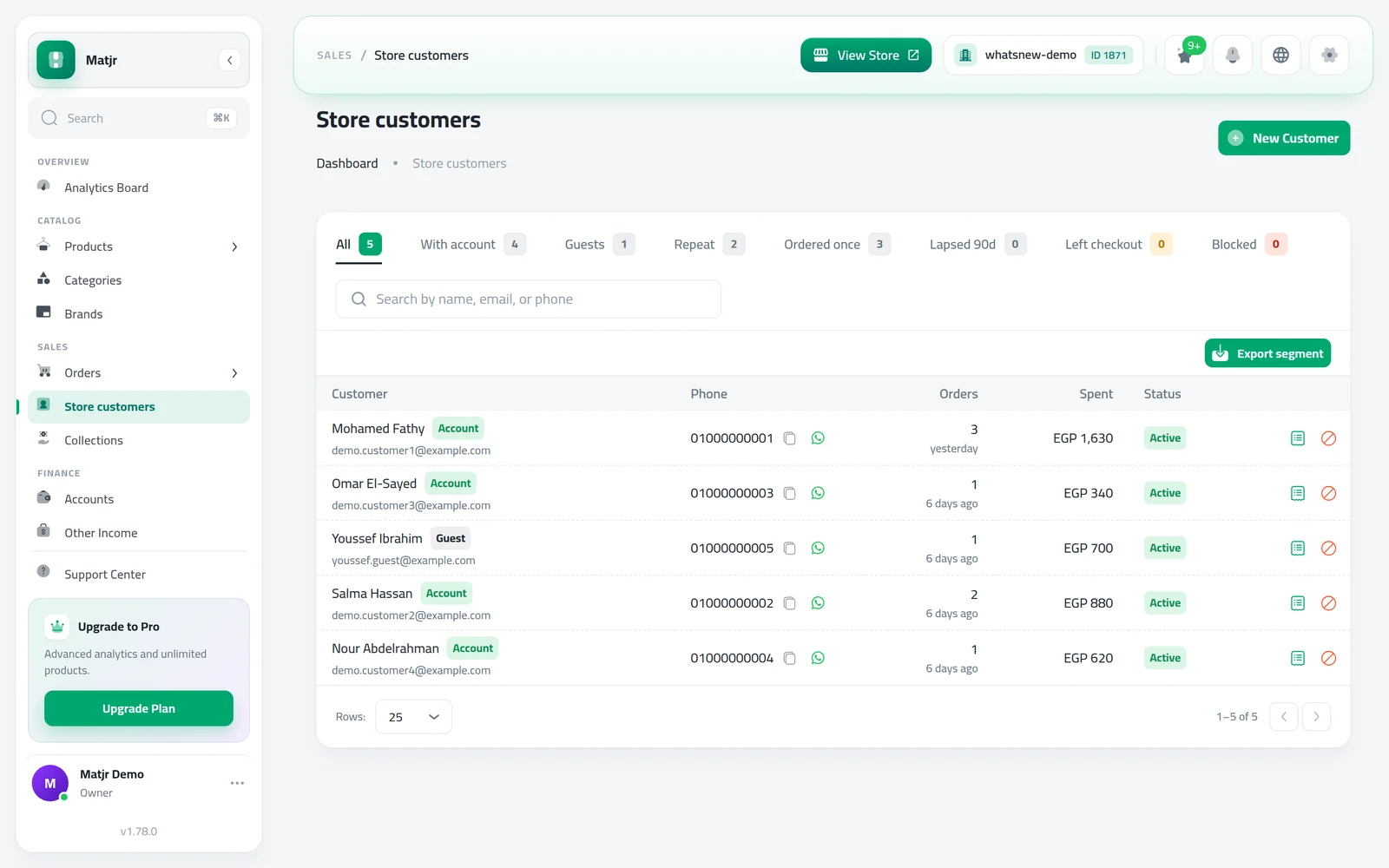
Once a shopper creates an account, you find it under your store customers together with their orders. Use this to see who comes back to buy. When a customer returns, they sign in and order faster because their details are saved. The easier you make repeat buying, the more likely a shopper becomes a regular.
Review the checkbox text whenever your offers change, so the promise you write stays true.
Related tasks
Learn how to manage your store customers and see the accounts that shoppers create. To add trust badges and answers around the form, read how to design your checkout page. If you also sell from a single product page, read how to add a Buy now button and order form. See what changed in accounts without a password at checkout.
Frequently asked questions
How do I let customers create an account at checkout?
Open Checkout Form, turn on the Active switch of the create account checkbox, and edit its text if you want.
Do shoppers need to choose a password?
No. The account is made from their phone number or email. With an email, they get a link to set a password after the order.
Can the box be ticked already?
Yes. Turn on Ticked by default in Edit Field. Shoppers can still untick it.
What if the phone number already has an account?
The order still goes through as a guest order, so you do not lose the sale.
Do signed-in customers see the checkbox?
No. Only shoppers who are not signed in see it.
Try it on your own store
Start your free trial. No credit card required.