Customers
How to manage your store customers
How to manage your online store customers: find anyone fast, sort them into groups, export the list and block a customer who causes problems.
- Where
- Customers in the dashboard menu
- Who can use it
- Team members who can view customers
- Export
- CSV, up to 5,000 customers
Knowing who buys from you is the first step to selling more. This guide shows how to manage your online store customers: find one in seconds, see who comes back, export the list for a message or a campaign, and block a customer who keeps causing problems.
Before you start
The Customers page lists everyone who has ordered from your store. It puts shoppers who created an account and shoppers who ordered as guests in one list. If the same person ordered as a guest and later signed up, they appear once, joined by their phone number.
- You need at least one order in your store. If you have none yet, see How to add a product first.
- Phone numbers, emails and the export are shown only to team members whose role allows viewing customer details. If you do not see them, ask the store owner to check your role.
Manage your store customers from one list
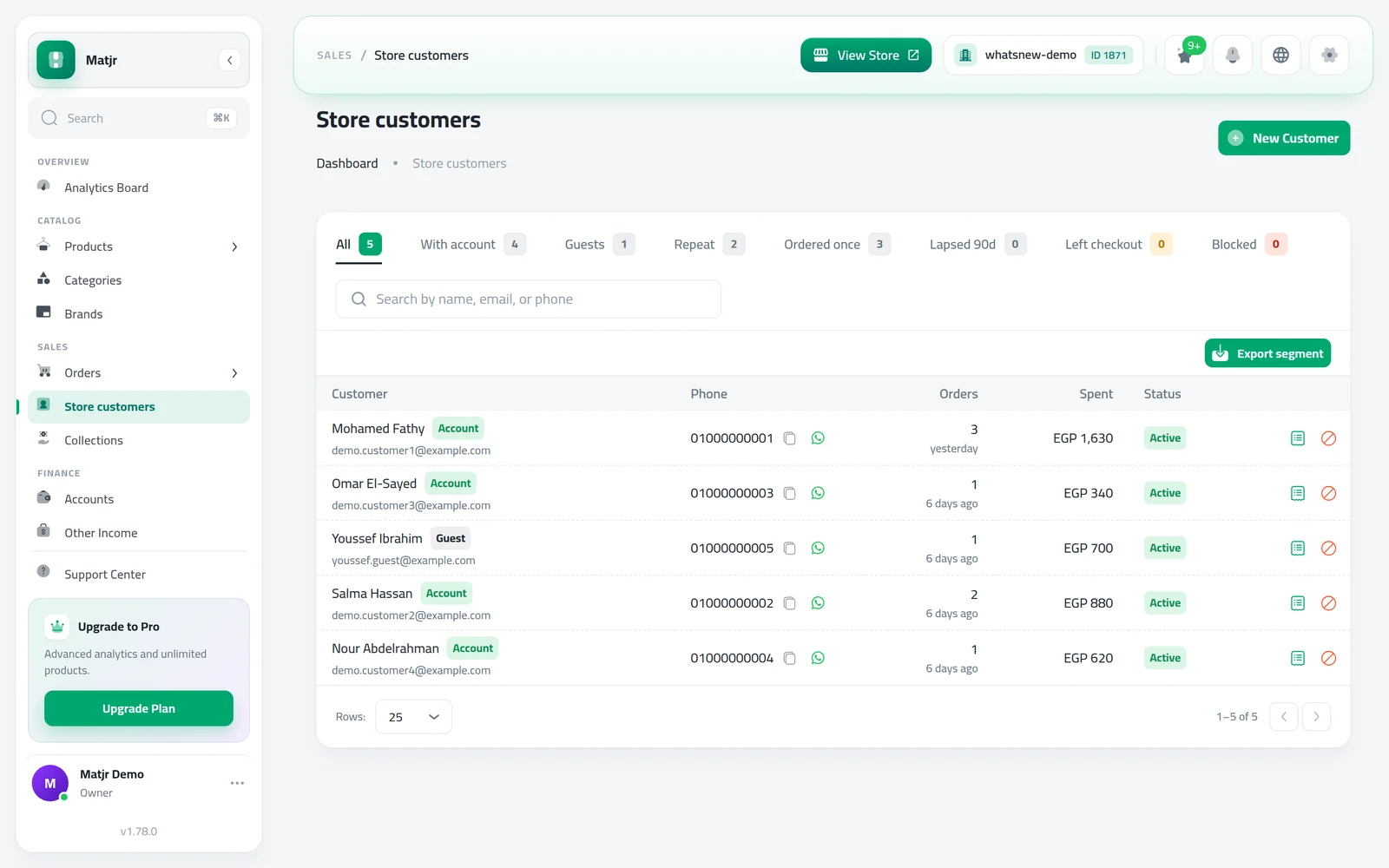
Open Customers from the dashboard menu. Each row shows the customer name with an Account or Guest label, the phone number, how many orders they placed, how much they spent and their status. Type a name, email or phone number in the search box to find one fast.
The search and the group you picked stay in the page address, so you can share the exact view with a team member or come back to it after a refresh. Press the View orders icon on a row to see that customer's orders. The button is disabled when the customer has no phone number.
Group customers with the tabs
Use the tabs above the list. Each tab shows how many customers it holds: All, With account, Guests, Repeat, Ordered once, Lapsed 90d, Left checkout and Blocked.
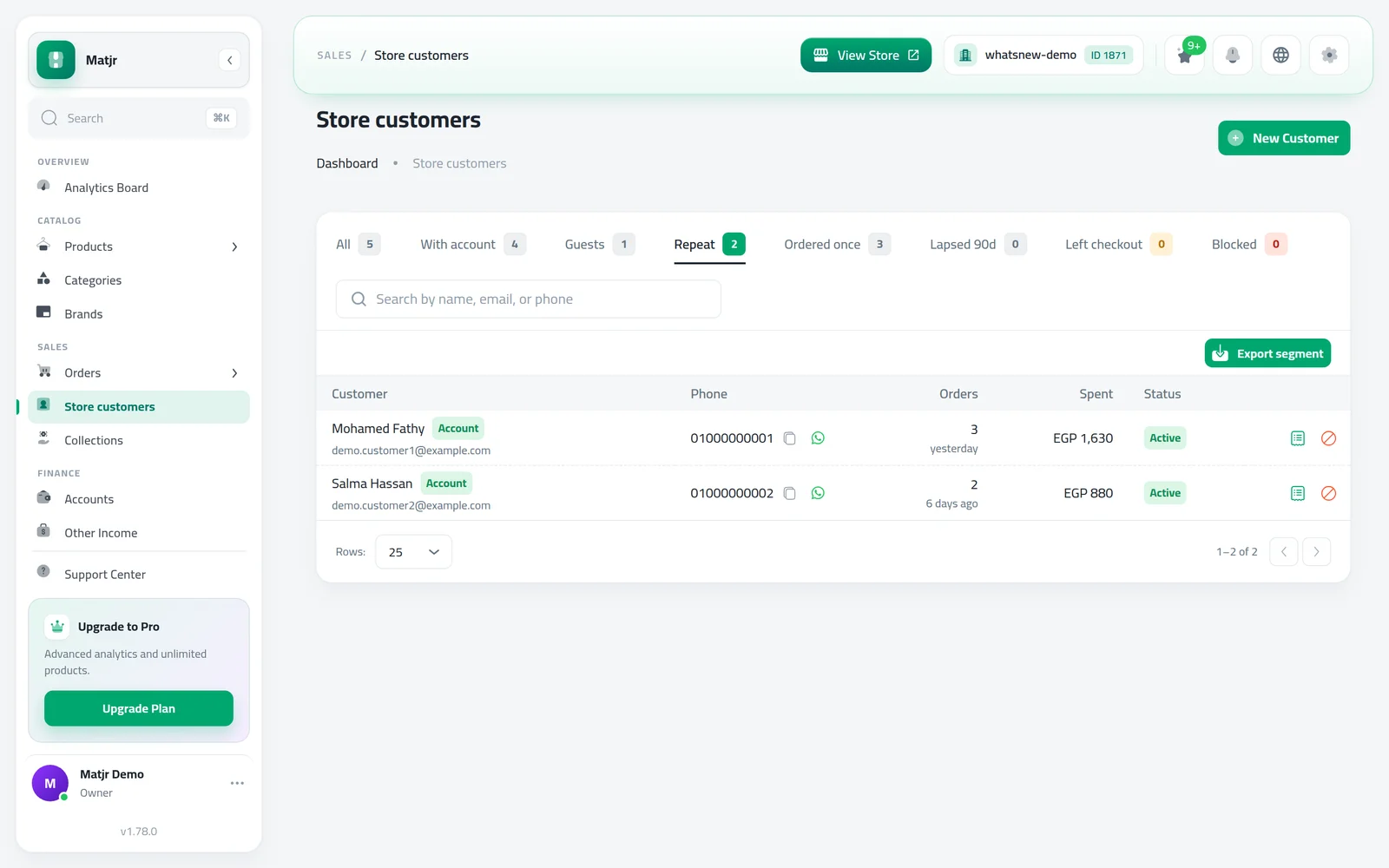
Here is what each group is good for.
- Repeat: your best customers. Thank them or offer early access.
- Ordered once: people who may come back with a small nudge, such as a discount code.
- Lapsed 90d: customers who have not ordered in the last 90 days. A short message can win them back.
- Left checkout: customers who started checkout and never placed an order.
Export your customers
Open the tab you want, for example Lapsed 90d, and press Export segment. You get a CSV file you can open in Excel or Google Sheets.
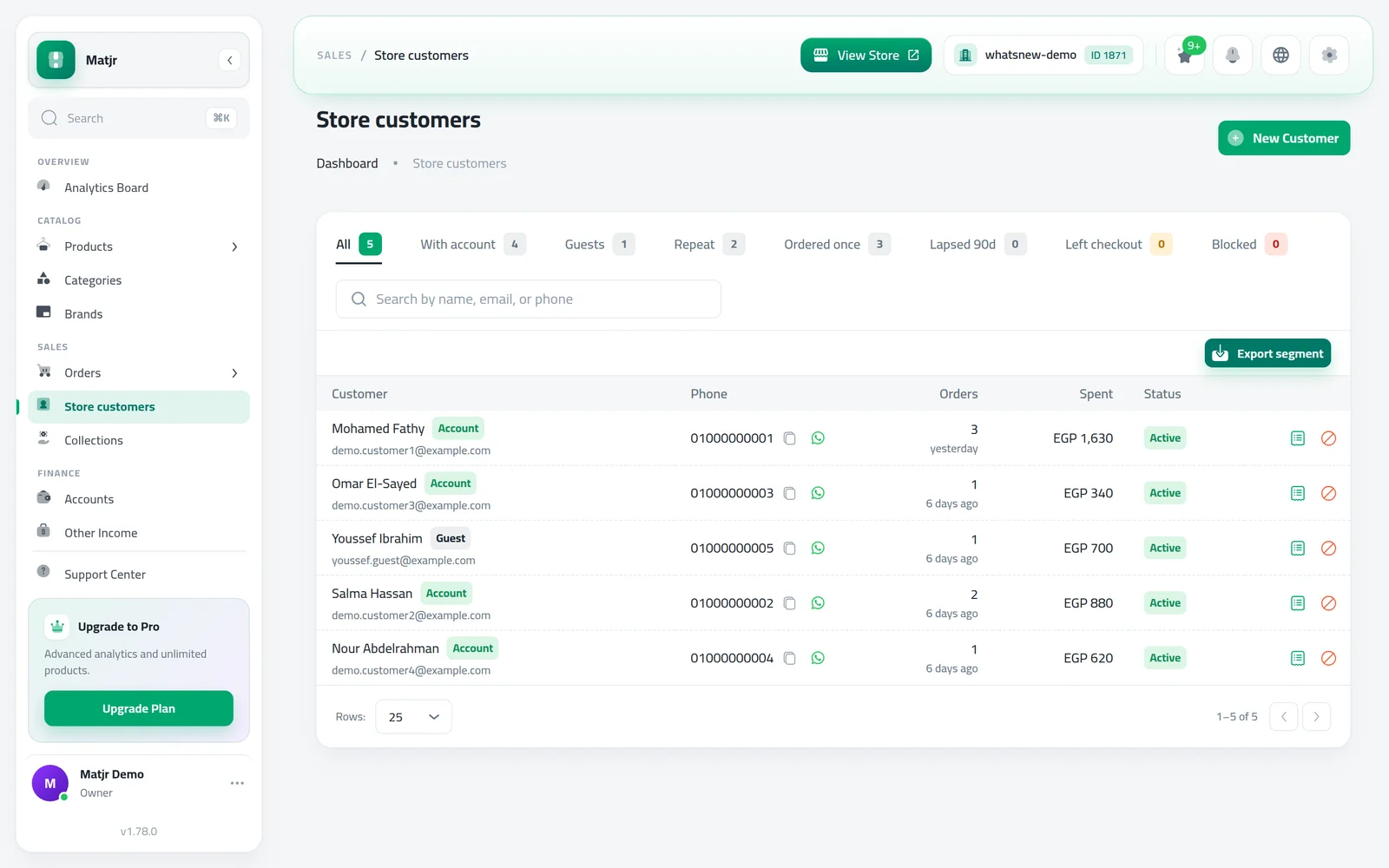
The export follows the tab and the search you have open, so you can export only the people you plan to contact. One file holds up to 5,000 customers. If your group is bigger, the dashboard tells you the file is partial. Narrow the tab or the search and export again.
Block a customer
Press Block customer… on the customer row. Choose Block cash on delivery if they can still order but cannot pay cash, or Block completely if every order from them should be refused. Write the Reason, then confirm.
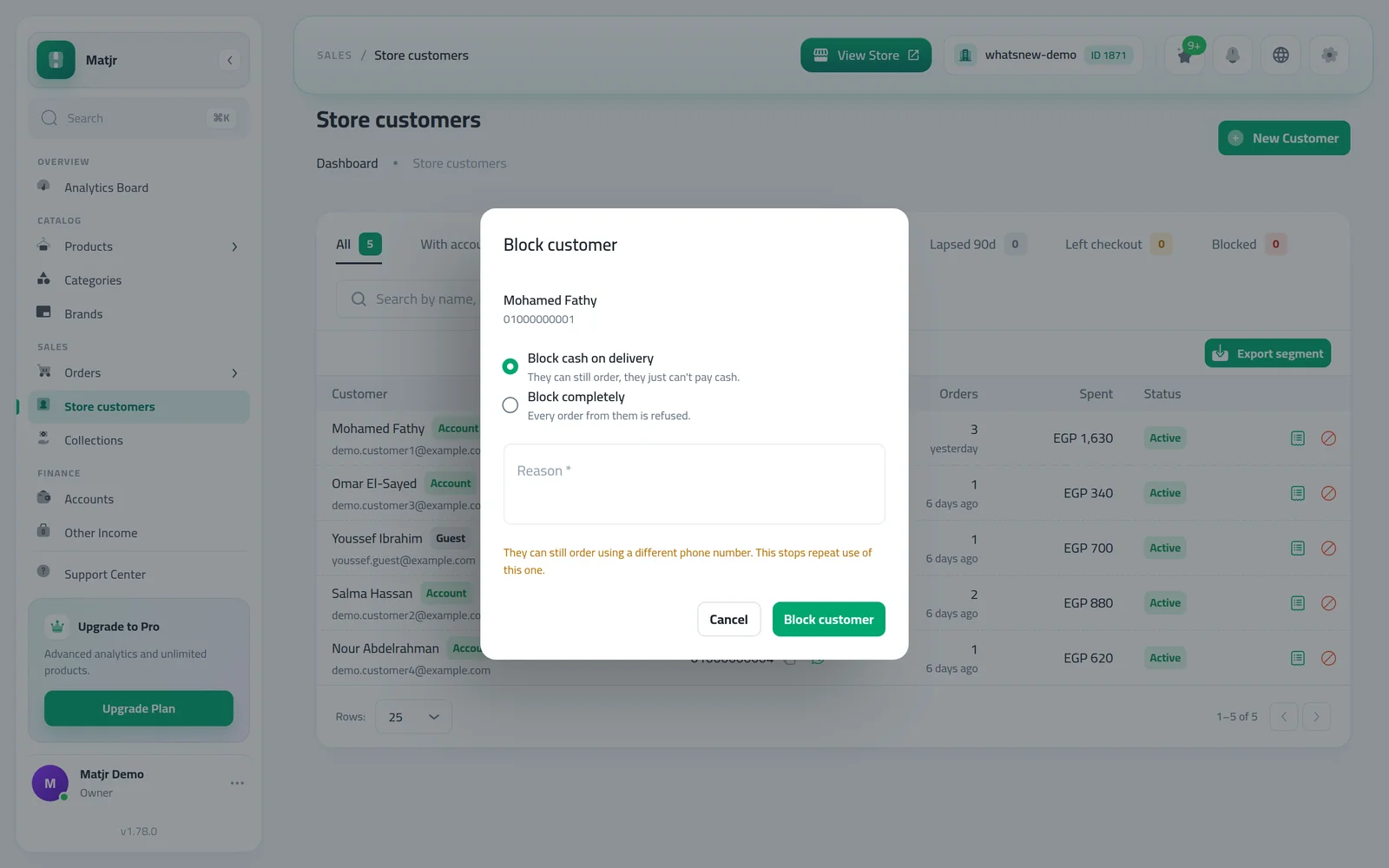
A blocked customer appears under the Blocked tab, with the reason under their name. To lift the block, open the same row and press Unblock customer. This deletes the record of how many times that customer tried to order while blocked.
Common mistakes
- Blocking too fast. Try Block cash on delivery first for a customer who refuses deliveries. They can still pay by card.
- Expecting a block to stop a new number. The block works on the customer's phone number, so the same person can still order with a different one.
- Exporting everything. Pick a tab first. A smaller list is easier to use for a campaign.
- Treating a shared phone as two people. A family that uses one phone number counts as one customer.
Related tasks
- How to see how customers pay for orders.
- How to create a discount code for customers who ordered once or lapsed.
- How to collect product reviews from your repeat customers.
- What changed for this page: The new Customers page.
Frequently asked questions
Why do I see guests in my customer list?
Shoppers who order without an account are customers too. They now appear next to registered customers, joined by phone number when the same person did both.
Can a blocked customer still see my store?
Yes. Blocking only affects ordering. You choose whether it stops cash on delivery or every order.
Why is the Block button disabled?
A customer needs an account or a phone number to be blocked. Rows with neither cannot be blocked.
What does the export include?
The customers in the tab and search you have open, up to 5,000 per file.
Try it on your own store
Start your free trial. No credit card required.