Store design
Spotlight a bundle or a Buy X Get Y offer on your home page
Sale picks, Bundle spotlight and Buy X Get Y banner are back in Add section, each with its own design, prices and countdown.
- Where
- Storefront Design › Design › Home page › Add section › Promotions & Sales
- Sections
- Sale picks, Bundle spotlight, Buy X Get Y banner
- Needs
- An active bundle or Buy X Get Y offer
- Goes live
- When you publish the draft
Put your best offer where every visitor sees it first. Three home page sections are back, each built for one kind of offer, so a bundle or a free item gets the attention it deserves.
What changed
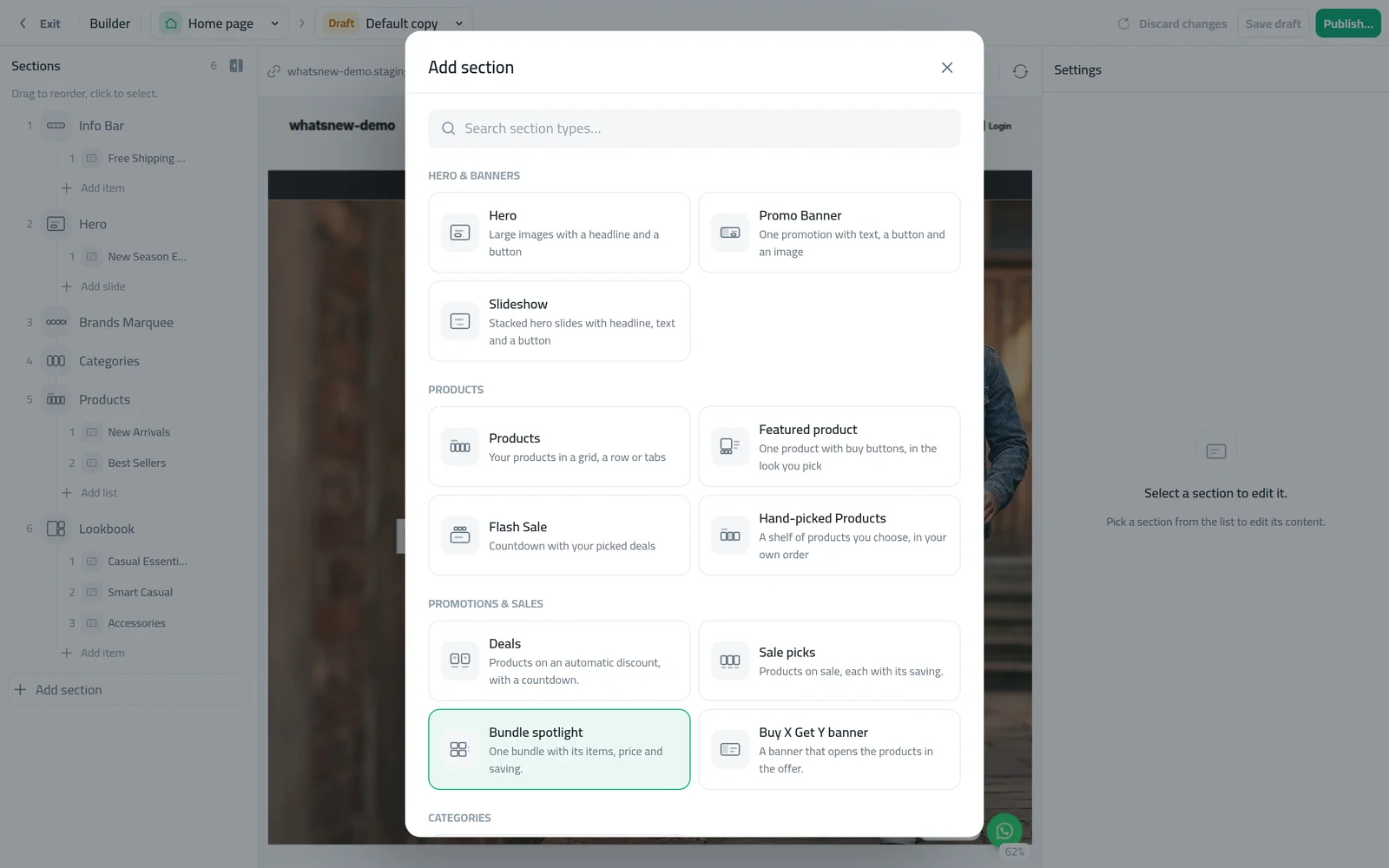
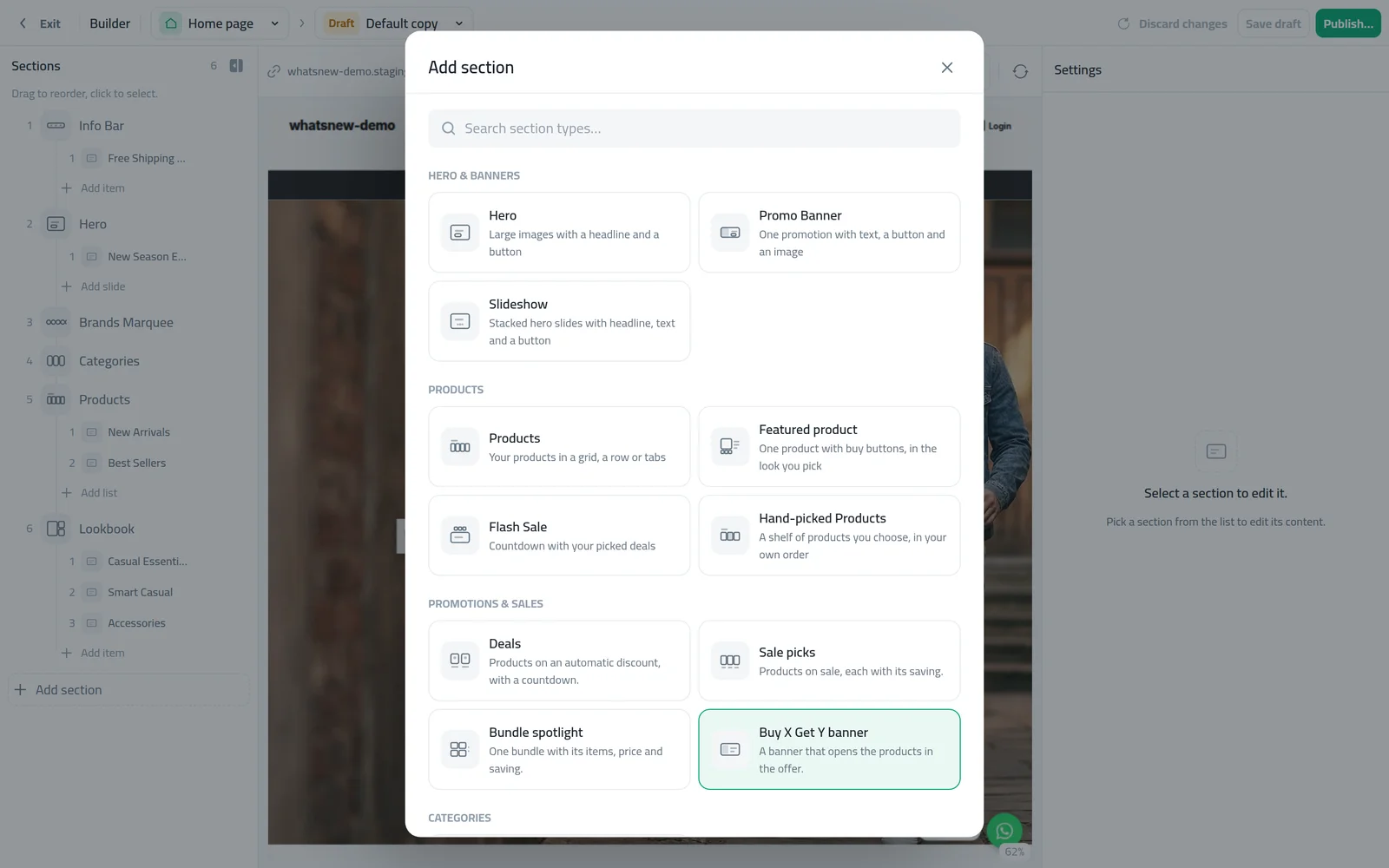
Under Add section › Promotions & Sales, next to Deals, you can add:
- Sale picks: products on sale, each with its saving, a View all sale link and an optional countdown.
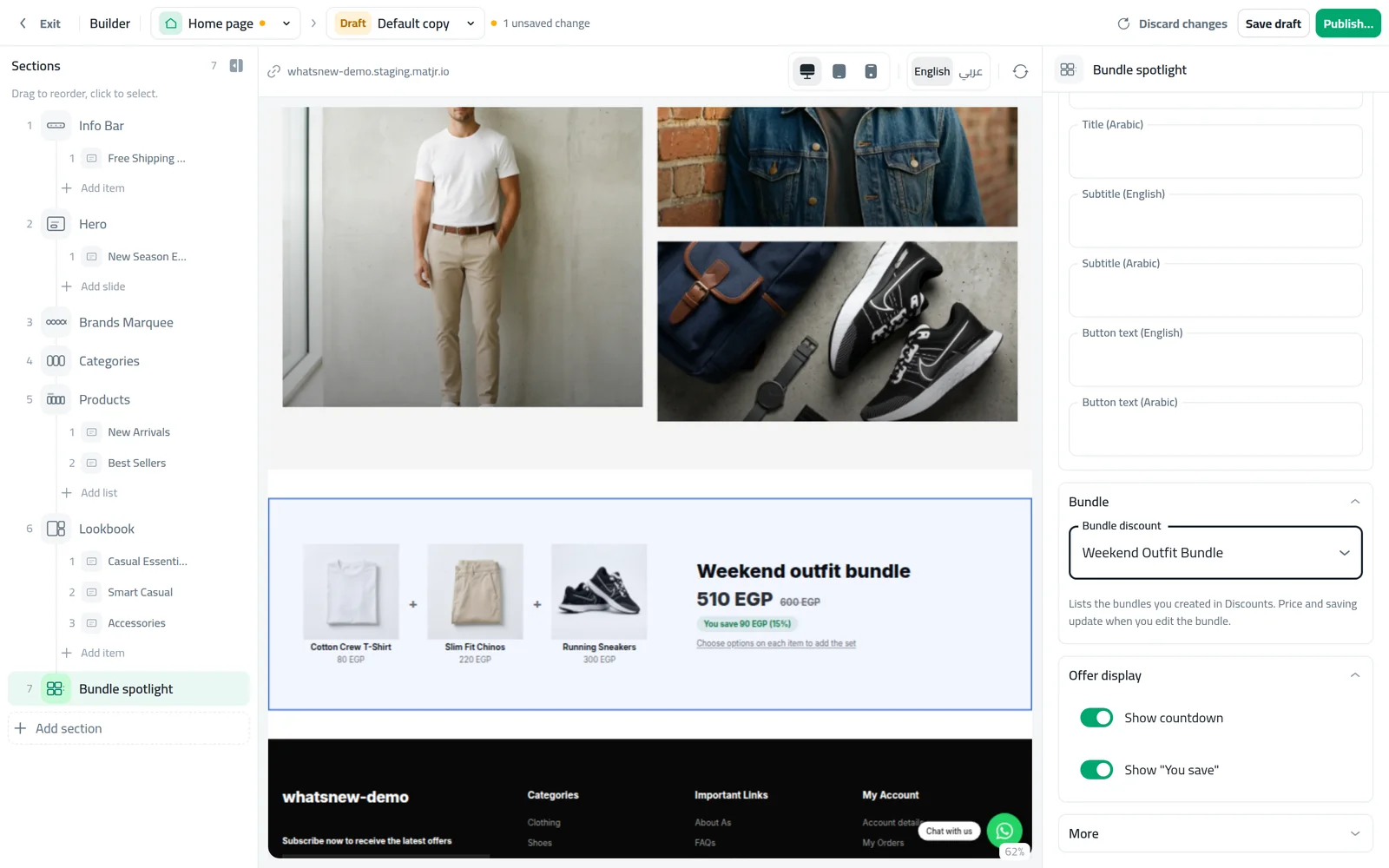
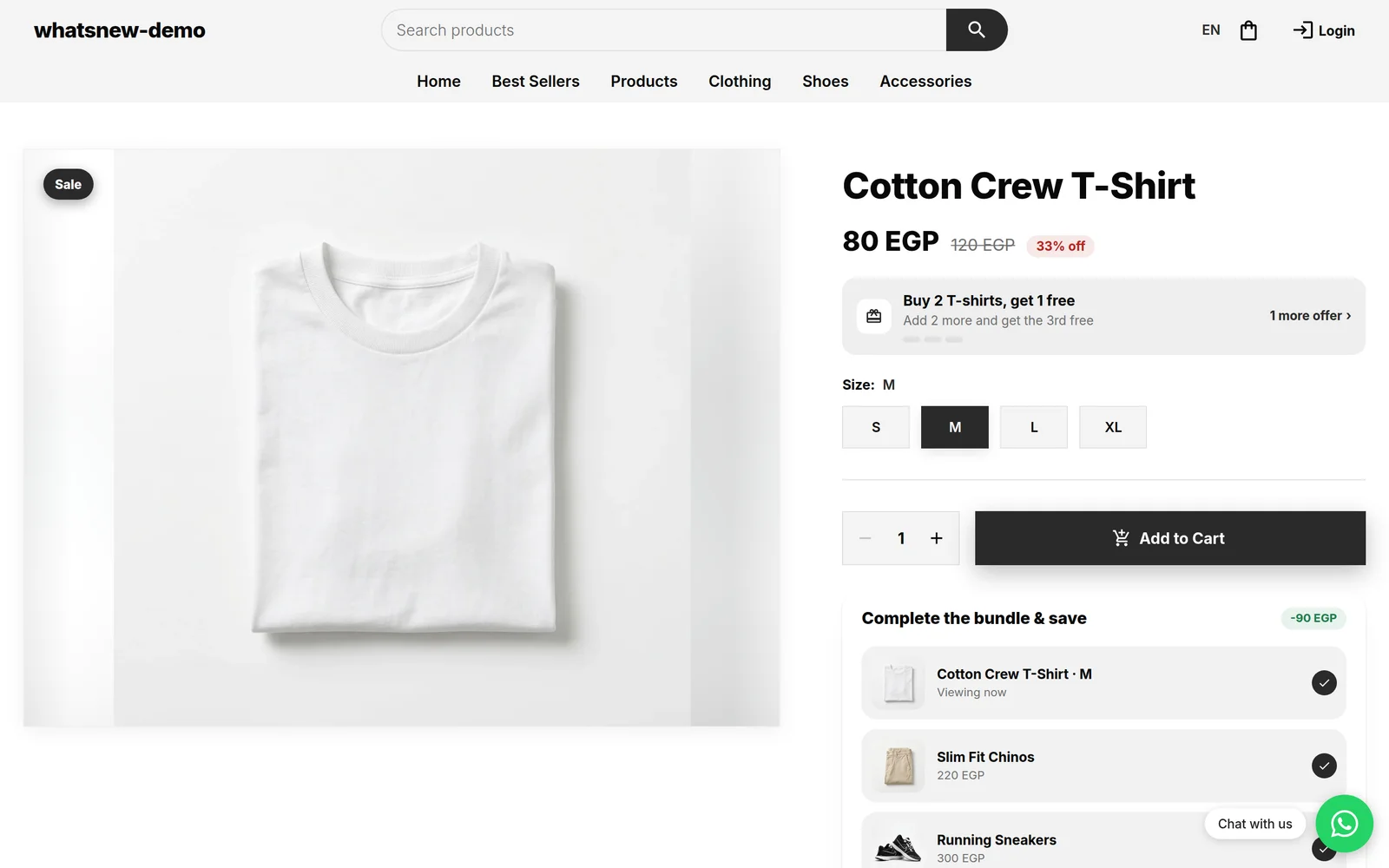
- Bundle spotlight: one bundle with its products, the bundle price next to the price bought separately, the saving, a countdown and a button that adds the whole bundle to the cart.
- Buy X Get Y banner: the offer name and what shoppers get, the product photos with a Free tag, a countdown and a Shop the offer button that opens the products in the offer.
How to use it
Open Storefront Design › Design, choose the Home page and open your draft. Click Add section and look under Promotions & Sales.
Choose Bundle spotlight and pick the bundle under Bundle discount. The preview shows its products, price and saving.
Choose Buy X Get Y banner and pick the offer under Buy X Get Y discount. Drag the sections where you want them and publish.
Good to know
- Create the bundle or Buy X Get Y offer under Marketing › Discounts first. Only active offers can be picked.
- Prices, savings and countdowns come from the offer, so they update when you edit it.
- Each section uses its own ready design: a grid for Sale picks, and side-by-side layouts for Bundle spotlight and Buy X Get Y banner.
See every home page offer section in how to show offers on your store home page.
Frequently asked questions
Why can't I pick a bundle in Bundle spotlight?
It lists only active bundles. Create one under Marketing › Discounts, or check its start and end dates.
Will the section update when I change the offer?
Yes. Prices, savings and the countdown come from the offer itself.
Can I use more than one of these sections?
Yes. Add each one you need, for example a Bundle spotlight near the top and a Buy X Get Y banner further down.
Try it on your own store
Start your free trial. No credit card required.