Store design
How to show offers on your store home page
How to show offers on your store home page with a Deals section, and choose how sale badges, savings and bundles look across your store.
- Where
- Storefront Design › Design › Home page › Add section › Deals
- Products
- 2 to 12, from automatic discounts, one discount or a category
- Badges
- Theme › Sale & discount badges, saved right away
- Product page
- Price block, Offers block and Bundle card
An offer only sells when shoppers notice it. This walk-through shows how to show offers on your store home page with a Deals section, and how to choose the way sale badges, savings and bundles look on product cards and product pages.
Before you start
- Create the offer first. The Deals section shows products that are on an automatic discount. If you have none yet, follow how to create a discount code and other offers and choose Automatic discount.
- Check the dates. Only active offers show. A scheduled offer appears when it starts.
- Pick strong products. Four to eight good deals catch the eye better than a long row of small ones.
- For a bundle or Buy X Get Y section, create that bundle or Buy X Get Y offer first and make sure it is active.
How to show offers on your home page
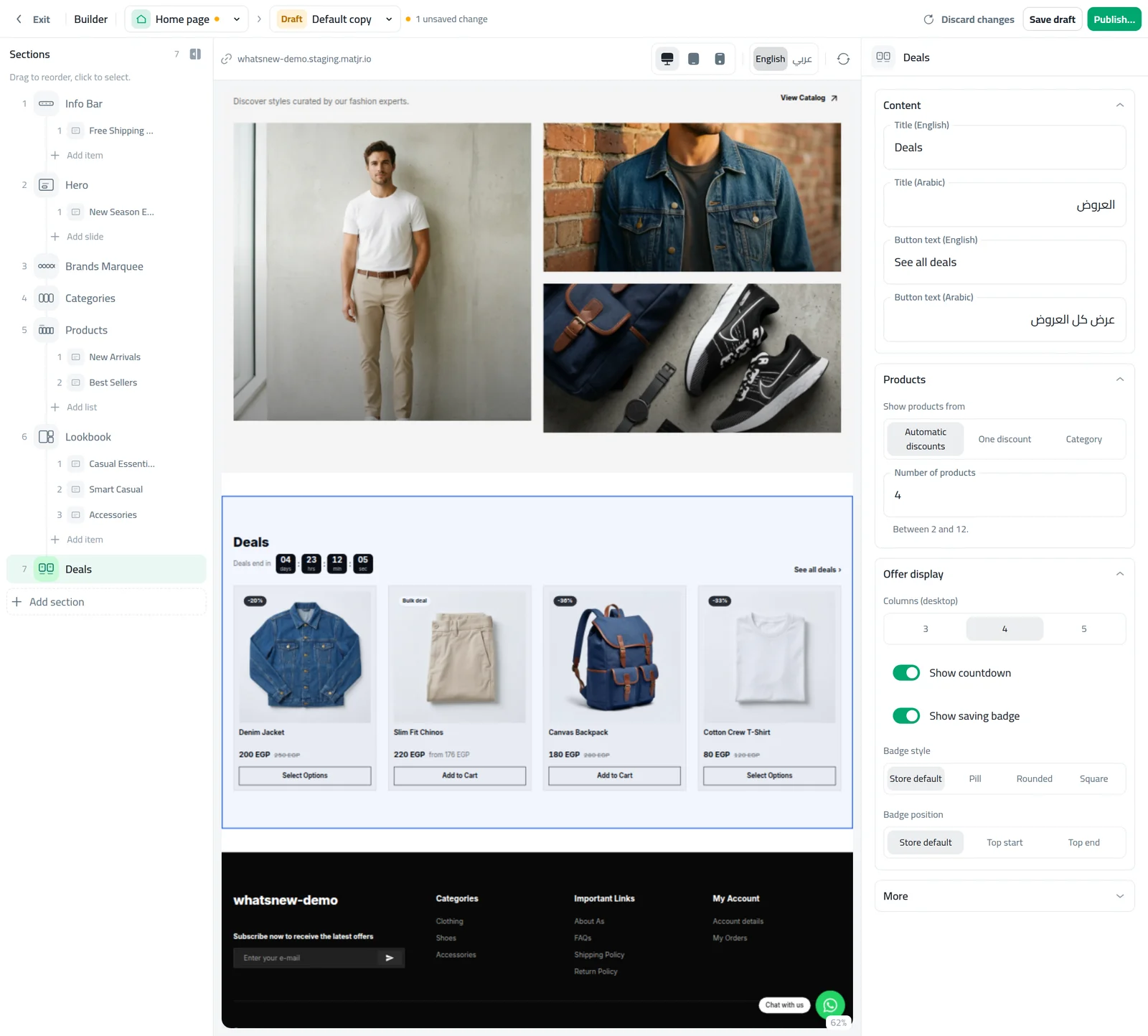
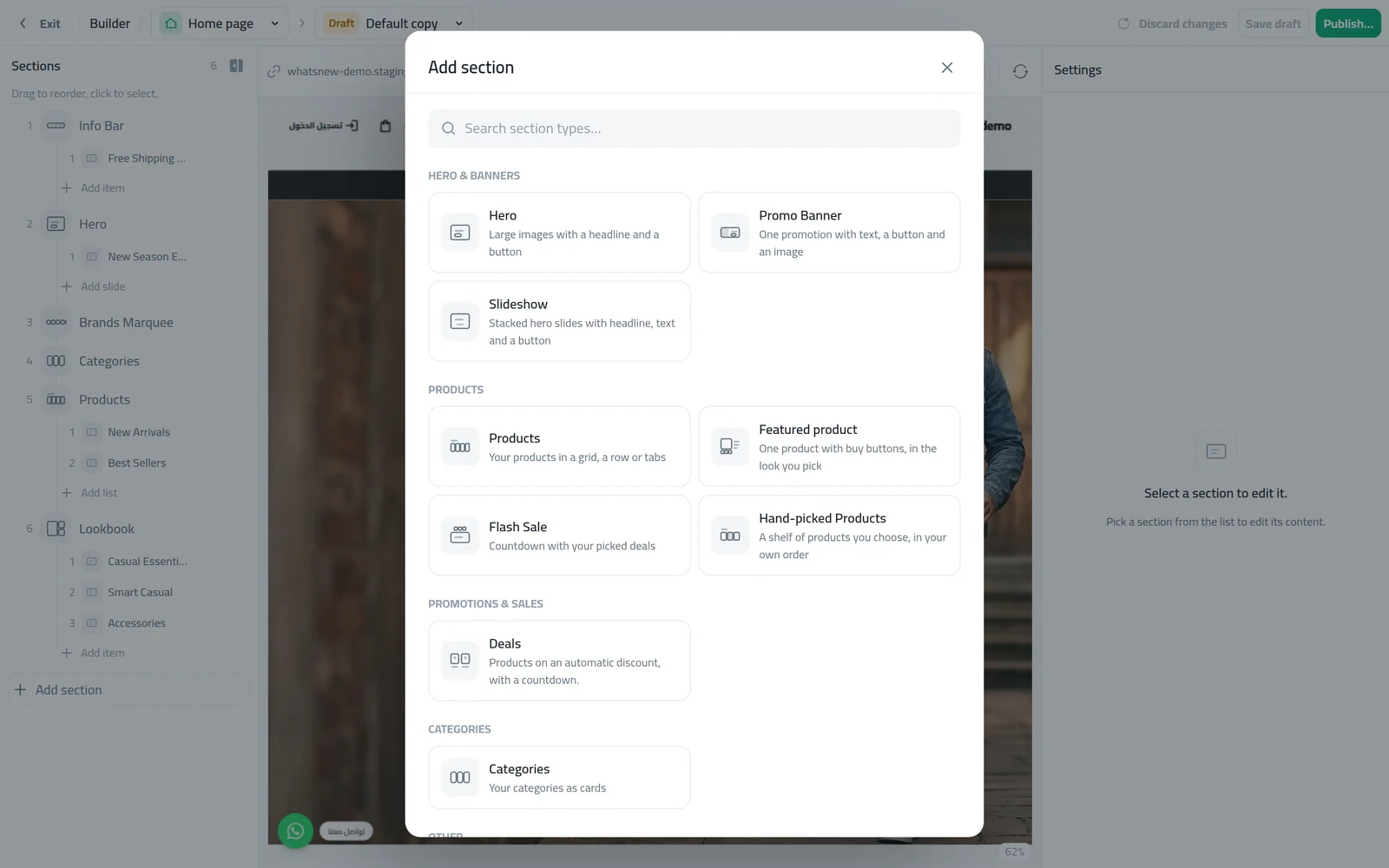
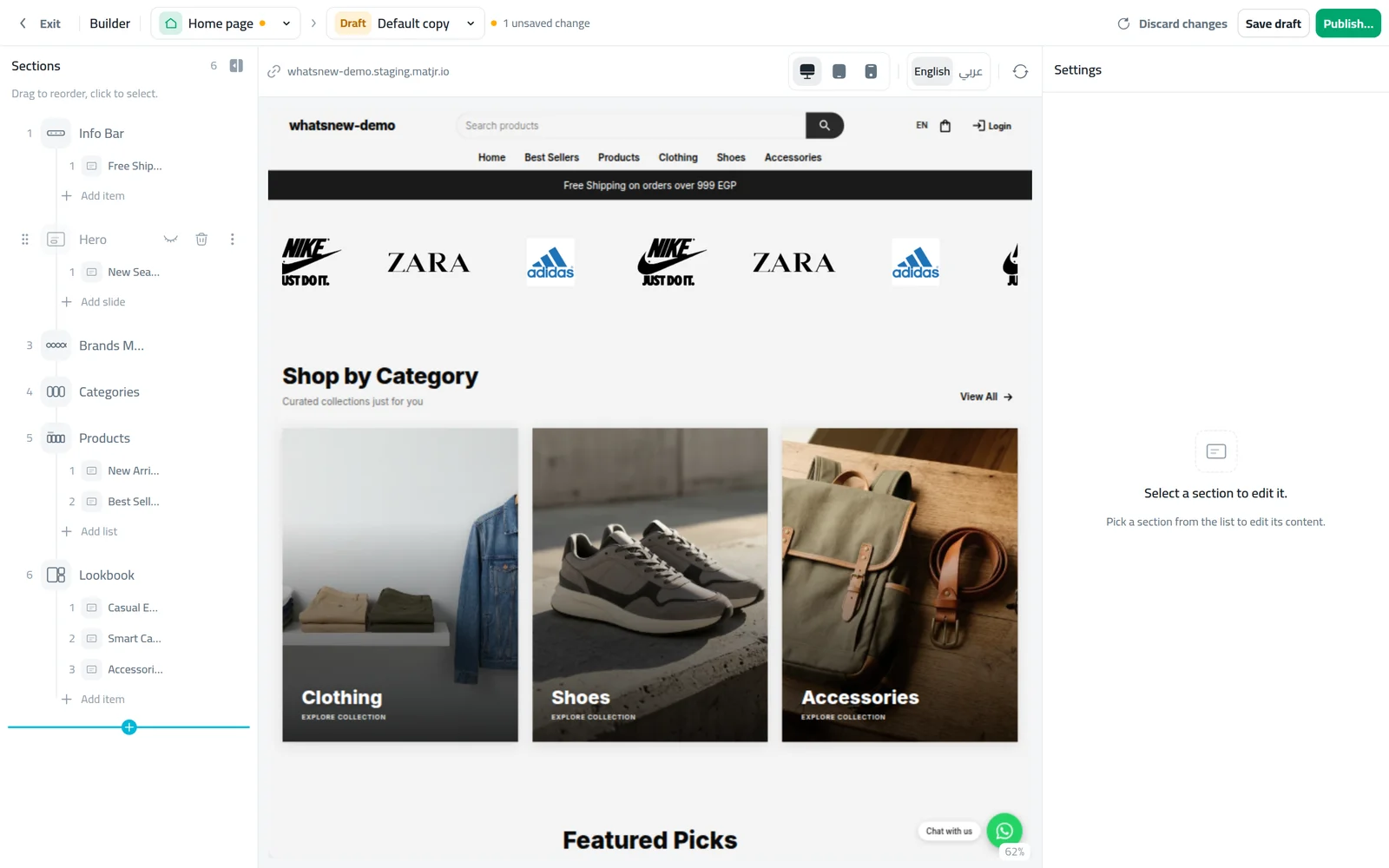
Open Storefront Design › Design, choose the Home page and start a draft. Click Add section and, under Promotions & Sales, choose Deals.
Under Products, choose where the products come from in Show products from: Automatic discounts, One discount or a Category. Set the Number of products (2 to 12).
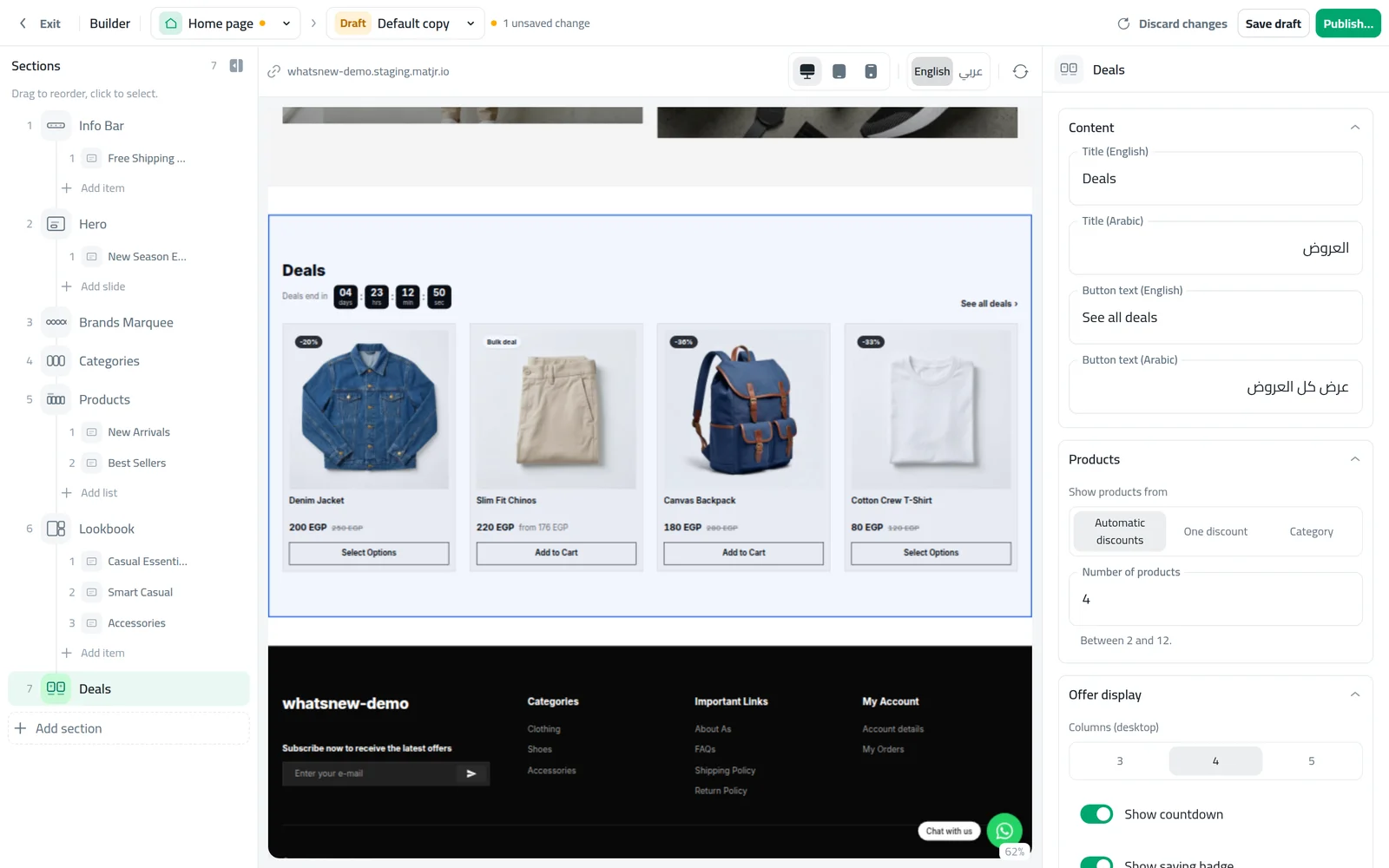
Under Offer display, choose the columns on desktop, and turn on Show countdown and Show saving badge. Drag the section near the top, check the phone preview and publish.
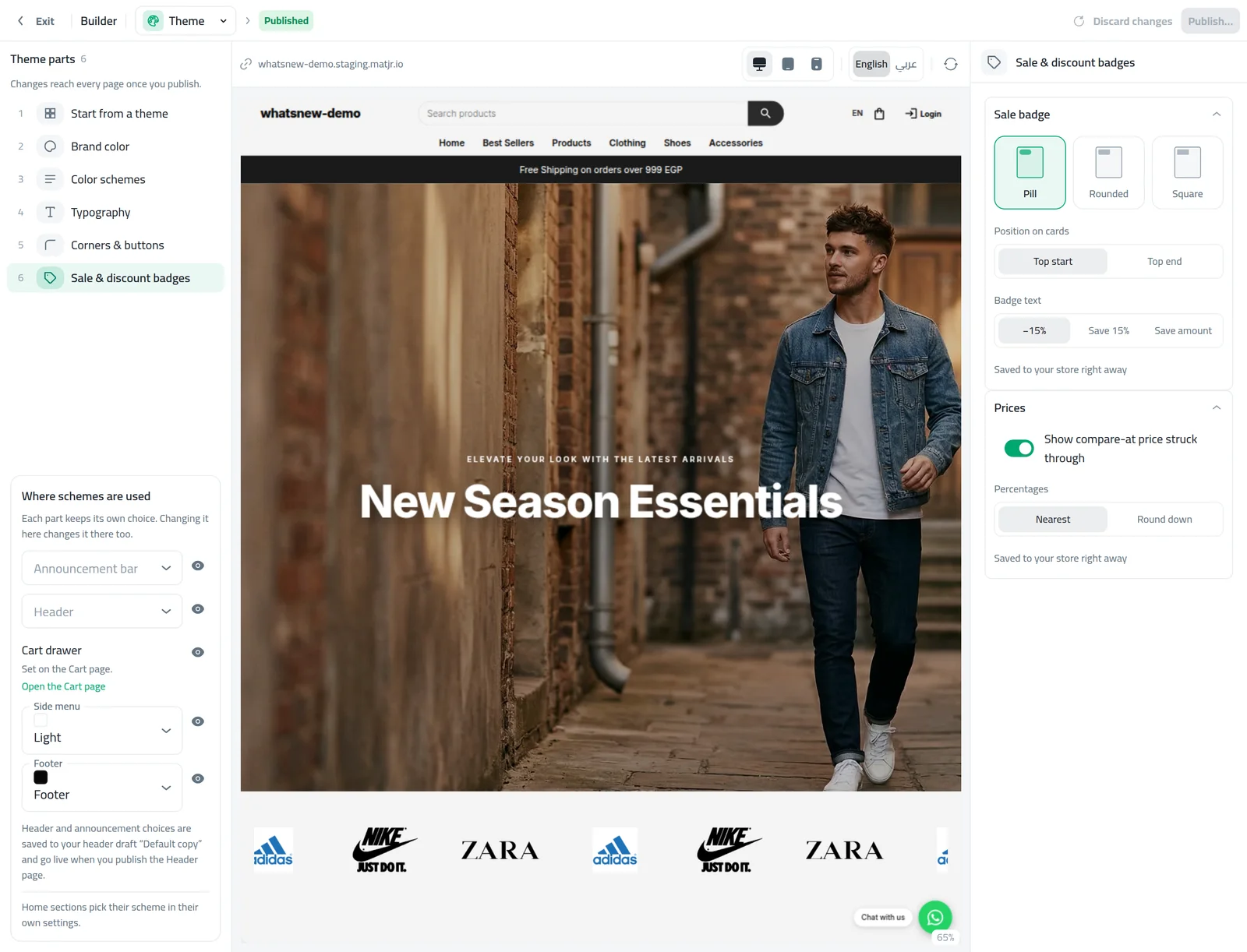
To set how sale badges look everywhere, open the Theme page and choose Sale & discount badges. Pick the badge Shape, Position on cards and Badge text, and whether to show the compare-at price struck through.
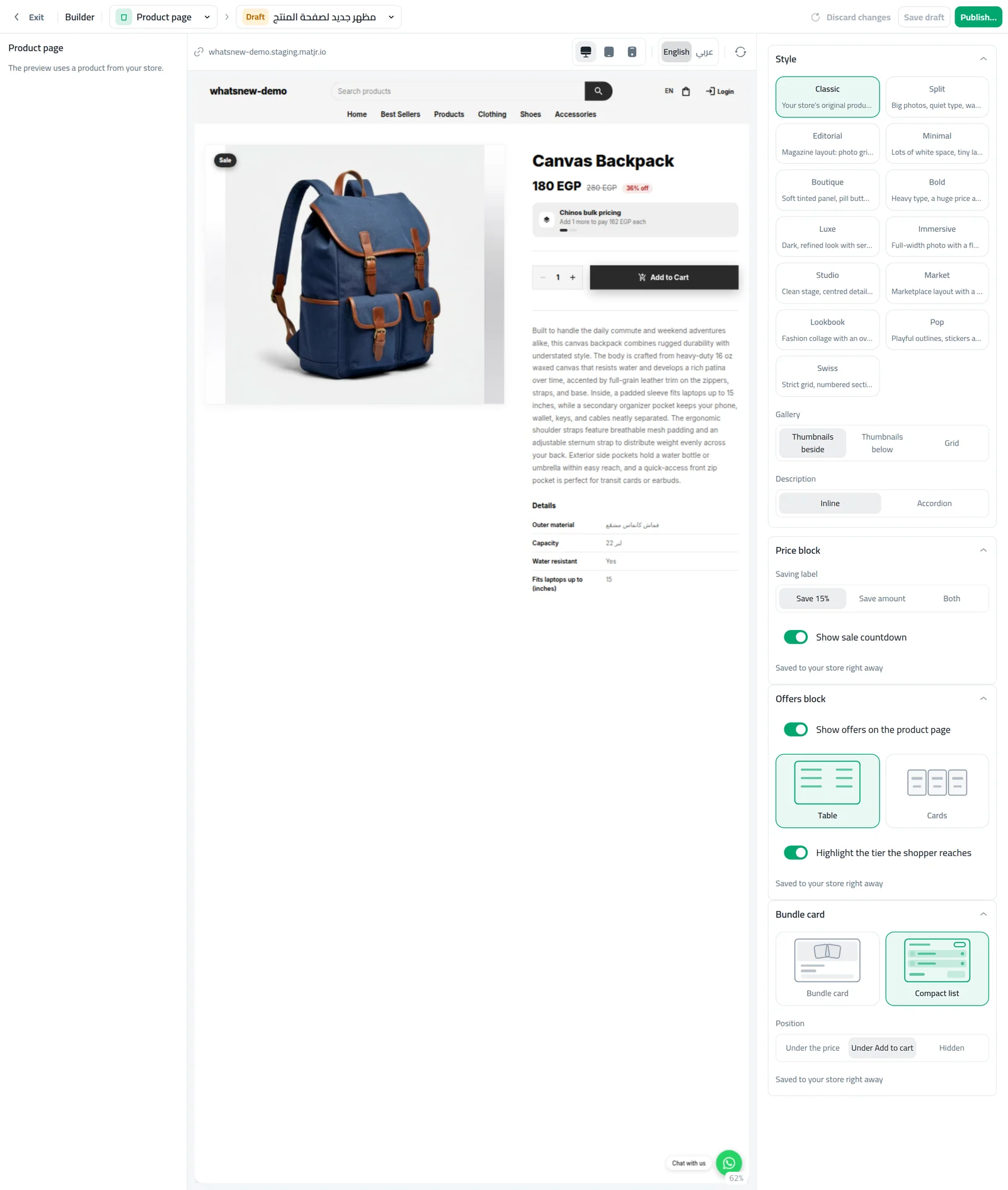
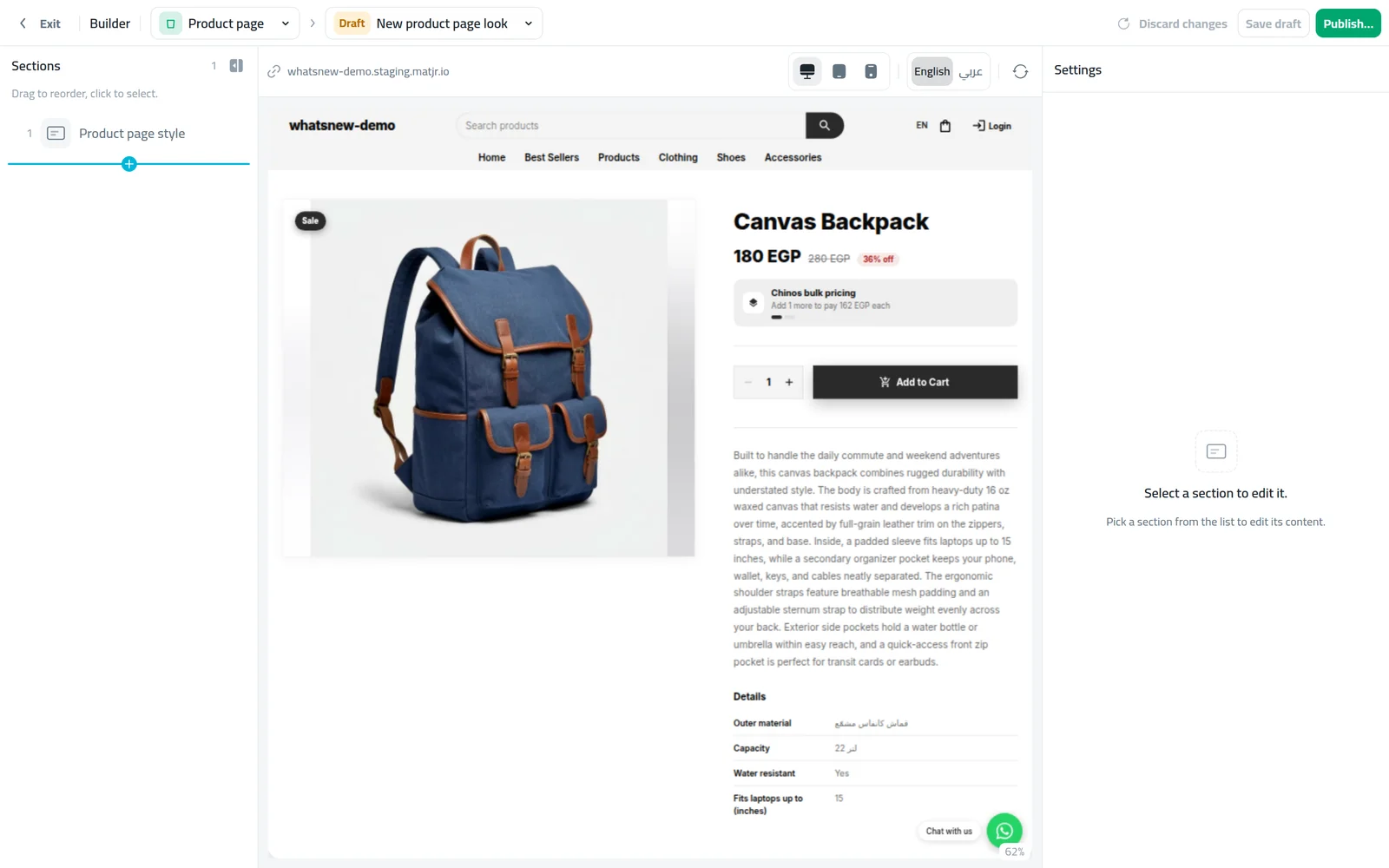
Open the Product page to choose the Price block, Offers block and Bundle card: the saving label, the quantity price table and where the bundle card sits.
What the Deals settings do
Automatic discounts shows products from all your active automatic discounts, so the section stays up to date as offers start and end. One discount focuses on a single offer, such as a weekend promotion. Category shows on-sale products from one category. The countdown uses the end date of the offer, so set one when you want it to show.
How to show a bundle or a Buy X Get Y offer on your home page
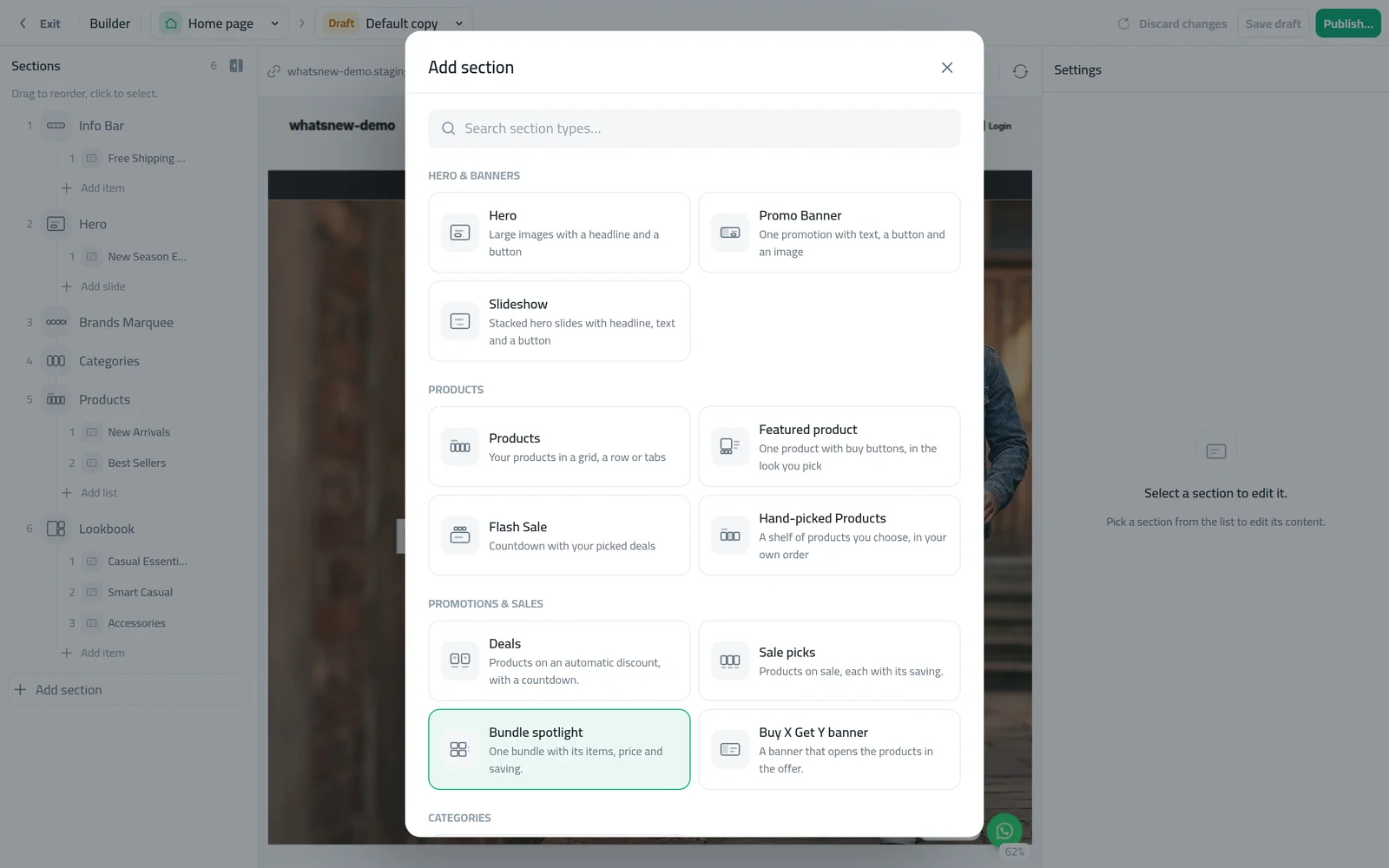
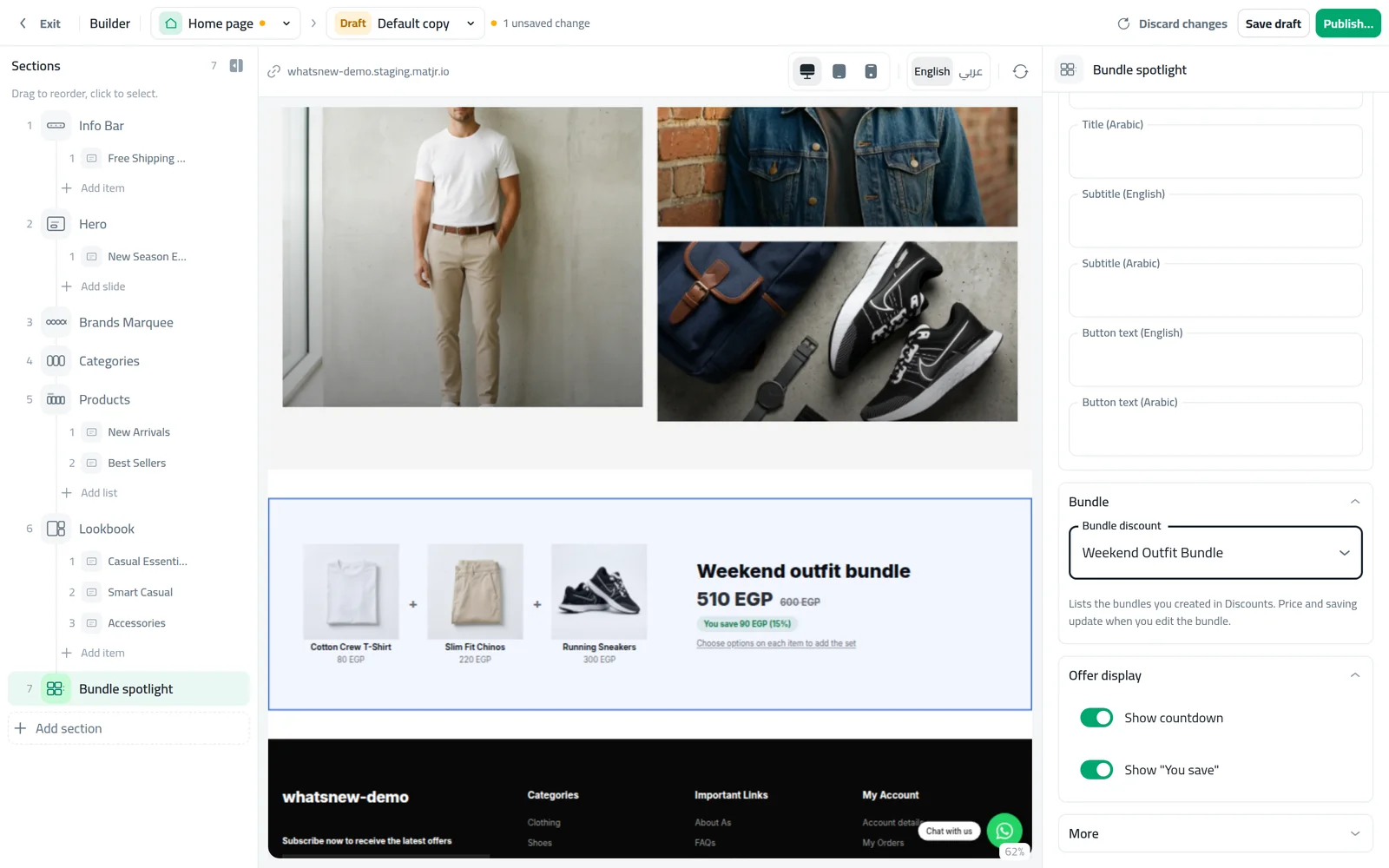
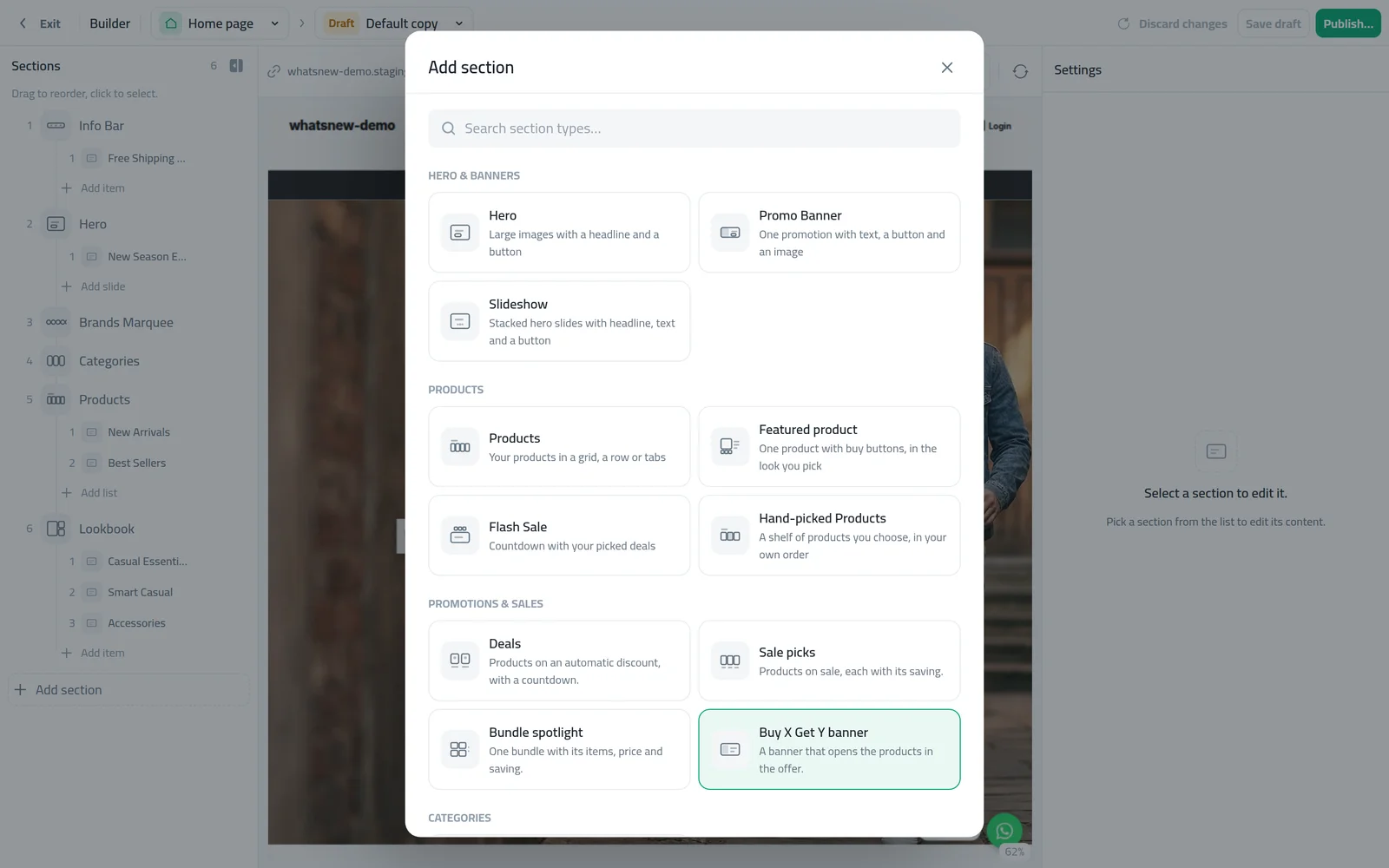
Besides Deals, three sections show one kind of offer each. Sale picks shows products on sale, each with its saving, a View all sale link and an optional countdown. Bundle spotlight shows a bundle on your home page with its products, its price, the saving and a button that adds the whole bundle to the cart. Buy X Get Y banner shows the offer, the products with a Free tag and a countdown.
In your home page draft, click Add section. Under Promotions & Sales, you find Sale picks, Bundle spotlight and Buy X Get Y banner next to Deals.
Choose Bundle spotlight and pick the bundle under Bundle discount. The preview shows its products, the bundle price next to the price bought separately, and the saving.
Choose Buy X Get Y banner and pick the offer under Buy X Get Y discount. Its Shop the offer button opens a page with only the products in that offer. Drag the sections into place and publish.
Each section uses its own ready design, and its prices and countdown come from the offer, so they update when you edit it.
Badges and product page settings
Badges and product page offer settings are saved to your store right away, without publishing a draft. They apply to every product card and product page, so check a few products after you change them.
- Saving label: show the saving as a percentage (Save 15%), an amount, or both.
- Show offers on the product page: lists the offers that include the product, like Buy X Get Y or bulk pricing.
- Quantity price table: show bulk pricing as a table or cards, and highlight the tier the shopper reaches.
- Bundle style and position: a bundle card or a compact list, under the price, under Add to cart, or hidden.
- Percentages: round savings to the nearest number or down, so a badge never promises more than the real discount.
Deals or Flash Sale?
Use Deals for products on your discounts: it follows your offers and their dates. Use the Flash Sale section for a short sale built on product sale prices with one shared countdown. You can learn that in how to run a flash sale.
Ideas for your home page offers
- Weekend deals: an automatic discount on a few best sellers from Thursday to Saturday, shown with a countdown.
- Category of the week: pick one category as the source and change it every week.
- Buy more, pay less: turn on the quantity price table so shoppers see the next price on the product page.
- Season openers: start Ramadan, Eid or back-to-school with one focused offer at the top of the page.
Common mistakes
- An empty section. If no automatic discount is active, Deals has nothing to show. Check your offers under Marketing › Discounts.
- A countdown with no end date. An offer without an end date has nothing to count down to.
- Forgetting to publish. Home page changes stay in the draft until you publish.
- Too many badges. If every product shows a badge, none stands out. Keep deals focused.
Related tasks
Learn the builder in how to design your online store. Set up the offers themselves in how to create a discount code and other offers. See what changed in Sell more with bundles, Buy X Get Y and bulk pricing and Spotlight a bundle or a Buy X Get Y offer on your home page.
Frequently asked questions
Why is my Deals section empty?
It shows products on an active automatic discount. Create one under Marketing › Discounts, or choose a category as the source.
Does the countdown work for every offer?
It counts down to the end date of the offer. An offer with no end date has no countdown.
Do I need to publish badge changes?
No. Sale & discount badges and the product page offer settings are saved to your store right away.
Can I show a bundle on the product page?
Yes. Under Bundle card, choose a card or a compact list and place it under the price or under Add to cart.
Why can't I pick a bundle in Bundle spotlight?
It lists only active bundles. Create one under Marketing › Discounts, or check its start and end dates.
Try it on your own store
Start your free trial. No credit card required.