Orders
Edit deposit messages where shoppers read them
Write the deposit notice and payment instructions with a live preview of your store, and let shoppers check their screenshot before they send it.
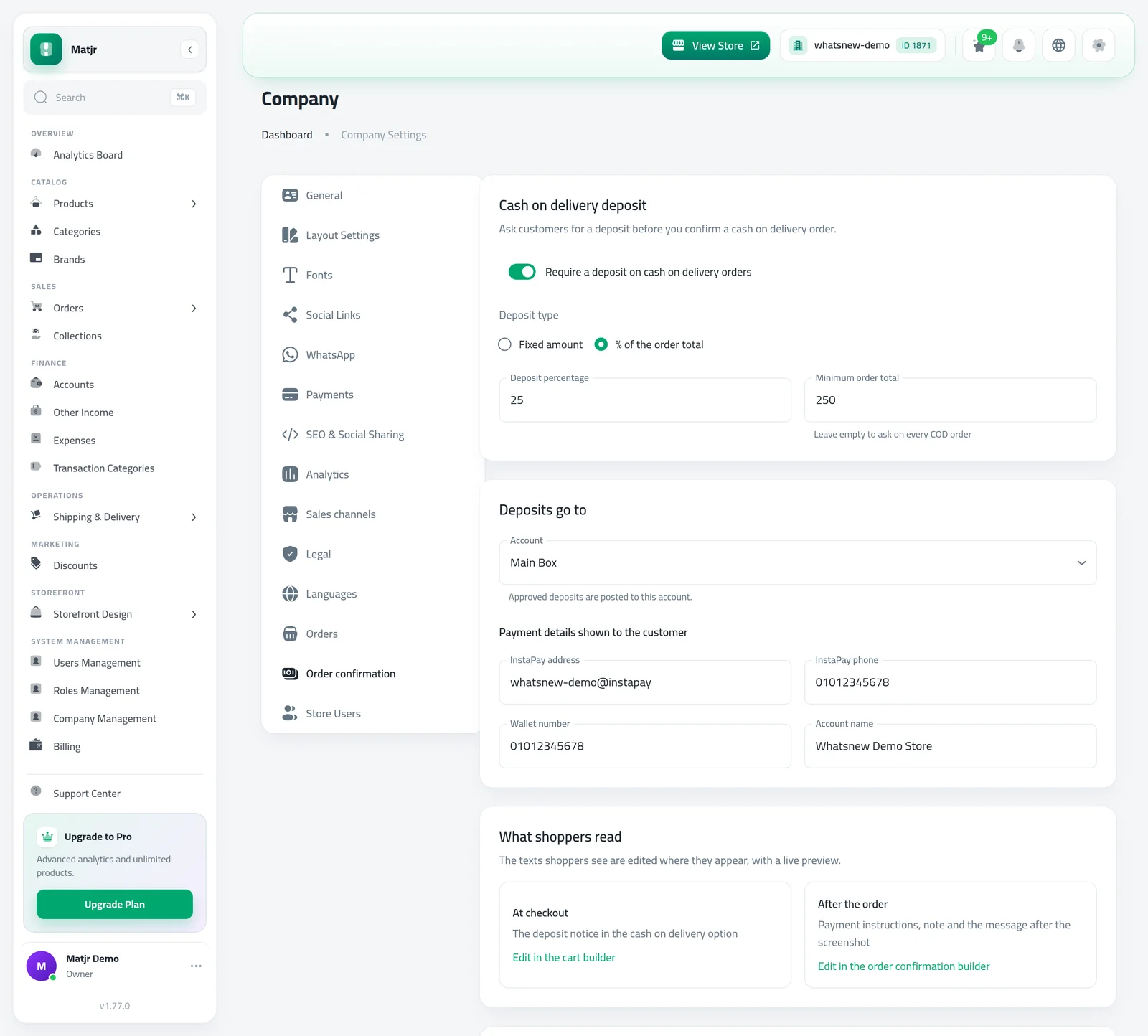
- Checkout notice
- Cart builder, Cash on delivery option
- After the order
- Order confirmation builder, Deposit block
- Still in Settings
- Deposit rule, payment details, auto-cancel
- Order page
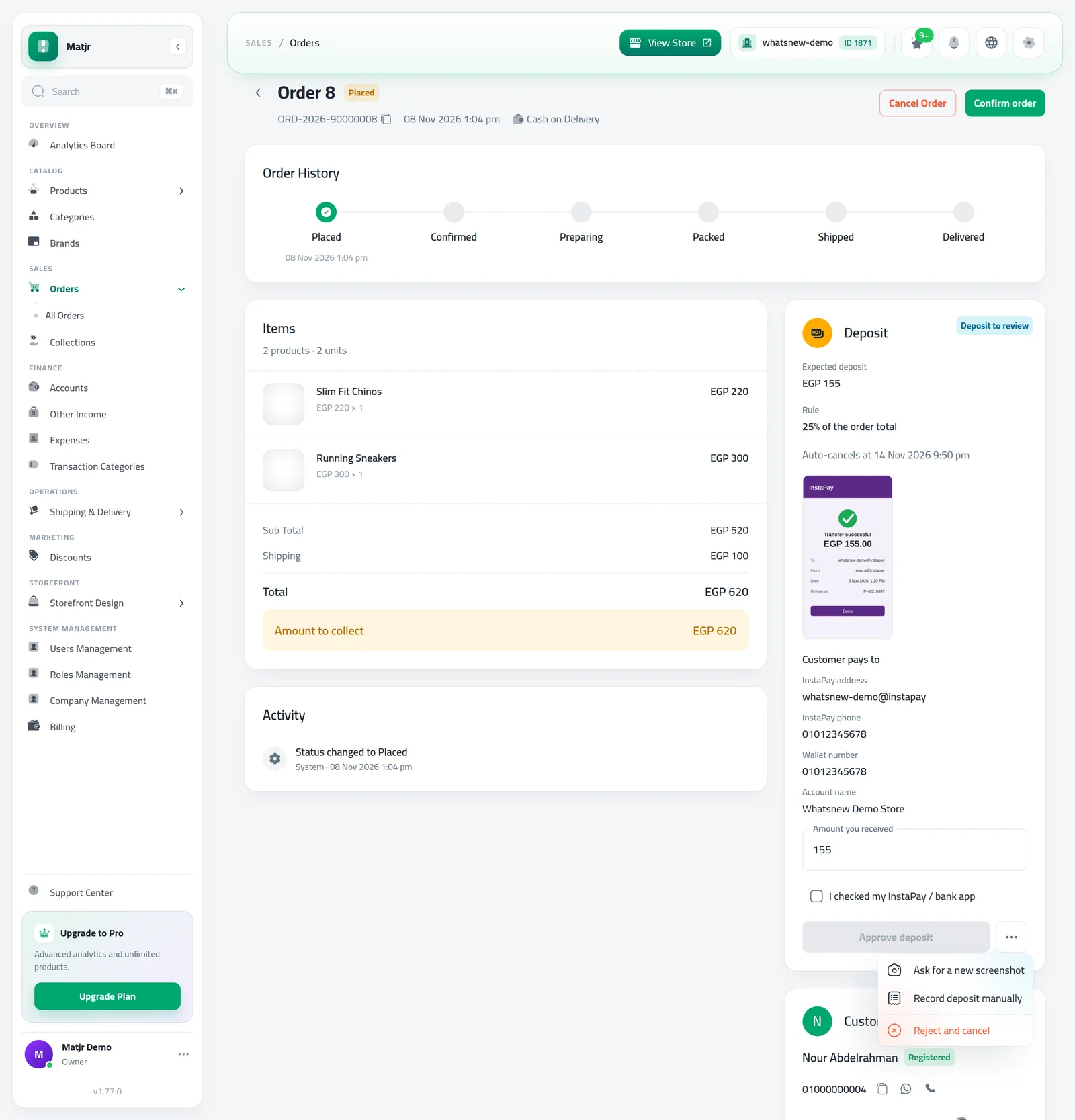
- Approve deposit plus a More actions menu
Write your deposit messages while you see exactly how they look on your store. Shoppers get a clearer upload too: they check their screenshot before sending it and see that you received it.
What changed
The deposit texts moved out of Settings and into the page builders, next to a live preview:
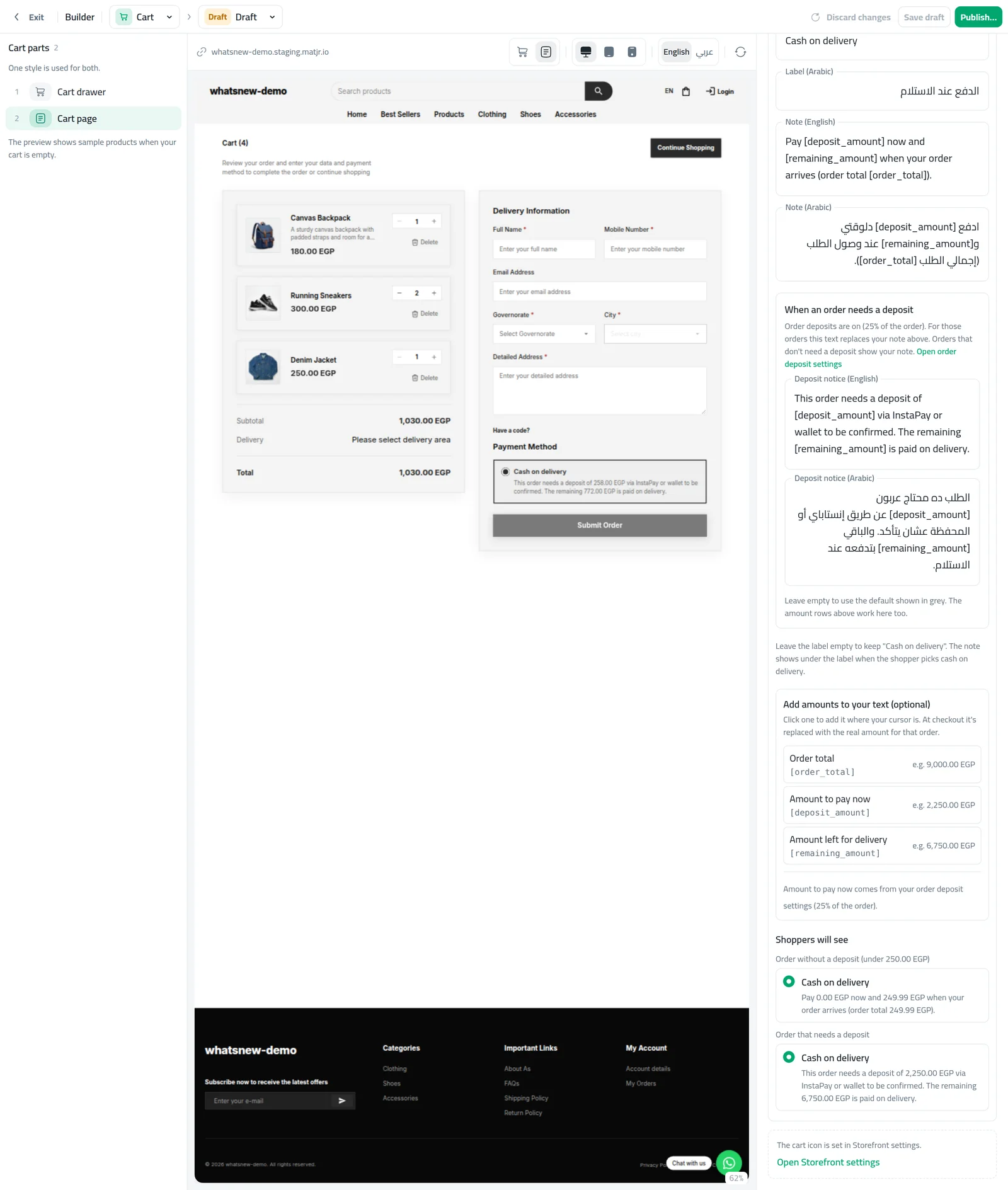
- The checkout Deposit notice is in the cart builder, under Cash on delivery option.
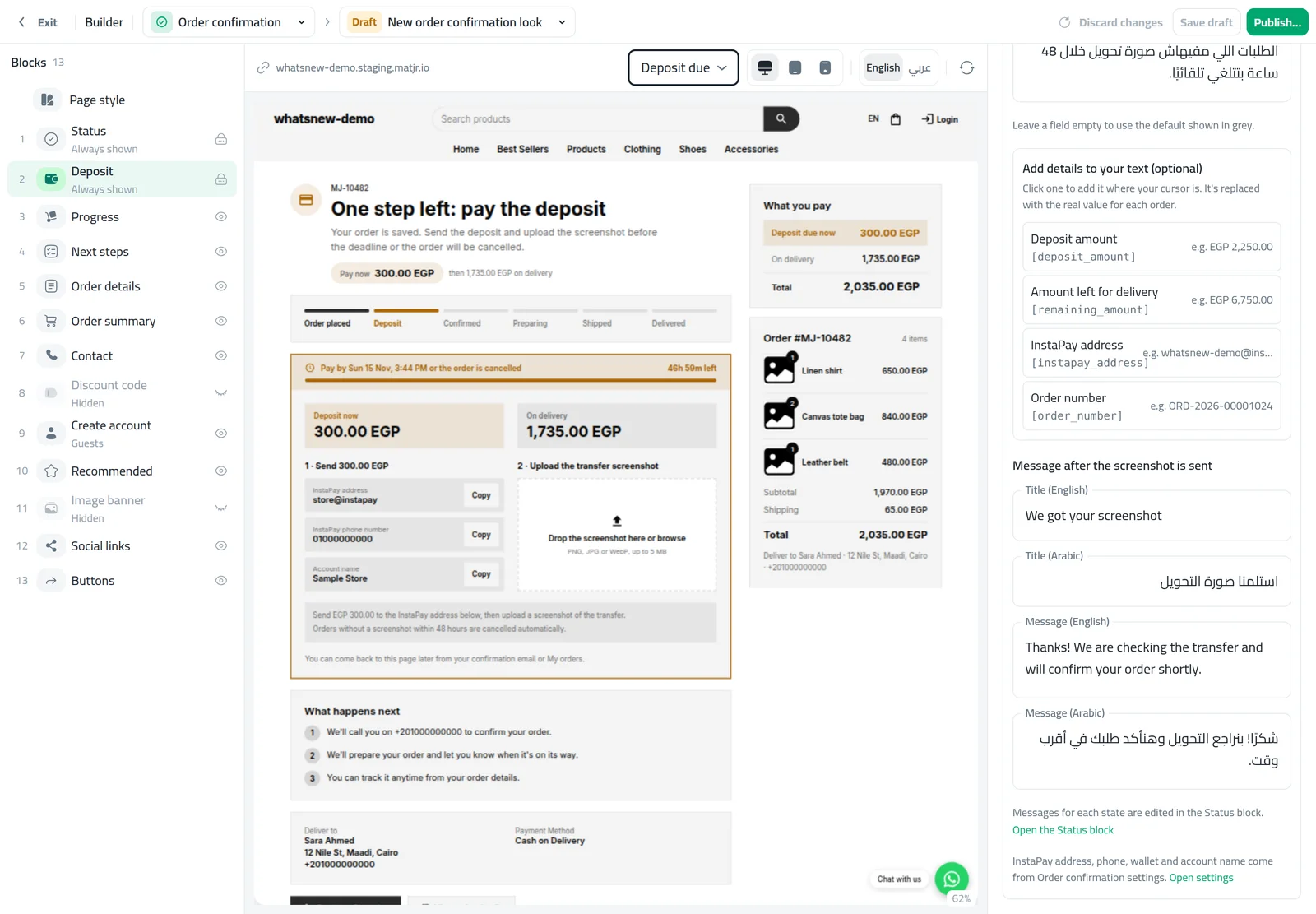
- Payment instructions, the Extra note and the Message after the screenshot is sent are in the Deposit block of the order confirmation builder.
In Settings, the Order confirmation tab now shows a What shoppers read card that links to both. The deposit rule, payment details, account and auto-cancel stay in Settings.
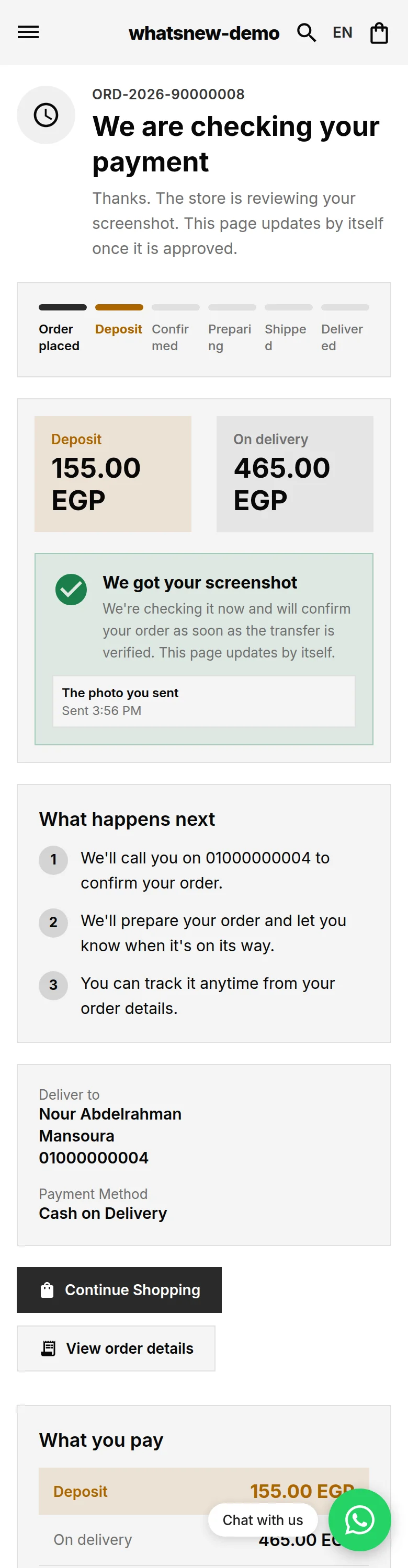
Shoppers now see their screenshot and confirm it before sending, watch the real upload progress, and get a "We got your screenshot" card once it arrives. On the order page in your dashboard, Approve deposit now sits next to a More actions menu with Ask for a new screenshot, Record deposit manually and Reject and cancel.
How to use it
Open Settings, go to Order confirmation and find What shoppers read.
Press Edit in the cart builder. Under Cash on delivery option, write the Deposit notice and check it with Order that needs a deposit. Then publish the cart.
Back in Settings, press Edit in the order confirmation builder. Open the Deposit block, write the payment instructions, the note and the message shoppers see after sending the screenshot, then publish.
Shoppers see their photo under Is this the right screenshot? and press Send this screenshot. Once it is sent, a card tells them you received it, with the photo and the time it was sent.
On the order in your dashboard, press Approve deposit, or open More actions for the other choices.
Good to know
- Leave a field empty to use the default text shown in grey.
- The order page texts can include the deposit amount, the amount left for delivery, your InstaPay address and the order number.
- All the steps: How to take a deposit on cash on delivery orders.
Frequently asked questions
Where did the customer texts in Settings go?
They moved to the page builders, next to a live preview. In Settings, the What shoppers read card links to both.
Where are Ask for a new screenshot and Reject and cancel now?
In the More actions menu next to Approve deposit on the order. Record deposit manually is there too.
What does the shopper see after sending the screenshot?
A card saying you received it, with the photo and the time it was sent. You can change its title and message in the Deposit block.
Try it on your own store
Start your free trial. No credit card required.