Orders
Find the orders that need you, faster
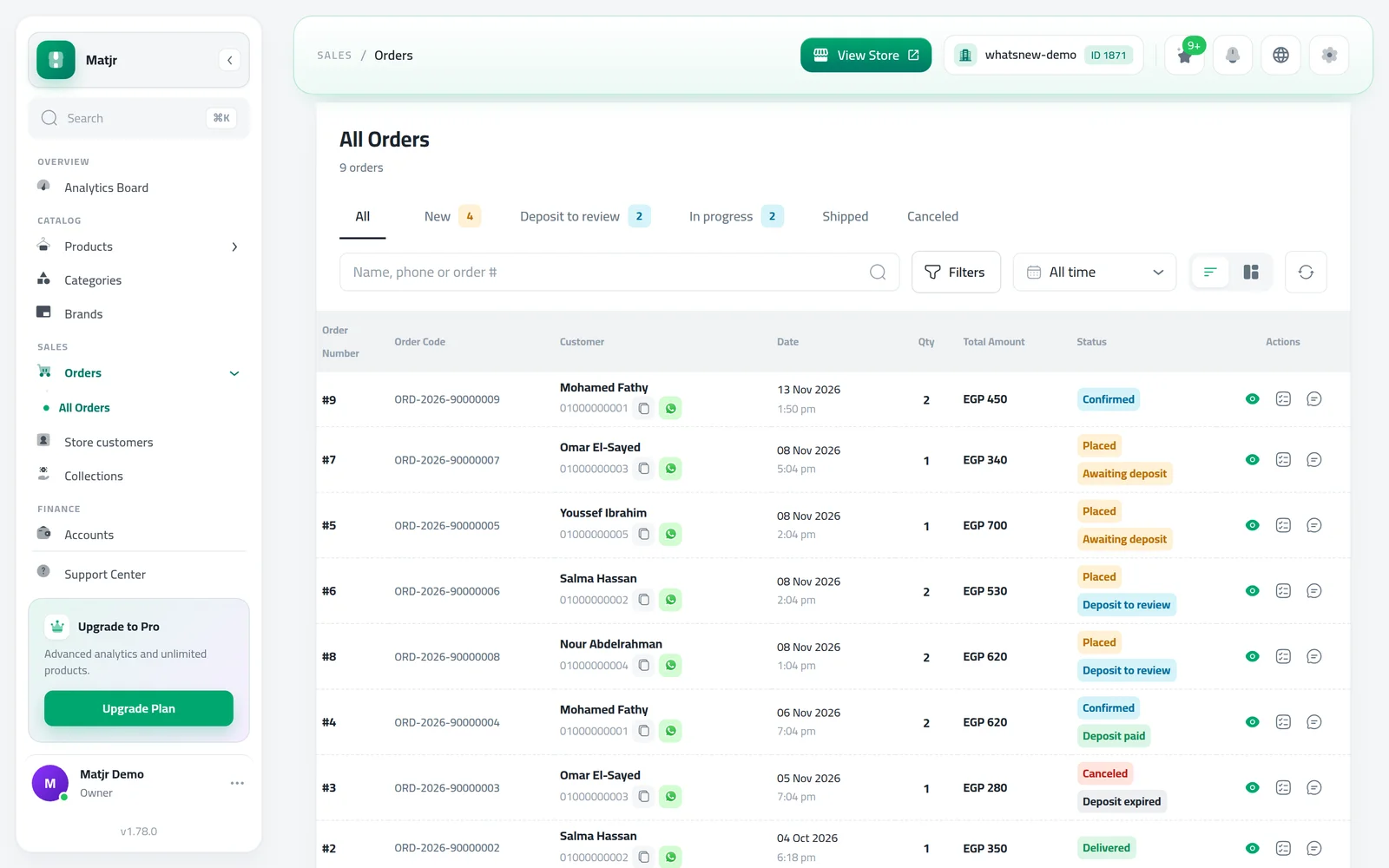
The Orders page now has tabs with counts for new, deposit and in-progress orders, a Filters panel, and the option to reopen a canceled order.
- Where
- Orders in the dashboard menu
- Who can use it
- Every store
- Reopen needs
- The refund permission
Start your day on the orders that need action. The Orders page now works like a to-do list, and you can bring back an order canceled by mistake.
What changed
- Tabs with counts. All, New, Deposit to review, In progress, Shipped and Canceled. The number on New, Deposit to review and In progress tells you how many orders are waiting. Deposit to review shows when your store takes deposits.
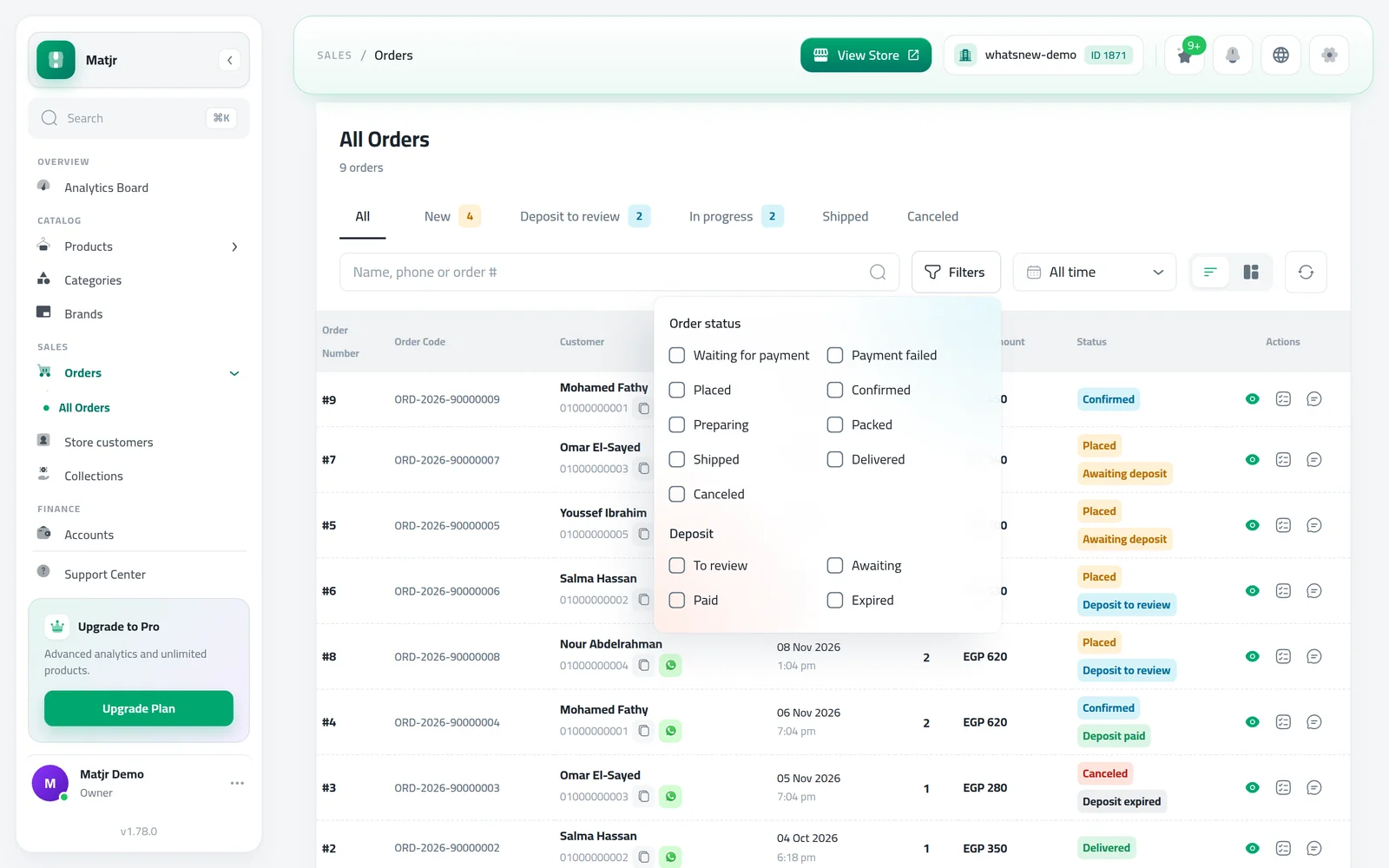
- Filters panel. Press Filters to pick several order statuses and deposit states together. Your choices appear as small labels you can remove one by one, or all at once with Clear all.
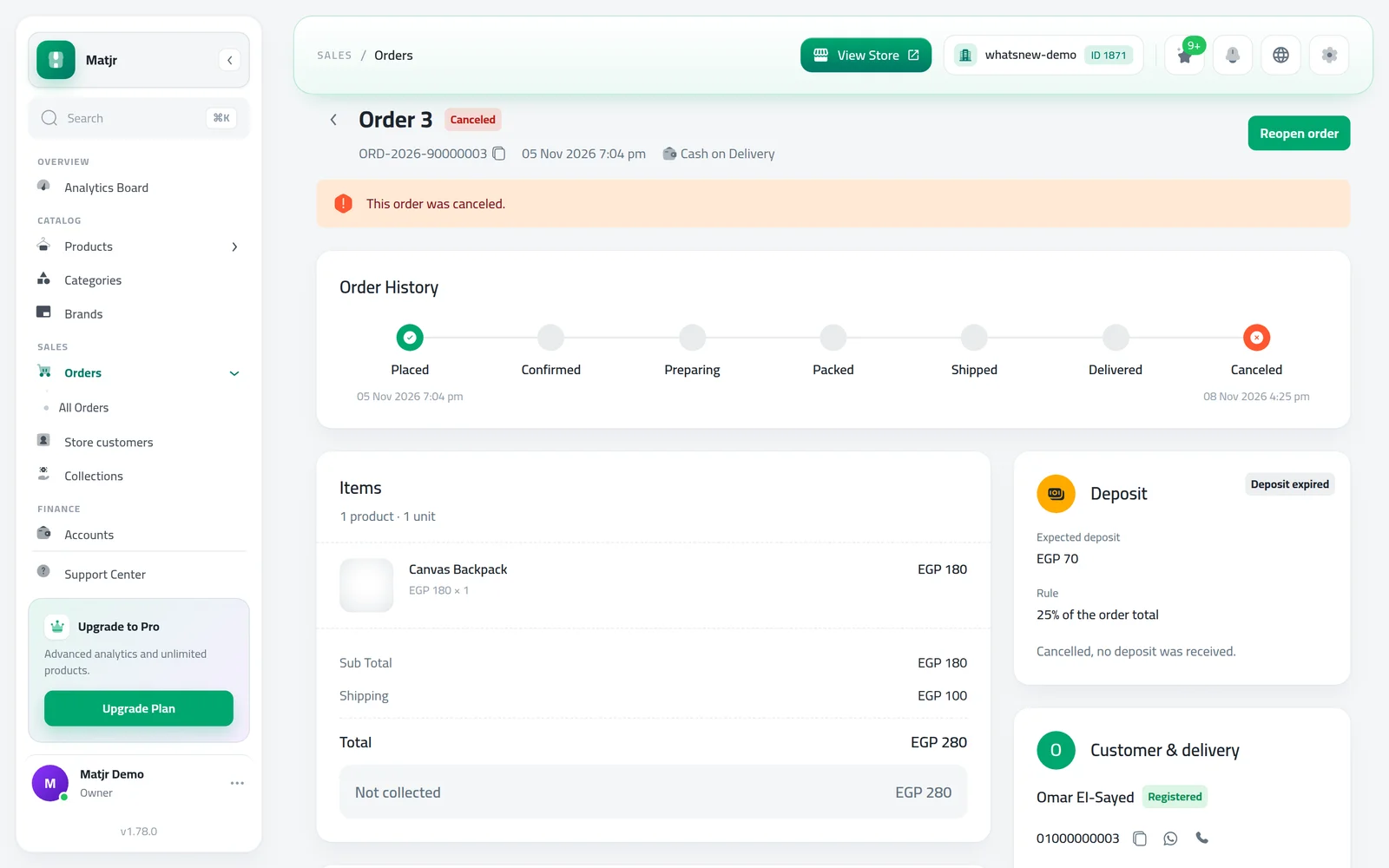
- Reopen order. A canceled order now has a Reopen order button. It sends the order back to Placed and it continues through the normal steps. You need the permission to refund orders, the same one you need to cancel.
How to use it
Open Orders. Press a tab to see only that group. On a phone you see All, New and More, and the rest are under More.
Press Filters. Tick one or more statuses under Order status, and a deposit state under Deposit.
To bring back a canceled order, open it and press Reopen order, then confirm. You can also pick Placed from its status menu in the list.
Good to know
- Reopening a canceled order puts it back to Placed. The stock and discount counts follow it, and a warning appears if an item is no longer available.
- Team members without the refund permission cannot reopen a canceled order.
- Any change in a tab or a filter takes you back to the first page.
Frequently asked questions
Where did the status chips go?
Statuses are now in the Filters panel, where you can pick several at once. The tabs cover the groups you use most.
Why do I not see Deposit to review?
It shows only when your store takes deposits.
What happens to a reopened order?
It goes back to Placed and continues through the normal steps, from confirming to delivery.
Try it on your own store
Start your free trial. No credit card required.