Store design
Edit your store's menu links without leaving the builder
Add, rename, reorder, hide or remove menu links right inside the Header page, and watch the header change beside you.
- Where
- Design › Header › Menu links
- Goes live
- Right away, no publish needed
- Works with
- Every header style
Your menu is how shoppers move around your store. You can now manage it in the same place where you design your header, so you never have to jump between screens.
What changed
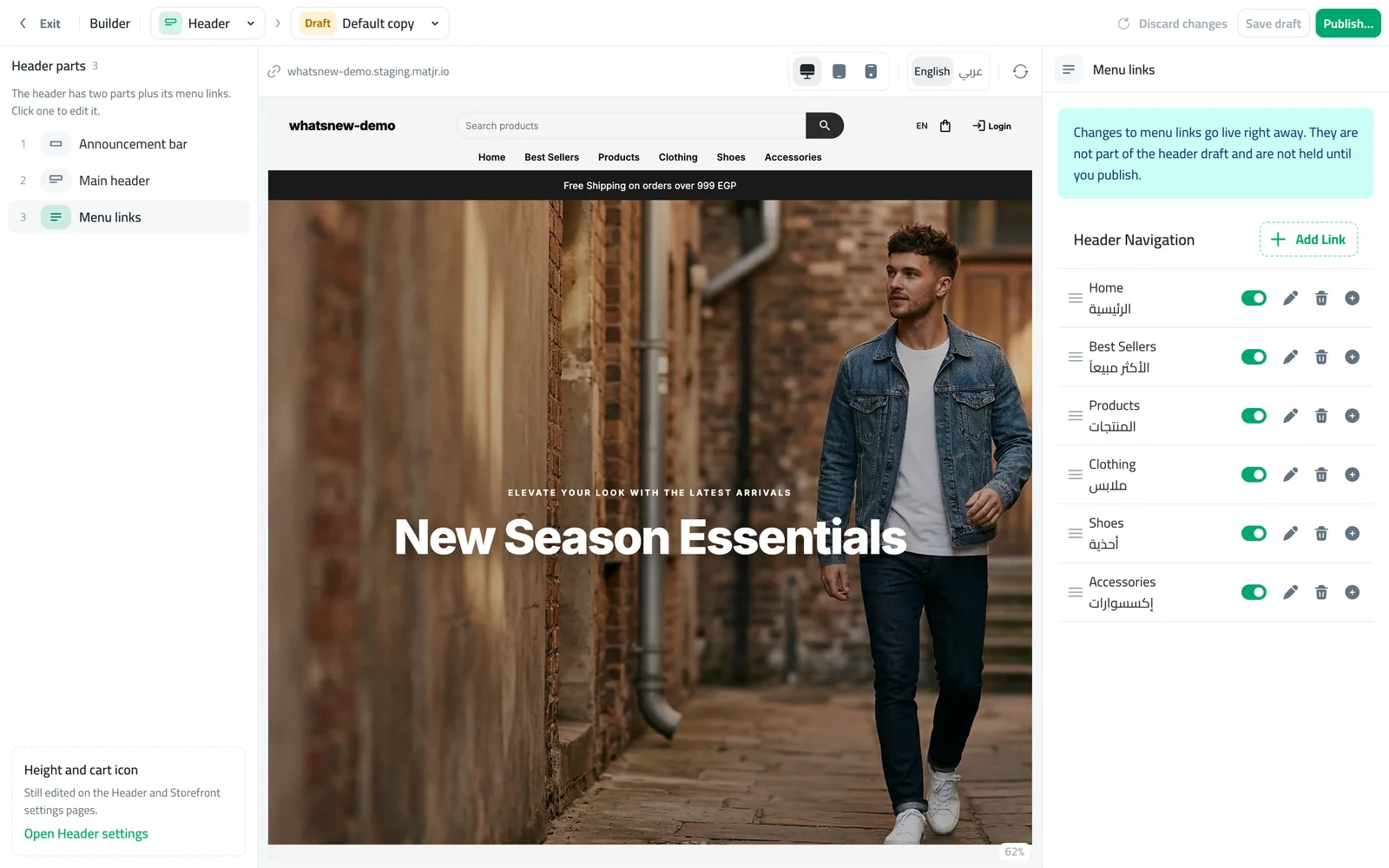
The Header page in the builder has a new Menu links part next to Announcement bar and Main header. Open it to add a link, rename it, drag it into a new position, switch it on or off, add sub-links, or delete it. The preview refreshes after every change so you see the result right away.
How to use it
In the builder, choose Header. In the list on the left you will see Menu links as the third part.
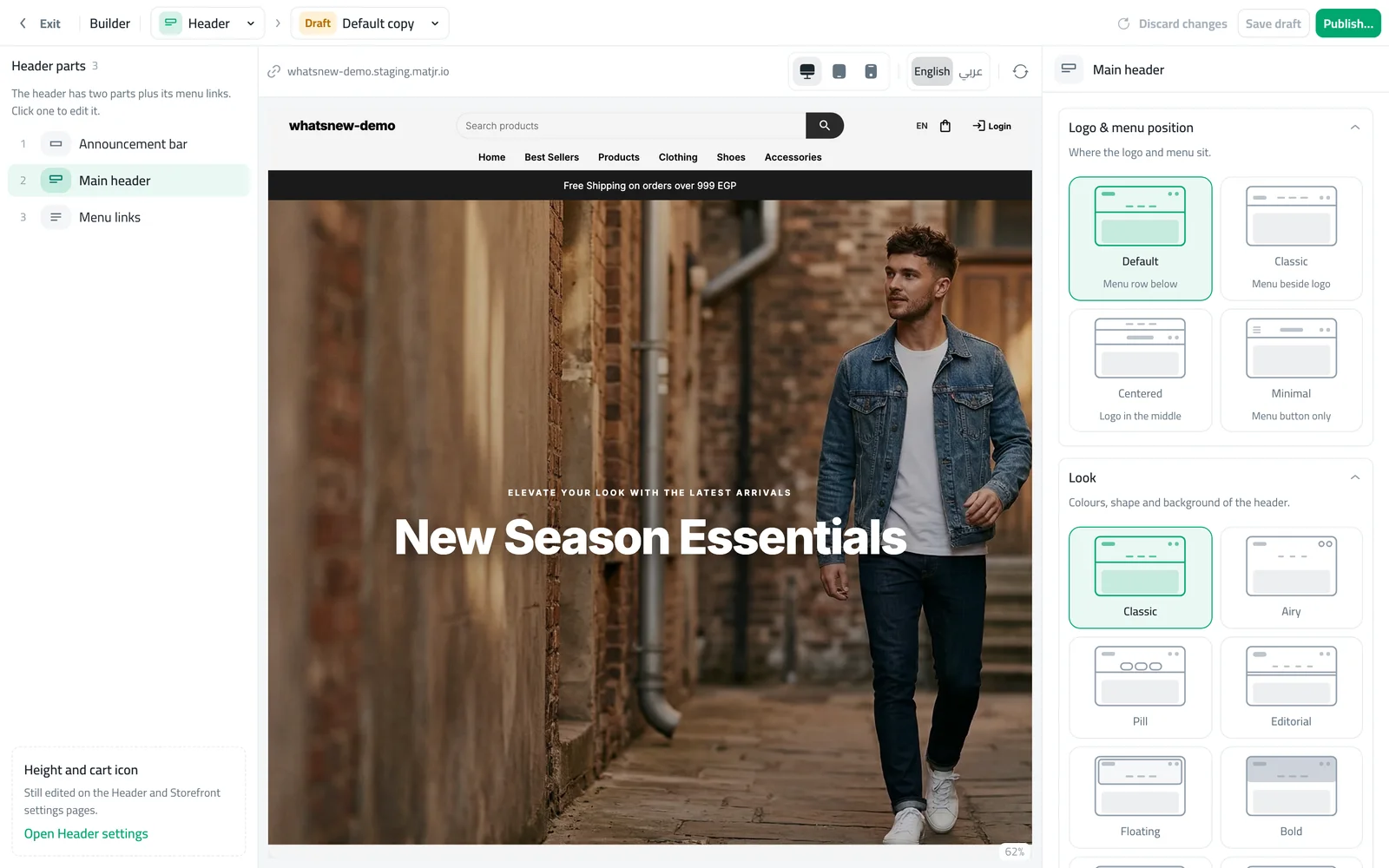
Open Menu links. Use Add Link for a new link, the pencil to edit one, the switch to show or hide it, and the plus to add a sub-link.
Good to know
- Menu link changes go live right away. They are not part of the header draft, so they do not wait for you to publish.
- Height and the cart icon are still edited in Header settings.
Want the full walkthrough? Read how to edit your store menu links.
Frequently asked questions
Do I need to publish after changing a link?
No. Menu link changes go live right away and are not part of the header draft.
Can I add a drop-down under a link?
Yes. Use the plus next to a link to add a sub-link. Shoppers see them under that link.
Can I hide a link without deleting it?
Yes. Switch it off and it disappears from your store. Switch it on to bring it back.
Try it on your own store
Start your free trial. No credit card required.