Store design
Set your logo size and the space around it in the header
Make your logo bigger or smaller on computers and phones, and add space above and below it. The header follows, with a live preview.
- Where
- Storefront Design › Builder › Header
- Logo width
- 50-250 on computers, 40-200 on phones
- Extra space
- 0-36 above and below
- Goes live
- When you press Publish
Your logo is the first thing shoppers see, so its size matters. You can now set exactly how wide it is and how much space sits around it, and the header grows or shrinks to match.
What changed
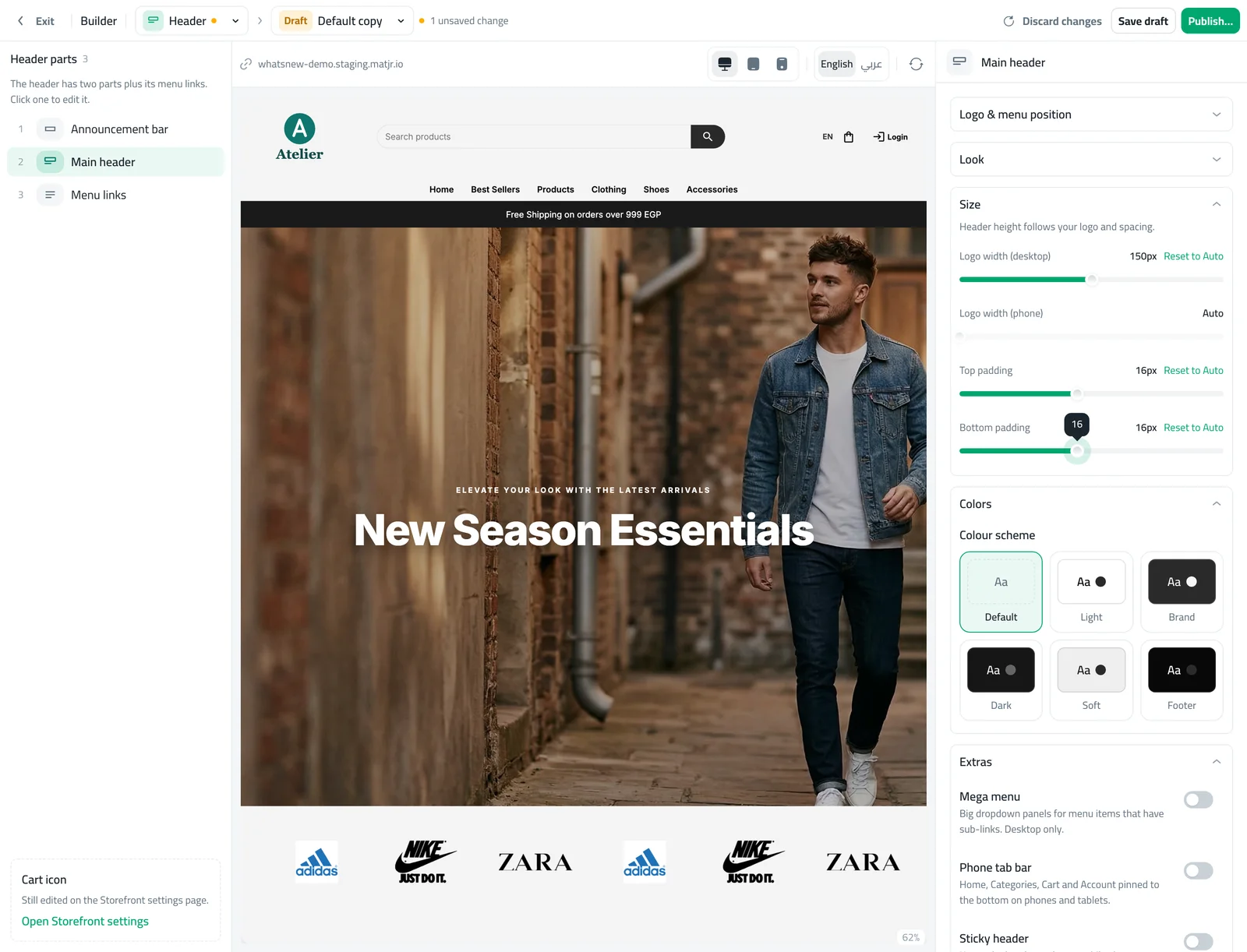
The Header page in the builder has a new Size group for the main header with four controls:
- Logo width (desktop): from 50 to 250 pixels, for large screens.
- Logo width (phone): from 40 to 200 pixels, for phones and tablets.
- Top padding and Bottom padding: add from 0 to 36 pixels of space above and below the header content.
Each control starts on Auto, which keeps your header exactly as it looks today. Press Reset to Auto beside a control to go back.
How to use it
Open Storefront Design, open the builder, choose Header and select Main header.
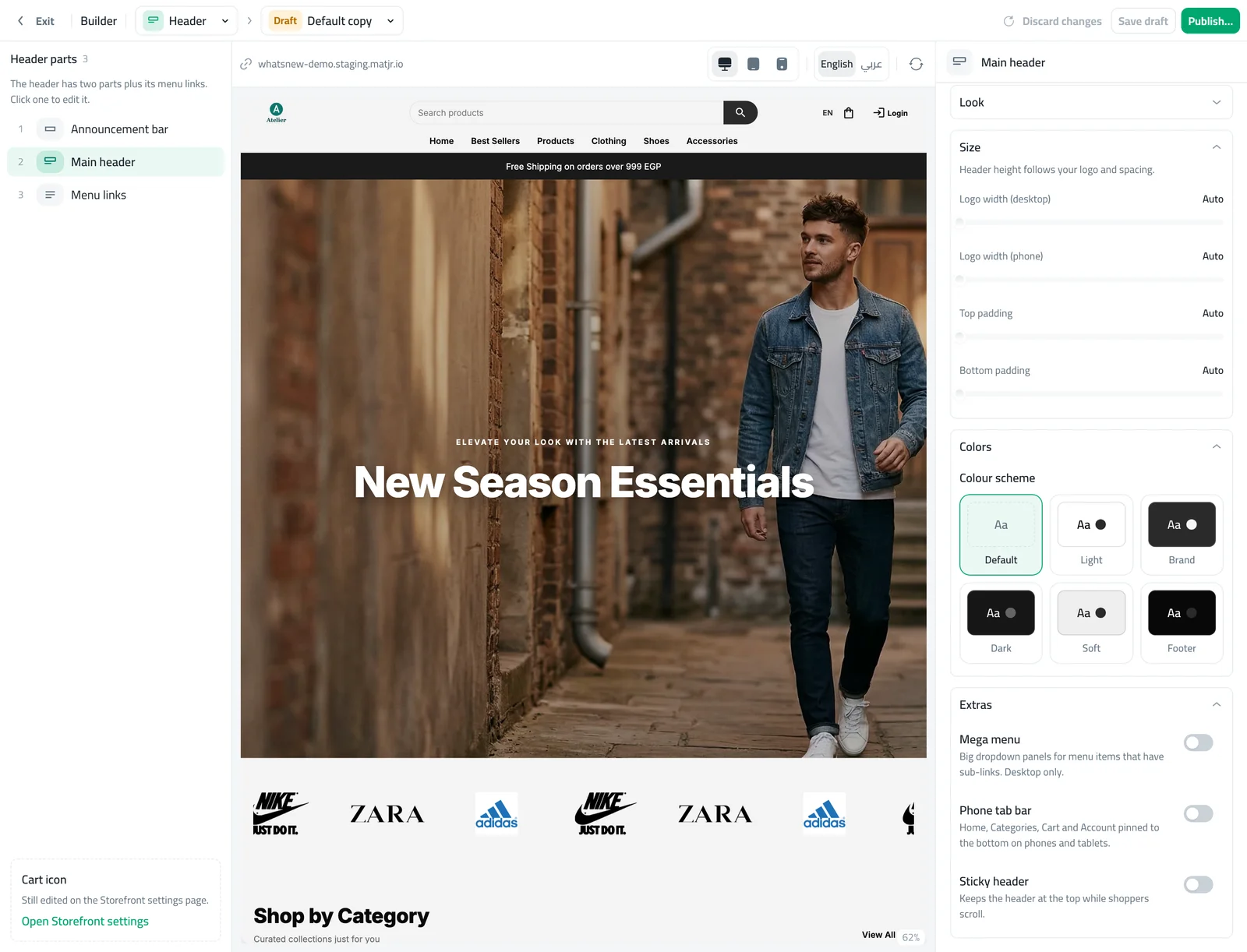
In the Size group, drag Logo width (desktop) until the logo looks right in the preview. Do the same for the phone.
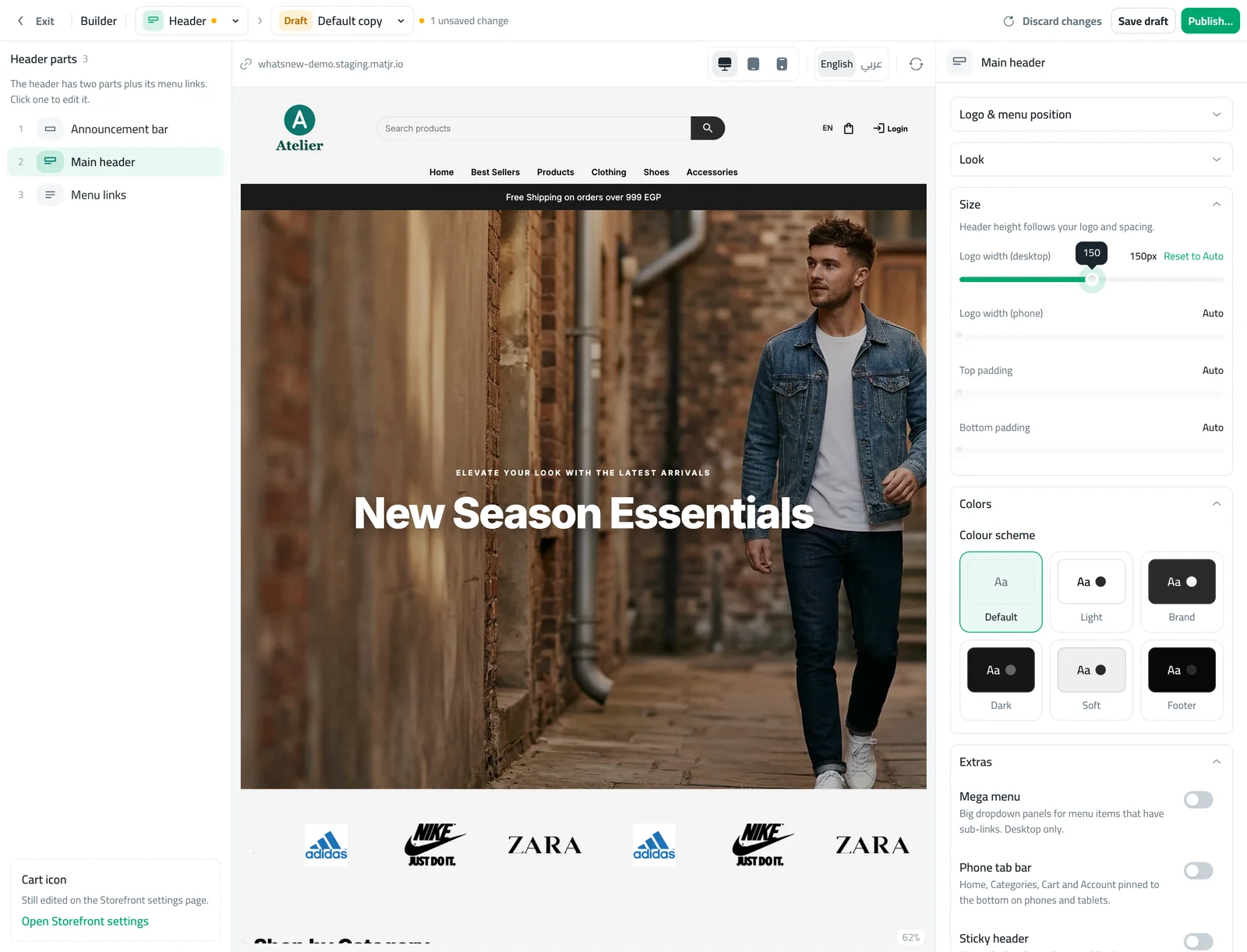
Add Top padding or Bottom padding if you want more room, check the phone preview, then press Publish.
Good to know
- If you only add padding, your logo keeps its size and only the header gets taller.
- These controls work on logo images. If your store shows its name as text because there is no logo, upload a logo first.
- Stores with a fixed header height from older settings use the new sizes instead once you change one of them.
- The old Header settings page now opens the Header page in the builder.
Frequently asked questions
Will my header change when I publish this update?
No. Every control starts on Auto, so your header looks the same until you set a size yourself.
Can I use different sizes on computers and phones?
Yes. Logo width has one control for computers and one for phones and tablets.
Why does my logo not change size?
These controls work on logo images. If your store shows its name as text, upload a logo first. The Wordmark header style also keeps its large name on top.
How do I go back to the old look?
Press Reset to Auto beside each control you changed.
Try it on your own store
Start your free trial. No credit card required.