Store design
How to change your logo size in your online store
How to change your logo size in your online store: set its width for computers and phones and add space above and below it.
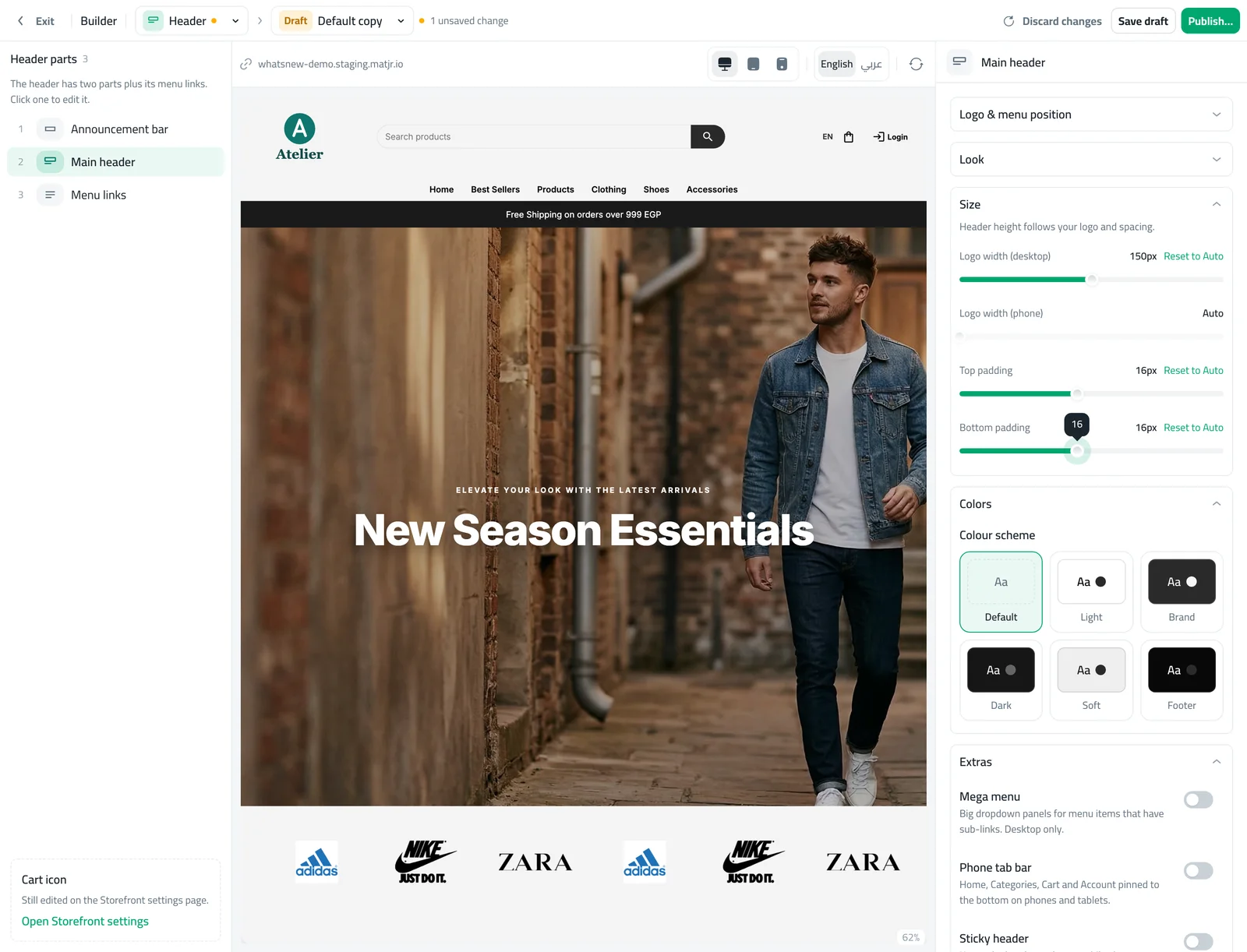
- Where
- Storefront Design › Builder › Header
- Time
- About 3 minutes
- Needs
- A logo image
- Goes live
- When you press Publish
Learning how to change your logo size in your online store lets you fix a logo that looks too small or too big without asking a designer. The header follows your logo, so a clear size makes the whole top of your store look sharper. This guide shows how to set the width for computers and phones and add space around it.
Before you start
Make sure your store has a logo image. If your store shows its name as plain text, the size controls have nothing to resize, so upload a logo first. A logo with a transparent background and a wide shape works best. Decide which device matters most: most shoppers use a phone, so look at the phone preview first.
How to change your logo size
Open Storefront Design, open the builder, choose Header and select Main header. Find the Size group.
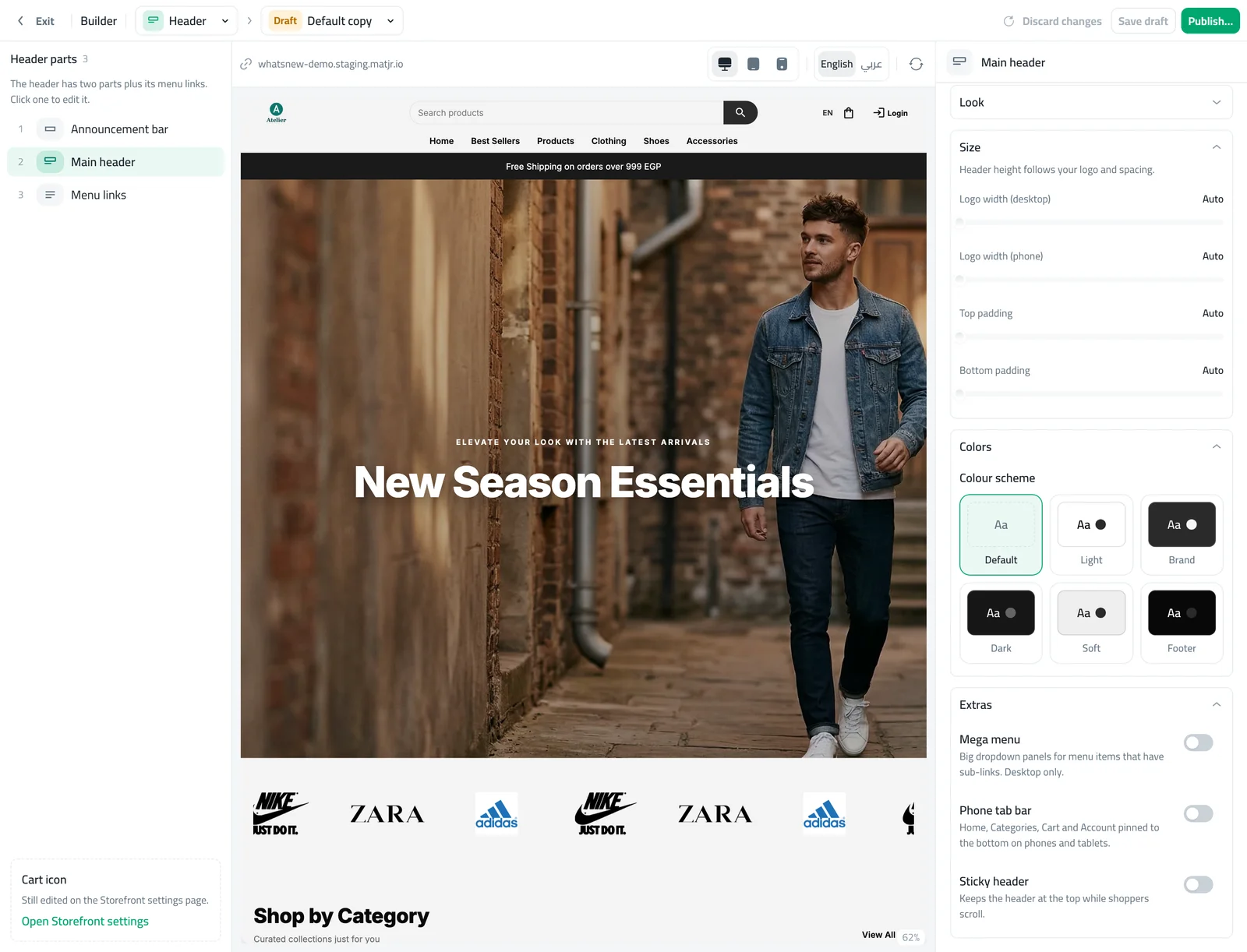
Drag Logo width (desktop) to the size you want. It goes from 50 to 250 pixels. Then drag Logo width (phone), which goes from 40 to 200 pixels.
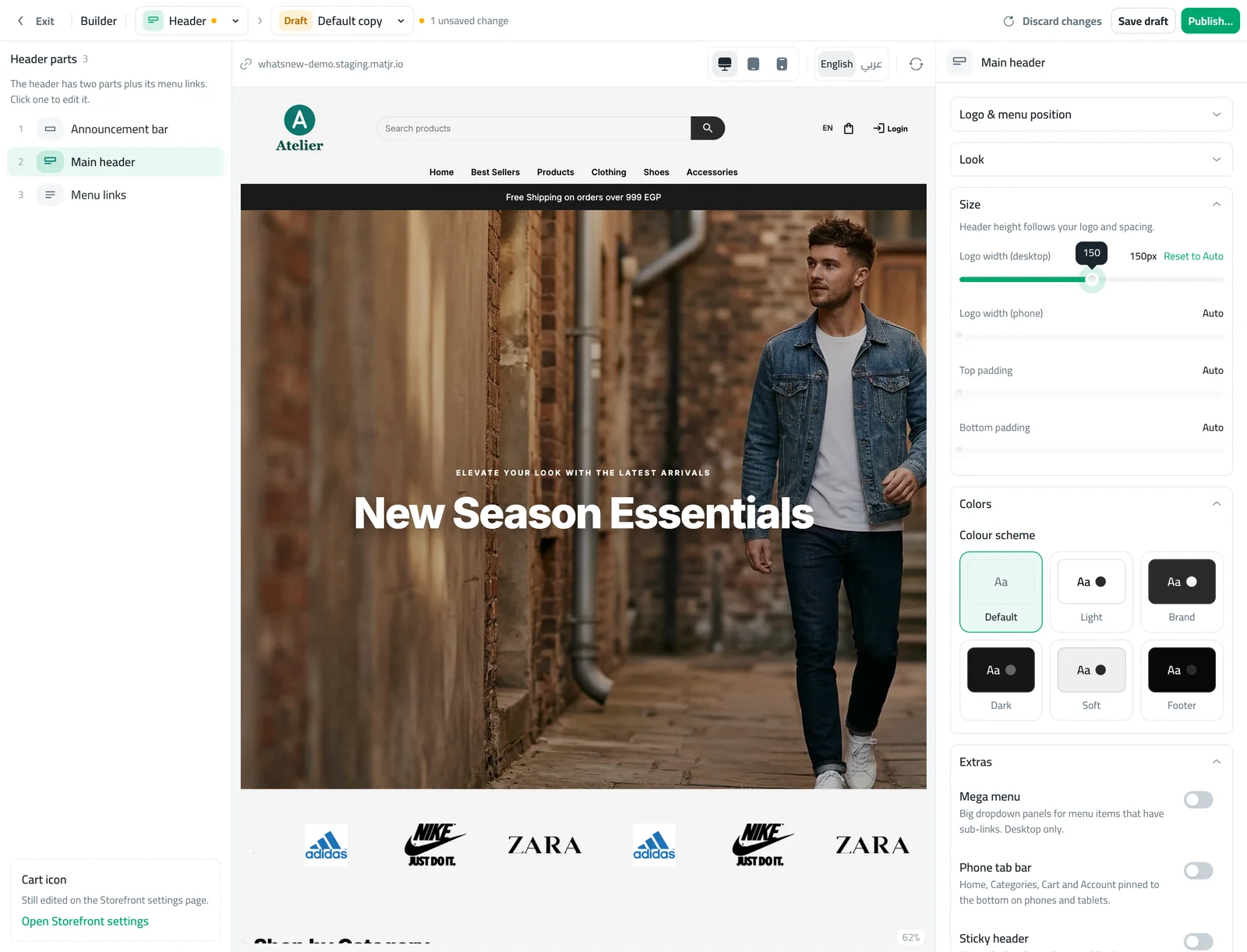
If the header feels tight, add Top padding or Bottom padding, up to 36 pixels each. Check the preview, then press Publish.
What Auto means
Every control starts on Auto. Auto keeps the size your header style normally uses, so nothing changes until you move a slider. If you do not like a result, press Reset to Auto beside that control and you are back where you started.
Computers and phones
The two width controls work on different screens. Logo width (desktop) applies to large screens. Logo width (phone) applies to phones and tablets. A logo that looks perfect on a computer can fill half of a phone screen, so set both and check both previews. Use the phone button above the preview to switch.
Space around the logo
Top and bottom padding add room on top of the space your header style already has. If you add padding only, your logo keeps its size and the header becomes taller. If you set a logo width, the header grows or shrinks with the logo and never gets shorter than its normal height. A very tall logo is limited so it cannot take over the screen.
Examples that work
A store with a wide logo that includes its name often looks best at about 160 pixels on a computer and about 110 on a phone. A store with a small round symbol can go smaller, around 70 pixels, and gain a little top and bottom padding so the header feels calm. A fashion store that wants a bold first impression can go up to 200 pixels on a computer and keep the phone width modest, so the menu is still easy to reach. Whatever you choose, scroll the preview and make sure the search box and the cart icon still have room.
A quick check before you publish
- Look at the preview in both of your store languages if you use two.
- Switch to the phone and the tablet preview and check the logo is not cut off.
- Check that the menu and the cart icon are still easy to reach.
- If you are not sure, press Reset to Auto and try a smaller change.
Common mistakes
- Setting a size when the store has no logo image.
- Choosing a width that looks right on a computer and forgetting the phone.
- Using the Wordmark header style and expecting the large name on top to change. That style keeps its big name, and only its smaller bar follows the logo width.
- Forgetting to press Publish.
Related tasks
Pick a style for the whole header in 19 header styles. For the rest of your store, see how to design your online store with the builder and how to edit your online store menu links. You can also read what changed in logo size and header spacing.
Frequently asked questions
What size should my logo be?
Between 120 and 180 pixels wide suits most stores on computers, and between 80 and 120 on phones. Check the preview and choose what looks balanced.
Why did nothing change when I moved the slider?
The size controls work on logo images. If your store shows its name as text, upload a logo first.
Can I make the header taller without changing the logo?
Yes. Use Top padding and Bottom padding. They add space and the logo keeps its size.
How do I go back to how it was?
Press Reset to Auto beside the control you changed.
Try it on your own store
Start your free trial. No credit card required.