Store design
Help shoppers find products faster with filters and live counts
Choose from 6 filter layouts, show how many products each choice has, and let shoppers share a short link to their results.
- Where
- Storefront Design › Builder › Products page
- Layouts
- 6 filter layouts
- Also on
- Every category page
- Goes live
- When you press Publish
Shoppers who can narrow a long list quickly are more likely to find something and buy it. Your products page filters are now rebuilt: you choose how they look, and shoppers see how many products each choice will show before they tap it.
What changed
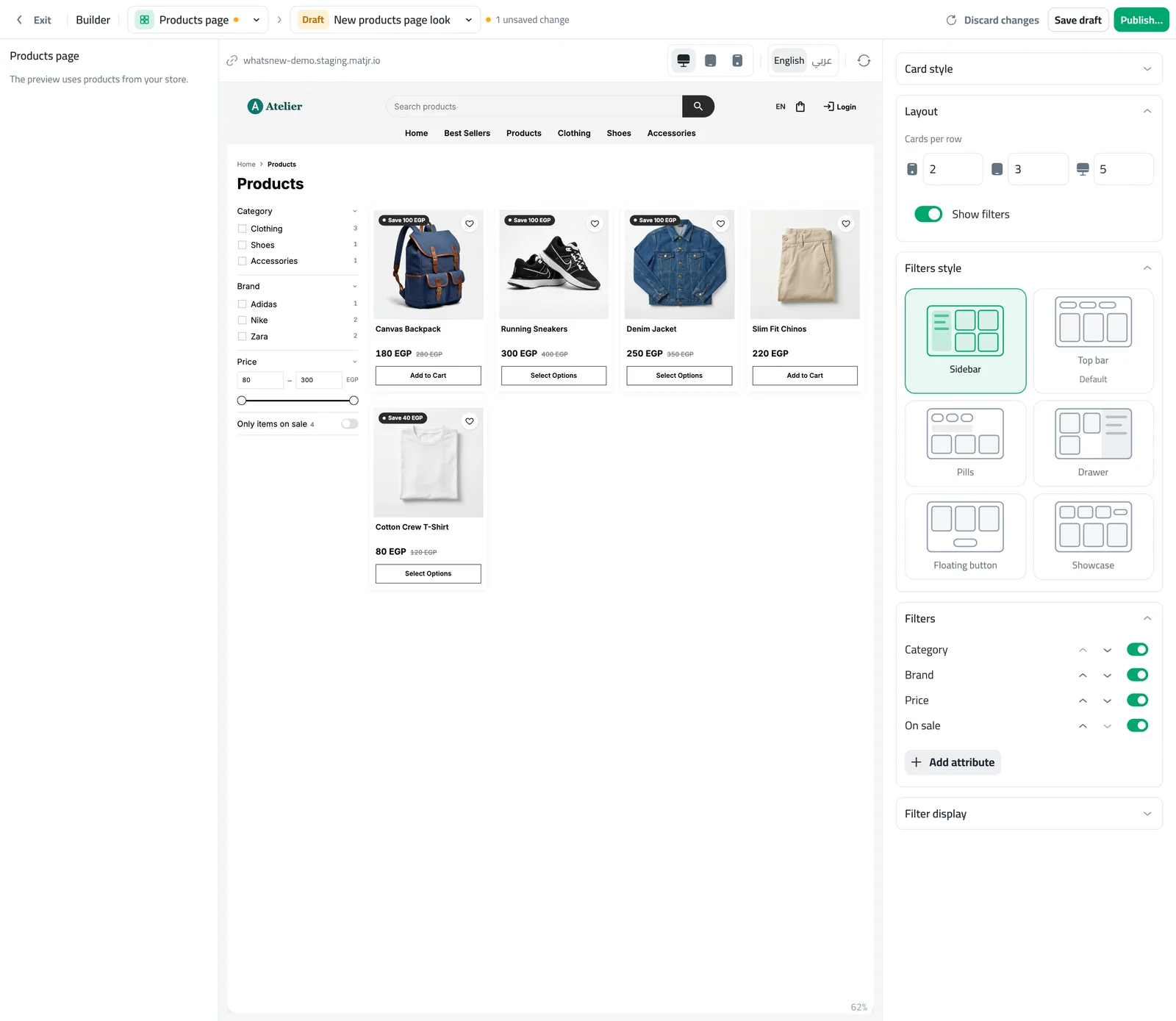
Filters now live in the builder, on the Products page, with a live preview of your own products.
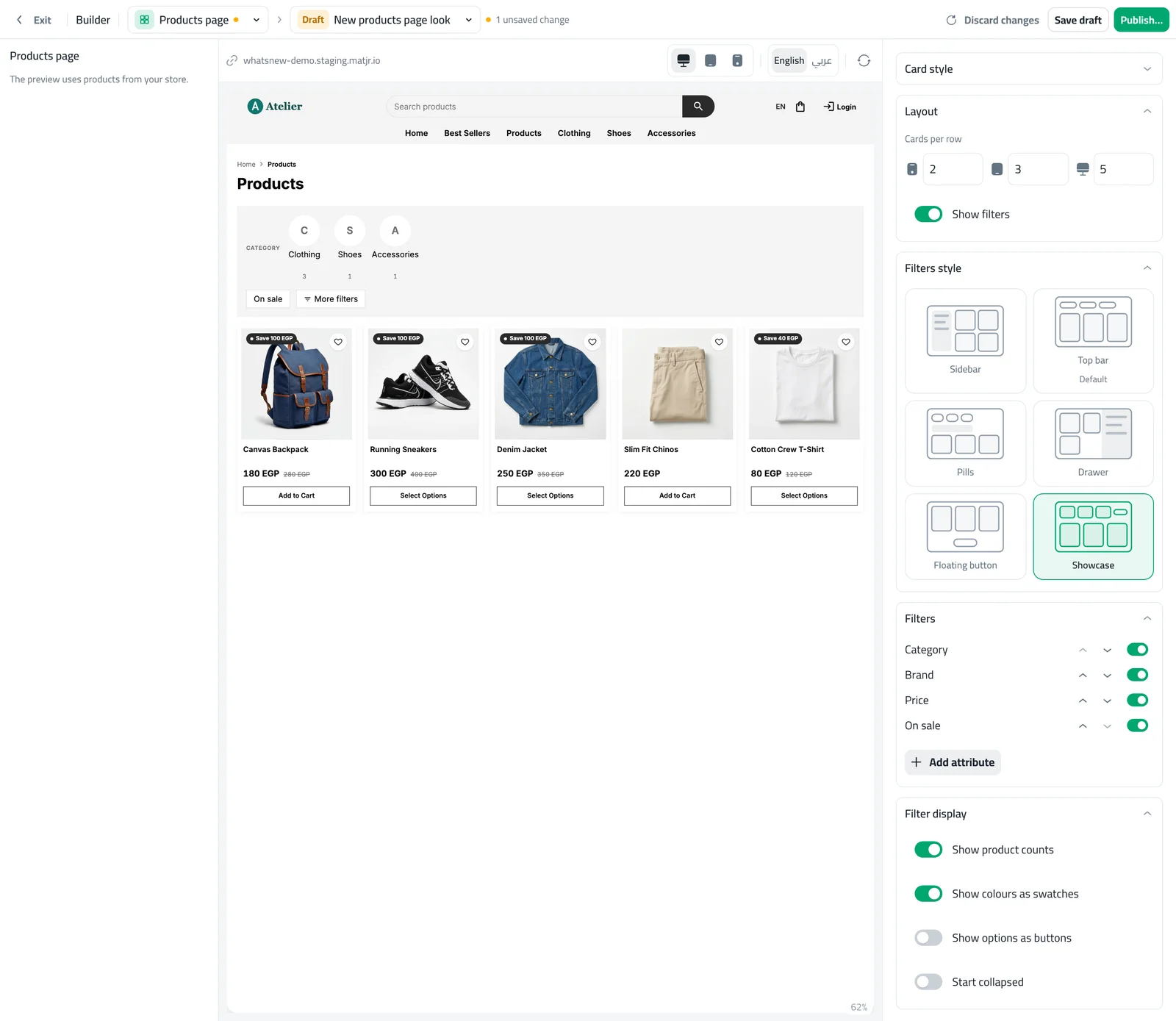
- 6 layouts: Sidebar, Top bar, Pills, Drawer, Floating button and Showcase. Top bar is the default.
- Live counts: every option shows how many products it has, and the numbers update as shoppers pick other filters. Options with no products are greyed out.
- Your own filters: choose Category, Brand, Price and On sale, and add your own attributes such as colour or size. Put them in the order you like.
- Colour circles and option buttons: show colours as small circles and sizes as buttons instead of plain lists.
- Short, readable links: a shopper can copy the link to "black shoes under 600" and send it to a friend.
How to use it
Open Storefront Design, open the builder, choose Products page and switch on Show filters.
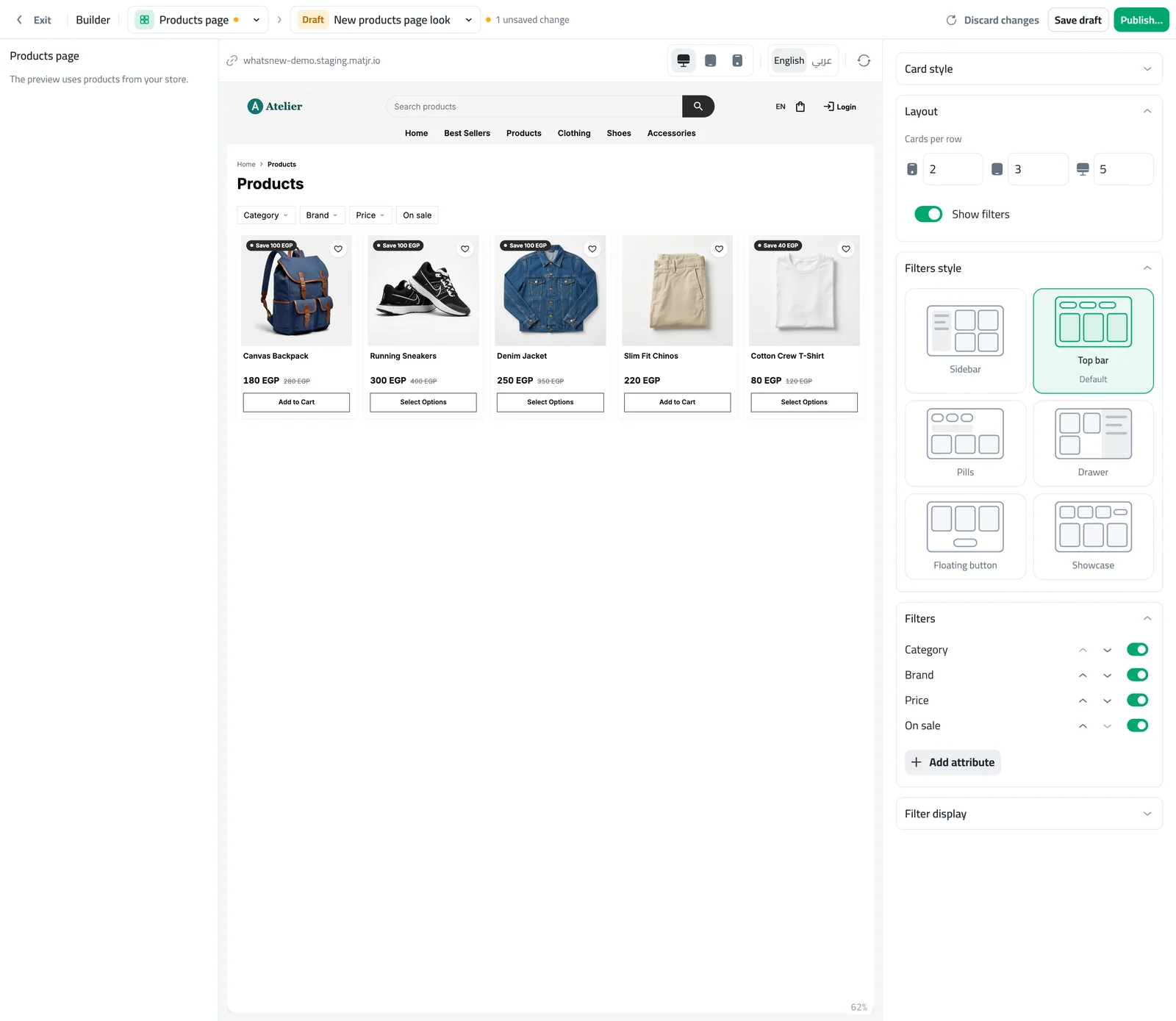
Under Filters style, press the layout you like. The preview changes at once.
Under Filters, switch filters on or off and move them up or down. Open Filter display to show counts, colour circles and option buttons. Then press Publish.
Good to know
- The same filters appear on every category page, and the category filter is left out there because the page is already one category.
- The old Filters page now points you to the builder. Choose and order your filters there.
- On phones, Sidebar and Drawer open from a Filters button, and Floating button opens a sheet from the bottom.
- Nothing changes for shoppers until you press Publish.
Frequently asked questions
Which filters can I show?
Category, Brand, Price and On sale, plus any of your own attributes such as colour or size. You choose which ones appear and in what order.
What do the numbers next to each option mean?
They show how many products the shopper will see after picking that option. The numbers change as other filters are picked, and options with no products are greyed out.
Can I turn the numbers off?
Yes. Open Filter display under Filters and switch off Show product counts.
Will shoppers see my changes before I publish?
No. You see them in the preview. Shoppers see them only after you press Publish.
Try it on your own store
Start your free trial. No credit card required.