Store design
How to add filters to your online store's products page
How to add filters to your online store: pick a layout, choose the filters and their order, and show how many products each option has.
- Where
- Storefront Design › Builder › Products page
- Time
- About 5 minutes
- Layouts
- 6 to choose from
- Goes live
- When you press Publish
Learning how to add filters to your online store helps shoppers with a big catalogue find the right product in seconds instead of scrolling. Filters narrow the list by things shoppers care about: category, brand, price, offers, colour or size. This guide shows how to switch them on, choose how they look and decide what each shopper sees.
Before you start
Filters are only as good as your product details. Check that every product has a category and a brand, and that colours and sizes are saved as attributes on the product. A filter with only one choice is not useful, so a store with fewer than about twenty products often looks better without filters. If you sell hundreds of products, filters are one of the biggest helps you can give shoppers.
How to add filters to your products page
Open Storefront Design, open the builder and choose Products page. Under Layout, switch on Show filters.
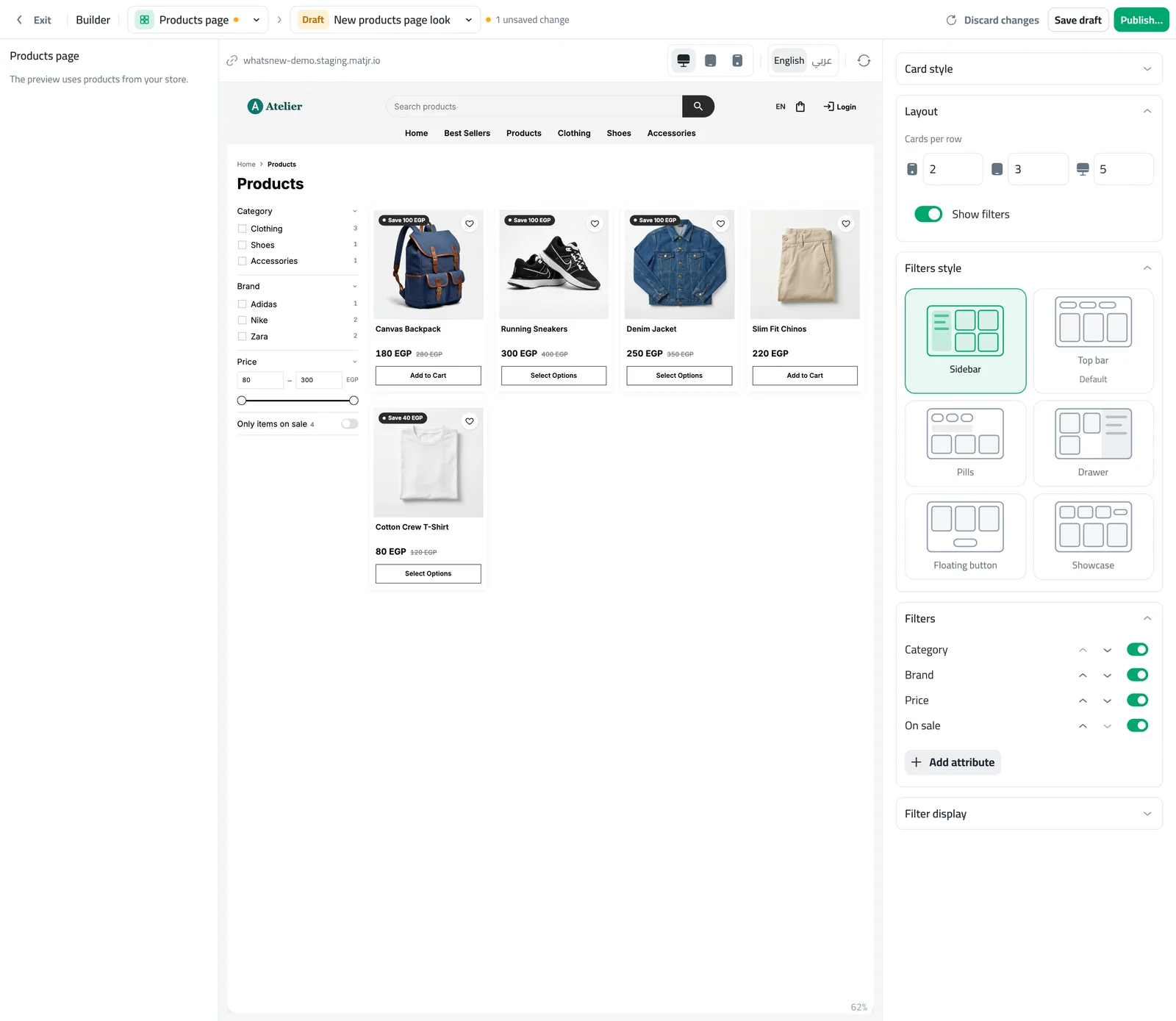
Under Filters style, press the layout you want. The preview shows your own products with real numbers beside each option.
Under Filters, switch each filter on or off and move it up or down. Press Add attribute to add colour, size or any other attribute you created. Open Filter display for counts, colour circles and option buttons, then press Publish.
Choosing a layout
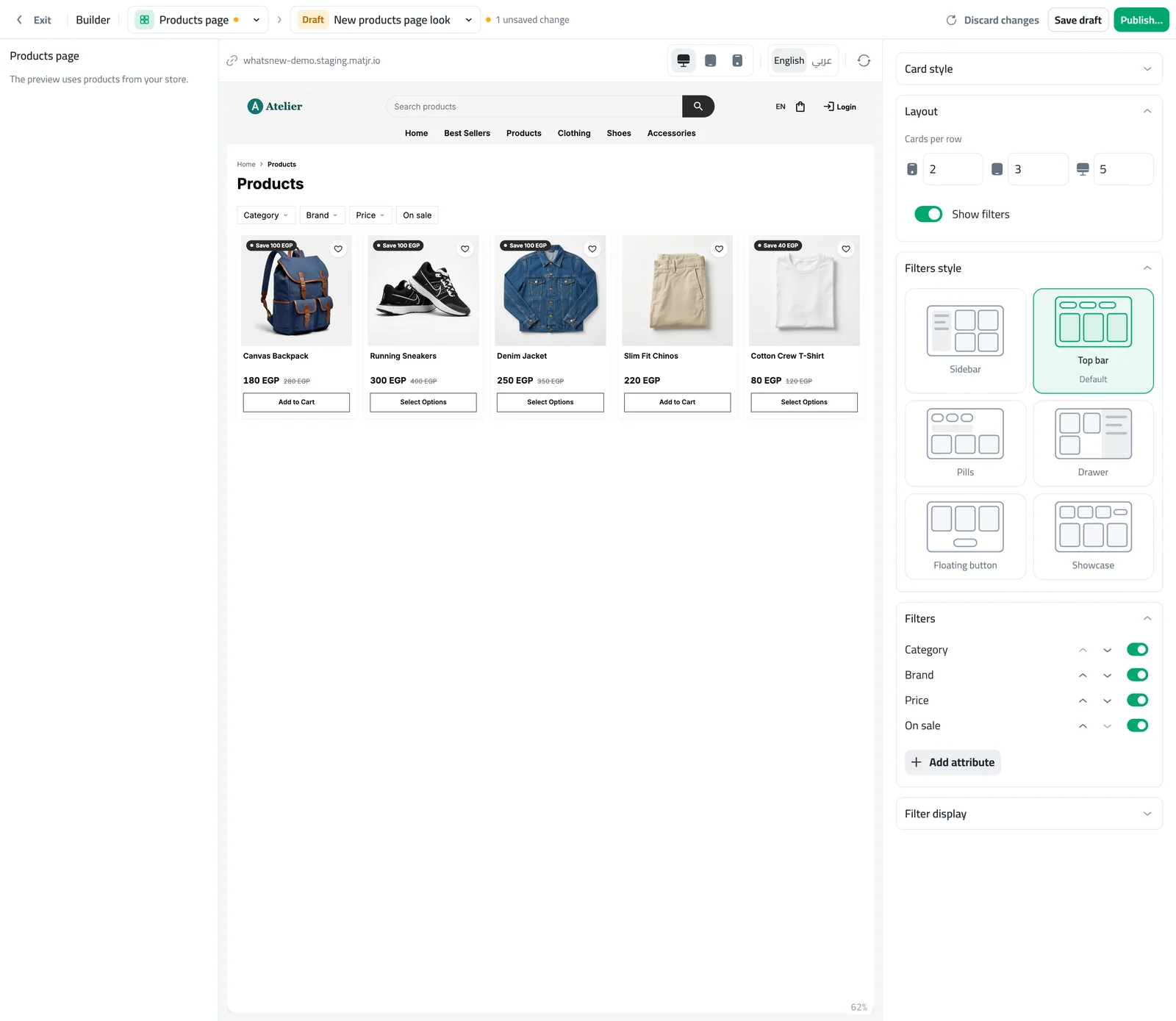
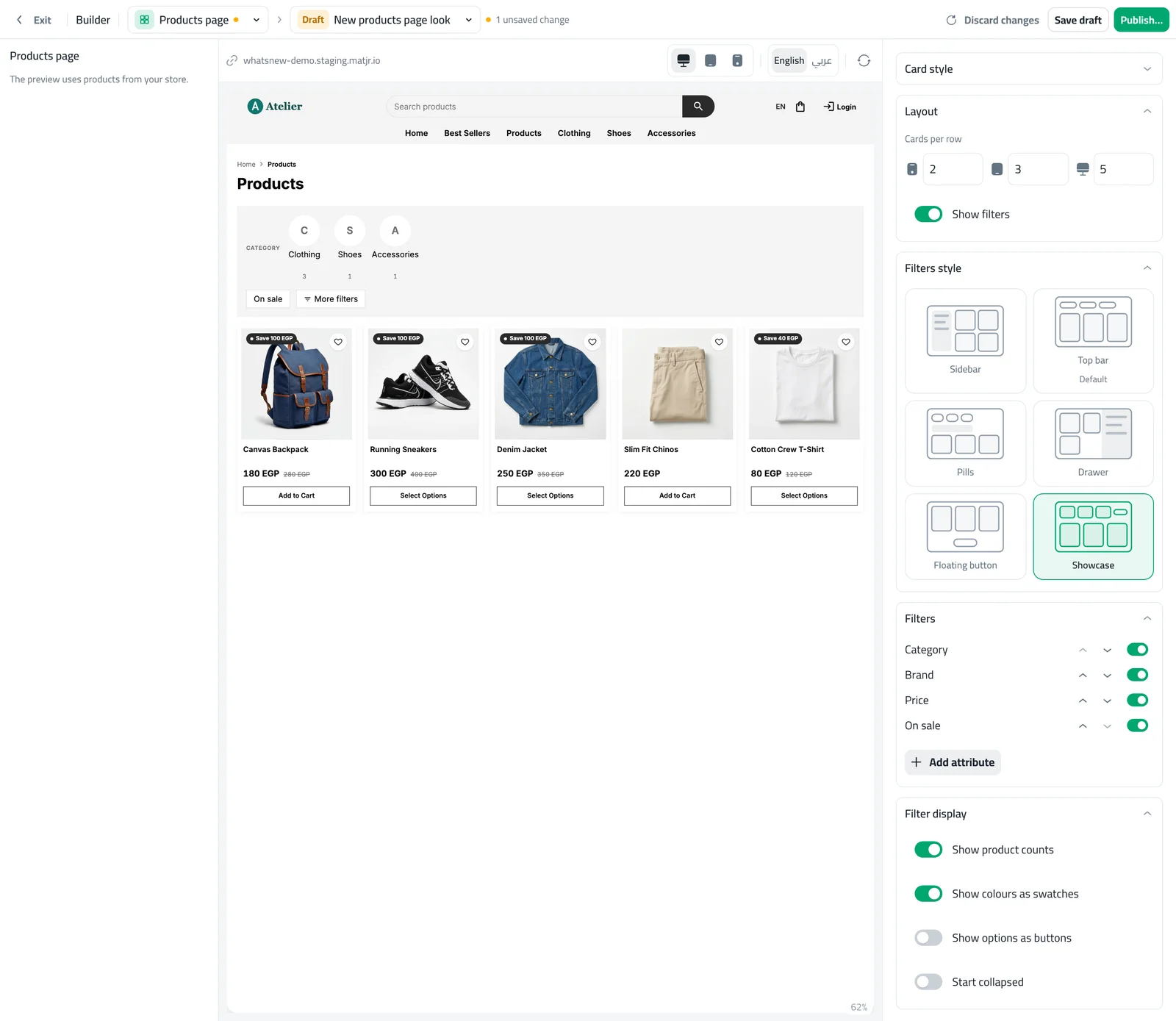
Top bar is the default. It puts a row of drop-down buttons above the products and suits most stores. Sidebar keeps every filter open beside the products on a computer, which works well for large catalogues such as electronics. Pills shows small round buttons above the list, a light look for fashion and gifts. Drawer hides filters behind one button and opens them from the side, so the products stay in focus. Floating button keeps a Filter button on the screen as shoppers scroll, which is handy on phones. Showcase puts category pictures, colour circles and size buttons right at the top, and tucks brand and price under More filters.
Choosing and ordering your filters
Put the filter shoppers use most first. Most stores start with Category, then Price. Add Brand if you sell known brands, and On sale if you run offers often. Attributes such as colour and size are very useful for clothes and shoes. You can switch a filter off without losing it, and bring it back later.
Counts, colour circles and buttons
When Show product counts is on, every option shows how many products it has. The numbers update as the shopper picks other filters, and an option with no products is greyed out so nobody lands on an empty page. Show colours as swatches turns colours into small circles. Show options as buttons turns sizes and similar options into buttons. Start collapsed keeps the groups closed until the shopper opens them, which keeps the page short.
What shoppers see
Shoppers pick options and the list updates. Their choices appear as small tags above the products, with a Clear all button. The price filter has a slider and two boxes. On a phone, most layouts open from a Filters button. Every filtered view has a short link that shoppers can copy and share.
Examples that work
A clothing store with fifty products usually does well with the Top bar and filters for category, price, colour and size, with colour circles and size buttons turned on. An electronics store with hundreds of products gains from the Sidebar, because shoppers narrow the list with several choices in a row and watch the numbers change. A gift store often prefers Pills, which look light and leave room for the pictures. Whichever you choose, try it in the phone preview first, because most of your shoppers will see it there.
Common mistakes
- Turning on filters before products have categories, brands and attributes, which leaves the filters empty.
- Adding too many filters. Four to six is plenty.
- Forgetting to check the phone preview.
- Forgetting to press Publish, then wondering why shoppers see no change.
Related tasks
Choose how the cards look in how to design your products page. Let shoppers pick size and colour on the card in how to let customers choose options on product cards, and learn about adding product specifications. You can also read what changed in filters with 6 layouts and live counts.
Frequently asked questions
How many filters should I add?
Four to six is plenty for most stores. Start with Category and Price, then add what your shoppers ask for most, such as colour or size.
Why is a filter missing from my store?
A filter with no choices is hidden. Check that your products have categories, brands or attributes saved.
Can I show colours as circles?
Yes. Open Filter display and switch on Show colours as swatches. It works when every colour value is a real colour.
Do filters appear on category pages too?
Yes. Category pages use the same filters, without the category filter because the page is already one category.
Can shoppers share a filtered list?
Yes. Each filtered view has a short link they can copy and send.
Try it on your own store
Start your free trial. No credit card required.