Products
Find products by their specs and see them on invoices
See each product's specs in your lists, search by them, filter by one spec, and keep them on your invoices.
- Where
- Products, Stock, Sell invoices
- Filter
- One spec at a time
- Invoices
- Specs saved when finalized
Specs such as material, capacity or warranty now work for you beyond the product page. You can see them while you work, find products by them in seconds, and keep them on every invoice you issue.
What changed
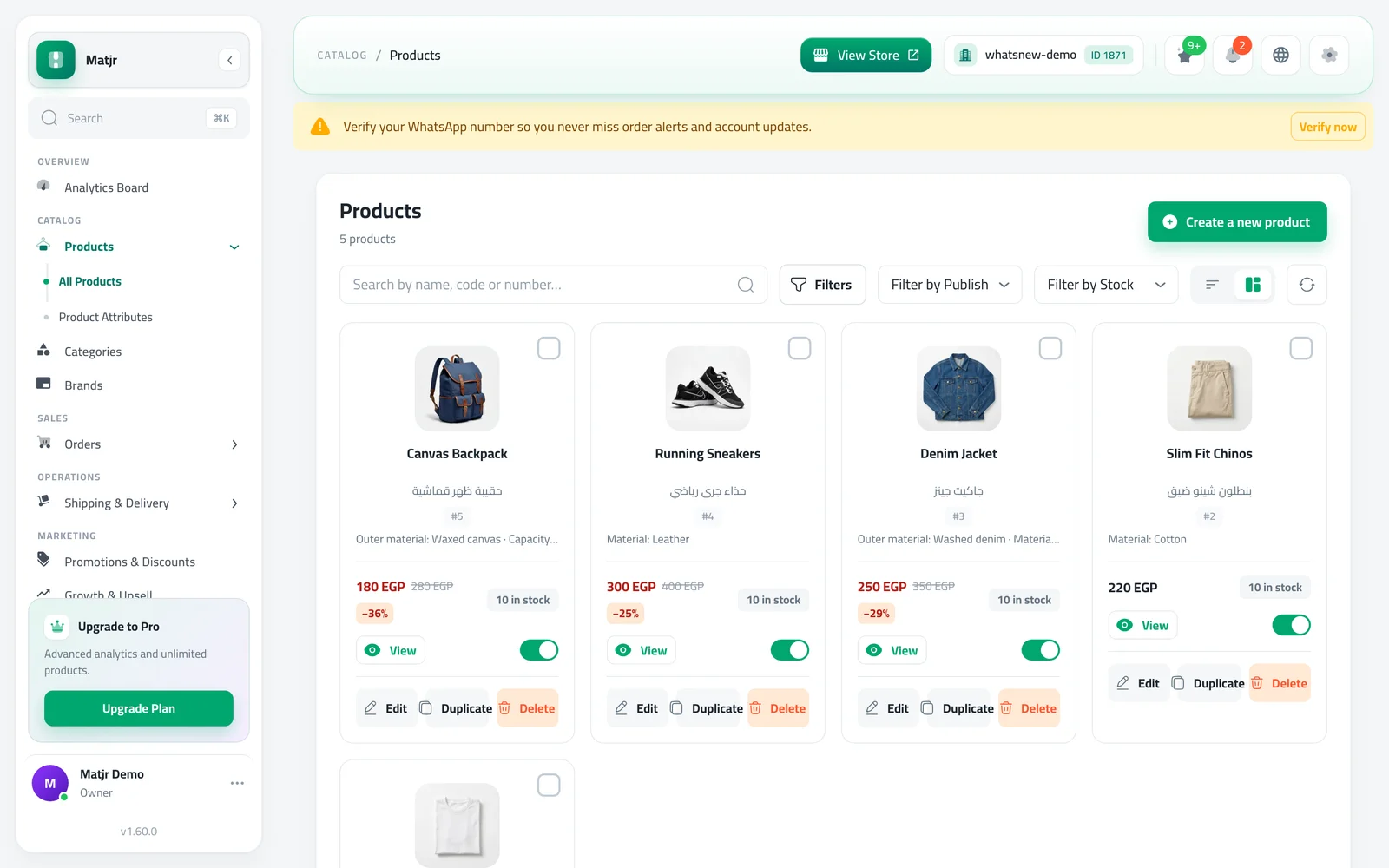
- Specs under every product name in your products list, in cards and in rows, on computers, tablets and phones. They also show in the stock items list and when you pick a product.
- Search by spec. Type a spec value, like "leather", in the search box of Products or Stock and the matching products appear.
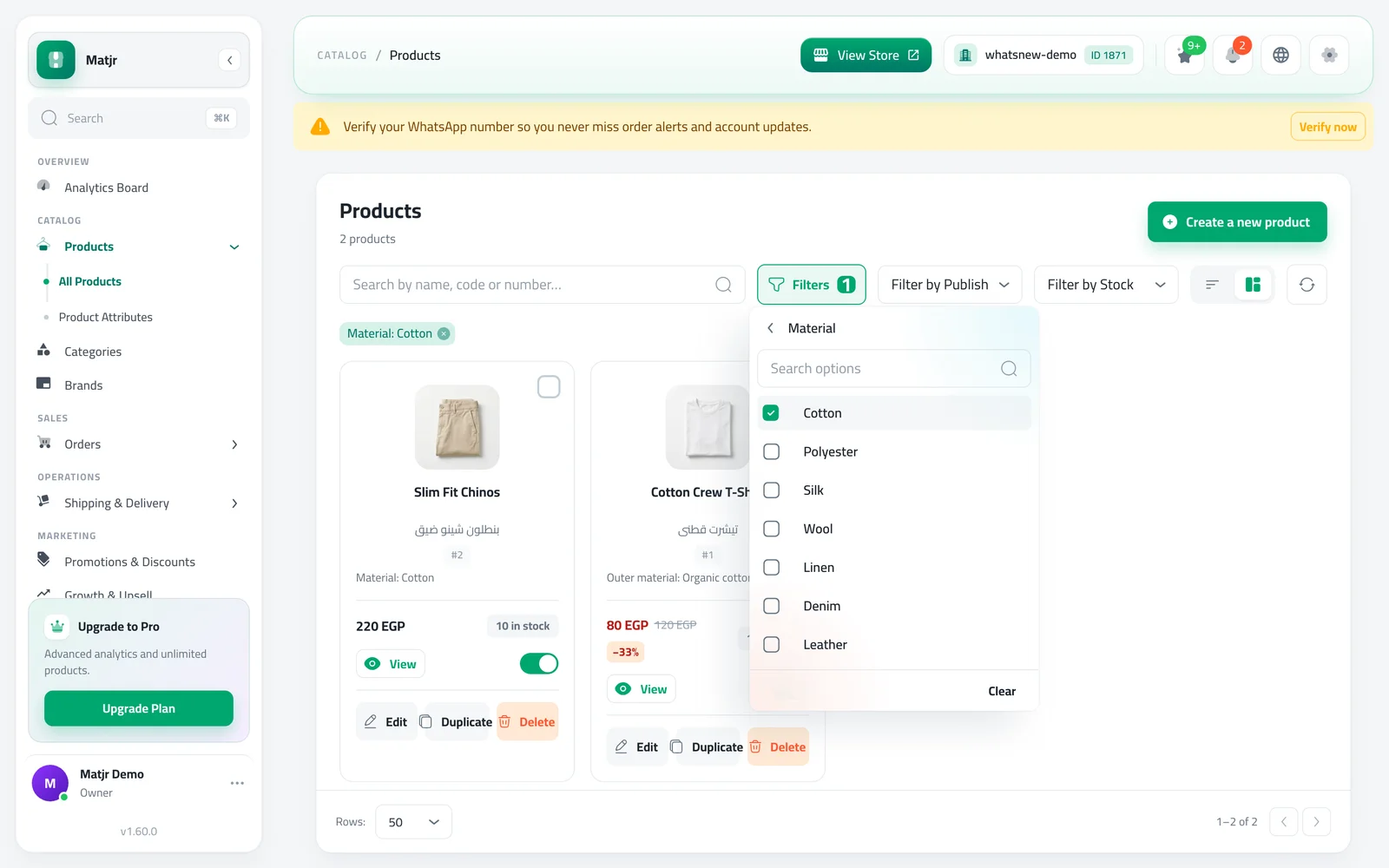
- A Filters button in the Products list. Choose a spec, then one or more of its values, and the list narrows down. The button is hidden when your store has no specs yet.
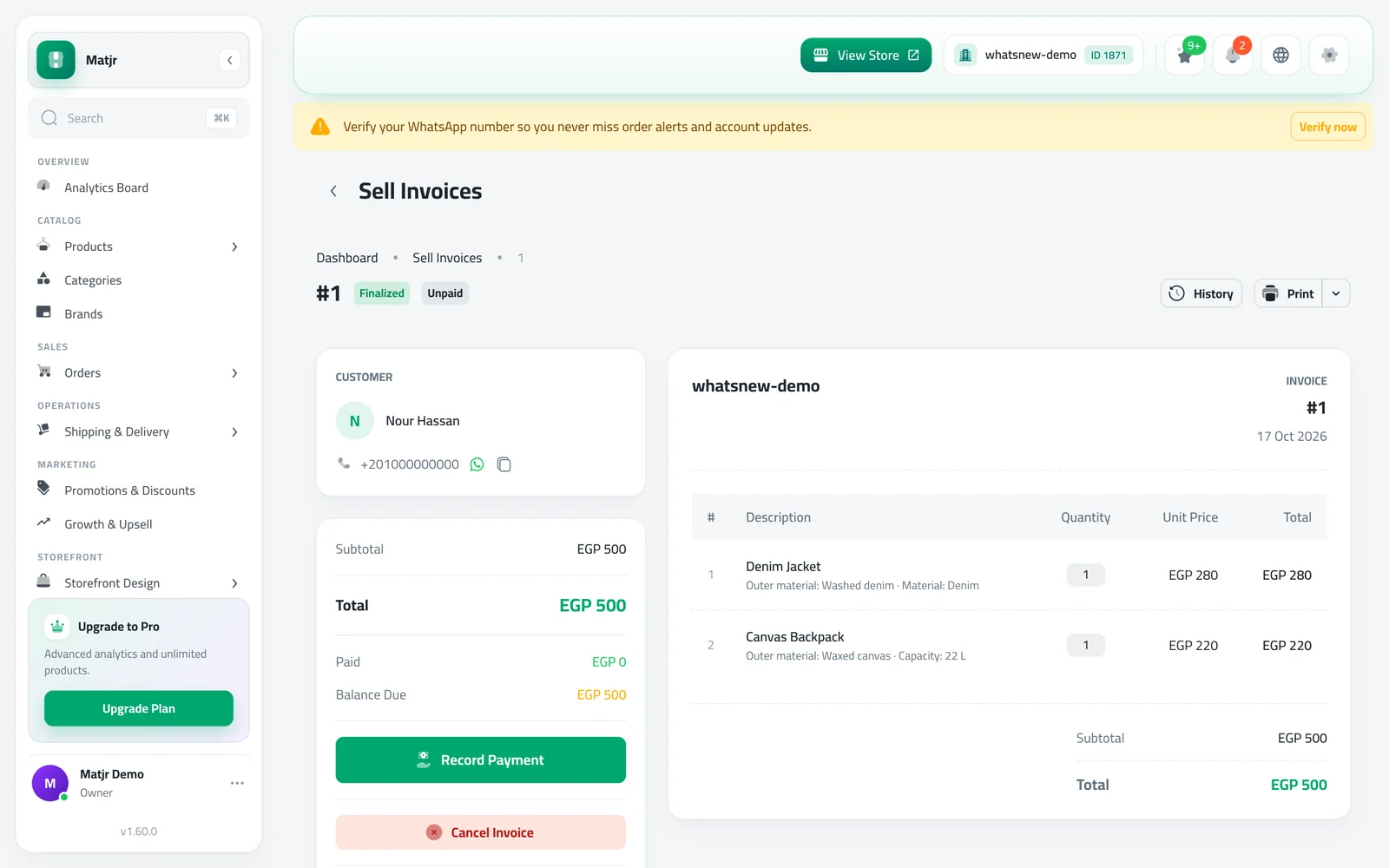
- Specs on invoices. New invoices keep each product's specs exactly as they were the day you finalized them, on the invoice page and on the printed PDF.
How to use it
Open Products. Each product now shows its specs under its name.
Press Filters, choose a spec like Material, then tick the values you want, such as Cotton. The list shows only matching products and a chip shows the active filter.
Open any finalized sell invoice. Each line lists the specs the product had when you finalized it.
Good to know
- You can filter by one spec at a time.
- Invoices finalized before this update do not have specs on them. New ones do.
- If you change a product's specs later, invoices you already finalized stay as they were.
New to specs? Read how to add product specifications, then how to filter products by specs.
Frequently asked questions
Do I need to add specs again?
No. Specs you already added to products show up automatically in lists, search and new invoices.
Will my old invoices show specs?
No. Only invoices finalized from now on keep the specs. Older invoices stay as they were.
Why can't I see the Filters button?
It appears only when your store has at least one spec. Add specs from Product Attributes first.
Can I filter by two specs together?
Not yet. You can filter by one spec at a time, with as many of its values as you like.
Try it on your own store
Start your free trial. No credit card required.