Products
Show a photo instead of a colour dot for options
Upload a small photo for a colour or pattern option so shoppers see the real fabric or finish, not a flat colour dot.
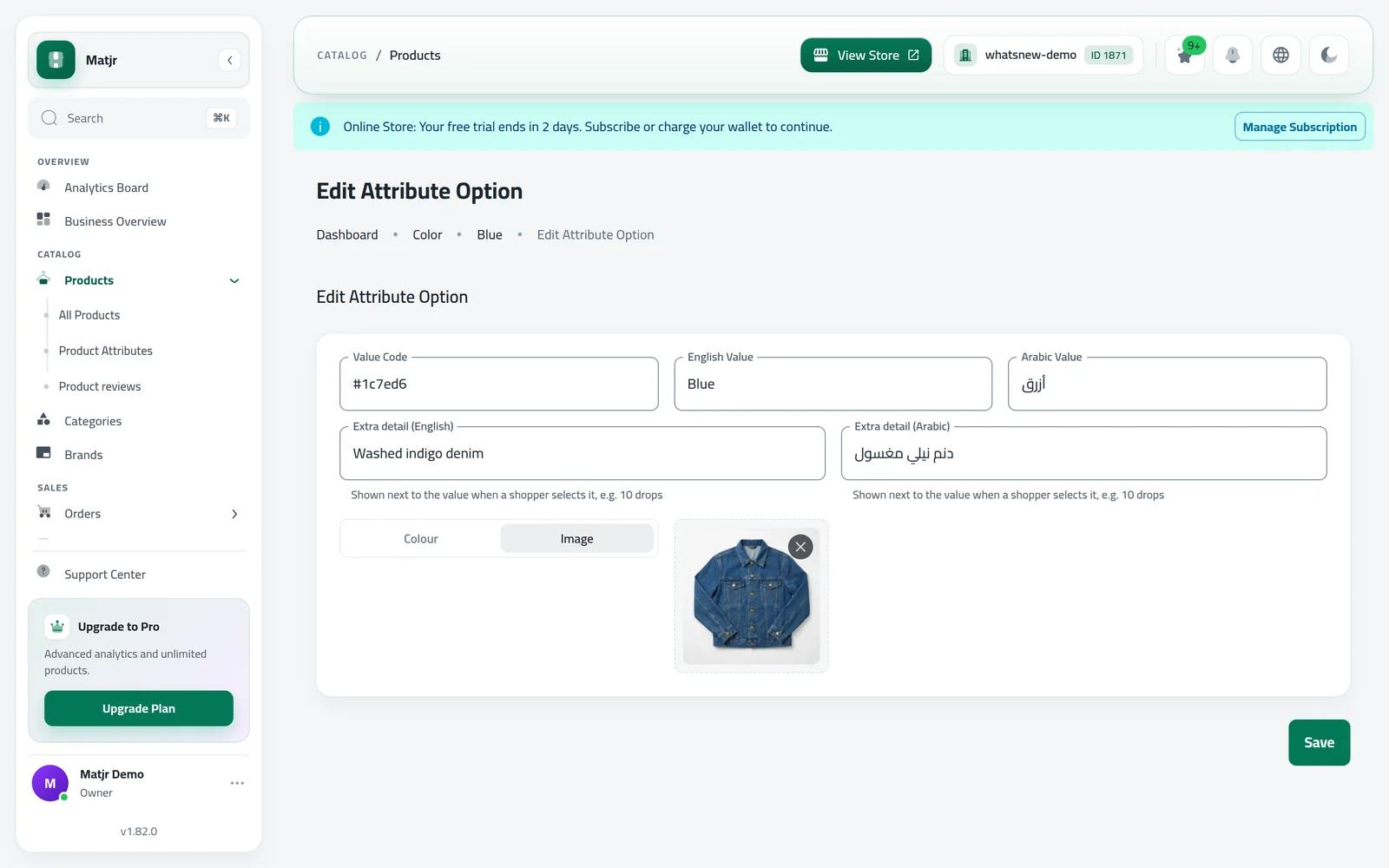
- Where
- Products, Attributes, colour values
- Shows on
- Product page, cards, featured product
- Fallback
- Colour if no photo
Some options are hard to show with a plain colour, like a pattern, marble or wood. Now you can use a photo for the swatch.
What changed
When you add or edit a value of a colour attribute, choose Image instead of Colour and upload a picture. The photo shows in your product options and variants in the dashboard, and shoppers see it on the product page, product cards and featured product. If you remove the photo, the colour is used again.
How to use it
Open your colour attribute and add or edit a value.
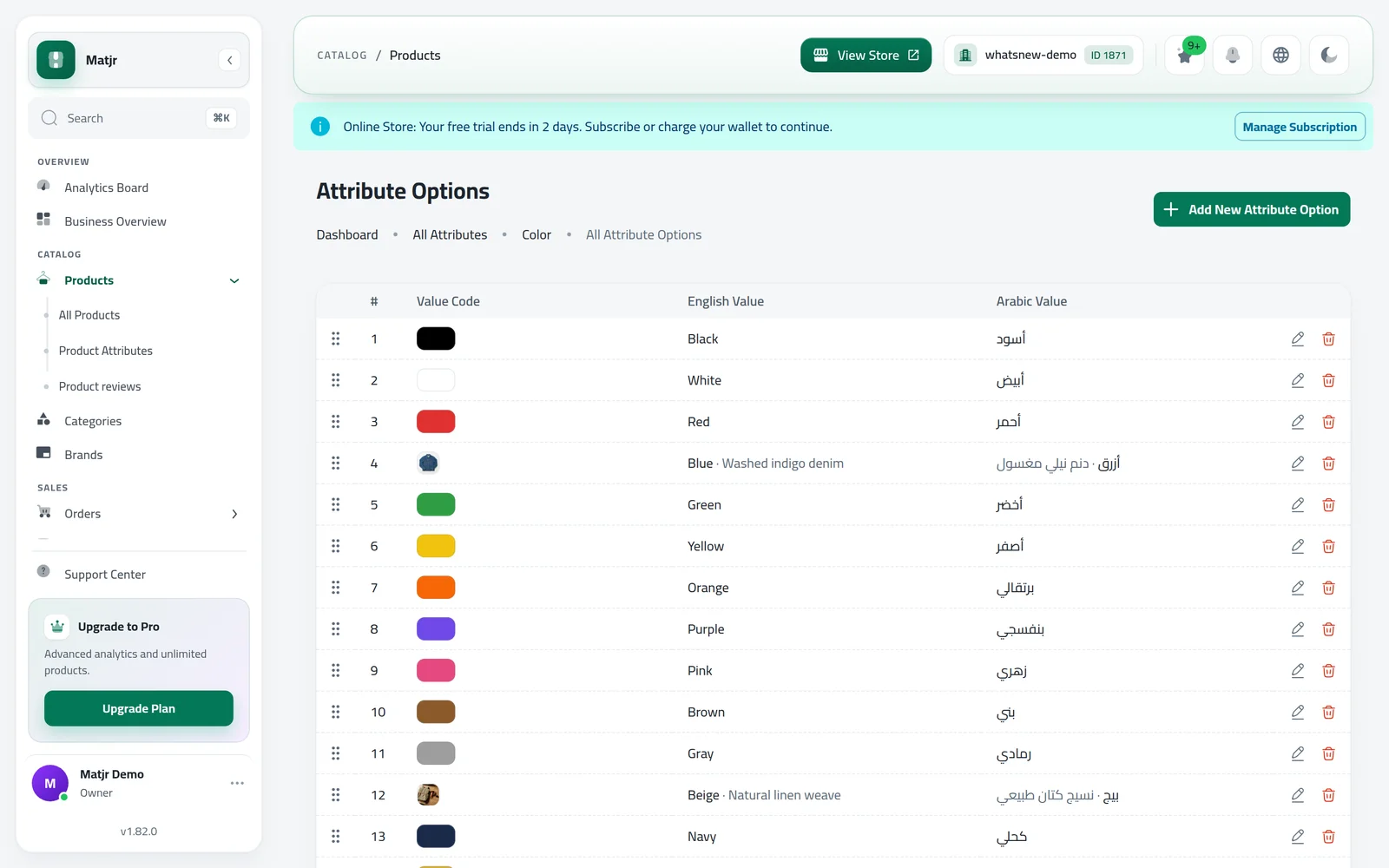
Switch from Colour to Image and upload the picture, then save.
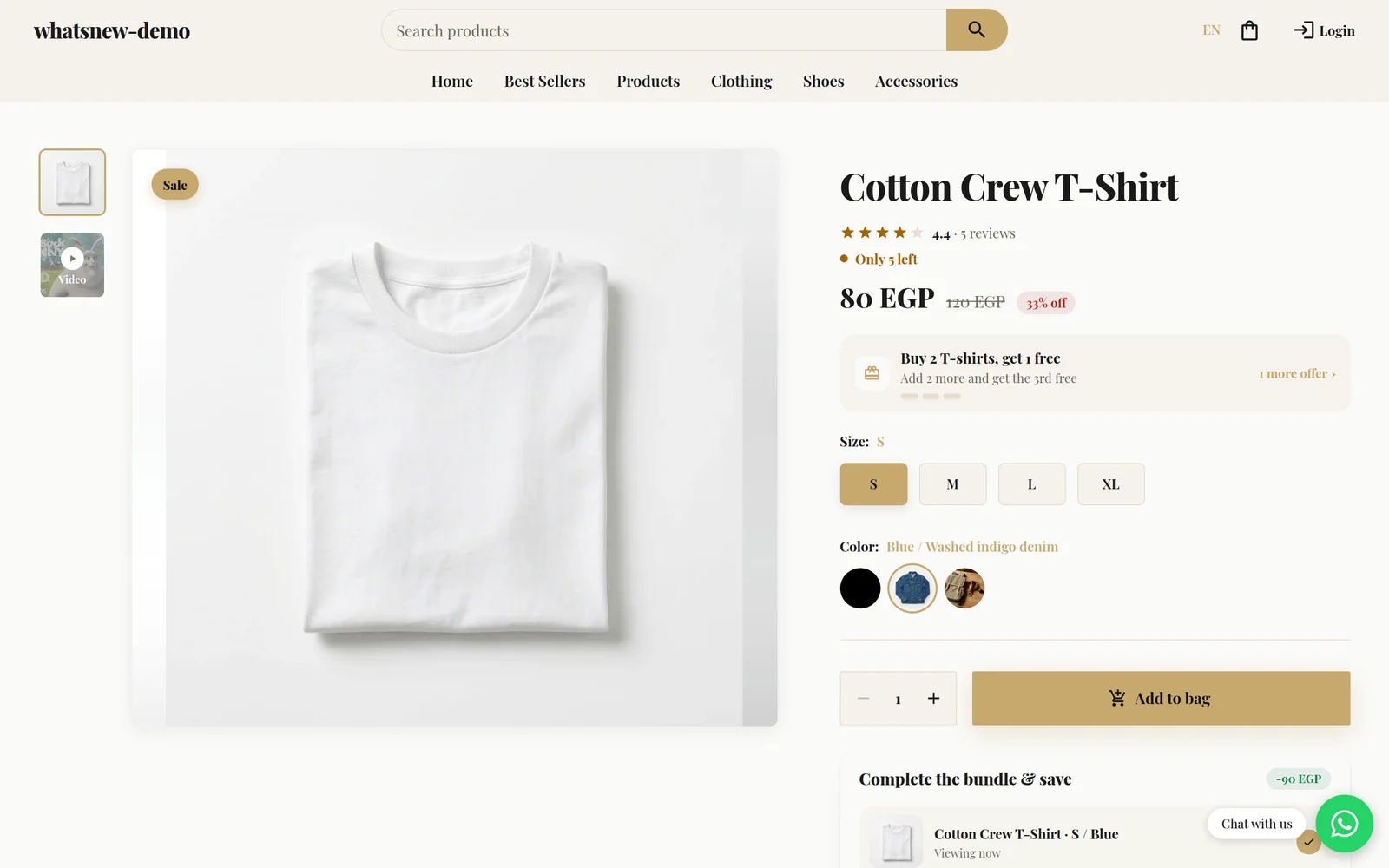
Open a product that uses it. The swatch shows your photo.
Good to know
- Use a square, close-up photo so it looks clear in a small circle.
- Switching back to Colour or removing the photo returns the colour.
- The small colour dots on product cards still show colours only.
Frequently asked questions
Can I use both a colour and a photo?
A value uses one at a time. If you remove the photo, the colour shows.
Does it work in Arabic and English stores?
Yes. The swatch is the same in both languages.
What size should the photo be?
A square close-up works best, because it is shown in a small circle.
Try it on your own store
Start your free trial. No credit card required.