Products
A clearer page to add and edit your products
Add or edit a product on one clear page: options, prices, stock and store page together, with colour swatches and sale text that now show correctly.
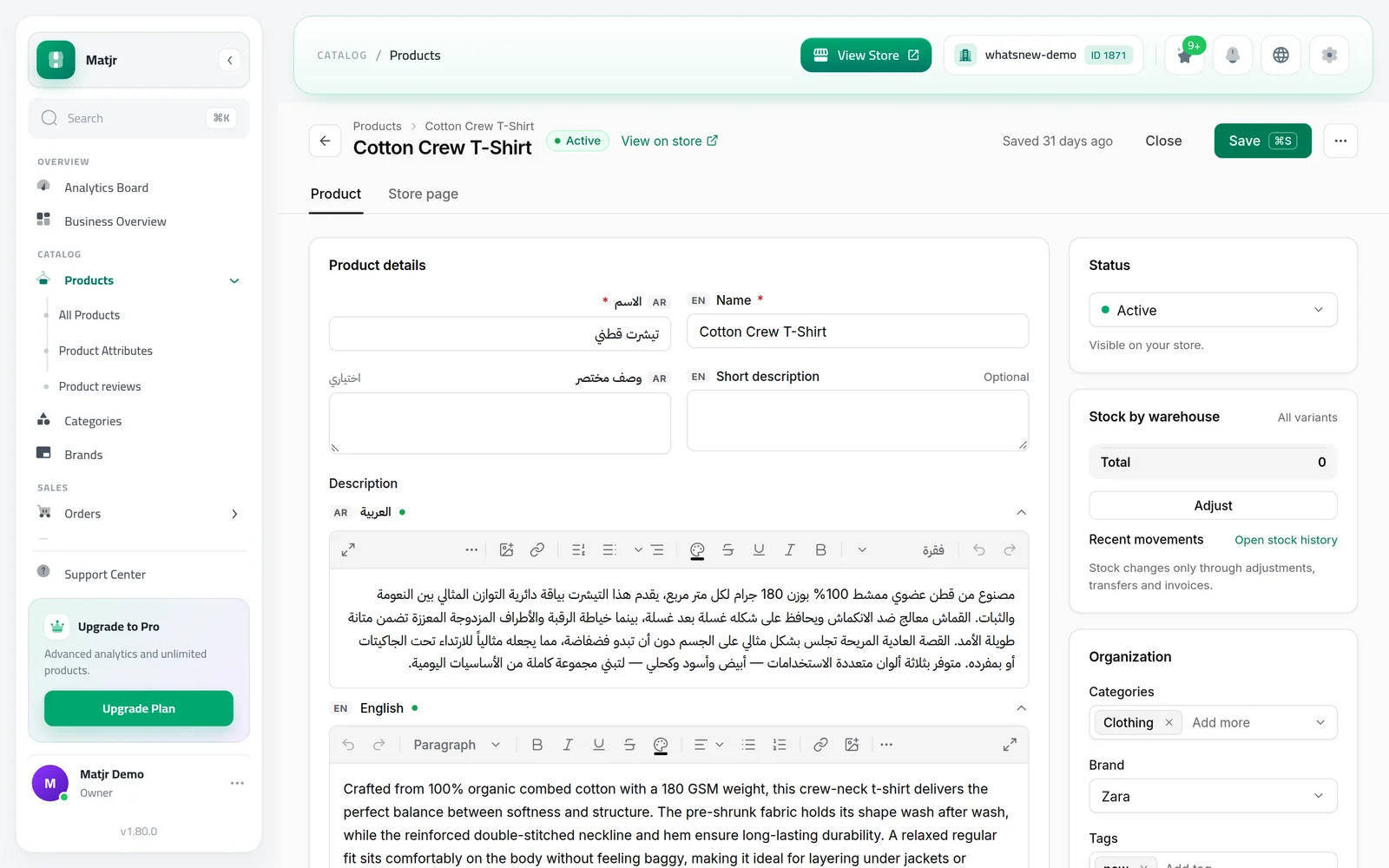
- Where
- Products, then Create a new product
- Two tabs
- Product and Store page
- Shoppers see
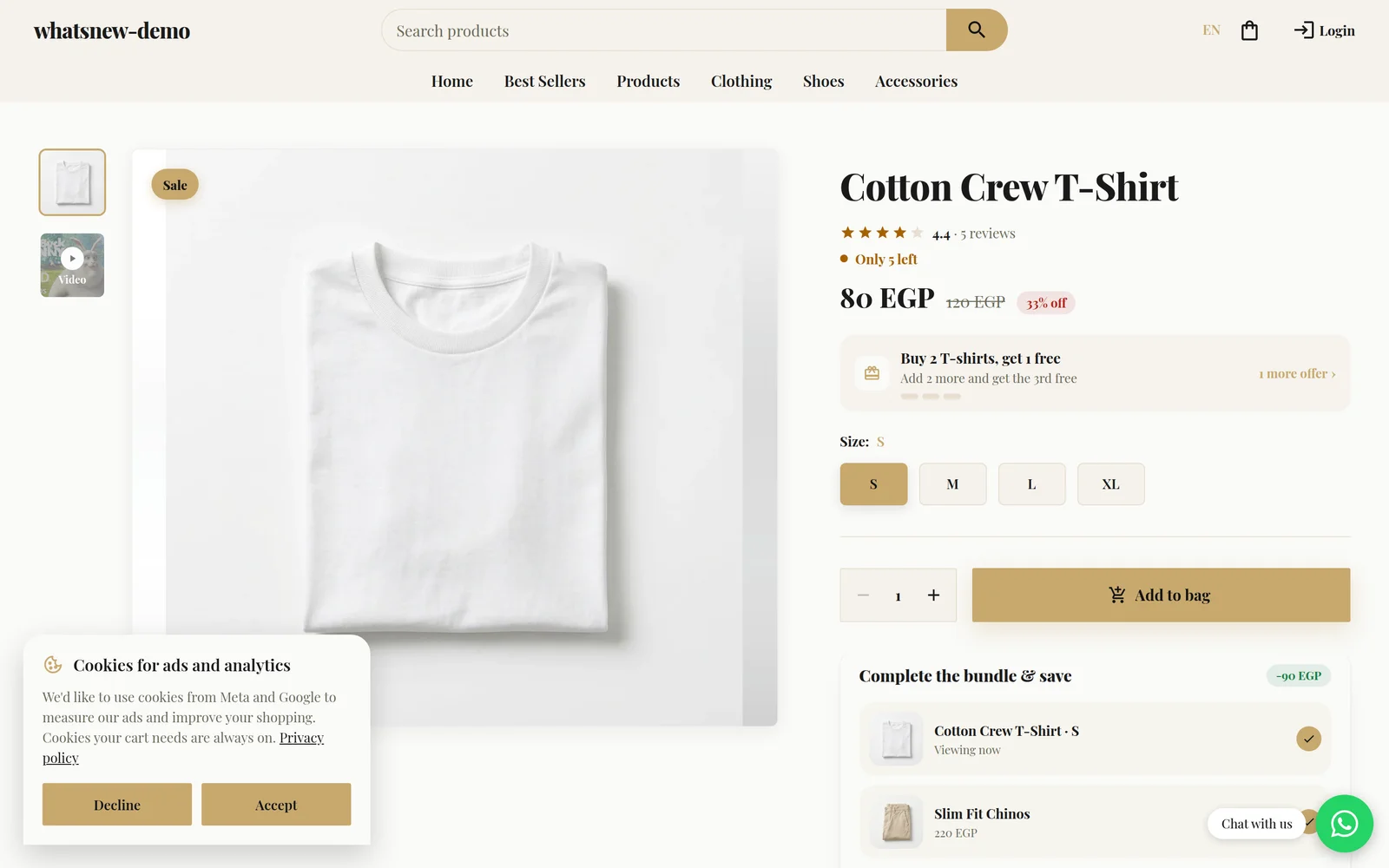
- Colour swatches, your option order, sale text per language
- Works on
- Desktop and phone, Arabic and English
Adding a product is faster and harder to get wrong. Details, photos, options, prices, stock and the way the product looks on your store now sit on one page, so you stop jumping between tabs and forgetting a step.
What changed
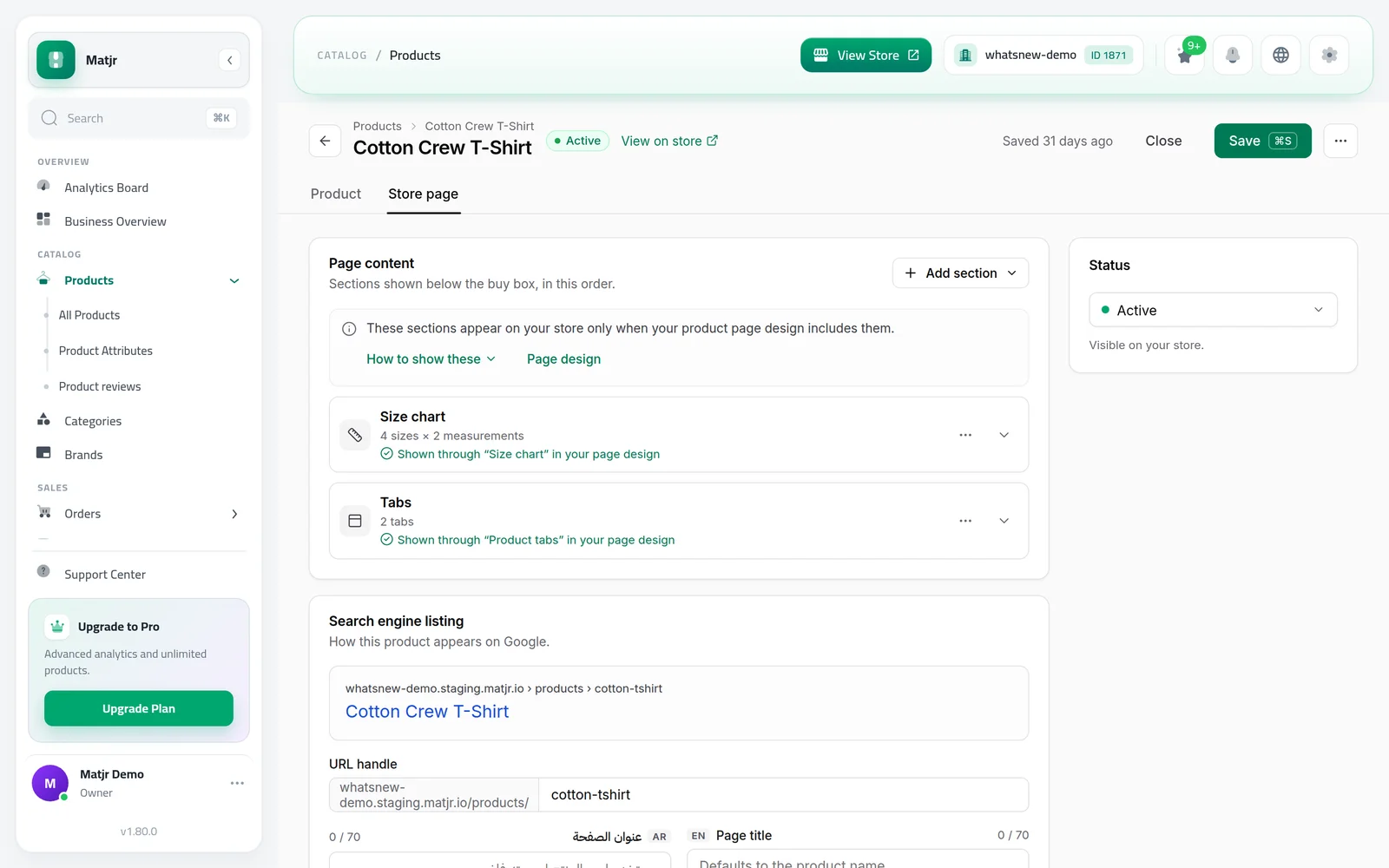
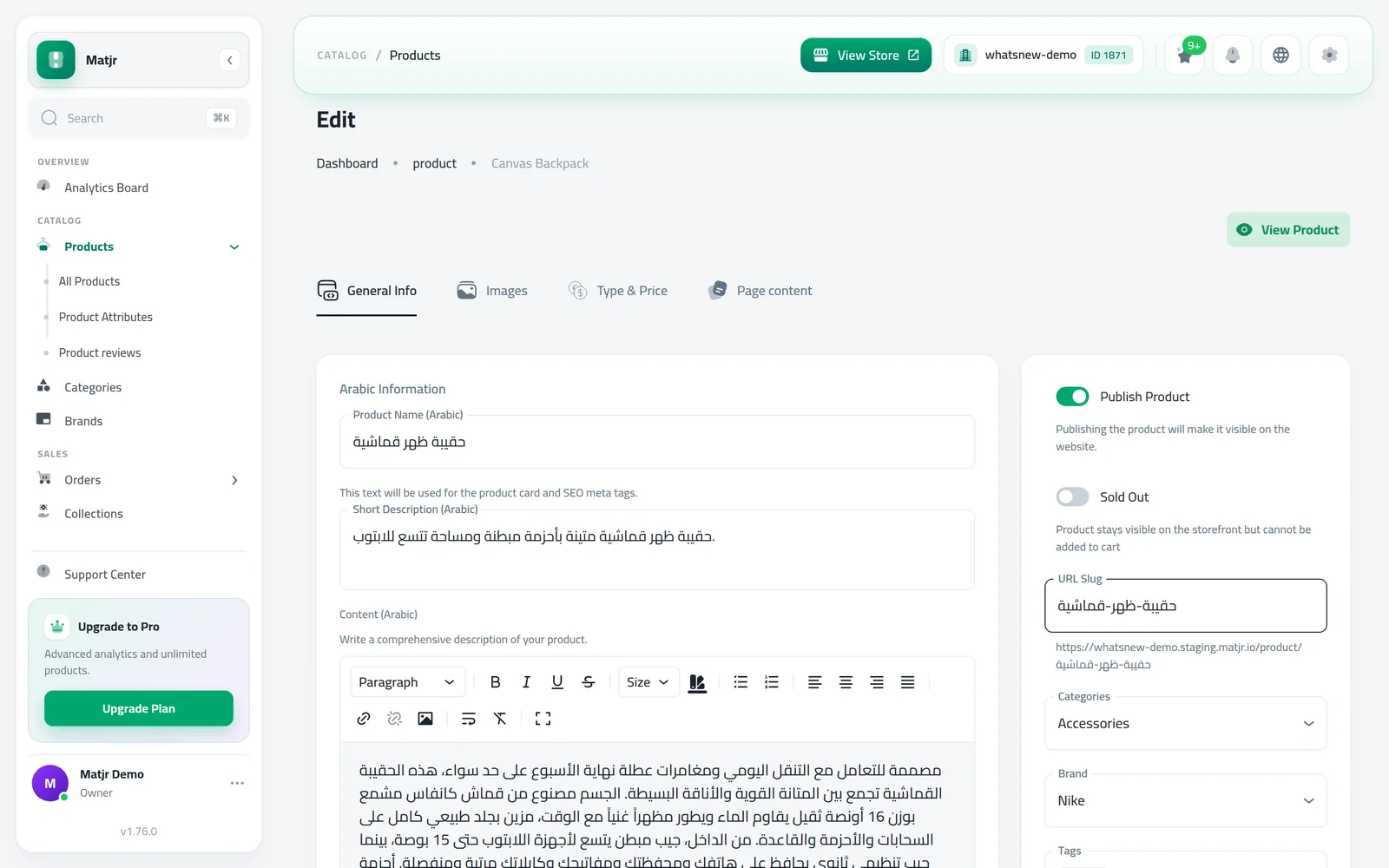
- Two tabs. Product holds the details, images, options, prices and stock. Store page holds the extra content, the Google listing and the page design.
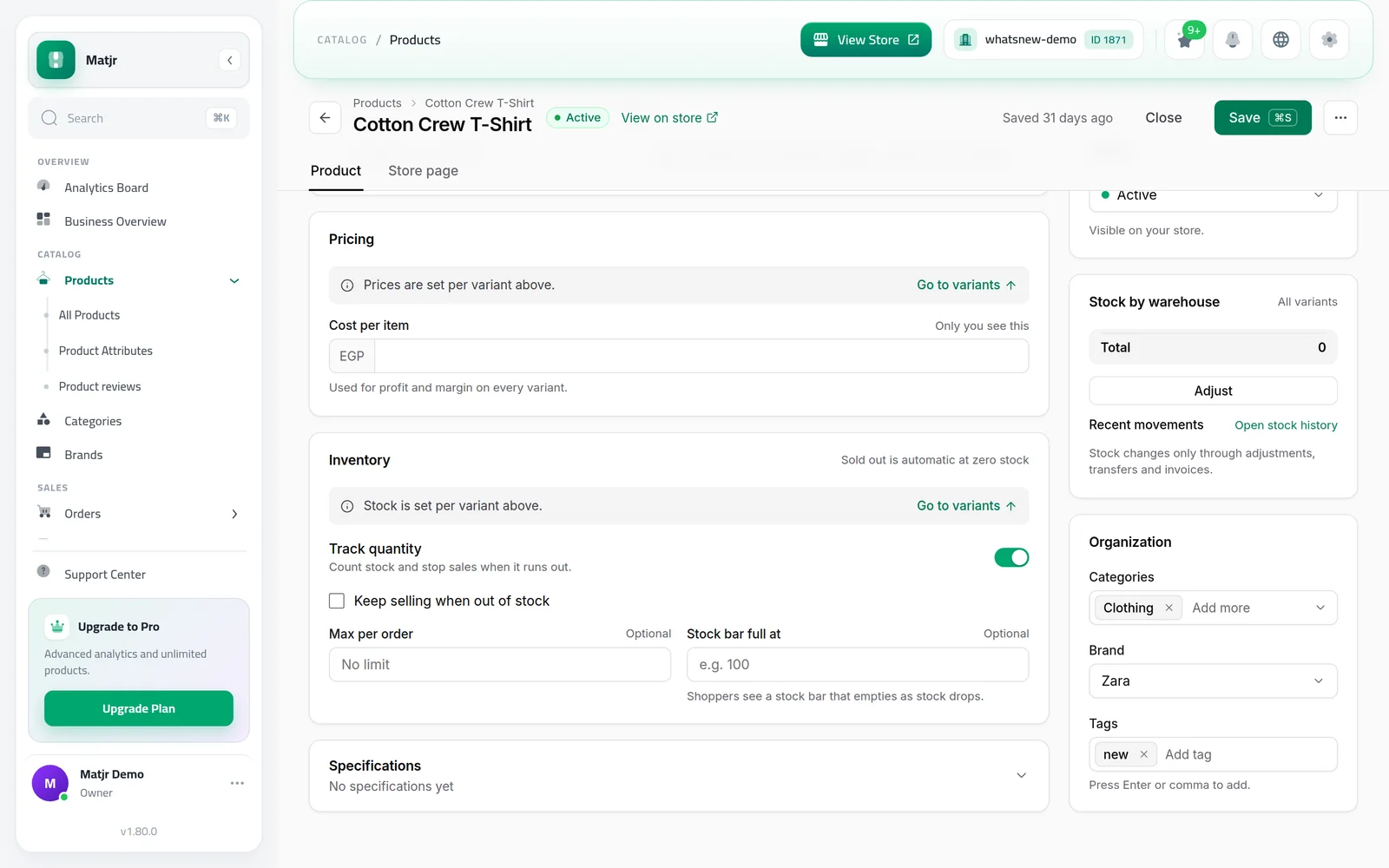
- Options come first. Variants now sit above Pricing. When you add options such as size or colour, your price and sale price are copied into every variant, and the page tells you which price it used.
- Pick many values at once. Choose every size or colour you sell from one list, in the order you set for them.
- Fewer surprises when you save. If something is missing, the message names the tab and Review takes you straight to the field.
- A way out. Next to Save, the button reads Discard when you have unsaved changes and Close when you do not. After you create a product you can click Add another product.
- A full text editor. Descriptions keep colours, alignment, links, images and font sizes.
- Clearer extra content. In Page content, each section says whether it shows on your store, and the Features section has an icon picker.
How to use it
Open Products and click Create a new product, or open any product to edit it. Fill Product details and add your images.
Under Variants, click Add options. Choose an option such as Size, then tick every value you sell. Each combination becomes a variant with its own price and stock.
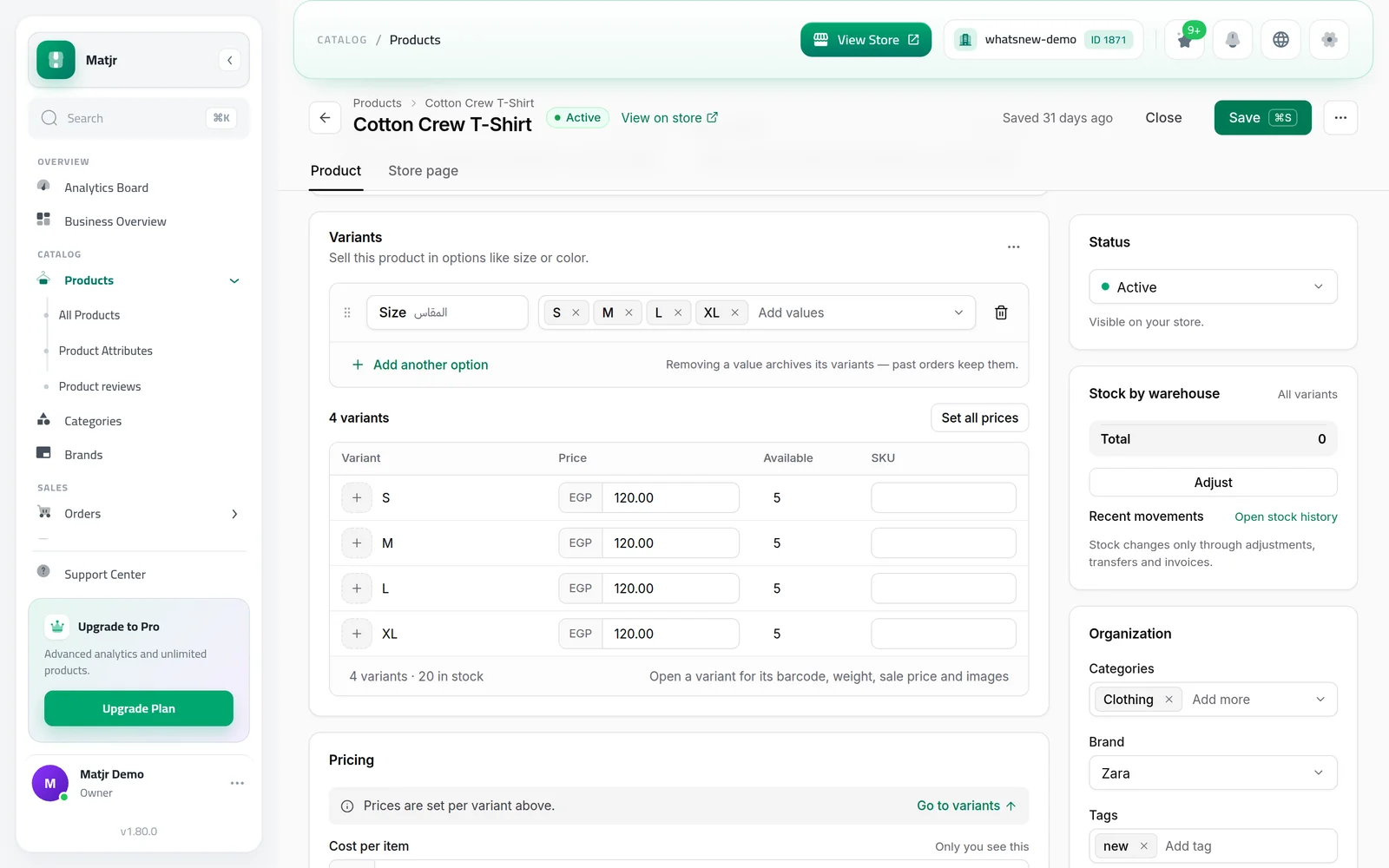
In Pricing, check the price and switch on On sale if needed. Add Sale badge text in each language your store uses.
Open the Store page tab to add a FAQ, a size chart or features, and to check how the product appears on Google.
What shoppers see
Your store reads the same product data, so shoppers see colour swatches, your option order and your sale text in the right language.
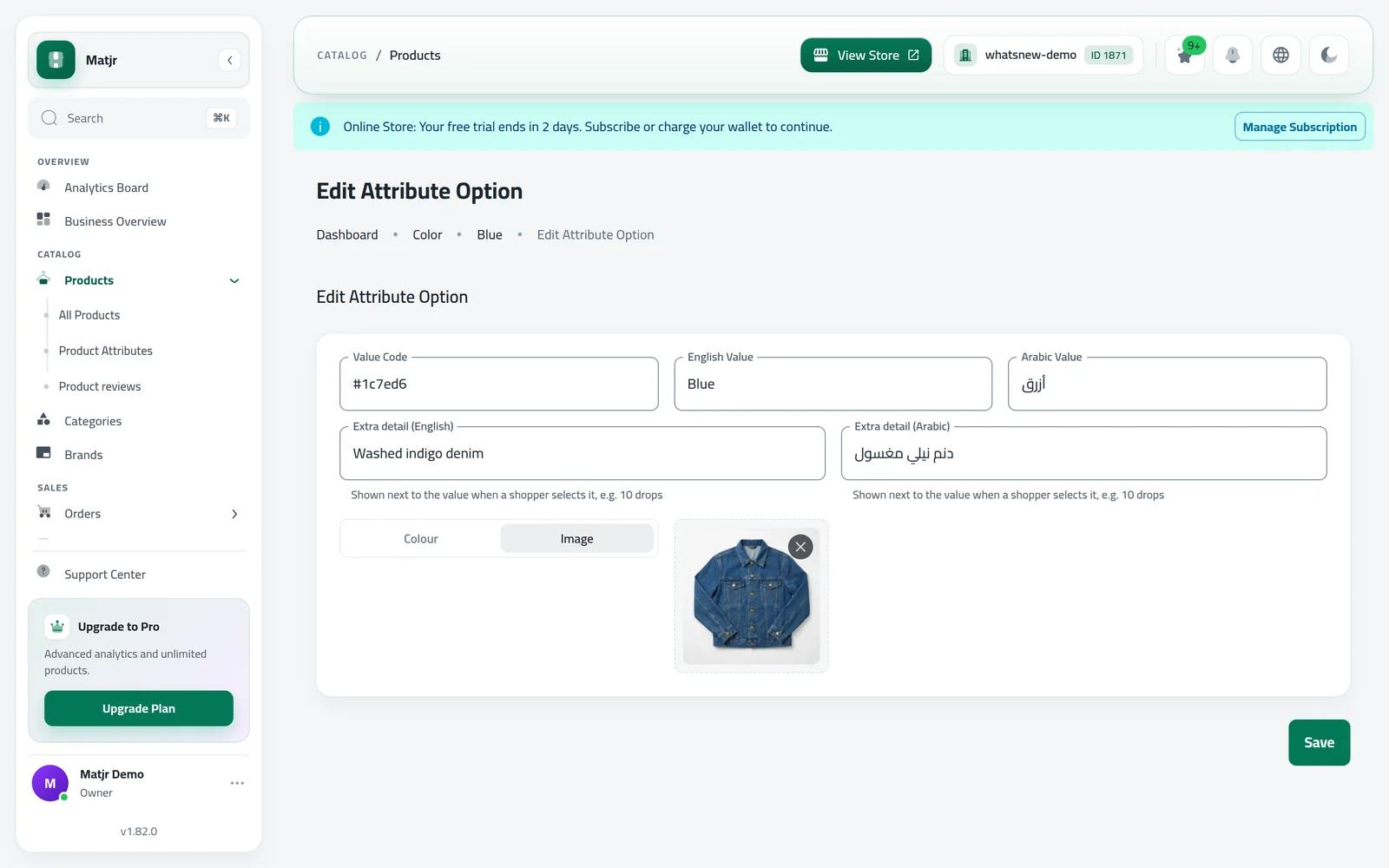
- Swatches follow the attribute. In Product Attributes, set Kind to Color and give each value a Swatch color.
- Option values appear in the order you chose, not alphabetically.
- The sale badge shows the Arabic or English text that matches the shopper's language.
- The page title and description for Google use the language of the page, with no mixing.
Good to know
- Extra content such as the FAQ shows on your store only when your product page design has the same section and the page is published. The Page content card tells you which sections are missing.
- If your store does not track stock, the Inventory card explains that you need to switch on Track quantity and save first.
- Step by step: how to add a product to your online store.
- Open the page now: create a product.
Frequently asked questions
Do my existing products change?
No. Your products open on the new page with their details, photos, prices and stock in place. You edit them the same way you create a new one.
Where did the Images and Type & Price tabs go?
Everything now sits on the Product tab: details, images, variants, pricing and inventory. The Store page tab holds page content, the Google listing and page design.
Why does my FAQ or size chart not show on my store?
Extra content shows only when your product page design has the matching section and the page is published. The Page content card tells you which sections are missing.
How do I get colour swatches on my store?
In Product Attributes, set the attribute Kind to Color and give each value a Swatch color. Shoppers then see swatches instead of text.
Try it on your own store
Start your free trial. No credit card required.