Store design
How to let customers choose size and colour on product cards
How to let customers choose size and colour on product cards, so they add to the cart without opening every product.
- Where
- Design › Builder › Products page
- Time
- About 3 minutes
- Needs
- Products with options
If you want to know how to let customers choose size and colour on product cards, this guide is for you. When shoppers can pick an option right in the list, they add to the cart in one step instead of opening every product. That means fewer clicks, fewer people leaving, and more sales from the same visits.
Before you start
This only matters for products that have options such as size, colour or shoe size. Open one of those products in Products and check that each option is filled in and that the stock is right. Simple products without options keep their normal add button. It is also worth deciding how many options you offer: a product with two options, like size and colour, works well on the card. Three or more options are better in the small window.
How to let shoppers choose options on the card
Open the builder and choose Products page.
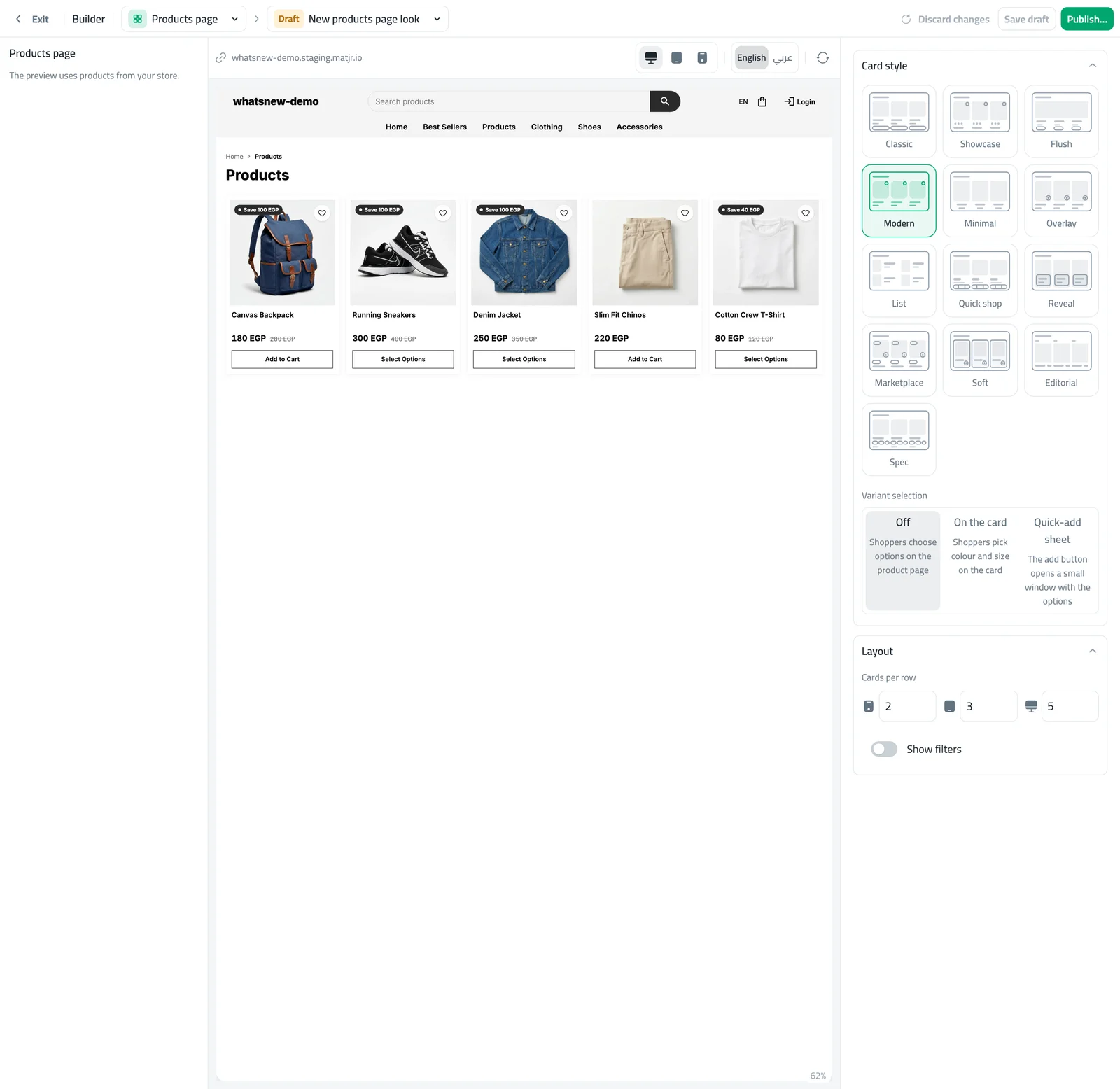
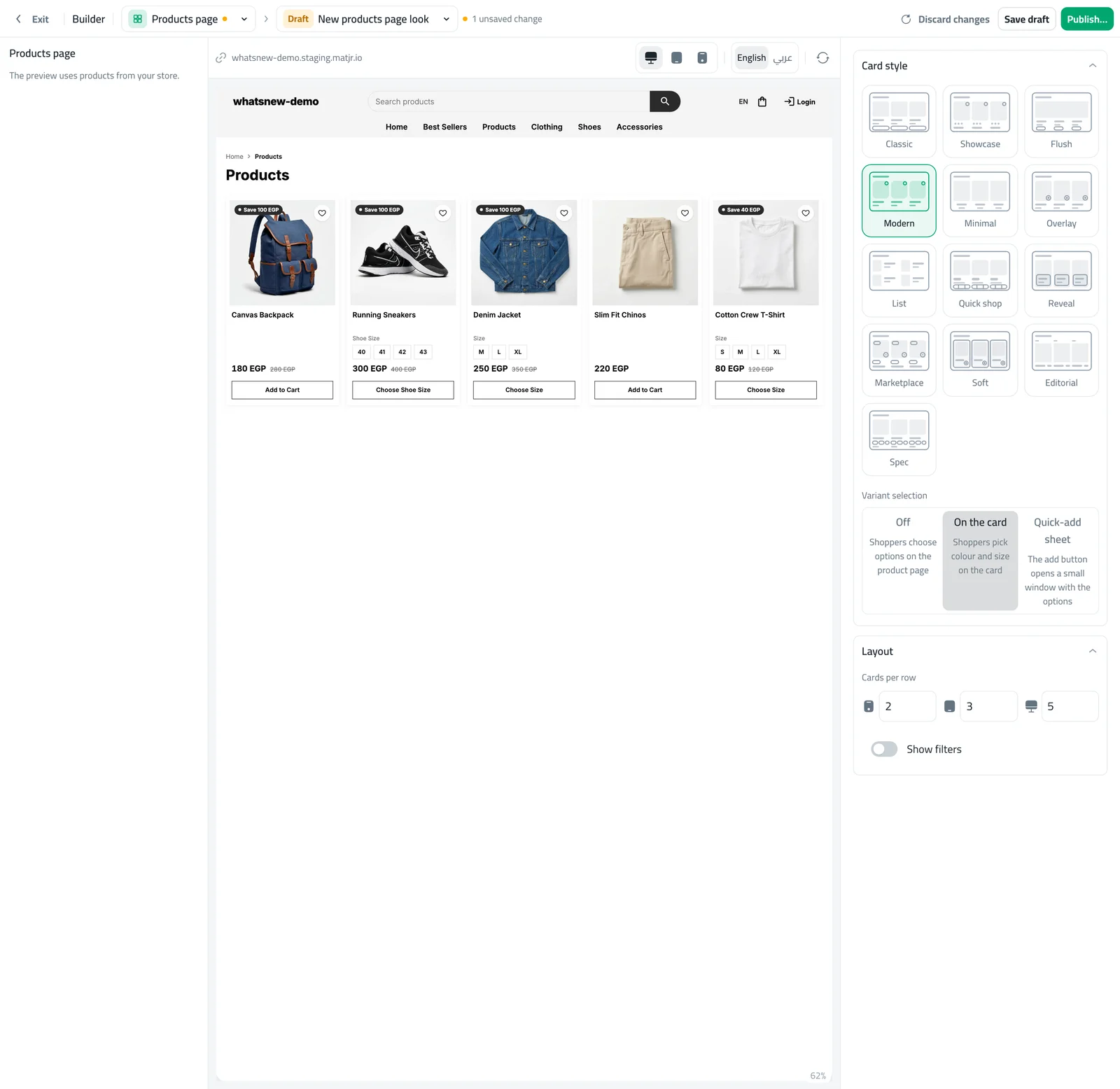
Scroll to Variant selection under the card styles. Choose On the card.
Look at the preview. Products with options now show their sizes or colours, and the button reads Choose Size until the shopper picks one.
Press Publish when you are happy. Do the same in a Products section on your home page if you want it there too.
The three choices
Off keeps things as before: shoppers open the product page to choose. On the card shows the options on the card, one row for each option. Colours appear as small colour dots and everything else as small buttons. If there are many values, the card shows the first few and a link to the rest. Quick-add sheet keeps the card clean and opens a small window with the options, the price, the quantity and an add button. On a phone the window slides up from the bottom.
What shoppers see
The price, the old price, the photo and the badge follow the choice the shopper makes. The button first says what is missing, for example Choose Size, and turns into Add to Cart when everything is chosen. Options that are sold out are dimmed so nobody picks them by mistake. After adding, the cart opens so the shopper sees it worked.
Common mistakes
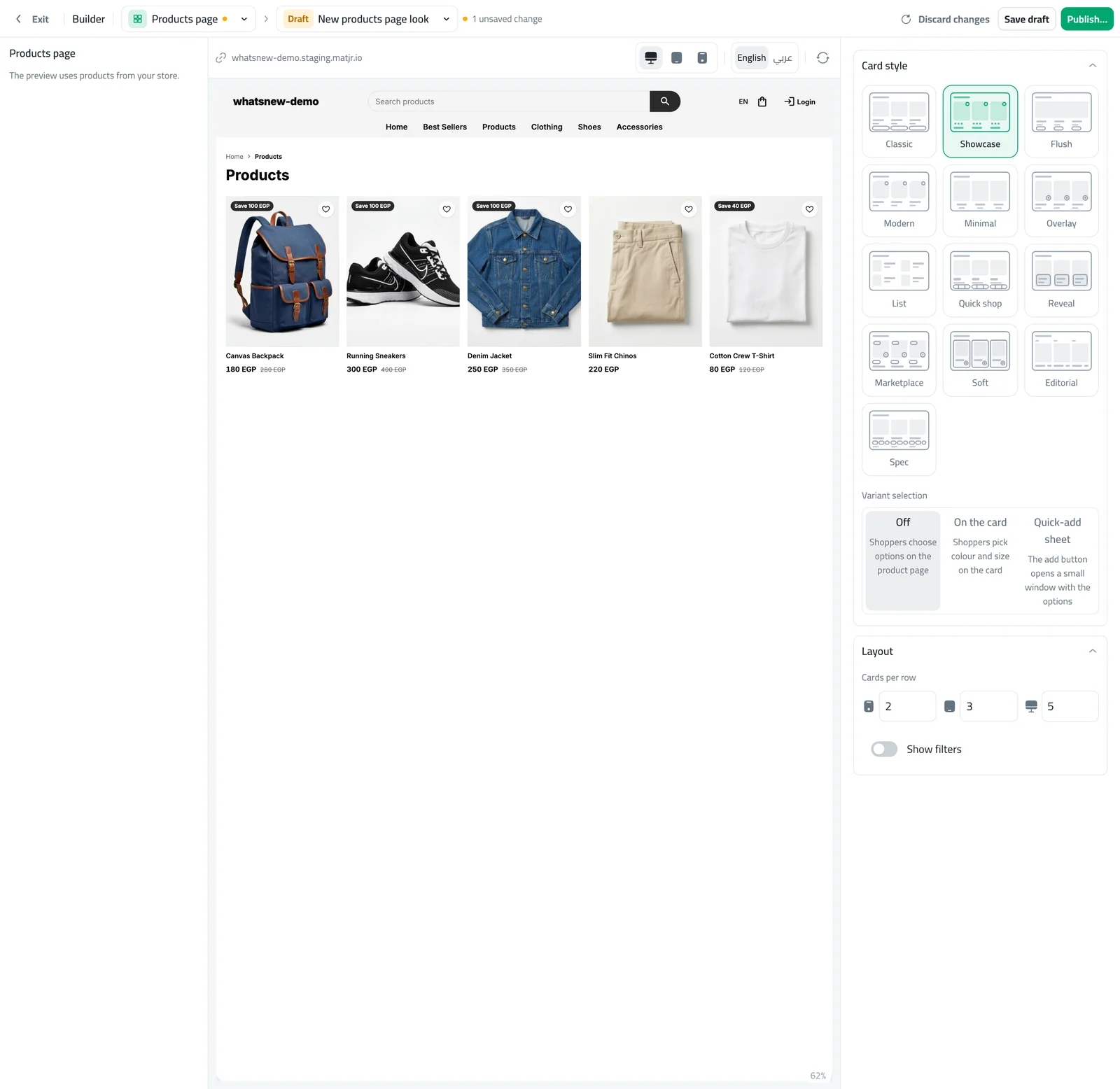
- Choosing On the card with the Minimal style. That style has no add button, so the setting is not available.
- Leaving an option without stock numbers, so shoppers cannot tell what is available.
- Using very long option names, which make the buttons wrap on a phone.
Tips
Use short option names like S, M and L. Check both languages of your store in the preview. Try the quick-add window on products with many options, and keep On the card for products with one or two. If you sell a lot on phones, test the phone preview before you publish.
On phones
Most of your shoppers use a phone, where space is tight. On a phone the card shows fewer values, and a link tells the shopper there are more. For products with many options the small window is usually the better choice, because it gives each option room to be tapped easily. Open the phone preview in the builder to see exactly what shoppers will see before you publish.
When to use each choice
Use On the card when most of your products have one or two short options, such as size. Use the quick-add window when options are many or have long names, or when you want very clean cards. Leave it Off when your products need more photos and detail before a purchase, such as large appliances. You can change your mind at any time, and shoppers see the new setting only after you publish.
Related tasks
To pick the card style itself, read how to design your products page. To explain your products better, see how to add product specifications to your store. And read what is new in let shoppers pick options on product cards.
Frequently asked questions
What is the difference between On the card and Quick-add sheet?
On the card shows the options on the card itself. Quick-add sheet opens a small window with the options.
Why is the setting missing?
The Minimal card style has no add button, so the setting is hidden for it.
Can I use it on my home page?
Yes. Each Products section on the home page has the same Variant selection setting.
Try it on your own store
Start your free trial. No credit card required.