Business management
Number invoices your way and find every invoice
Set your own invoice numbers, add a reference to each invoice, and search or filter all your invoices, not just the newest 50.
- Where
- Invoice Settings, Sales Invoices, Purchase Invoices
- Who can use it
- Stores using the ERP features
- Number format
- Your prefix, digits and next number
- Search
- Number, reference or customer name
Number your invoices the way your accountant expects, add your own reference to each one, and find any invoice from any year. Before, the list only reached your 50 newest invoices.
What changed
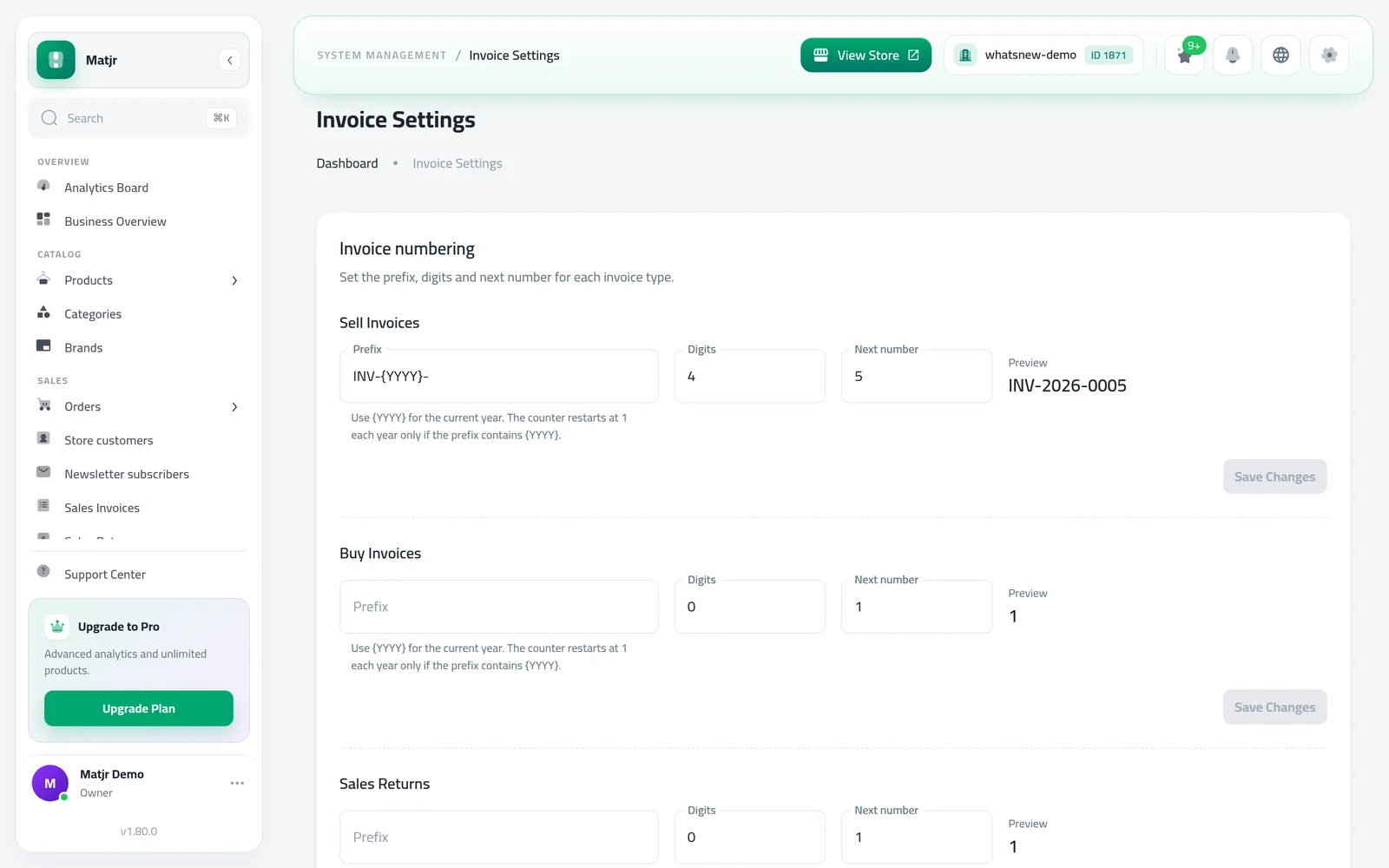
- Your own numbering. Choose a prefix such as INV/{YYYY}/, how many digits to show, and the next number, for each invoice type. A preview shows the result. If the prefix contains {YYYY}, the counter restarts at 1 each year.
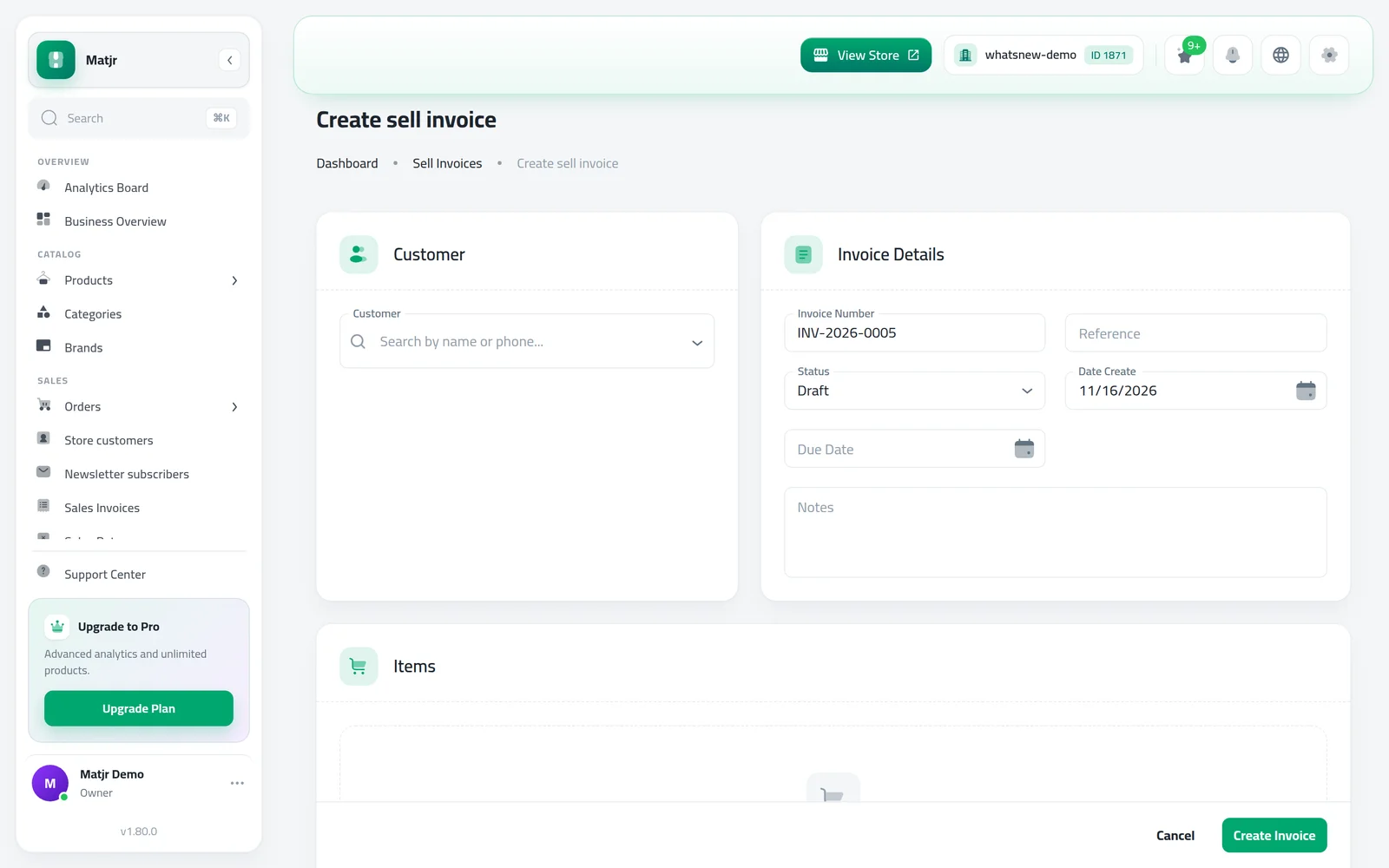
- Edit the number of a draft. While an invoice is a draft you can change its Invoice Number. Once it is finalized the number is locked, and a number already used shows a message under the field.
- A reference on every invoice. Add a Reference, such as the supplier's own invoice number. It shows on the invoice and on the PDF. On purchase invoices you get a warning when the same supplier already has that reference, and you can still save.
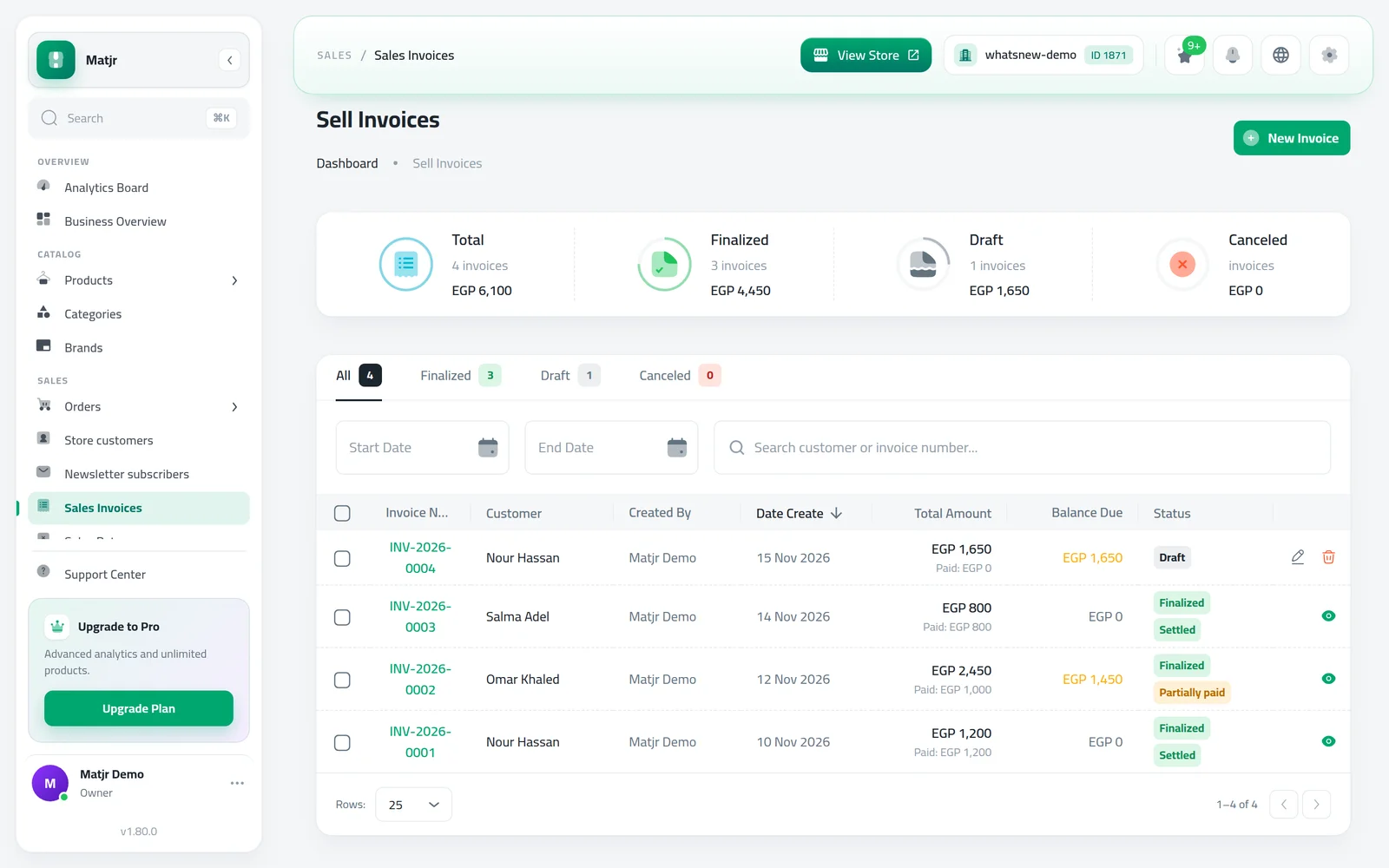
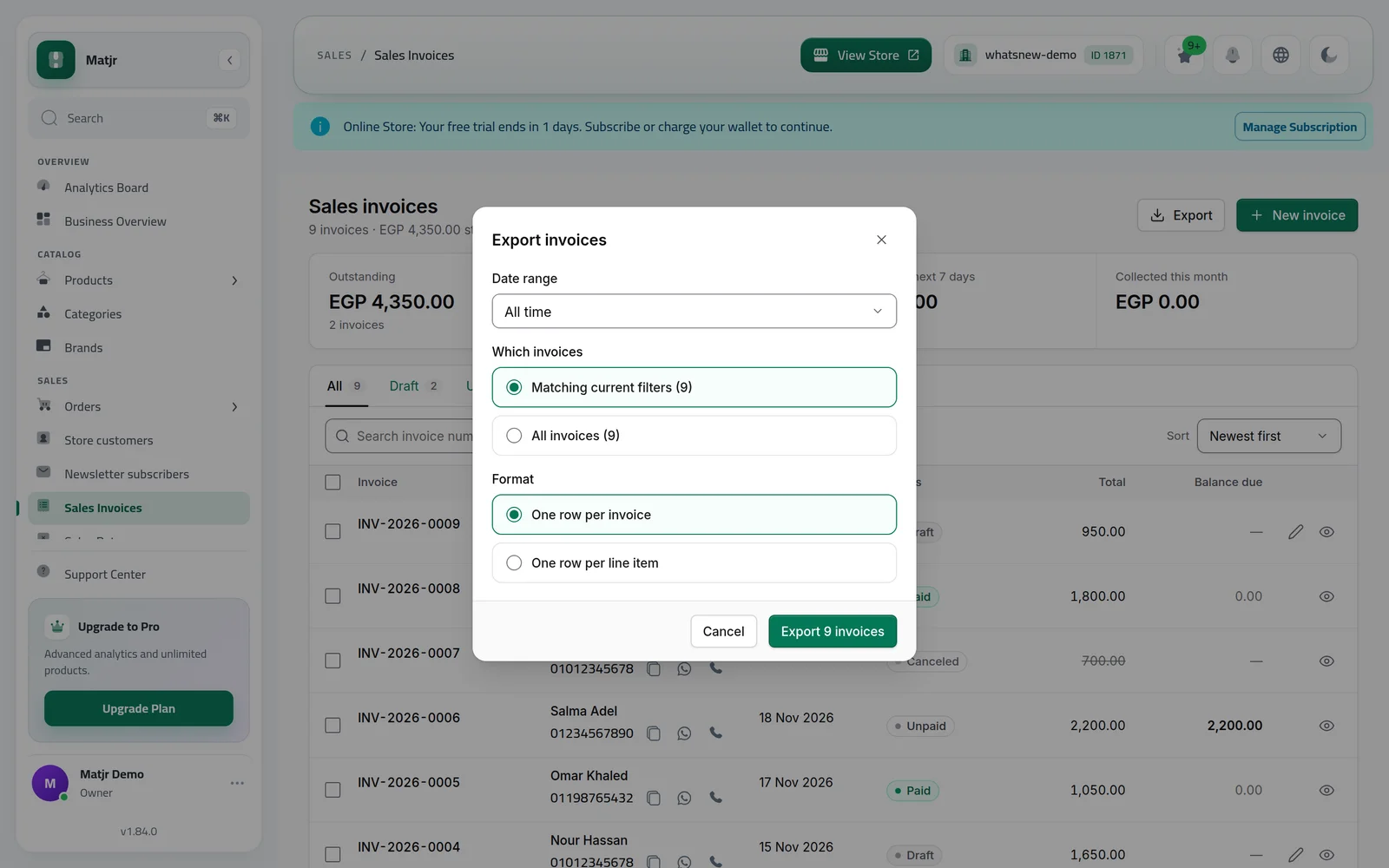
- Every invoice in the list. The sales and purchase lists now load all your invoices, page by page. The search box finds a part of the number, the reference or the customer name.
- Filters that cover everything. The status tabs, the date range and the sorting now work on all your invoices, not only the newest 50.
How to use it
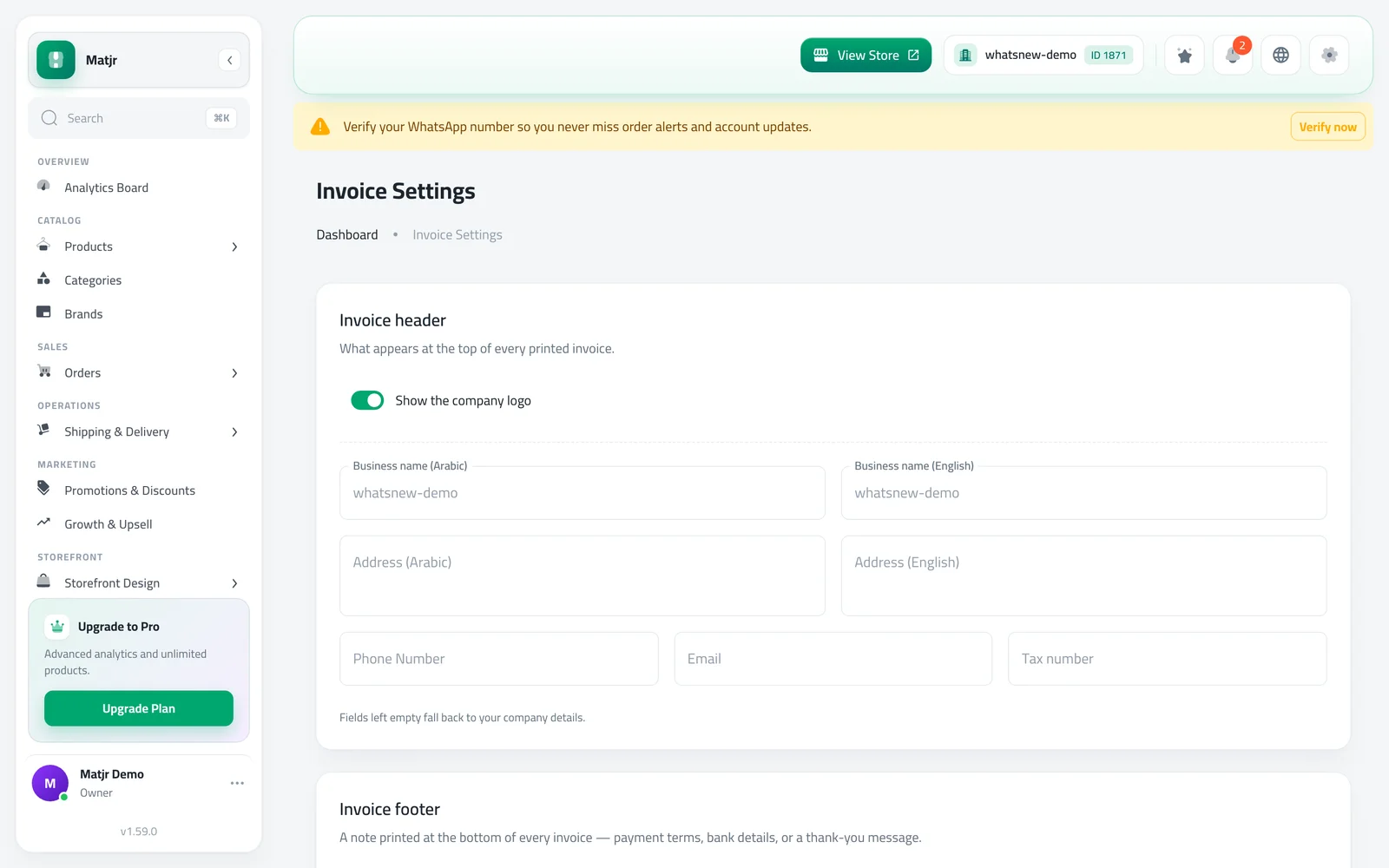
Open Invoice Settings. Under Invoice numbering, set the Prefix, the number of Digits and the Next number for each invoice type, check the Preview and click Save Changes.
Open Sales Invoices or Purchase Invoices. Type part of an invoice number, a reference or a customer name in the search box, and use the tabs and the date filter to narrow the list.
When you create an invoice, fill the Reference field and, if you need to, change the Invoice Number before you finalize it.
Good to know
- This is for stores that use the ERP features. Stores that only sell online do not see invoices.
- Existing invoices keep the numbers you already printed.
- The number column in the list cannot be sorted, because numbers such as INV/2026/0042 restart each year. Sort by date instead.
- If a new invoice type has no numbering set, numbers simply continue from the highest one.
Frequently asked questions
Do my old invoices get new numbers?
No. Existing invoices keep the numbers you already printed. Your numbering settings apply to invoices you create from now on.
Can I change an invoice number after finalizing?
No. You can change the number only while the invoice is a draft. After you finalize it, the number is locked.
What is the Reference field for?
Use it for any number you want to find the invoice by, such as the supplier's own invoice number. The search box finds it, and it shows on the PDF.
Why did I only see 50 invoices before?
The list loaded only the newest 50 invoices of a type, so older ones could not be found. It now loads all of them, page by page.
Try it on your own store
Start your free trial. No credit card required.