Store design
Design your store and see every change before shoppers do
The new builder shows your real store as you edit. Add sections, try looks and publish only when you are happy.
- Where
- Storefront Design › Design
- Pages
- Home page, header, product page, cart, theme
- Preview
- Computer, tablet and phone, in English and Arabic
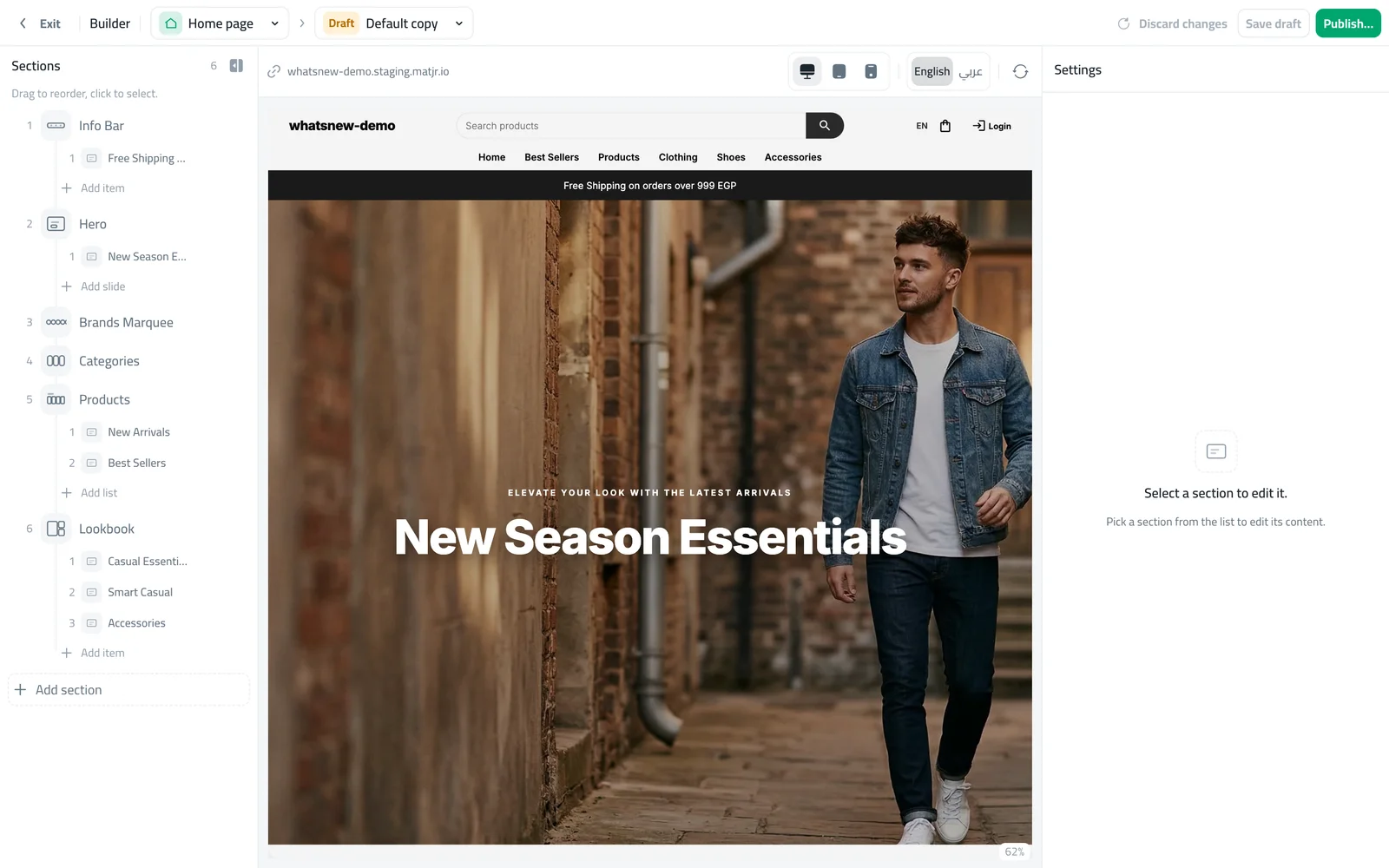
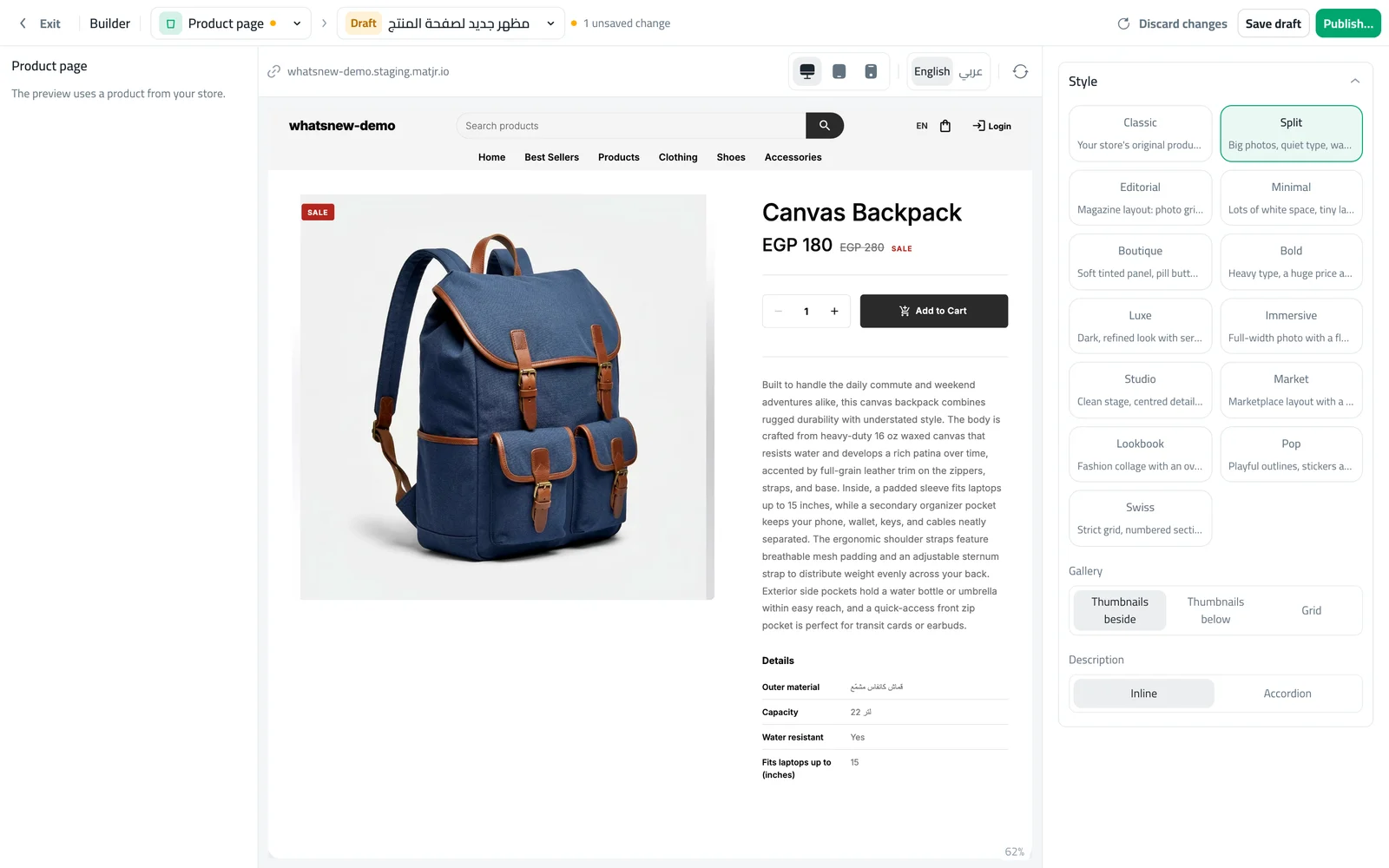
You no longer have to guess how a change will look. The builder puts your real store next to the settings, so every edit shows up in the preview straight away, and nothing reaches shoppers until you publish.
What changed
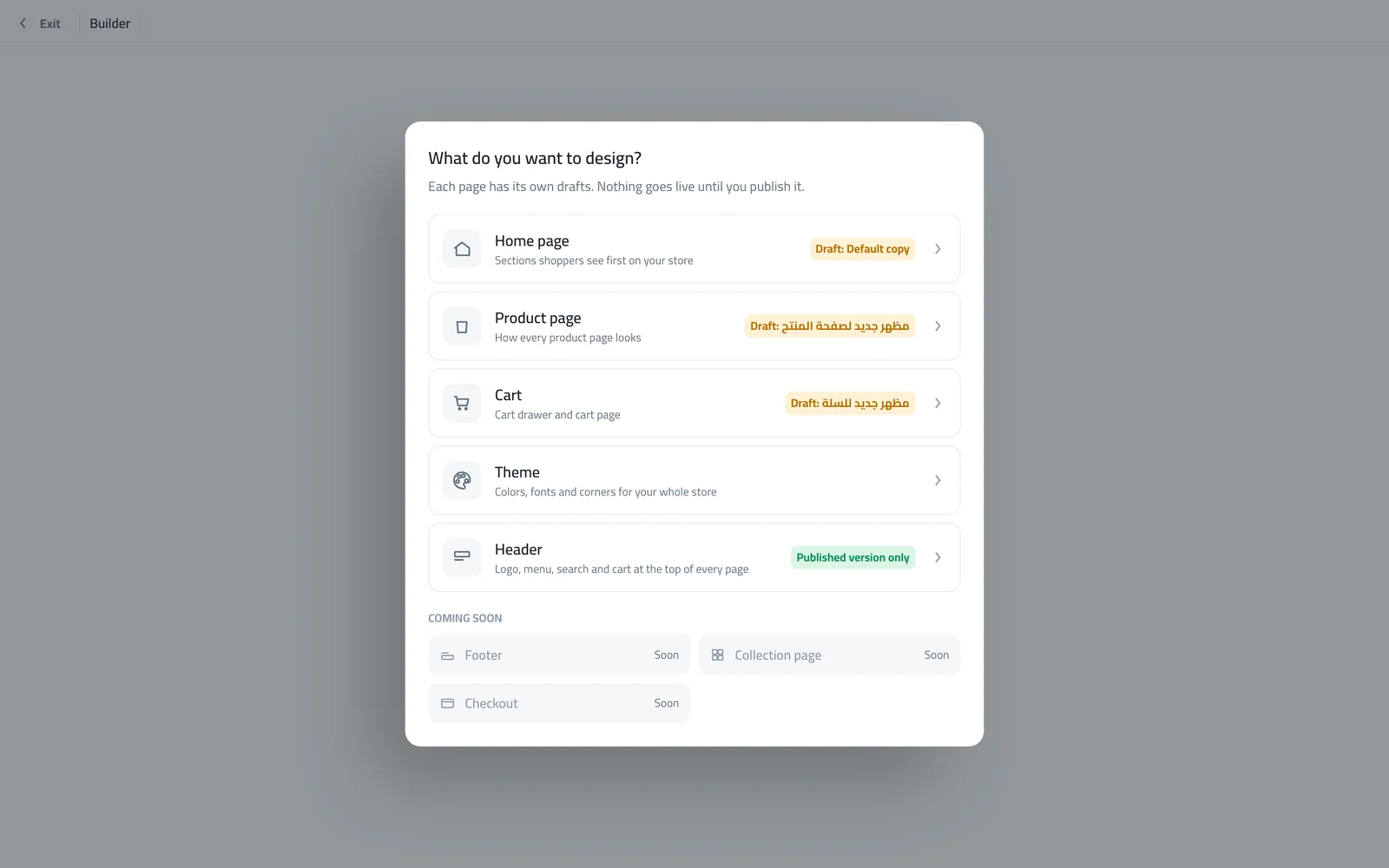
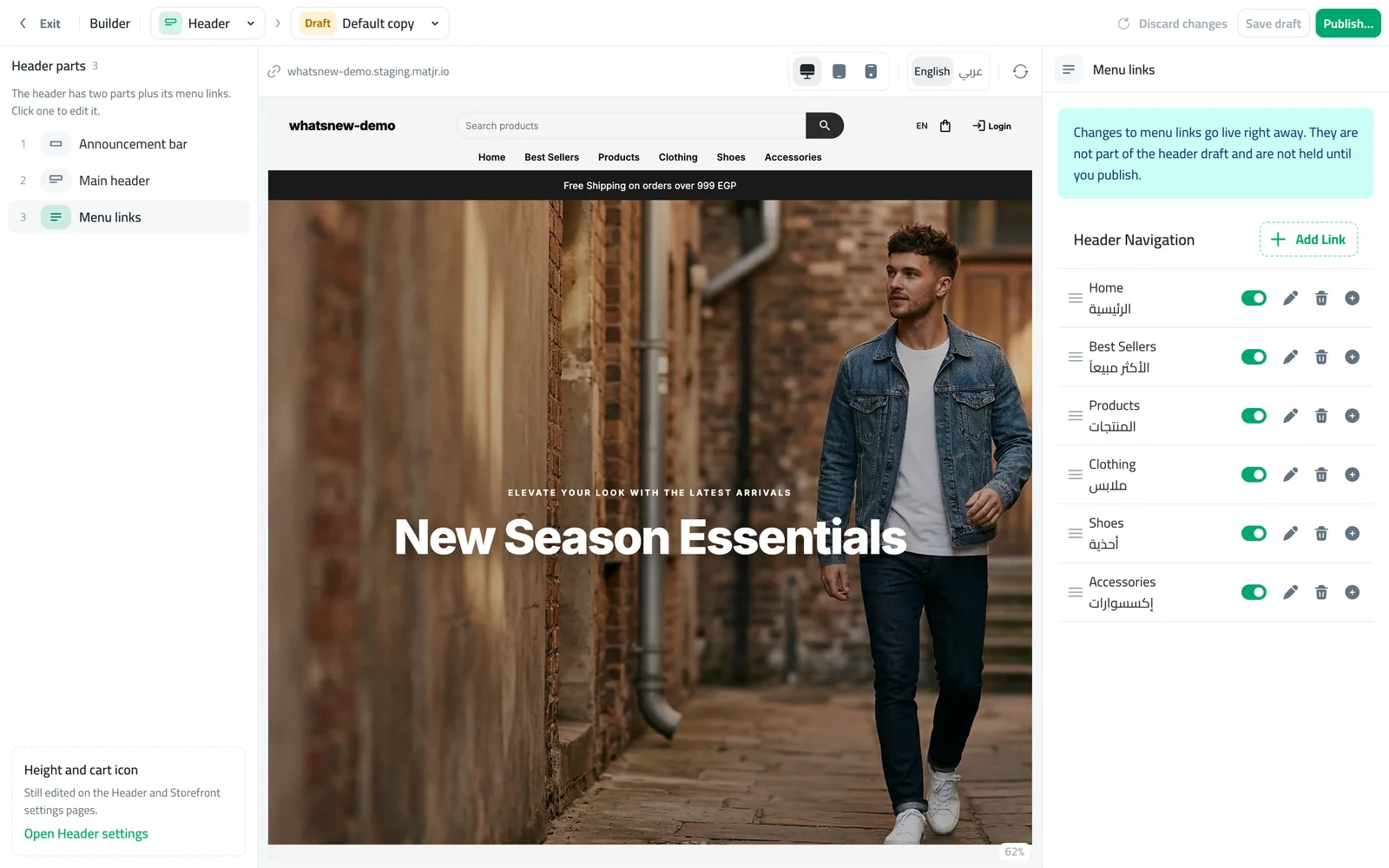
Store design now happens in one full-screen builder. Pick the page you want to work on: the home page, the header, the product page, the cart or the theme. Each page keeps its own drafts, so you can prepare a new look while the current one stays live.
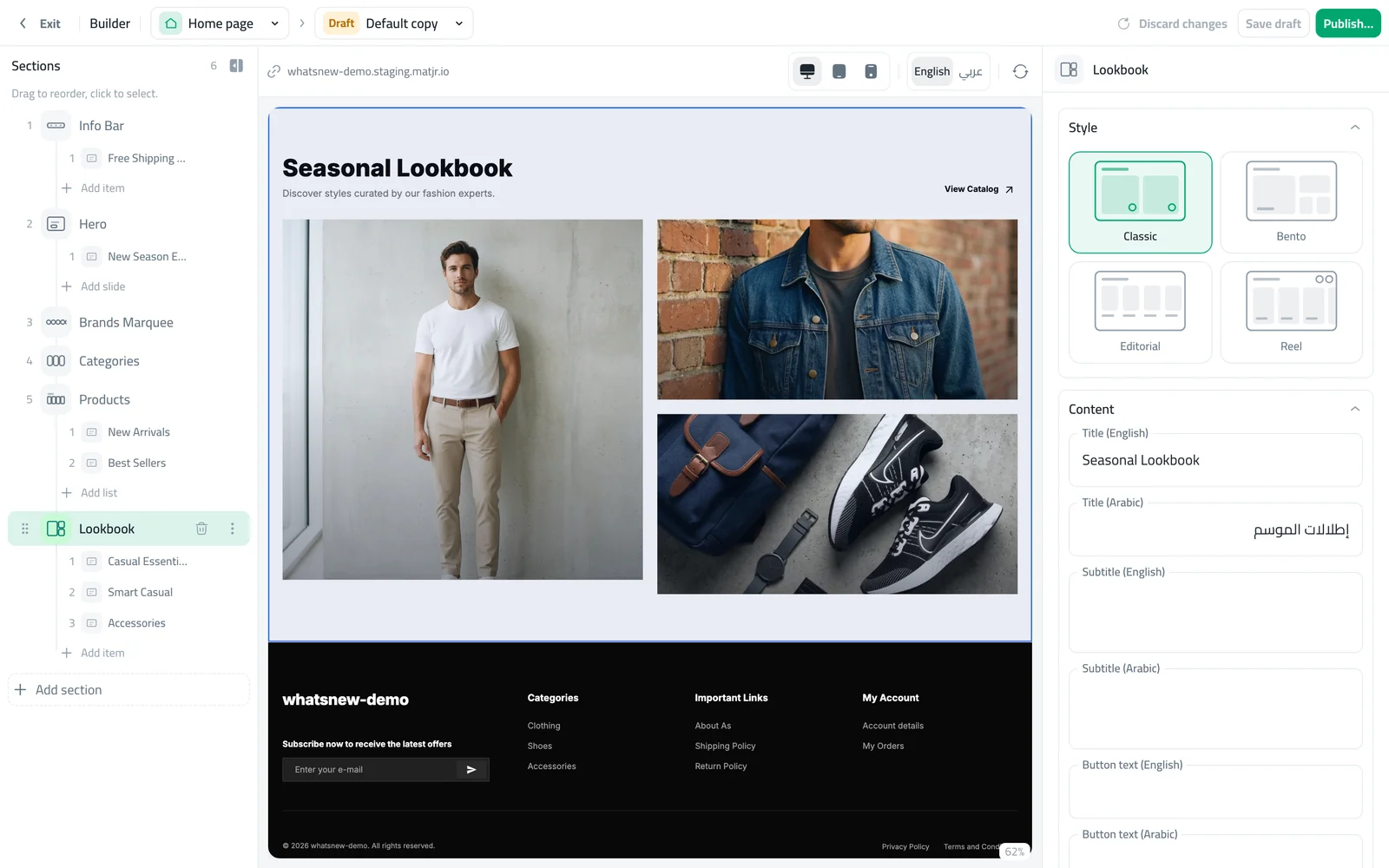
On the home page you can add, remove and drag sections into order, set the space above and below each one, and switch the preview between computer, tablet and phone, and between English and Arabic.
How to use it
Go to Storefront Design and open Design. Choose the page you want to design.
Start a draft from your live page. The preview shows your store, and the list on the left shows its sections.
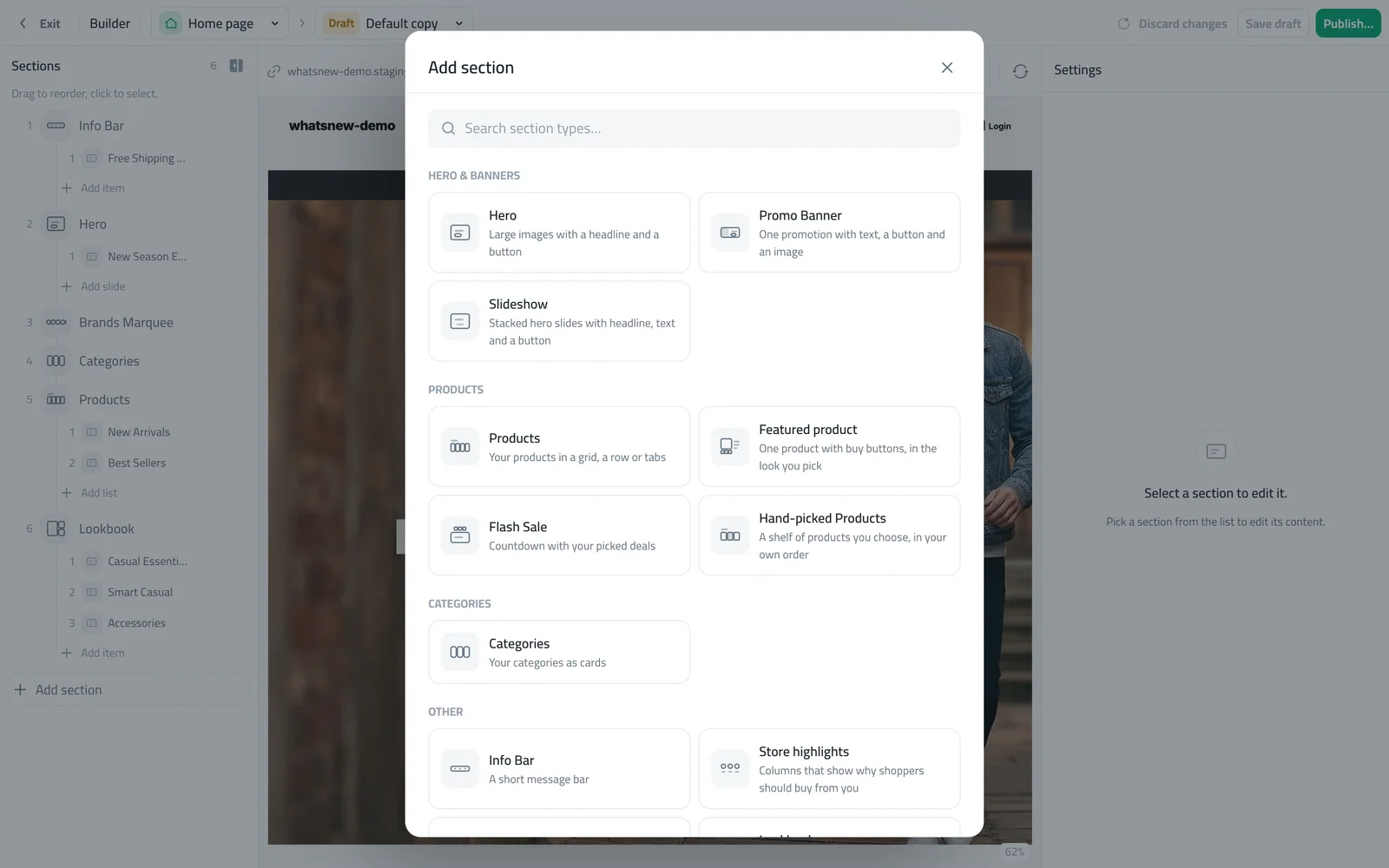
Click Add section to add a new part to the page. When you are happy, click Publish.
Good to know
- Drafts are saved for you. You can leave and come back later.
- Your old home page settings were moved into the builder, so nothing was lost.
- The footer, collection page and checkout are coming soon.
Read the full how to design your online store walk-through.
Frequently asked questions
Will shoppers see my changes while I edit?
No. You edit a draft. Shoppers see the change only after you click Publish.
Did my current home page change?
No. Your existing sections were moved into the builder as they were.
Can I go back to an older version?
Yes. Each page keeps its versions, so you can open an older one and publish it again.
Try it on your own store
Start your free trial. No credit card required.