Store design
How to add shoppable photos and videos to your online store
How to add shoppable photos and videos to your online store: pin products on a photo and link short YouTube videos to the products in them.
- Where
- Storefront Design › Design › Home page
- Sections
- Shop the look and Shoppable video
- Limits
- Up to 6 pins per photo, 12 videos per section
- Videos from
- YouTube links, including Shorts
Shoppers buy more easily when they see a product in use. If you want to know how to add shoppable photos and videos to your online store, the builder gives you two sections for it. Shop the look puts numbered pins on a photo, and each pin opens a product. Shoppable video shows a row of short YouTube videos, each linked to the product in it. This walk-through covers both, from preparing your photos to publishing the page.
Why sell from photos and videos
A product photo on a white background shows what you sell. A styled photo or a short video shows how it looks, fits or works. That answers many questions before a shopper has to ask them, and it lets them buy the exact item they just saw without searching for it.
- Fashion and accessories: one outfit photo with a pin on the top, the trousers, the bag and the shoes.
- Home and furniture: a styled room with pins on the lamp, the cushions and the rug.
- Beauty and care: short videos of a product being applied, each linked to that product.
- Food and gifts: a video of a gift box being opened, linked to the box.
Before you start
Both sections link to products in your store, so add the products first. If you have not done that yet, see how to add a product. Then prepare:
- For Shop the look: one clear photo where every product you want to pin is easy to see. Up to 6 pins fit on one photo, so pick a photo with 2 to 6 products in it.
- For Shoppable video: your videos uploaded to YouTube. Copy each link. Normal, shared and Shorts links all work. Tall Shorts videos fit the row best. You can add up to 12 videos to one section.
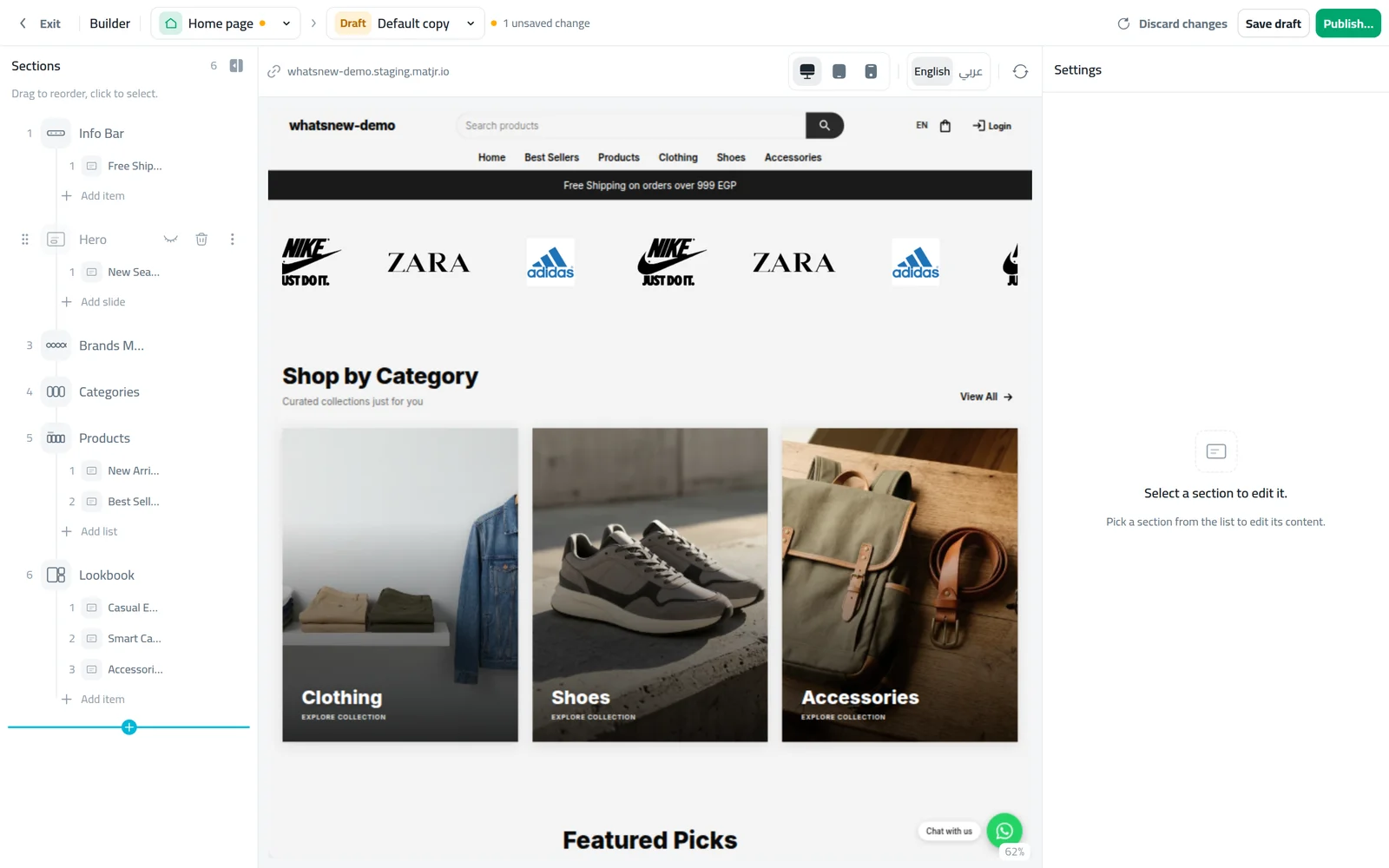
Open Storefront Design in your dashboard, click Design and choose the Home page. Work in a draft if you want to prepare the sections before shoppers see them.
Think about where each section goes. A Shop the look photo works well near the top of the page, right after your main banner, while a row of videos fits well between two product rows. You can drag a section to a new place at any time.
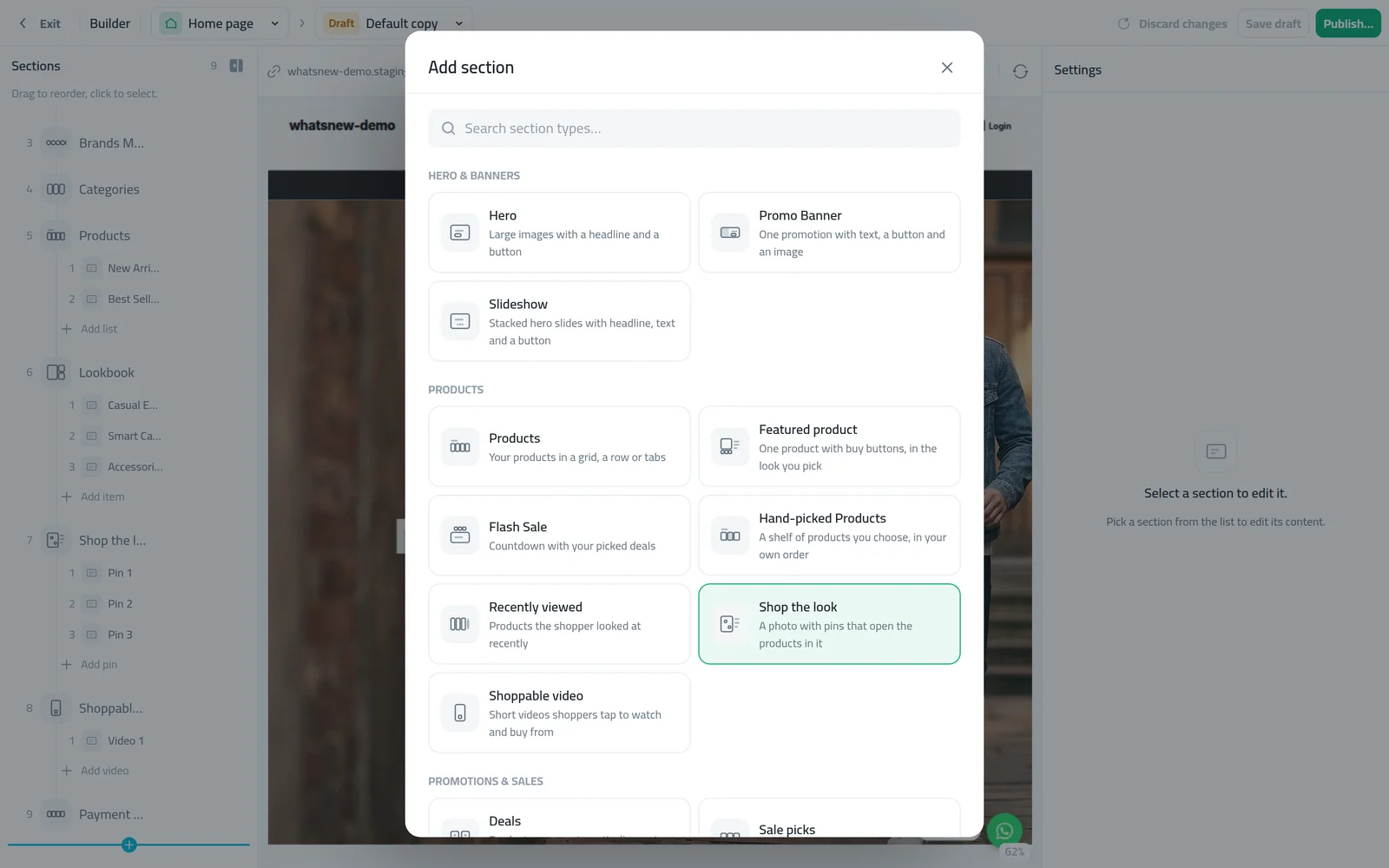
Click Add section. Both sections are under Products: Shop the look and Shoppable video. You can also type their name in the search box.
How to add shoppable photos with Shop the look
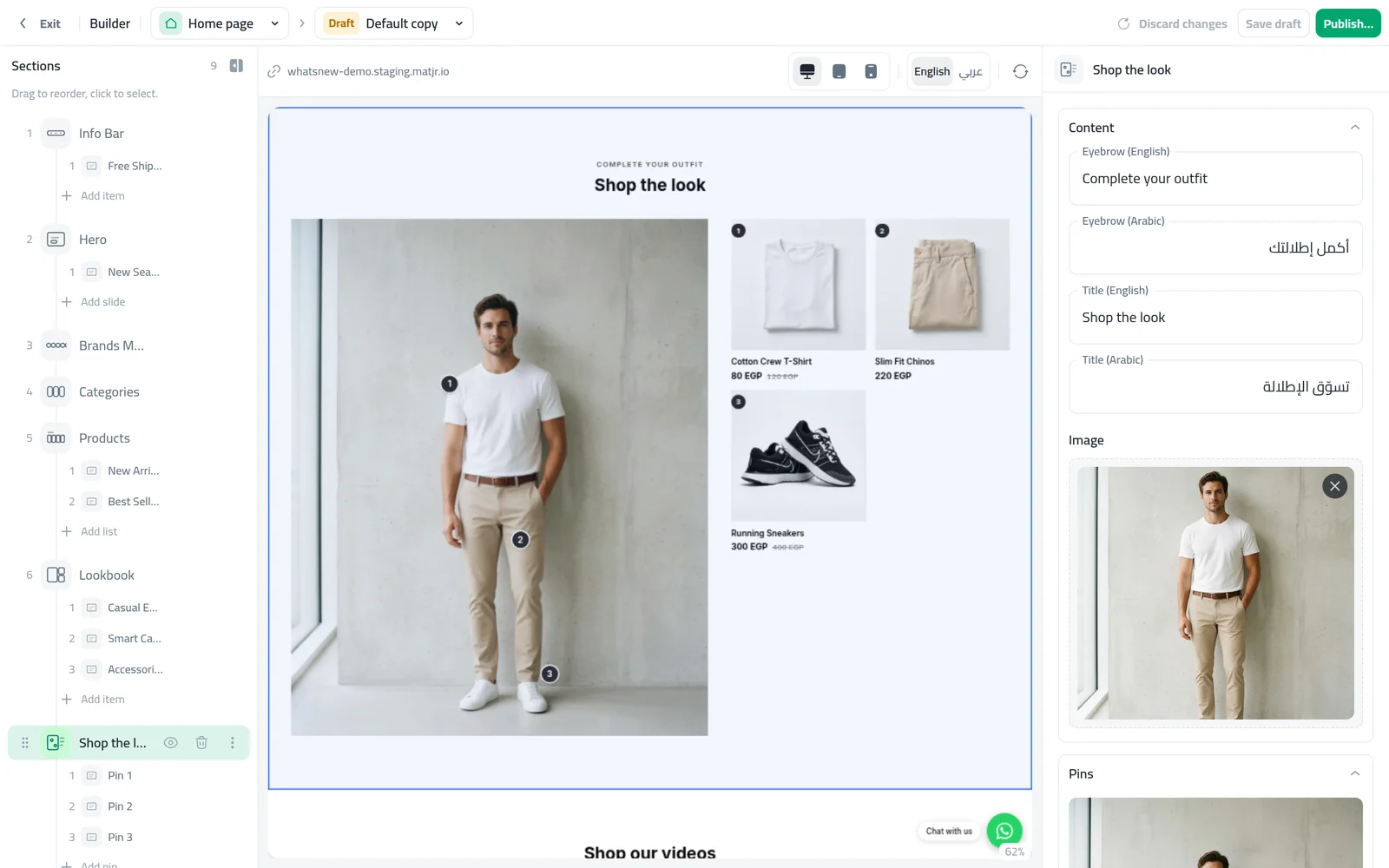
Choose Shop the look. Upload your photo under Image, and change the title if you like. Under Pins, click the photo where a product is to place a pin. Drag a pin to move it, or select it and use the arrow keys.
Click a pin and choose its Product. Do the same for each pin. A pin without a product is hidden in your store, so the photo never shows a pin that leads nowhere.
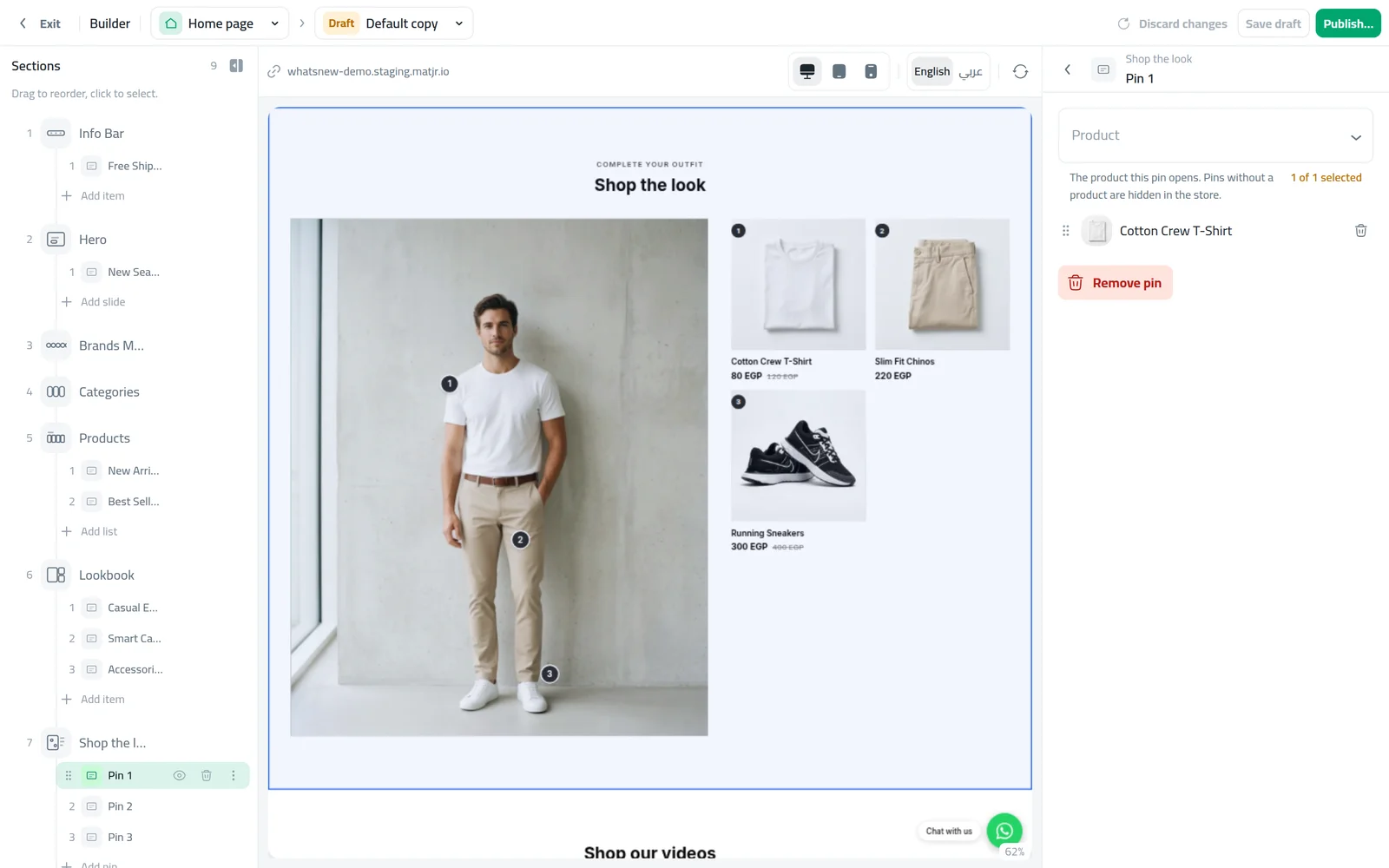
In your store, the pins are numbered and stay on the same spot of the photo in both Arabic and English. Shoppers tap a pin to open its product.
How to add shoppable videos
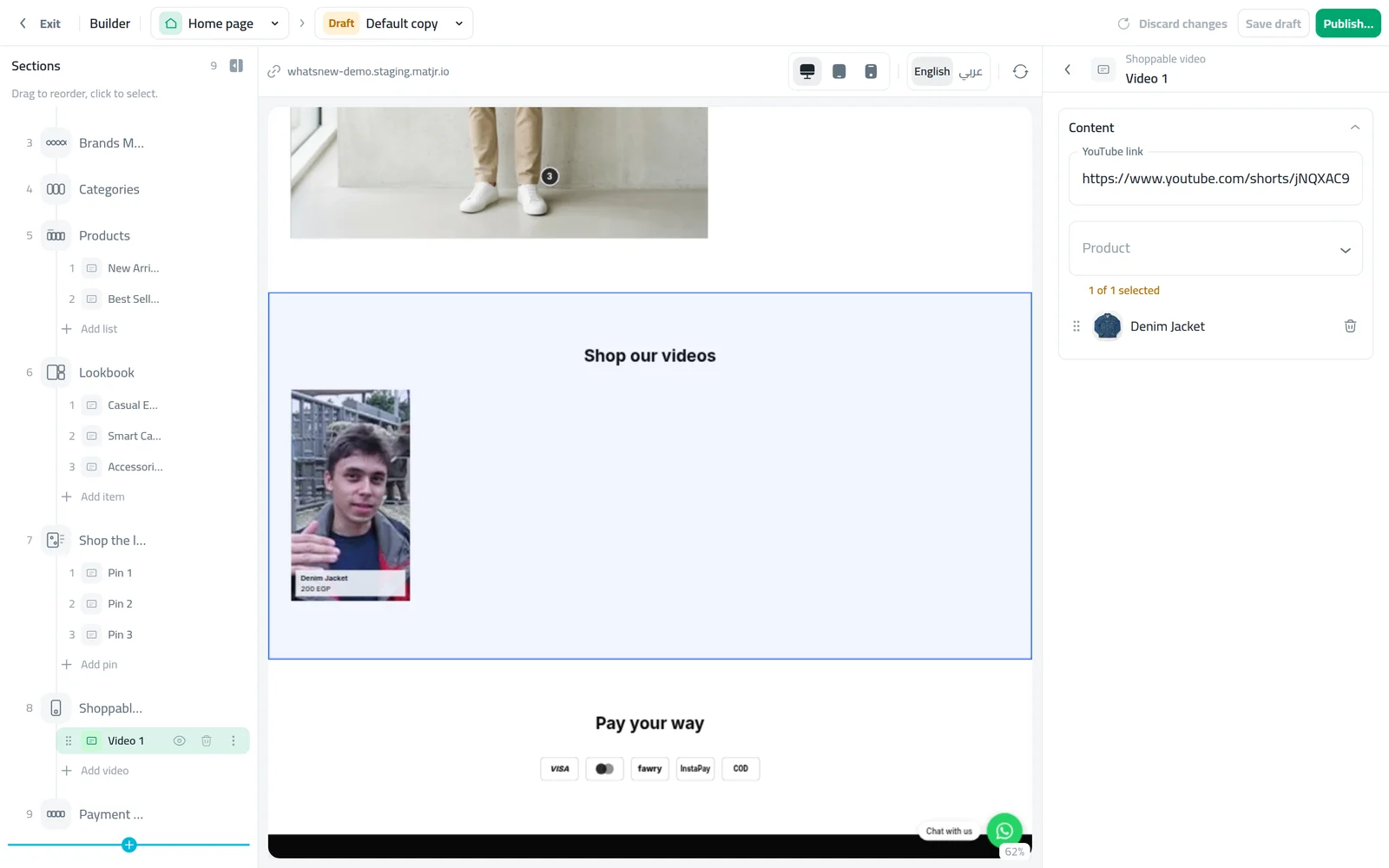
Add a Shoppable video section. Click Video 1 under it, paste the YouTube link and choose the Product. Click Add video for each extra video. If a link is not accepted, copy it again from YouTube.
In your store, the videos sit side by side in a row. Shoppers tap one to watch it full screen with its product, then open the product to buy it.
Save and publish
Check the preview on the computer and phone views. In a draft, click Save draft, then Publish… when you are ready. If you are editing your live page, click Save to live page.
Common mistakes
- Too many products in one photo. Pins on small or crowded items are hard to tap on a phone. Pick a photo where each product is large enough.
- Pins without a product. They do not show in your store, so a pin you forgot to finish simply disappears. Check every pin before you publish.
- Long videos. Shoppers scroll past long videos. Keep each one short and show the product early.
- Linking a product that is out of stock. Shoppers who tap it cannot buy. Swap the product or the video when stock runs out.
- Forgetting to publish. A section added in a draft does not show in your store until you publish the draft.
Related tasks
Plan the whole page: how to design your online store with the builder. Prepare a section without shoppers seeing it: how to hide a section on your store home page. Add the products you want to pin: how to add a product. See what these sections can do: let shoppers buy straight from your photos and videos.
Frequently asked questions
How do I make a photo on my store shoppable?
Add a Shop the look section to your home page, upload the photo, click it to place pins and choose a product for each pin.
Can I add videos from Instagram or TikTok?
No. Shoppable video takes YouTube links. Upload the video to YouTube, for example as a Short, and paste its link.
How many products can I link in one photo?
Up to 6, one per pin. For more products, add a second Shop the look section with another photo.
Why does a pin not show in my store?
It has no product yet, or the page is still a draft. Choose a product for the pin and publish the page.
Try it on your own store
Start your free trial. No credit card required.