Store design
How to hide a section on your store home page and show it again
How to hide a section on your store home page without deleting it, hide one slide or item, show it again and add a section between rows.
- Where
- Storefront Design › Design › Home page
- Time needed
- A minute per section
- Works on
- Sections, slides, testimonials and items
- Shoppers see it
- After you publish or save to your live page
If you want to know how to hide a section on your store home page without losing your work, the builder makes it a one-click job. You can hide a whole section, or just one slide, testimonial or item inside it, then show it again whenever you like. You can also add a section exactly between two others instead of at the end of the page. This walk-through covers all three.
When to hide a section instead of deleting it
Deleting a section throws away its photos, text and settings. Hiding keeps everything and only takes it off your store. Hide a section when you:
- Are still building it. Prepare a section over a few days and show it only when it is ready.
- Run seasonal content. Keep a Ramadan or back-to-school banner hidden for most of the year and show it again next season.
- Pause an offer. Hide a sale section or a single slide when the offer ends, and bring it back for the next one.
- Want to test a simpler page. Hide a few sections for a week and see whether shoppers buy more.
Before you start
Open Storefront Design in your dashboard and click Design, then choose the Home page. You can work on a draft or on your live page. In a draft, nothing changes for shoppers until you publish. On your live page, the change shows once you save it.
If you are planning a bigger change, such as preparing next season's sections, work in a draft. You can hide and show sections there as often as you like, check the computer and phone views in the preview, and publish everything together when it looks right.
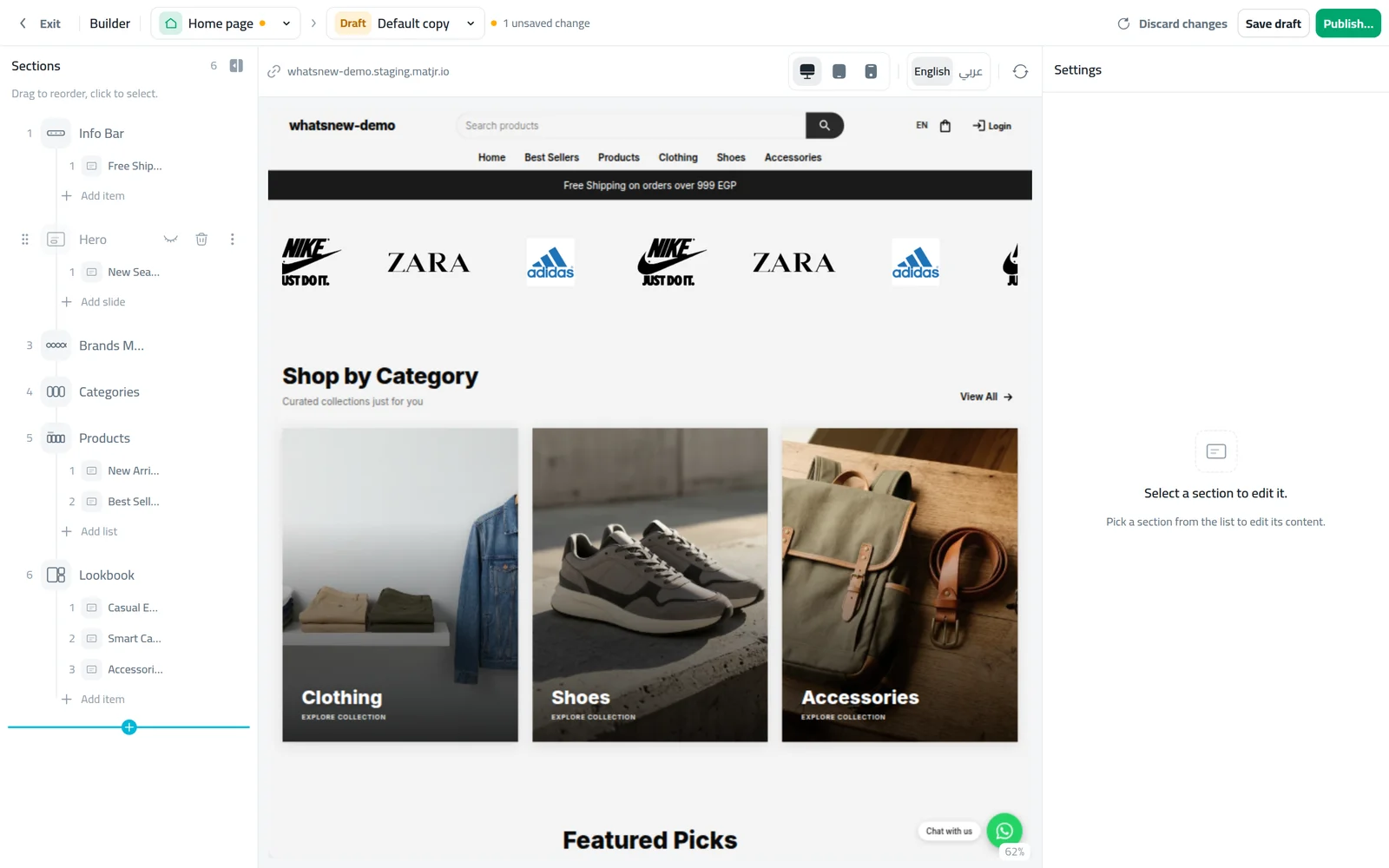
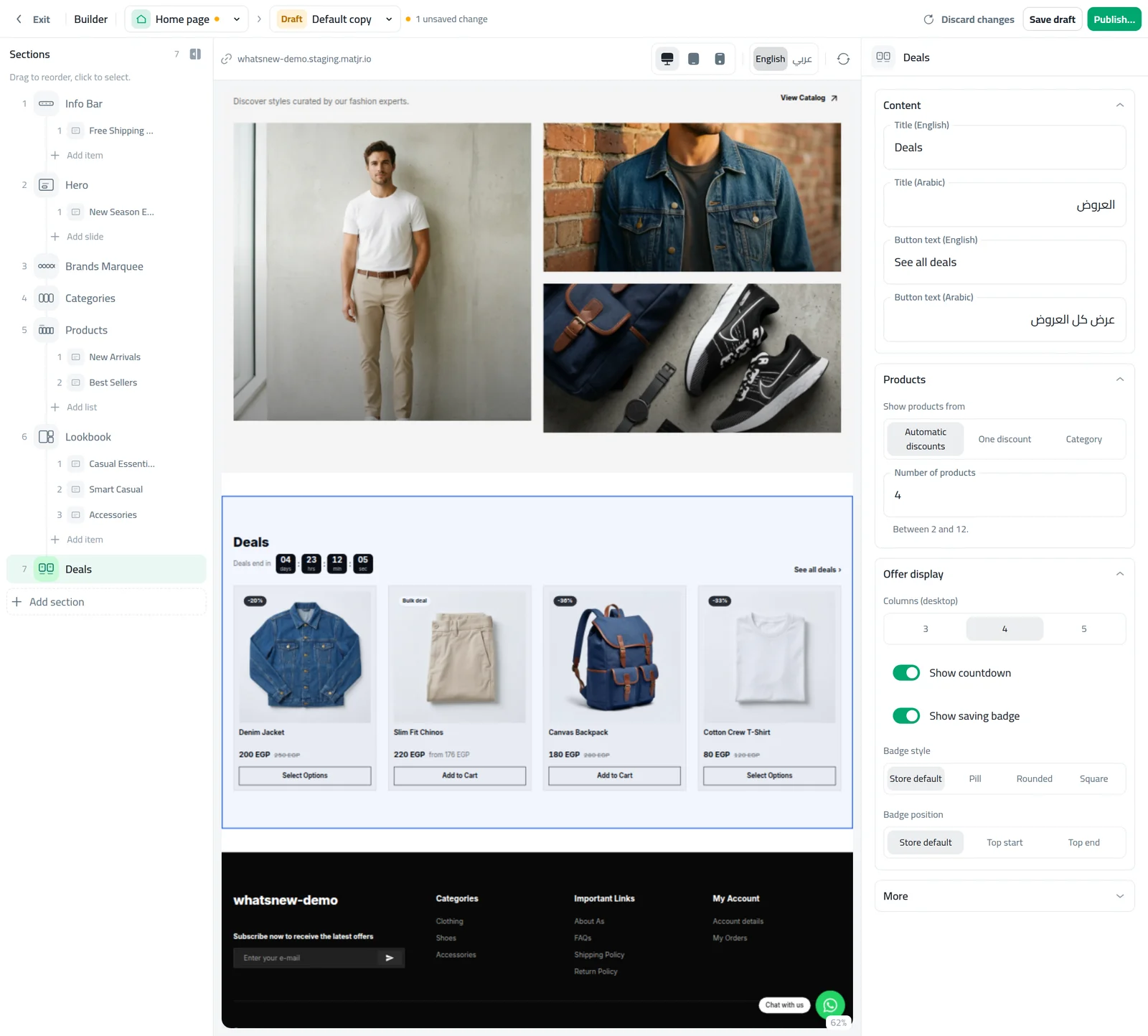
Open a draft of your home page, or start one from your live page. The Sections list sits beside the preview of your store.
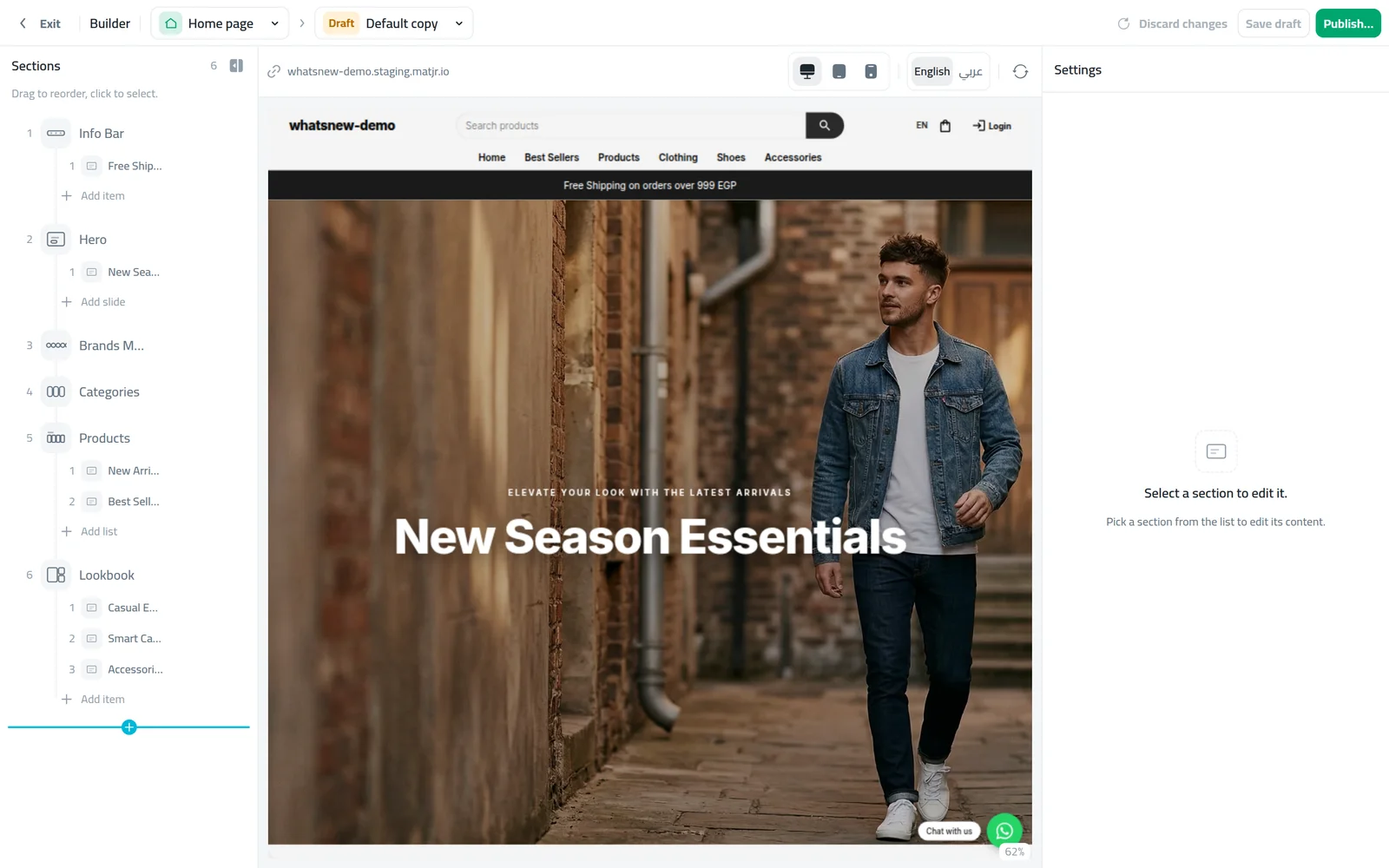
How to hide a section on your store home page
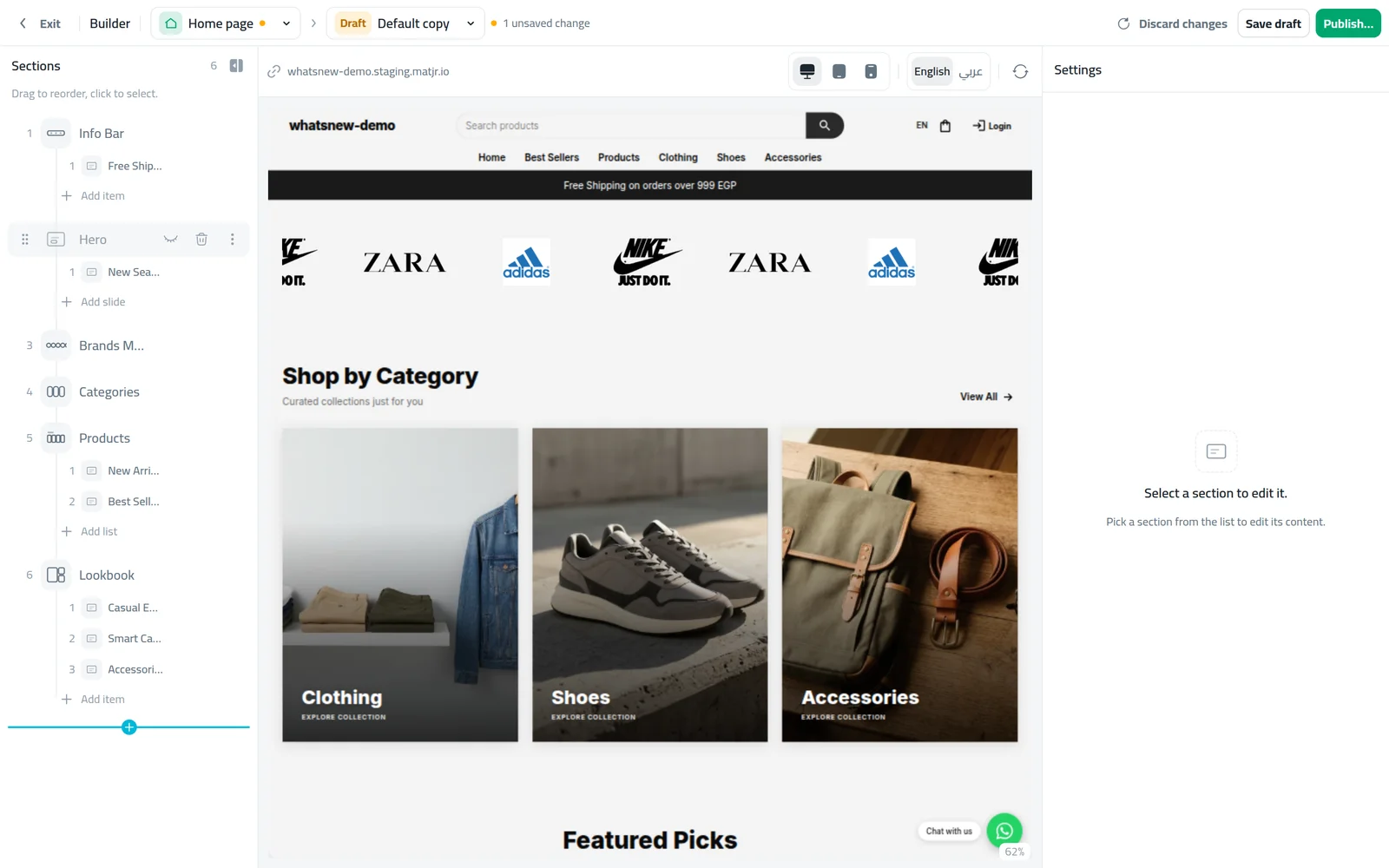
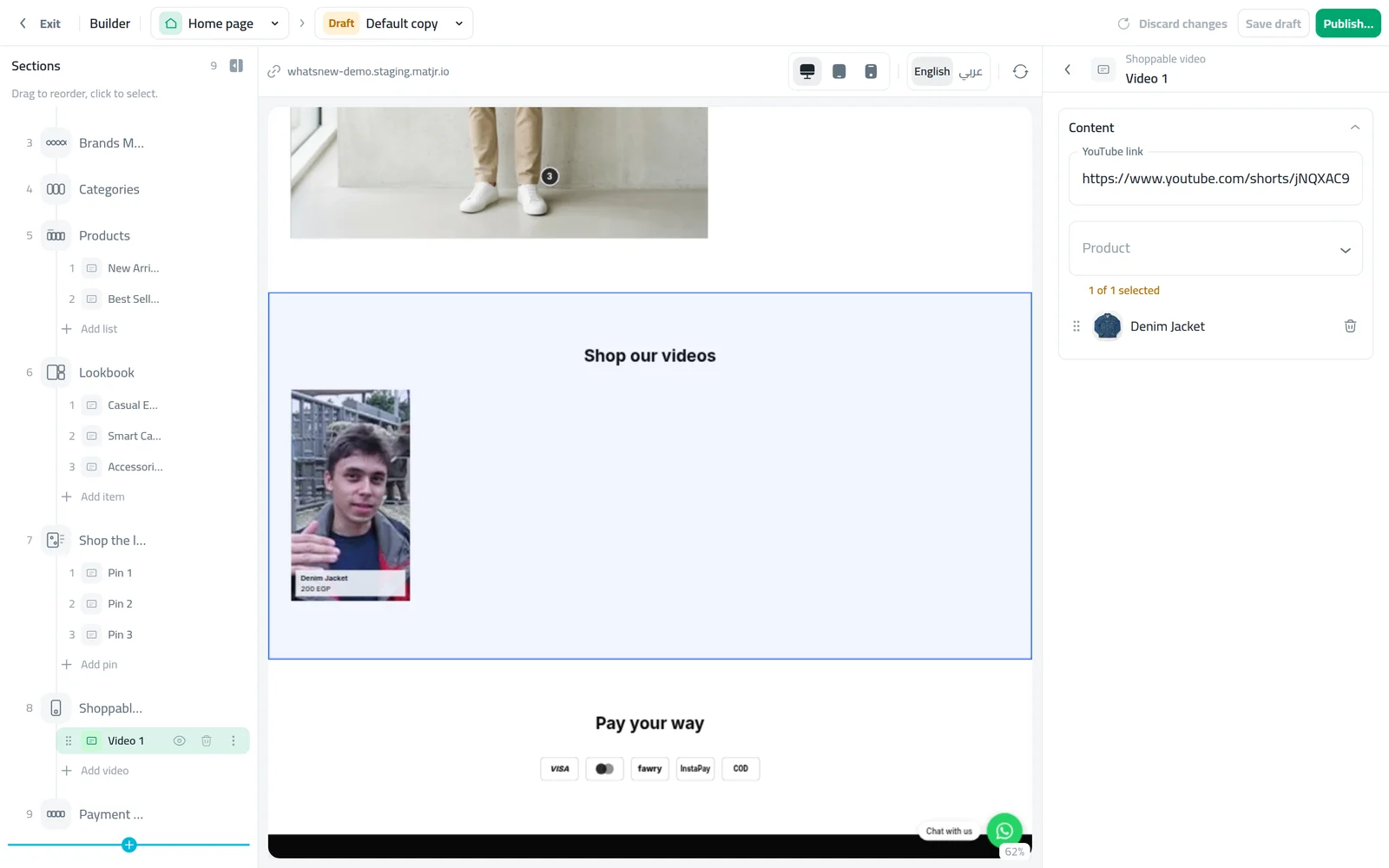
In the Sections list, point at the section you want to hide. An eye icon appears next to the bin. On a phone or tablet it is always shown.
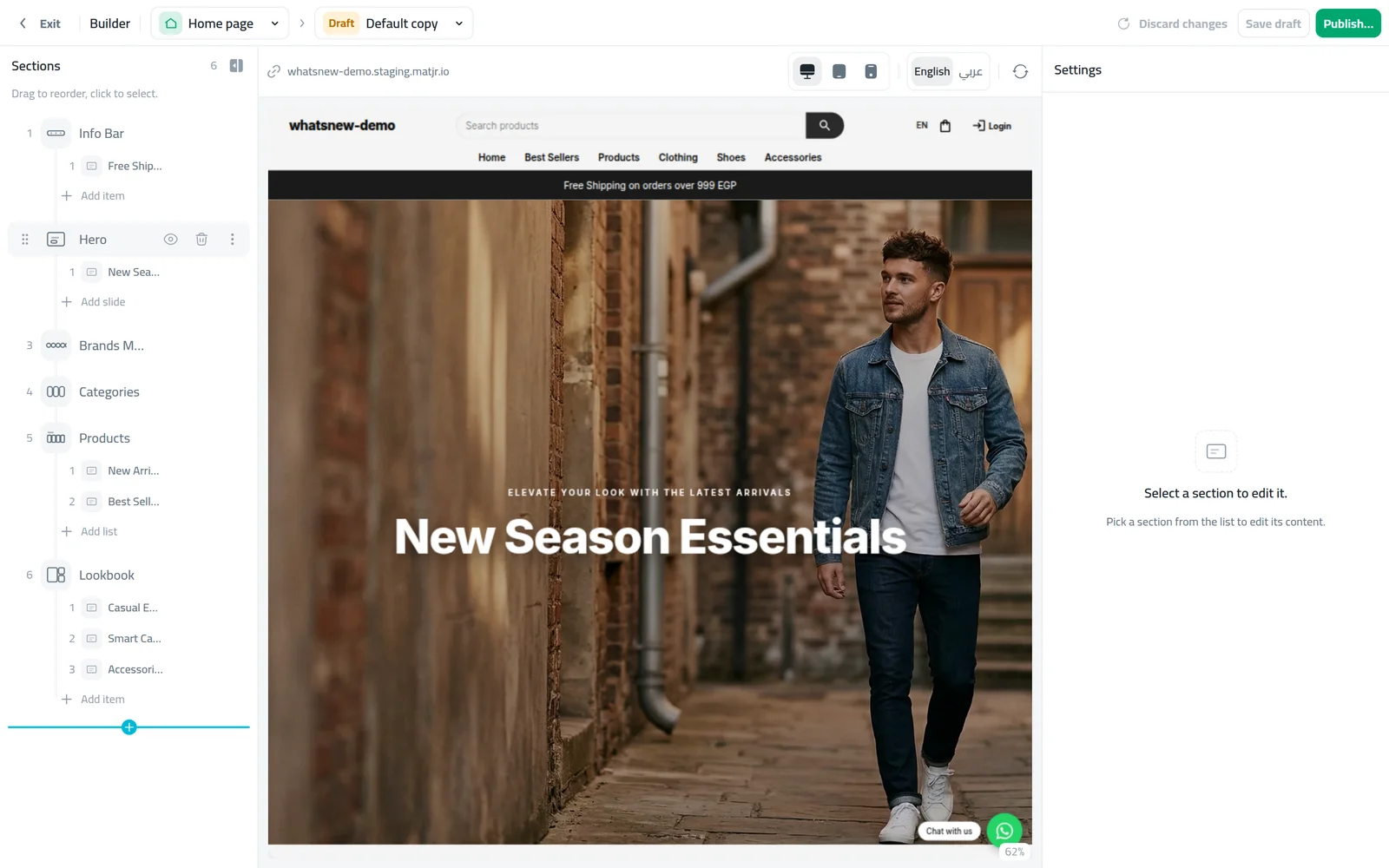
Click the eye (Hide section). The row turns grey with a crossed-out eye, and the section disappears from the preview. You can still click it to edit it, or drag it somewhere else.
Hide one slide or item
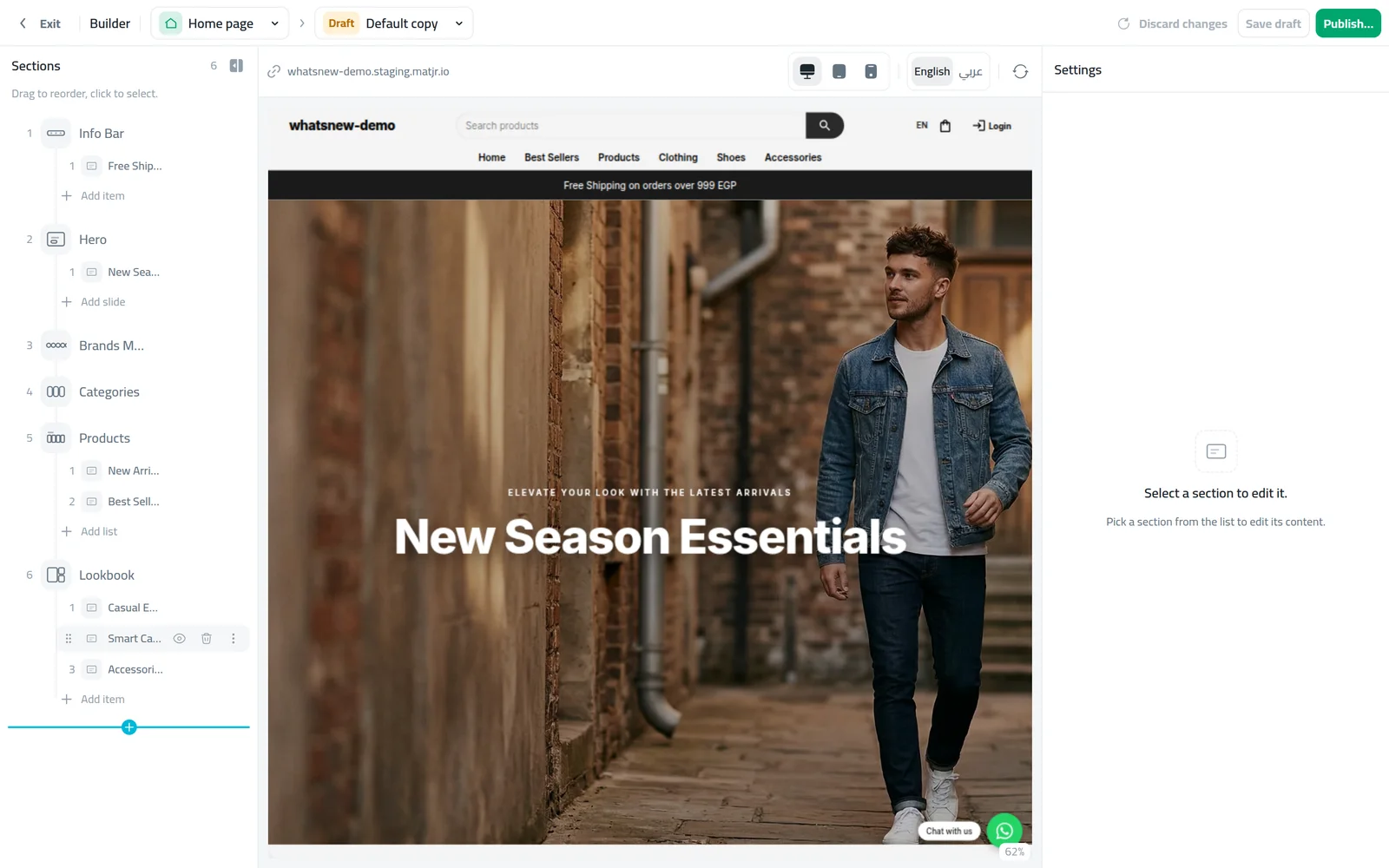
Sections with several parts, such as a slideshow, testimonials or a row of images, list each part under the section. Each one has its own eye.
Point at the slide or item and click its eye (Hide). Only that part leaves the preview; the rest of the section stays. If you hide every part, the whole section is hidden from shoppers.
Show a hidden section again
Point at the grey row and click the crossed-out eye (Show section, or Show for a slide or item). It comes back in the same place, with everything you had set.
Add a section between two rows
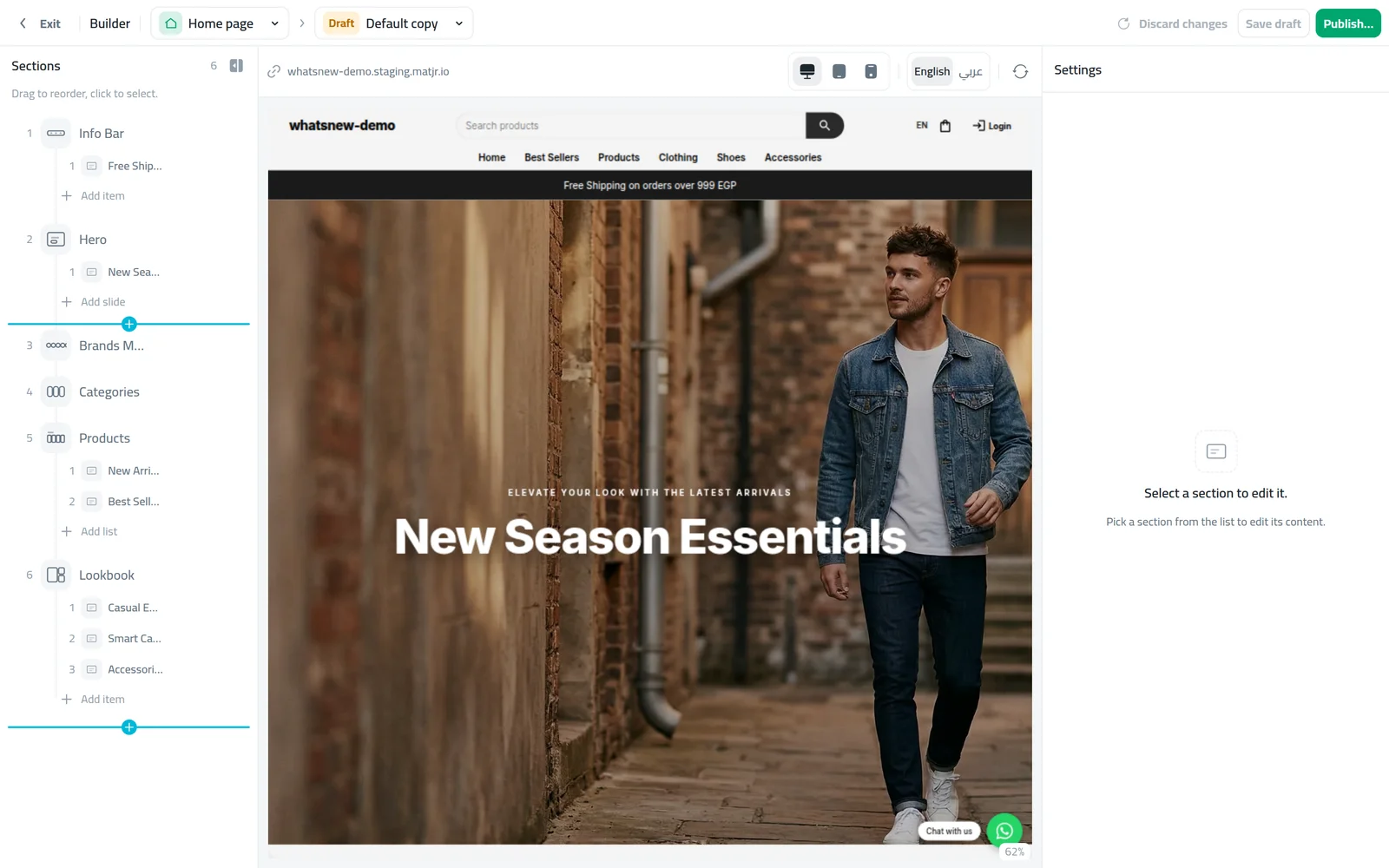
Point at the gap between two sections. A blue line with a + appears (Add section here). To add one at the very end, use the + after the last row.
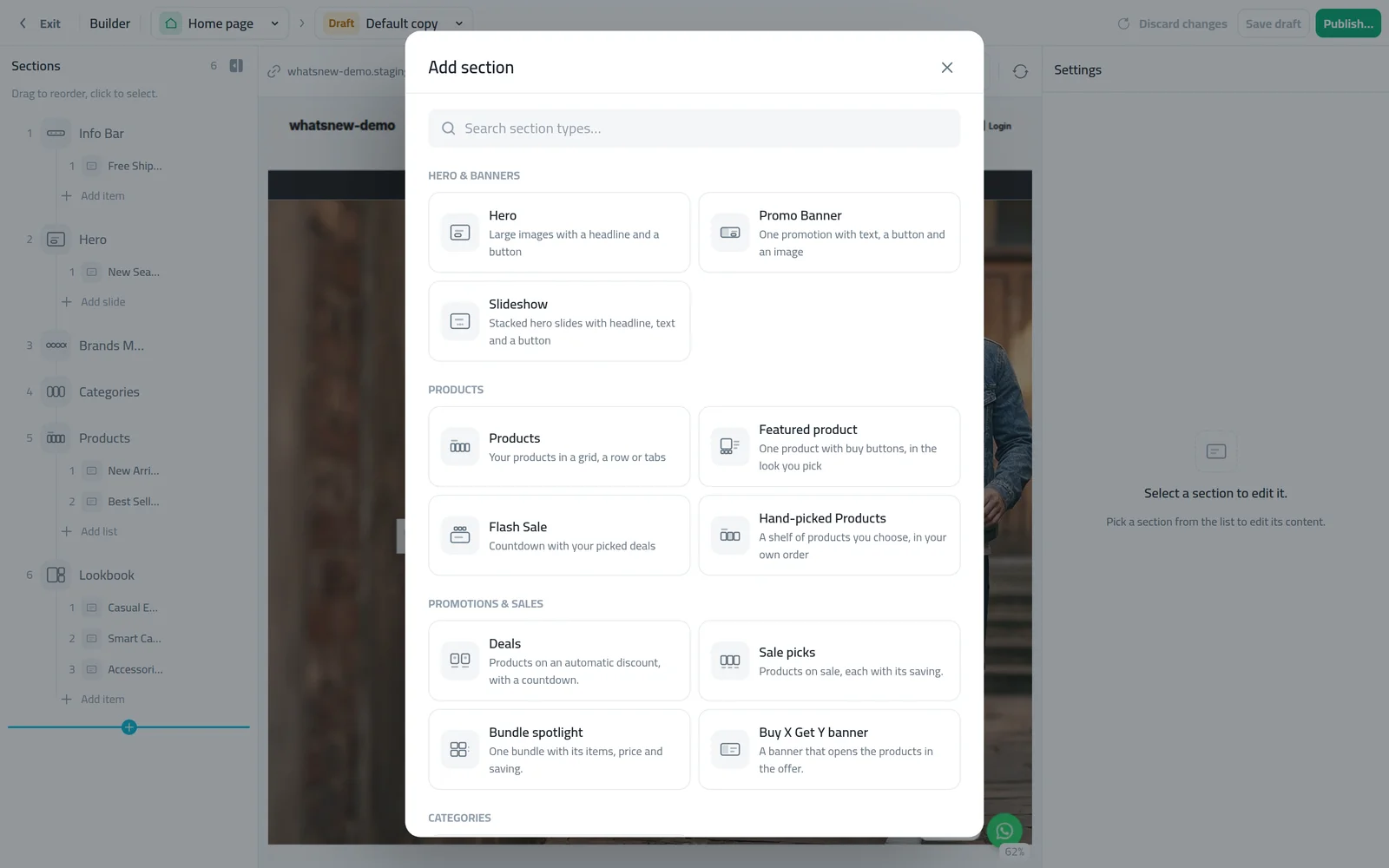
Click the + and choose the section type. It goes in at that spot, so you do not need to drag it from the bottom of the page.
Save and publish your changes
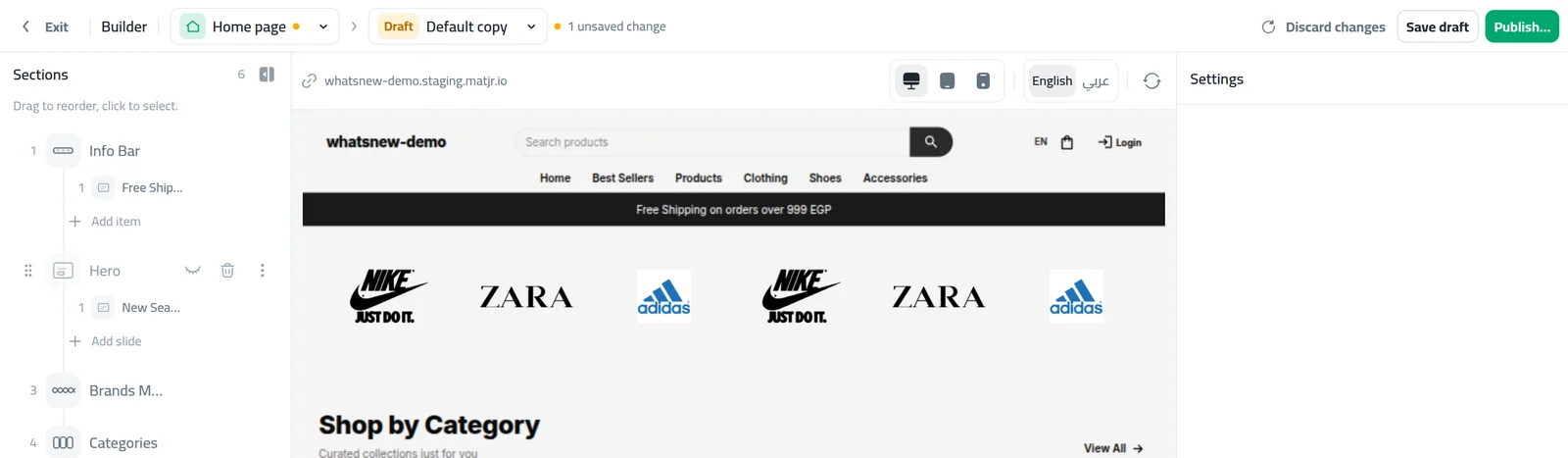
Hiding, showing and adding sections count as unsaved changes at the top of the builder. In a draft, click Save draft, then Publish… when you are ready. On your live page, click Save to live page. Shoppers see the change within a minute.
Common mistakes
- Forgetting to publish. Hiding a section in a draft does not change your store until you publish the draft.
- Deleting instead of hiding. If you might use a section again, hide it. A deleted section has to be built from scratch.
- Hiding every section. If all sections are hidden, your home page shows your products list. That works, but a short, well-chosen page sells better.
- Leaving old offers visible. When a sale ends, hide its section or slide the same day so shoppers do not see a deal they cannot get.
Related tasks
Plan the whole page: how to design your online store with the builder. Add a countdown for a limited offer: how to run a flash sale on your online store. Put your discounts on the home page: how to show offers on your store home page. See what changed in the builder: hide home page sections without deleting them.
Frequently asked questions
How do I hide a section on my home page without deleting it?
In the builder's Sections list, point at the section and click the eye icon. It stays in your page, hidden from shoppers.
How do I show a hidden section again?
Click the crossed-out eye on the grey row. The section comes back in the same place with all its settings.
Can I hide just one slide in a slideshow?
Yes. Each slide is listed under the section with its own eye. The other slides keep showing.
How do I add a section in the middle of my home page?
Point at the gap between two sections and click the + on the blue line, then choose the section type.
Why can shoppers still see the section I hid?
You hid it in a draft that is not published yet. Publish the draft, and shoppers see the change within a minute.
Try it on your own store
Start your free trial. No credit card required.